
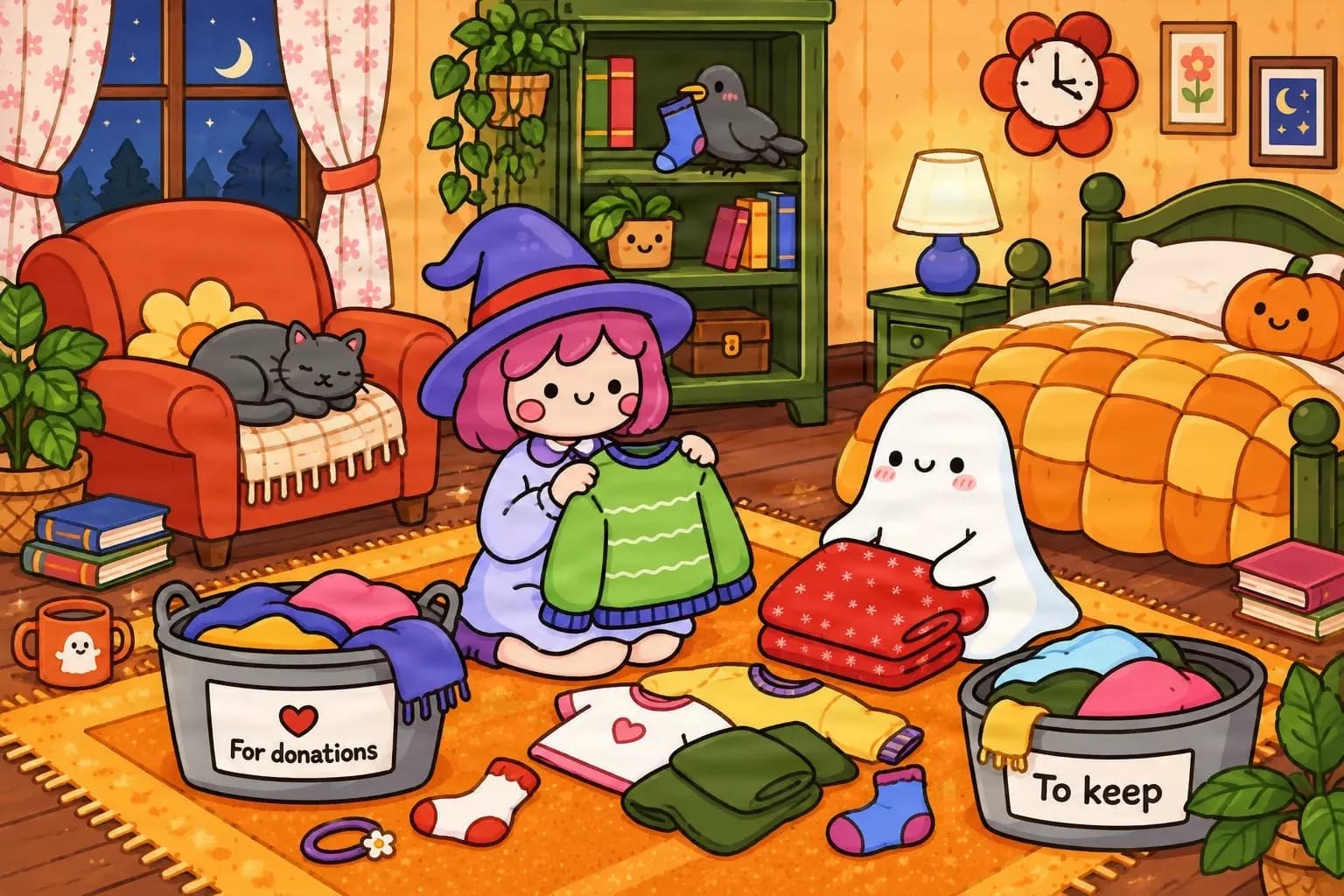
Original illustration
A finished illustration begins as one flattened image with its characters and room details combined.
AI image to layered PSD converter
Need to edit one part of an image, but everything is stuck together? Upload a JPG, PNG, or WebP and let AI separate recognizable subjects, objects, and backgrounds into individual raster layers. Export a layered PSD for continued editing in Photoshop.
Upload your image, use the available layer separation options, and inspect the result before exporting a layered Photoshop document.
Upload your image
JPG, PNG, WebP up to 10MB · Drag & drop anywhere
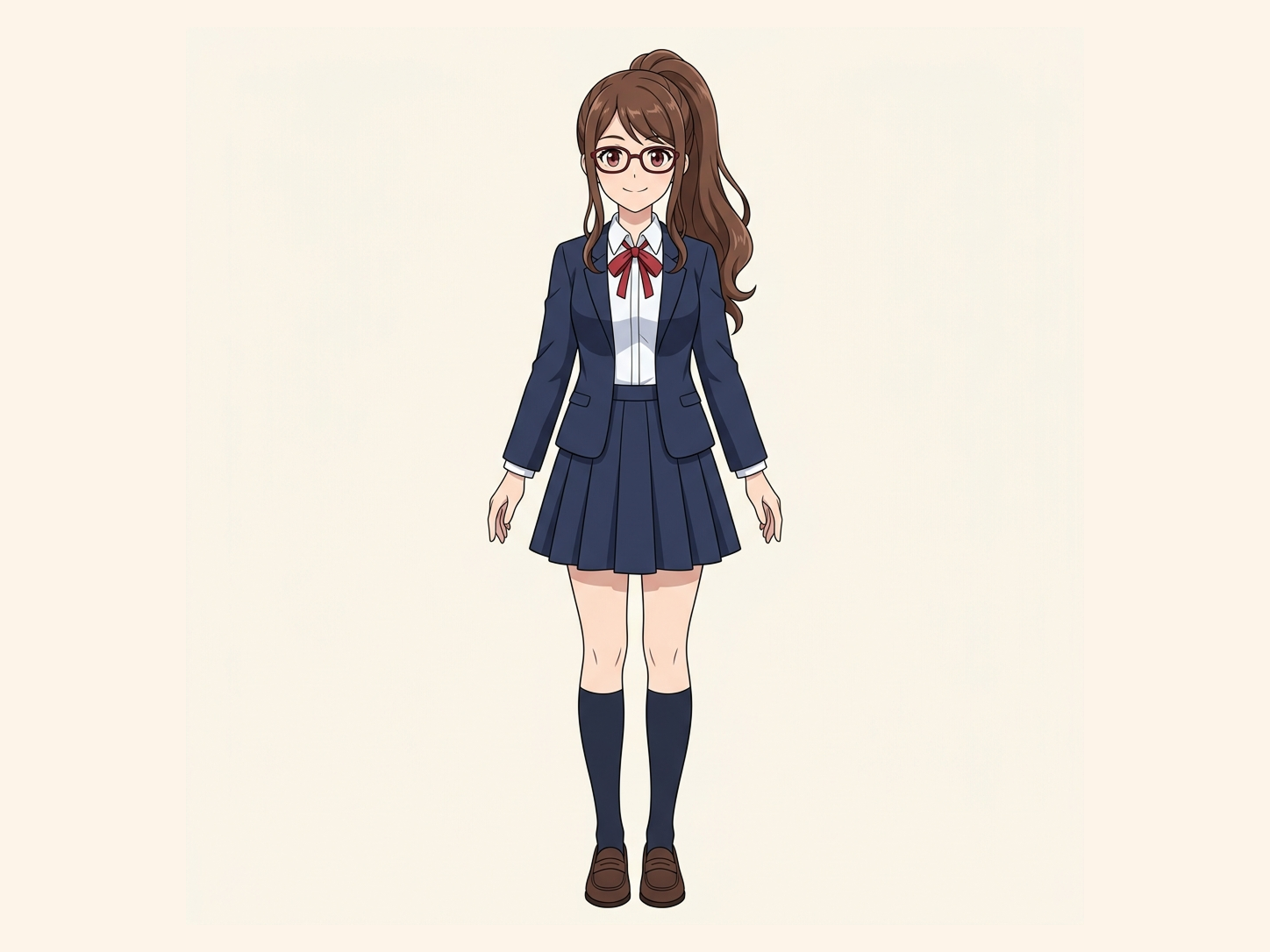
Need hair, face, eyes, mouth, clothing, or body-part layers?
Leave this blank to let Detailed Layers identify the main editable elements automatically. Or name the parts you want separated.
Want more control over your layers?
Learn how to guide Detailed Layers with simple prompts, choose useful elements, and get cleaner layer structures from different types of images.
Upload an Image to Continue
Private File Handling
Uploaded files are associated with your account and delivered through signed URLs. You can delete completed jobs manually.
Transparent PNG Output
Detailed Layers returns each detected element as its own layer on a transparent background.
Open the layered result in Agent Workspace to clean up elements, create visual variations, or continue working from the same project.
Review the generation cost shown in the workspace before starting. Available export options depend on your account.
The real difference
You can open almost any JPG or PNG in Photoshop and save it as a PSD, but that does not automatically make the image easier to edit. A useful layered PSD gives you more control over different parts of the picture.
Do not just convert the file extension. Create a more useful starting point for your next edit.
Real layer separation example
This existing 17-layer illustration output demonstrates how recognizable subjects and objects can be separated from a flat image.
A finished illustration begins as one flattened image with its characters and room details combined.
These transparent elements are selected from an existing illustration-separation example. Results from your image may differ.
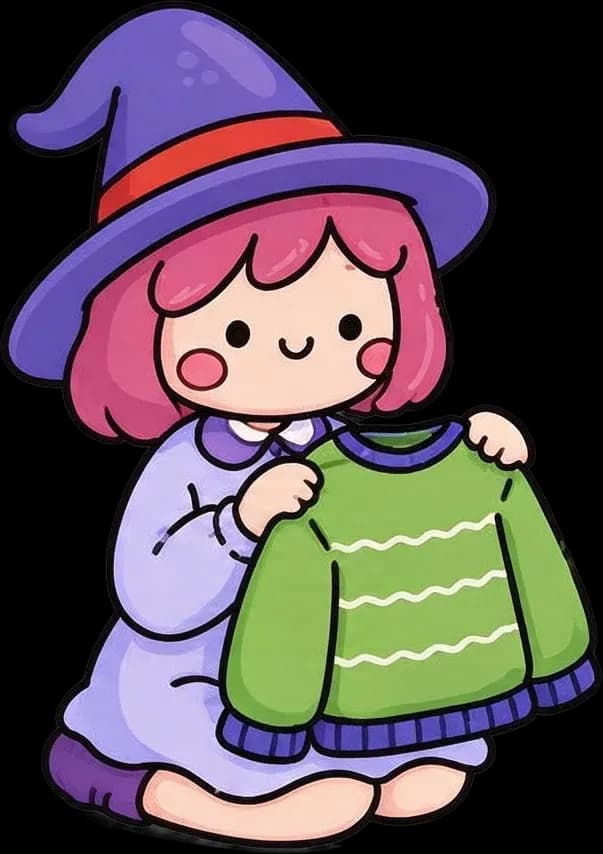



The example comes from a general illustration layer-separation workflow. It demonstrates independent image assets, not a verified PSD export from this specific page.
This is a general illustration layer example, not a result generated by the Image to Layered PSD page. The objects and layer grouping shown may differ from your own image.
Separate visual elements into individual layers while reconstructing the background hidden behind them.
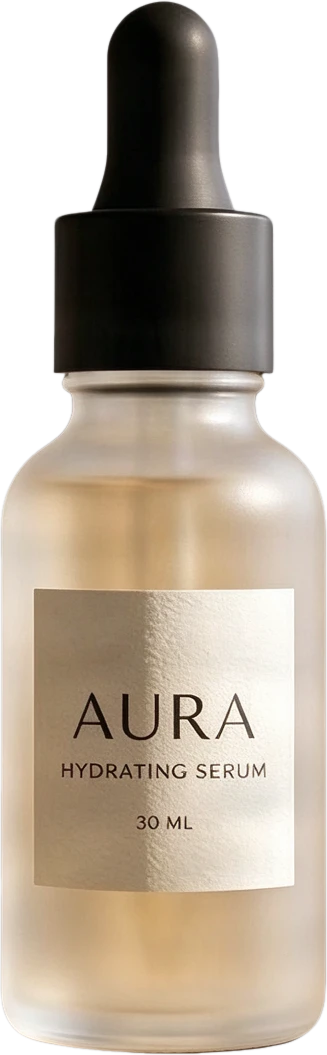 08
08AURA serum bottle
Frosted clear serum bottle with black dropper cap and AURA typography, presented as a standalone product.
 07
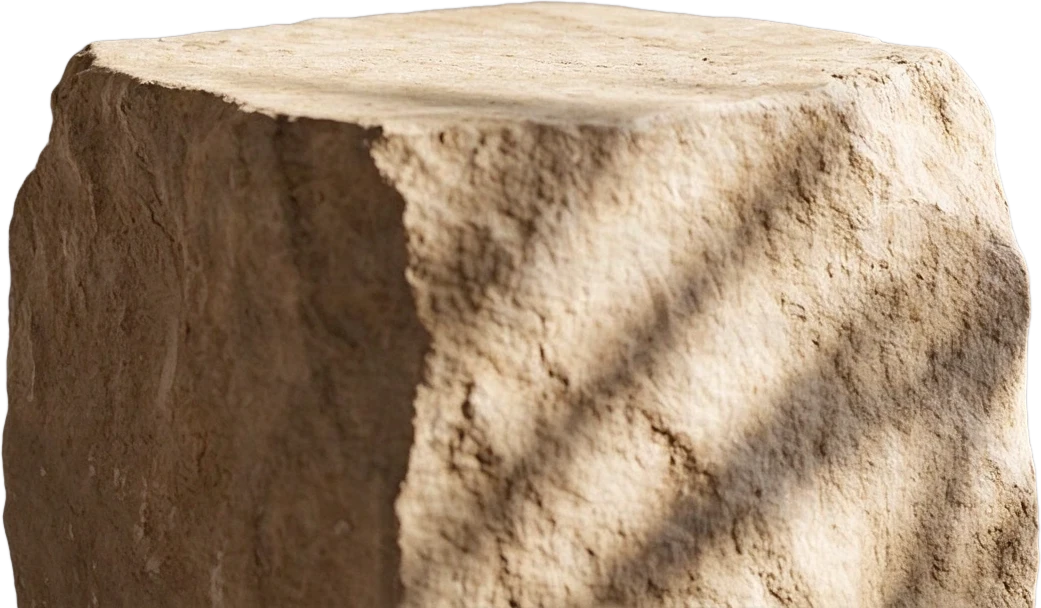
07Stone display stand
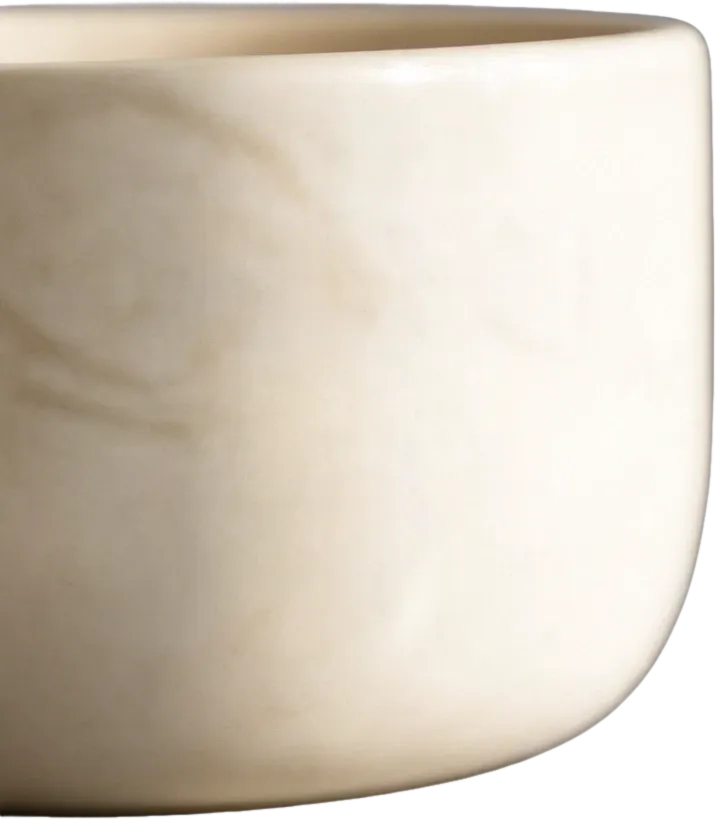 06
06White ceramic bowl
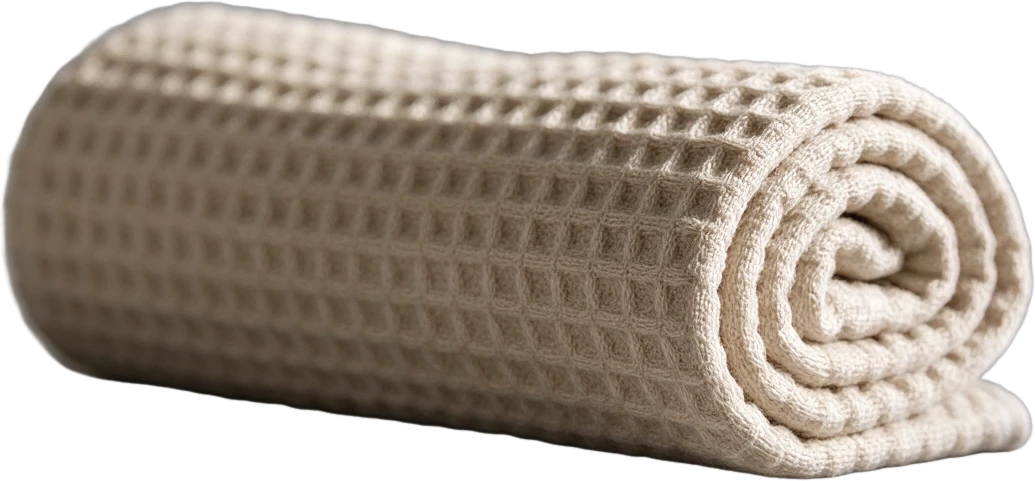 05
05Rolled waffle towel
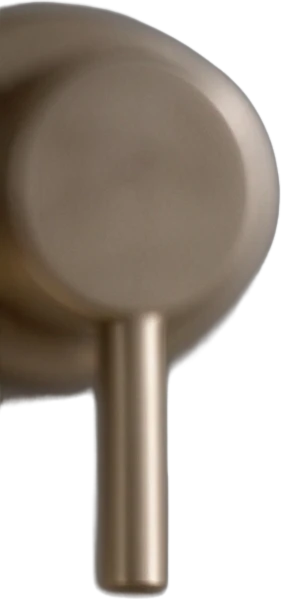 04
04Metal faucet
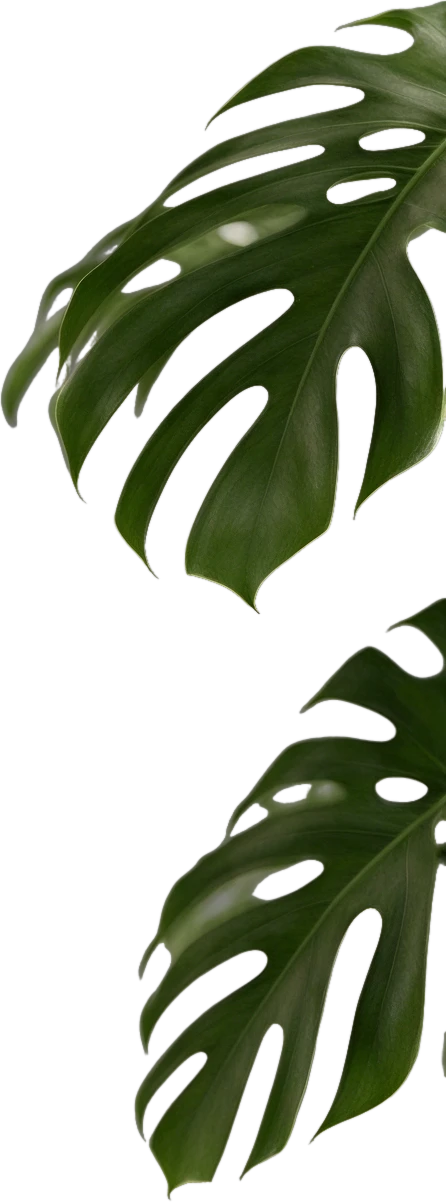 03
03Monstera leaf
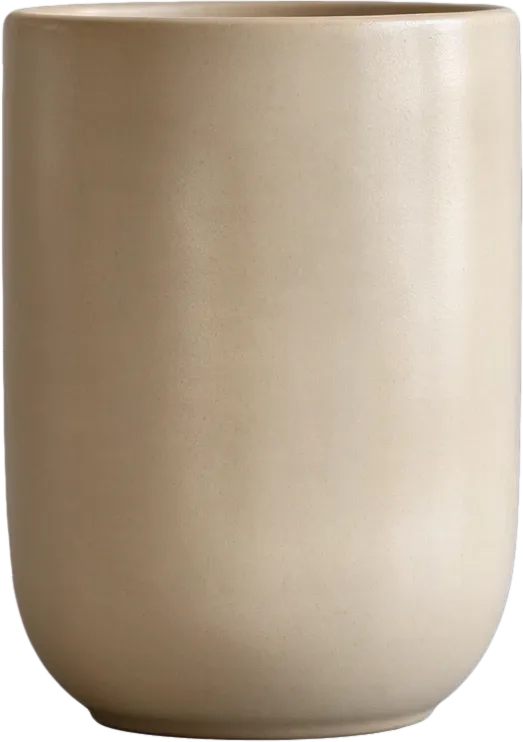 02
02Beige ceramic cup
 01
01Circular window decor
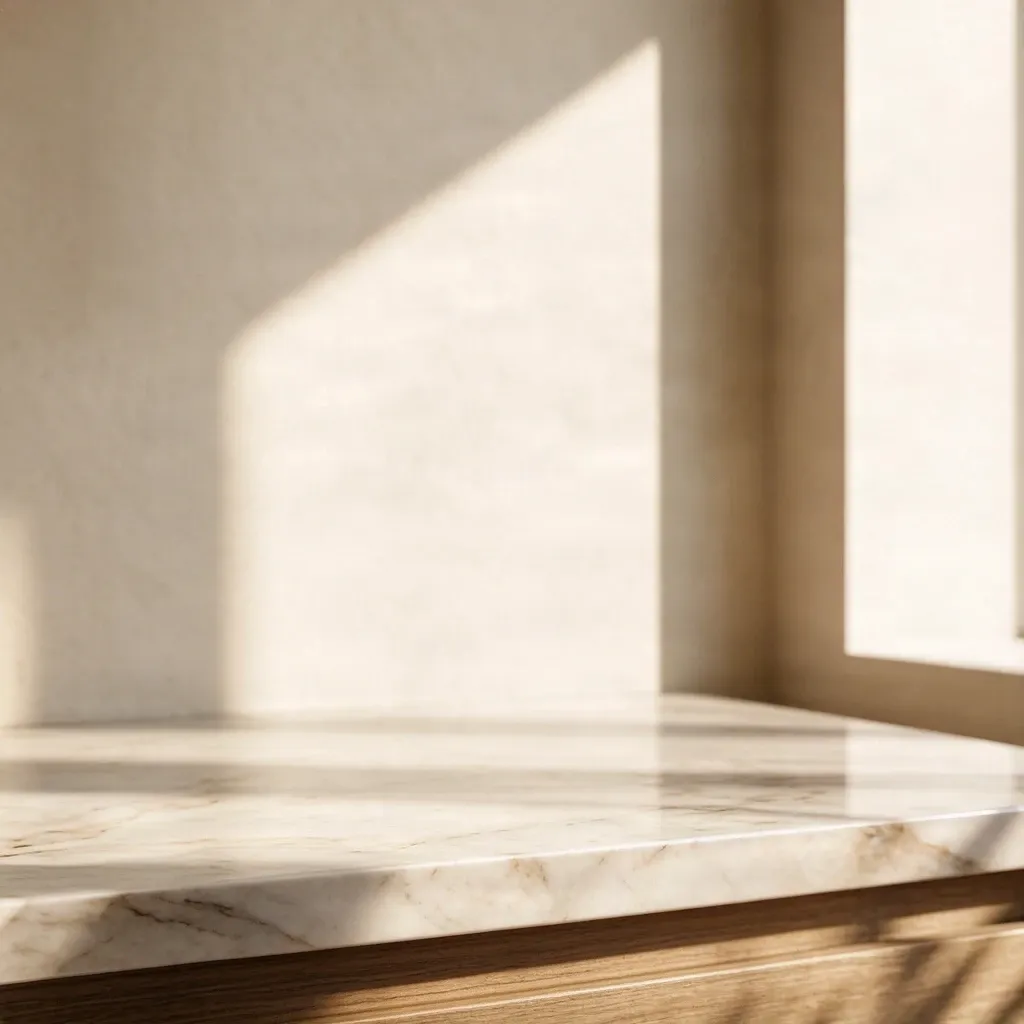 00
00Inpainted background
Final Layers
Background removers create a transparent cutout. ImageToLayers also reconstructs the area hidden behind the subject, giving you complete assets for editing and composition.
Most images are processed in 60–120 seconds.
Editable Photoshop layers
When elements are successfully separated, the generated PSD gives you more flexibility than one flat image layer.
Make targeted edits with newly generated image layers instead of treating the picture as one unchangeable object.
Not every object is guaranteed to become a separate layer. Check the output before relying on it for a final design.
JPG to layered PSD
Your client sent the final JPG, the original layered file is missing, and now one object or the background needs to change. Simply saving the JPG as a PSD will not bring back the original layers.
AI-assisted layer separation can attempt to create a new editing structure from visible image content.
PNG to layered PSD
A PNG can have transparency and still contain all its visible artwork on one flattened image layer. The workflow attempts to separate recognizable elements into a new structure that you can export as PSD.
What is inside the image
AI analyzes the visible composition and attempts to identify meaningful visual elements. Fine details, small objects, and heavily overlapping elements may remain grouped or need manual correction.
Background reconstruction
When an object is extracted, the original image does not reveal the details that were hidden behind it. AI may estimate some of those background regions using surrounding image content.
Generated background regions are estimates. They may introduce new details or differences, especially in complex scenes.
Photoshop workflow
AI can assist with initial preparation. After export, inspect the layers and transparency, check important object boundaries, refine masks or reconstructed areas, and rearrange elements in Photoshop or a compatible editor.
Add native text, adjustment layers, and other effects yourself. AI prepares the layers; you make the final creative decisions.
Real design workflows
Give finished images a more flexible second life when the original source project is unavailable.
Know your output
A generated PSD can contain independent layers without containing the exact editing objects from the original project. The result is a new raster-layer interpretation, not an exact recovery of the source document.
Get more useful results
Recognizable subjects and distinct boundaries are often easier to separate. Inspect each layer before exporting and make final adjustments in your preferred editor.
Choose your conversion workflow
Use the general Image to PSD converter for broad JPG, PNG, and WebP conversion intent. This page focuses on a PSD with multiple independently editable raster layers. Both use the existing image separation technology.
Related tools
Convert a JPG, PNG, or WebP image through the general layered PSD workflow.
Explore this toolRebuild a useful editing structure when only a flattened picture remains.
Explore this toolSeparate recognizable characters, props, and backgrounds within finished artwork.
Explore this toolCreate a transparent foreground, reconstructed background, and subject mask.
Explore this toolPrepare independent image assets with the general-purpose layer separation workspace.
Explore this toolUpload a supported JPG, PNG, or WebP, generate visual layers, review the separation, and choose the available PSD export. The document contains new raster layers based on visible image elements.
Yes. AI-assisted separation can attempt to identify objects and background regions in a flattened JPG and prepare them as separate raster layers.
Yes. Upload a PNG and use the existing layer generation workflow. The PSD may contain separate subjects, objects, and background elements where the AI can distinguish them.
The workflow is designed to export a Photoshop-compatible document with raster image layers rather than only the original flat image. The exact layers depend on the input and selected options.
Yes. A conventional converter may place a flattened image inside a PSD container. This workflow attempts to create separate image elements before export.
Yes. You can open the supported layered PSD export in Adobe Photoshop and continue editing its raster layers.
When an object has been successfully separated into its own layer, you can move, hide, resize, or modify that layer independently.
It can attempt to separate recognizable subjects and background regions, depending on the image complexity and processing options.
Some results may include AI-generated content for previously hidden background regions. These are estimates and should be reviewed before final use.
No. Closely overlapping objects, fine details, and visually ambiguous elements may stay grouped.
The number depends on the processing options and how the model interprets the image. A fixed number of independent layers is not guaranteed.
No. The new layers are raster images, not native vector shapes or paths.
Not automatically. Text in the source image may remain rasterized. Native Photoshop text may need to be recreated.
No. The original layer structure and editing history cannot be recovered exactly from a flattened picture. AI creates a new visual layer arrangement.
You can use the online separation workflow without Photoshop. A compatible editor may be useful afterward to inspect or refine the exported PSD.
The existing result workflow includes supported individual image-layer exports. Check the available options for your result and account.
Clear images with recognizable subjects and distinct objects are often a better starting point. Crowded compositions and subtle boundaries may need manual cleanup.
Commercial use depends on the service terms and your rights to the uploaded image. Review the generated assets before professional delivery.
Not always. AI-generated layers can change edges, textures, colors, or obscured regions. Use the original image as a reference when reviewing the result.
This is a credit-based AI workflow, not a free file conversion. The workspace shows the applicable generation cost, and available export features depend on your account.
Upload a JPG, PNG, or WebP and generate a new layered image structure you can continue working with in Photoshop.
No original Photoshop project required. Review the generation cost before processing.
AI creates new raster layers from visible image content. It does not recover original Photoshop layers, editable fonts, vector paths, or design history.
Creative Toolkit Index
Quick access to precision layer extraction, AI photo editing & asset tools.