
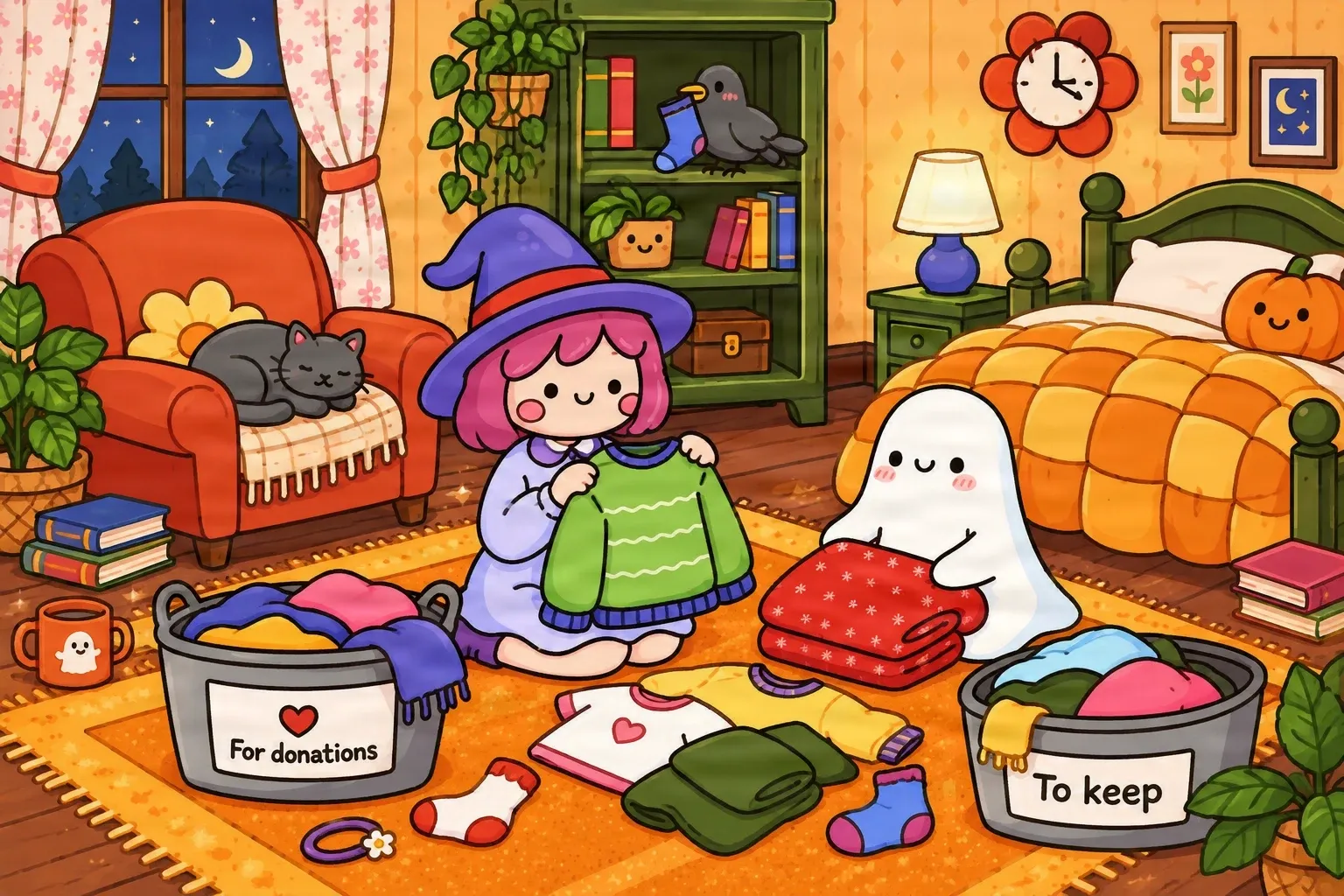
Original artwork: one flat bedroom illustration
Characters, furniture, props, and the room are combined into one finished image.
Separate characters, objects, and backgrounds from one flat illustration.
Upload a finished illustration and turn its visible subjects, objects, and background into separate editable image layers. Start with the PNG or JPG you already have; no original layered project is required.
Upload your image
JPG, PNG, WebP up to 10MB · Drag & drop anywhere
Leave this blank to let Detailed Layers identify the main editable elements automatically. Or name the parts you want separated.
Separate the whole illustration
Designed for finished artwork containing characters, scenery, props, and decorative details. Extract recognizable scene elements while keeping complete objects together.
Upload an Image to Continue
Private File Handling
Uploaded files are associated with your account and delivered through signed URLs. You can delete completed jobs manually.
Transparent PNG Output
Detailed Layers returns each detected element as its own layer on a transparent background.
Check the credit cost shown in the workspace before generating.
For better results
Real example
A complete illustration may look perfect as one image, but making changes becomes difficult when everything is flattened together. Our showcase uses a cozy cartoon bedroom with a little witch, a friendly ghost, a cat on an armchair, a bookshelf, a bed, and baskets of clothes. It shows how a full scene can be organized into separate visual elements.
Characters, furniture, props, and the room are combined into one finished image.
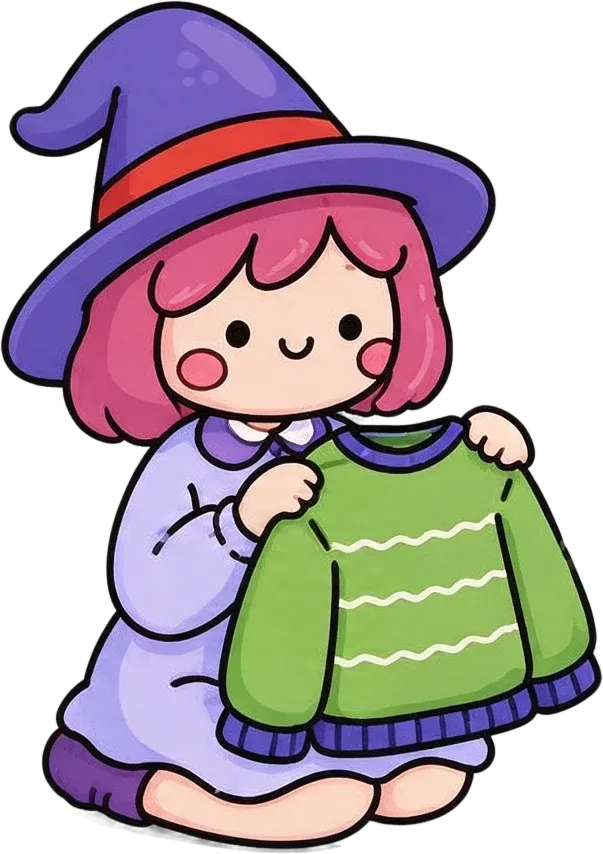

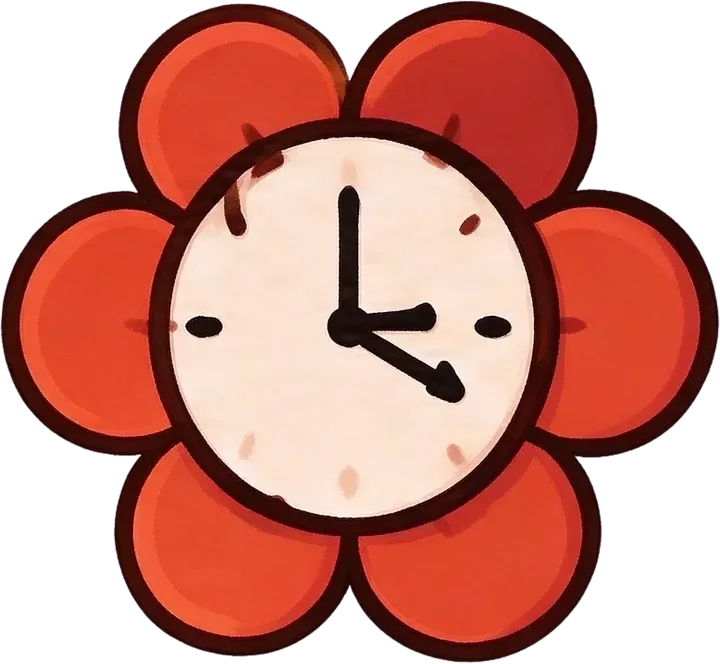
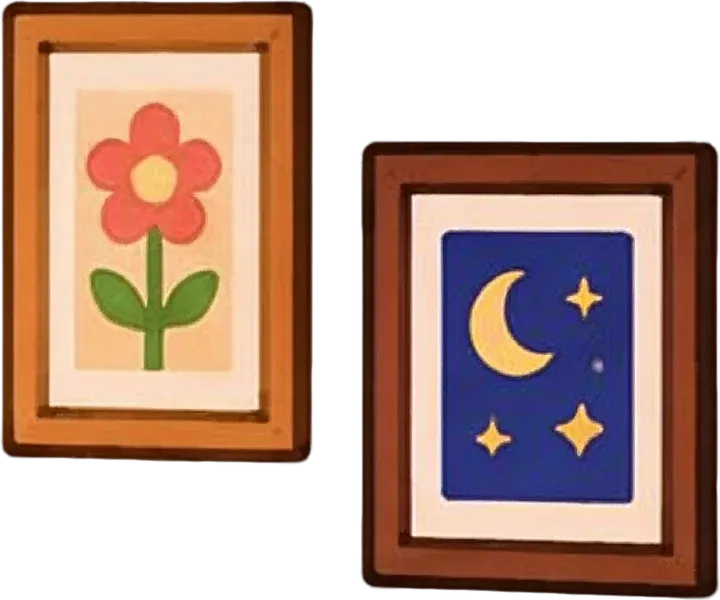
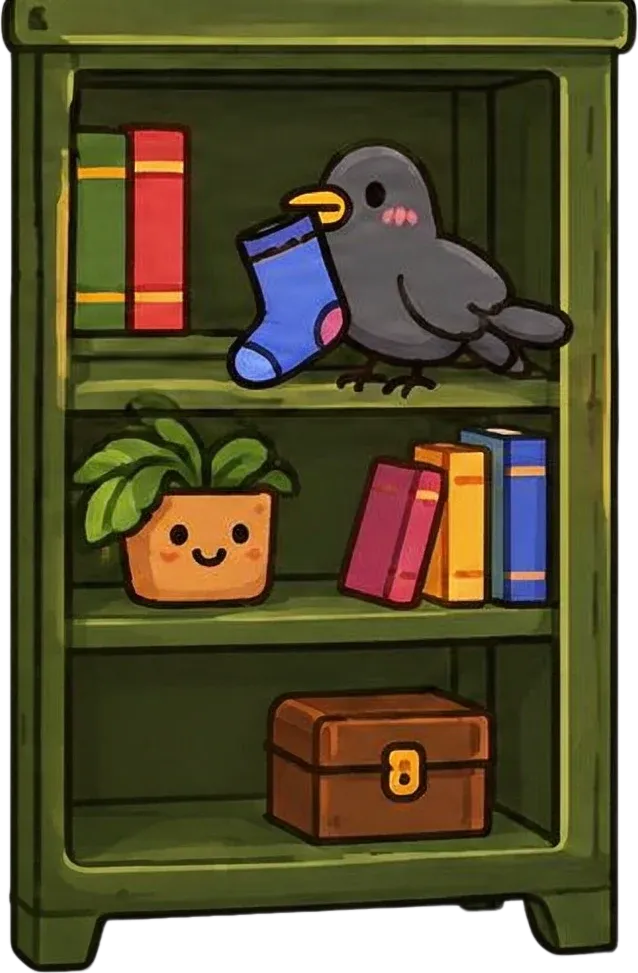
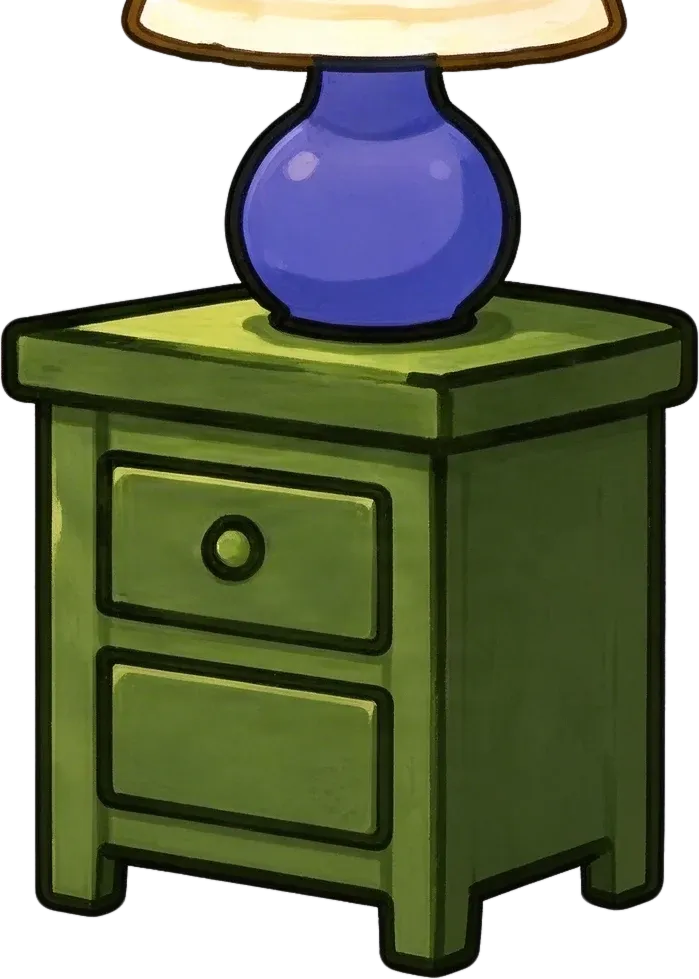
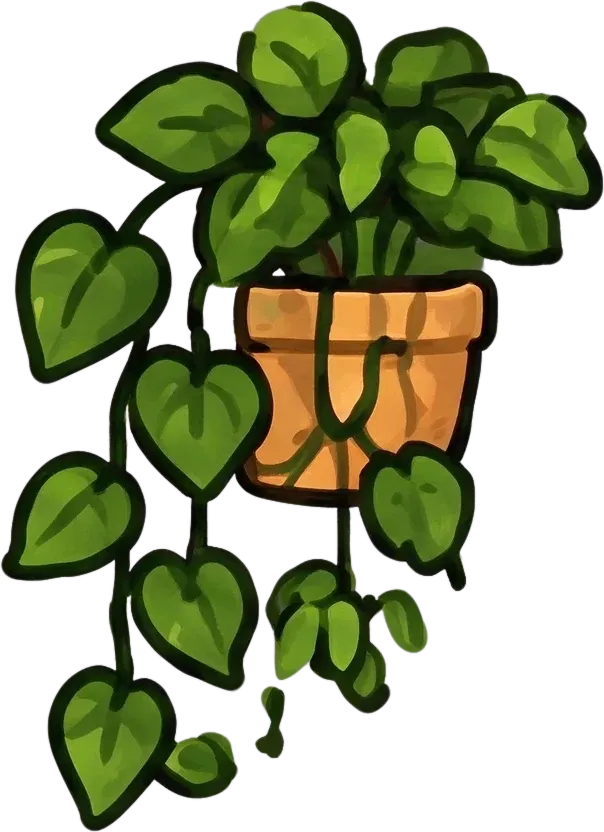

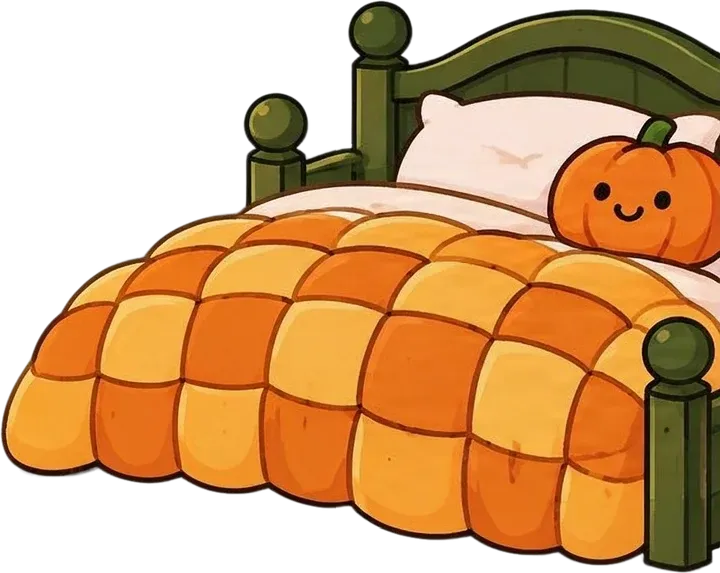
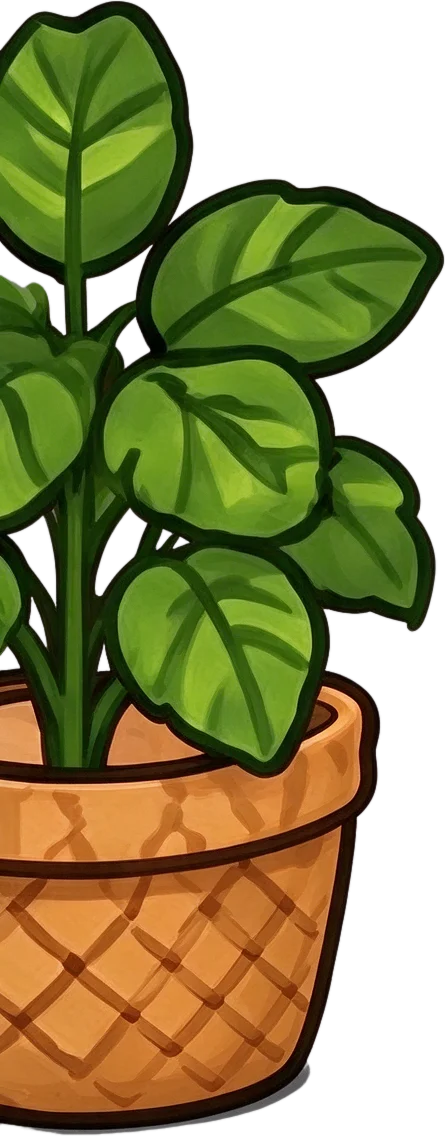
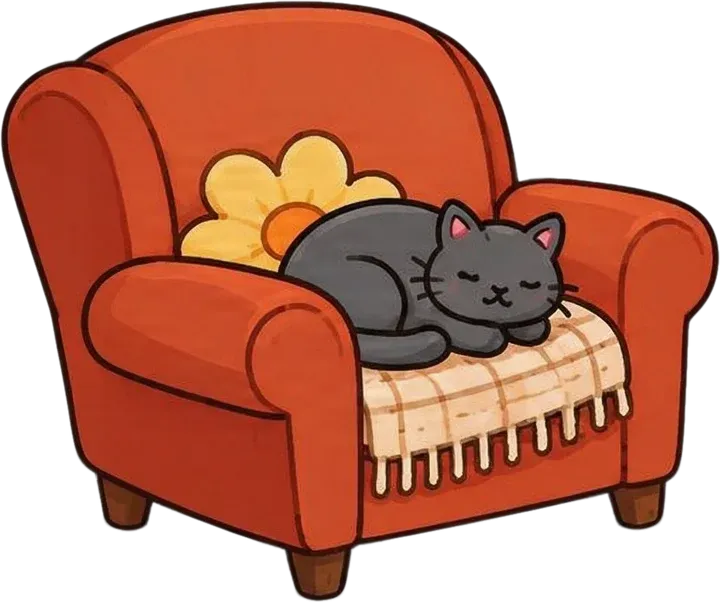
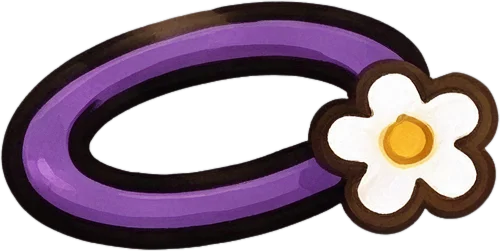
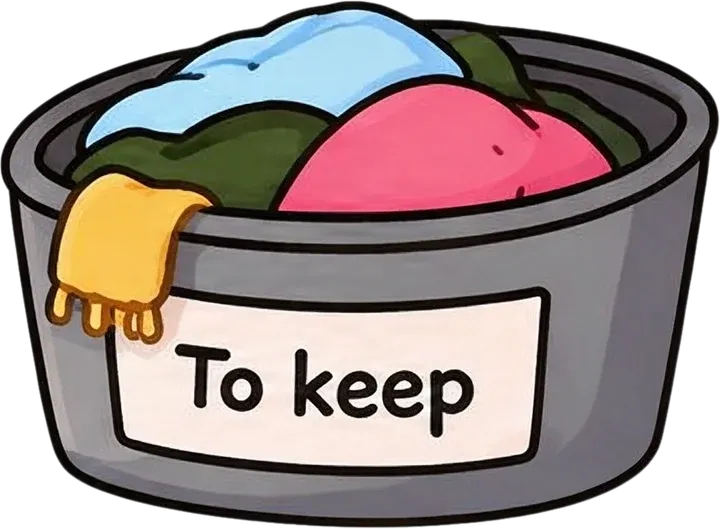

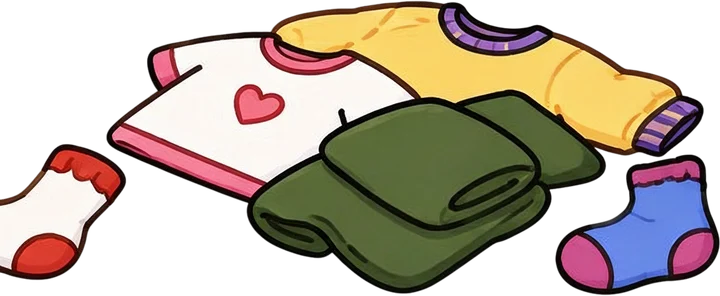
Inspect the generated layers to see which characters, props, and furniture can be edited separately. The grid shows 15 of the 17 generated layers: the background layer and a layer holding the red folded blanket, which is also part of the ghost layer, are left out.
This is a real AI separation run with no custom prompt, shown as it came back. Layer names and counts come from the result. In this run some objects are grouped (the armchair with the cat, the lamp with the nightstand, the bookshelf with the crow and plants, the two wall frames), the red blanket appears twice, one sock is cut off at its layer edge, and the curtains, window, rug, and two stacks of books are not separate layers. AI may group objects, reconstruct details, or introduce small visual differences.
Start here
Love your illustration, but need to change something after everything has been flattened? Upload your artwork and let AI separate characters, objects, decorations, and background elements into independent image layers.
Whether you are revising a client illustration, preparing artwork for motion, or reusing characters in a new composition, get a more editable starting point without manually cutting out every element.
Common problem
You have spent hours creating a scene. The characters look right. The colors work. The composition is complete. Then the client asks you to move a character. Or you decide the background should change. Or an animator needs the characters and props as separate elements. But all you have is one flattened PNG.
What should be a small change suddenly becomes a manual cutting and repainting task. Illustration to Layers helps you recover more editing flexibility from finished artwork. Instead of recreating the entire illustration, start by separating its visible elements into a new layered structure.
Common problems this helps with:
Keep the illustration you have already created, and make it easier to keep working.
Scene elements
A finished illustration usually contains more than one important element. You may have characters in the foreground, decorative objects around them, buildings in the middle ground, and a landscape behind everything. Illustration to Layers aims to separate recognizable visual elements so you can work with them independently.
Isolate illustrated people, animals, fantasy characters, or other visible subjects from the scene.
Separate recognizable objects such as furniture, toys, accessories, vehicles, lanterns, or other scene details.
Work with structures, scenery, and other environmental elements independently where possible.
Separate decorative elements that appear in front of the main subjects.
Create a separate background layer and estimate supported regions that were hidden behind foreground objects.
Turn a finished illustration into a more flexible arrangement of visual assets.
How it works
1
Choose the illustration you want to separate. Start with an exported PNG, JPG, or another supported image format. You do not need access to the original drawing file.
2
AI analyzes the illustration and attempts to separate recognizable characters, objects, and scene elements into independent image layers. Some areas hidden by overlapping objects may be reconstructed.
3
Explore the generated layers and check their edges, positioning, completeness, and transparency. Not every object will be separated perfectly, especially in complicated scenes.
4
Use the available editing and export options to work with your layers, or bring supported files into your preferred design or animation software.
Easier revisions
Imagine you have finished a story illustration. The client likes the artwork but asks you to move the main character closer to the center. If the image is flattened, moving that character can leave an empty area where it used to be. You may need to manually rebuild the scenery behind it.
AI layer separation can help by extracting the subject and estimating some of the previously hidden background.
Useful editing tasks:
Spend less time repeating work you have already done and more time refining your illustration.
Hidden areas
When you remove a character from a flat illustration, the image does not contain the scenery that was hidden behind it. A normal cutout may leave an empty gap. Illustration to Layers can attempt to reconstruct supported hidden areas based on the surrounding artwork. For example, if a character stands in front of a wall or a patch of sky, AI may estimate how that surface continues behind the character.
Hidden-area reconstruction creates an AI-generated estimate. It does not recover the artist's original unseen pixels, and the result may require manual cleanup.
This can help with:
Get a more practical starting point for scene revisions than a simple object cutout.
For animators
A finished illustration may contain everything you need for a short animated scene. Perhaps a character could float across the screen. A lantern could sway. Or the camera could move through layers of foreground and background scenery. Before those elements can move independently, they need to be separated.
Illustration to Layers can help prepare individual visual assets for further animation work. Separate your artwork first, then animate the elements in your preferred software. This tool does not automatically rig characters, generate motion, or create animation timelines.
Possible animation workflows:
Prepare the layers here, then build the motion elsewhere.
Visual style
Every illustrator has a visual style. Some use bold cartoon outlines. Others work with painted textures, flat vector-style shapes, or soft gradients. When separating layers, you do not want the entire illustration to be redesigned. The workflow aims to preserve visible shapes, colors, outlines, and textures as faithfully as possible.
AI-generated layers may still contain subtle changes, especially around occluded regions, fine details, and complex boundaries.
Details worth checking:
The goal is to make your existing artwork easier to edit, not replace it with a different illustration.
Reuse elements
You might create a character for a single illustration and later want to reuse it elsewhere. Maybe the character belongs in another story page. Maybe you want the same decorative objects in a different scene. Or maybe you need a version of the composition without the main subject. Separating existing elements can help you build new artwork from pieces you already like.
Examples:
Make your finished illustrations more reusable without starting from an empty canvas.
Creative teams
Handle composition changes and client revisions when you only have an exported or flattened image.
Separate characters, scenery, and decorative elements to prepare artwork for layout adjustments or interactive projects.
Prepare individual characters, props, and environmental elements for further animation and motion design.
Extract scene elements from existing artwork for further asset editing, prototype compositions, and visual experimentation.
Work with flattened illustrations from clients or collaborators without manually rebuilding every visible object.
Reuse illustration elements for printable graphics, design collections, and other creative products when you hold the necessary rights.
A more editable illustration can support more projects than a single finished image.
Made with AI
Your artwork might be hand-drawn, digitally painted, exported from a drawing app, or generated with an AI image tool. Once it is flattened, the editing challenge can be similar: all the visual elements are combined into one image.
Designed around finished illustrations and artwork containing multiple scene elements, regardless of how the image was originally created.
Focuses on continuing the editing process after generating artwork with an AI image model.
Choose this page when your main goal is separating the objects inside a finished illustration.
No source file
You may have exported an illustration years ago. Or received an image from a collaborator. Or saved a finished drawing without its original editable project. Illustration to Layers can attempt to construct new editable image layers from the visible artwork, which you can use for further editing in supported workflows.
You can expect newly generated visual layers, separate transparent image elements, reconstructed background regions where supported, a starting point for repositioning and editing, and the export options available in the result workspace.
What this does not do:
You may not recover the original source file, but you can create a new starting point for editing the image.
Better results
Characters and props with recognizable outlines are generally easier to separate.
Low-resolution images may contain too little detail for accurate object boundaries.
A complicated illustration with many small objects may exceed the model's practical layer capacity.
Heavily overlapping characters or props may require reconstruction.
Small details, thin strokes, and decorative patterns may change during processing.
The reconstructed composition may look good while some individual assets still need cleanup.
A careful review helps you decide which generated layers are ready to use and which need additional editing.
Realistic expectations
AI layer separation is useful because it can interpret visible objects and generate a new layered version of an image. But the output is generated artwork, not a direct recovery of the original editing project. These issues are more likely when the composition is crowded or individual objects are difficult to distinguish.
Depending on your illustration, you may notice:
Use AI separation to reduce manual work, and review the results before delivering finished artwork.
Pick the tool
Best for character artwork that needs more detailed separation of hair, face, clothing, limbs, or other body parts.
Prepare individual character components for further editing, customization, or rigging preparation.
Open Character to LayersBest for full illustrations containing characters, scenery, props, buildings, decorations, and background elements.
Make the overall scene more editable by separating its major visual objects.
You are here
If you want to rearrange a complete illustration, start here. If you need to break one character into detailed body parts, use the character-specific workflow.
Upload your finished illustration and start the separation process. Image to Layers analyzes visible characters, objects, and scene elements, then attempts to create independent visual layers for further editing.
Yes. The tool can generate a new layered structure from a flattened PNG. It does not recover the original artist-created layers or project history, and some details may be reconstructed or changed.
You can use the available image-layer exports to continue editing in Photoshop: layers can be downloaded as a ZIP, and a PSD download is available on paid plans. The resulting layers are AI-generated, not the original PSD structure.
Yes. The workflow attempts to identify recognizable characters and background elements so they can be edited independently. Results depend on the character boundaries and how much of the scene is obscured.
Not necessarily. Very small objects, heavily overlapping elements, and crowded compositions may be grouped or omitted. The model also has practical output-layer limits.
The process aims to retain visible colors, shapes, outlines, and textures. However, AI-generated layers may have small visual differences from the original image.
Yes, it can attempt to identify multiple distinct characters and separate them into individual visual layers. Characters that touch or overlap heavily may be harder to separate correctly.
Not automatically. This page focuses on separating major scene elements. If you need detailed body-part separation for character rigging, a dedicated Character to Layers workflow is more appropriate.
The tool can attempt to estimate hidden background regions using surrounding artwork. Those regions are AI-generated reconstructions and may require manual corrections.
You can try hand-drawn and digitally created illustrations. Results depend on image clarity, visual style, overlap, and the complexity of the scene.
Yes. You can upload a supported image exported from Procreate. The tool works from the flattened image and does not recover the original Procreate layer structure.
Yes. You can upload finished AI-generated artwork and attempt to separate its visible subjects, objects, and background into new layers.
Yes. Separated image assets can be used as a starting point for further animation work in After Effects and other compatible applications. You may need to adjust positioning, anchors, and layer order after import.
No. The tool prepares image layers for further editing and animation. It does not automatically generate character motion, keyframes, skeletal rigs, or finished animated videos.
You can import supported image assets into Unity, Godot, or other compatible tools. Further setup may be required for positioning, transparency, sprites, animation, or scene organization.
The AI may reconstruct parts of objects that were hidden behind others. These reconstructed regions are estimates and may differ from the actual unseen artwork.
When objects are successfully separated, you can work with them independently using the available layer editing tools. Some objects may need cleanup or adjustment before final use.
Yes. Background removal usually produces a foreground cutout. Illustration to Layers attempts to separate multiple meaningful elements within a scene, rather than only separating foreground from background.
You can use the resulting assets according to the service terms and the rights you hold to the original artwork. Make sure you have permission to modify and commercially use the source image, particularly if it belongs to a client or another artist.
Illustration to Layers is a credit-based AI processing workflow. You can review the required credit cost in the workspace before starting generation.
Need to continue editing artwork created with an AI image generator?
Need more detailed separation of one character's face, hair, clothing, or body parts?
Lost the original layered editing file and want to rebuild editability from a finished image?
Working with a photograph and want to prepare separate depth elements for motion?
Looking for a general-purpose image layer separation tool?
You do not need to redraw an entire scene just because your artwork was exported as one image. Upload the illustration you already have, separate its visual elements into new editable layers, and keep working on your creative ideas. Whether you are revising artwork, preparing animation assets, or reusing characters in a new scene, start with the image you have already created.
Separate my illustrationUpload your image and review the available credit cost before generating.
Creative Toolkit Index
Quick access to precision layer extraction, AI photo editing & asset tools.