
PRODUCT LABEL TO EDITABLE PSD
Turn Your Product Label Image into Editable PSD Layers
Have a product label you want to update, but only a JPG or PNG of the original design? Upload your label artwork to recover detected text, separate graphics and illustrations, and create a layered PSD you can continue working with. Change product names, review label copy, and make design revisions without rebuilding every element from scratch.
150 credits per full conversion. Explore the included packaging example before uploading your own image. Best suited to clear, flat label artwork. The workflow reconstructs image layers rather than recovering the original design source file.
Convert Your Label Image into Layers
Upload a product label design or explore the included skincare packaging example. Inspect recovered text and artwork, update recognized wording, and export layered assets for your next design revision.
Choose a flat product label design saved as JPG, PNG, or WebP. Clear text and distinct graphical elements generally provide more predictable results. PNG, JPG, or WebP · Up to 25 MB The workflow attempts to identify label text, marks, illustrations, and background elements. Results vary with the clarity and complexity of the source. Save an updated composite image, download available layer assets in a ZIP, or export a PSD with separate image layers. Reconstructed text is not guaranteed to be native Photoshop Type Layers.
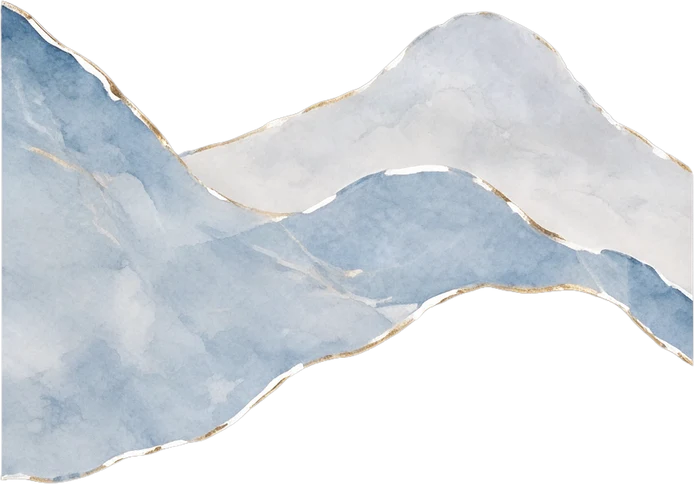
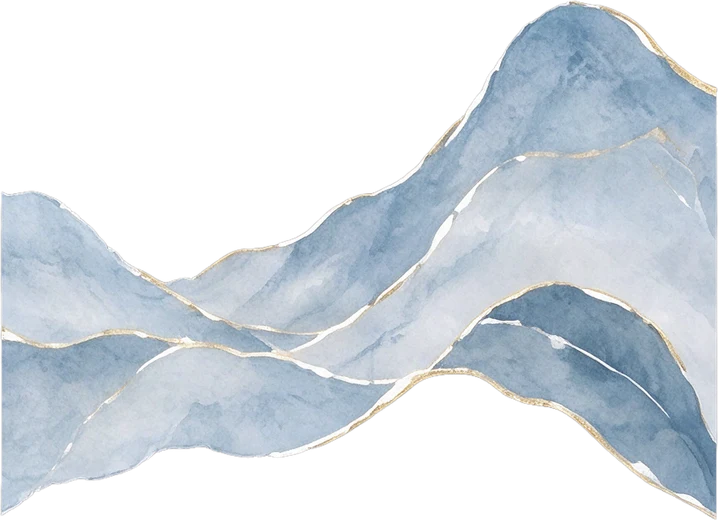
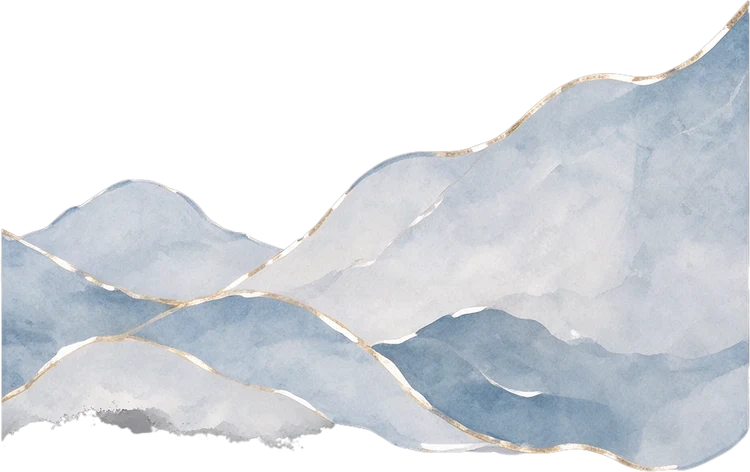
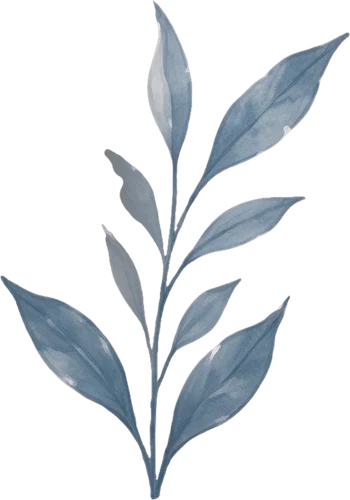
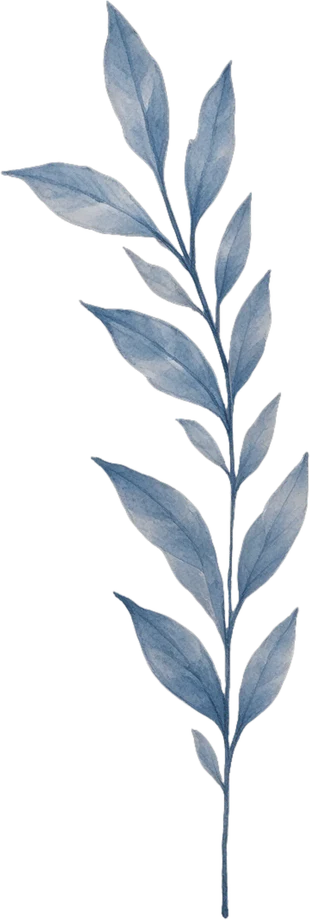
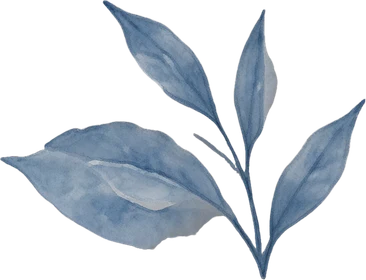




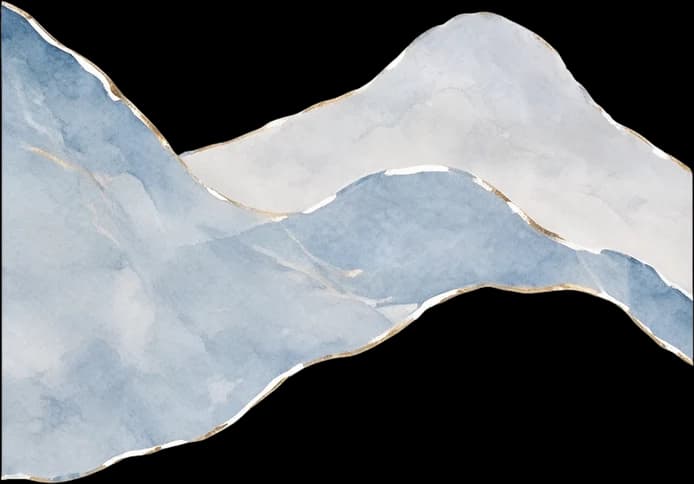
Left watercolour mountain range
347 × 242 px
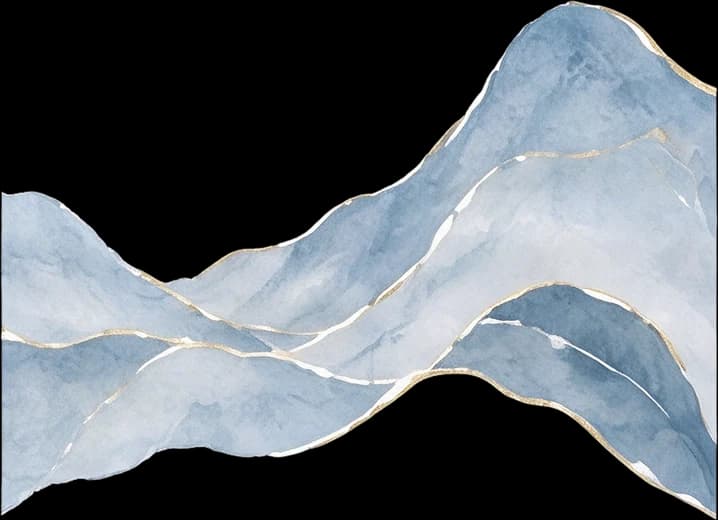
Middle watercolour mountain range
359 × 260 px
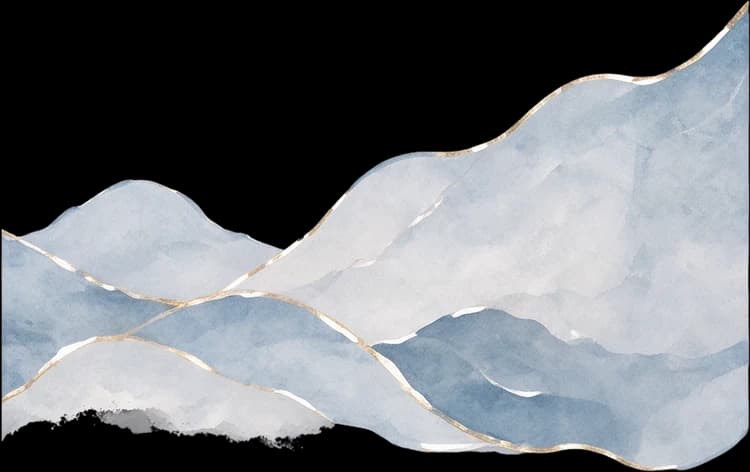
Right watercolour mountain range
375 × 236 px
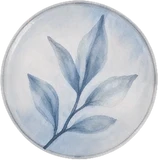
Left leaf branch
175 × 250 px
Middle leaf branch
155 × 460 px
Right leaf branch
183 × 140 px
Top circular leaf illustration
79 × 80 px
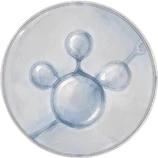
Middle circular molecule illustration
79 × 79 px
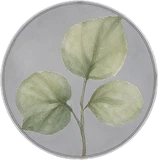
Bottom circular green leaf illustration
79 × 80 px
EXPLORE A REAL LABELING EXAMPLE
See Product Information and Artwork as Separate Layers
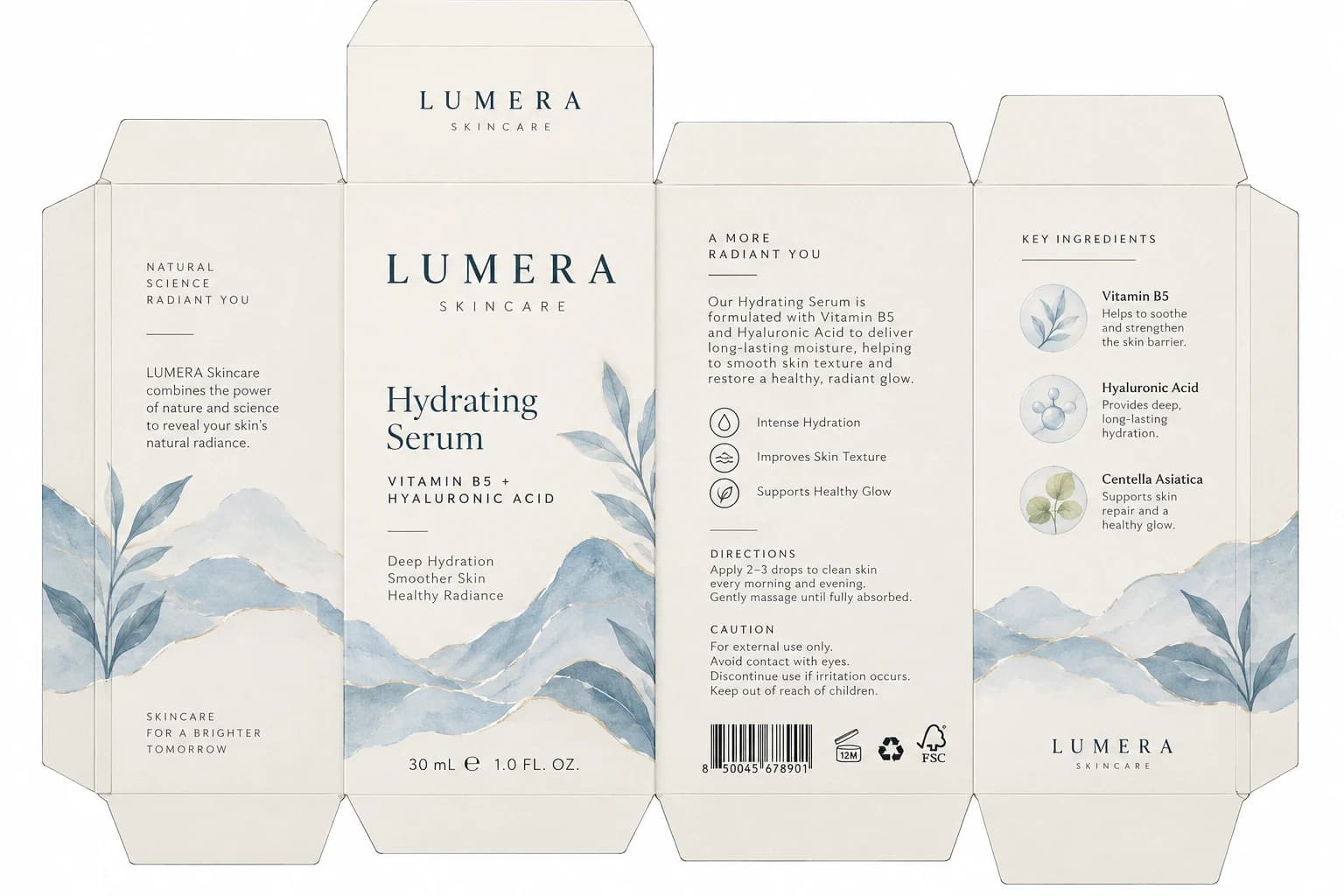
Product labeling often combines a name, quantity, directions, ingredient descriptions, brand marks, and decorative illustrations in one flat design. The existing LUMERA skincare carton example shows how these elements can be separated from a single packaging image. Although it is a carton rather than a standalone adhesive label, it demonstrates the same text-and-artwork reconstruction used for suitable flat label designs. Explore the existing result to see which elements are available independently.
Find the Product Information You Need to Update
A product label may contain a name, size, formula description, usage instructions, and supporting details. The workflow attempts to recognize text regions and reconstruct their placement. When text is detected, update it in the studio instead of recreating the whole composition. The LUMERA sample includes independently recognized text, brand marks, and decorative details.
23 detected text elements · 9 separate graphic and mark layers
Work with Label Illustrations Separately
The artwork stage attempts to reconstruct distinct illustrations and decorative elements as separate layers. Inspect the recovered artwork independently, while keeping in mind that AI reconstruction may change fine textures or hidden details.
9 separated artwork elements in this example
Product Names, Sizes, and Descriptions You Can Review
The LUMERA example includes a product name, volume information, formula details, benefit statements, and usage instructions. These are the kinds of label elements that often need revision for a new product range or variation. Explore detected text below or try available wording changes in the studio.
NATURAL SCIENCE RADIANT YOU
Detected text · Approx. 12px in the example
LUMERA Skincare combines the power of nature and science to reveal your skin’s natural radiance.
Detected text · Approx. 15px in the example
SKINCARE FOR A BRIGHTER TOMORROW
Detected text · Approx. 11px in the example
Hydrating Serum
Detected text · Approx. 43px in the example
VITAMIN B5 + HYALURONIC ACID
Detected text · Approx. 15px in the example
Deep Hydration Smoother Skin Healthy Radiance
Detected text · Approx. 15px in the example
30 mL ℮ 1.0 FL. OZ.
Detected text · Approx. 17px in the example
A MORE RADIANT YOU
Detected text · Approx. 13px in the example
Our Hydrating Serum is formulated with Vitamin B5 and Hyaluronic Acid to deliver long-lasting moisture, helping to smooth skin texture and restore a healthy, radiant glow.
Detected text · Approx. 15px in the example
Intense Hydration
Detected text · Approx. 13px in the example
Improves Skin Texture
Detected text · Approx. 13px in the example
Supports Healthy Glow
Detected text · Approx. 13px in the example
DIRECTIONS
Detected text · Approx. 12px in the example
Apply 2–3 drops to clean skin every morning and evening. Gently massage until fully absorbed.
Detected text · Approx. 13px in the example
CAUTION
Detected text · Approx. 12px in the example
For external use only. Avoid contact with eyes. Discontinue use if irritation occurs. Keep out of reach of children.
Detected text · Approx. 13px in the example
KEY INGREDIENTS
Detected text · Approx. 12px in the example
Vitamin B5
Detected text · Approx. 15px in the example
Helps to soothe and strengthen the skin barrier.
Detected text · Approx. 13px in the example
Hyaluronic Acid
Detected text · Approx. 15px in the example
Provides deep, long-lasting hydration.
Detected text · Approx. 13px in the example
Centella Asiatica
Detected text · Approx. 15px in the example
Supports skin repair and a healthy glow.
Detected text · Approx. 13px in the example
Recovered wording and styling are reconstructed from the image. Exact typefaces, spacing, and very small characters may differ from the original.
Keep Brand Details Apart from the Text
Brand marks, icons, decorative lines, and symbols contribute to a label's design. This example shows recovered visual elements that can be inspected separately from typography and illustrations. Not every logo or symbol will separate perfectly; use approved originals for production artwork.
main-wordmark
top-wordmark
bottom-wordmark
benefit-symbols
certifications
AI reconstruction does not verify certification marks, barcode accuracy, or approved brand assets.
Explore the Artwork Behind the Product Information
The skincare carton combines mountain illustrations, leafy botanical elements, and smaller decorative graphics. The existing result lets you explore reconstructed artwork in separate pieces. The same workflow can be applied to suitable flat product label images, with results depending on complexity.
Left watercolour mountain range
Middle watercolour mountain range
Right watercolour mountain range

Left leaf branch
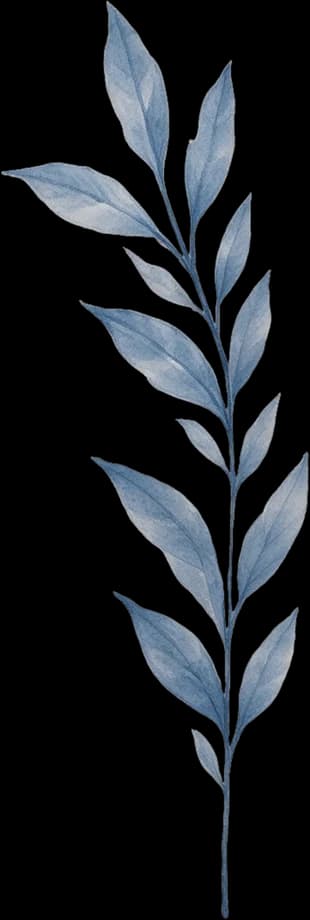
Middle leaf branch
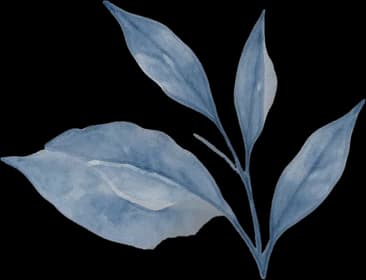
Right leaf branch
Top circular leaf illustration
Middle circular molecule illustration
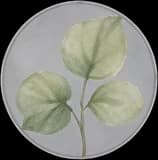
Bottom circular green leaf illustration
Individual decorative artwork layers reconstructed from the original packaging image. Fine edges, color transitions, patterns, and obscured details may not match the original exactly.
Keep Text and Artwork Together on One Canvas
Separated components are most useful when they retain their relationship to the original layout. The workspace maps detected text and graphics into the reconstructed canvas. In this example, elements from the 1152 × 768 text-layout space map into a 1536 × 1024 canvas.
Editable Layers, Not a Recovered Original Label File
This is an AI-assisted reconstruction of a flattened design, not the original Illustrator document, font files, editable vectors, or printing specifications. Revise recognized text in the studio; the PSD contains separate image layers rather than guaranteed native Type Layers. It does not accurately unwrap curved bottle labels, calculate physical label dimensions, or produce approved print-ready dielines. Check critical copy and production details independently.
WHEN YOU DON'T HAVE THE SOURCE FILE
Your Product Label Needs Updating. The Original Design File Is Missing.
You already have a label design you like. The layout works, the colors match your brand, and the product looks ready for another variation. But something needs to change, and all you have is a flattened image.
The Product Name Has Changed
You're launching a new formula, scent, or product variation, but the artwork still contains the old name.
You Need a Different Size Label
You're exploring a different package size and need to update visible quantity information.
Ingredients or Instructions Need Revision
Replace outdated product copy without manually recreating the complete visual layout.
Your Designer Only Sent a PNG or JPG
The project may have been made in Photoshop or Illustrator, but the editable source file is unavailable.
You Want to Keep the Existing Artwork
Starting over means reproducing colors, decorations, typography, and elements that already work.
A flattened image shouldn't force you to rebuild an entire label concept whenever a small detail changes.
MAKE USEFUL CHANGES
More Control Over Your Existing Product Label
Product Names
Update a recognized product title for a new item or variant.
Flavors, Scents, and Variants
Explore alternative names for different versions of an existing product.
Sizes and Quantities
Revise detected quantity information. Check units, conversions, and applicable labeling requirements separately.
Product Descriptions
Change short descriptions, marketing messages, and product benefit wording.
Ingredient and Usage Copy
Update text recognized in ingredient descriptions, directions, or caution areas. Verify regulated wording before use.
Decorative Label Artwork
Inspect and reuse recovered illustrations, icons, and graphic elements as independent image layers where separation succeeds.
The workflow does not guarantee recognition of every letter or separation of every element. Extremely small text and intricate backgrounds may require manual work.
FROM ONE LABEL TO YOUR NEXT PRODUCT VARIATION
What Can You Do with a Layered Product Label?
Create a New Product Variation
Use an existing label concept as the visual starting point for a different fragrance, flavor, size, or product line.
Refresh a Label for a Rebrand
Update available wording and inspect the graphics you may want to replace with approved brand assets.
Correct Outdated Packaging Copy
Locate and revise recognized text that no longer matches the approved product description.
Prepare a Design Handoff
Give your designer a layered starting point instead of asking them to rebuild a flattened screenshot.
Explore Marketing Variations
Try product messaging changes while keeping familiar artwork visible for comparison.
Recover Flexibility from Old Artwork
Continue developing an existing visual concept even when the editable source file isn't available.
Use reconstructed layers to explore revisions. Final packaging production still requires verified artwork, correct dimensions, and professional prepress checks.
FOUR STEPS FROM IMAGE TO LAYERS
How to Convert a Product Label Image to PSD
- 1
Upload Your Existing Label Design
Choose a clear JPG, PNG, or WebP image. Flat, front-facing artwork is usually more predictable than a photo of a curved bottle or reflective container.
- 2
Let AI Find the Label Elements
Start the conversion. The workflow attempts to identify text, logos, decorative graphics, illustrations, and backgrounds.
- 3
Review Layers and Update Text
Open the workspace, select detected text, enter revised wording, and inspect artwork. Review typography and positioning.
- 4
Export for Further Editing
Save an updated image or download layered files. Continue in Photoshop or hand the PSD to your designer for refinement.
The number and accuracy of recovered layers depend on your source image. Conversion requires credits.
CHOOSE THE RIGHT STARTING IMAGE
What Kind of Label Image Works Best?
Flat Label Artwork
A clear, front-facing image gives the models a better chance to recognize wording and separate graphics.
Skincare and Cosmetic Labels
Labels with product titles, short descriptions, ingredient-themed illustrations, and decorative branding can be suitable.
Food and Beverage Labels
Flat artwork for coffee, tea, condiments, beverages, and other products may contain separable branding and text.
Supplement and Wellness Label Concepts
The workflow can help inspect design elements, but ingredient declarations, dosage information, claims, and regulated content must be verified independently.
Simple Product Stickers
Flat stickers with readable wording and distinct artwork may be easier to process than dense designs with tiny text.
Challenging Product Photos
Bottle, jar, tin, and flexible-package photos may contain perspective distortion, reflections, folds, and curved lettering. Results are not guaranteed to reconstruct the printed label faithfully.
This workflow reconstructs visual layers. It does not calculate physical label dimensions or automatically generate a print-ready wraparound label.
BUILT FOR PEOPLE WORKING WITH EXISTING LABELS
Who Can Benefit from Product Label to PSD?
Small Product Brands
Update a packaging concept without commissioning a complete visual rebuild for every change.
Beauty and Skincare Sellers
Revise product names, descriptions, or sizes in existing carton or flat label artwork.
Food and Beverage Businesses
Explore changes to flavor names, short copy, and decorative branding for new product variations.
E-commerce Sellers
Prepare updated product-label visuals for presentations, listings, and future design work.
Packaging and Graphic Designers
Start from separated image elements when a client only has a flattened label design.
Creative Agencies
Prepare layered design references for client revisions, launches, and additional artwork production.
TAKE YOUR LABEL DESIGN FURTHER
What Do You Get from the Conversion?
A Reconstructed Label Composition
View available visual elements together in the packaging workspace.
Detected Text Elements
Review recognized words and make available text edits in the browser.
Separate Graphic Layers
Inspect artwork, logos, and decorative elements the workflow successfully reconstructs.
Updated Composite Image
Save a flattened image of the revised composition.
Layer Assets in ZIP
Download available separated elements for further work.
Layered PSD
Export the reconstructed document as independent image layers for Photoshop-based editing.
A PSD with separate raster layers is useful for revisions, but it is not a fully recovered source file with native text objects, original vector paths, or printer-ready specifications.
FREQUENTLY ASKED QUESTIONS
Frequently Asked Questions About Product Label to PSD
How do I convert a product label image to PSD?
Upload a supported product label image and start the packaging conversion. The workflow attempts to separate recognized text, graphics, and background artwork. Inspect the result and export a layered PSD for further editing.
Can I convert a JPG product label into an editable PSD?
Yes. You can upload a JPG and attempt to reconstruct separate visual elements. The exported PSD contains image layers you can work with individually; it does not recreate every original Photoshop object.
Can I convert a PNG label design to Photoshop layers?
Yes. PNG images are supported. The number and quality of separated layers depend on the contents of your image.
Can I edit the product name on an existing label?
Yes, if the product name is recovered as a text element. Select it in the studio, enter new wording, and review the updated design.
Can I change the size or quantity printed on my label?
You can revise detected size-related text, such as a volume declaration. Independently verify units, measurements, and legally required quantity information.
Can I update ingredient lists or directions for use?
You can try to update text detected in these areas. Dense ingredient lists and small lettering may be difficult to recognize accurately. Always compare the result with approved source information.
Can I separate a label's logo from the background?
The workflow may recover logos or decorative marks as separate graphics. Exact separation and faithful logo reconstruction are not guaranteed. Use official brand artwork for final production.
Can I separate illustrations and patterns from a label?
The artwork stage attempts to reconstruct distinct illustrations and decorative elements as individual layers. Some may remain combined or differ in texture, edges, or hidden details.
Does this tool work with cosmetic or skincare labels?
Yes. Clear, flat cosmetic and skincare label artwork is a suitable use case. The LUMERA showcase demonstrates related product-copy and artwork separation on a skincare carton.
Can I use a photo of a bottle instead of flat label artwork?
You can try, but results may be less predictable. Curved surfaces, reflections, lighting, and perspective can make accurate separation more difficult.
Can I extract a bottle label and turn it into a flat printable design?
Not reliably. This workflow does not guarantee label unwrapping, perspective correction, physical dimensions, or print-production accuracy. Use the original flat label artwork whenever possible.
Will the exported PSD have editable Photoshop text layers?
Native Type Layers are not guaranteed. You can revise recognized text in the online studio, but the PSD contains reconstructed image layers rather than a full recovery of the original typesetting.
Will the edited wording appear in my PSD export?
The intended workflow includes accepted text revisions in the exported composition. Check the downloaded PSD to verify wording and placement. Reconstructed lettering remains image-based rather than native Photoshop text.
Can I use the PSD in Adobe Photoshop?
Yes. The layered PSD is intended for further Photoshop-based design work. Inspect its image layers individually and continue refining the composition.
Can I remove or change the background of the label design?
The workflow attempts to separate artwork and background elements. You can hide or inspect recovered layers, but background reconstruction may be imperfect where objects overlap.
Does it preserve the original font and layout exactly?
No. The workflow estimates text styling and position from the image. Font appearance, spacing, line breaks, and reconstructed visuals may differ from the source.
Can I use the exported file for commercial printing?
Not without further checks. This is a design-revision starting point, not an automatically approved production file. Verify resolution, color requirements, dimensions, typography, legal copy, and print specifications before manufacturing.
Does it generate dielines, bleed, or cutting instructions?
No. The tool does not create manufacturing-accurate dielines, folds, bleed settings, or cutting specifications. Prepare those separately.
Does the tool verify barcodes, nutrition facts, and legal text?
No. Verify every reconstructed barcode, number, ingredient declaration, warning, and regulatory symbol against approved information. Do not rely on reconstructed artwork for compliance.
How many layers will I get?
There is no fixed number. It depends on design complexity and which elements are detected or reconstructed. LUMERA is one real sample, not a guaranteed output count.
How much does converting a product label to PSD cost?
A complete conversion currently costs 150 credits. The workspace shows the applicable cost before submission. You can explore the included example first.
What happens if the artwork-separation stage fails?
The workflow may still provide recovered text and graphic elements when that stage succeeds. Applicable artwork-stage credits are refunded according to the job's failure-handling rules. Check the completed job for its status.
Can I use this to create different versions of the same label?
You can revise available wording and use reconstructed artwork as a starting point for variations. A substantially different design may still need manual layout and production work.
Is this a complete product label design generator?
No. This page converts an existing label image into layers for editing. It does not generate a full label from a prompt, create regulatory content, or automatically prepare a print-ready file.
What's the difference between Product Label to PSD and Packaging to Editable PSD?
Packaging to Editable PSD covers broader packaging image separation. Product Label to PSD focuses on flat label artwork and updating product names, quantities, descriptions, and decorative elements.
What's the difference between Product Label to PSD and Edit Packaging Text?
Edit Packaging Text focuses on changing wording. Product Label to PSD focuses on separating text and visual elements into a layered document for broader design revisions.
More Ways to Edit Existing Packaging Artwork
Packaging to Editable PSD
Convert packaging artwork into separate text, artwork, and image layers for further editing.
Edit Packaging Text
Update detected product names, descriptions, quantities, and other wording on packaging artwork.
AI-Generated Packaging to PSD
Turn an AI-generated packaging concept into a layered starting point for further revisions.
Image to Layers
Separate visual elements from a general image into layers for editing and reuse.
KEEP THE DESIGN YOU ALREADY HAVE
Need to Update a Product Label? Start with the Image.
You don't have to recreate every part of a label just because the original file is missing. Upload your existing flat label artwork, inspect the text and graphics AI can recover, make available edits, and download a layered PSD to continue your work.
Convert My Product Label to PSDTry the included skincare carton example first. Your conversion costs 150 credits. Review reconstructed artwork, wording, and exported files before final production.