
Turn a Flat Flyer Into Layers You Can Actually Edit
Click or drag image to upload
Upload your flyer
JPG, PNG, WebP up to 10MB · Drag & drop anywhere
Settings
Leave this blank to let Detailed Layers identify the main editable elements automatically. Or name the parts you want separated.
Separate the Parts of Your Flyer You Want to Change
AI can attempt to isolate the main products, promotional text artwork, discount badges, decorative graphics and background. For a busy flyer, describe the elements you want to prioritize.
Upload an Image to Continue
Private File Handling
Uploaded files are associated with your account and delivered through signed URLs. You can delete completed jobs manually.
Transparent PNG Output
Detailed Layers returns each detected element as its own layer on a transparent background.
Continue Editing in Agent Workspace
Multi-Agent SuiteOpen the layered result in Agent Workspace to clean up elements, create visual variations, or continue working from the same project.
JPG, PNG or WebP. Upload artwork you own or have permission to edit.
60 credits per generation · Failed jobs handled by the credit refund workflow · No manual tracing needed to get started
START WITH THE FLYER YOU ALREADY HAVE
Split Your Flyer Into Editable Image Layers
You don't need the original Photoshop file to get started.
Upload the flattened flyer you want to update. AI will attempt to separate its main visible elements so you can work with them individually instead of treating the entire design as one image.
Leave the description blank to let AI identify the main elements. Or describe exactly what you want to separate.
Move the pieces that need moving. Hide what no longer belongs. Reuse the artwork that still works. Then continue editing without rebuilding the entire composition.
60 credits per Detailed Layers generation. Results vary depending on the source image and how its elements overlap.
SEE WHAT AI ACTUALLY SEPARATES
One Flattened Design. Eight Real Image Layers.
Before you upload your own flyer, explore an actual separation result.
Our CITY NIGHTS example started as a single flattened music festival poster. It included a large headline, performer, supporting information, promotional badge and detailed background.
AI separated it into eight image layers.
Select individual elements to see how a flattened composition becomes a new layer-based editing starting point.

Explore the Eight Separated Layers
Select the headline, singer, event details or promotional badge to inspect a separated image layer.
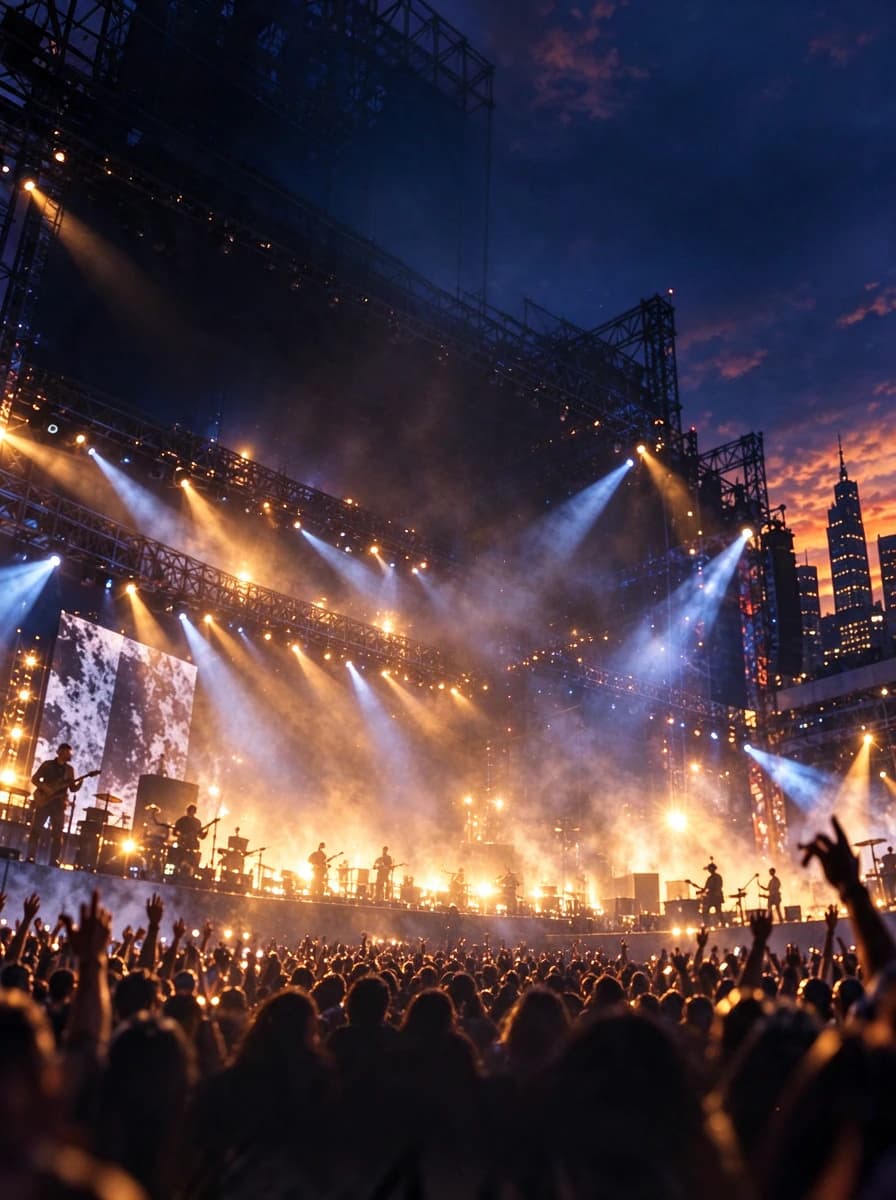
Layer 01 — Background Plate
The base image used for the poster composition.
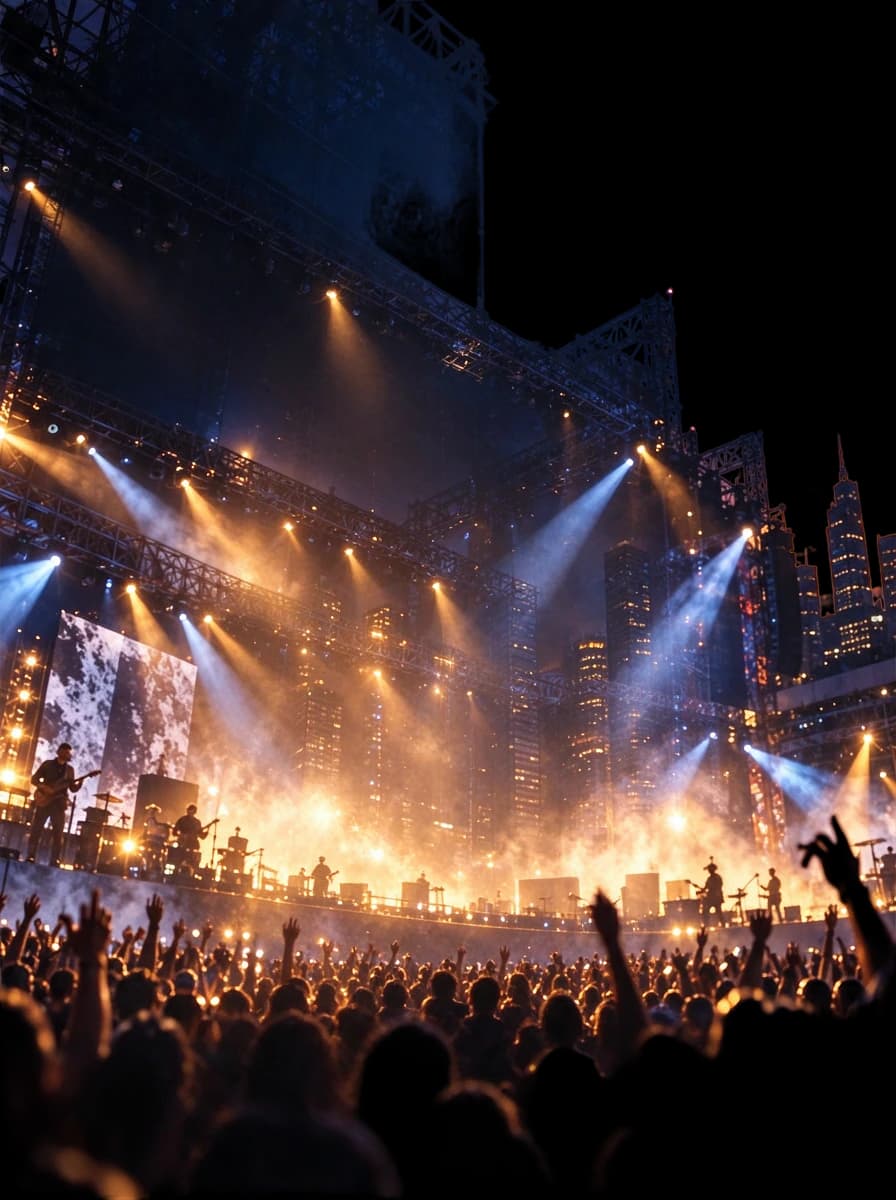
Layer 02 — Concert Background
The stage, lighting, city scenery and surrounding atmosphere as a separate image element.

Layer 03 — Singer & Microphone
The foreground performer, including the visible microphone and stand.

Layer 04 — Festival Subtitle
The “LIVE MUSIC FESTIVAL” lettering as isolated text artwork.
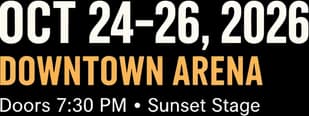
Layer 05 — Event Information
The visible event date and venue details grouped into a separate image layer.

Layer 06 — Lineup & Ticket Information
The artist lineup and ticket footer as separate text artwork.

Layer 07 — Main Headline
The large “CITY NIGHTS” title, separated from the rest of the design.

Layer 08 — Early Bird Badge
The circular promotional badge, available as its own visual layer.
CITY NIGHTS is an AI-generated music festival poster, not a retail flyer. Its eight displayed layers are real AI separation outputs, not elements recovered from an original designer-created PSD. The same workflow can be applied to flattened promotional flyers, but results may differ.
THE FLYER STILL LOOKS GOOD. THE FILE IS THE PROBLEM.
All You Need Is One Small Change. But Everything Is Flattened.
The product photo is still useful. The background works. Most of the layout looks fine.
But the promotion has changed. Your customer wants a different product position. That red SALE badge needs to move, and the layout needs room for a new offer.
All you have is a JPG. You cannot select the product without selecting the background, move the headline without covering part of the design, or see what was behind the discount sticker.
You could rebuild the artwork, manually cut out every element, or start by letting AI attempt to separate the existing flyer into image layers.
You may not need to start over.
Flyer to Editable PSD gives you a way to begin with the finished image and recover useful visual separation through AI.
KEEP THE DESIGN. WORK WITH ITS PARTS.
Make Your Flyer Easier to Rearrange
Move the Product Without Rebuilding the Background
When a featured bottle, burger, cosmetic product or other item is successfully isolated, reposition that image element in your editing workflow.
Hide an Expired Discount Badge
Work with a separated promotional sticker instead of manually painting around its original edges.
Rearrange Headline Artwork
Hide, move or replace a separated text-artwork layer during further editing.
Isolate Supporting Graphics
Decorative shapes, illustration elements and visual accents may be extracted as separate layers where the model can distinguish them.
Work With the Background Separately
Inspect the generated background plate without the original foreground composition.
Continue Editing in Photoshop
Export generated layers to PSD and refine the layout in compatible editing software.
These are raster image layers. Recovering a headline image does not automatically recover its original editable font or text object.
WHAT'S UNDER THE GRAPHICS?
Remove an Element Without Starting With an Empty Hole
A discount badge might cover a gradient. A product photo might hide a textured background. A large headline might overlap an illustration or decorative pattern.
The pixels behind those elements are not available as separate original content in a flat JPG. AI separation can attempt to reconstruct the hidden areas and provide a background plate to inspect and refine.
Behind the Product
See the AI-estimated background where the original product appeared.
Behind the Headline
Explore the background plate without the original text artwork.
Behind the Promotion
Inspect the area below a separated sale or discount badge.
See the Background After Separating the Foreground
Explore the reconstructed background in our CITY NIGHTS example.
Layers
AI-generated background areas are estimates. They may include invented details, texture differences, lighting inconsistencies or visible artifacts. Review them before using the artwork in a final design.
IT'S NOT JUST A DIFFERENT FILE EXTENSION
A PSD With Layers Gives You More Room to Work
Your Current JPG or PNG
The product, headline, price artwork, decorative shapes and background are combined in one flattened image. Selecting one element independently can require manual reconstruction.
Crop, resize or edit the entire picture.
Your AI-Separated PSD
The generated file contains individual raster image layers for elements AI was able to separate.
Inspect layers, adjust their arrangement and replace parts of the design in compatible software.
What This Gives You
- Separately accessible visual elements
- Transparent image layers where available
- Independently movable artwork
- Background plates for further refinement
- A layered PSD for additional design work
This does not provide the original Photoshop source, fonts, native text objects, vectors, smart objects or complete editing history.
KNOW WHAT YOU'RE GETTING
Can I Move a Price? Yes. Can I Retype It? That’s Different.
Separate the Visual Artwork
- Product PhotographyProminent products may become independent layers when their boundaries can be identified.
- Headline ArtworkVisible titles and large promotional wording may be isolated as raster artwork.
- Sale Badges and StickersDiscount circles, labels and promotional shapes may be separated.
- Graphic ElementsDecorative accents, illustrations and distinct visual objects may become separate layers.
- Background ElementsAI can estimate a background behind removed foreground content.
What It Does Not Automatically Recover
- Original Editable FontsFont names, type settings and licensed font files are not restored.
- Native Photoshop Text LayersVisible words do not automatically become retypable Photoshop text objects.
- Original Vector ArtworkFlattened artwork is not automatically restored as original vector paths.
- Smart Objects and Adjustment LayersOriginal Photoshop effects and object structure are not reconstructed.
- Print-Ready SettingsA layered PSD does not guarantee correct CMYK, DPI, bleed, spot colors or cutting paths.
Need to change the actual words or prices? Edit Text in Flyer.
FOUR STEPS TO A NEW EDITING STARTING POINT
From Flat Flyer to Layered PSD
- Step 1
Upload Your Flyer
Select the JPG, PNG or WebP flyer you need to work on. Use the highest-quality version available.
- Step 2
Let AI Separate the Main Elements
Leave the optional description blank for automatic separation, or describe products, headlines, badges and backgrounds to prioritize.
- Step 3
Review Your Layers
Inspect product edges, fine print, price artwork, graphic boundaries and reconstructed background areas.
- Step 4
Export and Continue Editing
Download available layers or a layered PSD and continue in compatible image editing software.
The output is an AI-generated layer decomposition and may need cleanup before the updated design is ready for production.
FOR THE FLYERS YOUR BUSINESS ACTUALLY USES
Start With Your Existing Promotion Instead of Recreating It
Retail Sale Flyers
Separate useful product imagery, decorative shapes and backgrounds as a starting point for the next promotional layout.
Restaurant & Food Promotion Flyers
Work with existing food photography, promotional graphics and headline artwork for another restaurant offer.
Product Launch Flyers
Isolate a featured product and surrounding design elements for new promotional arrangements.
Beauty & Salon Flyers
Reuse appropriate service photography, cosmetics imagery, visual accents and backgrounds in updated campaigns.
Real Estate Promotional Flyers
Work with property imagery and graphic elements from an authorized marketing flyer.
Gym & Fitness Flyers
Separate visible subject photos, promotional headlines and design elements for a new membership campaign.
Local Business Flyers
Start with a finished business flyer when the original designer or source project is unavailable.
This tool prepares separable image artwork. It does not automatically create a new promotion, update prices or generate a completed replacement flyer.
THE CLIENT DIDN'T SEND THE PSD
You Still Need to Deliver the Design
Freelance Graphic Designers
A client sends only a flattened flyer. Separate useful visual elements, then finish the revision in your preferred editor.
Small Business Owners
Use the finished image as a starting point when you no longer have the editable project.
Marketing Teams
Adapt authorized campaign visuals when the original source project is unavailable.
Creative Agencies
Prepare legacy promotional artwork for another round of layout refinement.
Print & Design Service Providers
Use separation as an early step when a customer provides only a finished image and requests a redesign.
START WITH THE CLEAREST FILE YOU HAVE
A Better Source Makes the Result Easier to Review
Use the Original Flyer Export
A clear JPG or PNG generally provides more useful information than a blurry screenshot.
Avoid Unnecessary Cropping
Keep the product, title, promotional badge and surrounding background visible.
Prioritize Major Elements
Describe the main product, heading, badge and background rather than expecting every tiny decoration to become its own layer.
Check Product Edges
Fine hair, transparent bottles, reflective packaging and complex shadows can create difficult cutout boundaries.
Review Promotional Information
Prices, dates, offers and addresses need careful checking; AI may not preserve every small character perfectly.
Inspect the Reconstructed Background
Look closely at the area behind the original subject and text, especially if you plan to move them.
Finish in Your Preferred Editor
Treat the separated PSD as an editable starting point, not a replacement for manual design judgment.
PICK THE RIGHT WAY TO EDIT
Separate the Layout or Change the Text?
I Need to Move Products, Headlines or Graphics
Flyer to Editable PSD separates visible artwork into raster image layers for further rearrangement and editing.
Split Flyer into LayersI Need to Replace Prices, Dates or Wording
Use Edit Text in Flyer when your main goal is updating visible wording in a finished image.
Edit Flyer TextA third option: use Poster to Editable PSD for the broader workflow with other flattened designs.
START WITH THE FLYER YOU NEED TO EDIT
One Flyer. One Detailed Layers Generation.
Each Detailed Layers generation costs 60 credits. The workflow attempts to separate visible design elements into independent raster image layers.
Available Workflow Outputs
- AI-separated image layers
- Transparent PNG exports for supported foreground elements
- Background image layers where available
- Layered PSD export for further editing
Applicable credits are refunded when generation fails under the existing failed-job refund process.
A completed result may still contain grouped elements or visual imperfections. Normal cleanup is not the same as a failed generation.
Split My FlyerCOMMON QUESTIONS
Flyer to Editable PSD FAQs
Can I convert a JPG flyer into an editable PSD?
Yes. Upload a supported flyer JPG and use AI to attempt to separate visible design elements into raster image layers. You can then export the result as a layered PSD for further editing.
What if I don't have the original Photoshop file?
You can start with the flattened image you already have. The workflow does not require the original Photoshop document, but cannot recover the full original source structure.
Does this work with PNG flyers?
Yes. The workspace supports JPG, PNG and WebP uploads, subject to its current file limits.
Can I separate product photos from a promotional flyer?
The model can attempt to isolate prominent products and other visual subjects. Results vary with edges, lighting, shadows and overlap.
Can I move a discount badge or sale sticker?
If successfully separated into its own image layer, you can reposition or hide the badge during further editing.
Can I change the price on my flyer?
A separated price graphic is typically raster artwork, not native editable text. Replace it during manual editing, or use Edit Text in Flyer when changing wording is the main goal.
Will the headline become an editable Photoshop text layer?
Not automatically. AI may separate the headline into an image layer, but does not generally recreate the original font or native Photoshop text object.
Can I separate the background from the products and graphics?
The model can attempt to separate foreground elements and generate a background plate. Results depend on the composition and may need cleanup.
Will AI restore the background behind a removed product?
It can attempt to reconstruct hidden areas, but that is an estimate and may include invented details or inconsistencies.
Can I use it for retail sale flyers?
Yes. Retail flyers are a relevant use case, especially when you want to work with product pictures, promotional graphics and backgrounds independently.
Does it work for restaurant and food flyers?
You can upload supported restaurant promotions. AI may separate food photography, major text artwork and decorative elements, depending on the design.
Can I use it for real estate marketing flyers?
Yes, if you own or are authorized to edit the artwork. The workflow can attempt to separate property photography and visible design elements.
How many layers will my flyer have?
It depends on the uploaded design and what the model identifies. There is no fixed number of layers for every flyer.
Can I tell AI which elements to separate?
Yes. Enter an optional description, such as “product photo, discount badge, headline and background,” to guide separation.
Do I need to write a prompt?
No. Leave the optional description blank and let the model attempt to identify the main visual elements automatically.
Can I download separate transparent PNG layers?
The workflow provides individual image exports, including transparent PNGs for supported foreground elements. Background layers may be opaque.
Can I open the resulting PSD in Adobe Photoshop?
The output is intended for compatible PSD editors, including Adobe Photoshop. Review layers and composition before professional design work.
Does it restore the original Illustrator or Photoshop source?
No. It creates a new layer-based representation from a flattened image and does not recover original vectors, smart objects, adjustment layers, fonts or the complete source document.
Will my flyer be print-ready after conversion?
Not automatically. Review image quality, resolution, color settings, bleed and printer requirements before production.
Is the example on this page a real flyer?
CITY NIGHTS is an actual AI separation result from an AI-generated music festival poster, not a retail flyer. It demonstrates the workflow without claiming a retail flyer was tested.
How much does one flyer separation cost?
A Detailed Layers generation costs 60 credits. The workspace displays the applicable cost before you begin.
What happens if the generation fails?
The existing failed-job credit refund process handles unsuccessful generations. A completed result needing refinement is not necessarily a failed job.
Can I use the separated artwork commercially?
Use the workflow with artwork you own or are authorized to edit and distribute, subject to applicable service terms. You are responsible for the source design rights.
Is this better than manually rebuilding a flyer?
It can save manual separation work when the original file is unavailable. Complex graphics, tiny text, reconstructed backgrounds and production requirements may still need attention.
DON'T REBUILD THE WHOLE FLYER IF YOU DON'T HAVE TO
Your Flat Flyer Can Still Be a Starting Point
You have the JPG. The product imagery still works. The background still works. Most of the layout is worth keeping.
Upload your flyer and let AI attempt to separate its main visual elements, then export a layered PSD for your next round of editing.
Split My FlyerJPG, PNG or WebP · 60 credits per generation · Individual image-layer and PSD exports
AI creates a new layer-based editing starting point. It does not recover the complete original design project.
Related Tools
Poster to Editable PSD
Explore image layer separation for flattened posters and other finished designs.
Event Poster to PSD
Work with event artwork containing performers, promotional graphics, headlines and detailed backgrounds.
Edit Text in Flyer
Change visible prices, offers, dates or wording in an existing flyer.
Ad Delayer
Separate visual elements in advertising artwork for further editing.
Image to PSD
Explore the general workflow for turning flattened images into layered PSD files.