
Remove Scratches from Old Photos with AI
AI creates an edited interpretation of damaged areas. Results vary, and some original details or photo edges may change.
Clean up scratched photos online
Upload an old photograph, scanned print, or digital image with visible surface damage. Choose a quick cleanup or select specific scratches for more control.
Describe the scratches, creases, and visible damage marks you want to remove. No manual selection is required.
A convenient starting point for aging photos with multiple visible scratches or crease lines. Keep the description focused on the damage you want removed, then review the result for changes to faces, clothing, colors, or framing.
Image
RequiredAdd Image
Click or drag one source image here to start editing.
PNG, JPG, JPEG, or WEBP. The upload card is the primary starting point.
From a worn family portrait to a cleaner-looking memory
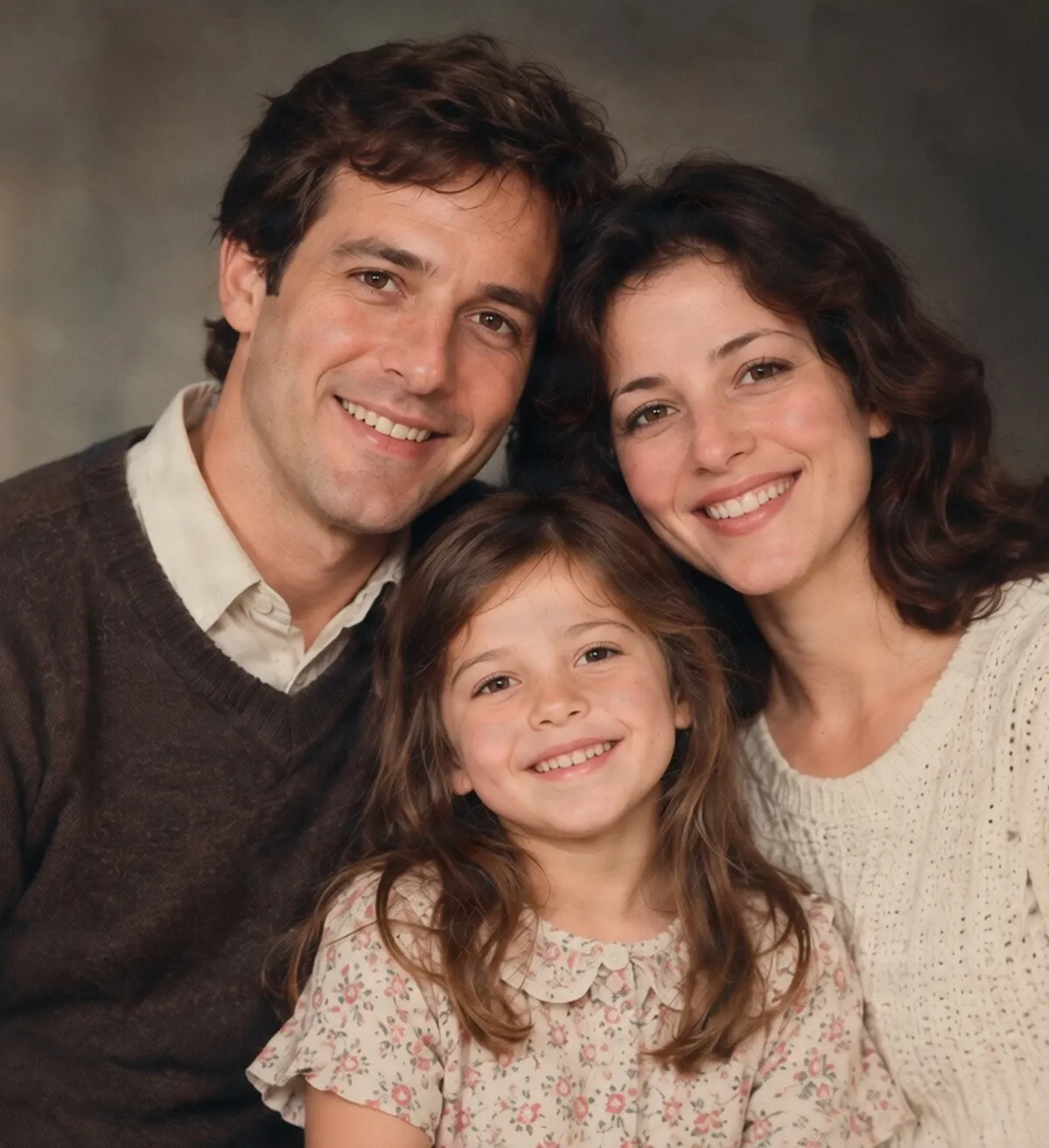
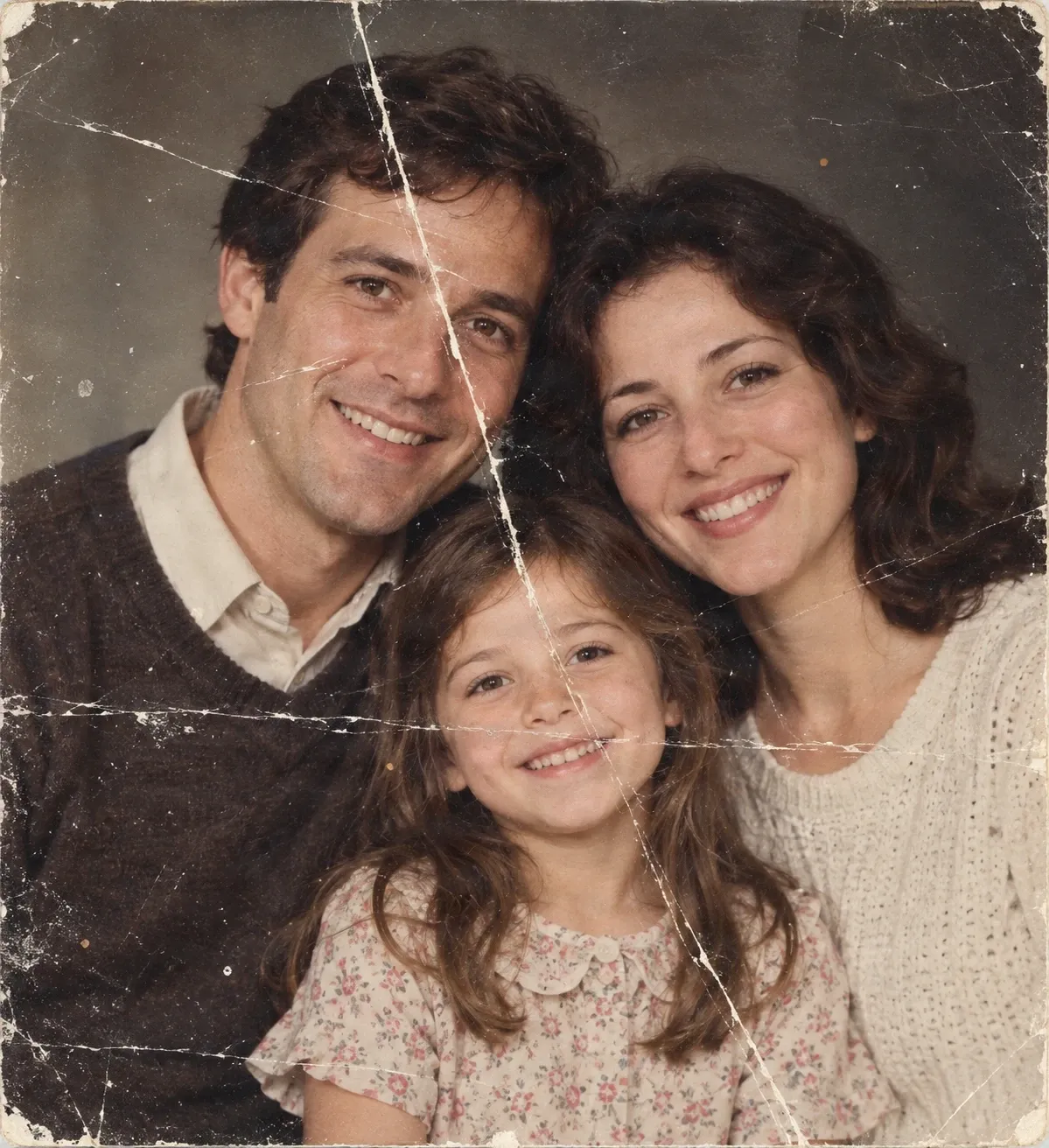
Example created using Quick Remove. Prominent scratches and crease marks were reduced, while the people remained recognizable. Some skin details became smoother, and worn outer edges were cropped, resulting in a tighter composition. AI reconstructs the appearance of damaged areas rather than recovering every original pixel, and may also change details beyond the scratches.
Try it on your photoRecent Sessions
Found an old family photo covered in white scratches, crease lines, or years of wear? You don't have to leave every distracting mark in the digital copy. Upload your photo and let AI reduce visible scratches and damaged areas. Start with Quick Remove for an easy cleanup, or use Magic Eraser to select particular marks. Bring attention back to the people and moments in the picture—not the scratches across it.
Memories worth keeping
The photo may be old. The memory still matters.
Maybe it's a photograph of your parents when they were young, a picture of your grandparents, a childhood birthday, or a family gathering you barely remember. Years later, you find that photograph in a drawer, a box, or an old family album.
The faces are still there, along with the smiles, clothing, and moment you want to keep. But scratches and folds now run across the picture. You may not have the original negatives, know how to use professional photo-restoration software, or have anything but a scanned copy of the damaged print.
An AI photo scratch remover gives you another option. Upload the image you have, ask AI to clean up visible damage, and see whether the edited picture makes the memory easier to enjoy. You can keep the original scan and save the repaired version separately.
The photograph carries the memory. The edit can help you see it more clearly.
Give scratched photos a cleaner look without complex editing
Reduce distracting white scratches
Clean up fold and crease lines
Work with photos you already have
Choose a quick or targeted edit
Keep familiar faces in the picture
Save an edited copy for sharing
How to Remove Scratches from Old Photos
Upload your scratched photo
Describe or select the damage
Let AI clean up the picture
Compare and download
Choose the way you want to repair your photo
| Quick Remove | Magic Eraser |
|---|---|
| Describe scratches and creases | Select particular damaged areas |
| No manual selection required | You define the area to edit |
| Convenient for damage across a photo | Useful for one or two specific marks |
Start with Quick Remove for general cleanup. Switch to Magic Eraser when you need more control over a specific area. Neither mode can guarantee recovery of all original details.
What AI can and cannot do
A cleaner photo isn't always an exact restoration
AI photo repair interprets the visible image and generates replacement content where damage appears. It may make scratches less noticeable even when part of the underlying photograph is no longer visible, but the generated content is an estimate.
If a scratch runs through an eye, handwritten note, facial expression, or another important feature, AI cannot know exactly what the missing pixels originally contained. It may create a plausible area that differs from the historical photograph.
Broad edits may also smooth faces, change clothing textures, reduce the aged appearance of a print, remove border details, or crop the picture. For archival, historical, legal, or documentary uses, keep the untouched scan and do not treat the AI version as an exact original.
Keep your original scan. Treat the AI result as a separate edited version of the photograph.
Why some scratched photos are easier than others
Light scratches
Moderate crease damage
Scratches over faces
Heavily damaged photographs
Give meaningful photos another chance
Old family portraits
Childhood photographs
Wedding and anniversary memories
Photos found in family albums
Vintage travel memories
Personal photo collections
Types of photo damage
What kinds of scratches can you try to remove?
White surface scratches
Thin white marks are common in older or frequently handled prints. AI can attempt to fill the visible interruptions using surrounding image information.
Long scratch lines
A prominent line across a photograph can be distracting, especially when it crosses a face. Long marks may require more reconstruction and careful inspection.
Fold and crease marks
Old pictures that were folded or bent may show bright or dark lines. Some can be reduced in a digital edit.
Small scuffs and wear marks
AI can attempt to blend small areas of surface wear from storage, handling, or age into the nearby image.
Damage across clothing or backgrounds
Marks over simple backgrounds or clothing may be easier to blend than damage crossing complex facial features.
Scratches on scanned prints
Upload a digital scan of a damaged physical photo and try to repair defects visible in the scan.
This tool edits digital image content. It does not physically repair a print, reconstruct missing historical evidence, or guarantee accurate restoration of details hidden by damage.
How to get a better-looking scratch repair
- Start with the clearest copy available. A sharp scan or well-lit photograph makes damage easier to see; avoid glare, strong shadows, and reflections.
- For Quick Remove, begin with a simple description of the scratches, creases, and damage marks without unrelated instructions.
- Pay attention to faces. Check eyes, eyebrows, mouths, expressions, and facial contours after editing.
- Inspect the outer edges. AI may crop worn borders or tighten the framing, so check that important content has not been lost.
- Check clothing and background textures for softened fabric, unusual patterns, repeated details, or visibly reconstructed areas.
- Use Magic Eraser for a specific scratch when a localized edit is more appropriate than general cleanup.
- Keep the original file alongside the repaired image so you can revisit it or try a different approach later.
Common mistakes to avoid
Expecting every scratch to disappear
Some damage may remain, especially when it covers detailed or heavily faded parts of the photograph.
Assuming generated details are historically accurate
AI can invent plausible textures or facial details. A convincing result does not prove that reconstructed areas match the original picture.
Ignoring changes to the framing
A cleaner image may also have a tighter crop or altered border. Compare the entire composition, not only the damaged areas.
Using a broad edit for one tiny mark
If you only need to fix one scratch, a targeted Magic Eraser selection may reduce unnecessary changes elsewhere.
Frequently asked questions
How do I remove scratches from an old photo?
Upload a digital copy of the scratched photograph, choose Quick Remove, and describe the scratches or crease marks you want edited. AI will attempt to clean up visible damage. Review the picture carefully before downloading.
Can AI remove scratches from photos?
AI can attempt to reduce or remove visible scratches by generating replacement details. The outcome depends on the damage, image quality, and how much of the photograph must be reconstructed.
Can I remove scratches from a photo without Photoshop?
Yes. You can try repairing a scratched digital photo in your browser without Photoshop or manually cloning each damaged pixel.
Does the AI scratch remover work on old family photos?
You can use it on digital copies of old family portraits, childhood photographs, and other personal pictures. Results are easier to evaluate when faces and surrounding details remain visible.
Can I remove white lines from a scanned photograph?
Yes. Thin white lines and surface scratches are common editing targets. AI may blend them into the surrounding image, although long or complex marks can be harder to repair convincingly.
Can it remove fold marks and creases?
You can try editing visible crease lines and fold marks. AI may reduce their appearance, but severe folds obscuring large areas require more reconstruction and may produce less accurate results.
Will removing scratches change people's faces?
It can. The goal is to keep people recognizable, but AI may smooth skin, alter facial details, or reconstruct damaged features differently. Inspect faces carefully, particularly where scratches pass through the eyes or mouth.
Can AI recover the original details hidden under a scratch?
Not exactly. If image information is missing or obscured, AI can generate plausible replacement content but cannot verify that it matches the historical photograph.
Does the tool preserve the original photo borders?
Not necessarily. AI editing may remove worn edges, crop damaged borders, or tighten the composition. Compare the edited image with the original if keeping the full print border matters.
Can I remove scratches from black-and-white photos?
You can try the editor on black-and-white photographs as well as color images. Check whether the result retains the original tonal appearance, contrast, and facial details.
Is Quick Remove or Magic Eraser better for scratches?
Quick Remove is a convenient starting point for several scratches across a photo. Magic Eraser is useful when you want to select particular damaged areas. The better approach depends on the image and the control you need.
Do I need to manually select every scratch?
Not with Quick Remove. You can describe the damage in text. If you switch to Magic Eraser, identify the regions you want edited.
Can I repair scratches that cross someone's eyes or mouth?
You can attempt to edit those areas, but they are challenging because small changes to facial features may affect the person's appearance. A plausible result does not necessarily reproduce their original features.
Can I use this tool to restore a badly torn photograph?
You may improve some damaged regions, but extensive tears, large missing pieces, and severe deterioration can be beyond what a general scratch-removal edit can repair reliably. The tool is intended primarily for visible scratches, creases, and smaller damage marks.
Will the repaired photo look exactly like the original?
No exact restoration is guaranteed. AI may recreate missing details, smooth textures, adjust color, or change the framing. Treat the edited image as an interpretation of the damaged photograph rather than a perfect reproduction.
Can I download the repaired photo and print it?
You can download the edited image for personal projects, including printing if the output quality is suitable. Check the resolution, crop, facial details, and print dimensions before ordering a physical copy.
Related photo editing tools
Remove Unwanted Objects from Product Photos
Remove unwanted objects, distracting props, and background clutter from product photos with AI. Keep your products in focus and create cleaner images online.
OpenRemove Power Lines From Photos with AI
Remove power lines, utility wires, electrical cables, and overhead lines from photos with AI. Describe the wires or select them precisely, then reconstruct the scene naturally.
OpenRemove Emojis from Photos with AI
Remove unwanted emojis and stickers from photos with AI. Upload your picture, erase emoji overlays, and create a cleaner image online.
OpenRepair background with AI
Edit damaged or missing-looking areas of a photo with a focused AI background repair workflow.
OpenGive an old photo a new look
The memories are still there. Let the scratches fade.
That family photo, childhood portrait, or vintage snapshot deserves another look. Upload your scratched picture and try a quick AI cleanup. Reduce distracting damage, compare the result with the original, and save the version you prefer.
Remove scratches from my photoQuick Remove is recommended for general scratch cleanup. Results vary, and generated edits may alter details or framing. Keep your original scan for reference.
Creative Toolkit Index
Explore More AI Features
Quick access to precision layer extraction, AI photo editing & asset tools.