
How to Remove Text From an Image While Preserving Background
Removing text while preserving the background is harder than it looks because the background behind the letters is often partially missing. The workflow is not just deletion. It is separation plus reconstruction.
On this page
Text cleanup
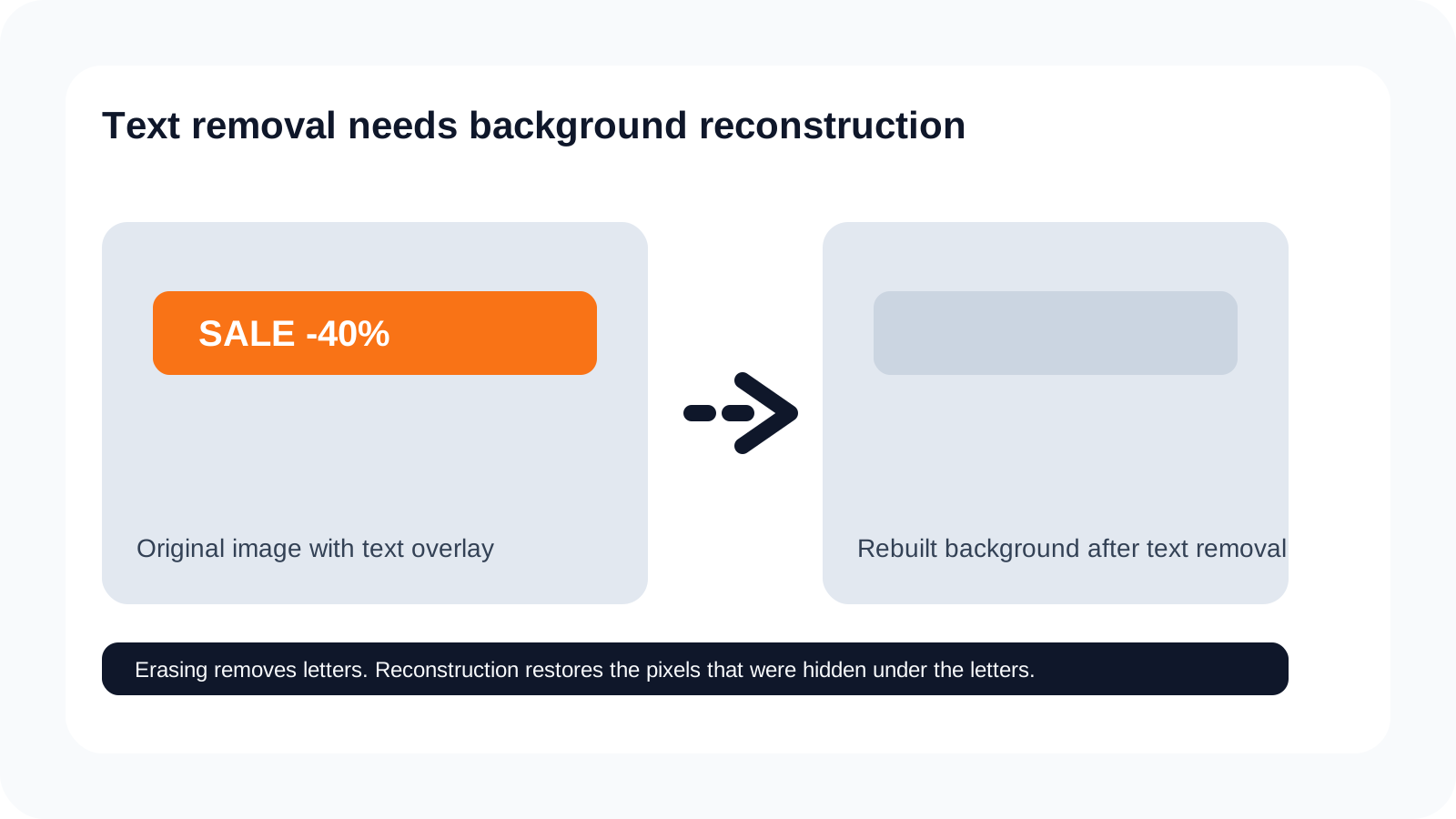
Why simple erasing often fails
A basic erase tool removes the letters, but it also reveals that the image underneath was never visible in the first place. That leaves empty space, broken gradients, repeated texture, or edges that make the cleanup obvious.
What preserving background really requires
It requires separating the text from the image and then rebuilding the pixels the text was covering. That is why text removal overlaps naturally with both remove-text workflows and background fill.
Examples where this matters most
Posters, screenshots, ads, thumbnails, and product images with labels are all common cases. If the text sits on top of a detailed image, preservation quality matters more than raw speed.
Common artifacts and how to reduce them
The most common artifacts are blurry fill, repeated texture, mismatched gradients, and a visible patch where the headline used to sit. These show up when the rebuilt background does not match the surrounding visual logic.
Reduce them by isolating the text cleanly first, keeping the repair region tight, and moving into a deeper background fill workflow when the hidden area is large or visually complex.
Step 1
Identify the text layer
Start by isolating the headline, label, or overlay text that needs to disappear.
Step 2
Separate text from the underlying image
Use AI to isolate the text instead of painting over it manually.
Step 3
Rebuild the hidden background
Recover the image area behind the text so the scene still looks coherent once the overlay is gone.
Step 4
Inspect artifacts and repeated texture
Review the rebuilt region for visible seams, blurry fills, or pattern repetition.
Step 5
Export the cleaned image or continue editing
Move to a cleanup, background fill, or layered workflow depending on what the image needs next.
Text removal FAQ
How do I remove text from an image without ruining the background?
Because the pixels behind the text were hidden by the letters, so erasing alone leaves gaps, repeated texture, or obvious damage.
Why does removing text usually damage the image underneath?
It requires reconstructing the hidden area behind the text so the image still looks natural after the words disappear.
When do I need background fill after removing text from an image?
Background fill is necessary when the removed text covered important texture, gradients, or visual detail that cannot be recovered by simple cloning.
What kinds of images are easiest for text removal?
Posters, marketing graphics, screenshots, memes, and product images with overlaid labels are common examples.
Can I remove a headline from a poster and keep the original artwork?
Yes, but the covered artwork usually needs to be reconstructed so the poster still looks natural after the headline disappears.
Can I remove text from screenshots, memes, or social graphics?
Yes. These are common use cases, especially when the background behind the text is simple enough to rebuild cleanly.
Why is text removal harder when the words cover faces or detailed areas?
It becomes harder when the text covers faces, complex product detail, textured backgrounds, or fine gradients.
Can I remove text without damaging the image at all?
Sometimes yes, but the quality depends on how much hidden background must be reconstructed and how complex that hidden area is.
When should I switch from text removal to full image reconstruction or background fill?
Use background fill when the removed text leaves a larger damaged region that needs more contextual rebuilding than a basic cleanup pass can provide.
Is removing text the same thing as full image reconstruction?
No. Text removal focuses on isolating and removing the overlay, while full reconstruction may involve broader restoration of the surrounding scene.
Next step
Try remove-text and background-fill workflows
If text is the problem, start with text separation. If the rebuilt image still needs more cleanup, continue with a background fill workflow.
Ask AI about this page
Continue exploring this page with your preferred AI assistant.