
Create a Recognizable Illustration Style
Use your existing illustrations as visual references so new artwork can follow a similar creative direction.
AI CONSISTENT ILLUSTRATION GENERATOR
Love the look of your existing illustrations but need more images to match? Upload a few examples of your favorite illustration style, describe what you want to create next, and generate new artwork with similar colors, linework, textures, and overall visual feel.
Whether you're designing a website, building an app, or creating a series of visuals, keep your illustrations looking like they belong together—without starting from scratch every time.
Generate Matching IllustrationsUpload references · Describe your new illustration · Generate
Example result · Morrow Coffee


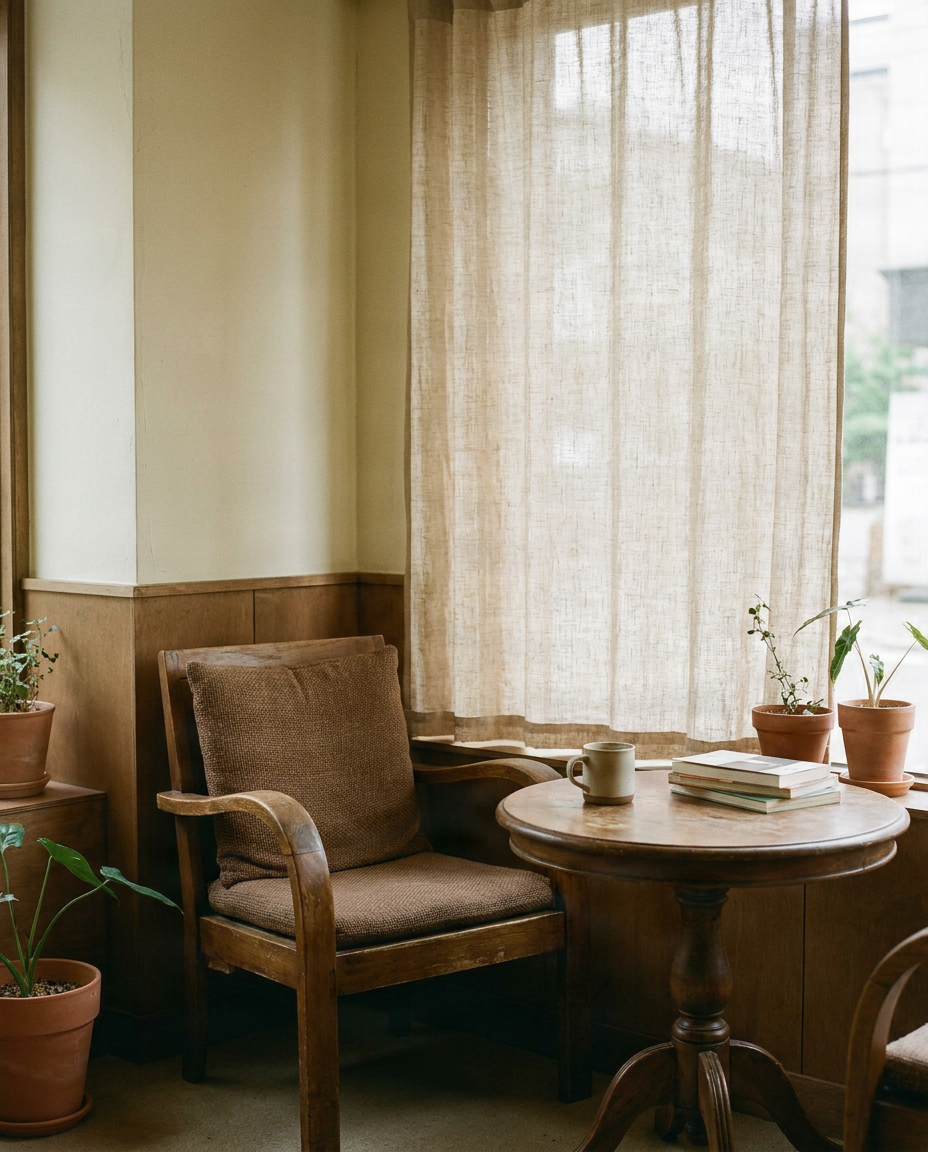

“A ceramic coffee cup and open notebook on a quiet morning desk”
Add a few images that share the style you want to keep: colors, lighting, illustration or photo look.
JPG, PNG or WebP · up to 15 MB each · 1–6 images · you can also paste with Ctrl/Cmd+V · 0/6
Describe the new picture. Your images guide the look, not the objects in them.
Canvas
Style match
The tool matches visual direction, not the exact objects or people in your references.
Example result · Morrow Coffee
“A ceramic coffee cup and open notebook on a quiet morning desk”
Brand showcase
Each example starts from three reference images that define a brand's look. The new image was made from them with the same tool you use here.
Brand references



Prompt
“A glass pump bottle of hand wash beside a bar of soap on a washstand with a sprig of lavender, no text”
What stays consistent
New image

All brands shown are fictional and were created for this page. Any resemblance to a real brand is coincidental.
You've found the perfect illustration style for your website or project. The first image looks exactly right. Then you create another illustration—and suddenly it looks like it belongs to a completely different project.
Use your existing illustrations as visual references so new artwork can follow a similar creative direction.
Let visual examples communicate colors, textures, line treatment, and drawing techniques instead of explaining every detail in a long prompt.
Keep a similar visual style while changing the subject, action, setting, or concept of each new scene.
Create artwork that feels connected across your website, app, blog, or creative project—even when every image shows something different.
HOW IT WORKS
Choose a few illustrations that represent the visual style you want to keep. Similar colors, linework, textures, and artistic direction make a clearer starting point.
Tell the generator what you want the new image to show, such as a person working on a laptop, a character reading a book, or a scene for a website feature.
Select the available image format and style consistency settings. A closer match preserves more of the reference direction, while a flexible setting allows more variation.
Compare the new illustration with your references. Check the colors, linework, composition, and overall visual feel, then refine the prompt or references when needed.
KEEP THE STYLE. CHANGE THE STORY.
A consistent illustration collection does not mean creating the same picture again and again. It means keeping recognizable visual qualities while exploring different subjects and ideas.
Keep a similar range of colors across different illustrations, from muted pastels to warm earthy palettes or bold, high-contrast colors.
Create new artwork with a similar approach to lines, including thin outlines, bold contours, or clean line-free shapes.
Reference the overall appearance of flat illustrations, hand-drawn artwork, painted textures, or other distinctive visual treatments.
Maintain a similar sense of rounded shapes, simplified forms, character proportions, and visual geometry.
Carry over the feel of grain, paper texture, soft gradients, or simple shading where appropriate.
Keep your illustrations playful, calm, sophisticated, cozy, colorful, or minimal—even when the scene changes.
The generator aims for visual similarity, not an exact reproduction of every design attribute. Results may vary between images.
Create hero artwork, feature illustrations, and section visuals that feel like part of the same website.
Make onboarding scenes feel connected through similar colors, artistic details, and overall visual style.
Generate concepts for empty inboxes, completed tasks, no search results, and other app states while keeping a shared visual language.
Create article artwork without making your blog look like a collection of unrelated art styles.
Use one consistent style across lessons, guides, worksheets, and explanatory graphics.
Build a recognizable illustration style across announcements, posts, and other visuals you share.
SAME STYLE, DIFFERENT SUBJECTS
Imagine you've created an illustration of a person working at a desk. You love the soft colors, rounded shapes, and simple linework. Now you need scenes about exercise, online shopping, and a team meeting—without changing the art direction.
WHY USE REFERENCE IMAGES?
Words such as minimal, playful, or flat can mean different things to different image generators. Reference images give the generator a clearer visual starting point.
Use illustrations you own or have permission to use as examples of the aesthetic you want to continue.
Let your references communicate color relationships, line treatment, texture, and overall mood.
Change the subject or scene while continuing to reference the same visual style.
If a result is not close enough, refine the prompt, adjust the available style setting, or choose more representative references.
BETTER RESULTS
Avoid mixing unrelated techniques. Watercolor paintings, realistic photography, and flat vector artwork may communicate conflicting directions.
Recognizable shapes, linework, and colors provide better visual examples than blurry or heavily compressed references.
Tell the generator what the next illustration should contain, such as a person watering indoor plants beside a window.
If your goal is a cohesive collection, avoid changing too many visual variables between generations.
Place images next to each other and check whether their colors, linework, textures, and visual mood feel compatible.
Reference-based generation can improve style alignment, but it does not guarantee identical line thickness, exact color values, or matching characters.
A consistent illustration generator helps you create new illustrations that follow a similar visual style to your reference images, including recognizable colors, linework, textures, and artistic direction across different subjects.
Yes. Use the same or similar reference images with different subject prompts to create a more cohesive collection, although exact consistency is not guaranteed.
Yes. Upload supported images that represent the illustration style you want, and make sure you have the appropriate rights or permissions to use those references.
No. The tool uses reference images to guide the generation process, so you do not need to train your own model first.
The generator can reference colors in your uploaded images and aim for a similar palette, but exact color values are not guaranteed in every result.
The generator can follow the overall linework and drawing treatment of your references. Fine differences in outline thickness, shapes, and small details may still occur.
Yes. Create illustrations for website sections, blog articles, product explanations, and other visual content using a consistent reference style.
Yes. Generate artwork for onboarding screens, empty states, tutorials, and other app experiences, then review it at the intended display size.
That is one of the main uses of reference-based illustration generation. Describe a new subject while using existing images to guide the overall artistic style.
Commercial use depends on your rights to the source references, applicable service terms, and relevant laws. Review those requirements before using generated artwork commercially.
No. The goal is a similar visual style, not identical images. Differences in composition, subject matter, colors, and fine details may occur.
Start with a few clear illustrations that share a recognizable style. A small, consistent reference set is often more useful than a large collection of unrelated images.
You can use flat, vector-style artwork as a visual reference and generate images with a similar appearance. The output is not an editable SVG or true vector file.
Yes. Upload hand-drawn-style references and ask for a similar visual treatment. Exact reproduction of individual strokes is not guaranteed.
This tool focuses on keeping visual style consistent. It does not guarantee that a character's face, outfit, proportions, or identity will remain identical across images.
Yes. Describe a different scene or background while using your reference images to guide the overall visual style.
Try more closely related reference illustrations, simplify your prompt, or adjust the available style controls. Some styles and subjects are harder to match than others.
Regular AI image generation focuses on creating an image from a prompt. Consistent illustration generation places more emphasis on using reference artwork to guide visual style across multiple creations.
You already know what you want your illustrations to look like. Upload your reference illustrations, describe your next idea, and generate artwork that feels connected to the rest of your project.
Generate Consistent IllustrationsCreate new subjects in a similar artistic style using the illustrations you already love.
Creative Toolkit Index
Quick access to precision layer extraction, AI photo editing & asset tools.