
AI image text editor
Edit Text in an Image Without Starting Over
Change the words. Keep the design you love.
Replace · Translate · Rewrite · Remove
Make changes to an existing image, even when you don't have the original design file.
Text is detected in your browser, and nothing is uploaded until you choose an AI edit. Free edits cover the original words with a flat colour patch, so they work best on plain or evenly coloured backgrounds. This is AI image editing, not recovery of a hidden Photoshop text layer. The model redraws the requested area and may change nearby pixels.
See what you can change
Small Text Changes. A Whole New Purpose.
You don't always need a completely new image. Sometimes changing a few words is enough to make the design useful again.
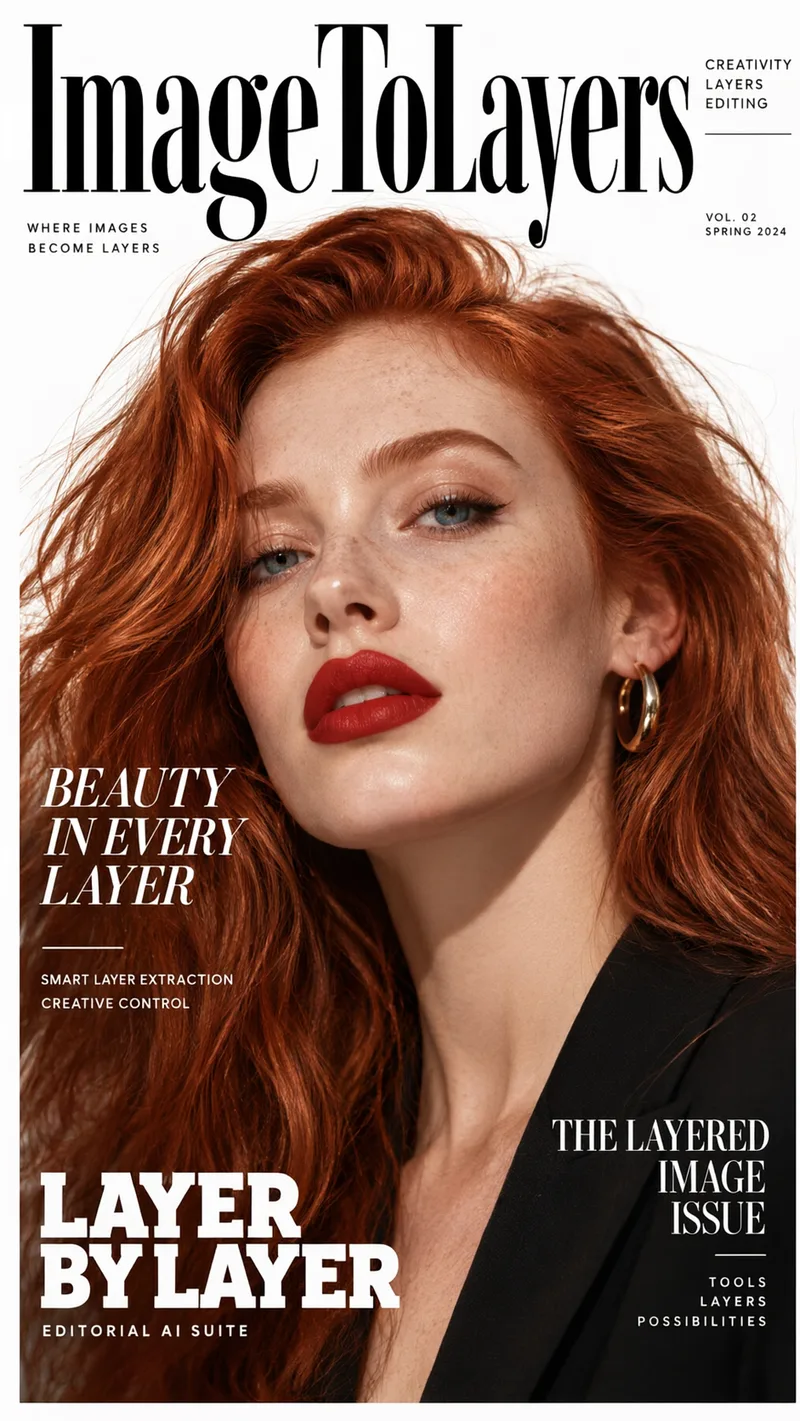
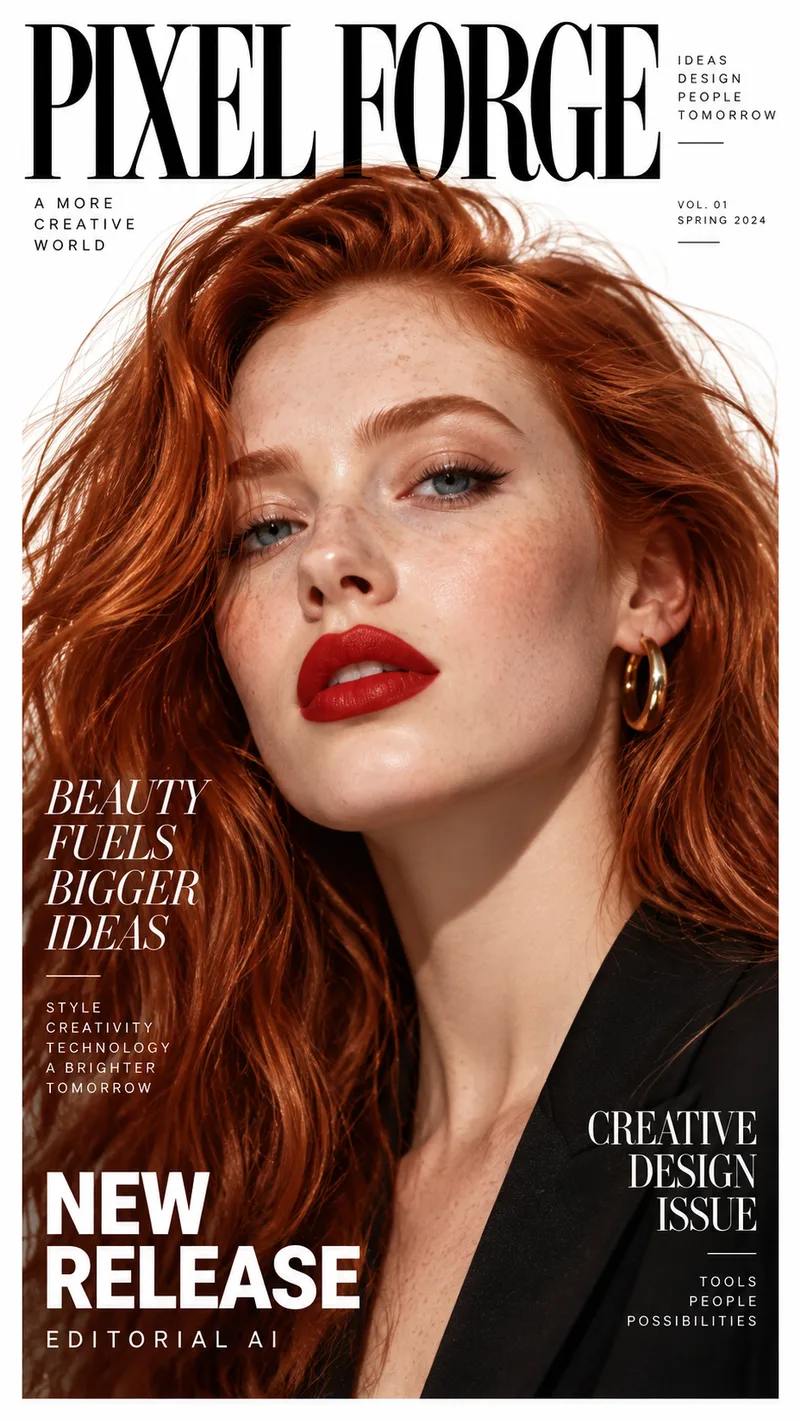
Rename a Magazine Cover
The photo and layout stay. The masthead, headlines, and small print are rewritten for a different title. Drag the slider to compare the original cover with the edited one.
Example change
PIXEL FORGE · BEAUTY FUELS BIGGER IDEAS · NEW RELEASE
ImageToLayers · BEAUTY IN EVERY LAYER · LAYER BY LAYER
Update several lines of text on the same image while aiming to keep the composition.
Results vary depending on text placement, image quality, font styling, and background complexity.
See it on a real ad
Every line of text on the ad is its own layer
This finished ad was split into a background, a photo, and separate text layers. Click any text block, change the wording, and see the update on the creative.
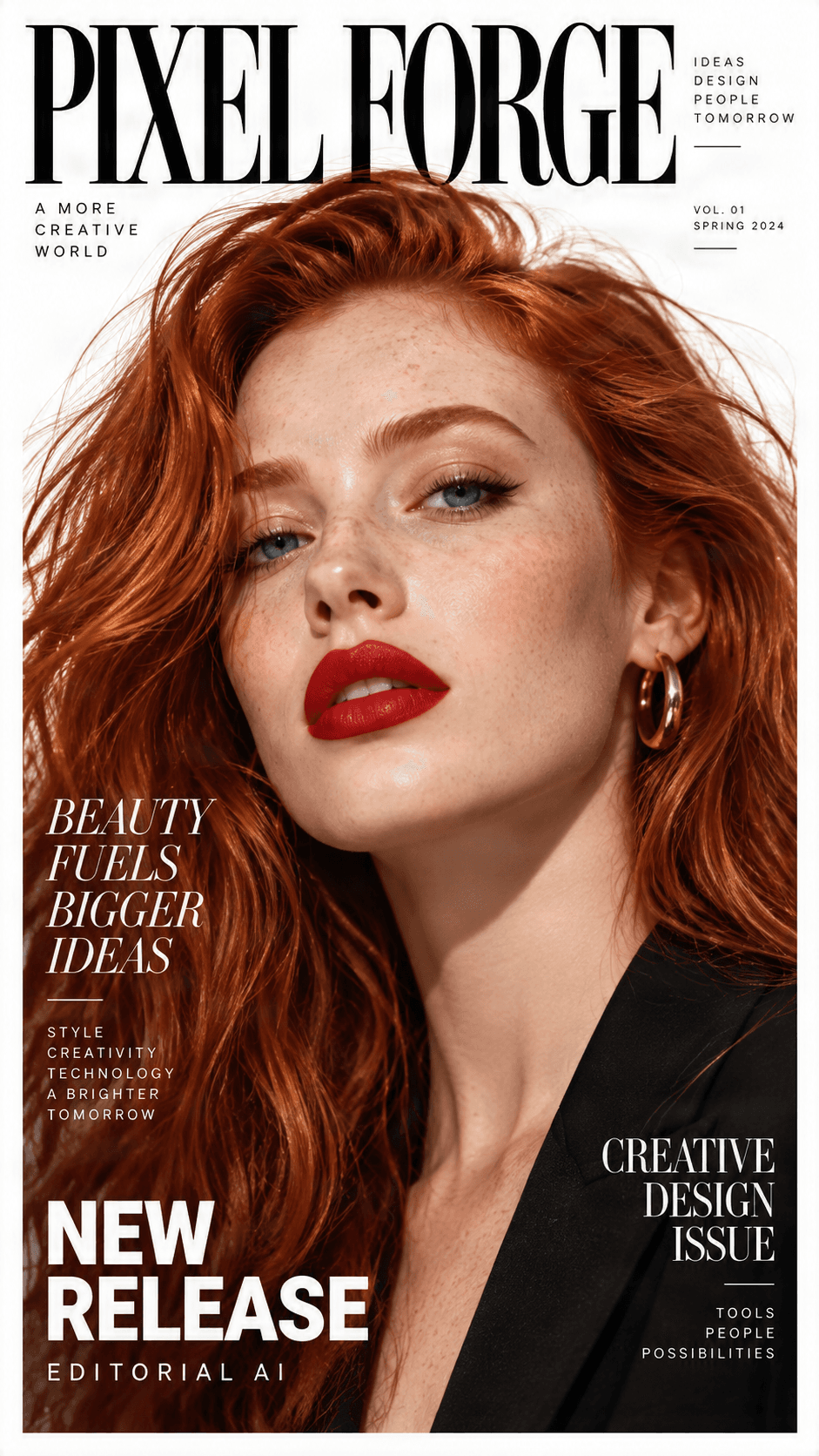
Original ad preview
Detected text, ready to edit
Click a text block, change the wording, and preview the update directly on the ad.

NEW RELEASE
Headline / Promo label

BEAUTY FUELS BIGGER IDEAS123
Campaign headline

CREATIVE DESIGN ISSUE
Secondary subhead

PIXEL FORGE
Brand logo
Background
Clean reconstructed image
Need to change more than the text?
Split any ad into separate text, image, logo, graphic, and background layers.
The problem we solve
Your Image Looks Great. The Words Don't.
You've already found the right picture, layout, and colors. But there's one small problem: the text isn't right.
Maybe the event date changed. Maybe you spotted a typo after exporting. Or perhaps you downloaded an AI-generated image with a beautiful design but incorrect lettering.
Normally, fixing it means opening a design editor, covering the old words, finding a similar font, and trying to make everything look natural again.
And if all you have is a flattened JPG or PNG, you may not be able to select the original text at all.
That's exactly why we built Edit Text in Image. Instead of rebuilding a design for a small correction, you can work directly with the image you already have.
No Original Design File?
Don't Want to Ruin the Background?
Need More Than a Typo Fix?
AI editing works best when the text is clear and the requested change is specific. Fonts, complex backgrounds, and fine details may need additional review.
One editor, four text tasks
What Would You Like to Change?
Whether you know exactly which words to use or just know the message isn't right, choose the editing mode that fits your goal.
Replace Text
Change the wording while keeping the visual style.
Need to update a name, title, date, or promotional message? Enter the existing text and what you'd like it to say instead. Ask the editor to keep the font style, colors, position, and surrounding layout as consistent as possible.
Best for: Headlines, dates, labels, short messages, and promotional text.
Example: Replace "Coming Soon" with "Now Open."
Translate Text
Make your image understandable in another language.
You shouldn't have to remake an entire graphic just because you need a translated version. Translate visible text and review how the new wording fits within the original layout.
Best for: Personal posters, event graphics, illustrated instructions, and multilingual social content.
Example: Change an English headline into French or Spanish.
Rewrite Text
Make the message clearer without changing the entire image.
Sometimes the words aren't wrong—they just don't sound right. Ask AI to make a headline shorter, friendlier, more playful, or easier to understand.
Best for: Captions, headlines, invitations, promotional messages, and creative graphics.
Example: Rewrite "We Are Launching Our Brand-New Collection" as "Discover What's New."
Remove Text
Keep the image. Lose the unwanted words.
Need the image without a caption, old promotion, or decorative text? Remove selected wording and let AI attempt to reconstruct the background behind it.
Best for: Old headlines, unwanted labels, distracting captions, and reusable artwork.
Example: Remove the headline from a promotional image to create a cleaner background.
Simple image text editing
How to Change Text in an Image
- 1
Upload Your Image
Start with the picture you want to edit. You can use an existing photo, illustration, screenshot, poster, or another supported image. You don't need the original layered project file.
- 2
Choose Your Editing Task
Select Replace, Translate, Rewrite, or Remove. Choose the operation that matches what you want to accomplish instead of trying to describe every change in a long prompt.
- 3
Tell AI What to Change
For a replacement, provide the original words and your new wording. For translation or rewriting, describe the result you want. For removal, identify the text you want gone. Use the design-preservation option when you want to keep the existing layout.
- 4
Check the Result
Compare the original and edited images. Pay attention to spelling, font appearance, text alignment, background details, and any nearby objects.
- 5
Download Your Edited Image
When you're satisfied, download the result. If something isn't quite right, adjust the instruction and try another edit.
Made for everyday creative work
Edit Text Wherever Your Images Need an Update
Fix AI-Generated Image Text
Change Text on a Poster
Update Invitations
Edit Text in Photos
Revise Social Media Graphics
Update Product Promotion Images
Edit Text in Screenshots
Remove Unwanted Text From Artwork
Keep the look you chose
Change the Text, Not Everything Around It
The most frustrating part of editing a flattened image isn't typing the new words. It's making the image look as though they belonged there all along.
A replacement should fit the composition, work with the surrounding colors, and feel natural within the original design. Our AI image text editor lets you request that the original visual appearance be preserved as much as possible.
AI editing does not guarantee an exact font match, identical layout, or pixel-perfect background preservation.
Keep a Similar Font Style
Preserve Colors and Placement
Respect the Background
Check the Details
Get the result you want
A Few Small Tips Can Make a Big Difference
Be Specific About the Words
Use the exact text you want to replace and enter the exact new wording. Check capitalization, punctuation, and spelling before submitting.
Start With a Small Change
Changing a single headline or label is often easier to evaluate than rewriting every word in a complex image.
Keep the New Text a Similar Length
A very long replacement may not fit the original text box naturally. If you have flexibility, try shorter wording to preserve the design's balance.
Use Clear Images
Small, blurry, compressed, or heavily stylized text can be difficult for an AI editor to interpret.
Watch Complex Backgrounds
Text placed over hair, faces, patterned fabric, reflections, or fine illustrations may be harder to remove or replace cleanly.
Compare Before Downloading
Zoom in when possible and review the words, edges, colors, and nearby details before using the finished result.
Choose the right workflow
Need a New Message or a Fully Editable Design?
Editing visible text and recovering image layers are different tasks.
Use Edit Text in Image when…
Use Image to Layers when…
Editing text in an image does not automatically recover the original font file or the source design project.
Know before you edit
Designed to Help You Make Changes, Not Promise Perfection
AI editing can save time on many image corrections, but the final result depends on the source image and the kind of change you're requesting.
Fonts May Differ
Backgrounds May Need Attention
Text Can Be Misread
Translations May Need Review
Important Content Should Be Verified
Use Images You Have Permission to Edit
Frequently Asked Questions
Can I edit text in an image without Photoshop?
Yes. You can use an online AI image text editor to request changes to visible words without opening Photoshop. Upload your image, choose an editing task, and review the result.
Can I change text in a JPG or PNG image?
Yes, provided the image format is supported by the uploader. JPG and PNG files normally contain flattened pixels rather than editable text objects, so the editor needs to reconstruct the affected area.
How do I replace words in an existing image?
Upload the image, select Replace, enter the original wording and the new text, and choose the available preservation settings. Then generate and inspect the edited result.
Can I change the text while keeping the same font?
You can ask AI to preserve the original font appearance as closely as possible. However, exact matches are not guaranteed, particularly with custom, decorative, or highly stylized fonts.
Will the background stay exactly the same?
The editor can attempt to preserve the surrounding composition, but generated edits may change some nearby details. Complex backgrounds require especially careful review.
Can I fix misspelled words in AI-generated images?
Yes. You can try correcting unwanted or misspelled text without regenerating the entire image. Review the spelling in the result, since AI image editing can still make text mistakes.
Can I edit text on a poster?
Yes. You can update wording in posters you own or have permission to edit, including headlines, short descriptions, dates, and other text.
Can I edit text in a photo?
Yes. You can request changes to visible wording in a photograph. Edits involving curved surfaces, angled signs, reflections, and textured backgrounds may be harder to reproduce naturally.
Can I translate text in an image?
The Translate mode is designed for changing visible wording into another language. Review both the translation and its appearance, especially when the new text occupies more space.
Can I rewrite text instead of manually entering every new word?
Yes. Rewrite mode is intended for adjusting the wording or tone of an existing message. You should still review the proposed text to make sure it communicates what you mean.
Can I remove text without replacing it?
Yes. Use Remove mode when you want unwanted words erased instead of replaced. AI attempts to reconstruct the area behind the text, with results depending on the image.
Can I edit multiple text areas in one image?
You can work on images containing multiple text areas. How many changes can be handled in one operation depends on the current editor workflow and the complexity of the image. Review each changed area carefully.
What if the original text is very small or blurry?
Small or blurry letters may be difficult to interpret accurately. A clearer, higher-resolution source image can help. You may also need to provide the exact original text manually.
Can I change a price or date in an image?
You can update text in your own designs, such as personal event posters or promotional graphics. Always make sure the resulting information is accurate. Do not use the editor to falsify receipts, payment records, or other authentic documents.
Can I preserve the original image's colors and layout?
You can request that the editor retain the original design as closely as possible. Changes in text length, font style, or underlying image details may still affect the layout.
Does editing text recover the original editable text layer?
Not necessarily. A flattened image usually doesn't contain the original font, text object, or design history. AI image editing changes the visible result; it does not automatically recover the original source file.
Can I export a PSD file?
The available download formats depend on the current editor's export options. If you need independently editable image layers or a layered PSD workflow, explore Image to Layers separately.
Do I need to create an account?
Follow the sign-in and usage instructions displayed in the editor. Some editing or download operations may require authentication.
Is Edit Text in Image free?
Check the editor for the currently available usage allowance and any applicable charges. Availability, limits, and pricing should be shown before you submit an operation that incurs a charge.
Can I use the edited images commercially?
Commercial use depends on your rights to the original image, any third-party material it contains, and the applicable service terms. Make sure you have the necessary permissions before publishing or selling edited content.
Why does the edited text sometimes look different from the original?
AI may approximate the original lettering rather than reproduce its precise font and effects. Changes in word length, perspective, image quality, and background details can also affect appearance.
What should I do if the edit doesn't look right?
Check the original and replacement text, make the instruction more specific, and try a smaller change. If the image contains highly stylized lettering or complex details, additional manual editing may be needed.
Love the Image? Make the Words Right.
You shouldn't have to throw away a design because of a typo, outdated headline, or message that needs a little work. Upload your picture, choose the change you want, and see what you can improve.
Replace words, translate messages, rewrite copy, or remove unwanted text from images you have permission to edit.
Creative Toolkit Index
Explore More AI Features
Quick access to precision layer extraction, AI photo editing & asset tools.