
Clean die-cut borders
Generate crisp white outlines and high-contrast edges that separate cleanly for Cricut, Silhouette, and print shops.
Sticker design
Turn text prompts into bold die-cut stickers, kiss-cut sheets, and kawaii character decals ready for print or messaging apps.
Capabilities
Generate crisp white outlines and high-contrast edges that separate cleanly for Cricut, Silhouette, and print shops.
Create 4-up or 6-up themed sticker sheets in a single prompt with consistent line weight and palette.
Pair your generated artwork with background removal or layer splitting to export individual transparent stickers.
Render square 1:1 badges or vertical packs at sharp resolutions suited for vinyl printing and digital stores.
Prompt directions
Start from a preset above or adapt these prompt formulas for your shop or community.
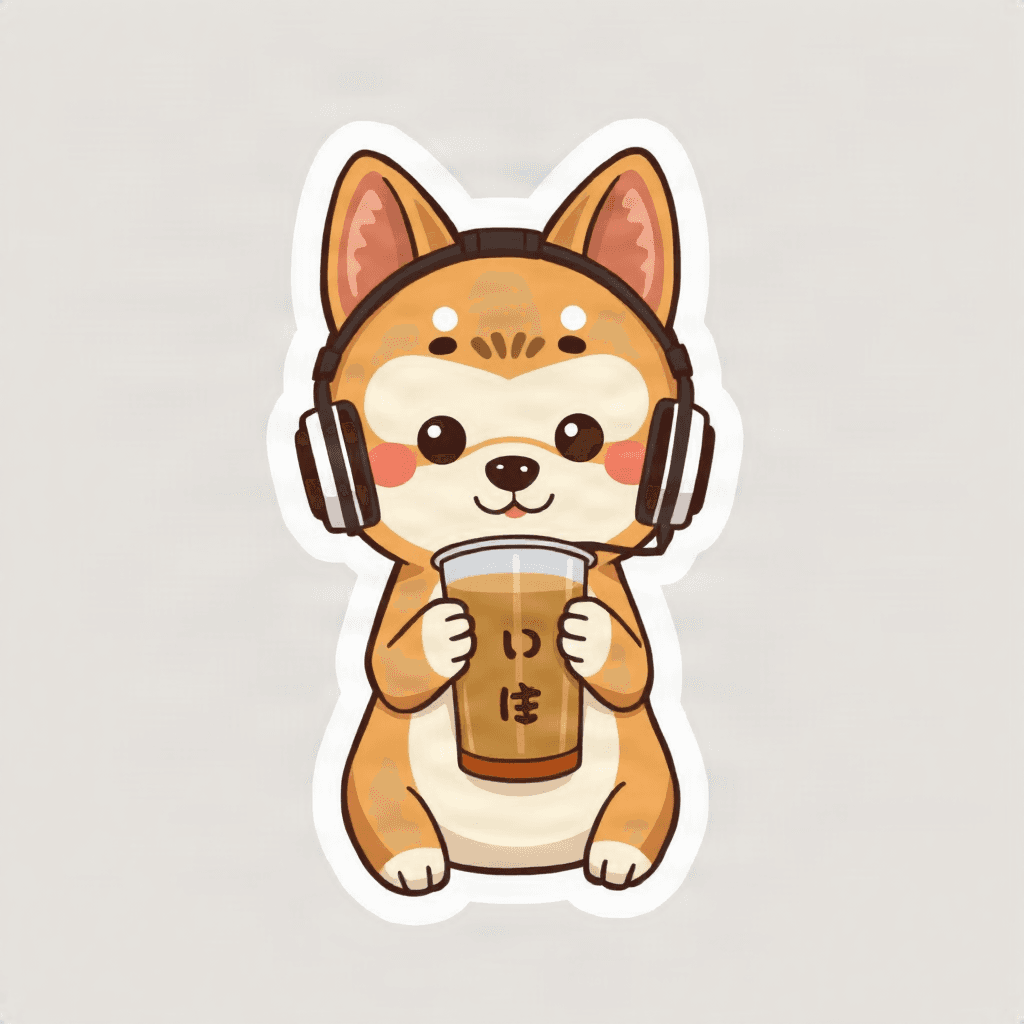
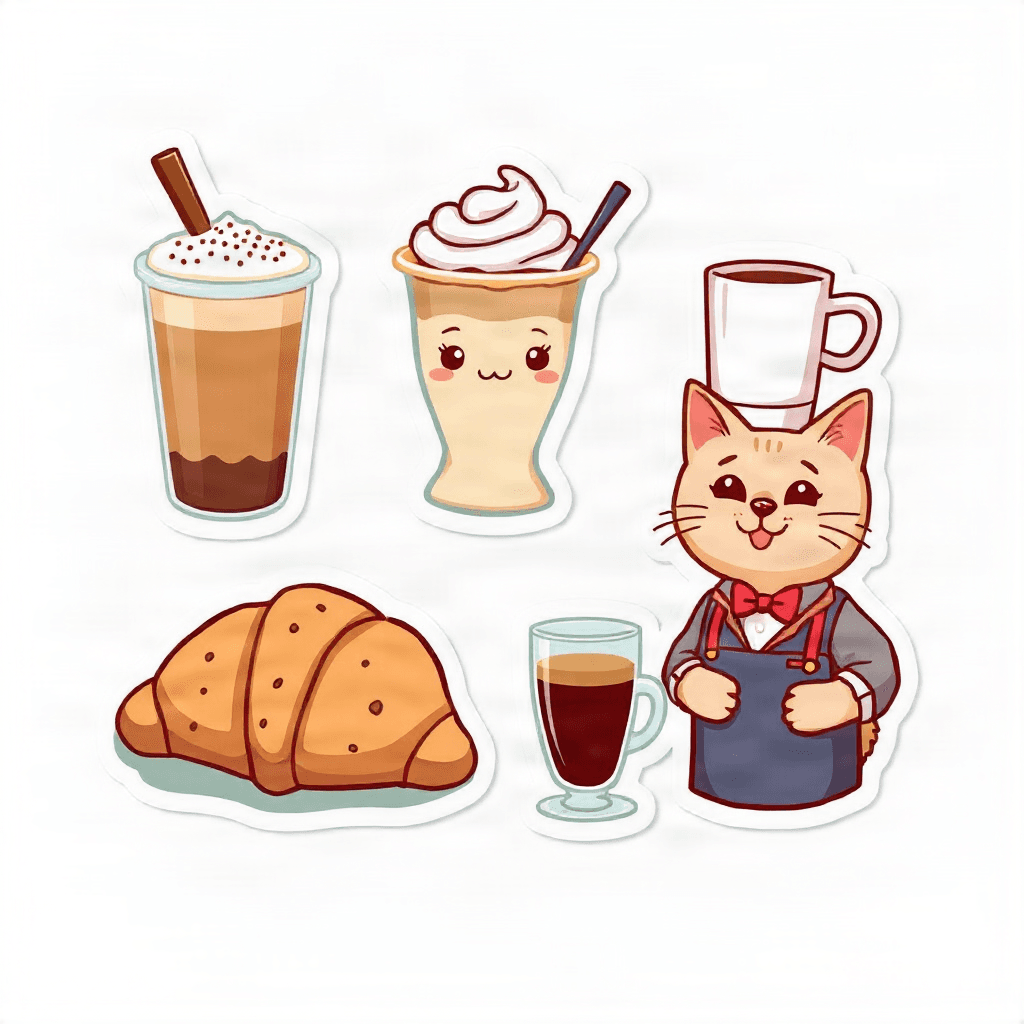
Rounded proportions, pastel palettes, and expressive faces for Telegram, Discord, and stationery shops.
Chibi red panda chef sticker set, thick white outline, soft pastel cel shading, isolated on plain background
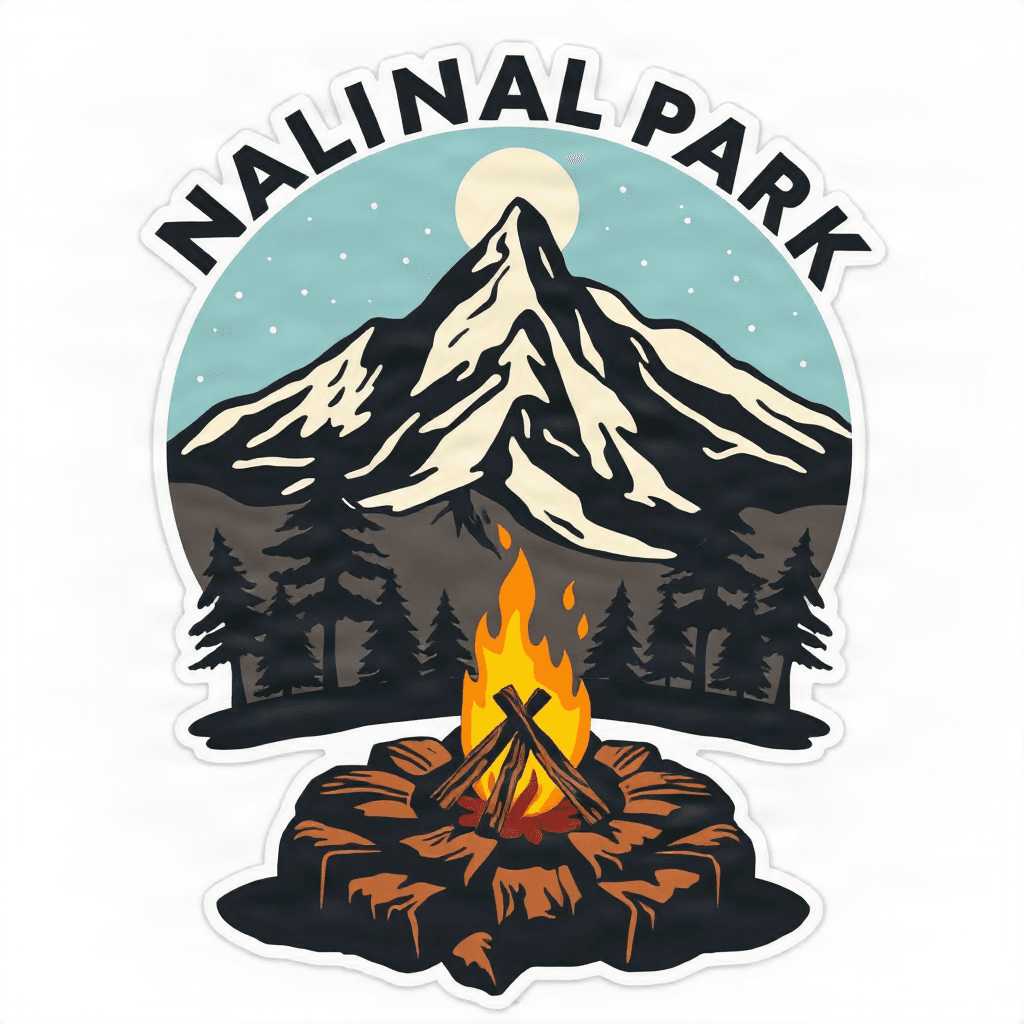
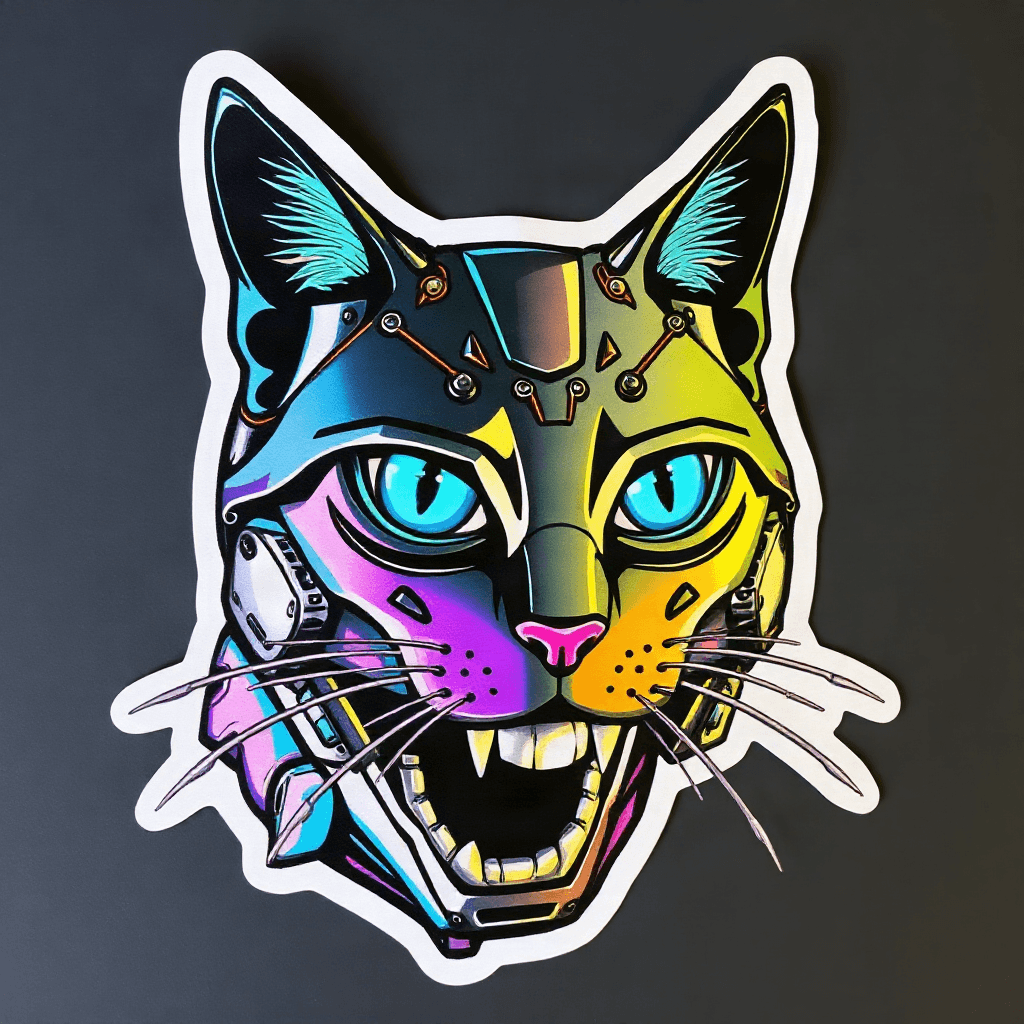
Thick ink outlines and saturated flat fills designed for laptop decals, water bottles, and packaging.
Skateboarding frog vinyl sticker, bold black linework, vibrant street colors, white die-cut border
Clean typographic badges and packaging seals for coffee roasters, bakeries, and boutique parcels.
Minimalist artisan bakery seal sticker, warm cream and terracotta palette, clean die-cut circle
How it works
Step 01
Pick a preset or enter your character, border style, and color palette in the prompt box.
Step 02
Select 1:1 or your preferred aspect ratio and generate high-contrast artwork on a clean backdrop.
Step 03
Send multi-sticker sheets to our Sticker Sheet to Layers tool to export every decal as its own transparent PNG.
Use cases
Prototype seasonal sticker packs, planner icons, and die-cut bundles before sending files to print.
Build expressive community reaction stickers with matching outlines and consistent character style.
Design custom thank-you decals and box seals that match your brand colors.
Next step
Automatically separate every sticker on a sheet into individual transparent PNGs and layered PSD files without manual cropping.
FAQ
After generating your sticker on a plain background, open it in Background Remover or Sticker Sheet to Layers to export a clean transparent PNG or layered PSD.
Yes. Mention the number of stickers and a plain background in your prompt, then use Sticker Sheet to Layers to extract each sticker into its own file.
Yes. Including 'thick white die-cut border' in your prompt creates clear outer contours that convert cleanly into cut paths or SVG outlines.
Use 1:1 for single die-cut badges and square sticker sheets, or 4:5 when arranging taller multi-row sticker sheets.
Yes. Paid-plan exports include full commercial usage rights for print-on-demand, packaging seals, digital sticker packs, and client work.
After generating and isolating your sticker, run it through our Image Upscaler to boost sharpness and print resolution without jagged edges.
Yes. Send any generated sticker or multi-sticker sheet to Sticker Sheet to Layers or Image to PSD to export organized transparent layers.
Keep your style, border, and palette phrases identical across prompts—such as 'thick white die-cut outline, pastel cel shading, flat vector style'—and swap only the subject.
Related tools
Extract every sticker from a generated sheet into separate transparent PNGs and an organized PSD.
Convert clean sticker artwork into crisp vector cut paths ready for Cricut Design Space.
Strip solid backgrounds from single stickers in one click for instant transparent PNG export.
Generate crisp die-cut sticker artwork from text and separate every decal into editable layers.
Creative Toolkit Index
Quick access to precision layer extraction, AI photo editing & asset tools.
Select a template to populate your prompt and output format.