
Convert PNG to SVG for Cricut
Turn PNG images into clean, scalable SVG files for Cricut projects. Convert logos, clipart, decals, illustrations, and simple graphics into editable vector paths — with optional color-separated layers for multi-color cutting.
Drop an image here
Choose a PNG, JPG, or WebP file, drag it here, or paste it from your clipboard.
Preview a cached example
PNG, JPG, or WebP · Maximum 10 MB
Vector settings
Works with Figma, Illustrator, Inkscape, and web browsers.
30 credits per conversion · Usually completes in under one minute.
PNG, JPG & WebP · Vector paths · Optional color layers · SVG download
See PNG Images Converted to SVG for Cricut
See how flat raster graphics become scalable vector paths and separate color layers for craft workflows.
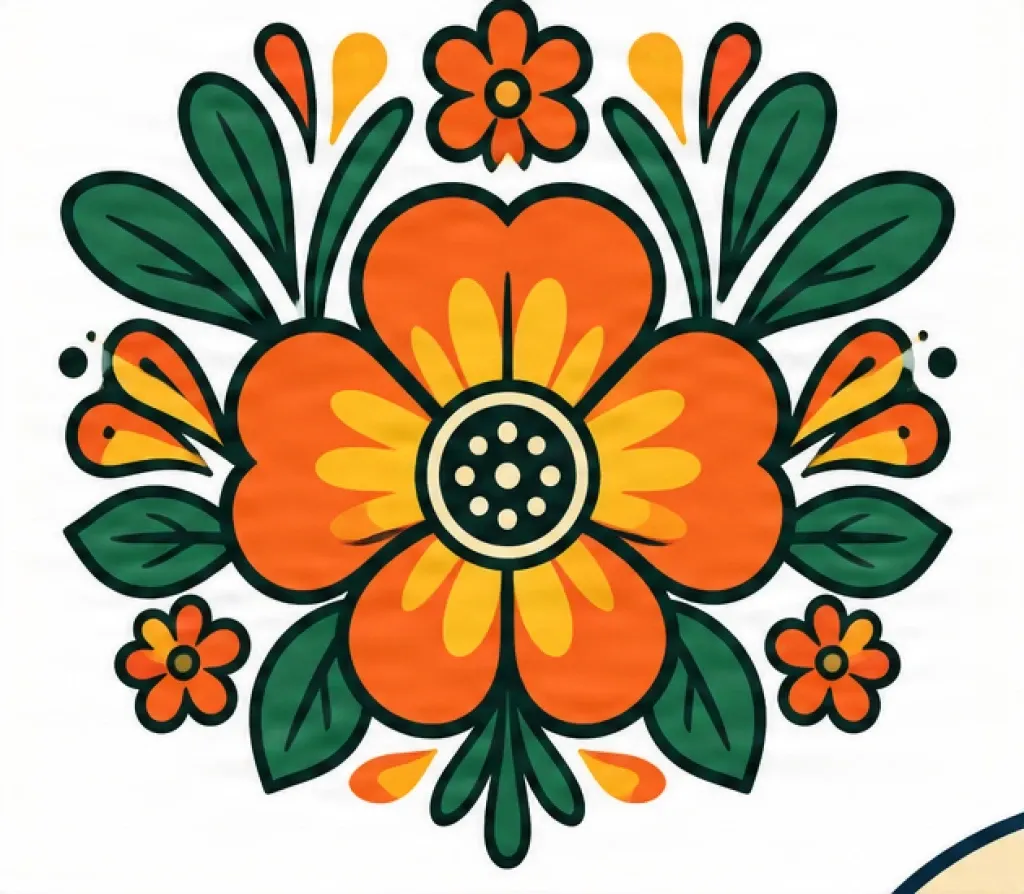
One flat PNG, five editable color layers
Turn one flat PNG into separate color layers for multi-color vinyl and layered craft projects. Open the layers to see each color lift out as its own editable SVG.

Heat Transfer Vinyl Design
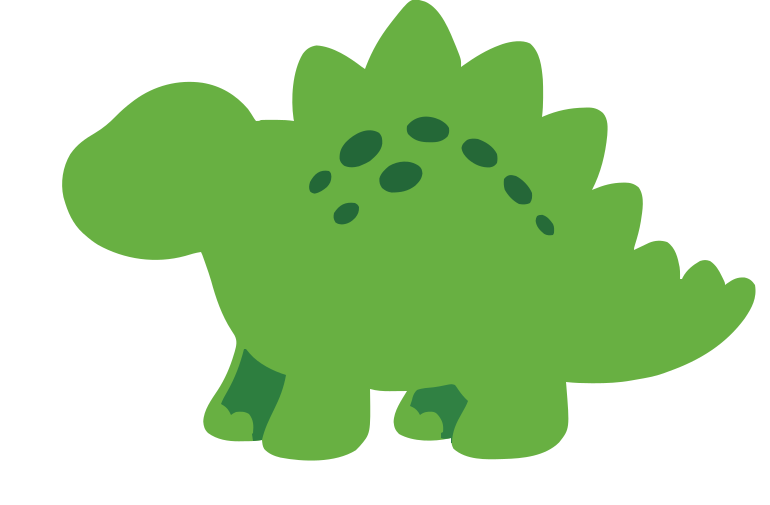
Separate a simple illustration into clean color regions for multi-color apparel and HTV projects. Each color is an independent layer you can hide or show — not pixels baked into one image.
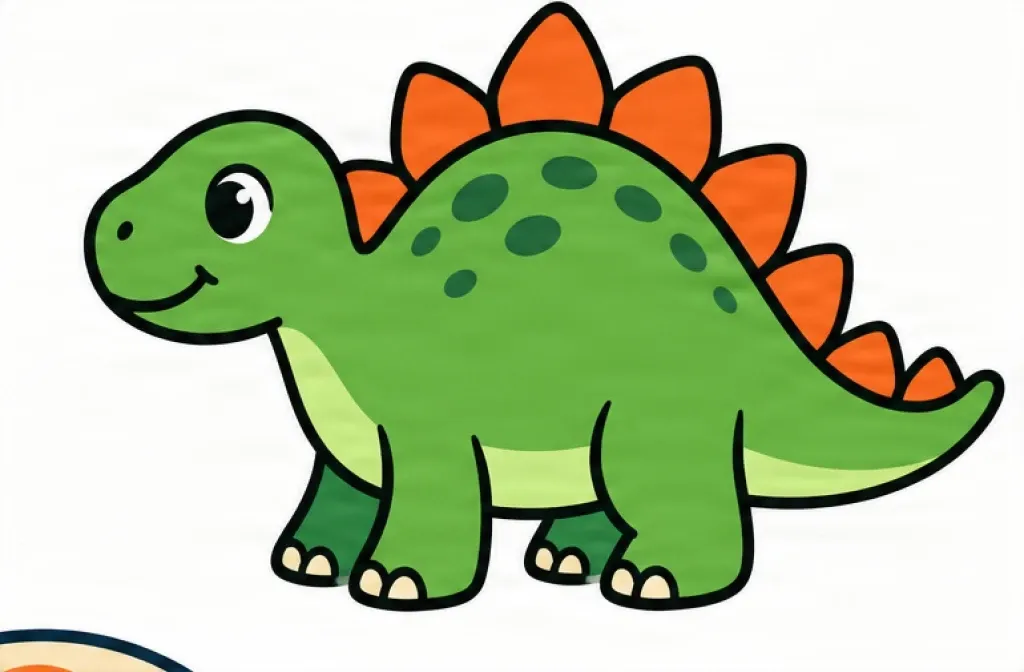
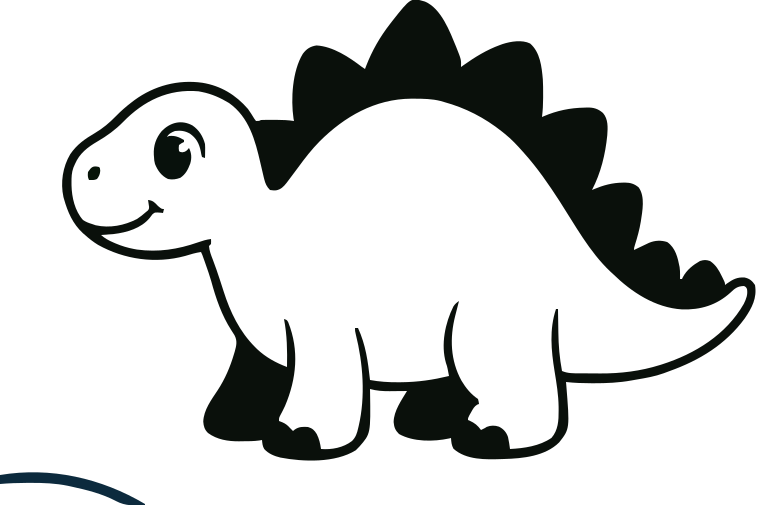
Complex artwork, simplified for cutting
Convert badge-style artwork into clean vector shapes while reducing it to a few major colors — a Cricut-friendly SVG instead of thousands of raster tones.
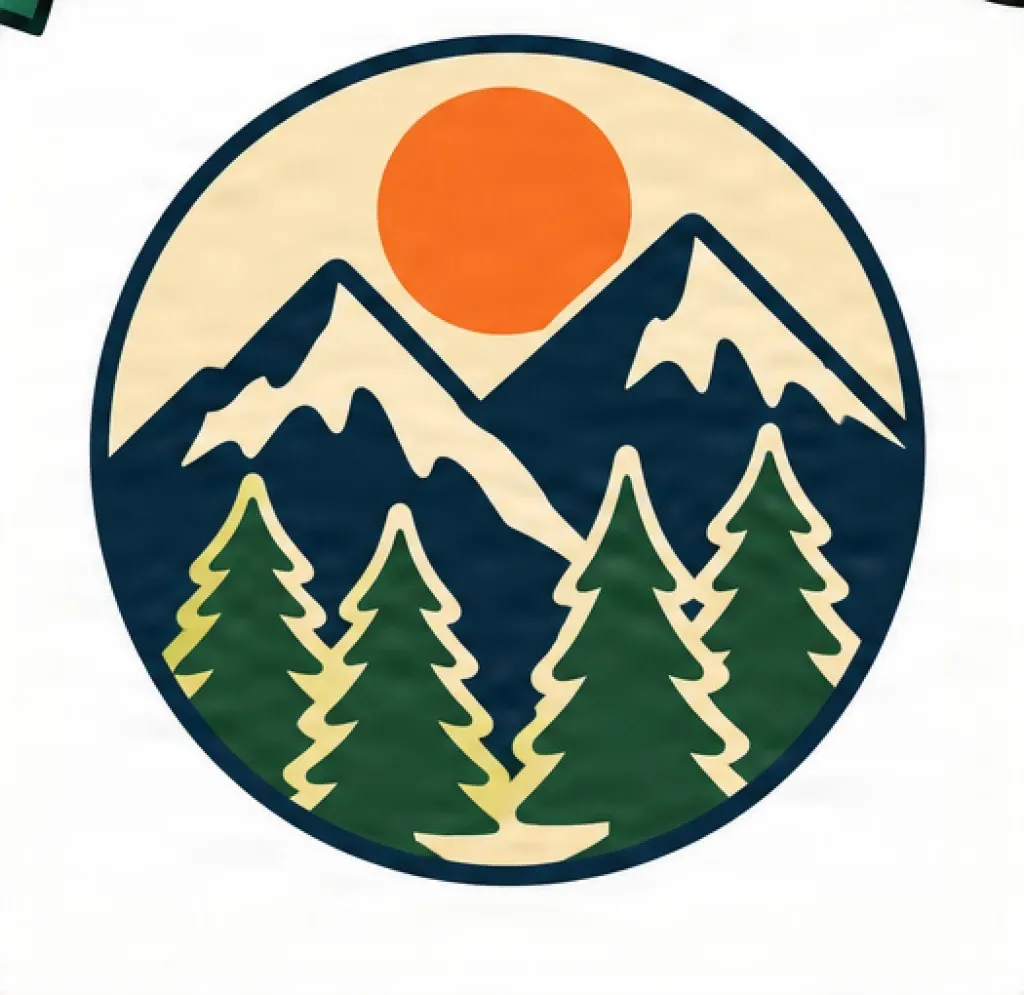
Raster colors
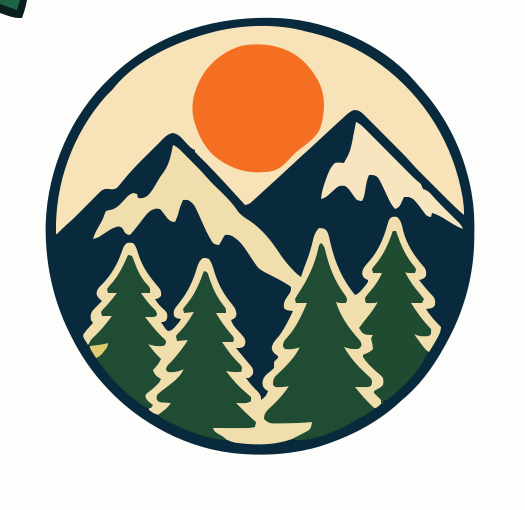
4 major colors
Turn a PNG Into a Cricut SVG
PNG images are made from pixels. Cricut workflows often work better with vector artwork because SVG files describe shapes and paths instead of relying on a fixed image resolution.
ImageToLayers converts visible shapes in your image into scalable SVG paths that can be resized, edited, recolored, or separated into layers.
PNG Image
- Raster pixels
- Flat artwork
- Fixed resolution
Vectorization
- Detect shapes
- Trace edges
- Simplify colors
- Separate layers
Editable SVG
- Scalable paths
- Transparent background
- Optional color layers
Customize Your SVG Before Downloading
Number of Colors
Choose how many major colors to preserve. Fewer colors usually create simpler SVG files that are easier to cut and layer.
Separate Color Layers
Create one SVG layer for each major color. Useful for multi-color vinyl, cardstock, heat transfer vinyl, and layered craft projects.
Simplify Colors
Merge similar colors before vectorization to reduce unnecessary paths.
Remove Small Details
Remove tiny isolated shapes that may be difficult to cut or weed.
Smooth Paths
Reduce jagged raster edges and unnecessary anchor points while preserving the overall design.
Remove Background
Exclude a plain background so only the main design is included in the SVG.
Why Convert PNG to SVG for Cricut?
Create Scalable Cut Files
SVG shapes can be resized without relying on a fixed pixel resolution.
Edit Individual Shapes
Vector paths can be adjusted, removed, recolored, or reorganized in compatible design software.
Separate Colors Into Layers
Turn major color regions into independent layers for multi-color craft projects.
Create Transparent Designs
Remove unwanted raster backgrounds and keep only the design itself.
Simplify Complex Artwork
Reduce unnecessary colors and tiny details before preparing the final SVG.
Reuse Your Designs
Keep one scalable SVG asset for different craft sizes and future projects.
PNG vs SVG for Cricut Projects
PNG
Raster image
- Made from pixels
- Fixed resolution
- Usually flattened
- Colors are not separate vector shapes
- Can include a background
- Harder to edit individual elements
SVG
Vector artwork
- Built from scalable paths
- Easier to resize
- Individual shapes can be editable
- Can contain separate color layers
- Supports transparent areas
- Better suited to many cutting workflows
Separate Colors Into Editable SVG Layers
Many PNG graphics look like a single image even when they contain several distinct colors. ImageToLayers can identify major color regions and convert them into separate vector layers.
Each layer can represent a different vinyl color, cardstock sheet, or design element.
Original PNG
Color Detection
Separate SVG Layers
Built for Common Cricut Projects
Vinyl Decals
Create scalable graphics for tumblers, windows, laptops, signs, containers, and decorative surfaces.
Heat Transfer Vinyl
Separate artwork into color layers for shirts, tote bags, hoodies, and fabric projects.
Cardstock Crafts
Create layered SVG artwork for cards, decorations, invitations, and paper projects.
Stickers
Vectorize flat artwork before preparing print-and-cut or related design workflows.
Stencils
Simplify logos and illustrations into cleaner shapes for reusable stencil designs.
Signs
Prepare scalable lettering, logos, badges, and decorative graphics for sign projects.
What Images Work Best?
For cutting projects, simpler shapes and fewer colors often produce cleaner results than highly detailed photographic artwork.
Best Results
- Logos
- Clipart
- Stickers
- Simple illustrations
- Flat-color graphics
- Cartoon artwork
- Icons
- Badge designs
- T-shirt graphics
- Black and white artwork
May Need More Simplification
- Photographs
- Heavy gradients
- Soft shadows
- Complex textures
- Very blurry images
- Tiny details
- Highly compressed JPG files
How to Convert PNG to SVG for Cricut
Upload Your PNG
Choose a PNG, JPG, or WebP image.
Simplify the Design
Reduce colors, remove small details, or remove the background if needed.
Create Vector Paths
ImageToLayers traces the visible shapes and reconstructs them as scalable SVG paths.
Separate Color Layers
Optionally split major colors into individual SVG layers.
Download Your SVG
Save the SVG and continue preparing your project in your preferred craft workflow.
Simplify SVG Files Before Cutting
Fewer Tiny Paths
Remove small isolated pieces that may be difficult to work with.
Smoother Curves
Reduce jagged edges created by low-resolution raster images.
Fewer Colors
Merge similar tones into larger, cleaner regions.
Cleaner Background
Remove unnecessary background shapes before vectorization.
Lower Complexity
Create a more manageable SVG instead of hundreds of unnecessary details.
Make Sure Your SVG Contains Real Paths
An SVG file can technically contain an embedded raster image. That does not make the artwork truly vector.
ImageToLayers reconstructs visible design elements as SVG paths. Use the SVG Paths preview to inspect the generated vector structure before downloading.
Raster Wrapped in SVG
SVG
└── Embedded PNG
Still pixel-based
Vectorized SVG
SVG
├── Path
├── Path
├── Path
└── Path
Editable vector geometry
Recommended Layer Counts
More layers are not always better. For Cricut-style craft projects, simpler designs are often easier to cut, align, and assemble.
2 Layers
Best for simple two-color decals, silhouettes, and basic vinyl projects.
3–4 Layers
Good for logos, cartoon graphics, badges, and common multi-color designs.
5–6 Layers
Useful when preserving more color detail is important.
8+ Layers
Better for complex artwork, but may create more paths and a more complicated cutting workflow.
FAQ
PNG to SVG for Cricut Questions
How do I convert PNG to SVG for Cricut?
Upload your PNG, adjust the color and path settings, preview the vector result, and download the generated SVG.
Can I make a layered SVG from a PNG?
Yes. ImageToLayers can separate major color regions and convert them into individual SVG layers.
Can I use the SVG in Cricut Design Space?
SVG is a commonly supported vector format in craft design workflows. Import behavior may depend on the design, software version, and how the SVG is structured.
What is the best image format to convert to SVG?
Clean PNG images with transparent or simple backgrounds and clear edges often produce especially good vectorization results.
How many colors should I keep?
For simple craft projects, 2–6 major colors are often easier to manage. More colors can preserve additional visual detail but also increase SVG complexity.
Can I convert a JPG to SVG for Cricut?
Yes. JPG images can also be vectorized, although compression artifacts can create extra edges compared with a clean PNG.
Can I remove the white background?
Yes, if background removal is enabled before vectorization.
Can I convert a logo to SVG for Cricut?
Yes. Logos with clear shapes and distinct colors are especially suitable for vector conversion.
Can I convert a photo to SVG?
It is possible to vectorize photographs, but they typically create much more complex SVG files. For cutting projects, simplified illustrations and flat-color artwork usually work better.
Why does my SVG have too many paths?
Highly detailed images, textures, anti-aliased edges, and many similar colors can create additional vector paths. Use color simplification, small-detail removal, and stronger path smoothing to reduce complexity.
More SVG Tools
Image to SVG
Convert logos, icons, stickers, line art, and other images into editable SVG paths.
Image to SVGImage to SVG for Laser Cutting
Create simplified vector paths for laser cutting and related fabrication workflows.
Image to SVG for Laser CuttingTurn Your PNG Into an SVG for Cricut
Create scalable vector paths, simplify colors, separate layers, and prepare your artwork for your next craft project.
Upload PNG