
Photo to Parallax Layers
Upload Your Photo
Upload the image you want to prepare for parallax animation.
Click or drag image to upload
Upload your image
JPG, PNG, WebP up to 10MB · Drag & drop anywhere
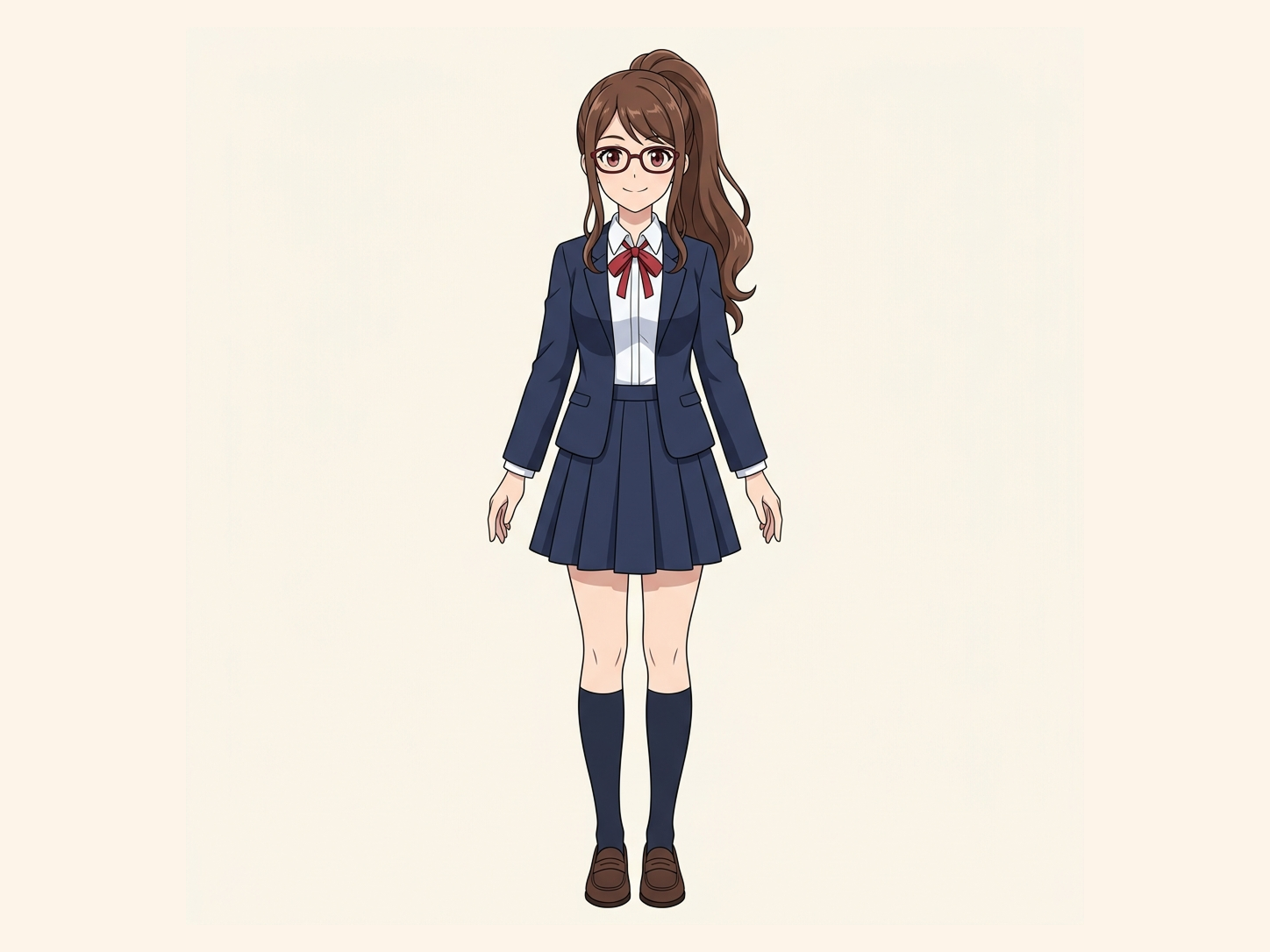
Need hair, face, eyes, mouth, clothing, or body-part layers?
Settings
Leave this blank to let Detailed Layers identify the main editable elements automatically. Or name the parts you want separated.
Want more control over your layers?
Learn how to guide Detailed Layers with simple prompts, choose useful elements, and get cleaner layer structures from different types of images.
Upload an Image to Continue
Private File Handling
Uploaded files are associated with your account and delivered through signed URLs. You can delete completed jobs manually.
Transparent PNG Output
Detailed Layers returns each detected element as its own layer on a transparent background.
For better results, use:
- Clear photos with visible depth
- Distinct foreground subjects
- Medium- or high-resolution images
- Limited motion blur
- Scenes with readable object boundaries
Turn One Photo Into Parallax-Ready LayersCreate more depth from a single flat image. Upload a photo and separate visible subjects, foreground objects, and background regions into individual layers for 2.5D parallax animation. ImageToLayers can also reconstruct supported hidden background areas, giving you a better starting point for camera push-ins, depth motion, documentary photo animation, and motion graphics.
- Foreground and background separation
- Subject extraction
- Hidden background reconstruction
- Useful for 2.5D animation
- Works with existing photos
From One Image to Parallax
See How a Layer Stack Creates Depth
A simple cutout leaves a hole. A reconstructed background gives the camera room to move.

1
Original photo
One flat source image
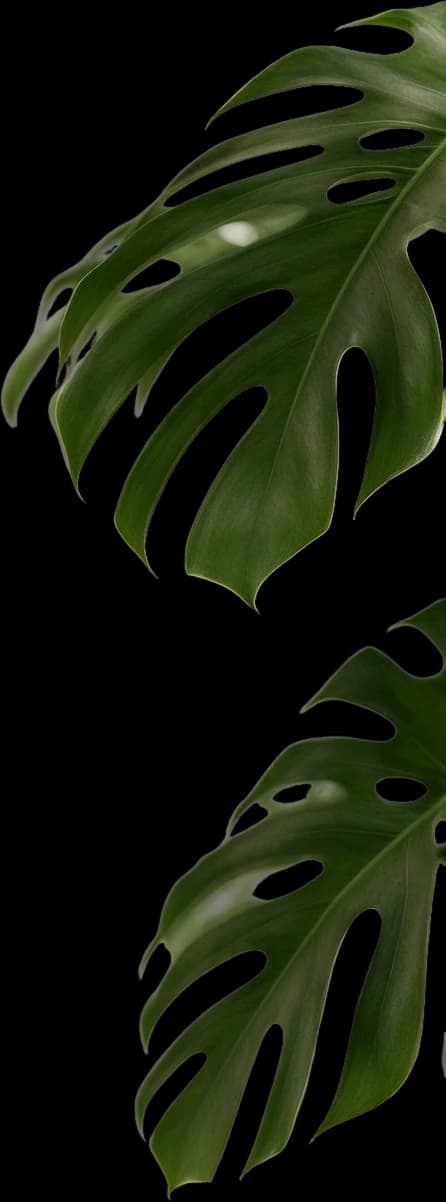
2
Foreground
Separate objects nearest the camera
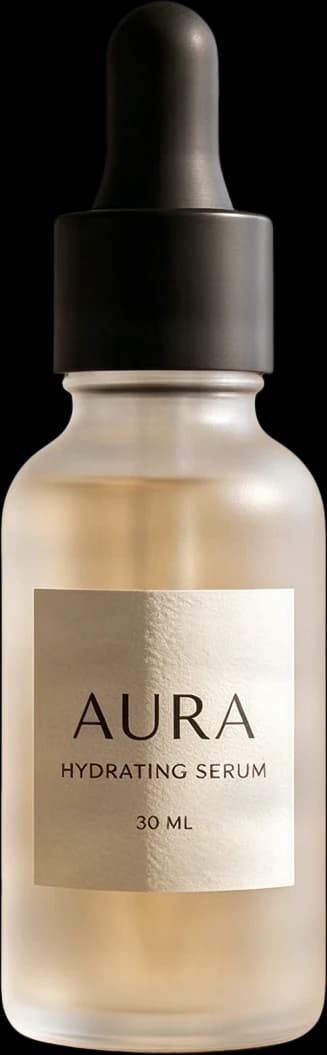
3
Main subject
Keep the focal subject independent

4
Reconstructed background
Estimate areas hidden behind objects
5
Parallax preview
Move each layer at a different speed
What Is Parallax Animation?
Make a Flat Photo Feel More Dimensional
A parallax effect creates the illusion of depth by moving different parts of an image at different speeds.
For example:
This technique is commonly used in:
The effect works best when the original photo is separated into meaningful visual layers.
- Foreground moves faster
- Main subject moves at a different speed
- Background moves more slowly
- Camera motion creates a sense of depth
- Documentaries
- Motion graphics
- YouTube videos
- Reels
- TikTok edits
- Historical photo animation
- Cinematic slideshows
- Promotional videos
Why Layer Separation Matters
Parallax Starts With a Good Layer Stack
A single flat image cannot move in depth by itself.
To create a convincing 2.5D effect, you usually need to separate the image into regions such as:
Once these parts are independent, you can move them at different speeds or place them at different virtual depths.
Photo to Parallax Layers automates much of that preparation.
- Foreground
- Main subject
- Midground
- Background
More Than Background Removal
A Simple Cutout Is Not Enough for Parallax
Background removal can isolate a person or object.
But parallax animation has a second problem:
What appears behind the subject after the subject moves?
If you simply cut the person out, the background may contain a large empty hole.
That is not useful for camera movement.
Photo to Parallax Layers can use AI-assisted reconstruction to estimate supported hidden background regions.
This gives you a more complete layer stack for animation.
Hidden Background Reconstruction
Fill the Areas That Were Covered by the Subject
When a subject is separated from a photo, some parts of the background were never visible in the original image.
ImageToLayers can attempt to reconstruct those hidden areas using surrounding visual context.
This may help rebuild regions such as:
These reconstructed regions are AI-generated estimates and may require manual cleanup.
- Walls behind people
- Floors behind foreground objects
- Landscapes behind subjects
- Sky behind silhouettes
- Furniture behind people
- Background textures hidden by large objects
Foreground Separation
Isolate Objects Closest to the Camera
Foreground objects can add a strong sense of depth.
Examples include:
Separating these objects allows them to move differently from the main subject and background.
That can make the final parallax animation feel more dimensional.
- Leaves
- Furniture
- Rails
- Flowers
- Signs
- Props
- Architectural elements
Main Subject Layer
Keep the Primary Subject Independent
The central person, product, animal, or object can be separated into its own transparent layer.
This allows you to:
- Move the subject independently
- Scale it slightly during a camera push
- Create depth between subject and background
- Add motion without distorting the entire photo
Midground Layers
Add More Depth When the Scene Supports It
Some photos contain useful visual regions between the main subject and background.
These may include:
Separating these midground elements can create a richer 2.5D effect than using only a foreground and background.
The exact layer structure depends on the image.
- Secondary people
- Trees
- Furniture
- Vehicles
- Buildings
- Props
Background Layer
Create a More Complete Background Plate
The background layer provides the farthest visual plane in your parallax animation.
For a useful result, it should ideally remain visually complete when foreground subjects move.
AI-assisted background reconstruction can reduce visible holes and missing regions caused by object extraction.
Complex backgrounds may still require refinement.
2.5D Animation Workflow
From One Photo to a Moving Camera Shot
A practical workflow can look like this:
1
Upload Your Photo
Choose an image with visible depth and clear subjects.
2
Generate Layers
ImageToLayers separates supported foreground, subject, and background regions.
3
Review the Background
Check reconstructed hidden areas.
4
Import Into Your Animation Tool
Bring the layers into After Effects, Premiere, Photoshop, or another motion workflow.
5
Add Camera Movement
Move layers at different speeds or place them at different virtual depths.
6
Refine the Motion
Add blur, scale, lighting, or atmospheric effects as needed.
After Effects Workflow
Prepare Photo Layers for After Effects
After Effects is a common tool for building 2.5D photo animation.
Once your image is separated, you can:
ImageToLayers prepares the visual assets.
It does not automatically create the final After Effects project.
- Import the layers
- Position them at different Z-depths
- Enable 3D layers
- Add a virtual camera
- Create push-in or pull-out motion
- Add depth of field
- Animate subtle subject movement
Documentary Photo Animation
Add Motion to Archival and Historical Photos
Documentaries often use still photographs that need to remain on screen for several seconds.
A simple zoom can feel static.
Parallax animation can make those images more engaging by separating:
and introducing subtle depth movement.
This can be useful for:
- People
- Foreground objects
- Architecture
- Background scenery
- Historical documentaries
- Biography videos
- News features
- Memorial videos
- Educational content
Cinematic Push-In
Create a More Dimensional Camera Move
A common cinematic effect is the slow push-in.
Instead of scaling the entire image uniformly, you can move separated layers independently.
For example:
This can create a stronger illusion of camera movement through the scene.
- Foreground moves faster
- Subject stays relatively stable
- Background moves more slowly
Reels and Shorts
Turn Static Photos Into More Dynamic Short-Form Content
Parallax can help transform a still image into a more engaging clip for:
You can combine the generated layers with subtle motion, text, sound, and transitions.
- Instagram Reels
- TikTok
- YouTube Shorts
- Social ads
- Story posts
- Promotional edits
Product Parallax
Add Depth to Product Photography
Parallax is not only for portraits.
Product images can also benefit from layer separation.
For example:
Separating these regions can make product visuals more dynamic for:
- Product in foreground
- Supporting props
- Table or platform
- Background
- Ads
- Landing pages
- Social media
- Promo videos
- Product explainers
Portrait Parallax
Separate People From the Scene
Portrait photos are a common parallax use case.
You can separate:
and create a subtle camera movement around the subject.
Hair, transparent edges, and complex overlap may require additional cleanup.
- Person
- Foreground elements
- Background
Landscape Parallax
Create Depth From Scenery
Landscape images may contain natural depth layers such as:
These layers can move at different speeds to create a stronger sense of distance.
- Foreground vegetation
- Midground terrain
- Buildings
- Mountains
- Sky
Architecture and City Scenes
Build Depth From Streets, Buildings, and Foreground Objects
Urban scenes often contain multiple natural depth planes.
Examples include:
These can provide useful material for layered camera movement.
- Foreground poles or signs
- People
- Cars
- Buildings
- Distant skyline
- Sky
Depth-Aware Layering
Visual Layers Are Not Always Perfect Depth Maps
Photo to Parallax Layers separates visible regions based on image content.
That is useful for animation preparation, but it is not the same as generating exact 3D geometry or a physically accurate depth reconstruction.
You may still need to manually decide:
The tool helps prepare the visual pieces.
You remain in control of the final depth animation.
- Which layer should sit in front
- Which elements should move together
- How far apart virtual layers should be
- How much camera movement looks natural
Parallax Layers vs Depth Maps
Different Tools Solve Different Problems
A depth map usually stores distance information as grayscale values.
A layer-based workflow gives you independent visual objects.
For example:
Useful for automated displacement or depth-based effects.
Useful when you want to move, scale, reposition, or edit individual scene elements.
For many 2.5D motion graphics workflows, separate layers provide more direct creative control.
Parallax Layers vs 3D Reconstruction
This Does Not Build a Full 3D Scene
Photo to Parallax Layers does not generate:
It creates a layered 2D/2.5D asset structure suitable for visual depth effects.
- 3D meshes
- NeRF scenes
- Gaussian splats
- Full camera reconstruction
- True volumetric geometry
Background Inpainting Limitations
Hidden Regions Have to Be Estimated
If a large person covers most of a detailed background, the original hidden content is not actually present in the source image.
AI can generate a plausible continuation based on surrounding context.
That does not mean it recovers the original hidden scene.
Reconstruction may be less accurate with:
Review important areas before animation.
- Complex text
- Faces hidden behind people
- Repeating architecture
- Dense patterns
- Detailed signage
- Large occluded areas
Best Photos for Parallax
Choose Images With Visible Depth
Good parallax source images often have:
Images where everything sits on the same visual plane may create a weaker depth effect.
- A clear main subject
- Foreground elements
- Visible background
- Strong separation between planes
- Perspective cues
- Medium or wide composition
Challenging Inputs
Some Images Need More Manual Work
More difficult images may include:
These can still be processed, but edge cleanup or background correction may be needed.
- Heavy motion blur
- Transparent objects
- Fine hair
- Smoke
- Reflections
- Dense crowds
- Complex foliage
- Large overlapping subjects
- Very low resolution
Best Practices for Animation
Keep the Motion Subtle
Even with good layers, extreme camera movement can reveal the limitations of a single source photo.
For more natural results:
A small movement can often look more convincing than an aggressive 3D push.
- Use small depth offsets
- Keep camera movement controlled
- Avoid revealing too much hidden background
- Add subtle blur where appropriate
- Check layer edges during motion
Preparing for Different Aspect Ratios
Use Reconstructed Layers to Reframe the Shot
Layer separation can also help when adapting a photo from one format to another.
For example:
Independent layers give you more flexibility when repositioning visual elements for the new composition.
- Landscape to vertical
- 16:9 to 9:16
- Square to widescreen
- Social crop to cinematic frame
Motion Graphics Workflow
Use the Layers Beyond Parallax
Once the image has been separated, the same assets can also support:
The layer stack becomes a reusable editing asset.
- Title animations
- Subject reveals
- Object wipes
- Layer-based transitions
- Depth blur effects
- Camera reframing
- Poster animation
- Social motion graphics
What the Tool Does Not Do
It Prepares Layers — It Does Not Finish the Animation
Photo to Parallax Layers does not automatically:
It focuses on preparing the image for those workflows.
- Create the final video
- Generate an After Effects project
- Animate the camera
- Build a depth map with physical accuracy
- Create 3D geometry
- Guarantee perfect background reconstruction
- Generate frame-by-frame subject motion
- Add sound
- Create transitions
Who This Is For
Built for Editors and Motion Creators
Useful for:
- After Effects artists
- Video editors
- Motion designers
- Documentary creators
- YouTubers
- Social video creators
- Ad creative teams
- Photographers
- Historical media creators
- Short-form content editors
Why Use ImageToLayers
Spend Less Time Cutting Subjects and Painting Backgrounds
Preparing a photo for parallax manually can involve:
ImageToLayers automates much of that setup so you can spend more time on the motion itself.
- Masking the main subject
- Cutting foreground objects
- Cleaning edges
- Repainting hidden background
- Organizing layers
- Building new background plates
FAQ
Frequently Asked Questions
What are parallax layers?
Parallax layers are separate visual regions of an image that can be moved independently to create the illusion of depth. ---
Can I turn a photo into layers for parallax animation?
Yes. You can upload a photo and generate separate visual layers that can be used as a starting point for 2.5D animation. ---
Can it separate the foreground and background?
Yes. Foreground subjects and background regions are common targets for layer separation. ---
Can it separate a person from the background?
Yes. People can be extracted as independent transparent layers when the image is suitable. ---
Does it fill the background behind the person?
The workflow can use AI-assisted reconstruction to estimate supported hidden background areas. The generated background may require manual cleanup. ---
Is the reconstructed background the original hidden background?
No. The original pixels were never visible. The AI creates a plausible estimate based on the surrounding image. ---
Can I use the layers in After Effects?
Yes. The generated assets can be imported into After Effects for further parallax and camera animation work. ---
Does it generate an After Effects project file?
No. It prepares visual layers, but the final AE project and animation must be created separately. ---
Can I use it for 2.5D photo animation?
Yes. That is one of the main intended use cases. ---
Can I create a 3D camera push effect?
Yes, the separated layers can provide the visual assets needed to build a 2.5D camera push in your animation software. ---
Does it automatically animate the photo?
No. It prepares the layers. Animation is a separate step. ---
Does it create a depth map?
Not necessarily. The primary output is separate visual layers rather than a single grayscale depth map. ---
Is this the same as depth estimation?
No. Depth estimation predicts relative distance. Layer separation creates independent visual assets you can move and edit. ---
Can I use both layers and a depth map?
Yes. Some workflows combine both approaches for additional control. ---
Does it create true 3D geometry?
No. The result is a 2D/2.5D layer structure, not a full 3D scene. ---
Can I use it with portrait photos?
Yes. Portraits are a common parallax use case. ---
Can I use it with historical photos?
Yes. Historical and archival images can be prepared for documentary-style parallax effects. ---
Can I use it with landscape photos?
Yes. Landscapes with clear foreground, midground, and background regions can work well. ---
Can I use it with city photos?
Yes. Urban scenes may provide several useful visual depth planes. ---
Can I use it with product photography?
Yes. Products and supporting scene elements can be separated for product motion graphics. ---
Can it separate multiple foreground objects?
Yes. The number of useful layers depends on the scene and which objects can be identified. ---
Will every object become its own layer?
Not necessarily. Layer structure depends on the composition and model interpretation. ---
Does it preserve fine hair edges?
It can attempt to separate them, but very fine hair may require additional cleanup. ---
Does it work with transparent objects?
Transparent and reflective objects are more difficult and may produce less reliable separation. ---
Can it reconstruct detailed architecture behind a person?
It can attempt reconstruction, but complex architectural patterns may require manual correction. ---
Can it reconstruct text hidden behind a subject?
Not reliably. Exact hidden text cannot be recovered from pixels that were never visible. ---
Can I use the result in Premiere Pro?
Yes, though more advanced multi-layer depth work is often easier in After Effects or another compositing tool. ---
Can I use it in Photoshop?
Yes. You can continue refining masks, layers, and reconstructed regions in Photoshop or compatible software. ---
Can I use it for TikTok and Reels?
Yes. Parallax effects can be used to add motion to still images in short-form video content. ---
Can I use it for YouTube documentaries?
Yes. Still-photo depth animation is commonly useful in documentary and explanatory video workflows. ---
Can I create a Ken Burns-style effect?
Yes, although parallax is different from a simple pan-and-zoom. Separated layers can make the movement feel more dimensional. ---
Can I convert landscape images into vertical parallax videos?
Yes. Independent layers can make reframing easier, though additional background reconstruction may be needed. ---
Can I move the main subject after separation?
Yes. Independent transparent layers can be repositioned in your editing software. ---
Can I use the layers for motion graphics other than parallax?
Yes. The generated layer stack can also support reveals, transitions, reframing, depth blur, and other compositing effects. ---
Will the parallax effect always look realistic?
No. The final realism depends on the source photo, layer quality, reconstruction, and how the animation is created. ---
How much camera movement should I use?
Subtle movement is often more convincing because large movement can reveal the limitations of reconstructed hidden areas. ---
What photo works best?
Clear photos with a distinct main subject, visible background, useful foreground or midground elements, and sufficient resolution generally provide a better starting point. ---
Does the image need to be professionally shot?
No. A clear consumer photo can also work if the scene structure is readable. ---
Can I use AI-generated images?
Yes. AI-generated images can also be separated into layers for parallax preparation. ---
Is the result ready for professional video production?
It can provide a strong starting point, but professional work should review masks, edges, layer order, and reconstructed areas before final animation. ---
Does it guarantee perfect background reconstruction?
No. Hidden background reconstruction is AI-generated and can contain artifacts or invented details. ---
Can I use the generated layers commercially?
Commercial use depends on your rights to the source image and other content involved. Only process and publish images you are authorized to use. 这页最关键的差异化建议放在首屏下面直接展示: **Original → Foreground → Subject → Reconstructed Background → Parallax Preview** 因为用户看见“把人物抠出来”不会觉得特别,但一旦看到**人物后面的背景也被补出来了**,他就会立即理解为什么这个工具比普通 background remover 更适合 2.5D 动画。
Turn Your Photo Into Parallax-Ready Layers
Upload a photo and separate the scene into editable visual layers for 2.5D animation.
Create Parallax LayersSeparate the scene, reconstruct hidden background areas, and continue in your preferred motion workflow.