AI IMAGE LAYERING
Image Layered AI: Split an Image into Editable Layers
Upload a flat JPG, PNG, or WebP and use AI to separate it into reusable visual parts. Create subject, object, shadow, and reconstructed background layers, then download the result as a PSD or ZIP.
The generated layers provide a practical editing starting point. They do not recover the original creator’s PSD, hidden pixels, or editing history.
Click or drag image to decompose into PSD
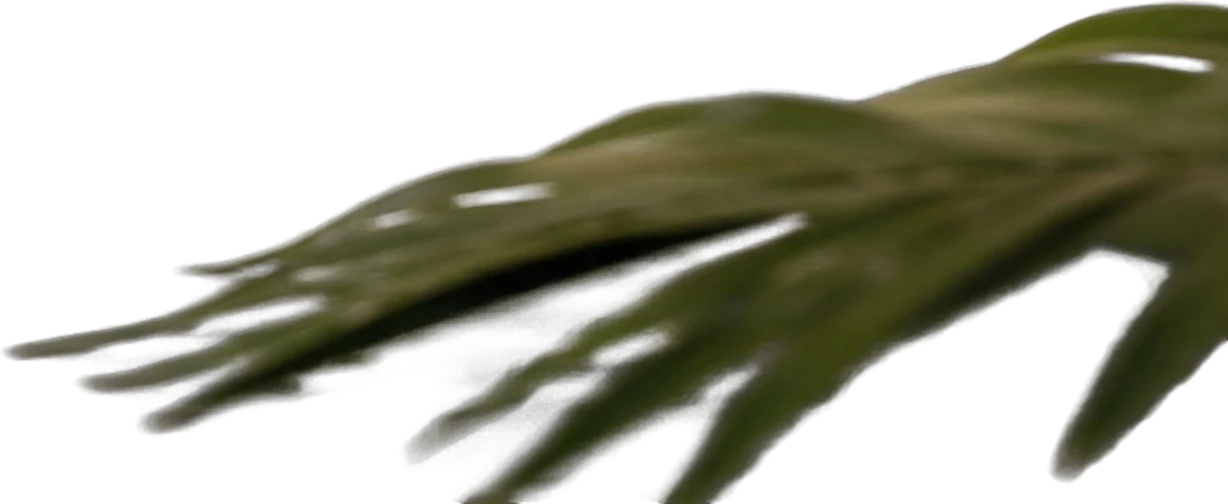
Foreground palm leaf
651×267 px
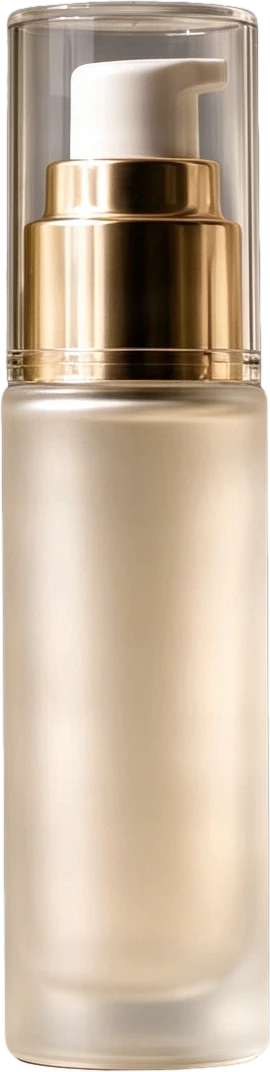
Frosted pump serum bottle
159×631 px
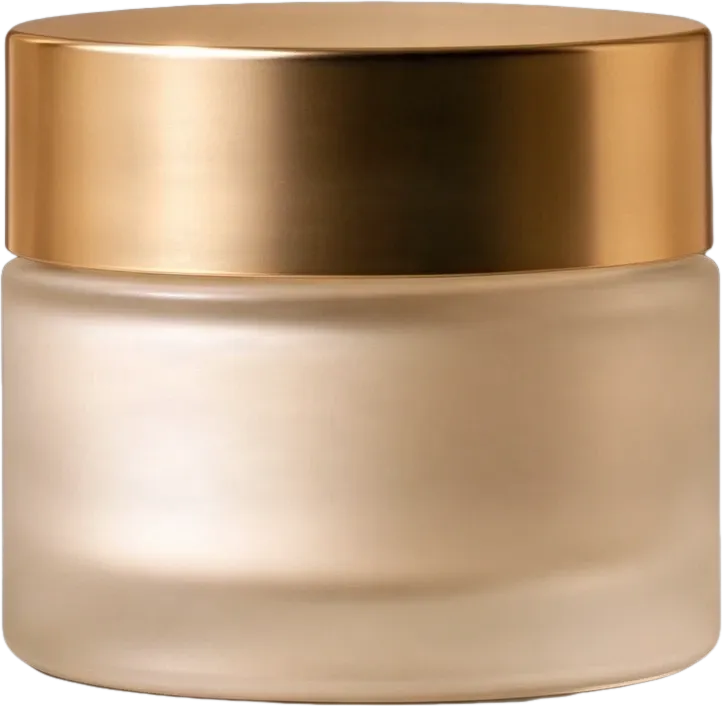
Frosted cream jar with gold lid
274×266 px
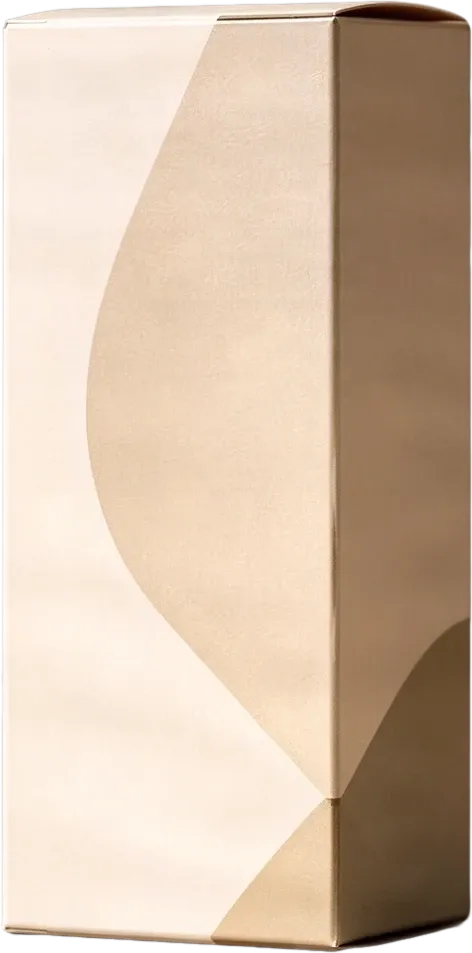
Beige product packaging box
298×602 px

Smooth pebble group
244×247 px
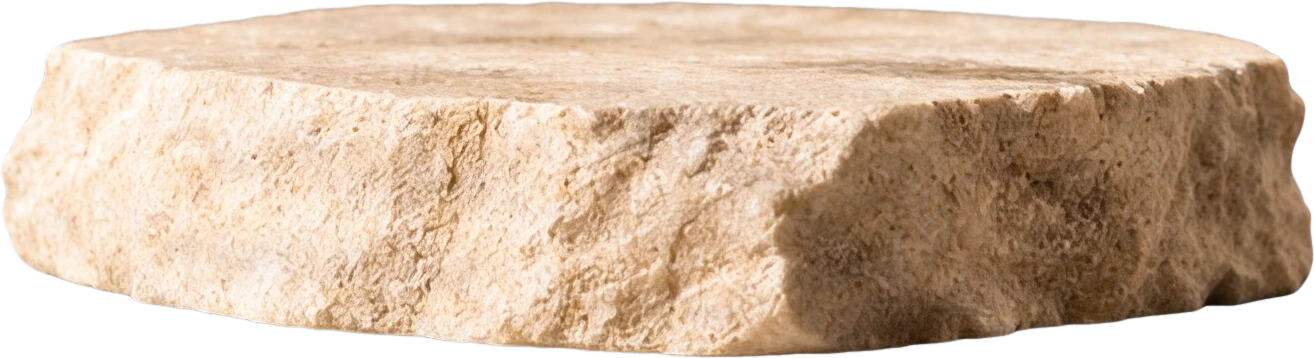
Stone display platform
536×145 px
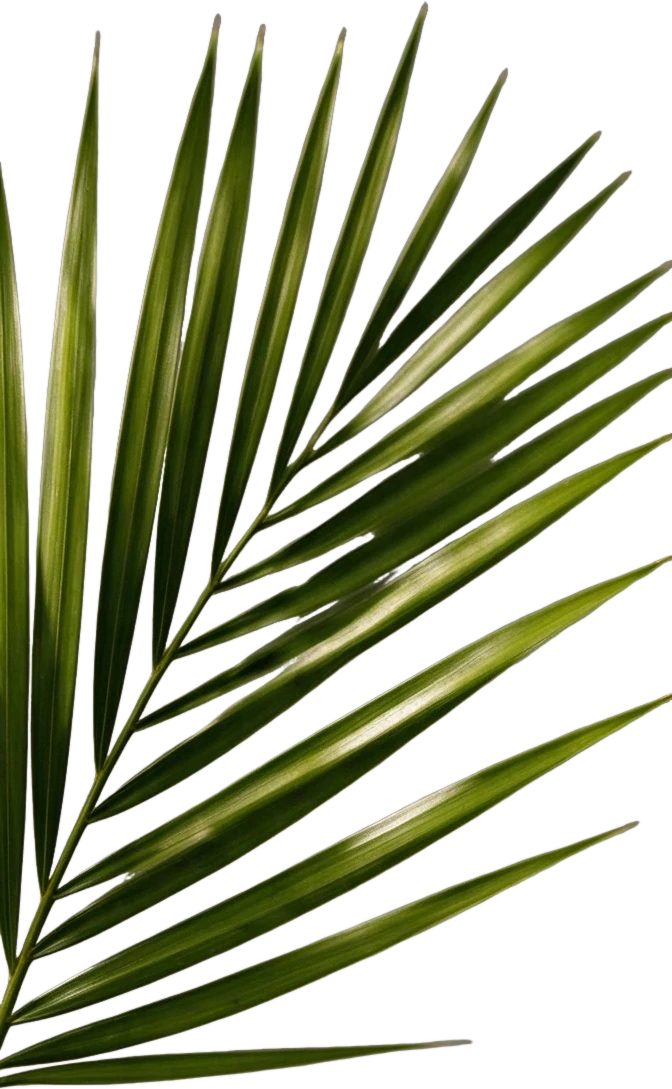
Right palm leaf
298×483 px
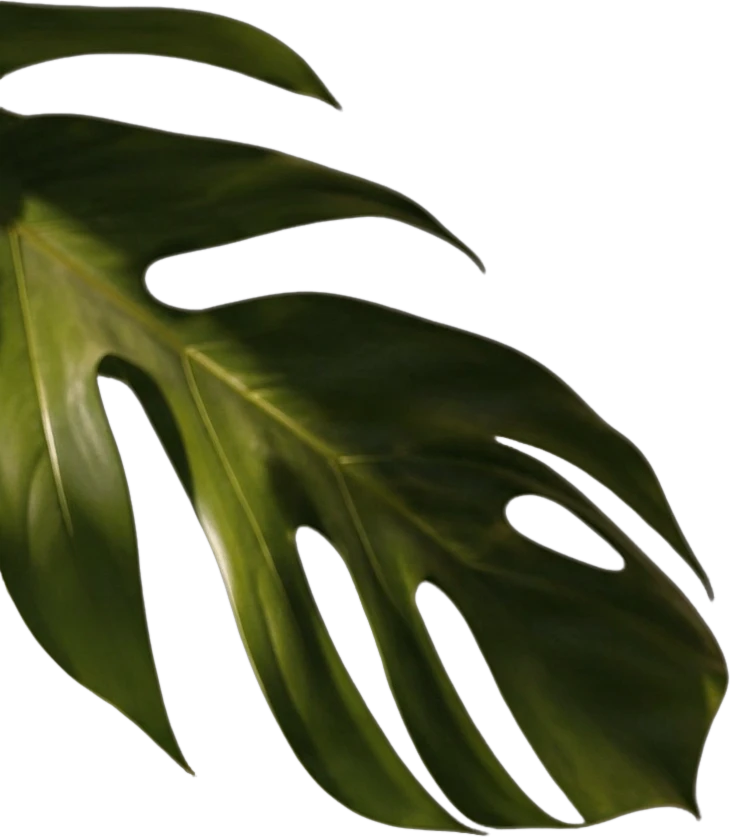
Left monstera leaf
526×603 px
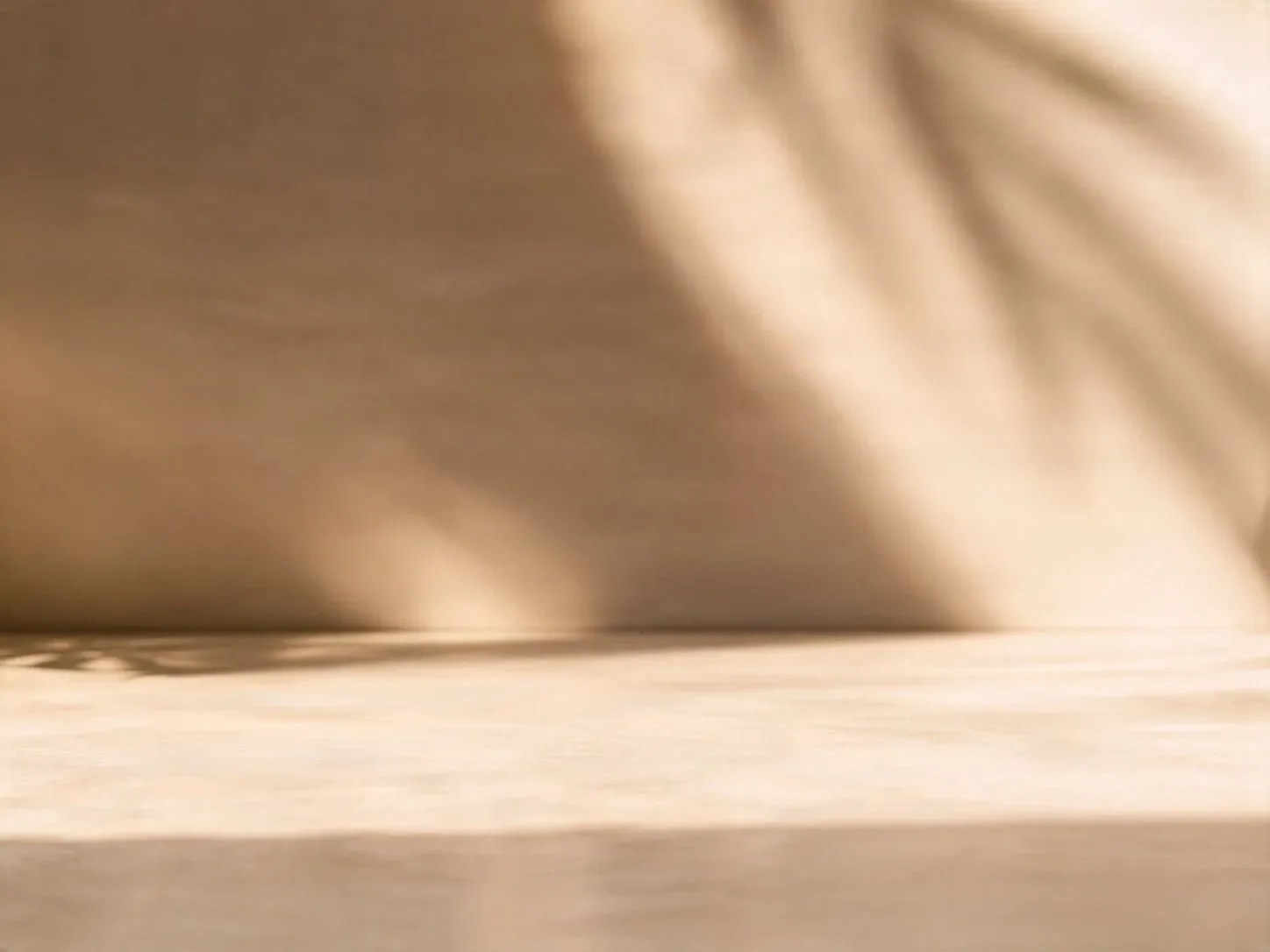
Clean background
Background
Private File Handling
Uploaded files are associated with your account and delivered through signed URLs. You can delete completed jobs manually.
Transparent PNG Output
Detailed Layers returns each detected element as its own layer on a transparent background.
Continue Editing in Agent Workspace
Open the layered result in Agent Workspace to clean up elements, create visual variations, or continue working from the same project.
What Does “Image Layered” Mean?
“Image layered” describes the process of turning one flattened image into separate visual components.
Instead of keeping the subject, objects, shadows, and background merged inside one bitmap, an image-layering workflow creates individual raster assets that can be reviewed, rearranged, edited, or exported.
For example, a product image may be divided into:
• product layer • contact shadow layer • supporting object layer • reconstructed background layer • final composite preview
Semantic Layer Separation
Background Reconstruction
PSD and ZIP Export
How to Get an Image Layered Online
Step 1
Upload Your Image
Choose a JPG, PNG, or WebP with a clearly visible main subject.
Step 2
Choose the Layering Mode
Select the processing mode and approximate number of layers you want the AI to generate.
Step 3
Review the Generated Parts
Check subject edges, layer order, shadows, supporting objects, and reconstructed background areas.
Step 4
Export the Layered Result
Download a layered PSD or a ZIP containing individual raster assets for continued editing.
What AI Reconstructs
ImageToLayers works from the visible pixels in the uploaded image. When a subject is removed from the foreground, the background behind it is not present in the original file.
The system generates an approximate reconstruction based on surrounding colors, textures, lighting, and scene context.
This reconstructed content is useful as an editing starting point, but it is not recovered original image data.
Key Facts & Scope
- Does not recover the original PSD
- Does not recover hidden brush strokes
- Does not restore original layer names
- Hidden background areas are generated
- Small details may require cleanup
- All exported layers are raster assets
Choose Your Layered Export
Best when you want the generated raster layers organized inside one layered document.
Best when you want individual PNG assets for use across different design, animation, or presentation tools.
Best when you only need one isolated subject, object, or background.
Common Layered Image Workflows
Ecommerce Product Reuse
Social Creative Variations
Thumbnail and Cover Design
Presentation and Packaging Handoff
FAQ
What is a layered image?
A layered image stores visual elements separately instead of flattening everything into one bitmap. Separating these elements makes it easier to change backgrounds, move objects, adjust shadows, create new layouts, and reuse visual assets.
Can AI turn a flat image into layers?
Yes. AI can identify visually distinct regions and create new raster layers for subjects, objects, shadows, and backgrounds. Results depend on image complexity, overlap, edge clarity, and source resolution.
Does it recover the original PSD?
No. The tool creates a new layered approximation from the visible image. It cannot recover the original layer names, masks, brush strokes, hidden pixels, or editing history.
What types of layers can it create?
AI separates the visible image into foreground, background, shadow, and supporting object regions. The workflow creates new raster layers from one flattened image.
How are hidden background areas generated?
When the main subject is removed, the AI analyzes surrounding textures, lighting, and colors to generate a plausible background to fill the missing space.
What is the difference between PSD and ZIP export?
A PSD export bundles all the generated layers into a single Adobe Photoshop document, preserving layer order and visibility. A ZIP export provides each layer as an individual transparent PNG file.
Which images produce the best results?
Clean JPG, PNG, and WebP inputs usually work best, especially when the subject edges, shadows, and background contrast are reasonably clear.
Image Layered AI: Split an Image into Editable Layers
Upload a flat JPG, PNG, or WebP and use AI to separate it into reusable visual parts. Create subject, object, shadow, and reconstructed background layers, then download the result as a PSD or ZIP.
PSD and ZIP export · 3–5 generated raster layers
Only need two layers?
Just the subject and the background? Try Background Splitter
When a photo only has one subject in front of a background, Background Splitter gives you a transparent foreground and a reconstructed background in one step, without setting up a full multi-object layer split.

Original photo
The source image with a single subject and background.
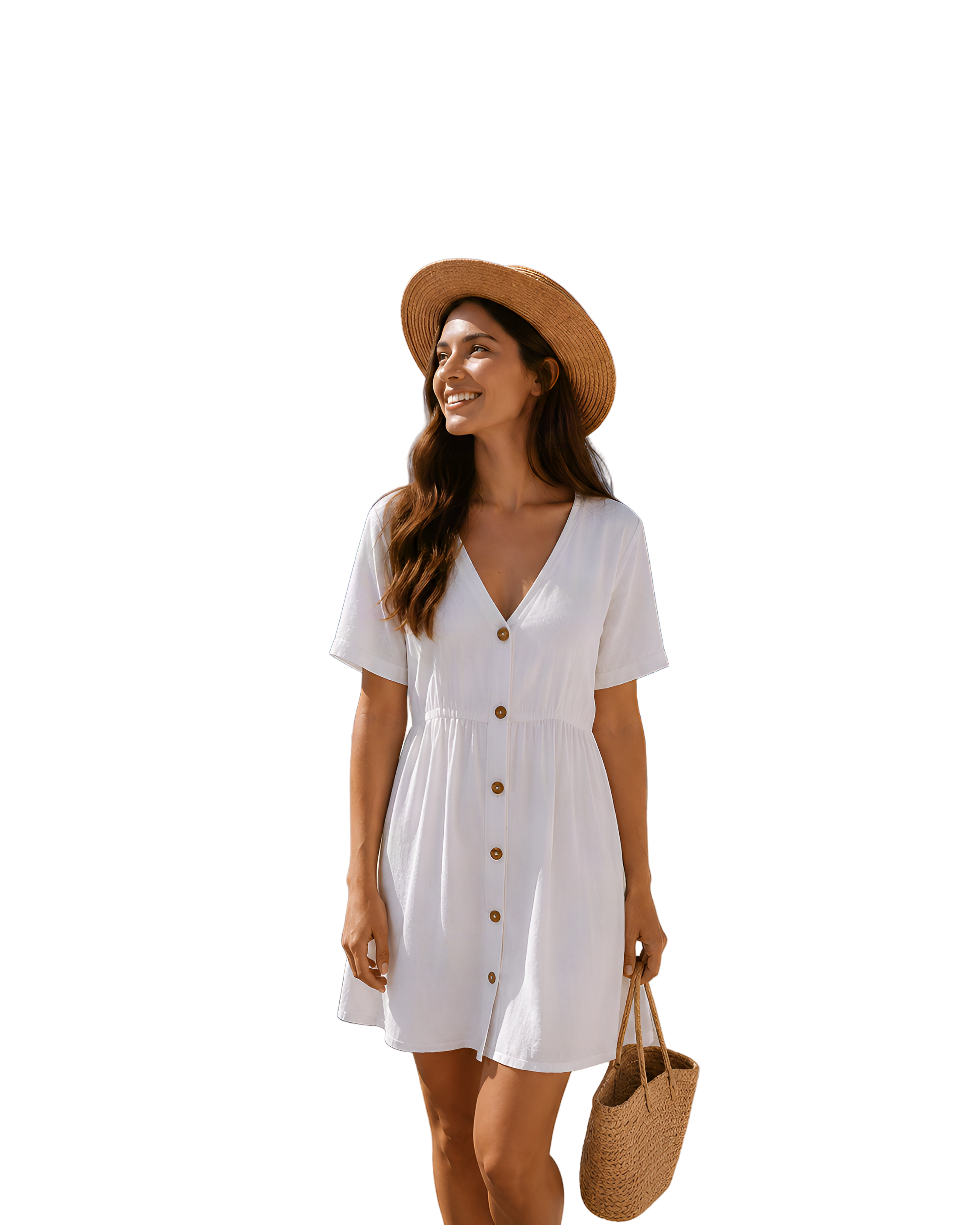
Transparent foreground
The subject isolated as a clean transparent PNG.

Reconstructed background
The scene behind the subject, rebuilt and reusable on its own.
Need more than two layers, multiple objects, props, or text? Use the workspace above instead.