
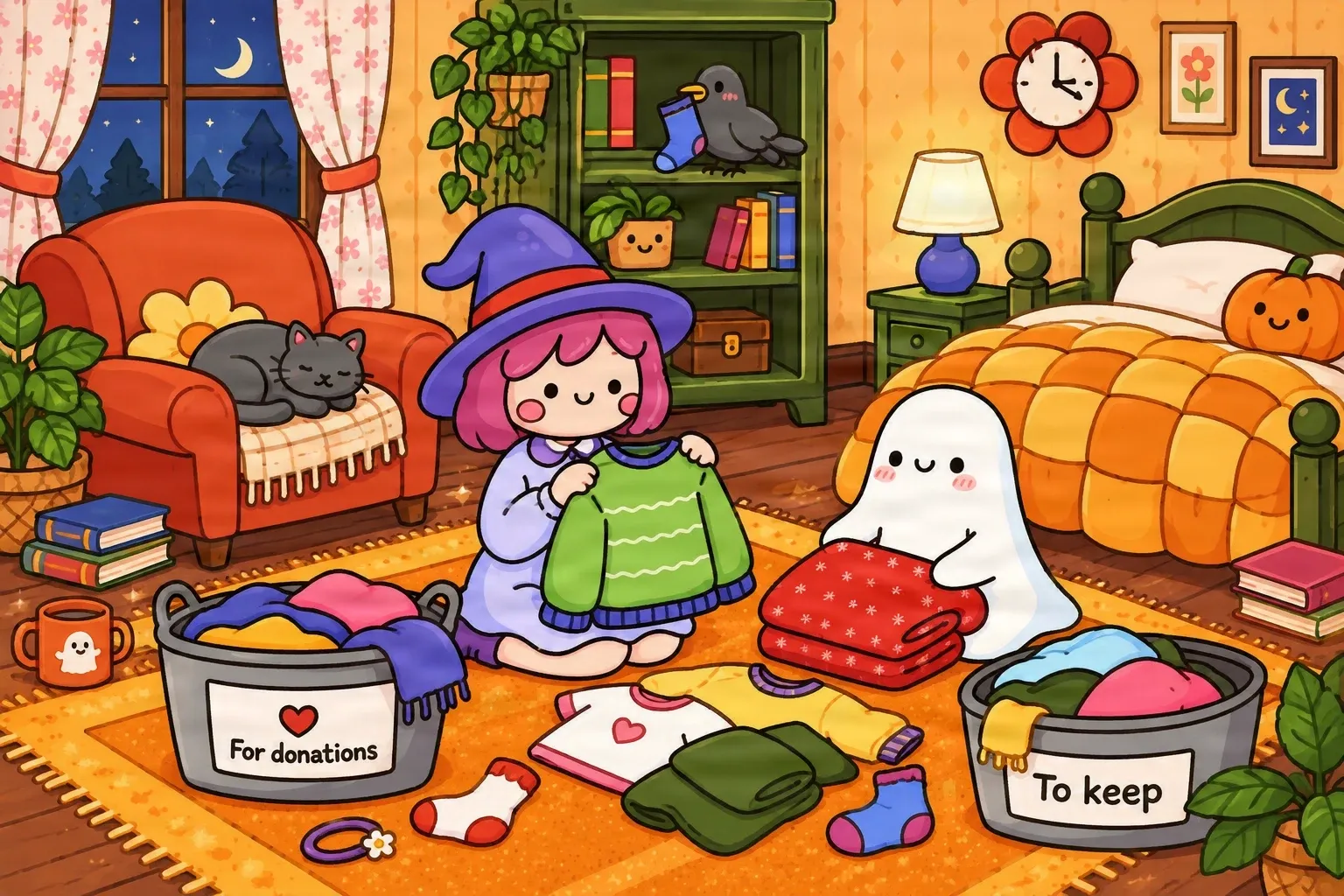
Original Illustrated Scene
A colorful cartoon bedroom featuring a little witch, a friendly ghost, furniture, decorations, and clothing—all combined into one image.
Need more room for story text or want to move a character? AI attempts to separate recognizable characters, objects, and scenery from your finished storybook illustration into editable layers for page revisions.
Upload your image
JPG, PNG, WebP up to 10MB · Drag & drop anywhere
Leave this blank to let Detailed Layers identify the main editable elements automatically. Or name the parts you want separated.
Separate the Characters and Scenery
Start with a complete illustrated scene. Keep recognizable characters and objects together while separating them from surrounding scenery where possible.
Upload an Image to Continue
Private File Handling
Uploaded files are associated with your account and delivered through signed URLs. You can delete completed jobs manually.
Transparent PNG Output
Detailed Layers returns each detected element as its own layer on a transparent background.
Review the credit cost shown in the workspace before generating.
Tips for Better Results
REAL ILLUSTRATION SEPARATION EXAMPLE
A real storybook-style illustration separation shows how visible characters and scene elements can become new layers for further editing.
A colorful cartoon bedroom featuring a little witch, a friendly ghost, furniture, decorations, and clothing—all combined into one image.
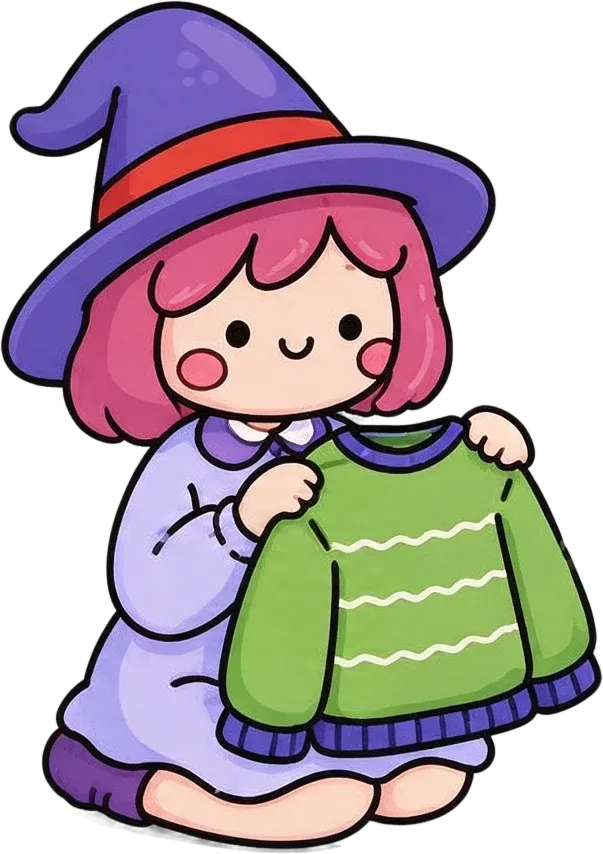

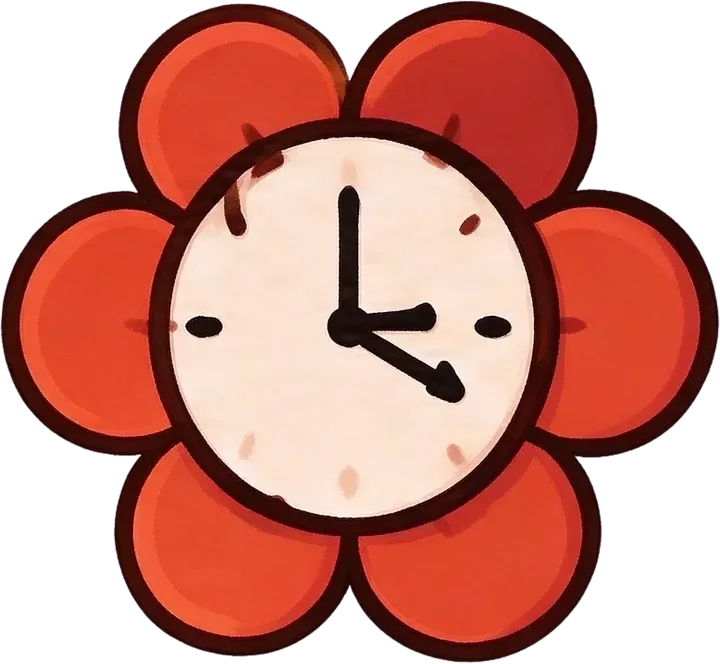
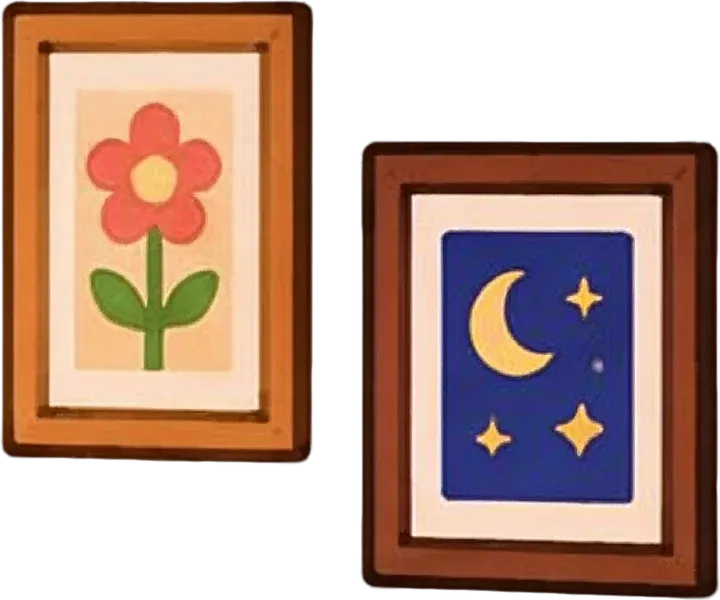
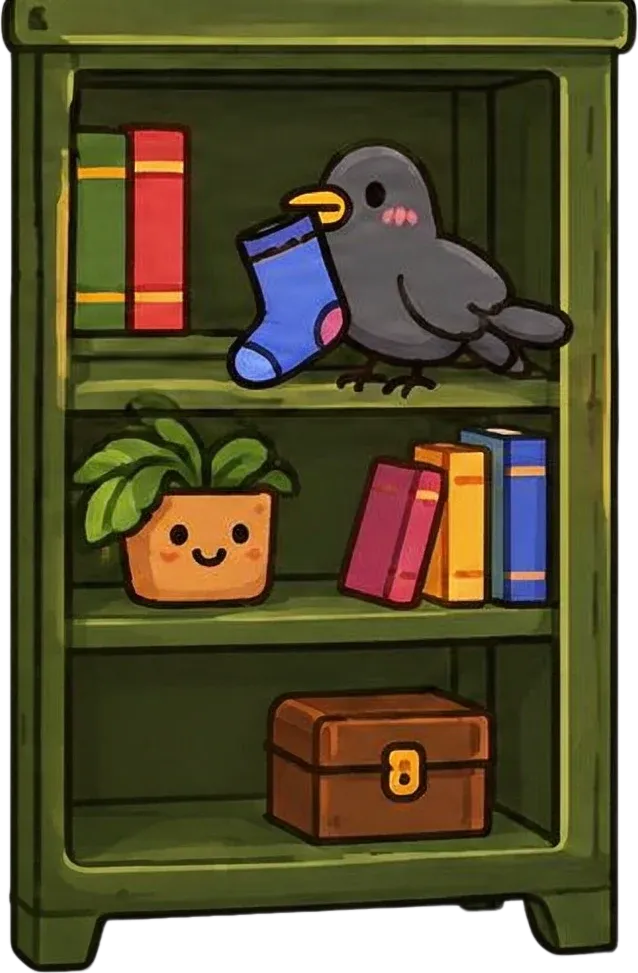
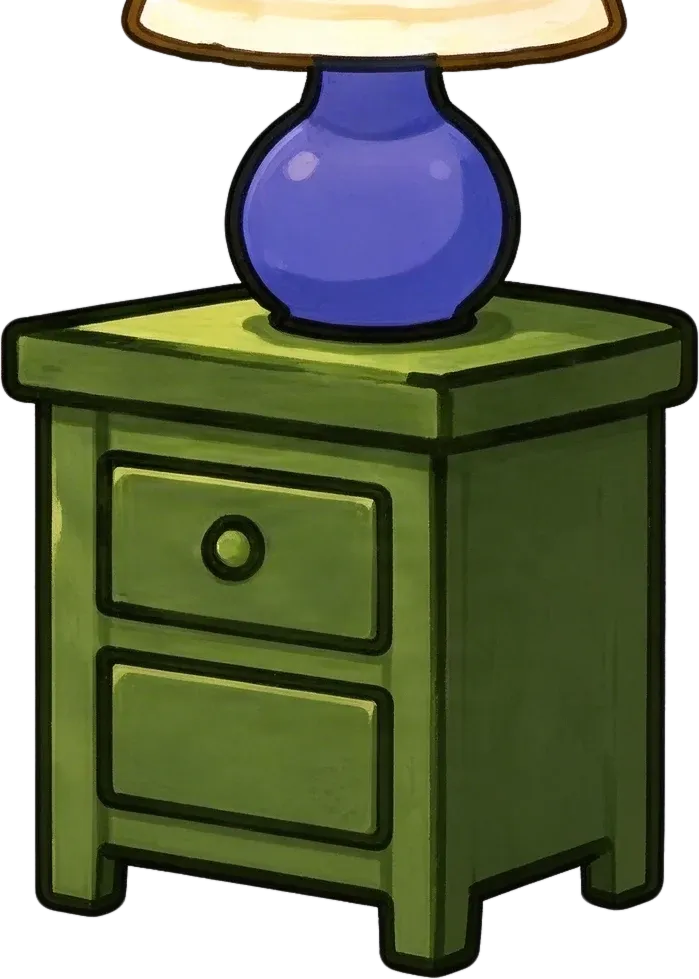
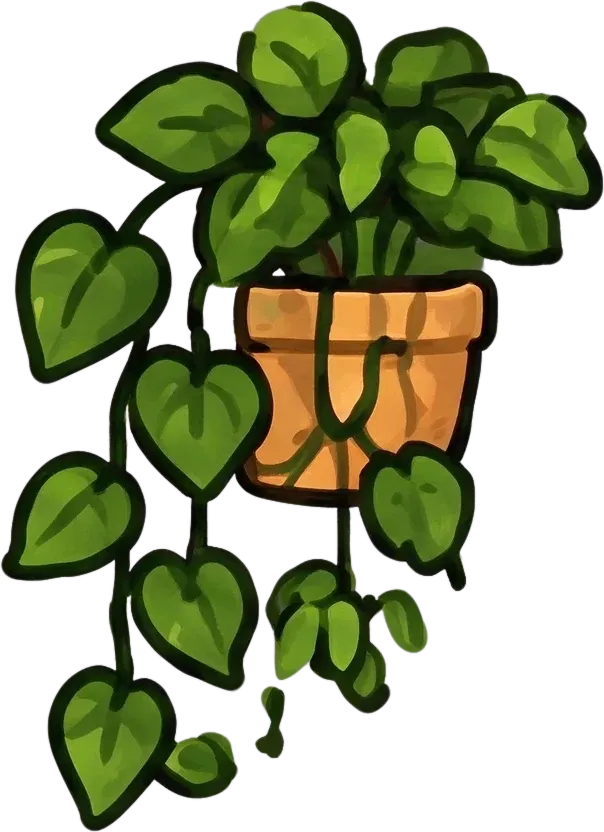

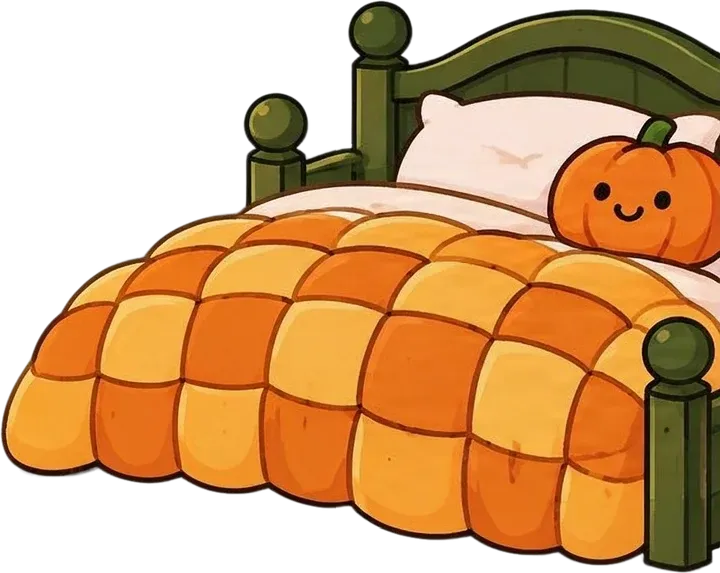
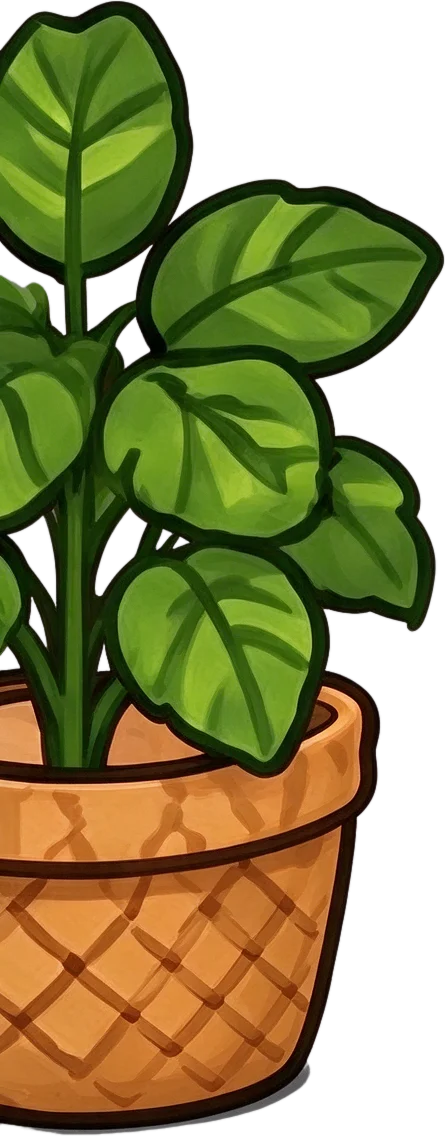
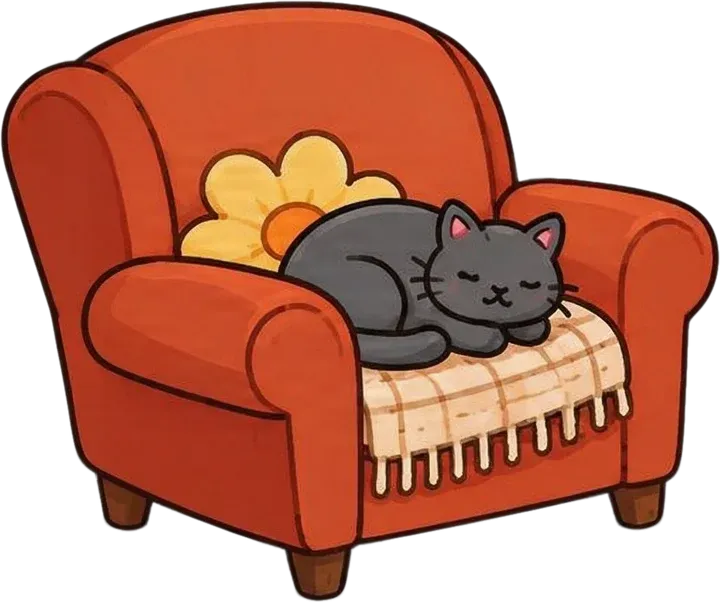

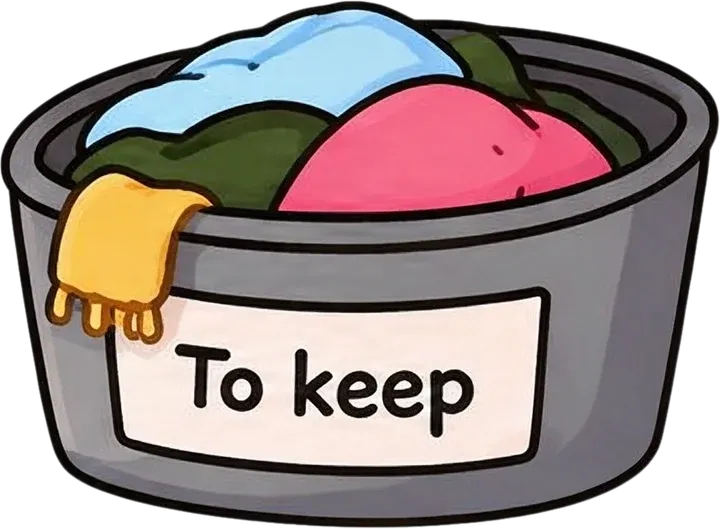

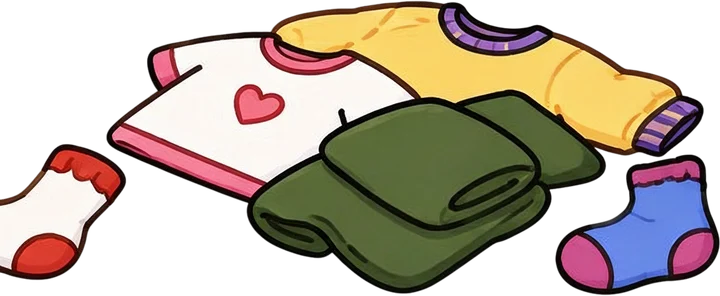
Inspect which characters, furniture, and decorative elements can be edited separately.
This is a real AI-generated separation result from the existing Illustration to Layers workflow, not an example from a published children's book. It produced 17 layers, including a background; the showcase displays 15. Some objects remain grouped, a red clothing item appears in more than one layer, background details remain flattened, and one sock is clipped at its layer edge. Results vary and may need cleanup.
THE REVISION ILLUSTRATORS KNOW
You've finished a beautiful illustration for a children's book. The author loves it, the publisher approves the colors, and the characters look just right. Then the layout changes.
The story text needs more room. The main character should move closer to the edge. A background object covers part of the caption. But the illustration has already been flattened into one image.
Without separate layers, even a small revision can mean selecting characters by hand, cleaning their edges, and repainting the background behind them. Storybook Illustration to Layers helps you start from a more editable version of your finished artwork.
Common revision requests
Keep more of the artwork you've already finished while making revisions easier to approach.
FLEXIBLE CHARACTER PLACEMENT
Imagine your main character is centered in an illustration, but the book designer needs that space for the story. The character doesn't need to be redrawn; it simply needs to move.
Moving a character in a flattened image can expose a gap in the scenery. AI layer separation can attempt to isolate the character and estimate some background that was hidden behind it.
This can help you
The tool does not redraw characters into new poses or automatically maintain character consistency across different pages. Use the artwork you already have to make composition changes.
ILLUSTRATION MEETS PAGE LAYOUT
A finished illustration may look beautiful on its own, but children's books need room for the story. A sentence may be longer than expected, translated copy may take more space, or text may need to move away from a character's face.
When every object is flattened into one image, changing the composition is harder. Separating characters and scenery gives you more control when adjusting the page in your design software.
Useful situations
Keep your artwork expressive while giving your story space to be read. The tool does not automatically typeset book pages, detect safe text areas, or place the story text.
MAKE THE WHOLE SCENE MORE EDITABLE
A storybook scene may contain the main character, supporting animals, furniture, trees, buildings, toys, and decorative details. Each element contributes to the story, but not every element needs to stay attached to the others.
Extract recognizable illustrated characters so they can be moved or reused independently where possible.
Separate visible creatures when the image makes their boundaries distinguishable.
Work with toys, furniture, baskets, accessories, and other illustrated objects.
Keep supported scenery separate from the characters and foreground.
Extract major ornaments and foreground decorations when they can be identified.
Turn a finished scene into a more flexible set of visual building blocks.
GO BEYOND SIMPLE CUTOUTS
Suppose your character is sitting in front of a bookshelf. When you move the character, the original illustration doesn't contain the complete shelf behind them. A simple cutout might leave a blank space.
AI separation can attempt to reconstruct parts of the hidden background based on surrounding artwork. This can help when you want to remove or reposition visible objects.
Potential uses
Background reconstruction is an AI estimate, not recovery of the artist's unseen original drawing. Treat it as a useful starting point and review hidden details before use.
HOW IT WORKS
1
Choose an image from a children's book, picture book, or illustrated story. A flattened export is enough to get started.
2
AI analyzes the visible scene and attempts to separate recognizable characters, objects, scenery, and backgrounds.
3
Check that important characters were separated, and look for missing details, imperfect edges, or reconstruction errors.
4
Use supported editing and export options to bring assets into your illustration or page-layout software.
MAKE YOUR ARTWORK MORE FLEXIBLE
A scene designed for one page size may need changes as the book layout evolves. Artwork created for a square page may need a wider arrangement, or a full-page illustration may need to share space with a title or paragraph.
Separating objects can make it easier to rearrange the composition in your own design software.
Prepare for
Separate the pieces first, then rebuild the layout to suit your page. Layer separation does not extend the canvas, generate missing scenery beyond the original image, or guarantee print-ready dimensions.
KEEP USING THE CHARACTERS YOU LOVE
A character may become central to your story. Later, you may want to feature the same illustration in a promotion, activity sheet, or another design. AI-assisted separation can help isolate that character from a finished scene when manual extraction would take time.
Potential uses
Reusing an extracted asset is different from generating a new consistent pose or expression. This workflow does not automatically create additional character poses.
FOR AUTHORS AND ILLUSTRATION TEAMS
Publishing projects evolve. A passage may be shortened, a scene may move to another page, or a designer may need to adjust the visual balance of a spread. Sometimes the original illustration file is unavailable, or the work was delivered as a flattened image.
Illustration to Layers can help recover some editing flexibility from that finished image.
Examples of last-minute changes
Make practical adjustments without rebuilding every scene element manually.
PLAN FOR MORE THAN ONE LANGUAGE
A sentence that fits comfortably in English may need more room in German, Spanish, or another language. When a story illustration is flattened, adapting the page to translated text can be difficult.
Separating characters and decorative elements gives designers more flexibility when composing localized editions.
Possible adjustments
Give your book designer more room to adapt the page without starting the illustration over. The tool does not translate, detect, or automatically replace text.
BEYOND PRINTED PAGES
A finished illustration may also become part of a digital story: a reader taps a character, an object moves when a page opens, or foreground elements shift to add depth. Before developers or animators can work with separate objects, the artwork needs to be organized into independent elements.
AI layer separation can help prepare those assets from an existing illustration.
Possible projects
Prepare visual assets while creating interaction and animation in the software of your choice. This workflow does not generate interactive behavior, application code, or a finished animated storybook.
YOUR ART SHOULD STILL LOOK LIKE YOUR ART
Children's book illustrations often rely on a distinctive style: hand-painted watercolor, colorful cartoon outlines, soft pastel shading, textured brushes, or flat digital color. The AI aims to preserve recognizable colors, shapes, textures, and visual details while generating editable elements.
Processing can introduce subtle differences, especially around overlapping objects or very fine details.
Details to inspect
Use generated layers as an editing aid, then correct details that need the original artist's precision.
DIFFERENT PARTS OF THE BOOK
A book cover often needs title placement, author text, and promotional hierarchy. An illustrated interior page has different priorities: room for story text, a clear sequence of visual events, and character placement that supports the narrative.
This page focuses on separating visual elements within finished illustrated scenes. For a flattened book cover that needs a different editing workflow, use the dedicated Book Cover Image to Layers tool.
Choose the workflow that matches the part of the book you're editing.
SET REALISTIC EXPECTATIONS
Storybook Illustration to Layers works from the flattened image you upload. It doesn't know the original drawing process, what was painted behind every character, or how the artist organized the file. Instead, it generates a new layered interpretation of the visible artwork.
Extract recognizable characters, separate some scene objects, generate transparent visual layers, estimate hidden background areas, and prepare artwork for further editing.
Exact recovery of original PSD or Procreate layers, perfect separation of every object, consistent new poses, automatic layout or typesetting, print-ready dimensions, or pixel-identical reconstruction.
Use the result to save preparation time, and review the layers before final publishing.
PREPARE YOUR ARTWORK
Sharper source artwork usually provides more recognizable object boundaries.
Characters that are almost completely hidden may be difficult to reconstruct.
Many small objects can reach the model's practical output-layer limit.
Look for inconsistencies where characters or props were removed.
Small differences in facial details can matter in illustrated storytelling.
Before printing or publishing, confirm text spacing, composition, colors, resolution, bleed, and safe margins.
Good source artwork and careful review can help turn AI-generated layers into useful publishing assets.
FIND THE RIGHT WORKFLOW
General illustration editing
Separate a flattened illustration to revise objects, reposition elements, or create a new composition.
Explore illustration editingChildren's book page revisions
Prepare story illustrations for character placement changes, more text space, revised page compositions, and reuse of story elements.
You are viewing this workflow
Both workflows separate flattened artwork. Choose this page for the specific editing challenges of illustrated books.
Upload your finished illustration and generate layers. ImageToLayers attempts to identify recognizable characters, objects, and scenery so you can edit them more independently. Some objects may remain grouped, depending on the scene.
Yes. The tool can generate a new visual layer structure from a flattened illustration. It does not recover the original artist-created layers or editing history.
If the character is separated successfully, you can reposition it with the available editing tools or in a compatible design application. The reconstructed background may need cleanup.
The workflow attempts to create independent character and background layers. This can help you work with the character separately while retaining scenery for further editing.
Not always. AI may estimate areas that were hidden, but those are generated reconstructions, not recovered original pixels. You may need to paint or repair details before using the background in a book.
Yes. You can try suitable flattened illustrations from picture books, children's stories, and other illustrated projects. Results depend on the artwork.
Yes. Upload a supported PNG or another image export from Procreate. The tool processes the flattened image rather than restoring the original Procreate project.
Supported layer exports can be used for further editing, and PSD export may be available through the service's applicable paid-plan functionality. The resulting PSD contains newly generated layers, not the original drawing file's layers.
Separated elements can help you rearrange a composition in your design software. This tool does not automatically create artwork outside the original image or guarantee print-ready sizing.
Yes. Separating characters and scenery may make it easier to adjust a composition around translated text in an external layout application. The tool does not translate or typeset the story.
No. The workflow separates artwork one image at a time. It does not automatically enforce the same character appearance, proportions, clothing, or pose across different illustrations.
If the character is isolated successfully, you can reuse the extracted asset in another composition. Creating new poses or expressions requires additional artwork or tools.
You can try watercolor, hand-painted, flat-color, and digitally illustrated artwork. Fine brush details, transparency, and overlapping textures may be challenging and should be reviewed.
It can attempt to separate multiple recognizable characters. When characters touch or overlap heavily, some may remain grouped or need correction.
Not necessarily. This workflow focuses on major scene elements. Use a character-specific layer separation workflow for detailed body-part preparation.
You can import supported exported images into compatible page-layout applications, including InDesign. Further layout, text placement, and print preparation must be completed there.
The layers can provide source assets for a digital storybook or animation workflow. Animation, interaction, timing, and application behavior must be created separately.
The tool aims to preserve visible shapes, colors, outlines, and textures, but AI-generated layers may introduce changes. Inspect important characters and artwork details before publishing.
You can use generated assets according to the service terms and your rights to the original artwork. You are responsible for reviewing the output and confirming you have the permissions needed for publication.
This is a credit-based AI processing workflow. The required credit cost is shown in the workspace before generating, and export availability depends on the applicable account features.
Separate visual elements from a finished illustration for general editing and reuse.
Prepare separate scene elements for animation and motion design.
Work with an existing flattened book cover design.
Prepare character components for further editing or rigging.
Separate objects and backgrounds from a wide range of images.
You don't need to start an illustration over just because the page layout changes. Upload the artwork you already have, separate recognizable characters and scene objects into editable layers, and continue working on your children's book with more flexibility.
Separate My Storybook ArtUpload your illustration and check the credit cost before generating.
Creative Toolkit Index
Quick access to precision layer extraction, AI photo editing & asset tools.