
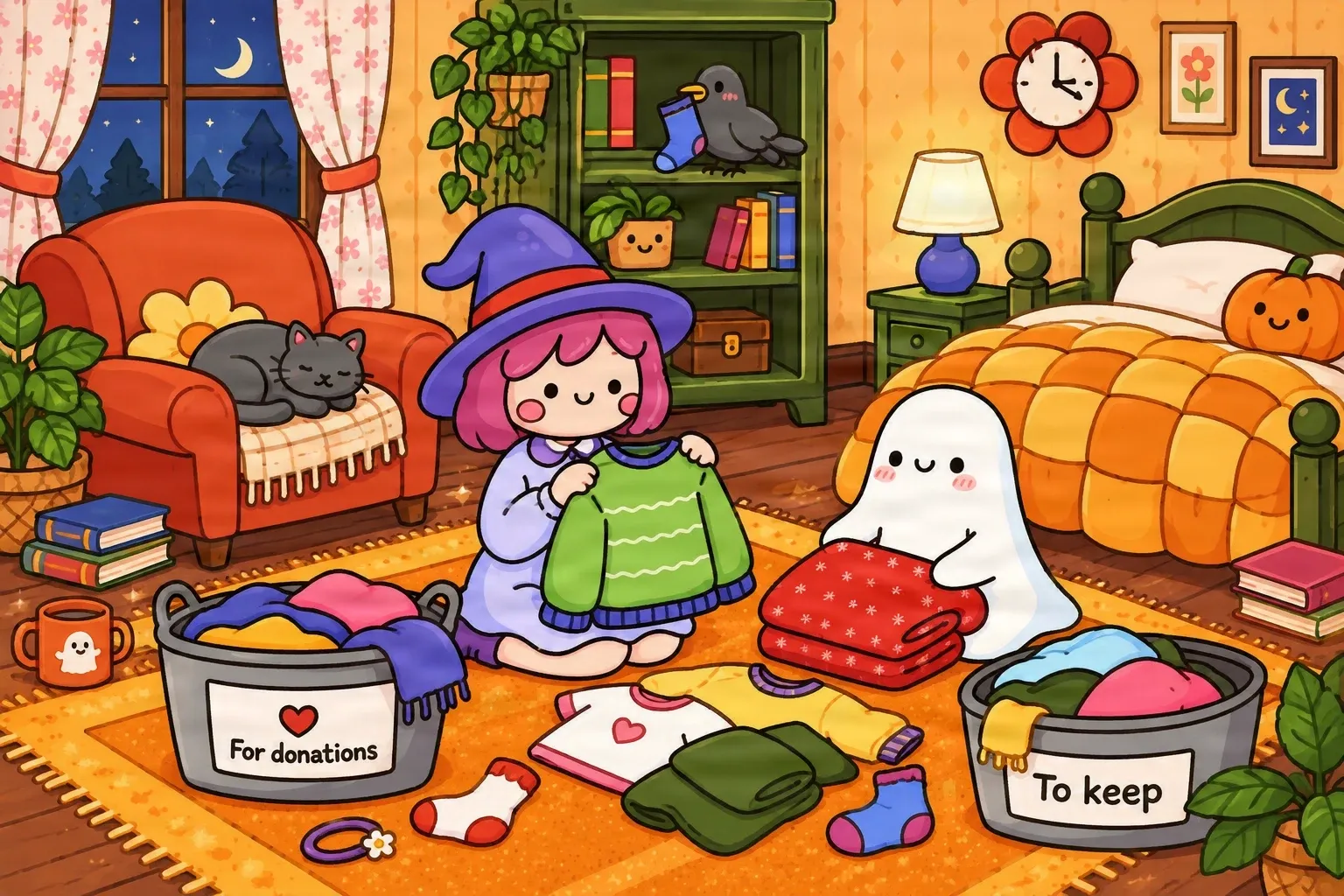
Everything Together in One Image
A little witch, a friendly ghost, furniture, clothing, and decorations are all part of one finished illustration.
AI attempts to separate characters, props, and scenery from your flat image for animation.
Upload your image
JPG, PNG, WebP up to 10MB · Drag & drop anywhere
Leave this blank to let Detailed Layers identify the main editable elements automatically. Or name the parts you want separated.
Separate the Elements You Want to Animate
Start with a complete illustration and extract recognizable characters, props, foreground objects, and backgrounds. Use the resulting layers as a starting point for motion design and 2D animation.
Upload an Image to Continue
Private File Handling
Uploaded files are associated with your account and delivered through signed URLs. You can delete completed jobs manually.
Transparent PNG Output
Detailed Layers returns each detected element as its own layer on a transparent background.
Review the credit cost shown in the workspace before generating.
Tips for better results
A real illustration separation example
This real AI-generated example shows how a cozy cartoon bedroom illustration can be separated into visual elements before animation begins.
A little witch, a friendly ghost, furniture, clothing, and decorations are all part of one finished illustration.
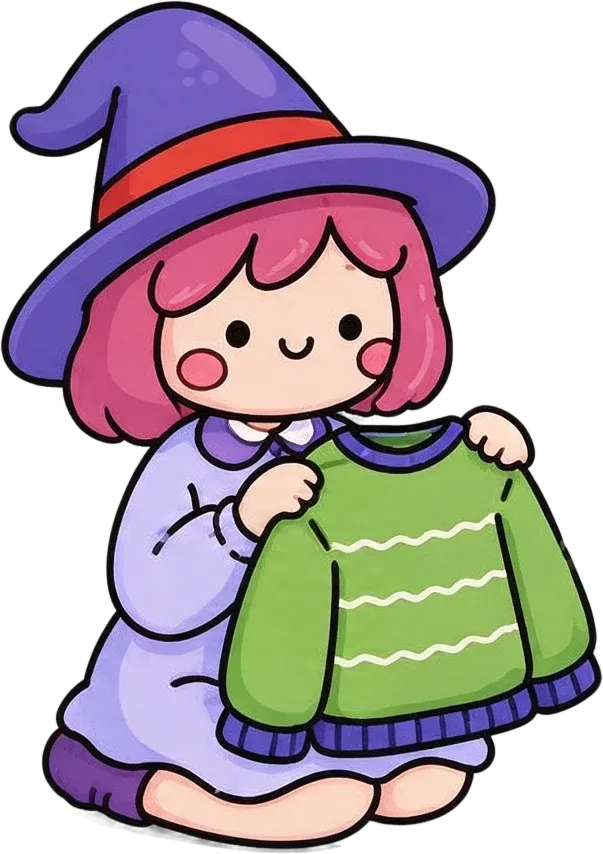

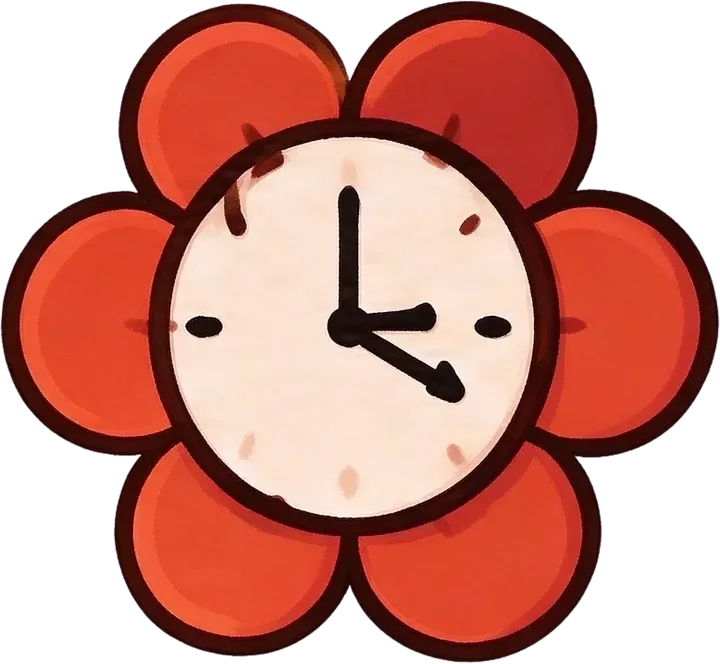
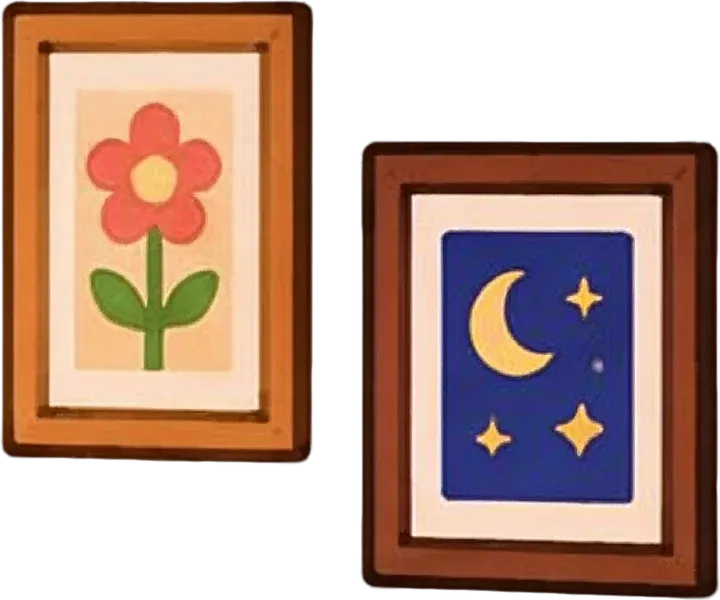
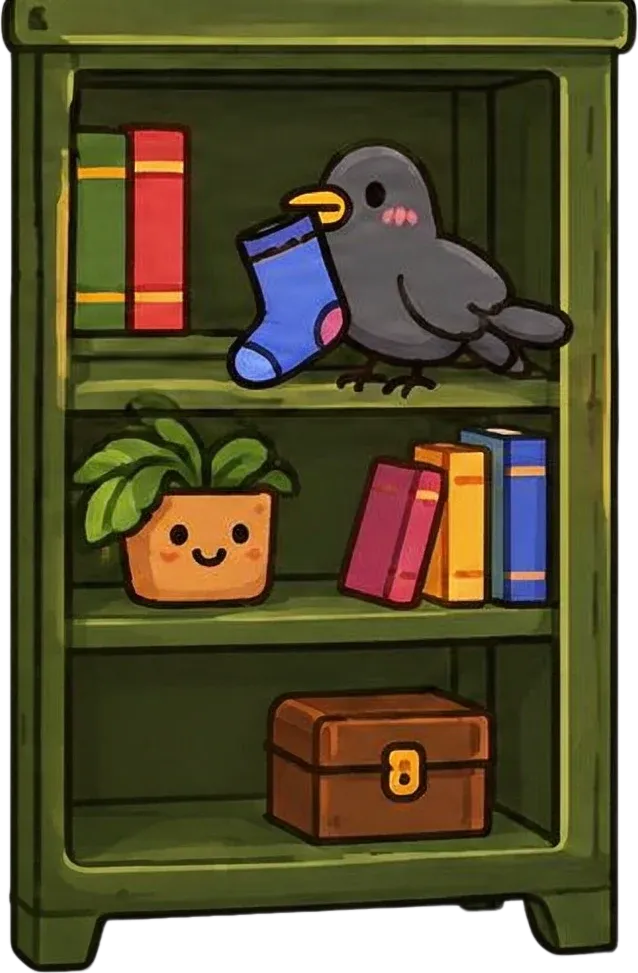
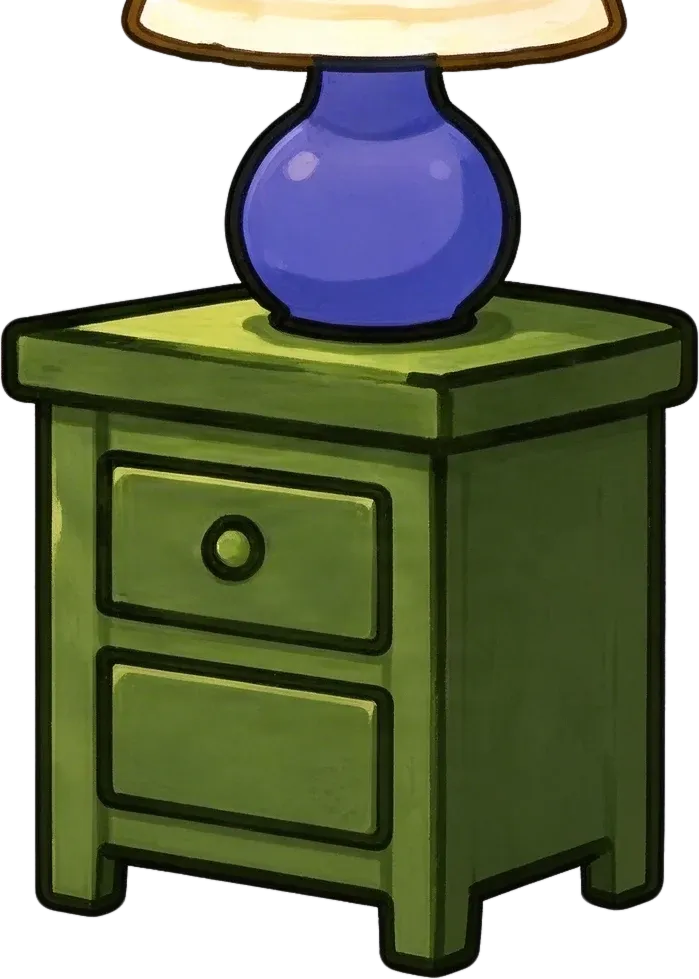
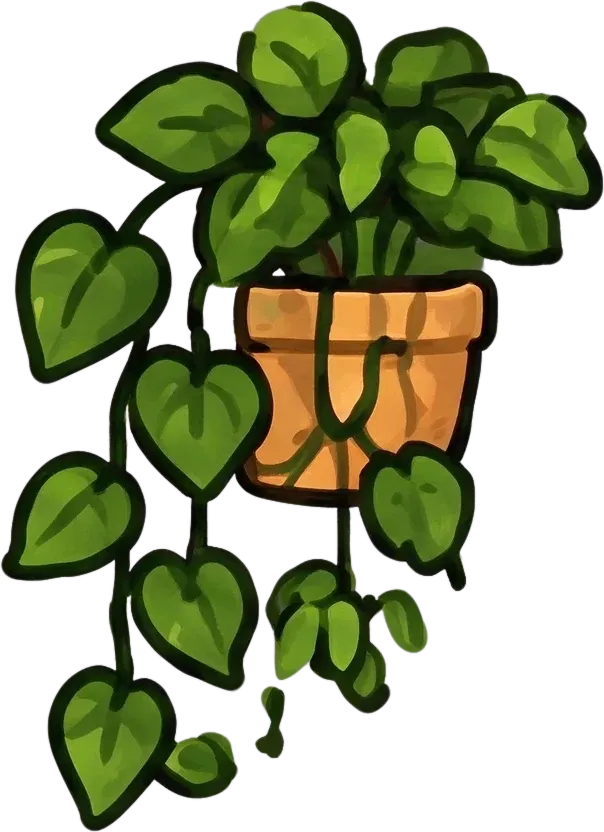

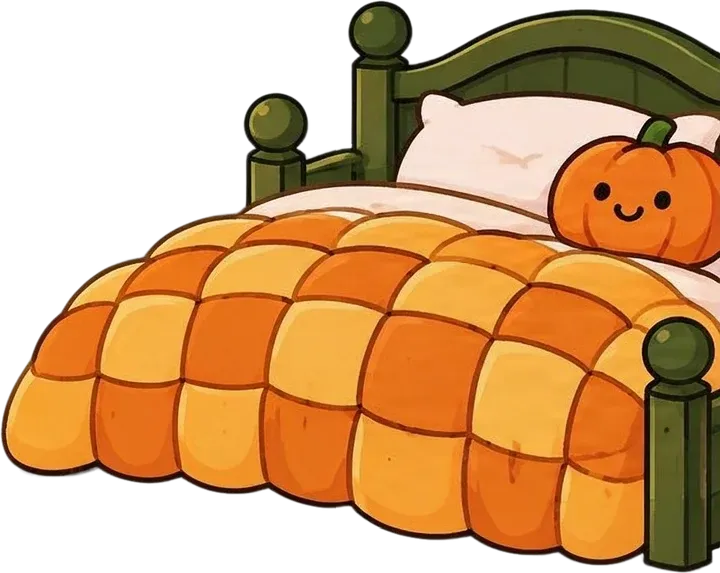
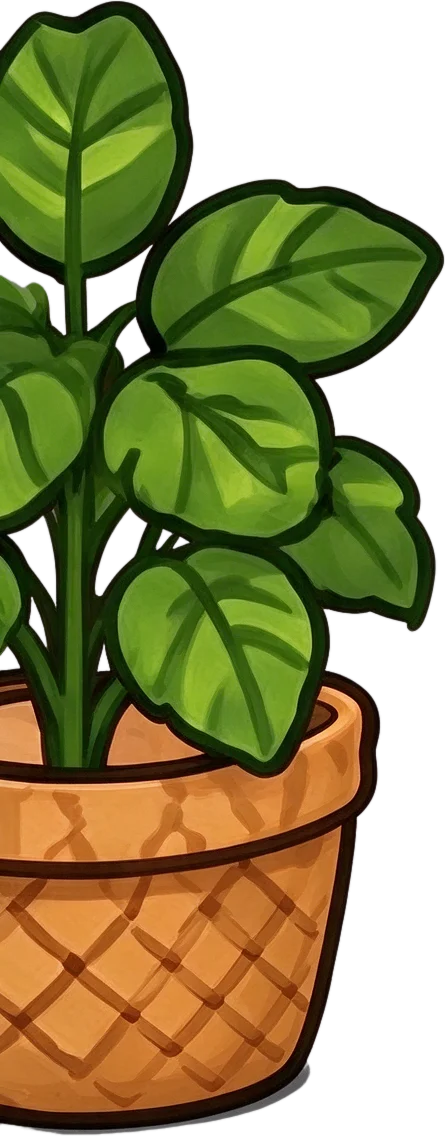
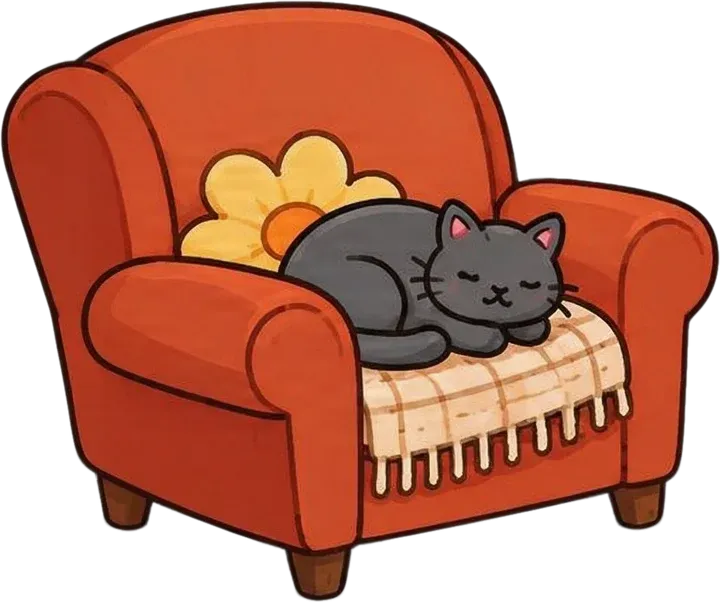
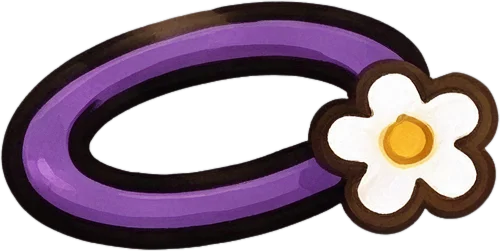
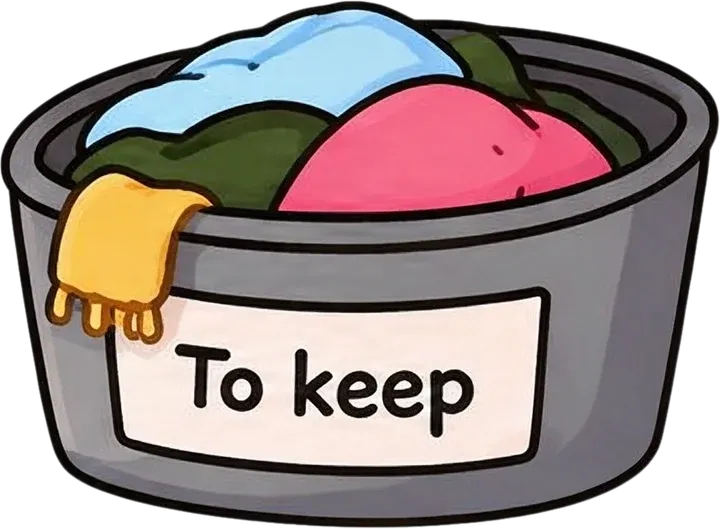

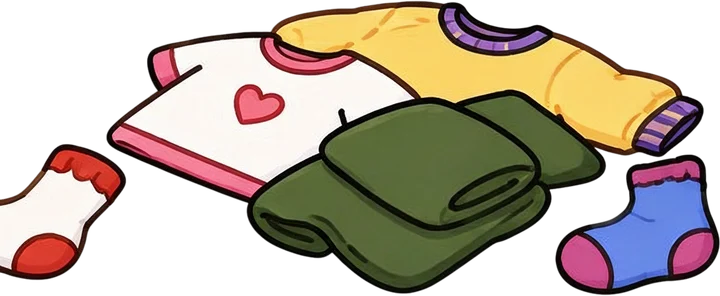
Inspect the extracted character and scene layers to see which visual elements can be moved, hidden, or edited independently.
This is an actual AI-generated layer result, not an animated demonstration. The grid displays 15 of 17 generated layers; the background and a duplicate red-clothing layer are omitted. Some objects remain grouped, and one sock is clipped at its layer edge. Results vary by source artwork.
The problem before animation starts
Your illustration is finished. The composition looks great, and you can imagine a character blinking, decorations floating, or a camera moving through the scene. Then you open your animation software and discover that everything is part of one image.
Move a character and you may expose a hole in the background. Move a foreground object and unwanted pixels may come along with it. Preparing a scene can mean selecting objects, refining edges, and repainting areas that were hidden behind them.
Illustration to Animation Layers helps you start with a more useful layered version of your existing artwork, so you can spend less time on repetitive cutout work.
Start with the subject
A small movement can make an illustrated scene feel more alive. You might want a ghost to float, a person to move across the background, or a cartoon animal to shift slightly. When the character is flattened into the scene, even simple motion can take extra preparation.
AI-assisted separation attempts to isolate recognizable characters from the surrounding artwork. The resulting image layer can be used as an independent visual element in an animation workflow.
Possible uses
This workflow separates characters as visual objects. It does not automatically split every limb, eye, or mouth for character rigging.
Motion is not just about characters
Small movements can bring an illustration to life: a hanging decoration can sway, a cloud can drift, or a lantern can move gently. These effects may not require a complex character rig, but the object needs to be separate from the rest of the image.
The layer workflow can help extract recognizable props and decorative elements so you can move them in your preferred animation software.
Examples of potential motion
When visual elements have their own layers, you have more options for adding subtle motion.
Prepare depth-based effects
A flat illustration can still contain visual depth. Decorations may sit close to the viewer, characters may occupy the middle ground, and scenery may extend into the distance. Moving these elements at different speeds can create a parallax-style effect or a sense of depth during camera movement.
Separate layers can give you a starting point for building that movement in an animation application.
Possible layer groups
This does not create a true 3D scene or calculate a precise depth map. You may need to adjust layer order and positions manually.
The background matters too
The original image does not contain the wall or scenery hidden behind a character. Simply cutting out the character may reveal an empty area when you reposition it.
AI layer separation can attempt to reconstruct supported hidden portions of the scene, giving you a background that may be more useful for repositioning objects or creating alternate compositions.
Useful for
Hidden regions are AI-generated estimates, not recovered original artwork. Review them and repaint or clean them up when needed.
Continue in your animation software
After Effects scenes often need characters, backgrounds, and foreground objects arranged so they can be manipulated independently. This workflow helps prepare those visual assets from a flattened illustration; animation setup and motion still happen in After Effects.
1
Upload your illustration and generate individual visual layers.
2
Check that the objects you intend to animate have been separated as expected.
3
Use the layer downloads or supported PSD export option available in your result workspace.
4
Import and organize the layers, adjust anchor points, and create motion with After Effects tools.
The separation workflow prepares visual assets. It does not create an After Effects project or animation.
Keep your workflow flexible
Independent transparent images can be useful in different creative applications. Export the assets you need, then finish the setup in the software you prefer.
Arrange layers for motion graphics, scene animation, and camera effects.
Use supported image-based workflows to position visual elements in a scene.
Import visual assets and organize them for timeline-based animation.
Use suitable extracted images as source assets for simple 2D scenes and effects.
Review layers, clean edges, correct reconstruction errors, and organize assets before animation.
The tool does not automatically generate application-specific projects, timelines, or skeletons.
Do not start from zero
You may have portfolio pieces, client artwork, children's story illustrations, social posts, or game prototypes saved as a single image. You do not necessarily need to redraw the entire scene to explore animation ideas.
Separating recognizable visual elements can create a starting point for subtle motion, a looping background, an animated greeting, or a short storybook scene. The amount of manual cleanup depends on the artwork and the motion you want to create.
Ideas for reusing your work
Bring existing artwork into a motion workflow without manually cutting out every object from scratch.
Built for scene-based motion
Sometimes you do not need a walking cycle, facial rig, or complicated skeleton. You may simply want a character to drift across the composition, a prop to rotate, or a foreground element to move at a different speed from the background.
Separating scene elements is a practical first step for illustrated loops, motion graphics, social posts, storytelling scenes, decorative backgrounds, and animated presentation artwork. Create the motion separately at the level of complexity your project needs.
Only have the exported image?
The illustration may have been exported from Procreate or another drawing application, delivered without its source file, or left behind after the original layered project was lost. You can still start from the finished image you have.
The tool generates a new visual layer structure from the uploaded image. It does not restore the original drawing project, layer history, or brush strokes.
New visual layers, separate image elements where recognized, transparency around supported objects, and estimated reconstructions where possible.
The original app project, original layer history, automatically generated character rigs, a finished animation, or a guaranteed pixel-identical version.
A flattened image can become a new starting point for animation preparation.
Preserve your creative style
Your artwork may use thick outlines, flat colors, soft shadows, painterly textures, or carefully designed expressions. Separation aims to retain recognizable visual details while creating independent layers, but AI processing can still change details near object edges and reconstructed regions.
Review these details
Review the extracted layers before adding motion, especially when the original drawing style matters.
Before you start animating
A few checks before animation can prevent distracting errors later. Review the elements you plan to move and the image areas that will be revealed.
Animation preparation checklist
Know the limitations
AI-generated layers can reduce repetitive preparation work, but they do not replace an animator or motion designer. The model may group objects, change fine details, estimate hidden areas, or reach its practical output-layer limit on a crowded scene.
You may need to refine
Treat the result as an editable starting point, then refine it for your specific animation project.
Different goals, related workflows
General illustration editing
Separate a flattened illustration to revise objects, reposition elements, or create a new composition.
Explore illustration editingPreparing artwork for motion
Separate whole characters, props, and scenery as visual layers to review and use in animation software.
You are viewing this workflow
Both workflows separate flattened artwork. Choose this page when your next step is to add movement in another application.
Upload a finished illustration and start AI layer separation. The tool attempts to identify characters, props, scenery, and background elements, creating visual layers you can review and use in your animation workflow.
Yes. A flattened PNG can be used as the source for generated layers. If suitable objects are separated, import them into compatible animation software and create movement there. This tool does not automatically produce an animation.
Yes. Supported image downloads or a layered file format can provide a starting point in After Effects. You will still need to organize the composition, adjust anchor points, and create the animation yourself.
No. It separates artwork into visual layers for later animation. It does not generate keyframes, character motion, animated videos, or finished animation projects.
The AI can attempt to recognize distinct characters and create separate visual layers. Characters that overlap heavily may be grouped or reconstructed imperfectly.
Not necessarily. This workflow focuses on complete scene elements. Use a character-specific preparation workflow for detailed body-part separation.
You can use separated elements as a starting point for parallax-style animation. Arrange layers and move them at different speeds in compatible software; layer order and visual depth may need manual adjustment.
If the character is isolated successfully, you can reposition it in an image editor or animation application. Areas that were hidden behind it may need background reconstruction or manual cleanup.
It can attempt to estimate hidden background regions from the surrounding illustration. These are AI-generated reconstructions, not recovered original pixels, and may need further editing.
The image separation workflow supports independent visual layers. Use the available download options in the result workspace to get supported transparent image assets.
A PSD download may be available through supported paid-plan export functionality. Check your account and result workspace for current options. The file contains newly generated layers, not the artist's original layer structure.
You can upload a supported image exported from Procreate. Processing uses that flattened image and does not restore the original Procreate project or its native layers.
You can try hand-drawn, digitally painted, and flat-color artwork. Results depend on image quality, overlap, and how clearly the elements can be recognized.
Yes. Finished AI-generated artwork can be uploaded. The tool attempts to separate visible elements into new editable layers, though details may change during processing.
Supported image downloads can be incorporated into appropriate image-based Blender workflows. You will need to position the objects and create animation in Blender.
No. Some objects may remain grouped, especially when they overlap or form one recognizable visual unit. Complex scenes can also reach the model's practical layer limit.
You can use generated layers as source assets for an animated storybook workflow. Character movement, page interactions, timing, and other animation behavior must be created separately.
Background removal typically isolates a foreground region. This workflow attempts to separate several meaningful illustration elements, including characters, props, scenery, and background regions.
Not always. You may need to correct object grouping, edge quality, hidden-area reconstruction, layer order, or anchor positions before animating. The work depends on your image and intended motion.
This is a credit-based AI workflow. The workspace displays the current generation cost before you start. Review your available credits and export options before processing.
Edit or rearrange a finished illustration without focusing on animation.
Prepare individual character components instead of separating whole-scene objects.
Prepare depth-based motion from an existing photograph.
Continue editing artwork created with an AI image generator.
Separate different types of images into editable layers.
Separate the characters, props, and scenery you want to animate. Generate editable visual layers, then continue creating in your preferred software without manually cutting out every object from scratch.
Prepare my illustration layersUpload your image and review the generation cost before starting.
Creative Toolkit Index
Quick access to precision layer extraction, AI photo editing & asset tools.