
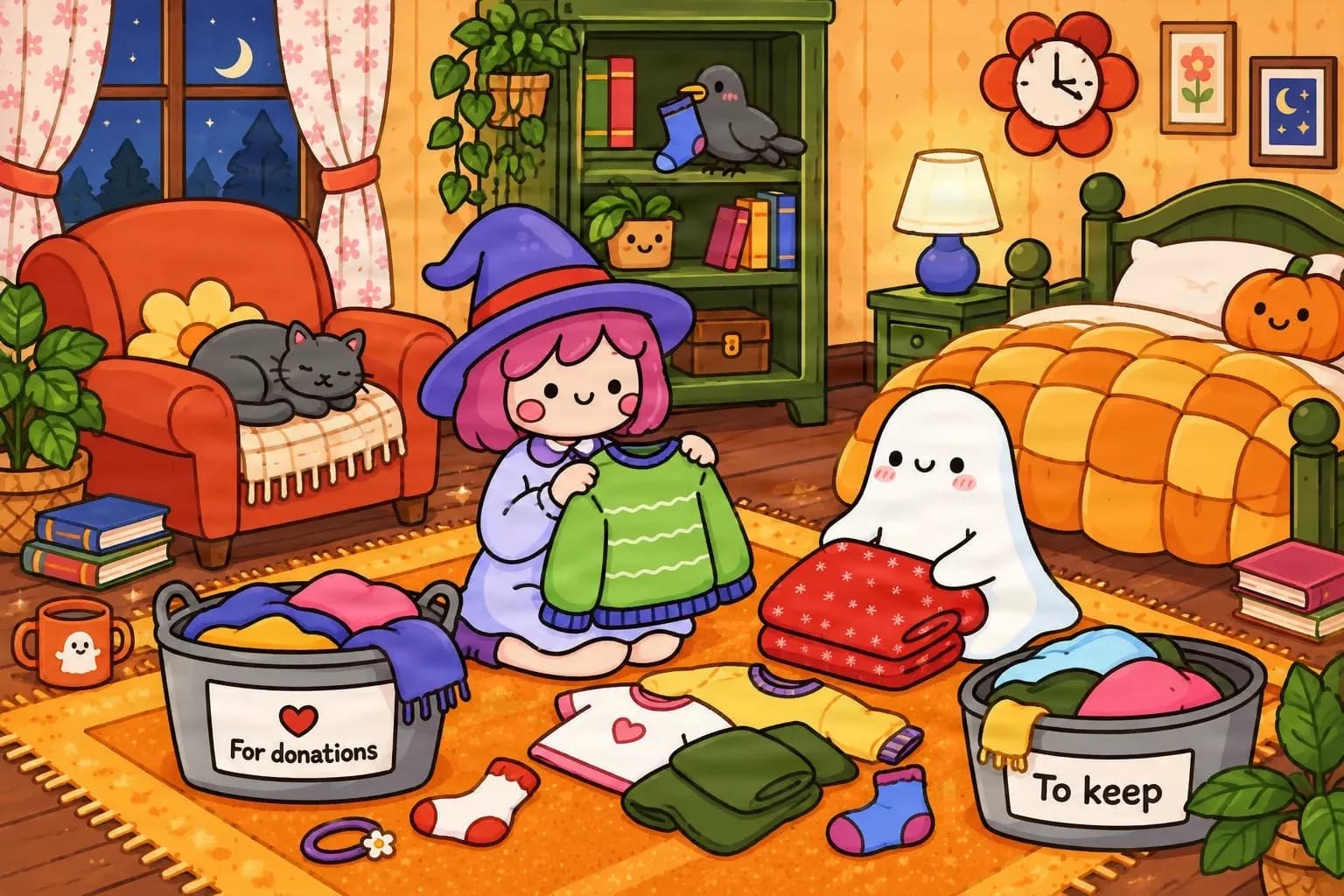
Original Illustration
A finished flat illustration before layer separation.
AI JPG to Layered PSD Converter
Have a JPG image you want to change, but everything is stuck together? Upload it and let AI attempt to separate recognizable subjects, objects, and backgrounds into new image layers for Photoshop.
Upload your JPG and start creating layers. The existing Image to PSD workspace helps you generate image layers, inspect the result, and export a supported layered Photoshop file.
Click or drag image to decompose into PSD
Foreground palm leaf
651×267 px
Frosted pump serum bottle
159×631 px
Frosted cream jar with gold lid
274×266 px
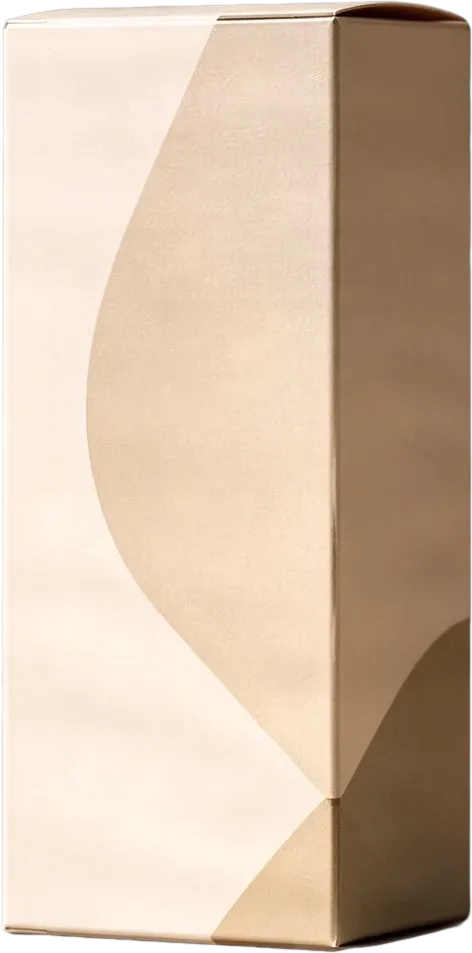
Beige product packaging box
298×602 px
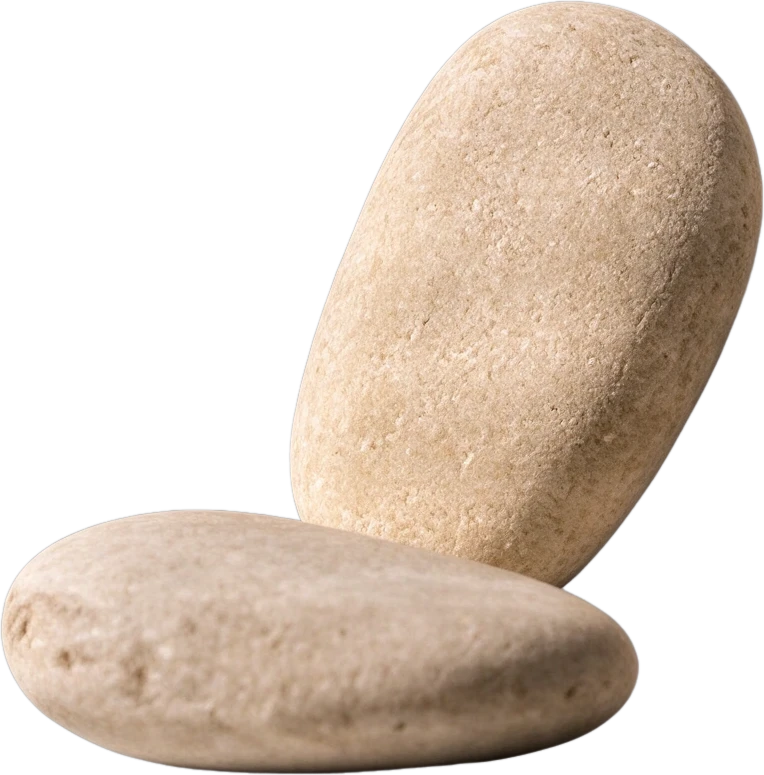
Smooth pebble group
244×247 px
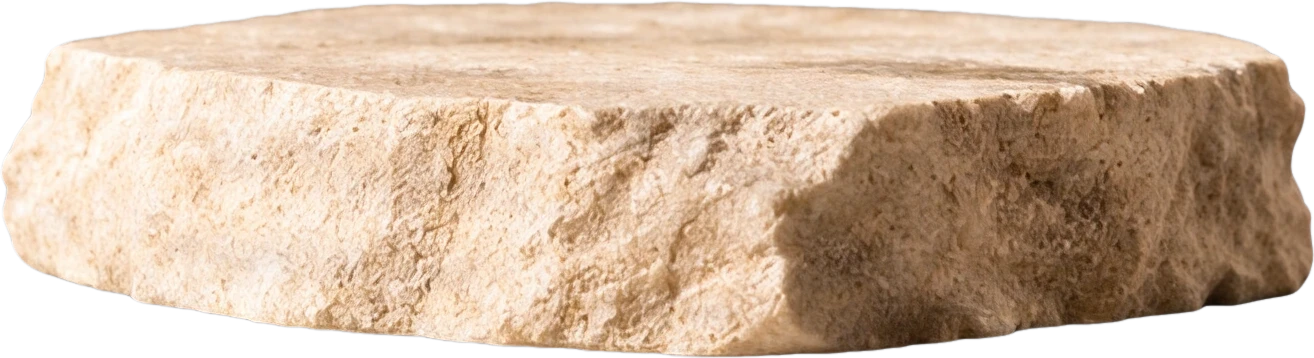
Stone display platform
536×145 px
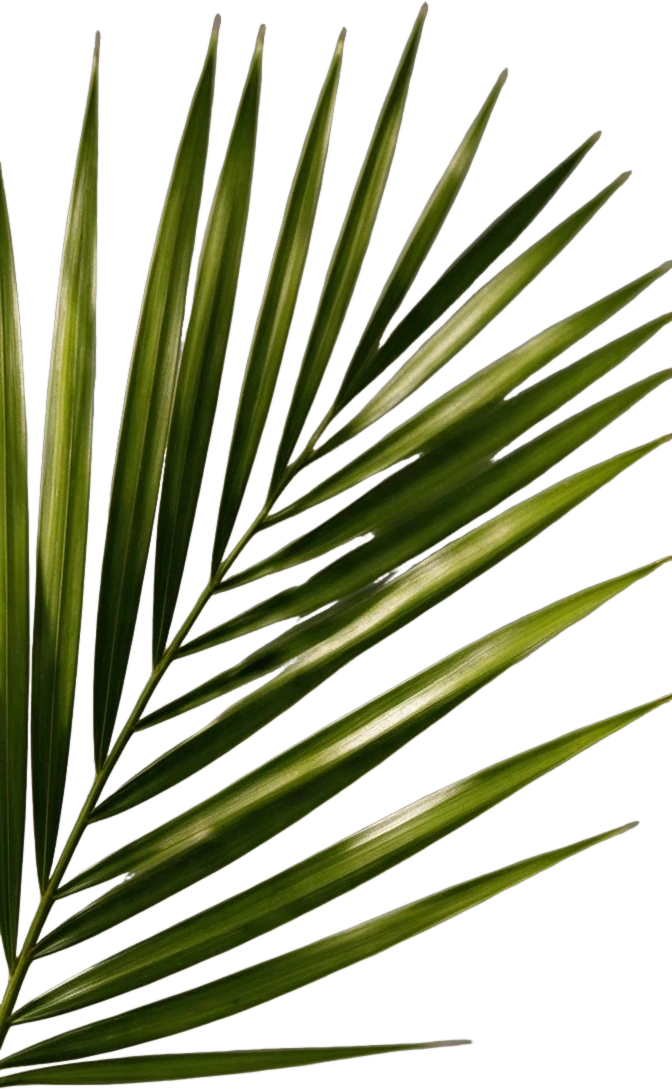
Right palm leaf
298×483 px
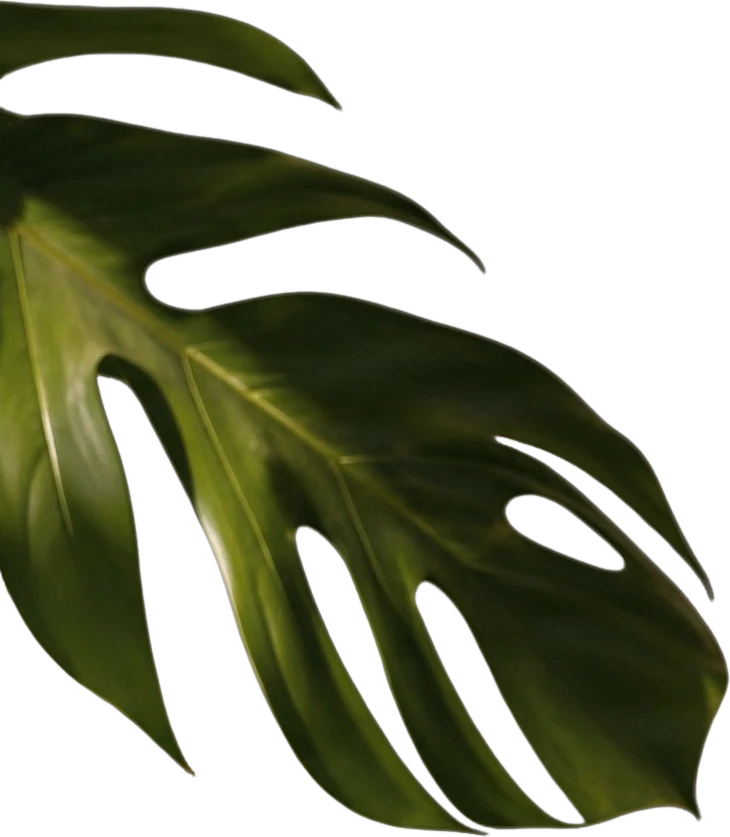
Left monstera leaf
526×603 px
Clean background
Background
Upload your image or use sample above to export PSD
Private File Handling
Uploaded files are associated with your account and delivered through signed URLs. You can delete completed jobs manually.
Transparent PNG Output
Detailed Layers returns each detected element as its own layer on a transparent background.
Open the layered result in Agent Workspace to clean up elements, create visual variations, or continue working from the same project.
JPG and JPEG images are supported by the existing workflow. Review the generation cost and available export options before processing.
Not Just a File Extension Change
Opening a JPG in Photoshop and saving it as PSD keeps the image flattened. This workflow attempts to create a new layer structure from visible content.
See How Image Layers Work
This existing illustration separation example shows how recognizable characters and scene objects can become individual image assets. It is a capability demonstration, not a verified JPG-to-PSD export case.
A finished flat illustration before layer separation.
A few representative elements from the existing illustration layer set.
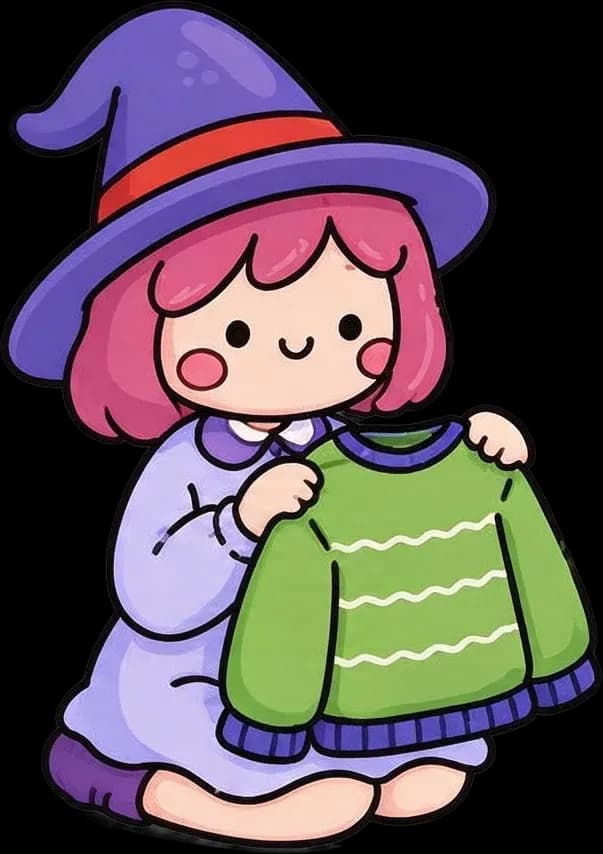

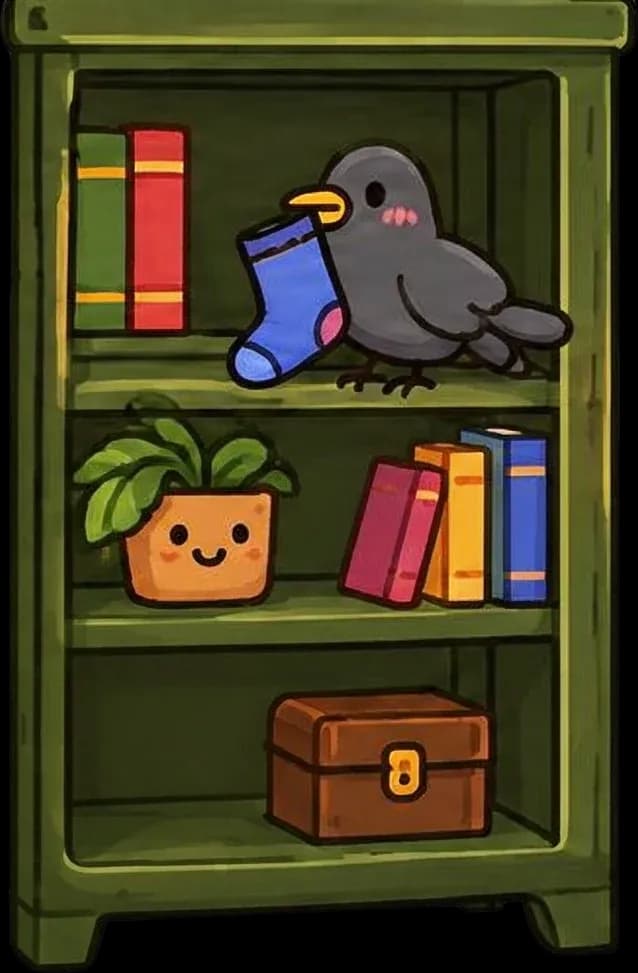

The source showcase is a WebP illustration. Do not treat it as an independently verified JPG input or PSD export. Generated layers and grouping vary by image.
More Control Over Your Image
When a recognizable element is successfully separated, you can continue editing it independently in Photoshop.
When You Only Have a JPG
A JPG does not contain independent Photoshop layers. Moving a character, changing a background, or repositioning a client graphic can mean manually selecting, cutting, cleaning edges, and rebuilding what was behind it.
JPG to Layered PSD attempts to create a new raster layer structure from visible content so you have a more flexible starting point.
Understanding the Output
The result may contain main subjects, supporting objects, backgrounds, and plausible reconstructions for some hidden regions.
Reconstructed areas are estimates, not recovered original pixels. The PSD does not restore the original designer's text objects, vectors, Smart Objects, masks, or editing history.
Everyday Editing Problems
Work from an archived campaign image, a flattened client file, an AI-generated picture, or an illustration whose source project is missing.
A newly generated layered document can reduce repetitive preparation when you need to reposition a character, reuse an object, or explore another composition.
For Artists and Illustrators
Finished JPG illustrations can contain characters, props, and scenery that are all flattened together. AI-assisted separation can attempt to identify visible elements and prepare them as individual raster layers.
Suitable starting images include character illustrations, cartoon artwork, fantasy scenes, storybook illustrations, digital paintings, and AI-generated character artwork.
For Photo Editing
A photograph may contain recognizable products, people, props, and scenery that you want to adjust. The generated result can provide a more flexible starting point for compositing and creative photo editing.
Transparent objects, fine hair, reflections, soft shadows, and complicated overlaps can make accurate separation more difficult.
What Makes a Good Input?
JPG compression can remove or alter fine details. Use the clearest, highest-quality version available and review thin edges, hair, shadows, text-heavy areas, and overlapping objects carefully.
Realistic Expectations
AI can identify visible subjects, separate suitable objects, create transparent raster elements, and generate plausible background content.
It cannot reliably recover original Photoshop text layers and fonts, native vectors, Smart Objects, exact masks, blend settings, editing history, or true pixels hidden behind objects. Think of the PSD as a new working document, not a recovered copy.
Your Creative Workflow
Open the supported layered PSD in Photoshop or a compatible editor. Inspect raster layers, refine selections, improve edges, change positions, add backgrounds, and build a new composition.
The AI-assisted process prepares a more editable starting point while you remain in control of typography, color, masks, and final precision.
Keep Editing Your Images
Turn supported JPG, PNG, or WebP images into new layered Photoshop documents.
Explore toolCreate new editable layers from a PNG illustration or graphic.
Explore toolSeparate recognizable people, products, and objects from finished photographs.
Explore toolExplore a general workflow for generating Photoshop layers from supported image formats.
Explore toolCreate a new editable layer structure when the original layered source file is unavailable.
Explore toolSeparate suitable image elements into individual assets for editing and creative reuse.
Explore toolIt attempts to turn a flat JPG or JPEG into a new PSD containing separate raster layers for recognizable subjects, objects, and backgrounds.
Yes. Upload a JPG and use the existing image-layer workflow. The result is a newly generated layer structure, not the original design file.
No. The workflow is intended for situations where you only have the exported JPG, although it cannot recover the original hidden layers or editing history.
No. Saving a JPG as PSD keeps it flattened. This workflow attempts to create new image layers from visible content.
Recognizable subjects, products, characters, props, decorative elements, and some background regions may be separated when their boundaries are visible.
The system may generate plausible content for some hidden areas. These regions are estimates and should be reviewed and refined.
Yes. A supported layered PSD is intended for further editing in Photoshop and compatible image editors.
If the object is separated successfully, you can reposition, resize, hide, or edit its raster layer in Photoshop.
Not automatically. Text in a flattened JPG is pixels and is not reliably restored as native Photoshop text with its original font and formatting.
No. The workflow creates raster image layers rather than recovering original vectors, Smart Objects, masks, or adjustment layers.
The number depends on the image and selected processing options. Not every visible object is guaranteed to become a separate layer.
PSD export does not restore information lost through JPG compression. Edges, textures, and other details can also change during AI separation.
It can. Blocky artifacts, blurry details, and heavy compression can make accurate separation more difficult.
Yes. Character illustrations, cartoons, fantasy scenes, storybook art, and digital paintings can be suitable starting images.
Yes. Product photos, portraits, lifestyle images, and scenes can be processed, although hair, reflections, shadows, and overlaps may be challenging.
Supported image-layer export options depend on the result and your account. Review the available controls after processing.
Commercial use depends on the service terms and your rights to the original image. Make sure you have permission to process and reuse third-party artwork.
No. It creates a new layered interpretation from visible pixels. It cannot know the original designer's layer structure or hidden content.
Clear, high-quality images with recognizable objects, distinct boundaries, and moderate overlap usually provide a better starting point.
AI layer generation uses credits and is not simply a free file-format conversion. The applicable processing cost is shown before generation.
You do not need the original Photoshop project to start making changes. Upload the JPG you already have, explore new image layers, and create a layered PSD for your next edit.
Creative Toolkit Index
Quick access to precision layer extraction, AI photo editing & asset tools.