
Flat image
AI PSD layer rebuilder
Flattened your Photoshop file? Export the visible image as PNG or JPG, then use AI to rebuild new raster layers from recognizable subjects, objects, and backgrounds.
Native PSD uploads aren't supported. Export its visible image as PNG, JPG, or WebP first.
Upload your image
JPG, PNG, WebP up to 10MB · Drag & drop anywhere
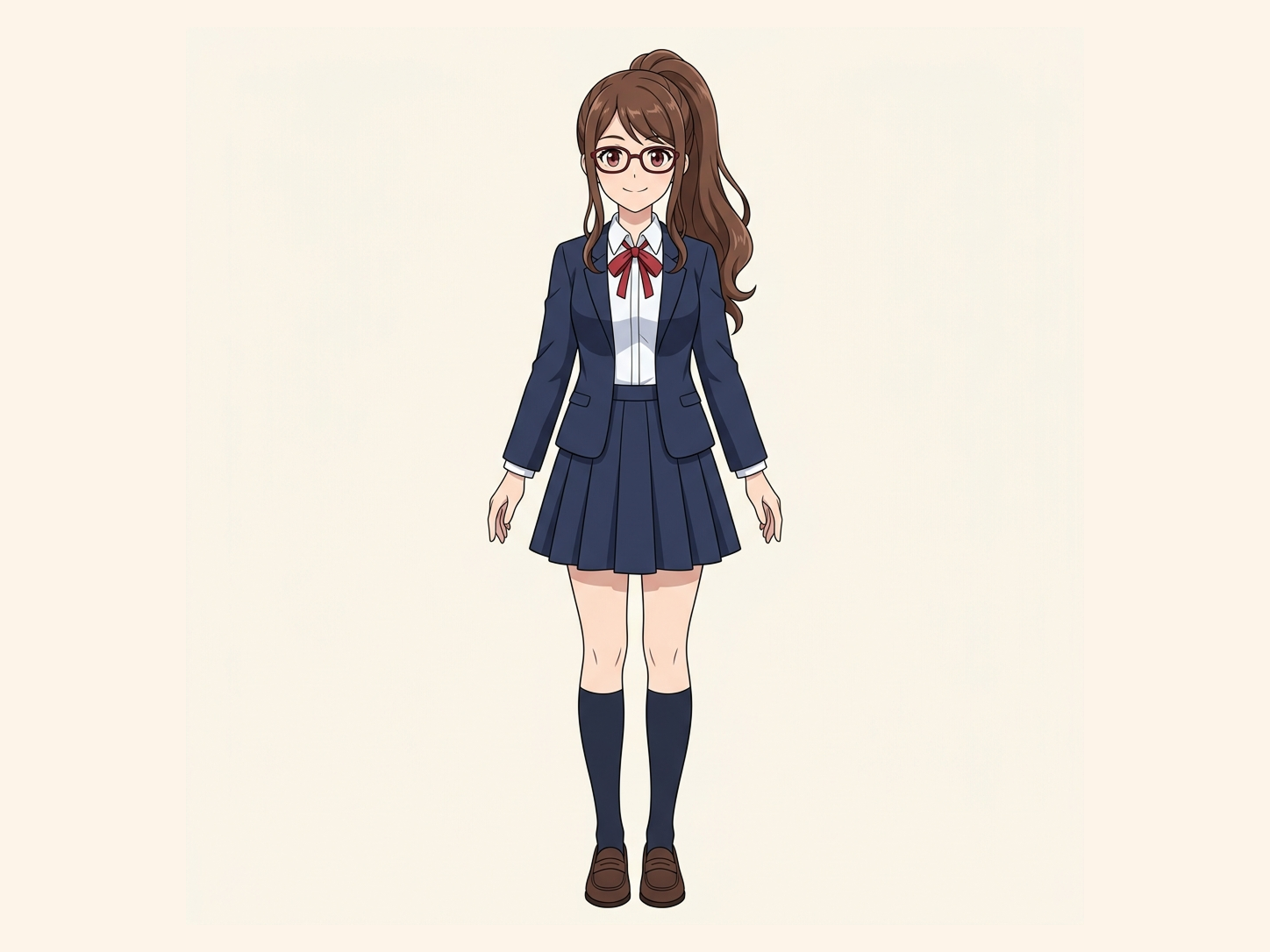
Need hair, face, eyes, mouth, clothing, or body-part layers?
Leave this blank to let Detailed Layers identify the main editable elements automatically. Or name the parts you want separated.
Want more control over your layers?
Learn how to guide Detailed Layers with simple prompts, choose useful elements, and get cleaner layer structures from different types of images.
Upload an Image to Continue
Private File Handling
Uploaded files are associated with your account and delivered through signed URLs. You can delete completed jobs manually.
Transparent PNG Output
Detailed Layers returns each detected element as its own layer on a transparent background.
Open the layered result in Agent Workspace to clean up elements, create visual variations, or continue working from the same project.
Open your flattened PSD in Photoshop, export the visible image as PNG or JPG, and upload that image here to generate new editable layers.
Flattened your Photoshop file? Export the visible image as PNG or JPG, then use AI to rebuild new raster layers from recognizable subjects, objects, and backgrounds.
Already have a flattened PNG or JPG? Upload it directly. Review the generation cost displayed in the workspace before processing.
Separate visual elements into individual layers while reconstructing the background hidden behind them.
 08
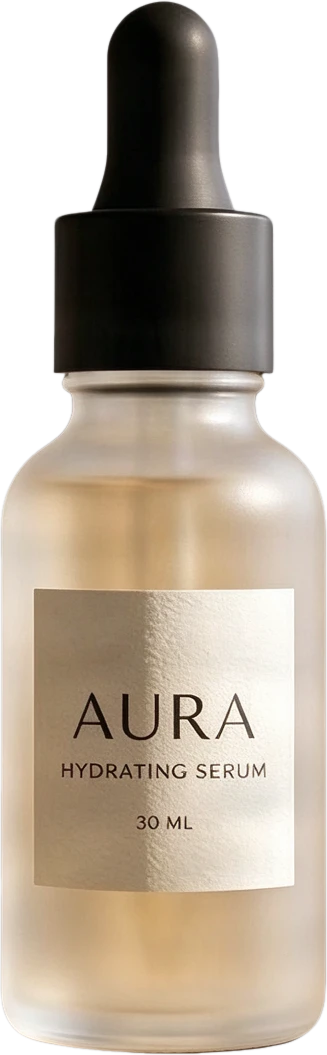
08AURA serum bottle
Frosted clear serum bottle with black dropper cap and AURA typography, presented as a standalone product.
 07
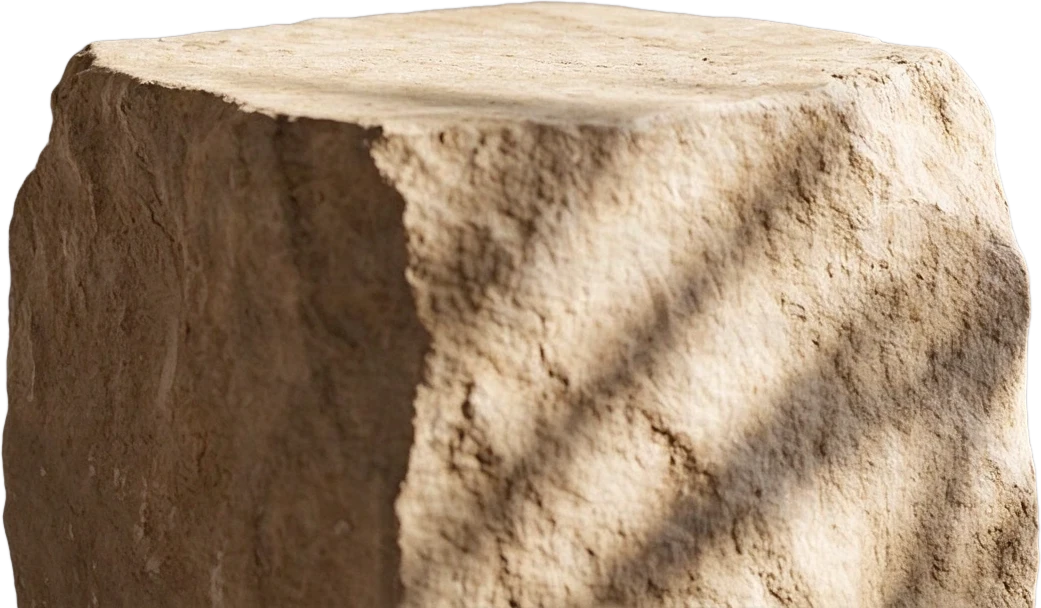
07Stone display stand
 06
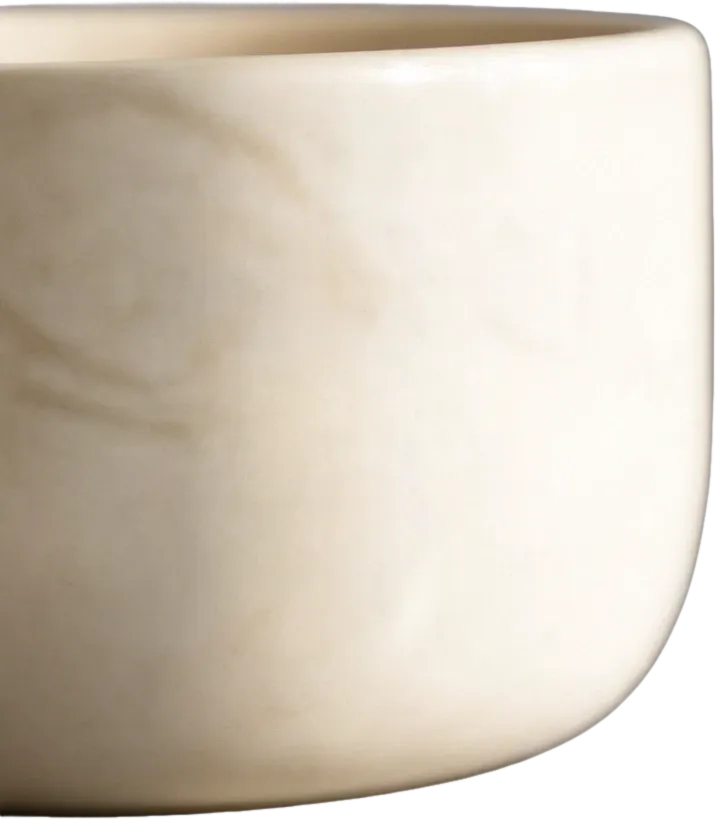
06White ceramic bowl
 05
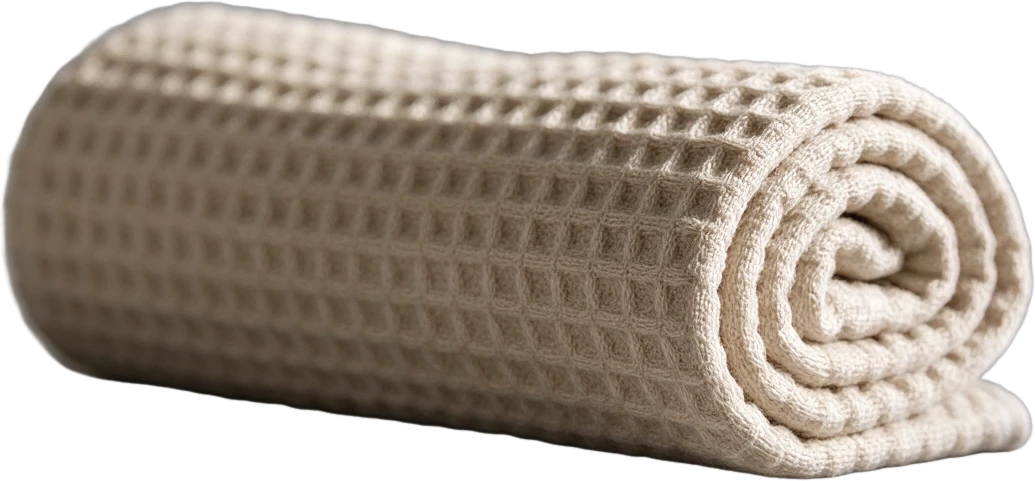
05Rolled waffle towel
 04
04Metal faucet
 03
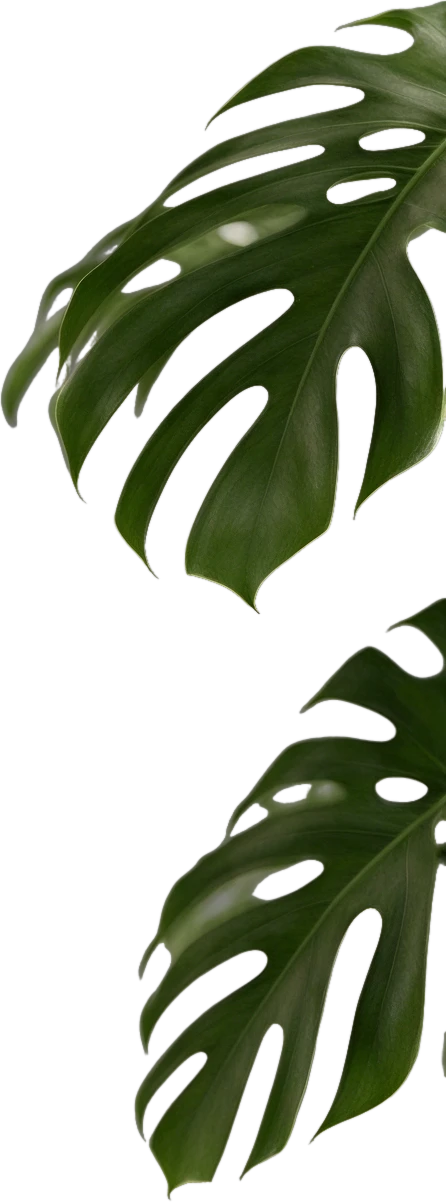
03Monstera leaf
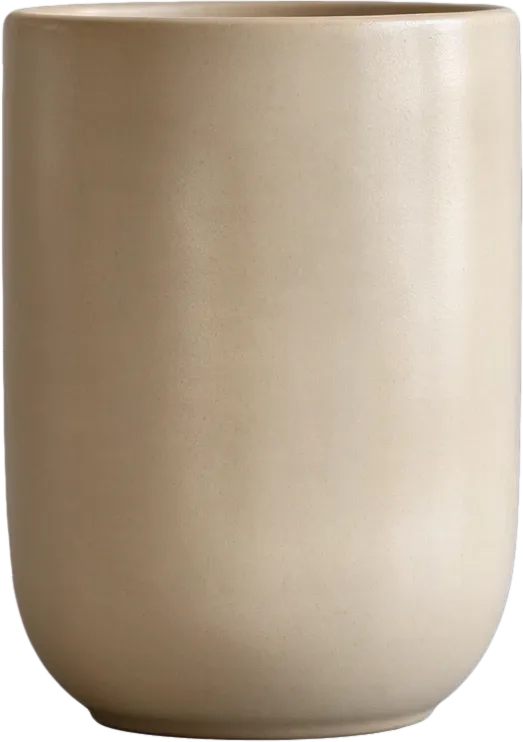 02
02Beige ceramic cup
 01
01Circular window decor
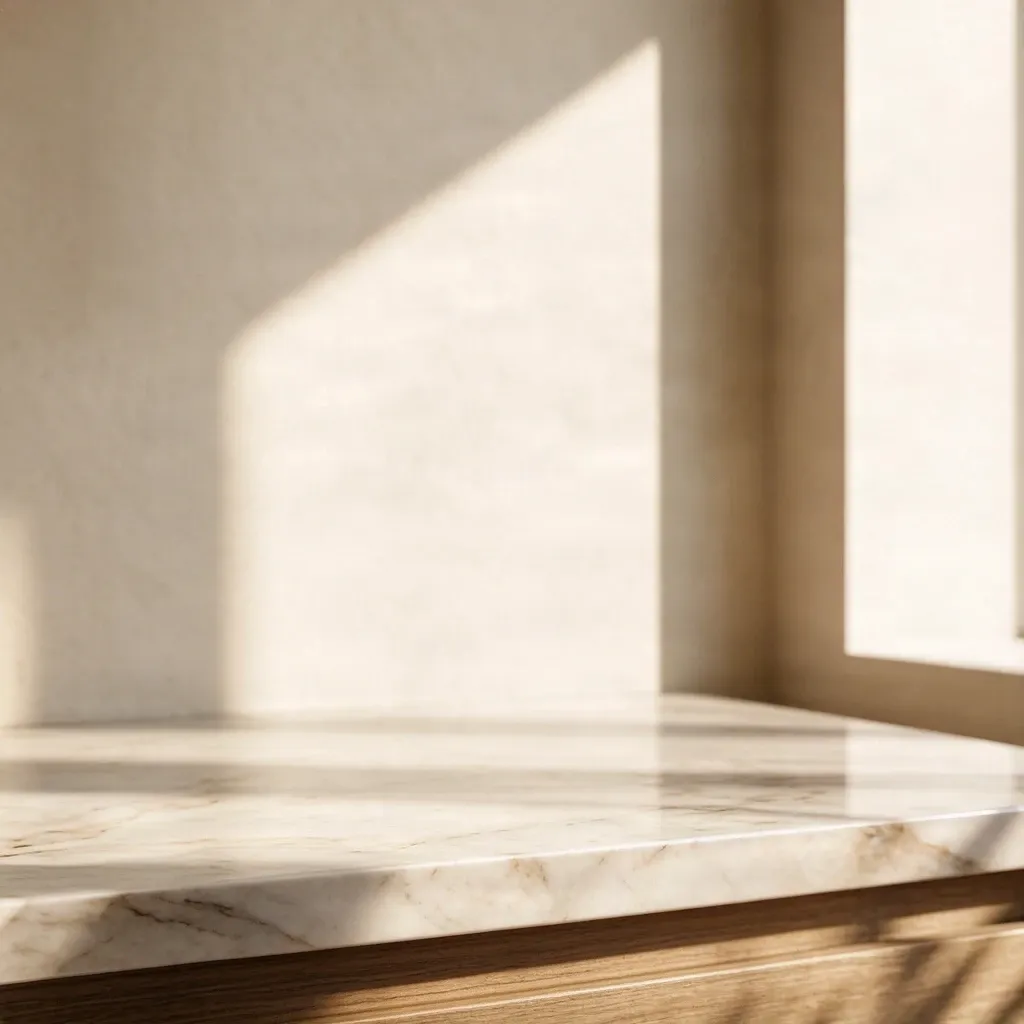 00
00Inpainted background
Final Layers
Background removers create a transparent cutout. ImageToLayers also reconstructs the area hidden behind the subject, giving you complete assets for editing and composition.
Most images are processed in 60–120 seconds.
Before and after
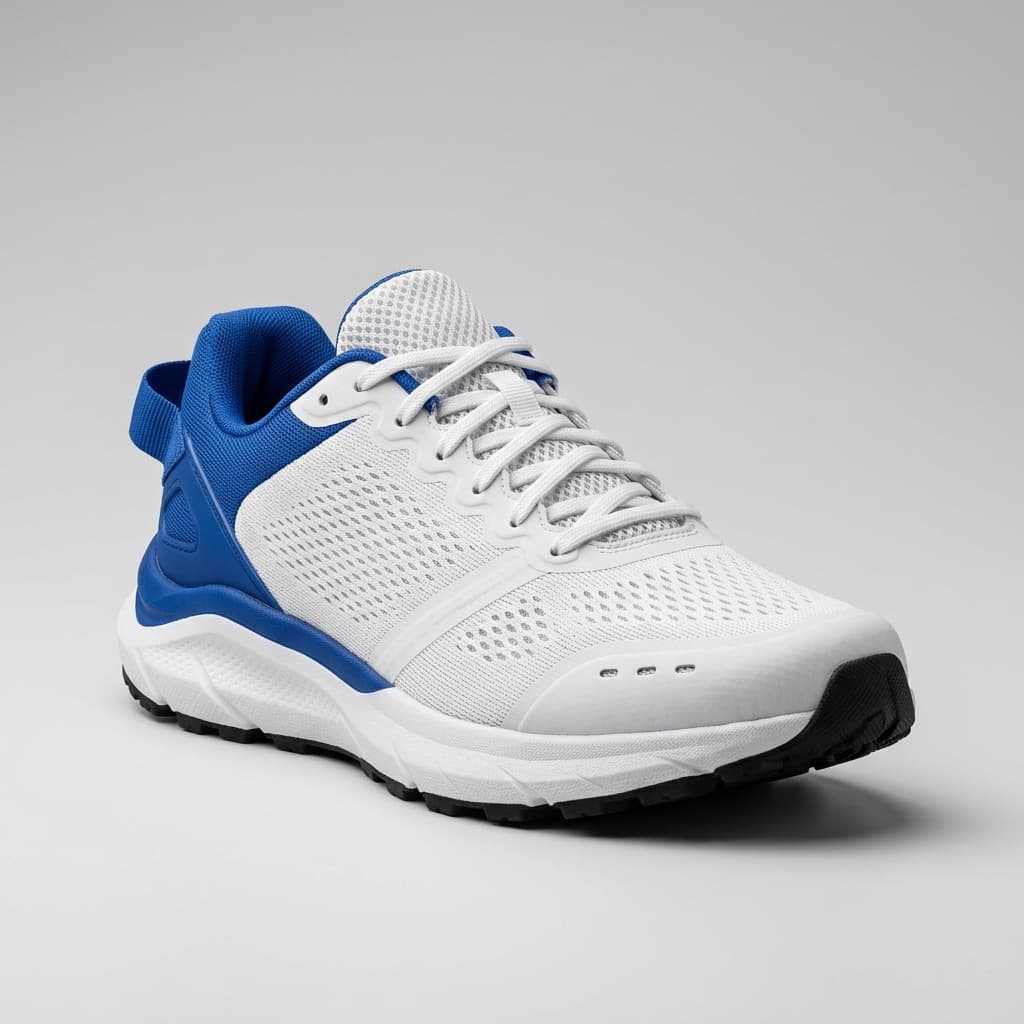
The existing Image to PSD example demonstrates how one flat picture can become separate visual components for a new editing workflow.
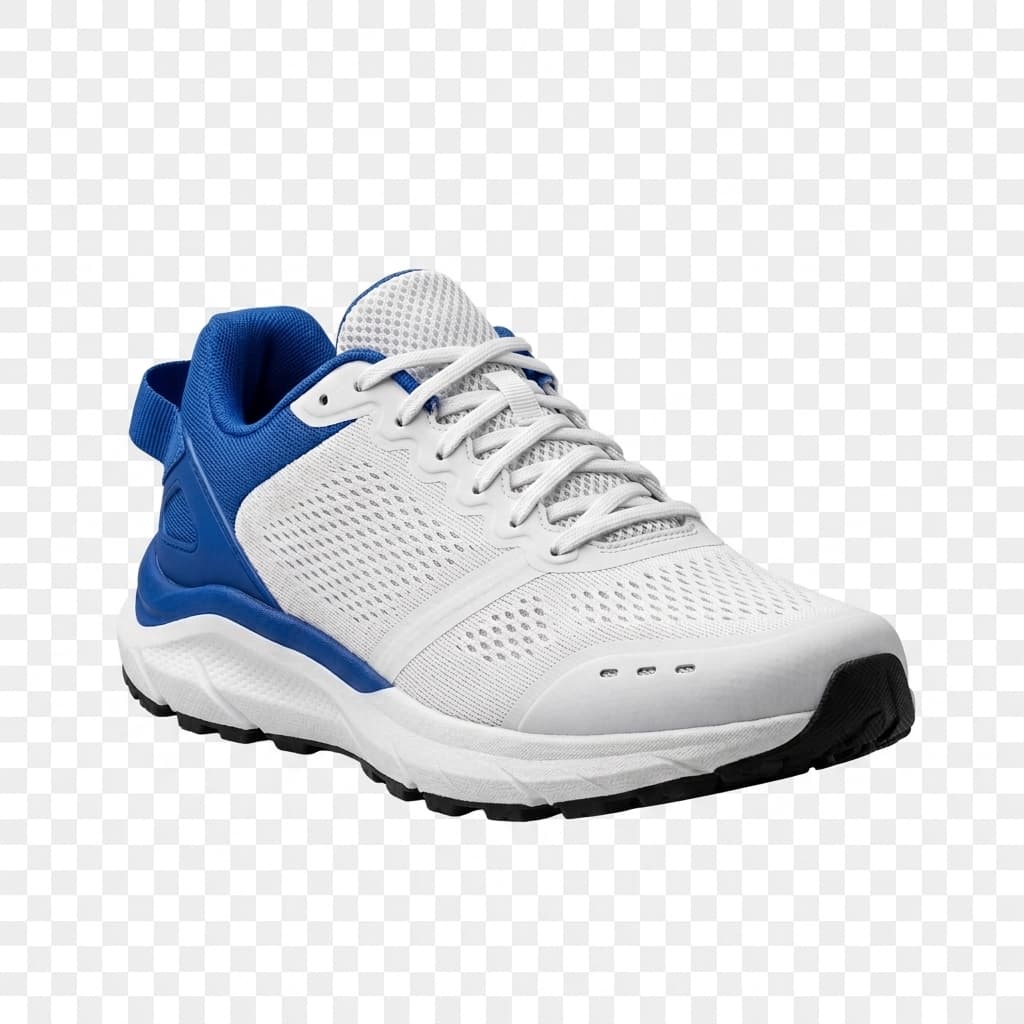
This reuses the existing Image to PSD shoe example. Its source image is PNG, and it demonstrates general AI image-layer generation—not recovery of an actual PSD's original layers. Results depend on the uploaded image, processing mode, and object complexity.
UNDERSTAND YOUR OPTIONS
If you used Flatten Image in Photoshop, first check whether the original document state is still available. Restoring a previous version is preferable because it may bring back the actual original layers.
Photoshop History states are for the current open document session. Closing the document clears its History states. Cloud document Version History is available for eligible Photoshop cloud documents; check Adobe's current requirements and steps before relying on it.
THE PROBLEM
You spent hours arranging the subject, text, objects, shadows, and background. Then you flattened the layers to reduce file size, export a finished image, or by mistake. Everything still looks right—until someone asks to move the product, remove a decoration, change the background, or reposition a character.
ImageToLayers can help create a new editable starting point from flattened artwork. Instead of manually extracting each recognizable element, use AI-assisted separation to prepare a new collection of raster layers.
WHY THE LAYERS DISAPPEARED
A Photoshop document may contain separate layers for people, products, typography, shapes, masks, effects, and backgrounds. Flattening combines the visible result into one image layer. The picture can look the same, but the editing structure is no longer present in that saved version.
AI LAYER RECONSTRUCTION
The flattened image still contains visible information. AI can analyze it and attempt to identify recognizable elements—a product, person, prop, decoration, foreground object, or background—and generate new image layers for further editing.
You won't get the original layers back, but the new structure may help with the changes you need to make.
HOW IT WORKS
Keep a separate copy of your flattened PSD. Export the visible artwork as a high-quality PNG or JPG, upload it, generate and inspect the new layers, then export a new PSD for continued editing.
INDEPENDENT EDITING
A successfully extracted object may become independently editable. You may be able to move a subject, resize a product, hide a decoration, reposition a character, reorder elements, or adjust selected image layers separately.
Objects may remain grouped, and complex shapes or overlaps can require manual refinement.
BACKGROUND RECONSTRUCTION
A flattened image does not show the wall or scenery hidden behind a product. If a cutout is moved, the gap may become visible. AI can attempt to generate plausible background content from surrounding pixels to create a more useful layer.
Generated background content is an estimate. It may not reproduce the original hidden details and should be inspected before final use.
WHAT TO EXPECT
Restoring a previous PSD version can bring back the original editing structure. AI separation instead analyzes the visible image and creates a new representation of its contents. Treat the output as a fresh working file, not as a reversal of the original Photoshop operation.
FOR GRAPHIC DESIGNERS
A client may ask to move a product, reposition a person, adjust the background, hide a decoration, add room for typography, or adapt the design to another composition. AI separation can prepare a new working file from recognizable elements so you can refine the requested changes.
ARCHIVED DESIGN PROJECTS
An old campaign asset, banner, promotional graphic, or illustration may still look good even if its original PSD is missing. New AI-generated layers can help you reuse recognizable parts of the image instead of rebuilding everything from the beginning.
FOR ILLUSTRATORS
AI can attempt to separate recognizable characters and objects from a finished illustration for a new composition or background edit. Generated layers do not restore the artist's original brush strokes, painting history, or native drawing-app objects.
CHOOSE THE RIGHT WORKFLOW
Unflatten PSD is for someone who flattened a Photoshop document, saved it, and wants to know whether the original layers can be restored—or how to build a new structure if they cannot. Flattened Image to PSD is for someone who simply has a flat image and wants a layered Photoshop document. Image to PSD is the general conversion workflow.
BETTER RESULTS
AI can only work with information in the visible image. Keep a backup, export at the original resolution, prefer PNG to avoid additional JPEG compression, choose recognizable subjects, and avoid unnecessary resizing. Review edges, shadows, overlaps, and reconstructed regions.
REALISTIC LIMITATIONS
Objects may stay grouped, small details may change, thin outlines may need cleanup, and complex shadows may not separate cleanly. Text can remain rasterized, background regions may contain invented details, and the new layer organization can differ from the original PSD. Review the result as a new working file.
MORE IMAGE TOOLS
Convert supported images into a newly generated layered PSD using the main workflow.
Explore this toolCreate editable raster layers from a flat image when you no longer have its original source document.
Explore this toolGenerate separate visual layers for editing, compositing, and other creative workflows.
Explore this toolGenerate multiple raster layers from a single flat image for Photoshop editing.
Explore this toolSeparate recognizable characters, props, and background elements from a finished illustration.
Explore this toolIf the original layers are still available through Undo, Photoshop History, an earlier version, or a backup, you may be able to restore them. Otherwise, AI can generate a new raster-layer structure from the visible image, but it cannot restore the exact original layers.
Check Photoshop History for a state before flattening, and check cloud document versions or backups. If no layered version is available, export the flattened image as PNG or JPG and use AI-assisted separation to create a new layered PSD.
Photoshop session history is not preserved after closing a document. An earlier cloud document version or backup may still help. If neither exists, the original layer structure may be gone.
Not exactly. AI can generate new raster layers from the flattened picture, but it cannot reliably recreate original text layers, masks, Smart Objects, adjustment settings, or hidden content.
No. The current upload workflow accepts image formats, not native PSD files. Open the flattened PSD in Photoshop and export the visible image as PNG, JPG, or another supported format first.
Open it in Photoshop and export a copy of the visible artwork as PNG or JPG at a suitable resolution. Keep the original PSD unchanged, then upload the exported image to the workspace.
The generated PSD can contain independent raster image layers. Successfully separated objects may be moved, resized, hidden, or adjusted individually, but they are not the original source layers.
No. Text in a flattened image may remain rasterized. Recreate the text in Photoshop if you need native editable typography.
No. Original Smart Object contents and their editable relationships cannot be recovered from the visible flattened pixels alone.
Not necessarily. Overlapping objects, small details, and complex compositions may produce grouped or imperfect layers.
AI may attempt to estimate some covered regions from nearby visual information. These generated areas can need manual correction and are not recovered original pixels.
You may still create new editable raster layers from the visible image, but that does not restore the original Photoshop document or its original layer structure.
Export the visible composition as PNG or JPG and use AI-assisted separation to attempt to create new raster image layers.
Yes. Try illustrations with recognizable characters, objects, and backgrounds. Fine outlines and overlapping elements may need manual cleanup.
Not always. Separation may alter edges, textures, or shadows, and reconstructed regions are estimates. Compare the result with the flattened original before final edits.
Yes. The supported layered PSD export is intended for continued editing in Photoshop and compatible image editors.
The AI separation workspace runs online, but it requires a supported image export rather than a native PSD. If you only have a PSD, use a compatible application to export its visible image first.
No. Content removed during flattening cannot be recovered from the visible image alone. An earlier document version or backup is needed to restore it.
Commercial use depends on the service terms and your rights to the uploaded artwork. Review the generated layers and correct issues before delivering professional work.
This is a credit-based AI generation workflow. The workspace shows the applicable cost before processing, and export options depend on your account.
Export the visible artwork, upload it to ImageToLayers, and prepare a fresh layered PSD for continued editing in Photoshop. Make changes to recognizable subjects, objects, and backgrounds without rebuilding every element manually.
Start with a PNG or JPG export of your flattened PSD. Review the generation cost before processing.
This creates new AI-generated image layers. It cannot restore the exact original Photoshop layers, editable typography, Smart Objects, or document history.
Creative Toolkit Index
Quick access to precision layer extraction, AI photo editing & asset tools.