Automatic object separation
Isolate people, products, signage, and foreground elements onto their own transparent layers in one pass.
Upload a flat photo to separate subjects, props, and reconstructed backgrounds into editable layers directly in your browser.
Click or drag image to decompose into PSD
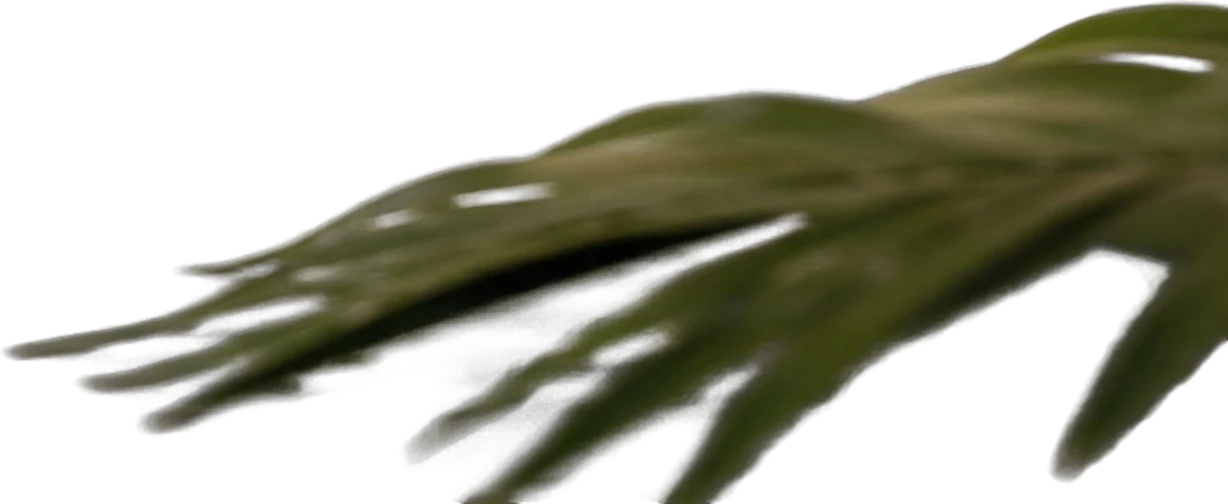
Foreground palm leaf
651×267 px
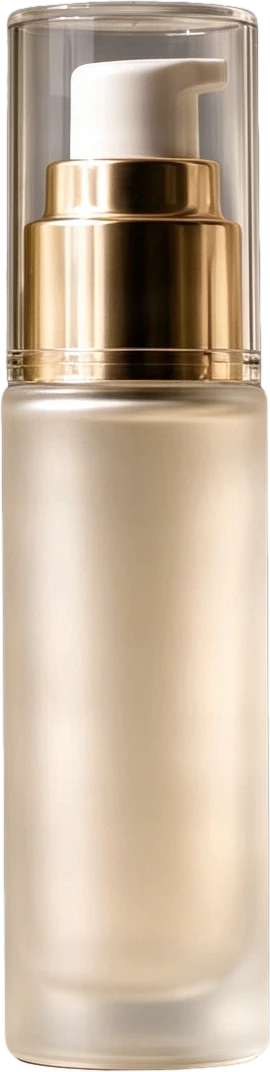
Frosted pump serum bottle
159×631 px
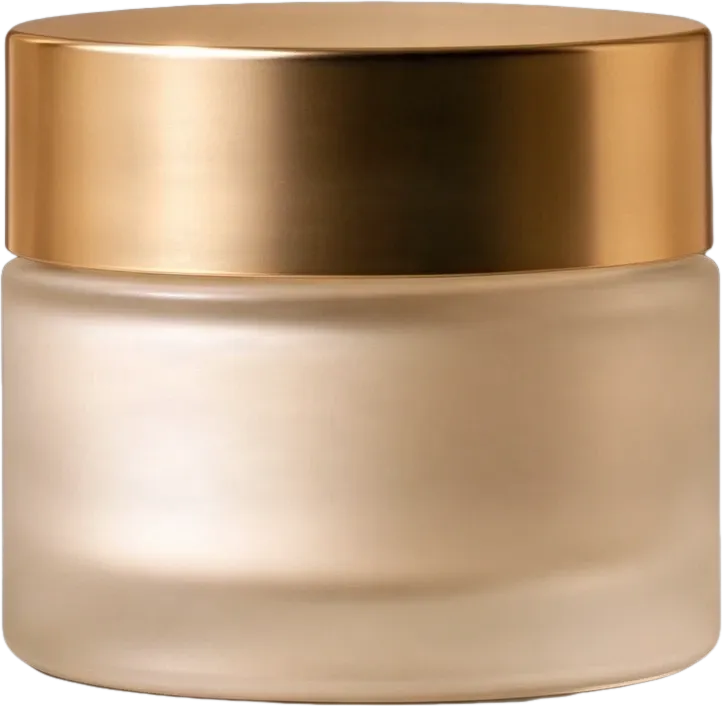
Frosted cream jar with gold lid
274×266 px
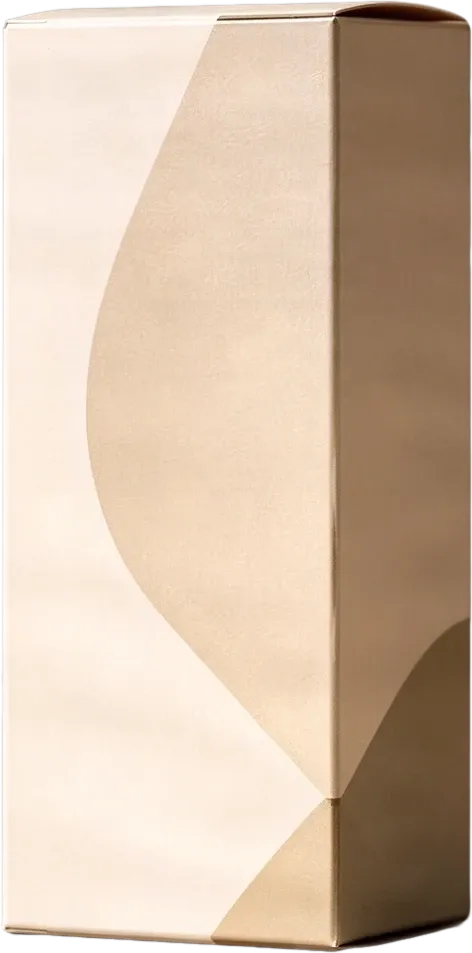
Beige product packaging box
298×602 px

Smooth pebble group
244×247 px
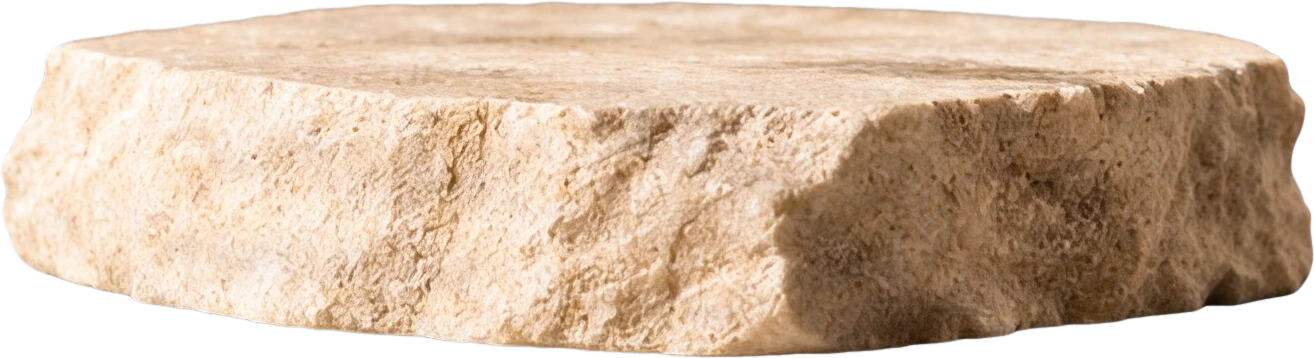
Stone display platform
536×145 px
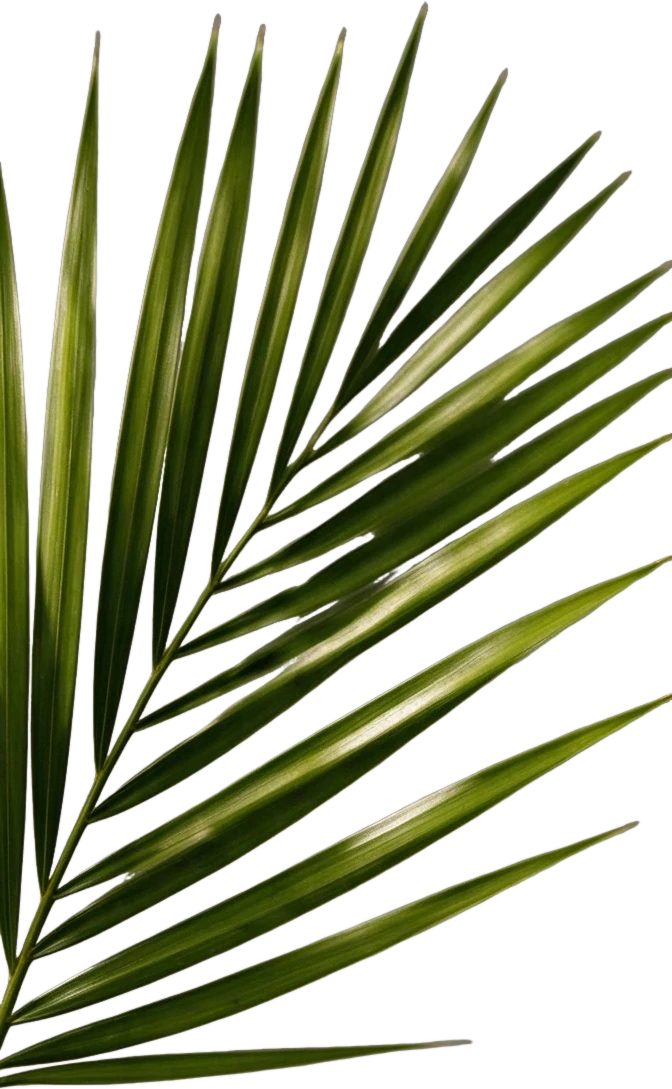
Right palm leaf
298×483 px
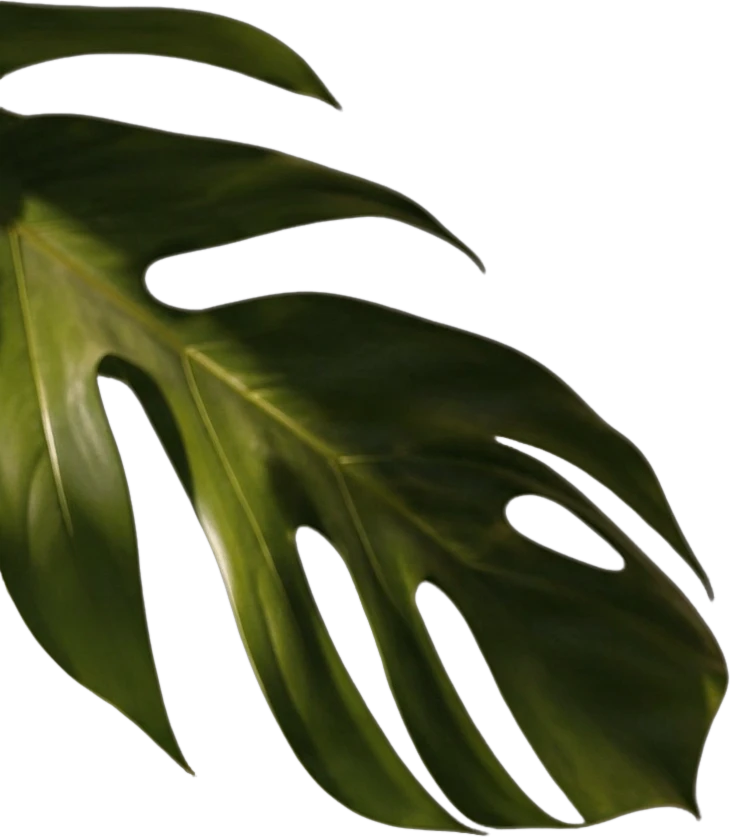
Left monstera leaf
526×603 px

Clean background
Background
Private File Handling
Uploaded files are associated with your account and delivered through signed URLs. You can delete completed jobs manually.
Transparent PNG Output
Detailed Layers returns each detected element as its own layer on a transparent background.
Open the layered result in Agent Workspace to clean up elements, create visual variations, or continue working from the same project.
Capabilities
Isolate people, products, signage, and foreground elements onto their own transparent layers in one pass.
Reconstruct the scene behind moved or deleted objects so you can reposition subjects without ugly holes.
Inspect each extracted layer, toggle visibility, remove sub-backgrounds, or run targeted edits before exporting.
Download a stacked Photoshop PSD with preserved layer structure or grab individual transparent PNG assets.
Use cases
Turn single-layer JPG and PNG photos into flexible multi-layer compositions for design, ecommerce, and motion.
See how AI separates a flat image into individual layers. Then open your project in our built-in editor to move, paint, mask, adjust, and refine each layer—all in your browser, with layered PSD export when you're ready.
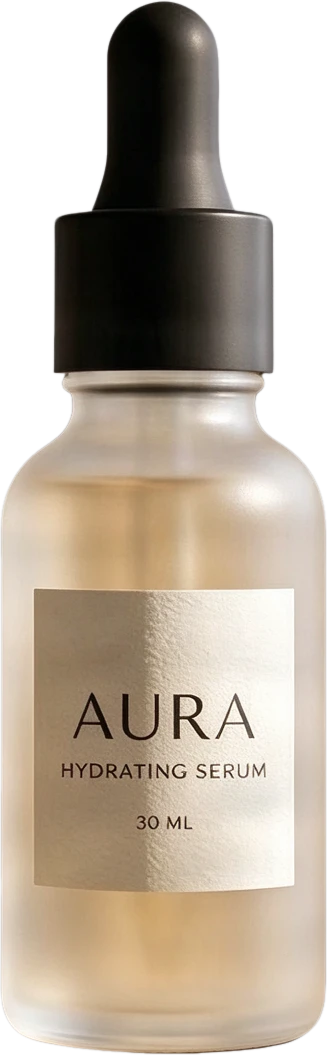 08
AURA serum bottle
Frosted clear serum bottle with black dropper cap and AURA typography, presented as a standalone product.
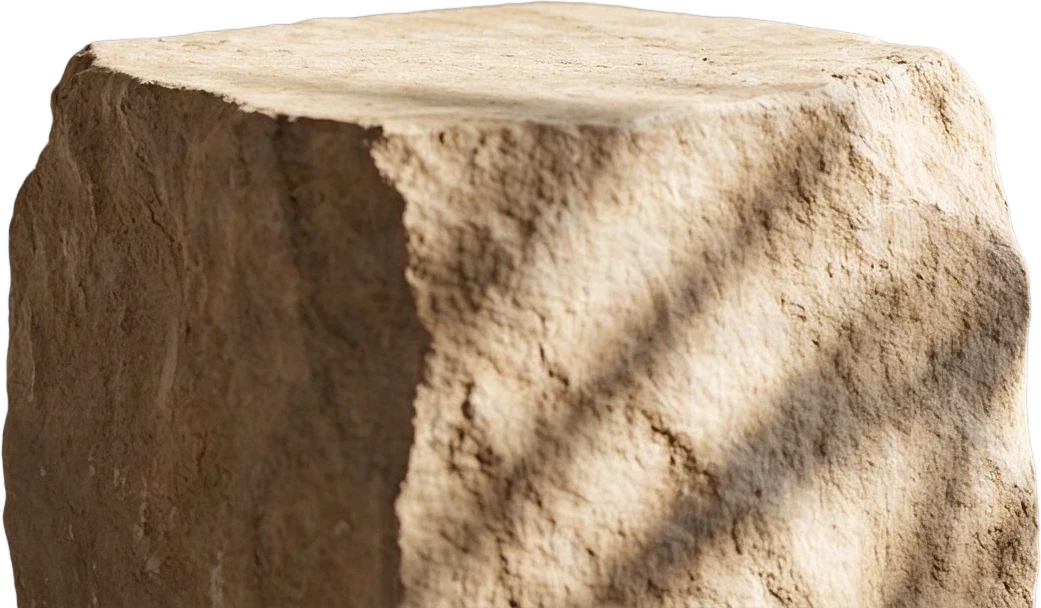 07
Stone display stand
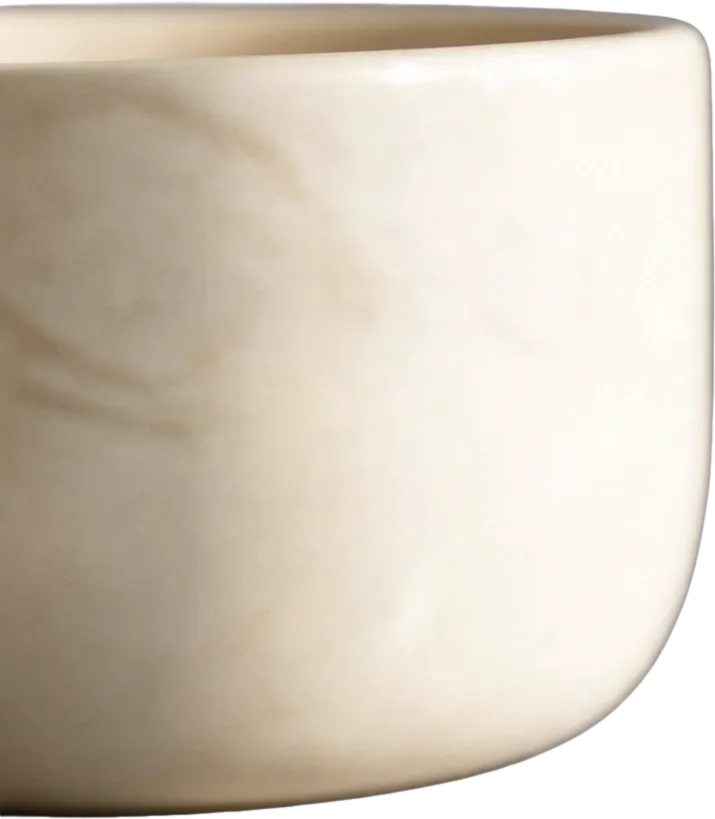 06
White ceramic bowl
 05
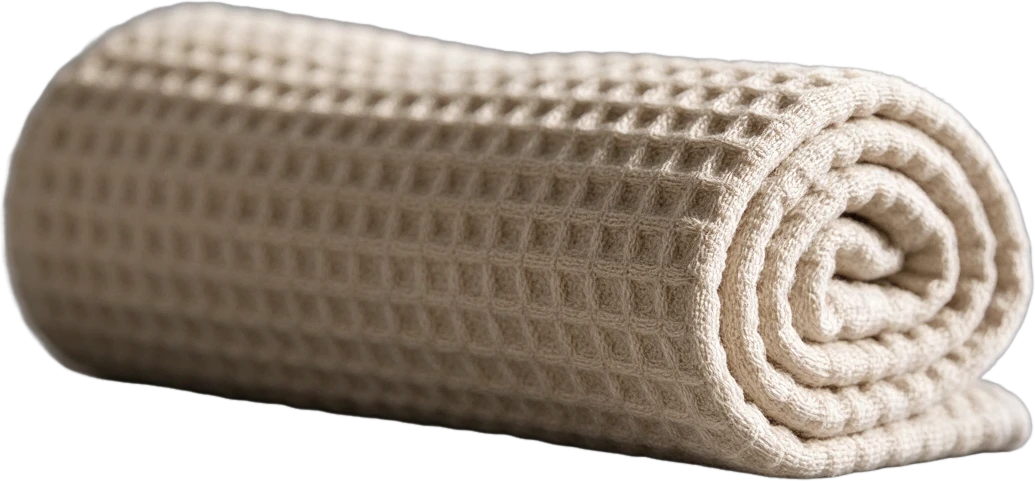
Rolled waffle towel
 04
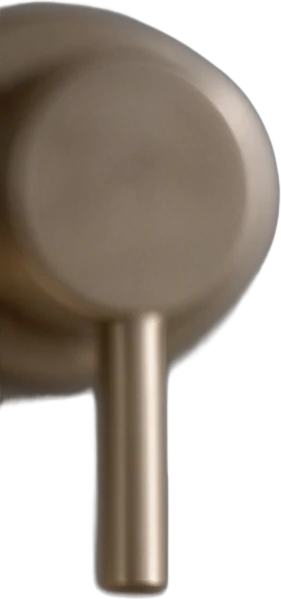
Metal faucet
 03
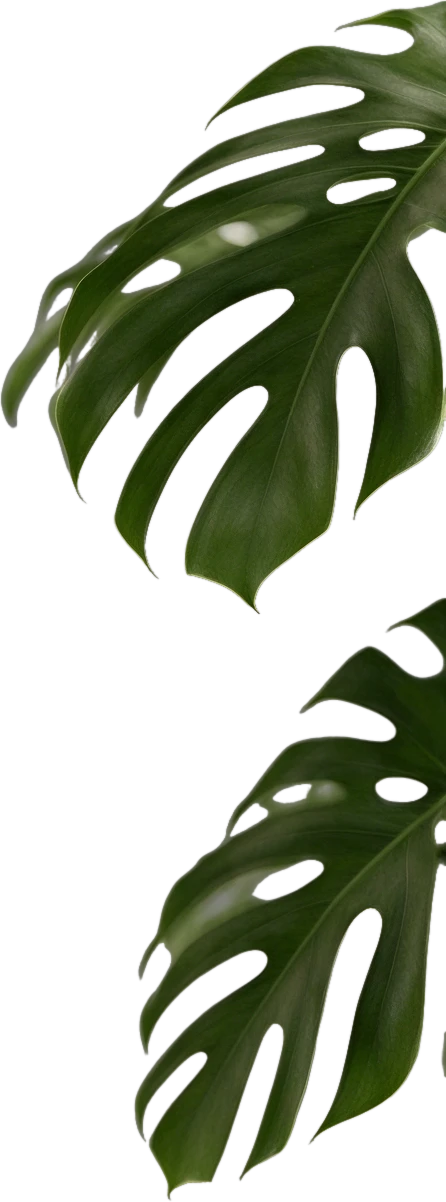
Monstera leaf
 02
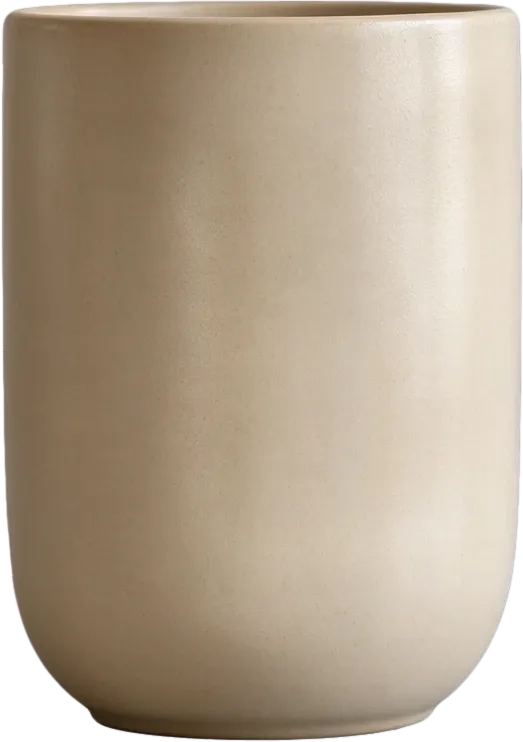
Beige ceramic cup
 01
Circular window decor
 00
Inpainted background
Final Layers
Background removers create a transparent cutout. ImageToLayers also reconstructs the area hidden behind the subject, giving you complete assets for editing and composition.
Most images are processed in 60–120 seconds.
Explore Our Layer EditorSeparate products, props, and surfaces so you can swap backdrops, adjust shadows, or localize badges.
Split foreground, midground, and sky layers to animate depth cleanly in After Effects, Premiere, or CapCut.
Start client revisions with pre-cut PSD layers instead of spending an hour tracing hair and edges by hand.
How it works
Step 01
Drop any JPG, PNG, or WebP photo into the editor workspace above or try a sample scene.
Step 02
Select Core Layers for fast subject separation or Detailed Layers when you want granular object cutouts.
Step 03
Preview every layer in the browser editor, make quick adjustments, and download your PSD or PNG pack.
Choose a workflow
Both modes run inside the same photo-to-layers editor and export layered PSD and transparent PNG files.
Balanced separation for straightforward photos, portraits, and two-to-four object scenes.
Best for quick cutouts, thumbnails, and social edits
Granular semantic decomposition for complex scenes, multi-object layouts, and final design deliverables.
Best for client PSDs, ad creatives, and parallax scenes
Need fast subject-and-background splits? Choose Core Layers. Need every prop and detail separated? Choose Detailed Layers.
FAQ
A background remover only gives you one foreground cutout and deletes everything else. A photo-to-layers editor separates multiple distinct objects onto their own layers and inpaints the background behind them.
Yes. Exported PSD files open natively in Adobe Photoshop, Photopea, Affinity Photo, and Clip Studio Paint with every separated element on its own transparent layer.
You can upload standard JPG, PNG, and WebP photos directly from your computer or mobile device.
Yes. When foreground subjects are lifted onto their own layers, the editor automatically reconstructs the occluded background underneath so moving elements leaves no blank holes.
Depending on your selected mode and scene complexity, you can configure the target layer count from simple 3-layer splits up to detailed multi-object decompositions.
Yes. Once your photo finishes splitting, you can inspect each layer, toggle visibility, remove residual backdrops, or run targeted edits right in the result editor.
Yes. Exporting foreground, midground, and background as separate transparent PNGs or PSD layers lets you animate camera depth cleanly in After Effects or Premiere.
Uploaded photos and generated layer jobs are tied to your account workspace and served via signed links rather than published to any public gallery.
If a generation job fails or cannot complete, any reserved credits are automatically refunded to your account balance so you can retry or adjust your settings.
Yes. Everything runs directly in your web browser—you can upload photos, inspect individual layers, remove backgrounds, and download PNGs or a layered PSD on desktop or mobile.
Related tools
Convert flat illustrations, posters, and graphics directly into layered Photoshop PSD files.
Open, inspect, and tweak multi-layer PSD projects in your browser without desktop software.
Split landscape and portrait photography into foreground, midground, and sky planes for motion.
Upload any flat photo to isolate subjects, reconstruct backgrounds, and download a layered PSD.
Creative Toolkit Index
Quick access to precision layer extraction, AI photo editing & asset tools.