
Convert a Portrait into a Layered PSD
Upload a flat portrait photo and let AI separate the main subject, background, and other visually distinct portrait elements into individual raster layers. Review the generated layers, inspect detailed edges around hair and clothing, then export the result as a layered PSD for further retouching and design work.
The exported PSD contains AI-generated raster layers. It does not recover the original Photoshop document, adjustment layers, masks, fonts, smart objects, or retouching history.
Click or drag image to upload
Upload your image
JPG, PNG, WebP up to 10MB · Drag & drop anywhere
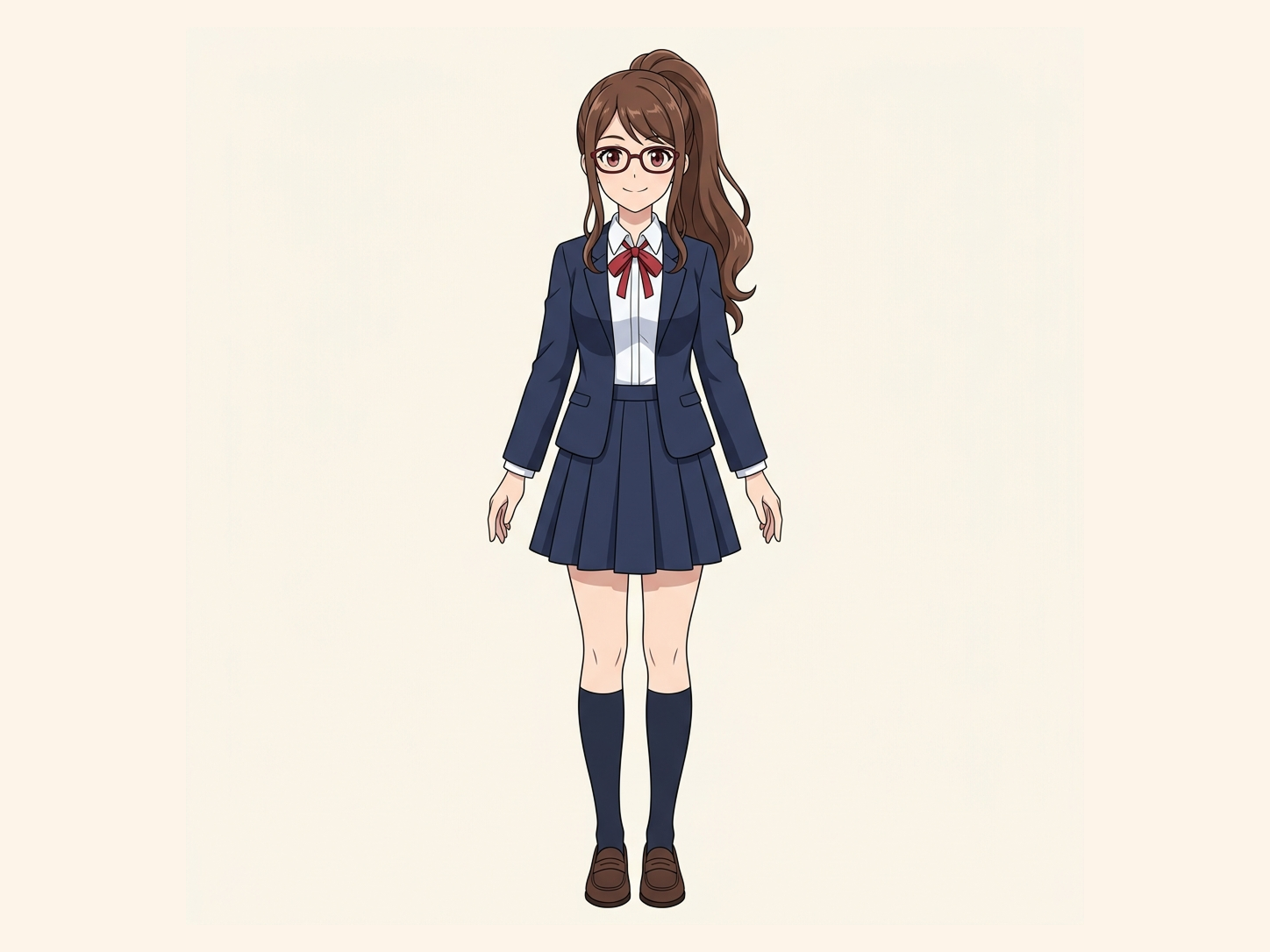
Need hair, face, eyes, mouth, clothing, or body-part layers?
Settings
Leave this blank to let Detailed Layers identify the main editable elements automatically. Or name the parts you want separated.
Want more control over your layers?
Learn how to guide Detailed Layers with simple prompts, choose useful elements, and get cleaner layer structures from different types of images.
Upload an Image to Continue
Private File Handling
Uploaded files are associated with your account and delivered through signed URLs. You can delete completed jobs manually.
Transparent PNG Output
Detailed Layers returns each detected element as its own layer on a transparent background.
Continue Editing in Agent Workspace
Multi-Agent SuiteOpen the layered result in Agent Workspace to clean up elements, create visual variations, or continue working from the same project.
See How Image Separation Works
Separate visual elements into individual layers while reconstructing the background hidden behind them.
Layer Hierarchy
9/9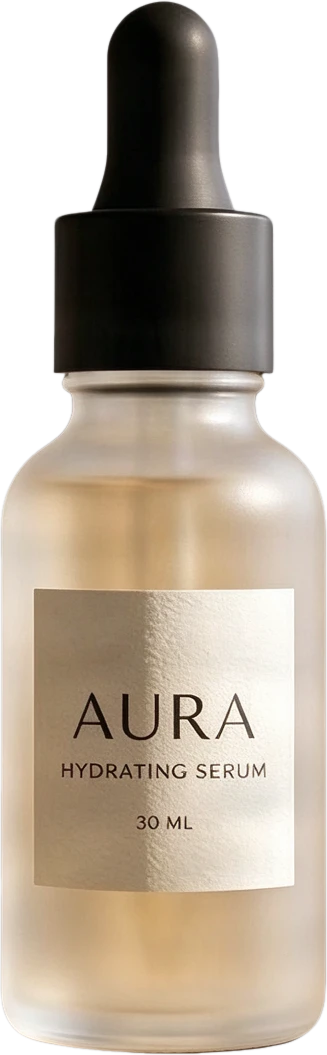 08
08AURA serum bottle
Frosted clear serum bottle with black dropper cap and AURA typography, presented as a standalone product.
 07
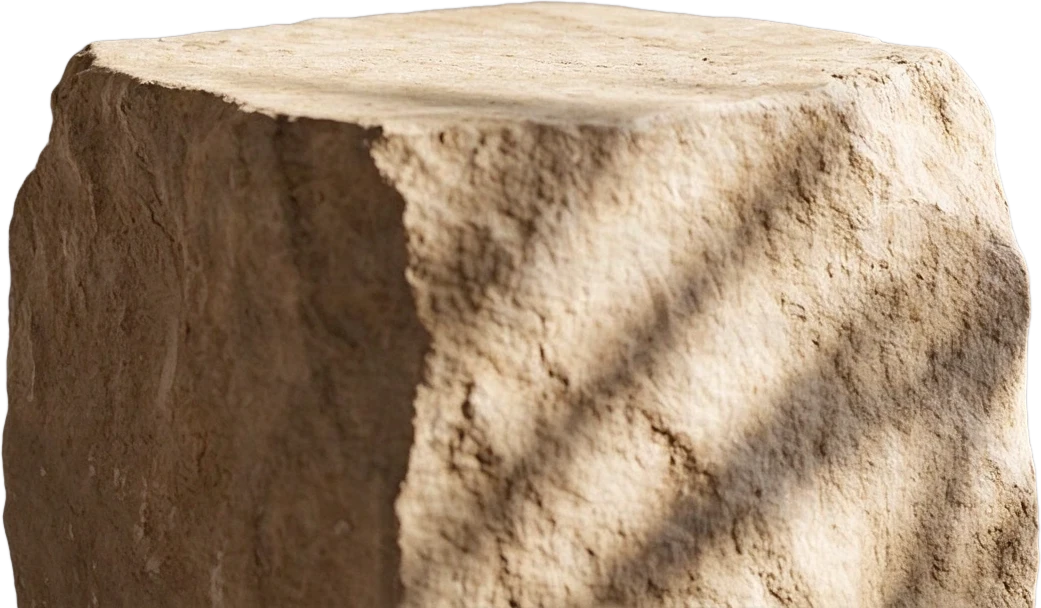
07Stone display stand
 06
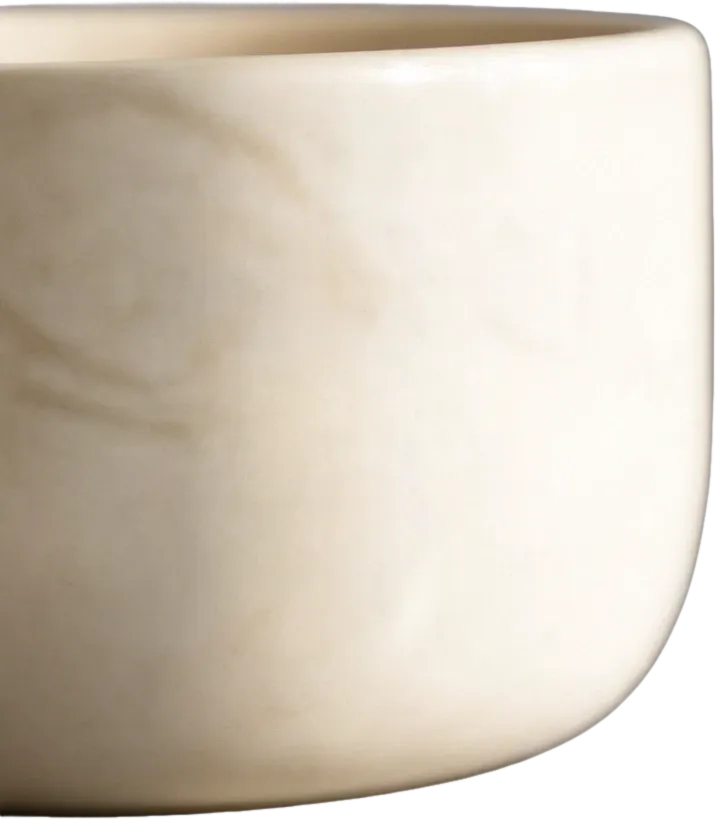
06White ceramic bowl
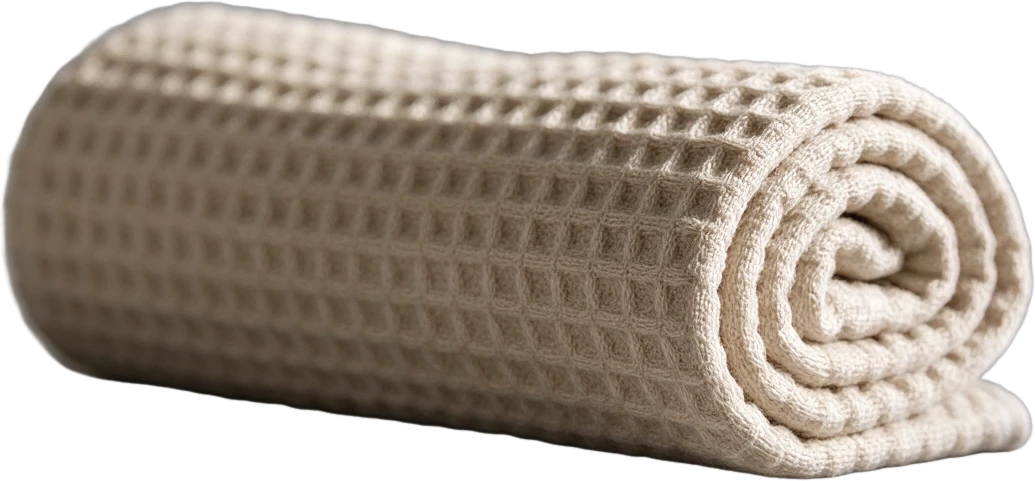 05
05Rolled waffle towel
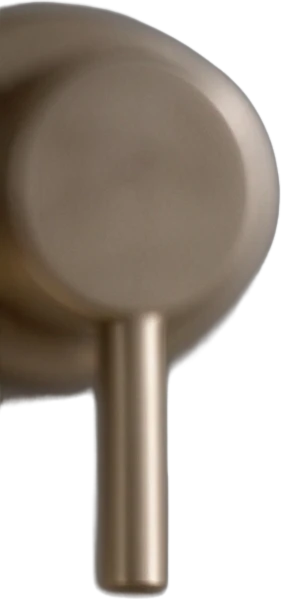 04
04Metal faucet
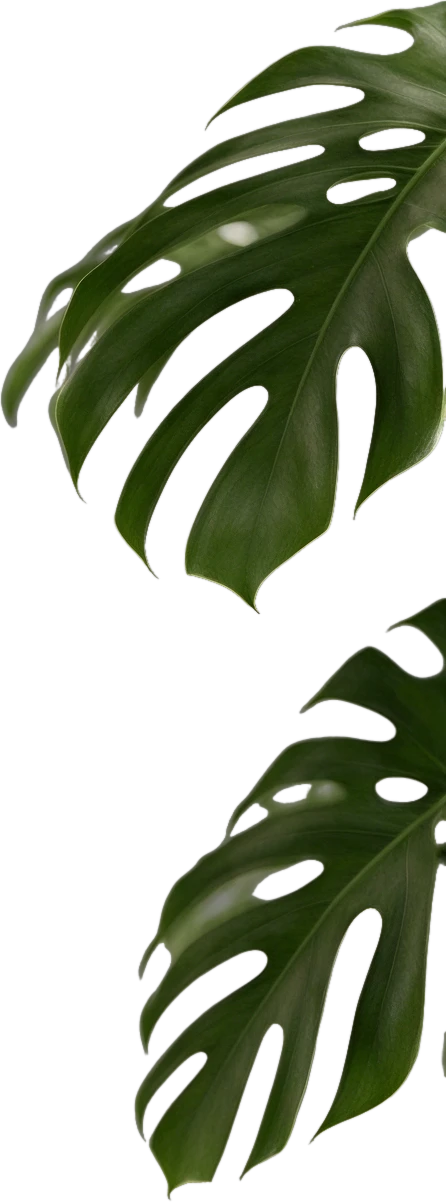 03
03Monstera leaf
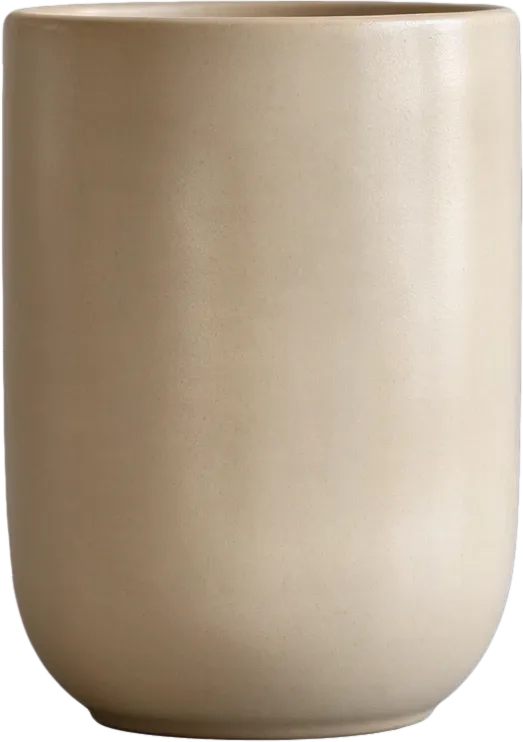 02
02Beige ceramic cup
 01
01Circular window decor
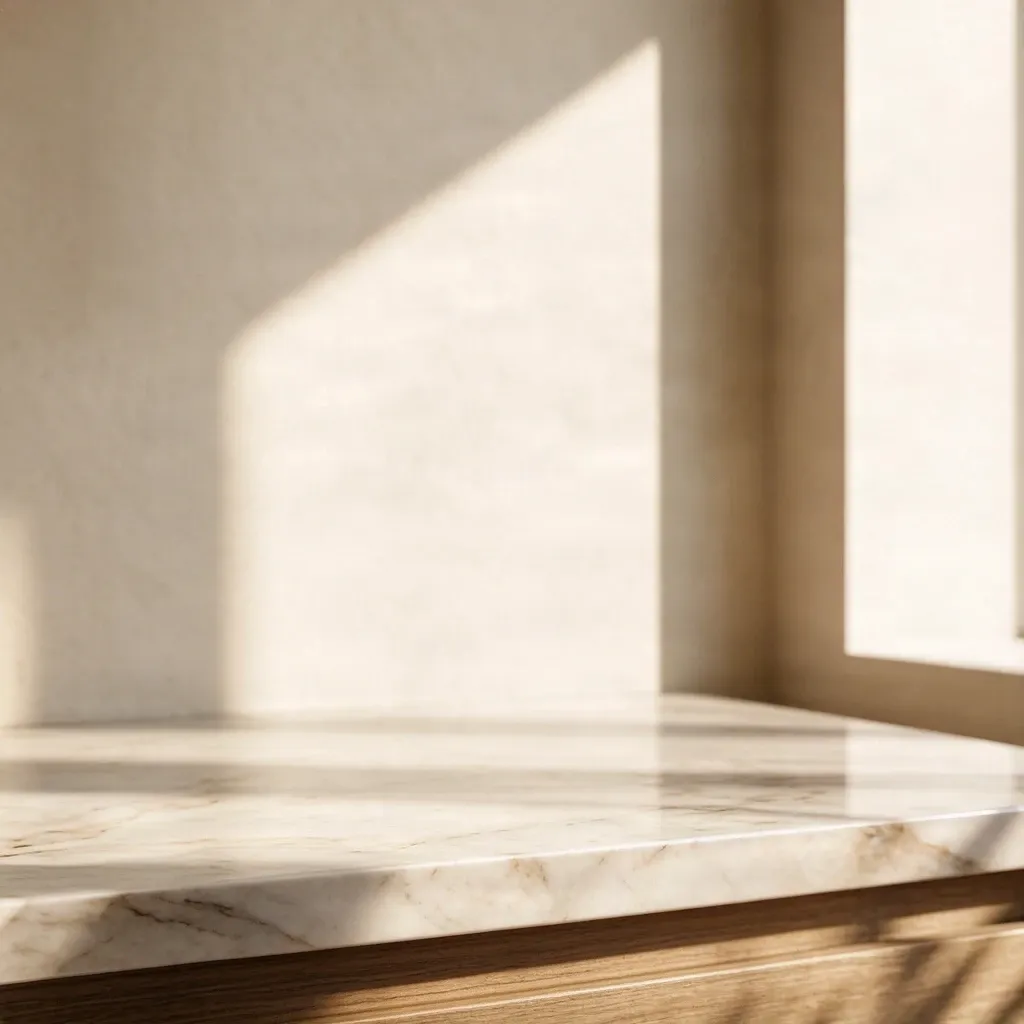 00
00Inpainted background
Final Layers
More Than Background Removal
Background removers create a transparent cutout. ImageToLayers also reconstructs the area hidden behind the subject, giving you complete assets for editing and composition.
Most images are processed in 60–120 seconds.
Inside the portrait PSD
What You Get in the Portrait PSD
Portrait Subject Layer
Portrait Detail Layers
Reconstructed Background
Original Image Reference
Portrait PSD Layer Structure
Beyond a cutout
More Than a Portrait Background Remover
A background remover gives you one transparent person cutout. Portrait to PSD creates a structured editing file containing the portrait subject, reusable background, and any additional visual elements the AI can separate.
Portrait Background Remover
- One transparent portrait cutout
- Original background removed
- Best for profile photos and simple background replacement
Portrait to PSD
- AI-generated portrait raster layers
- Reconstructed background where possible
- Original image reference
- Layered PSD for retouching and design handoff
How to Convert a Portrait to PSD
Upload a Portrait
Choose the Layer Detail
Review Portrait Edges
Export the Layered PSD
What You Can Edit — and What Is Not Recovered
What Can Be Edited?
Generated raster layers can be moved, hidden, reordered, transformed, masked, recolored, and adjusted independently.
What Is Not Recovered?
Original Retouching Layers
The tool cannot recover the original frequency-separation layers, dodge-and-burn layers, skin retouching masks, color grades, or adjustment layers.
Native Hair Strands
Hair remains part of a raster image or alpha edge. Individual strands are not converted into editable paths or separate Photoshop objects.
Original Hidden Background
AI cannot recover pixels that were never visible behind the person. Rebuilt background areas are plausible estimates and should be reviewed.
Native Typography and Graphics
Text or campaign graphics appearing in the portrait may remain rasterized and are not guaranteed to become native Photoshop text or vector layers.
Where a Portrait PSD Helps
Portrait Retouching Handoff
Corporate and Speaker Portraits
Campaign Layout Adaptation
Simple Motion and Parallax
Which Portraits Convert Best?
Best Results
- One clearly visible portrait subject
- Good lighting and image resolution
- Clear contrast between hair and background
- Limited motion blur
- Clothing and accessories with visible boundaries
May Require More Cleanup
- Hair matching the background color
- Flyaway hair and transparent veils
- Glasses with strong reflections
- Motion blur or compression artifacts
- Multiple overlapping people
- Smoke, glass, lace, or translucent clothing
Only need two layers?
Just the subject and the background? Try Background Splitter
When a photo only has one subject in front of a background, Background Splitter gives you a transparent foreground and a reconstructed background in one step, without setting up a full multi-object layer split.
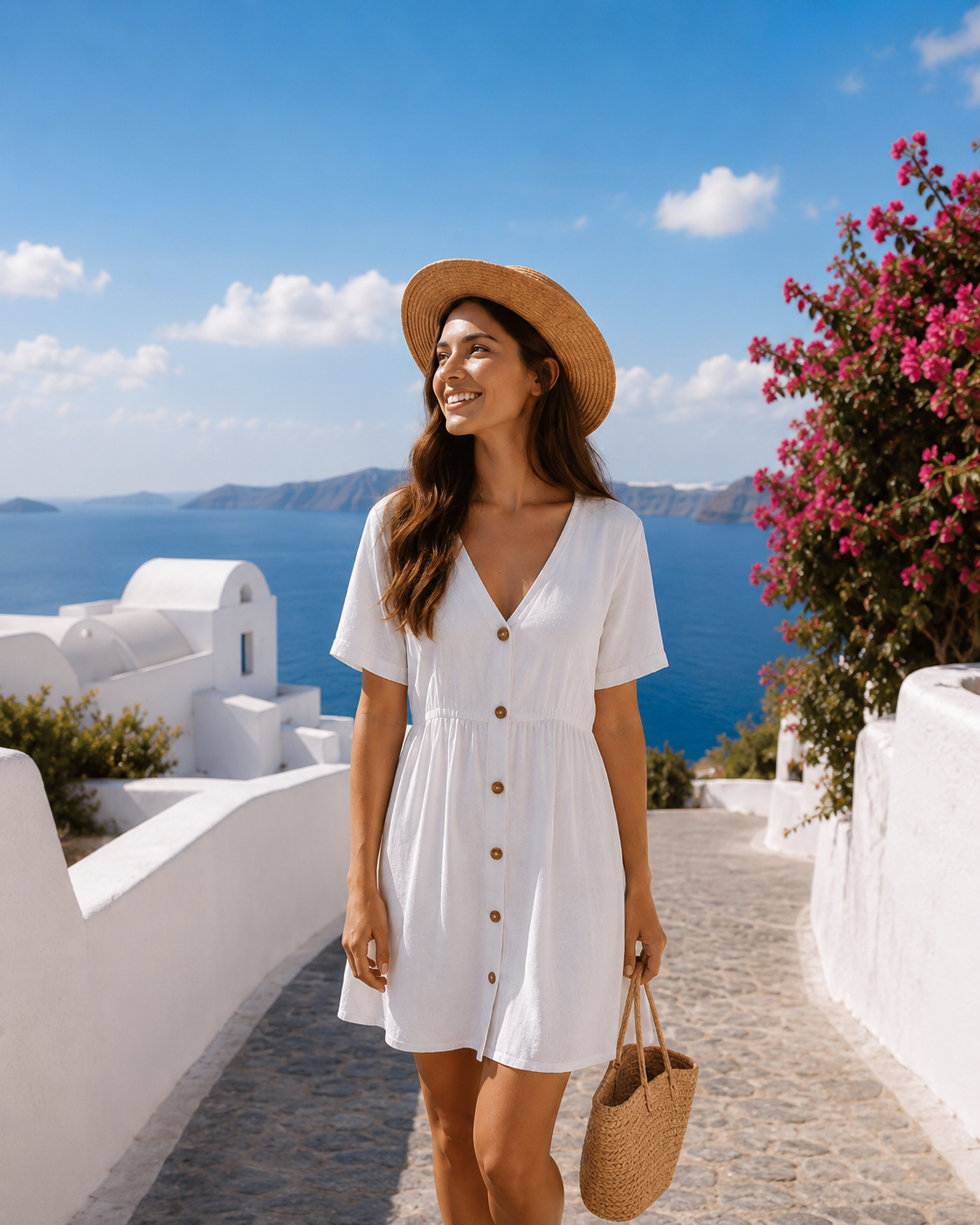
Original photo
The source image with a single subject and background.
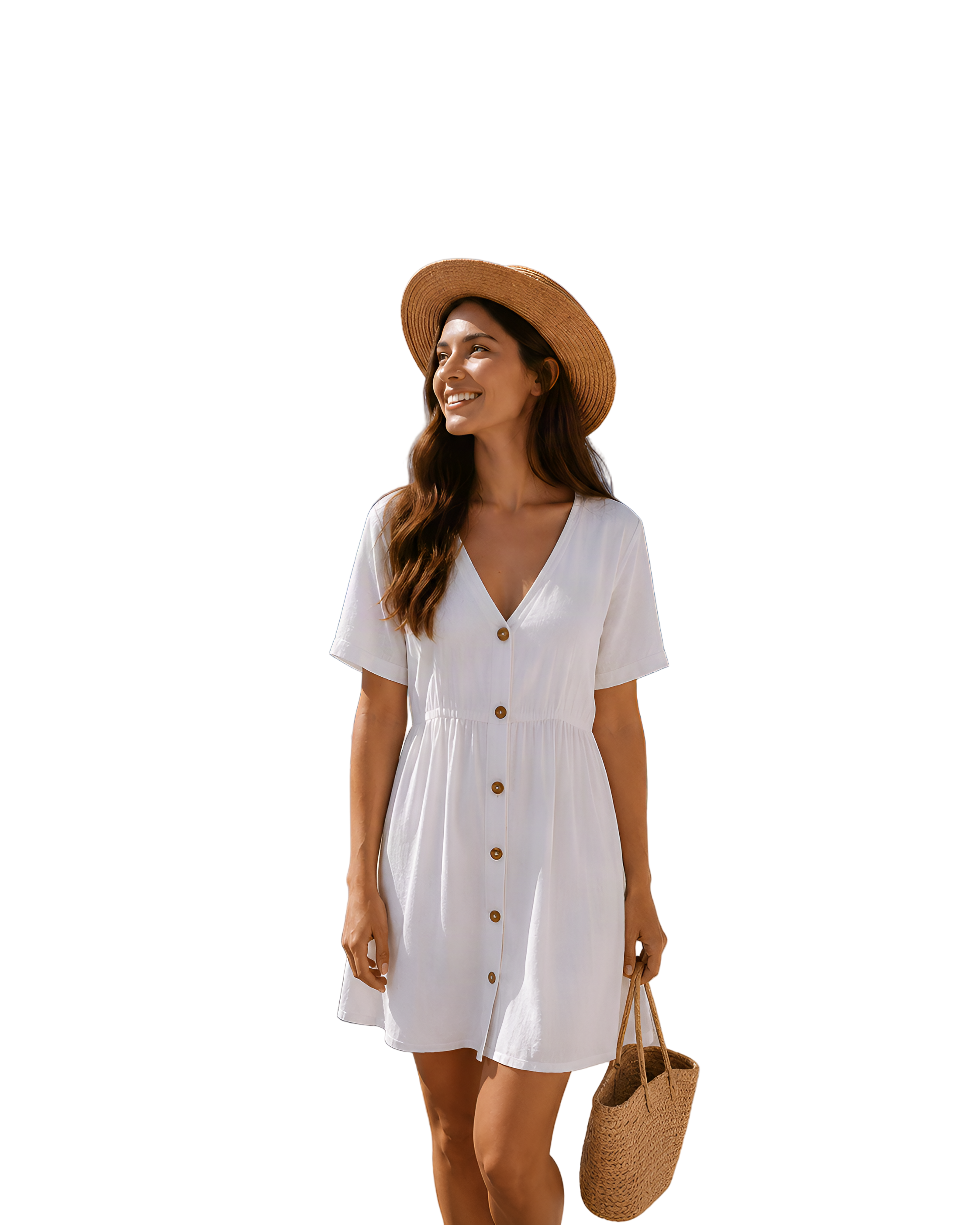
Transparent foreground
The subject isolated as a clean transparent PNG.

Reconstructed background
The scene behind the subject, rebuilt and reusable on its own.
Need more than two layers, multiple objects, props, or text? Use the workspace above instead.
Portrait to PSD FAQ
Can I convert a portrait photo into a layered PSD?
Yes. The tool creates a new PSD containing AI-generated raster layers based on the visible elements in the flattened portrait.
Does it recover the portrait's original Photoshop file?
No. It cannot restore the original masks, adjustment layers, retouching layers, smart objects, fonts, or editing history.
Will hair become a separate layer?
Hair may be included in the main portrait layer or separated with other portrait details, depending on its visibility and contrast. A dedicated hair layer is not guaranteed.
Can I edit the person independently from the background?
Yes, when the portrait subject has been successfully separated, its raster layer can be moved, hidden, transformed, masked, and adjusted independently.
Can it reconstruct the background behind the person?
AI may generate a plausible background for areas previously covered by the portrait subject, but it cannot recover the original unseen pixels.
Is this different from a background remover?
Yes. A background remover normally returns one transparent portrait cutout. Portrait to PSD also packages the generated subject, background, reference, and available supporting layers into a layered editing file.
Which portraits work best?
Well-lit, high-resolution portraits with clear subject boundaries and limited overlap generally produce the most useful layers.
Does this replace professional portrait retouching?
No. It prepares an initial layered file. Detailed hair masking, skin retouching, color work, typography, and final compositing may still require Photoshop or another compatible editor.
Ready to Convert Your Portrait?
Upload a flat portrait photo and turn it into a layered PSD with AI-generated raster layers.