
Share a Family Story in a Different Way
Use an old family portrait and a narrated message to create a short animated memory.
AI Old Photo Talking Video Generator
Bring a cherished portrait to life with a voice recording.
Bring Your Photo to Life
Upload your picture, add a recording, and use the existing photo-and-audio lip-sync workflow. A clear face and clean voice recording generally provide better starting material.
Video generation uses credits. The required cost is shown before you start.
Use only photos and recordings you have the right to use. Do not impersonate real people or public figures, and do not present the result as genuine footage. Label it as an AI recreation.
Source Image
Choose the face or character you want to animate.
Use a clear portrait, illustration, character artwork, or other image with a visible face.
Audio
Upload the speech, dialogue, singing, or audio you want the image to perform.
The generated video follows the duration of your audio.
Higher quality may take longer to process.
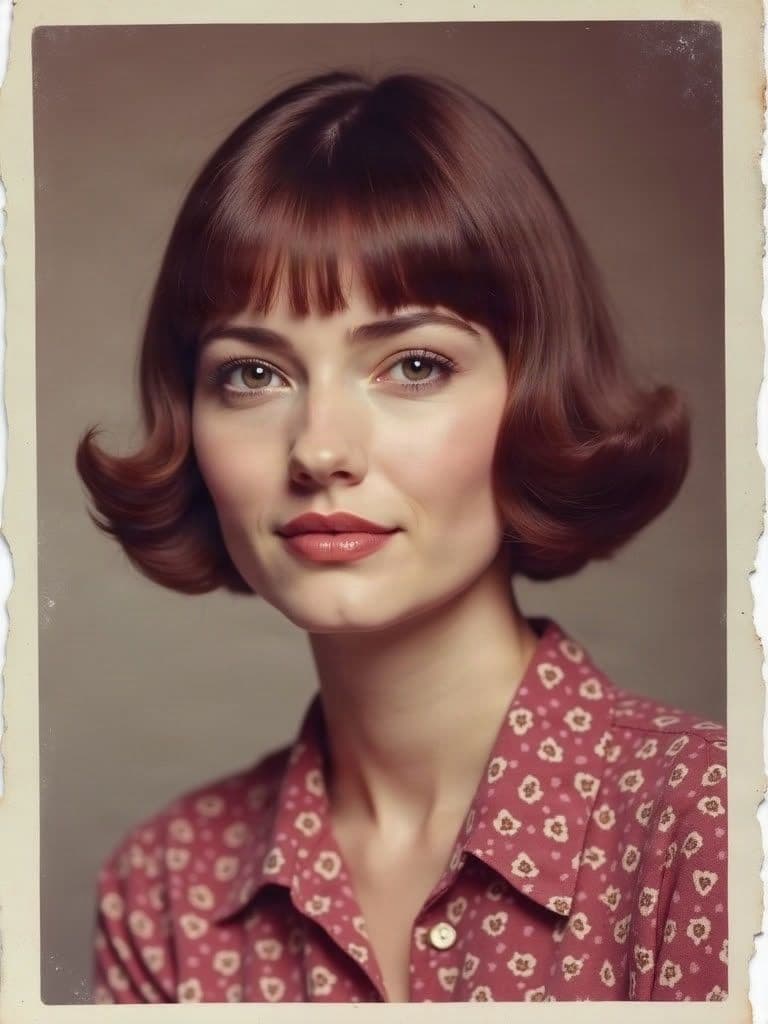 Original Photo
The portrait, the voice, and the video in this example were all created with AI. The person shown is fictional.
See the Transformation
One vintage-style portrait and one voice recording became this talking video. The voice is a separate recording, never taken from the photo.
Original Photo“Hello, my dear. It is so good to see you again. I hope you are doing well, and that you remember to smile.”
The portrait, the voice, and the video in this example were all created with AI. The person shown is fictional.
Talking-photo videos are AI-animated recreations, not authentic footage or proof of what the photographed person said.
A New Way to Remember
Combine an old family photograph with a recording to create a short animated presentation. Preserve the original image while giving the story around it a new way to be shared.
Creative Possibilities
Use an old family portrait and a narrated message to create a short animated memory.
Turn a still vintage photograph into a talking scene with facial movement driven by audio.
Create narrated clips for a family history collection, memory album, or personal storytelling project.
Use appropriately licensed historical portraits for clearly labeled educational or creative dramatizations.
Experiment with fictional vintage photographs and character images for short creative videos.
Combine a meaningful photograph with authorized narration for a personal commemorative video.
Three Simple Steps
Choose a portrait with one clearly visible face. JPG, PNG, and other supported image formats can be used.
Upload speech or narration you recorded yourself or have permission to use. The audio determines the performance.
Choose the available quality, start generation, review the synchronization, and download the completed video.
Family Memories
Record a story connected to an old photograph and create an animated presentation for a family archive or commemorative project.
The memories can be real even when the presentation is AI-generated.
Vintage Photo Animation
Try black-and-white, sepia, studio, or restored family portraits when the face is recognizable. The tool animates the supplied photo; it does not automatically restore lost details or verify history.
You Choose the Words
Use a short message, family story, fictional dialogue, or narrated memory clip. This workflow uses uploaded audio and does not recreate a photographed person's real voice from pixels.
Tips for Old Photos
Better input material can help, but generated faces and movements may still differ from the original photograph.
Working with Imperfect Photos
Fading, grain, scratches, and low resolution may still be workable when facial features are recognizable. Severe damage around the eyes or mouth can affect animation. Consider restoring or enhancing the image first when details are missing.
Choose the Right Creative Tool
Making a vintage portrait appear to deliver a recorded message.
Make an Old Photo TalkMaking modern portraits, illustrations, or characters speak with supplied audio.
Explore AI Lip SyncCreating a presenter-style video from a portrait and recorded speech.
Create a Talking AvatarGenerating broader scenes from images or text rather than precise spoken performance.
Explore Video GenerationBefore You Generate
The cost depends on audio duration and selected output quality. Review the required credits before generating, then preview and download the available video when processing finishes.
Upload an old portrait, add a compatible audio recording, and start generation. AI animates the visible face and creates mouth movement that follows the supplied audio.
Yes. Try a black-and-white portrait when the face is sufficiently clear. Results depend on facial visibility and overall image quality.
The technology can animate a recognizable portrait, but the performance is fictional unless it uses authentic footage. Use images and recordings you have permission to process and label the result as an AI recreation.
No. This workflow starts with a still image and a compatible audio file.
Yes. The speaking performance is guided by the audio you provide.
Not through this workflow. Record the script or create an authorized voice recording separately, then upload it.
Yes. Record yourself speaking and upload that recording.
No. A photograph does not contain someone's voice. The audio is supplied separately.
The system attempts synchronization, but perfect results are not guaranteed, especially with difficult images or audio.
Yes, when the face remains recognizable. Severe fading or missing features may reduce quality.
No. Its purpose is talking animation. Restoration, reconstruction, and colorization are separate image-editing tasks.
The workflow accepts supported formats including JPG, PNG, WebP, GIF, and AVIF, subject to size, aspect-ratio, and validation limits.
Common compatible types include MP3, WAV, M4A, AAC, and OGG, subject to validation requirements.
The current workflow accepts audio between 5 and 60 seconds. The video duration follows the supplied audio.
The workflow is best suited to one clearly visible speaking face. A group photo can make it difficult to determine who should speak.
Yes, with appropriately licensed imagery and authorized audio for a clearly labeled dramatization. Do not imply fictional dialogue is authentic.
Not necessarily. AI attempts to preserve recognizable appearance, but facial details, expressions, or proportions can change.
Yes. When processing finishes, preview the generated video and use the available download controls.
Video generation uses credits. The required amount depends on audio duration and quality, and the workspace provides an estimate before processing.
Old photo talking videos focus on vintage or historical-looking portraits for memories and storytelling. Talking avatars focus on presenter-style communication.
Give an Old Photo a New Story
Upload an old portrait, add a voice recording, and create a talking photo video to remember, share, or include in your next creative project.
One old photo. One voice recording. A new way to tell the story.
AI Lip Sync Generator
Make a portrait or character image speak using supplied audio.
AI Talking Avatar
Create a presenter-style video from a portrait and recorded voice.
AI Character Animation Generator
Bring suitable character artwork into motion.
AI Video Generator
Create a new video scene from an image or text description.
Creative Toolkit Index
Quick access to precision layer extraction, AI photo editing & asset tools.