

Everything Combined
The foreground subject and surrounding scene begin as one flattened image.
Want to move a character without leaving an empty space behind? Upload your finished illustration and separate the main subject from the scene. Get a transparent foreground, an AI-reconstructed background, and a reusable subject mask.
Choose a finished illustration with a recognizable foreground character or main subject. AI will attempt to isolate it and reconstruct the background behind it.
Keep the subject and create a reusable background behind it.
Drag and drop your image here or browse files
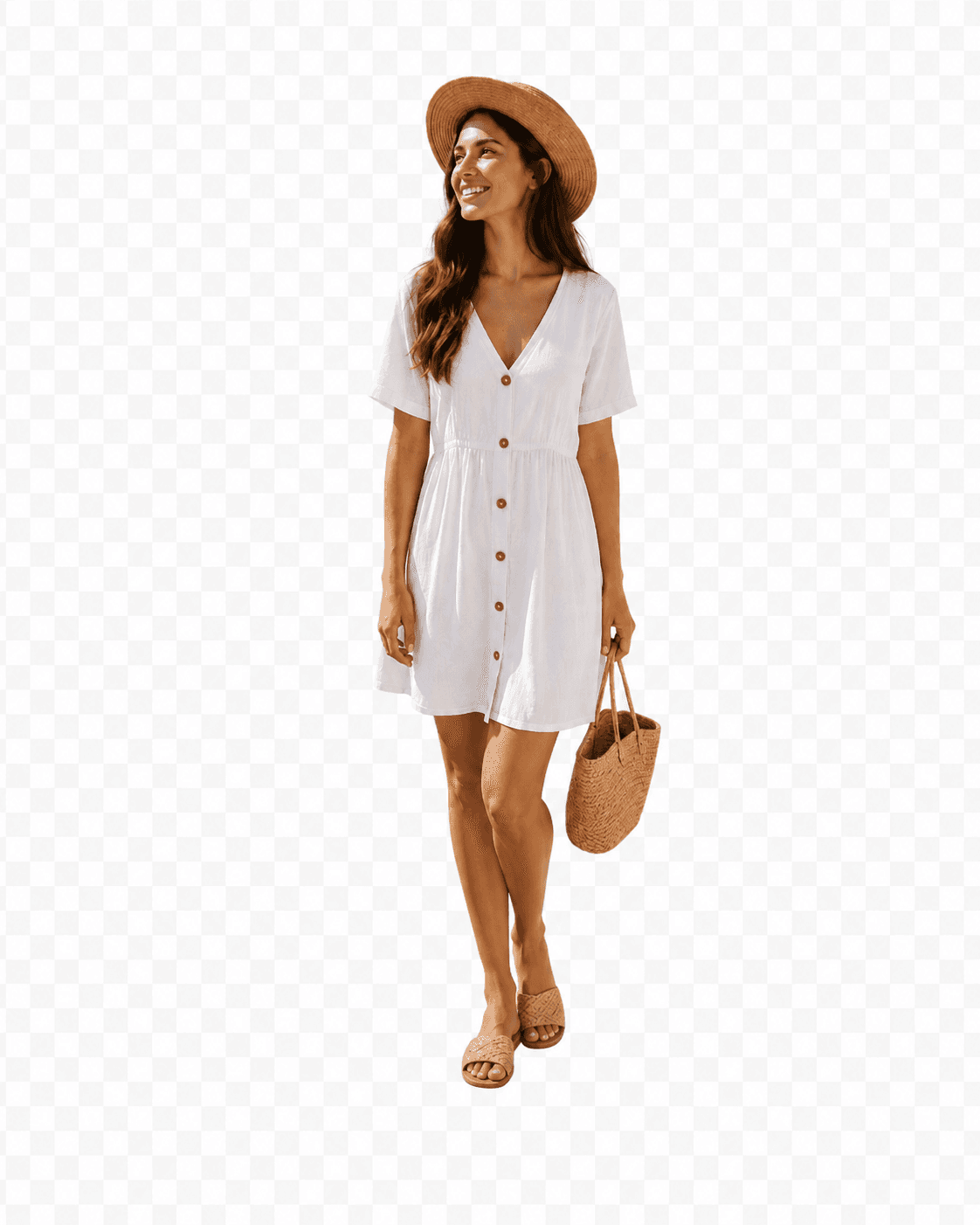
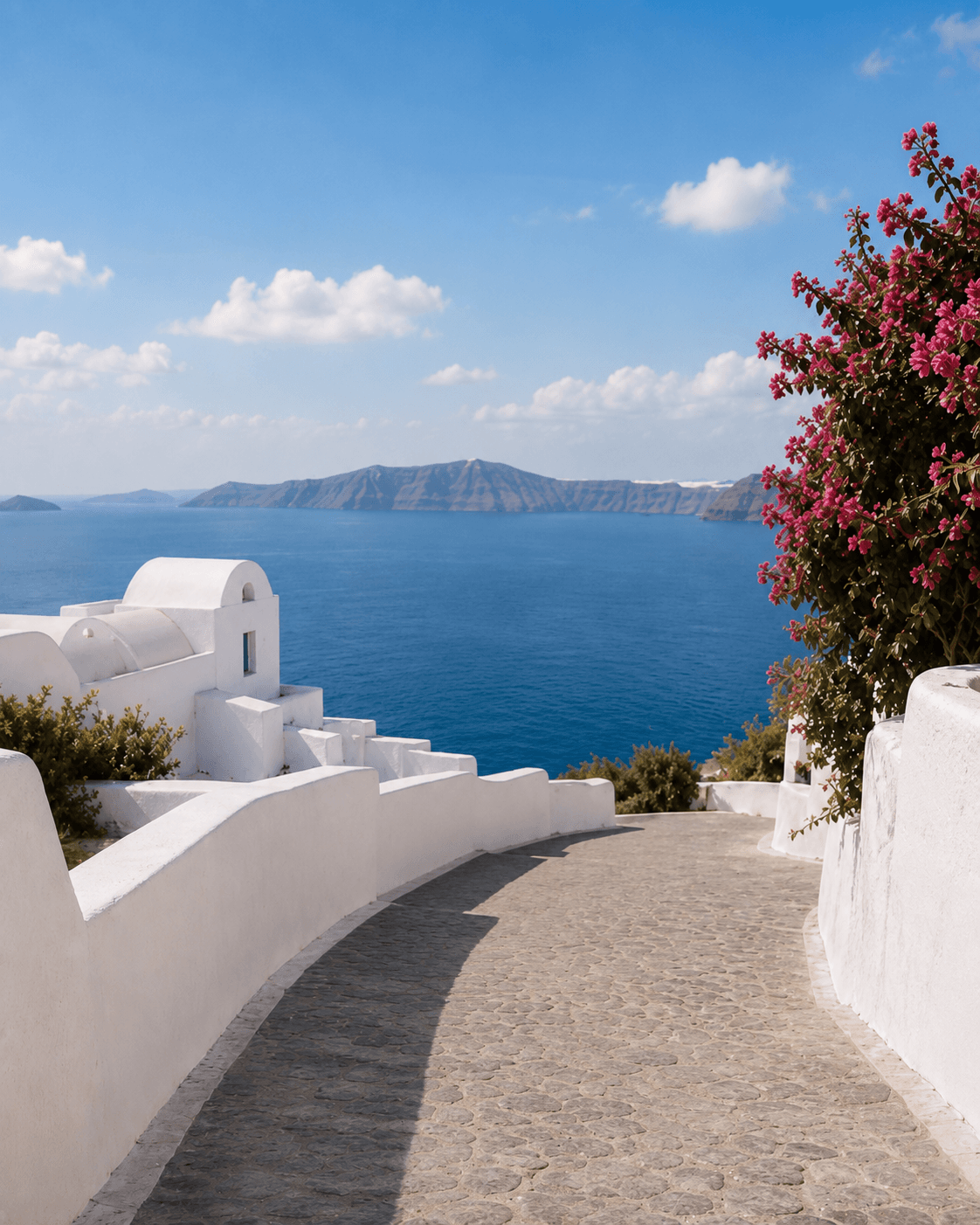
The covered background area is reconstructed with AI using the visible scene as context.
Processing time varies with image complexity. Large subjects and detailed backgrounds may require more reconstruction.
SEE HOW BACKGROUND SPLITTING WORKS
The existing Background Splitter workflow produces a transparent foreground, a reconstructed background, and a subject mask from one source image.
The foreground subject and surrounding scene begin as one flattened image.
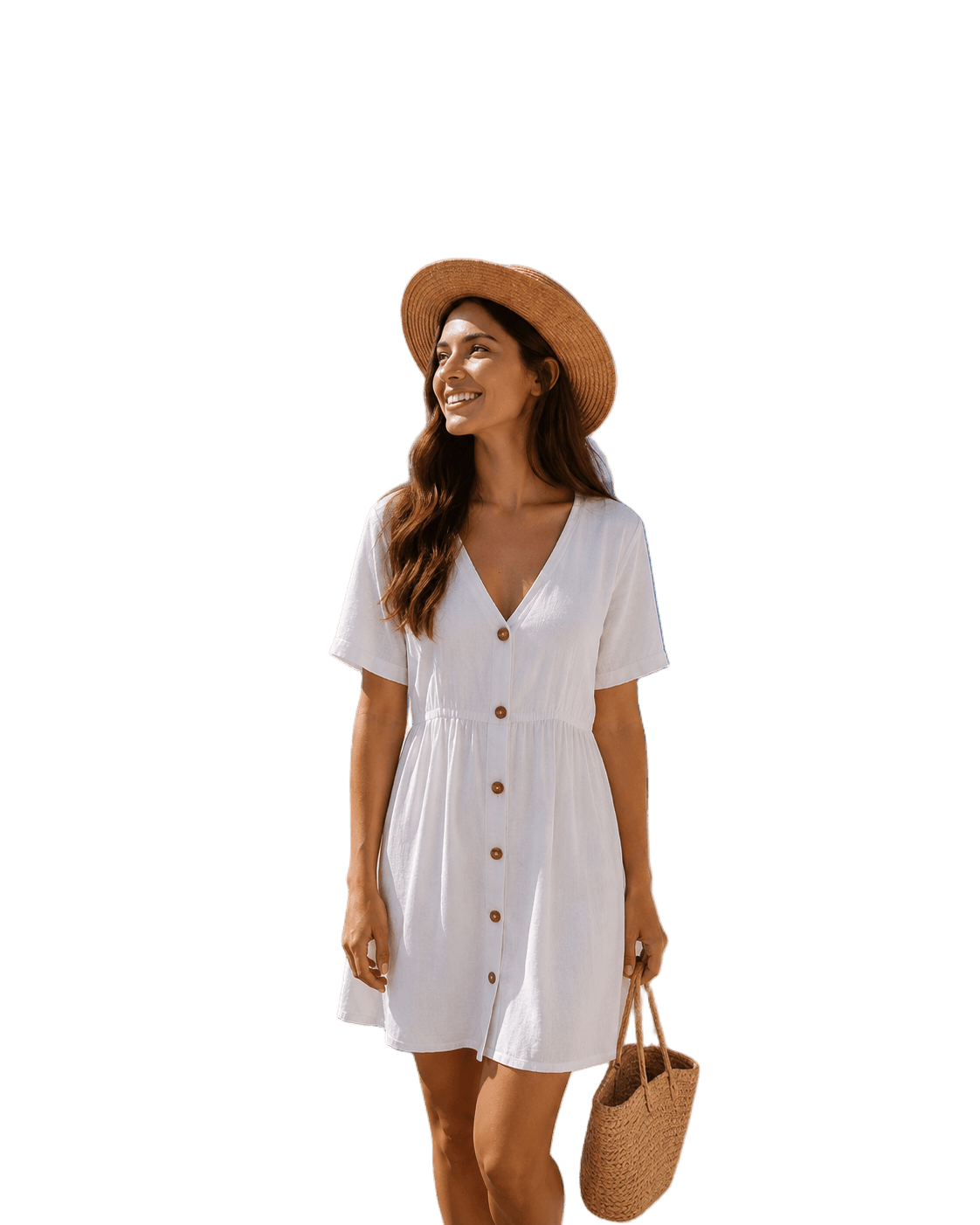
The visible foreground is isolated with transparency so it can be moved into another composition.
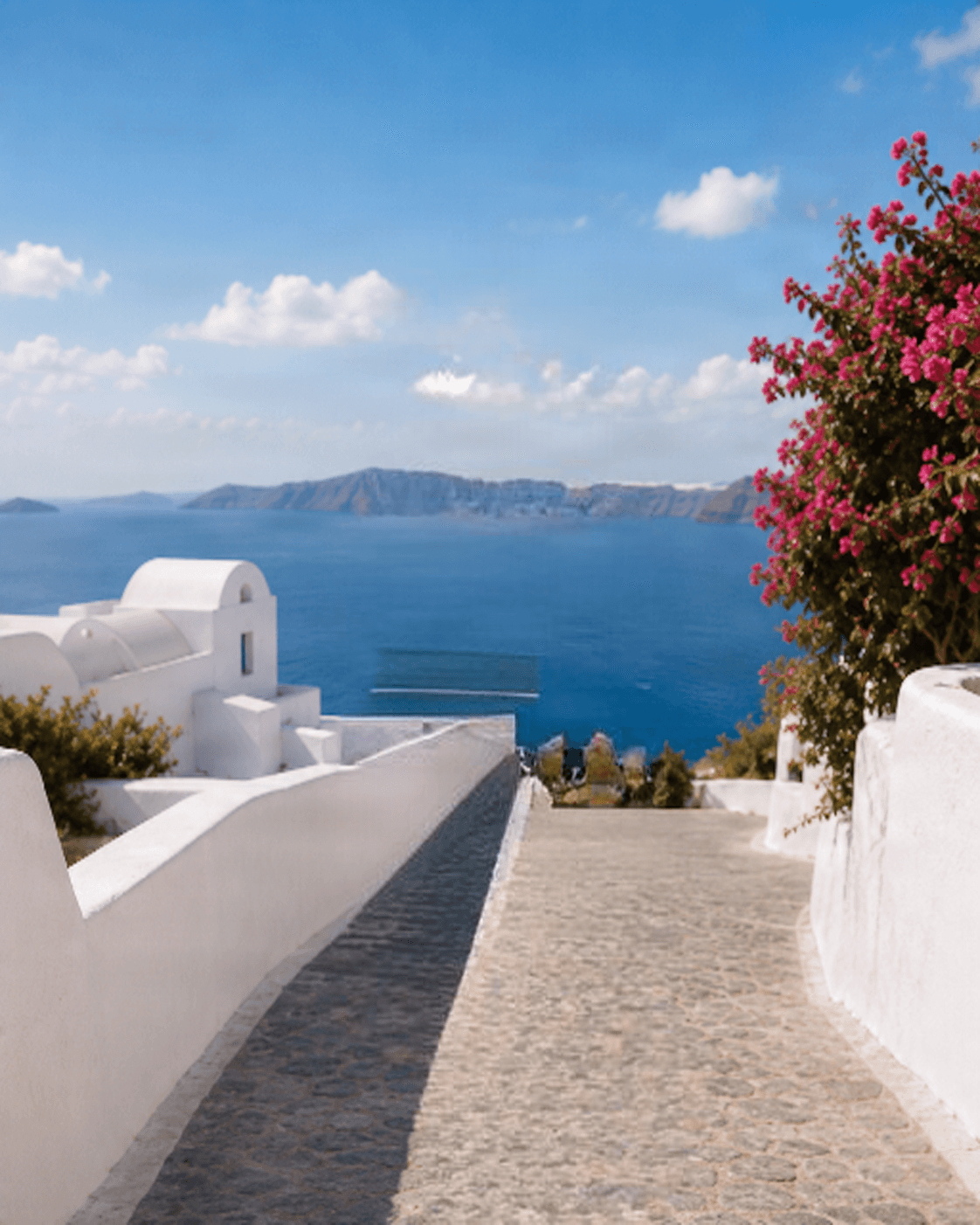
AI fills the area hidden by the subject using generated content based on the visible surroundings.
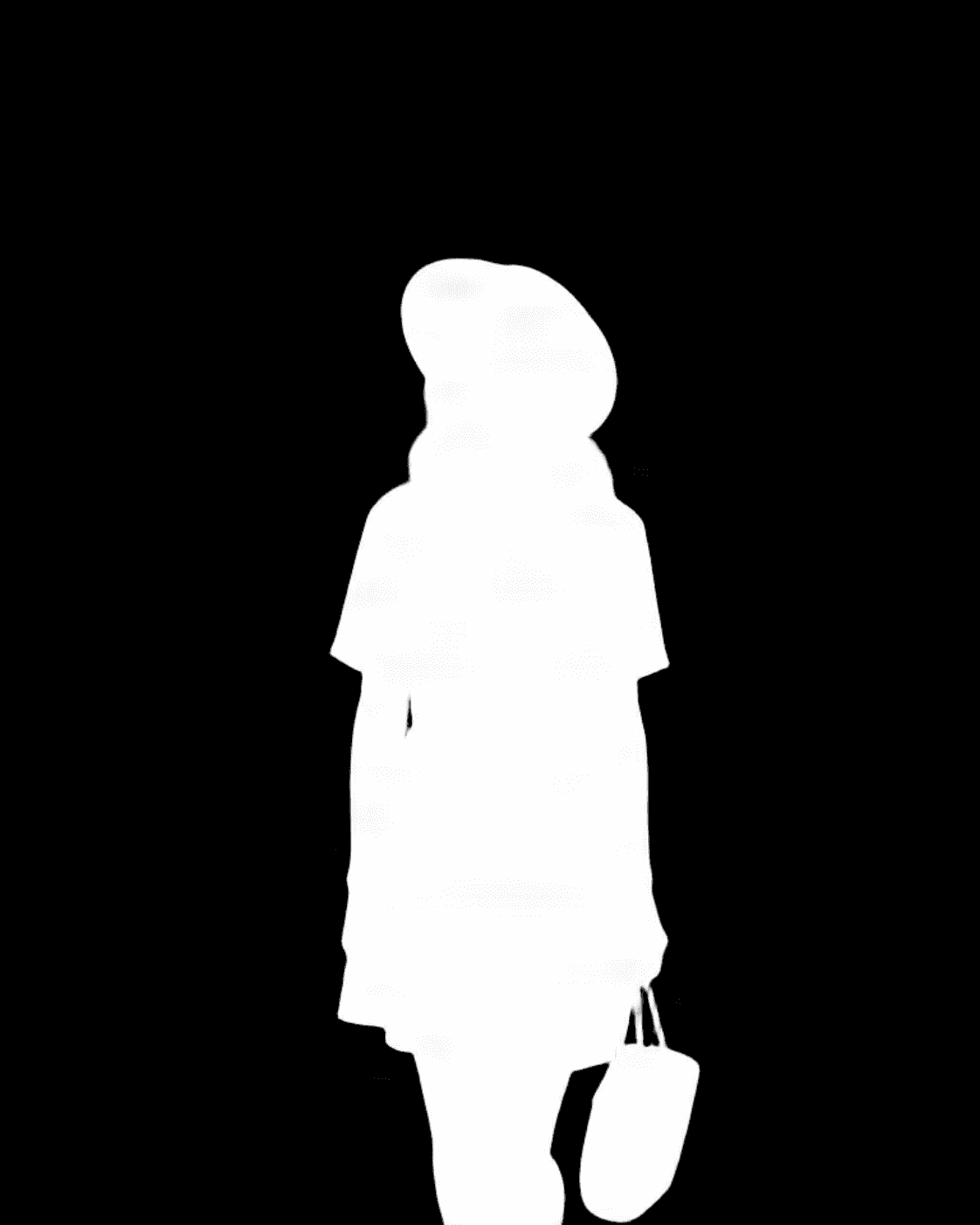
A grayscale mask represents the detected foreground area for additional editing.
This showcase reuses an existing general-purpose Background Splitter result. It demonstrates the three-output workflow, not a verified illustration-specific test. Hand-drawn outlines, character details, and painted scenery may produce different results.
THE PROBLEM WITH FLATTENED ILLUSTRATIONS
You've finished an illustration, but now the character needs to move to make room for a title, a new page layout, or a client revision.
With a flattened image, cutting out the character may leave a character-shaped gap. Repainting that area by hand can mean rebuilding scenery, matching colors, and recreating textures.
Illustration Background Splitter separates the foreground and attempts to rebuild the scenery that was covered, giving you a starting point for adjusting the composition.
Move a foreground figure so a title, caption, or story passage has space in the layout.
Create a background layer without the main visible subject, with hidden areas estimated by AI.
Use the isolated foreground as an asset in another composition or a simple motion project.
Keep the illustration you already like while making its main subject and background easier to work with.
MORE FLEXIBLE ILLUSTRATION WORKFLOWS
The Background Splitter creates three separate outputs. Use them as editing assets, then review and refine the result in your preferred software.
Move a character, creature, or mascot separately from the scene when the subject can be distinguished.
Keep a version of the visible scene without the foreground subject. Areas hidden behind it are generated estimates.
Use the grayscale mask as a starting selection for compositing and edge refinement in a compatible editor.
Adjust a flattened illustration to make room for titles, captions, or a different page composition.
Prepare foreground and background assets from suitable raster exports without the original project file.
Use the separated subject and scene as source assets for basic two-layer movement or parallax.
HOW IT WORKS
1
Choose a supported JPG, PNG, or WebP with a recognizable foreground subject and visible surrounding scenery.
2
Standard creates original-size outputs for 30 credits. HD creates 2× resolution outputs for 50 credits.
3
Inspect the transparent subject, reconstructed background, and mask. Download the files you need and continue editing.
The selected processing cost is shown in the workspace before you start. Higher resolution does not guarantee more accurate separation or reconstruction.
REALISTIC EXPECTATIONS
A flattened image contains only the pixels that were visible. Hidden artwork has to be estimated, and some results may need manual correction.
Use the generated foreground, background, and mask as a foundation for further creative work—not as a guaranteed recovery of the original hidden artwork.
CHOOSE THE RIGHT WORKFLOW
Separate multiple recognizable characters, objects, props, and scenery into a new multi-layer interpretation of a flattened illustration.
Explore illustration layersFocus on one foreground subject and get a transparent cutout, an AI-reconstructed background, and a subject mask.
Explore Background SplitterUpload a finished illustration with a recognizable foreground character. The workflow attempts to isolate the subject, reconstruct the scene behind it, and create a subject mask. Review the outputs before using them.
The tool attempts to fill the area hidden by the subject with AI-generated background content. This can create a more usable scene, although complex areas may need manual correction.
You can upload raster images of hand-drawn artwork. Results depend on the illustration's style, edge clarity, and background complexity. The general-purpose showcase does not establish performance for every hand-drawn style.
You can try illustrations featuring clear cartoon characters. The model attempts to identify the main foreground subject, but connected decorations or multiple characters may be grouped.
The existing Background Splitter workflow creates a transparent foreground, an AI-reconstructed background, and a subject mask.
No. Hidden artwork is not present in the flattened image. AI generates a plausible continuation based on the visible surroundings.
You can use it as an editing asset if you have the necessary rights. Review it for changes to scenery, textures, continuity, and important story details before publication.
Yes. You can position the transparent foreground separately from the reconstructed background in compatible editing software.
Yes. Export a supported image file from Procreate and upload it. The tool generates new outputs from the flattened image; it does not recover the original Procreate layer history.
You can upload suitable AI-generated illustrations. The system attempts the same foreground and background separation workflow regardless of how the input image was made.
The AI aims to preserve visible details, but thin outlines, flowing fabric, accessories, and overlapping shapes may change. Inspect the foreground and refine it if needed.
This workflow focuses on a foreground and background split. Nearby characters may become one combined foreground. Use Illustration to Layers when you need different characters or objects in separate layers.
The reconstructed background is intended for that purpose. It keeps visible surroundings and attempts to fill covered areas, but it may not match the unseen original.
The mask represents the detected foreground area and can help with selections, compositing, and edge refinement in compatible image-editing applications.
The foreground and background can be a starting point for simple two-layer motion or parallax. The tool does not animate them or create additional depth layers.
Yes. Import the downloaded foreground, background, and mask into Photoshop and continue editing. This workflow does not reconstruct the original PSD or native painting layers.
The workflow supports common image formats such as JPG, PNG, and WebP. For best results, start with a clear image at a suitable resolution.
Standard costs 30 credits and produces original-size outputs. HD costs 50 credits and provides 2× resolution outputs. A larger output does not guarantee more accurate separation or reconstruction.
Commercial use depends on the service terms and the rights you hold to the original artwork. Make sure you have permission to modify and reuse any illustration you upload.
This is a credit-based workflow. Standard costs 30 credits and HD costs 50 credits. The selected cost is visible before processing.
Separate a foreground subject, reconstructed background, and mask with the general-purpose workflow.
Open Background SplitterUse the existing subject and background workflow for a general flattened image.
Separate a subjectSeparate multiple recognizable characters, objects, and scenery elements into image layers.
Explore illustration layersAttempt to isolate complete characters from a larger illustrated scene.
Extract charactersRepair or reconstruct selected areas of an image with an inpainting workflow.
Repair a backgroundPrepare foreground and background layers from photographs for 2.5D motion projects.
Create parallax layersUpload the artwork you already have. Separate the foreground, create a reconstructed version of the background, and keep a mask for further editing. Get more flexibility from a finished illustration without starting your design from scratch.
Split My IllustrationStandard 30 credits · HD 50 credits. Review your selected option before generating.
Creative Toolkit Index
Quick access to precision layer extraction, AI photo editing & asset tools.