
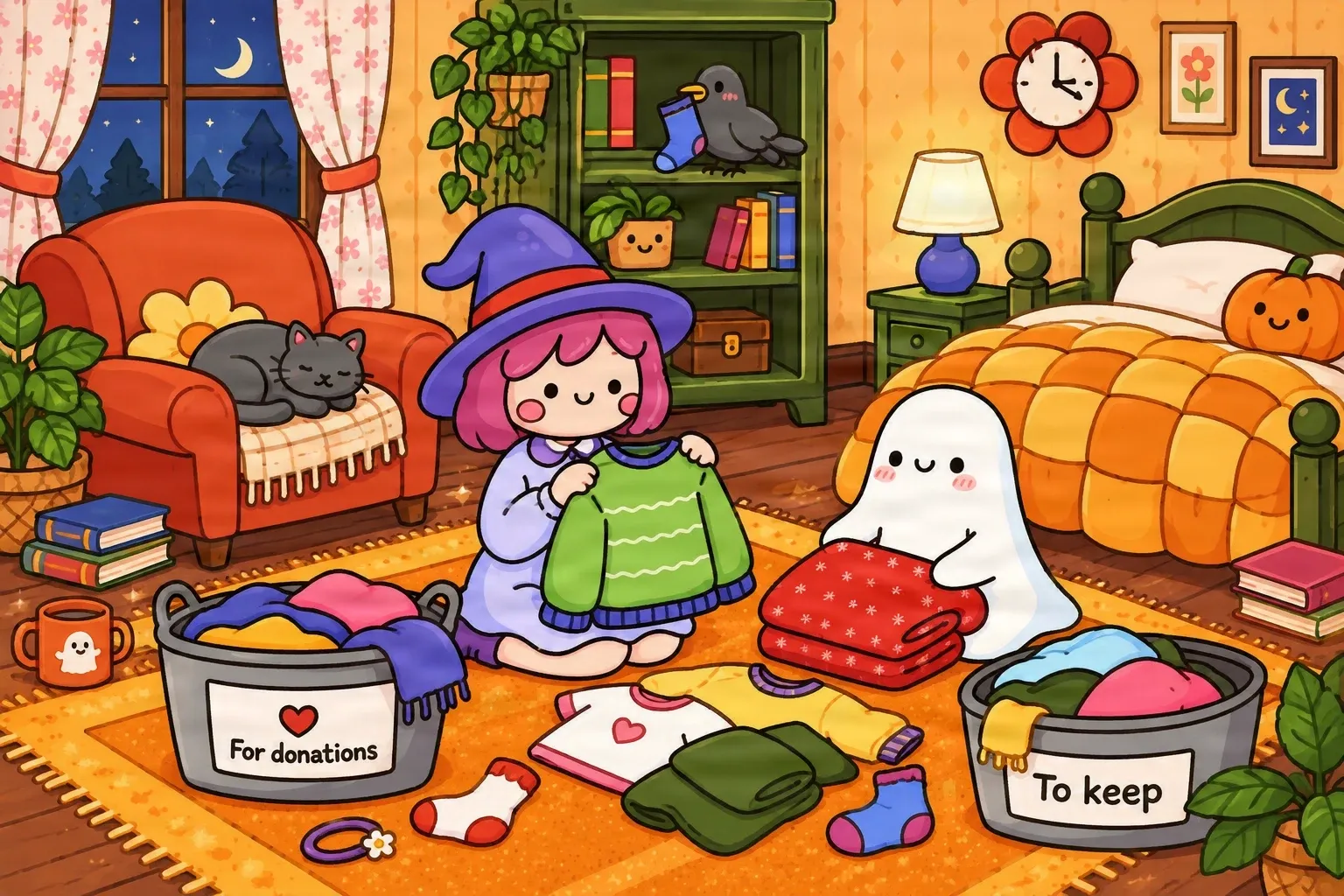
One Complete Illustration
A little witch, a ghost, a sleeping cat, furniture, clothing, and decorations are combined in one flattened scene.
Love the characters in your illustration, but need them separately from the background? Upload your artwork and let AI attempt to separate recognizable characters into individual image layers for new designs, stickers, and creative projects.
Upload your image
JPG, PNG, WebP up to 10MB · Drag & drop anywhere
Leave this blank to let Detailed Layers identify the main editable elements automatically. Or name the parts you want separated.
Separate Complete Characters From the Scene
Best for finished artwork where you want to isolate whole characters, creatures, or mascots from a larger illustration. The model may also separate other recognizable scene elements.
Upload an Image to Continue
Private File Handling
Uploaded files are associated with your account and delivered through signed URLs. You can delete completed jobs manually.
Transparent PNG Output
Detailed Layers returns each detected element as its own layer on a transparent background.
Review the credit cost shown in the workspace before generating.
Tips for Better Character Extraction
REAL CHARACTER SEPARATION EXAMPLE
This real AI-generated result starts with one colorful cartoon bedroom illustration. The little witch and friendly ghost appear as separate visual layers alongside other extracted scene elements.
A little witch, a ghost, a sleeping cat, furniture, clothing, and decorations are combined in one flattened scene.
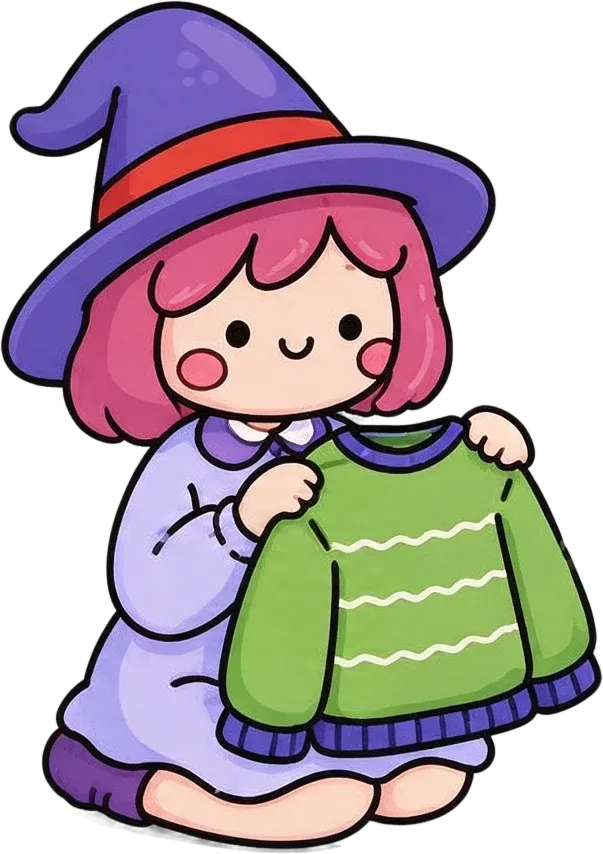
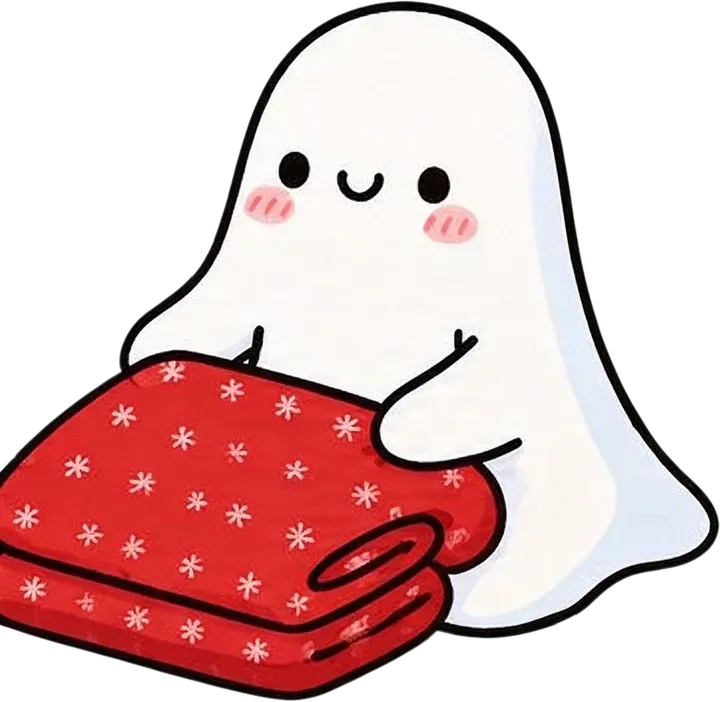
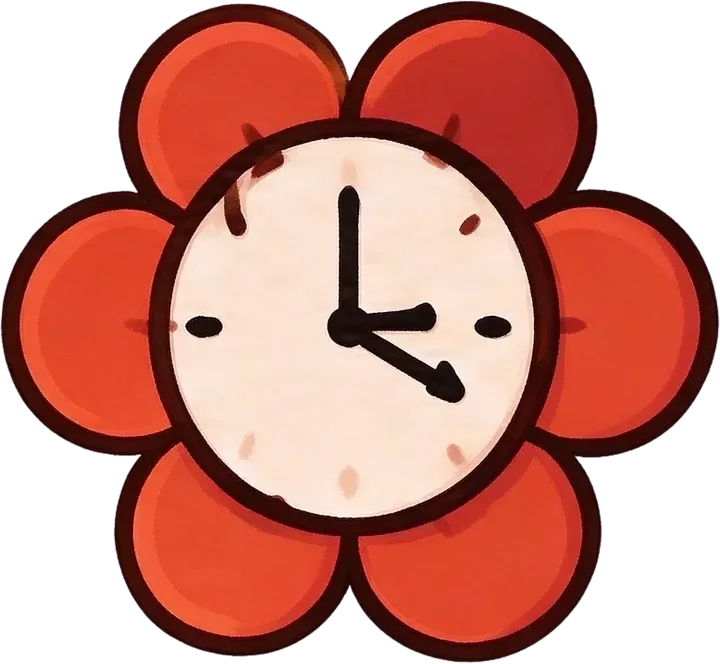
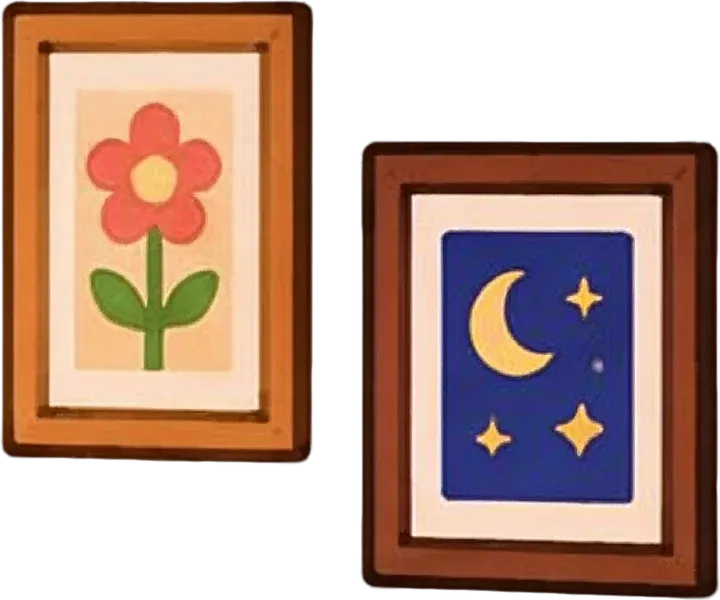
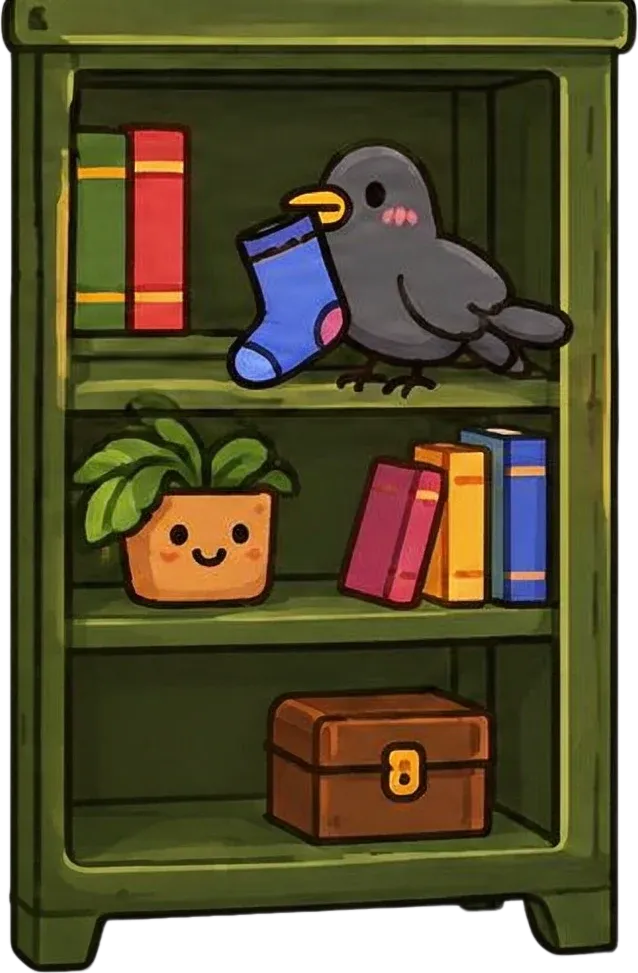
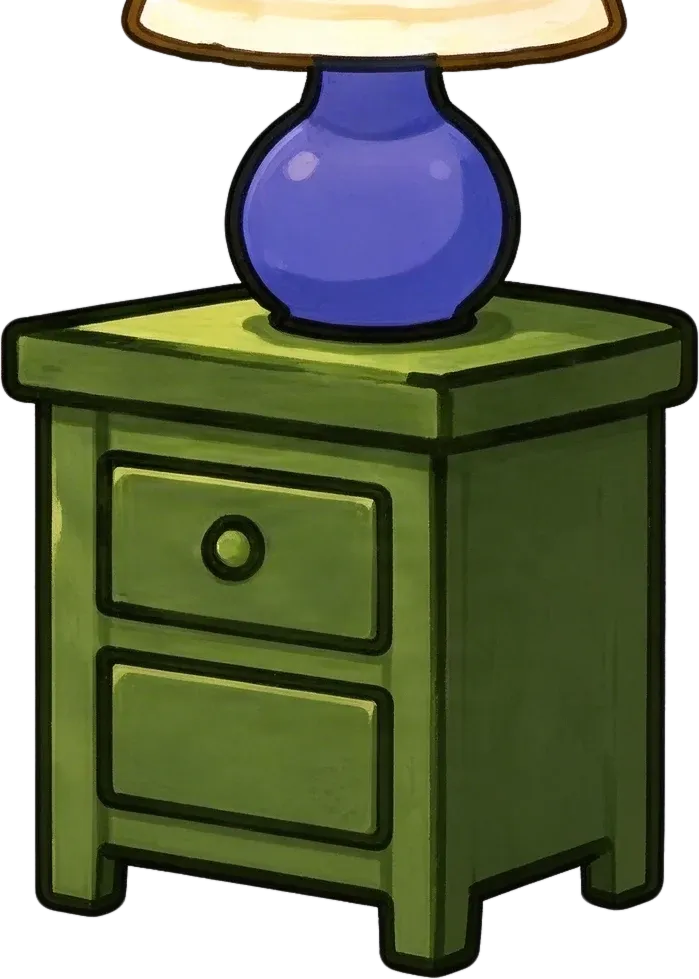
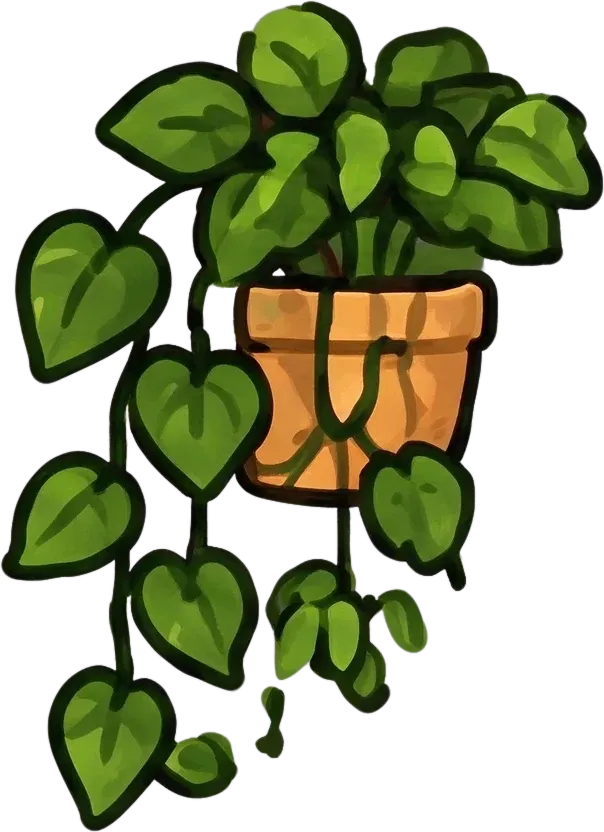
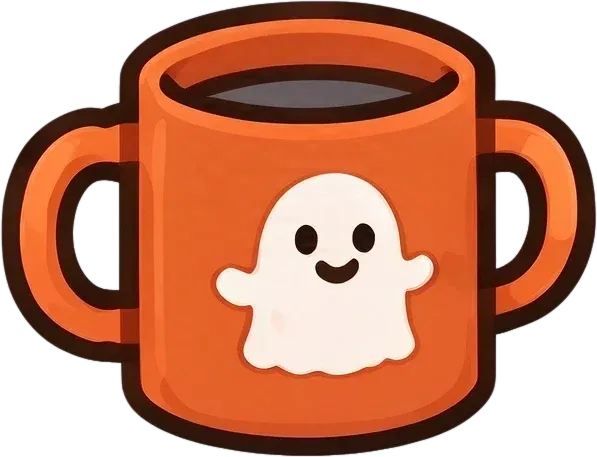
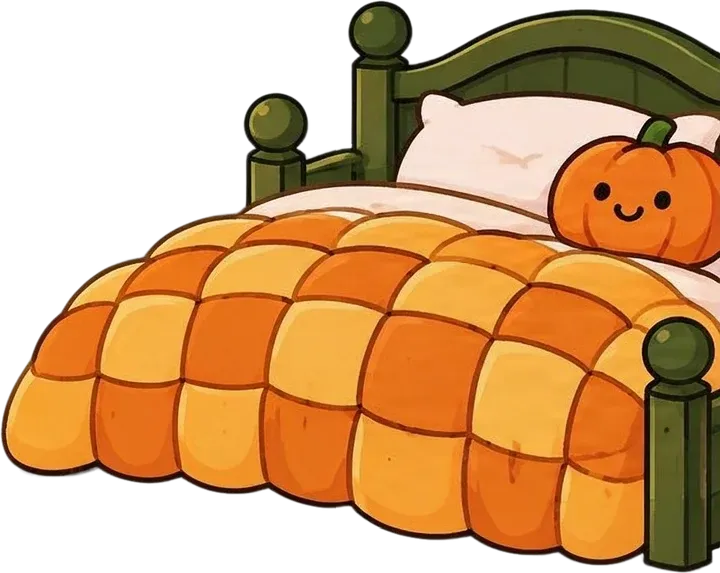
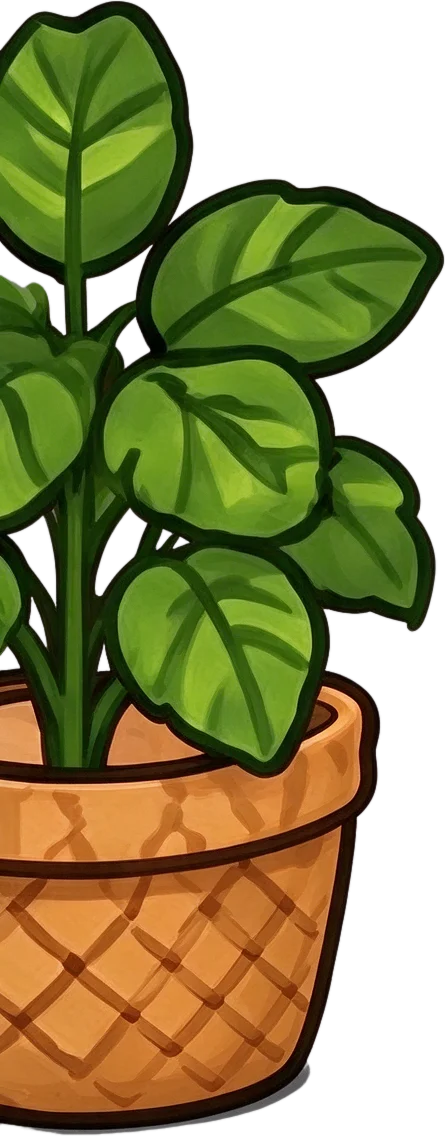
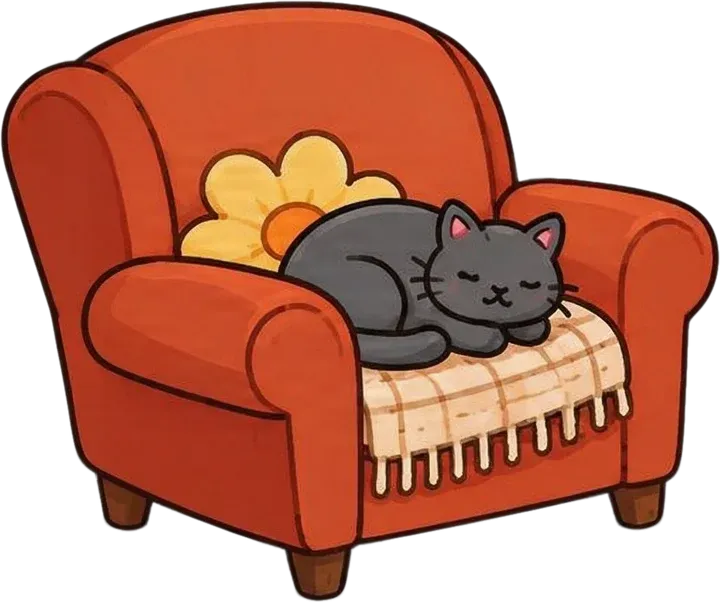
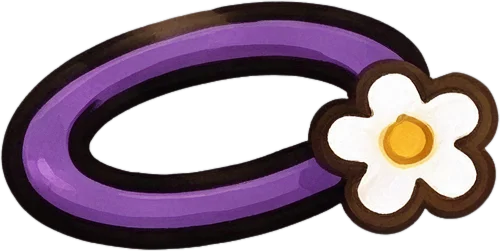
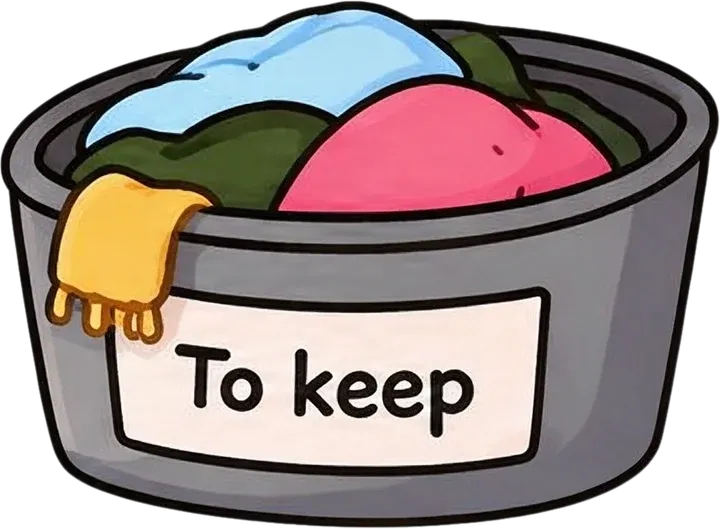
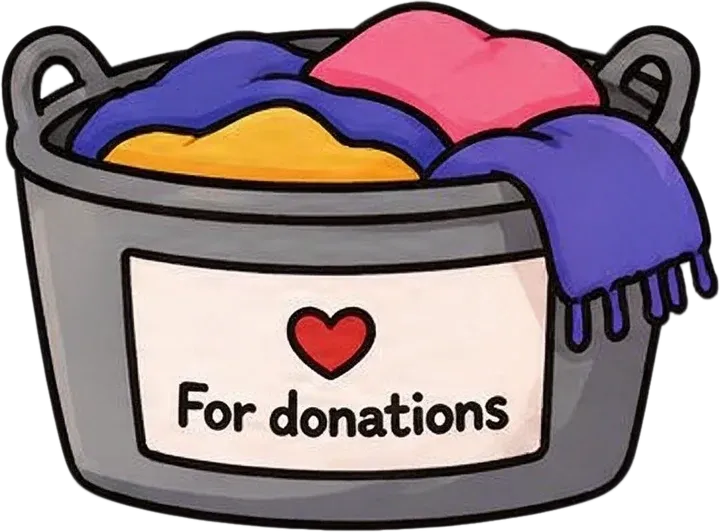
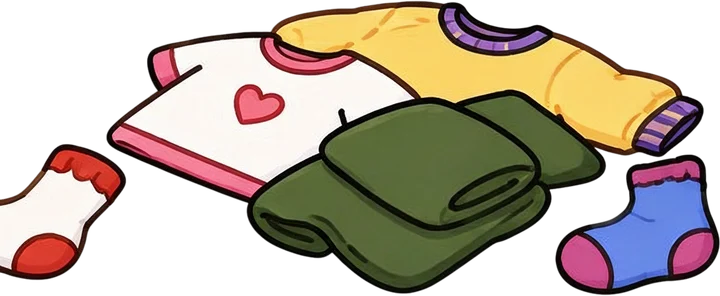
Inspect the little witch and friendly ghost as independent layers, alongside other extracted scene elements.
This is a real AI-generated illustration separation result, not a manually prepared cutout demonstration. It produced 17 layers, including one background layer; the showcase grid displays 15. The witch and ghost are separate, but the gray cat remains grouped with the armchair. Some objects remain grouped, hidden scenery is estimated, a red clothing element appears twice, and one sock is clipped at its layer boundary. Results vary with the source image.
THE PROBLEM
Maybe it is a little witch, a friendly monster, a cartoon animal, or the hero of a children's book. The character looks right in the original illustration, but now you want to make a sticker, place it in a new background, or prepare it for another design.
When the artwork is flattened, the character is combined with everything around it. Tracing hair, clothing, hands, accessories, and overlapping edges by hand can take time, and moving the character may expose areas that were hidden behind it.
Upload the finished artwork and let AI attempt to separate recognizable characters from the scene, giving you a starting point for further editing.
Common reasons to extract a character
The tool creates new image layers from the visible artwork; it does not restore the original drawing file or its layer history.
HOW CHARACTER EXTRACTION WORKS
1
Choose a flattened PNG, JPG, or other supported image that contains the character you want to reuse.
2
AI analyzes the visible scene and attempts to separate recognizable characters, objects, and backgrounds.
3
Inspect the generated layers for grouping, missing details, imperfect edges, and estimated hidden areas.
4
Use the supported editing and export options to bring suitable character assets into another project.
The result is a generated interpretation of the flattened image, not a recovery of the artist's original source layers.
A REAL ILLUSTRATION EXAMPLE
The Cozy Bedroom Scene showcase contains a little witch, a friendly ghost, a sleeping cat, furniture, clothing, and room decorations. The original is one flattened illustration; the generated result contains 17 layers, including the background.
In this result, the witch and ghost are separate visual layers. The cat remains grouped with the armchair, and some other objects are grouped too. The grid shows 15 layers and does not include the background plate or the repeated red clothing element.
A recognizable character appears as its own layer, including the visible hat and clothing.
The ghost is separated as another character layer in this specific result.
The cat remains together with the armchair, so this example does not show a separate cat cutout.
This is a real AI-generated result, not a manually prepared demo. Some hidden scenery is estimated, a red clothing element appears twice, and one sock is clipped. Other illustrations may produce different results.
REUSE YOUR ARTWORK
An isolated character can be easier to reposition alongside other visual assets. You might make a character introduction card, try a different scene layout, prepare a promotional graphic, or reuse a mascot in a project that needs the artwork you already have.
The generated layer can provide a starting asset when you do not have the original layered project file or only received a flattened image.
Possible projects
Extraction does not create new poses, expressions, or consistent character artwork for future pages.
MAKE A CHARACTER CUTOUT
A character layer with transparent surroundings can be useful as source artwork for a sticker design, avatar, label, or character introduction graphic. Separating a recognizable figure from the scene may reduce some manual selection work.
Review the outline, small accessories, and transparent edges in your target design. Sticker borders, print settings, and cutting paths still need to be prepared in the appropriate software.
The generated character layer is not automatically a print-ready sticker or a cutting file.
CHARACTER AND BACKGROUND
The workflow can attempt to create both character and scene layers, so the original background may remain available for further editing. If you move or remove a character, AI can estimate portions of the image that were hidden behind it.
Those hidden areas are newly generated estimates based on nearby visible details. They are not recovered original pixels and may need repainting or cleanup before use.
Choose a clear source image and carefully inspect the reconstructed background anywhere a character or prop used to cover it.
FOR ILLUSTRATORS AND CREATORS
A finished illustration may contain a character you want to reuse in another layout. This workflow can attempt to isolate whole characters from storybook scenes, cartoon artwork, fantasy illustrations, mascot designs, or flattened AI-generated images.
It focuses on recognizable complete characters within a scene. It does not automatically separate every joint or body part, generate animation frames, build a rig, or preserve the character identically across multiple images.
Artwork you can try
CHOOSE THE RIGHT WORKFLOW
Character extraction and body-part separation are different tasks. This page focuses on removing one or more complete characters from a finished scene so they can be reused as visual assets.
If you need to separate visible hair, clothing, arms, legs, or other components of one character, use Character to Layers instead. For editing the broader illustration, Illustration to Layers is designed around the full scene.
Start with the workflow that matches the asset you need: a complete character, detailed character parts, or the whole illustrated scene.
REALISTIC EXPECTATIONS
Attempt to isolate recognizable characters, generate transparent visual layers, separate some scene elements, and estimate portions of backgrounds hidden by objects.
Perfect character edges, independent layers for every subject, exact facial and hair details, recovered original pixels, complete hidden anatomy, new poses, or a production-ready animation rig.
Review individual layers before publishing or delivering artwork, especially where characters overlap props or the background.
BEFORE YOU GENERATE
Distinct outlines and visible character details can make the subject easier to recognize.
Characters that touch or hold large objects may remain grouped with them.
Inspect hair strands, hands, ears, tails, facial features, clothing, and small accessories.
Reconstructed background or character areas are estimates and may need correction.
A recomposed image can hide missing edges or duplicated details that are visible in an individual layer.
Make sure you have permission to modify and reuse the source character and illustration.
Clear source artwork and a careful review help make generated character layers more useful.
FIND THE RIGHT WORKFLOW
Separating one character into components
Prepare visible character parts such as hair, clothing, and body regions for further editing or rigging preparation.
Explore character part separationReusing complete characters from a scene
Attempt to separate recognizable whole characters from the surrounding illustration, objects, and scenery.
You are viewing this workflow
Use this page for complete character cutouts. Choose Character to Layers when you need more detailed character components.
Upload a finished illustration and generate image layers. The AI attempts to identify recognizable characters and separate them from surrounding scene elements. You can then review the generated layers and continue editing.
The AI can attempt to identify multiple characters in one scene. Characters that overlap or touch closely may remain grouped, and separate layers are not guaranteed for every subject.
If a character is isolated successfully, its layer can have transparent surroundings. Inspect the edges and fine details before using it in another design.
Not necessarily. The generated layer may differ in small shapes, colors, outlines, or accessories. Review the character carefully before final use.
You can try cartoon animals, fantasy creatures, mascots, monsters, and other illustrated subjects. Results depend on how clearly the model can recognize the subject and its boundaries.
The workflow can attempt to create character and scene layers, leaving background elements available for further editing. Some objects may stay grouped or need cleanup.
AI may estimate hidden regions using nearby visible details. These are generated reconstructions, not recovered original pixels, and they may require manual correction.
Yes. Upload a supported image exported from Procreate. The tool processes the flattened artwork and creates new visual layers rather than restoring the original Procreate layer structure.
Yes. You can upload a suitable flattened AI-generated illustration. The tool attempts to separate recognizable characters and other elements from the image.
A separated character layer can be a starting asset for sticker artwork. You still need to prepare sticker borders, print settings, and cutting paths in your design software.
You can try, but the character and held object may be grouped or separated depending on the image and the model's interpretation. Review the result before reuse.
The AI aims to preserve recognizable visible details, but thin or complex shapes can change. Inspect small elements carefully, especially where they overlap the background.
Sometimes, but closely touching or overlapping characters may remain together in one layer or need manual editing.
No. This workflow focuses on extracting complete characters from an illustration. For more detailed hair, clothing, or body-part layers, use Character to Layers.
A suitable extracted layer can be used as source artwork in an animation program. This tool does not generate keyframes, separate every joint, build a rig, or create animation frames.
If the character is isolated successfully, you can place the asset in another composition. Matching the new background's lighting, scale, perspective, and style is a separate editing task.
Supported image layers can be imported into Photoshop, and layered export options depend on your account and the available workspace features. Generated layers are not the artist's original source layers.
It may reduce manual selection work for some illustrations, especially when you need several visual elements. Precise manual selection can still be preferable when exact outlines are essential.
Use generated results according to the service terms and your rights to the source material. Make sure you have permission to modify and reuse any characters or artwork you upload.
This is a credit-based AI processing workflow. The applicable generation cost is displayed in the workspace before you start, and export options depend on your account.
Separate characters, objects, and scenery throughout a complete illustrated scene.
Separate one character into more detailed visible components for editing or rigging preparation.
Extract individual sticker designs from a finished sticker sheet.
Extract decorative illustrations and clipart-style assets from an image.
Prepare separately editable elements from flattened AI-generated artwork.
Upload your finished artwork, attempt to extract recognizable characters into separate visual layers, and prepare them for new designs, stickers, and creative projects.
Extract My CharactersUpload your image and review the credit cost before generating.
Creative Toolkit Index
Quick access to precision layer extraction, AI photo editing & asset tools.