How to Create 360° Product Views From One Photo (AI Guide)
You have one clean product shot, but your listing, pitch deck, or ad layout needs front, three-quarter, side, back, and top views—or a full 360° spin. This guide compares the three AI 360° output formats, walks through a real one-photo-to-multi-angle headphone example, and gives you a practical QC checklist before publishing.
On this page
The short answer
Upload one sharp, unobstructed product photo to the Product 360 View Generator, pick your output mode (Multi-angle photos for product galleries, 360° spin for interactive 3D/GLB, or 360° video for social ads), select a view preset such as Product Essentials (4 views) or Ecommerce Complete (6 views), and inspect AI-reconstructed back sides, logos, and proportions before publishing.
Why AI 360° product views replace physical turntable shoots for fast catalogs
Traditional 360-degree product photography requires a motorized turntable, consistent multi-light studio strobes, 24 to 72 sequential camera captures, and manual frame stitching—or weeks of 3D CAD modeling. For fast-moving ecommerce catalogs, prototype pitches, or supplier photos where only one hero shot exists, that setup slows every launch.
An AI Product 360 View Generator skips physical rigs by analyzing your single product image's silhouette, lighting, and surface materials to synthesize missing viewpoints. Instead of leaving your Product Detail Page (PDP) with one flat thumbnail, you can build a complete visual lineup in minutes.
No turntable or studio rig
Generate front, three-quarter, side, back, and top-down angles directly from one existing packshot or lifestyle cutout.
Faster marketplace launches
Fill Amazon, Shopify, and wholesale catalog image slots before scheduling a full multi-angle studio reshoot.
Choose the right format: multi-angle photos, 360° spin, or 360° video
Top ecommerce workflows don't rely on a single output type. Depending on where the asset will live, our Product 360 View Generator studio groups three distinct outputs under one roof so you can match the format to the channel.
| Multi-angle photos | Separate static PNG/JPG images (Front, Front-Right 3/4, Right Side, Back, Top Down) | Amazon/Shopify image galleries, comparison grids, ad creatives, and individual angle downloads |
| 360° spin (Interactive 3D) | Rotatable 3D model with GLB export | Interactive PDP viewers, web 3D embeds, and spatial inspection on desktop and mobile |
| 360° video | Smooth rotating MP4 turntable video | TikTok, Instagram Reels, Meta video ads, and hero landing page motion loops |
Real output: turning one headphone photo into four matching angles
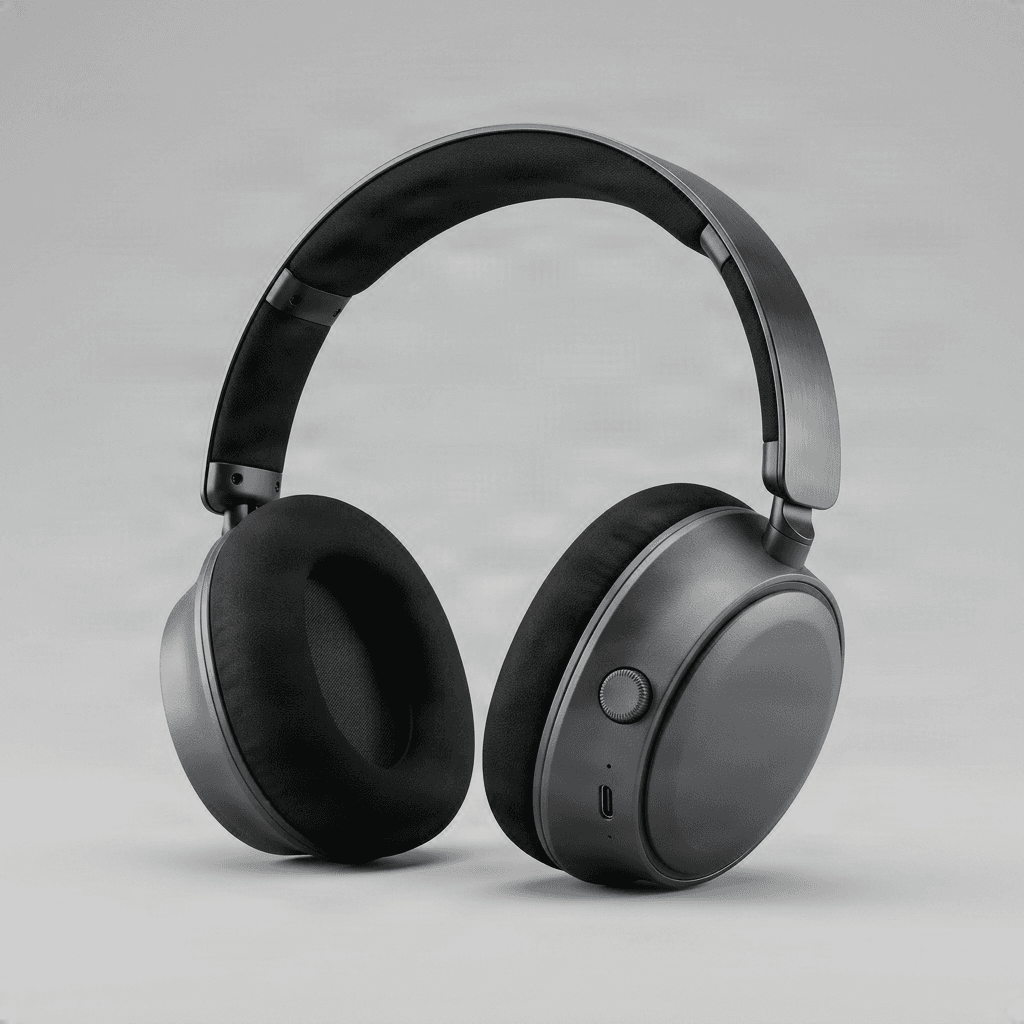
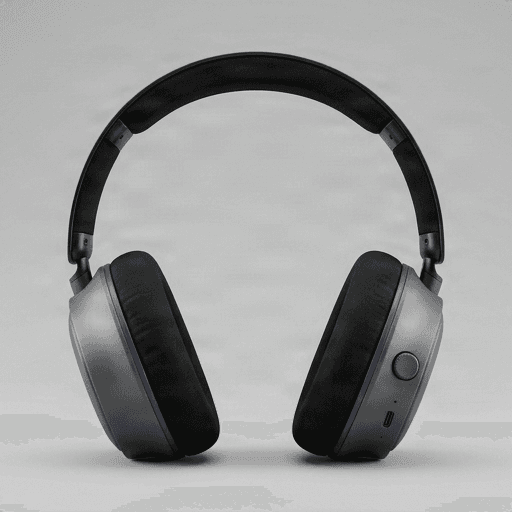
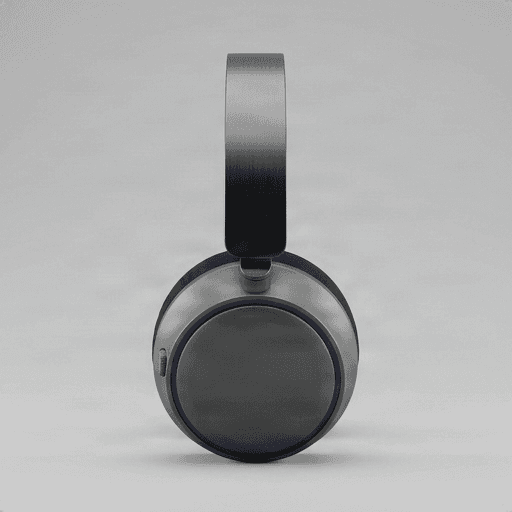
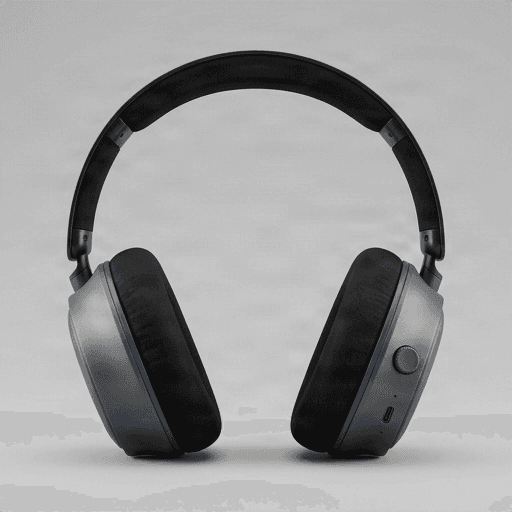
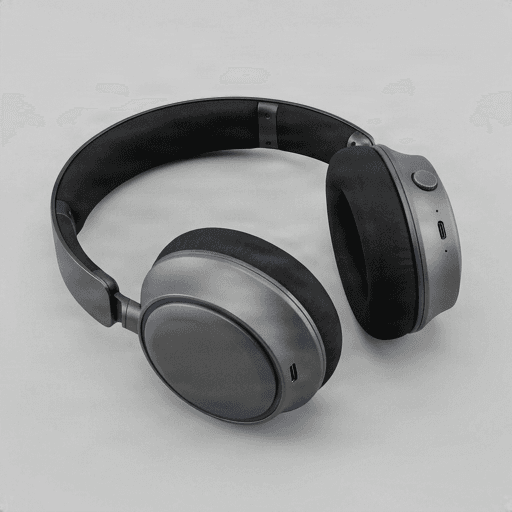
Below is an actual result generated in our Product 360 View Generator workflow. Starting from a single three-quarter product photo, the generator produces consistent front, side, back, and top-down views while keeping the blue metallic accents, earcup padding, and lighting direction cohesive.
Notice how each angle behaves as an independent, downloadable asset—ready to drop into a marketplace gallery or inspect side-by-side.
Real output
Real output
Real output
Real output
Real output
Step 1 — Prepare a clean, unobstructed source photo
AI angle reconstruction is only as reliable as the geometry clues in your starting image. A three-quarter or clean front studio shot gives the model depth, edge curvature, and material texture in one frame.
Avoid cropped edges, hands holding the item, heavy motion blur, or busy props overlapping the silhouette. If your product sits in a cluttered lifestyle room, isolate it on a neutral background first so surrounding objects don't bleed into the generated back or side views.
- Keep 100% of the product inside the frame with comfortable breathing room around edges.
- Start from a sharp, well-lit front or 3/4 view rather than an extreme top-down or flat overhead shot.
- Use one single main product per upload—multi-item bundles or collages are treated as one merged object.
- Keep your original source file handy for side-by-side accuracy checks.
Real output
Real output
Step 2 — Pick your view set or switch to Single Angle
You don't need to render 36 frames when four clean perspectives solve your listing. Inside the Multi-angle photos tab, choose between Single Angle (for one specific missing perspective) or Multiple Views presets:
Product Essentials (4 views: Front, Front-Right 3/4, Right Side, Back) covers standard store galleries efficiently. Ecommerce Complete (6 views) and Full Coverage (10 views, including 8 horizontal angles) give buyers a near-continuous wraparound gallery, while Custom Set lets you hand-pick exact camera positions and fine-tune elevation or azimuth before generating.
| Single Angle | 1 custom viewpoint | Best when you already have front/side shots and only need a missing back or 3/4 angle. |
| Product Essentials | 4 views | Fastest baseline for clean Shopify or marketplace product galleries. |
| Ecommerce Complete | 6 views | Balanced coverage for footwear, bags, electronics, and packaged goods. |
| Full Coverage | 10 views | Comprehensive multi-angle inspection set without building a 3D mesh. |
Step 3 — Lock logos, materials, and proportions with instructions
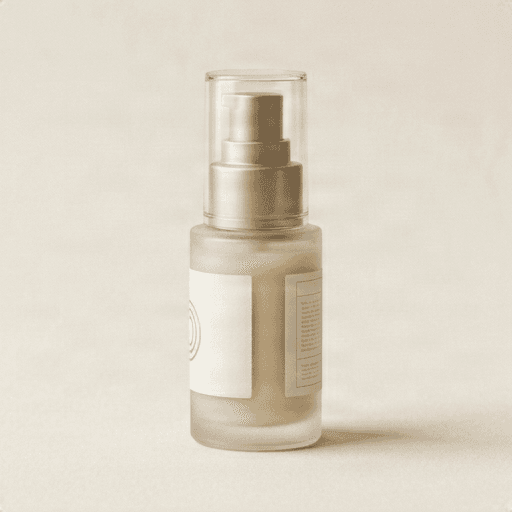
Before clicking Generate Product Views, use the Additional Instructions field to anchor details that matter most to your brand. Specify material finishes (such as matte anodized aluminum, brushed leather, or frosted glass) and remind the model to keep logos, label placement, and proportions consistent.
If you only need to adjust one camera angle slightly without re-running an entire set, fine-tune that individual view position first so your credits go toward the exact framing you plan to publish.
Step 4 — Audit AI-reconstructed hidden sides before publishing
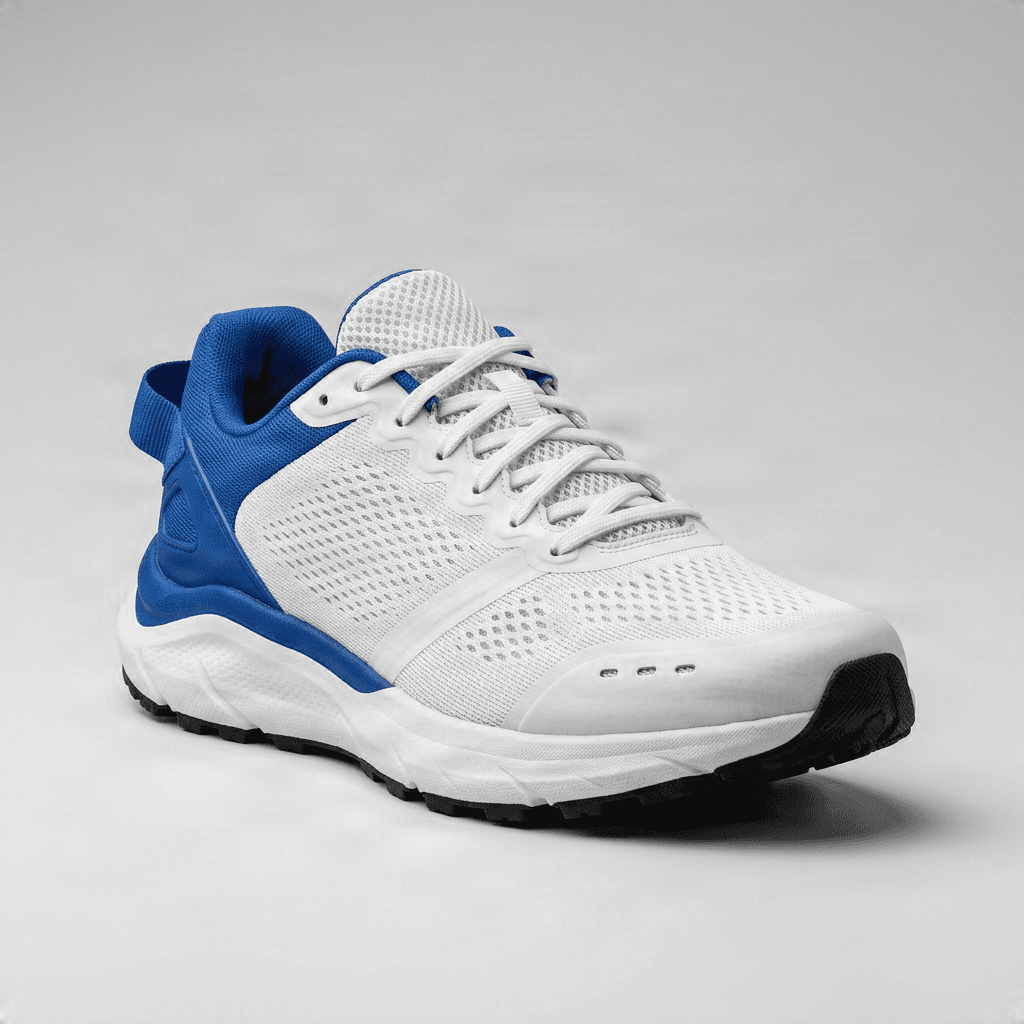
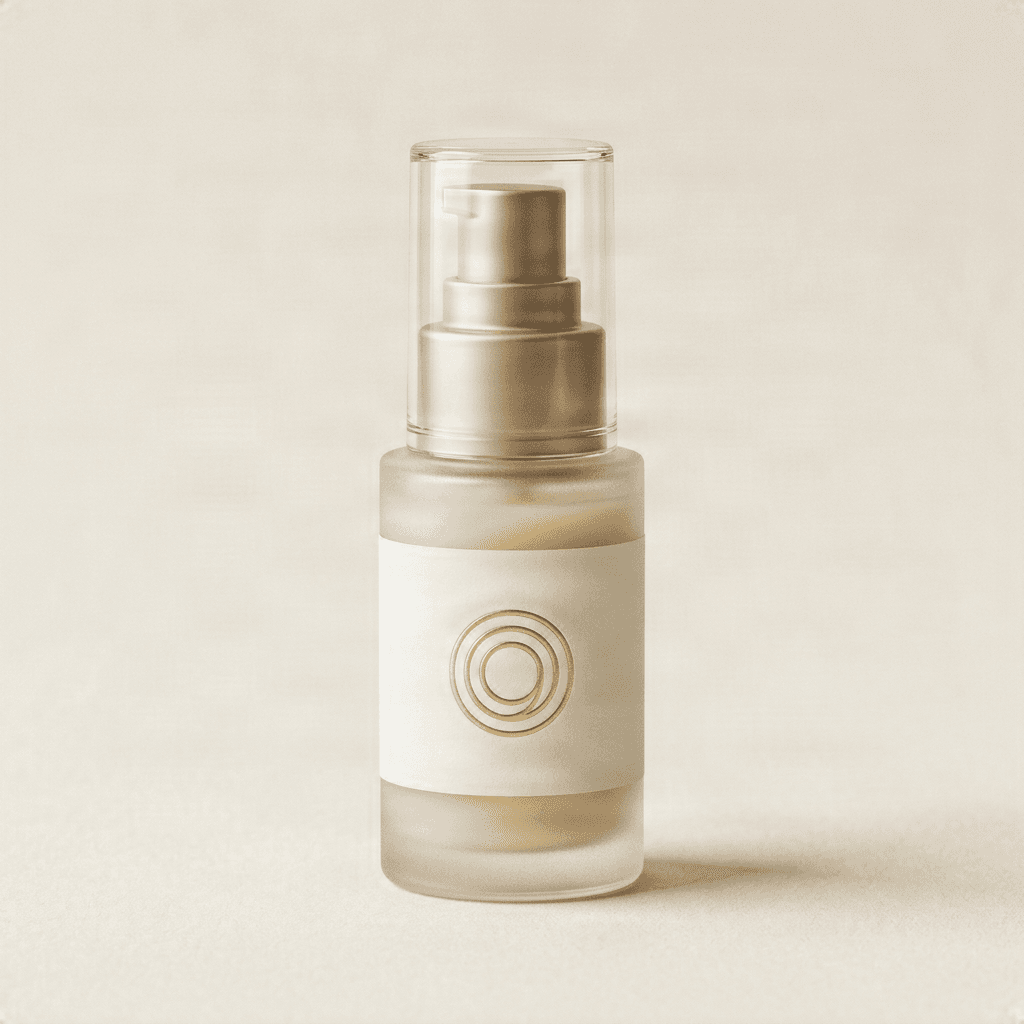
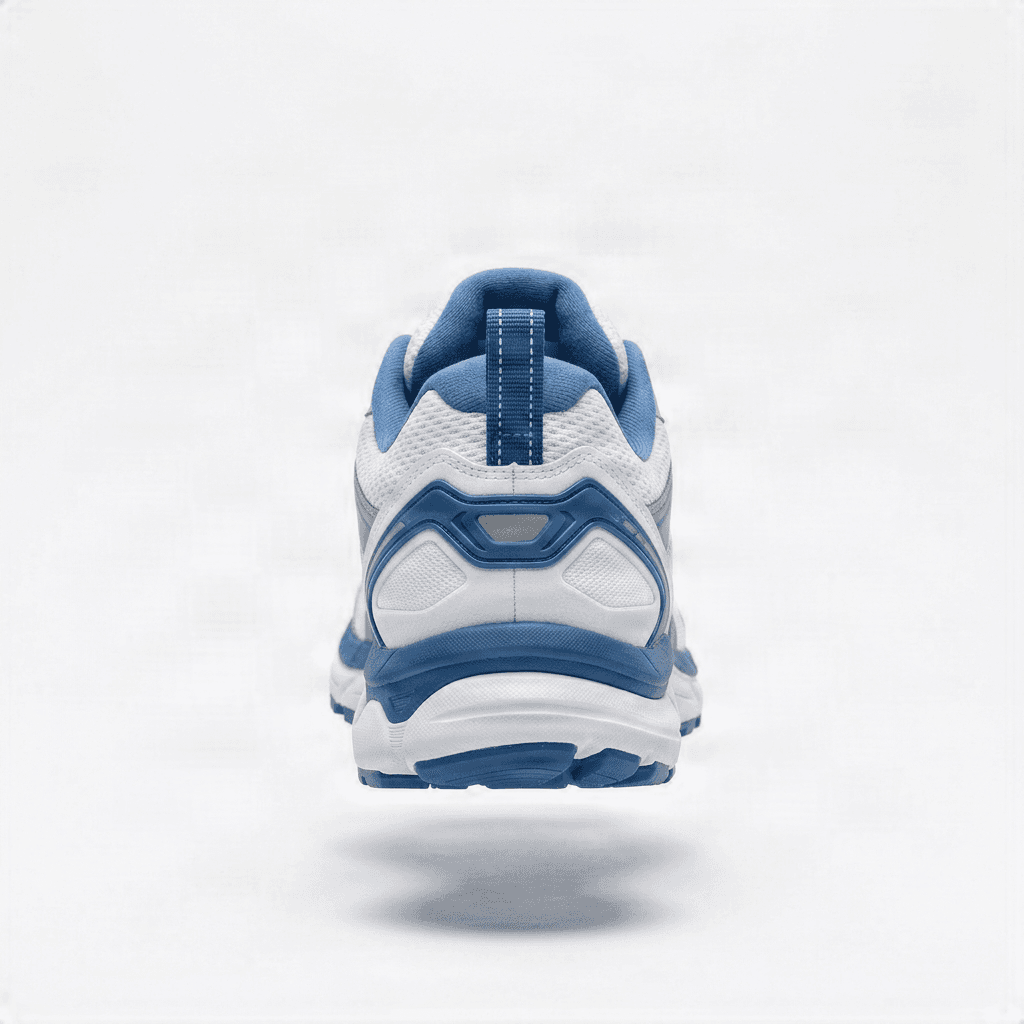
Every AI 360° generator—whether it outputs static angles, GLB meshes, or MP4 spin videos—must infer what the unseen side of your product looks like. If the back of a camera, shoe heel, or bottle label wasn't visible in your source photo, the model reconstructs a plausible rear surface based on visible cues.
Treat generated rear and opposite-side views as creative visual assets rather than engineering blueprints, and always run a quick visual audit against your physical inventory.
- Inspect brand logos, small packaging text, and nutrition or compliance labels for warping.
- Check functional hardware such as USB ports, buttons, zippers, clasps, and stitching seams.
- Verify consistent proportions—make sure handles, straps, or heels didn't thicken or shrink on the back view.
- Do not use AI-inferred rear views as technical CAD documentation or exact manufacturing references.
Real output
Real output
Know which products work best (and which need extra review)
Products with clear silhouettes and recognizable 3D structure consistently produce the sharpest multi-angle and 360° results. Highly reflective, transparent, or text-dense items can still be generated, but they require closer review.
Often works great
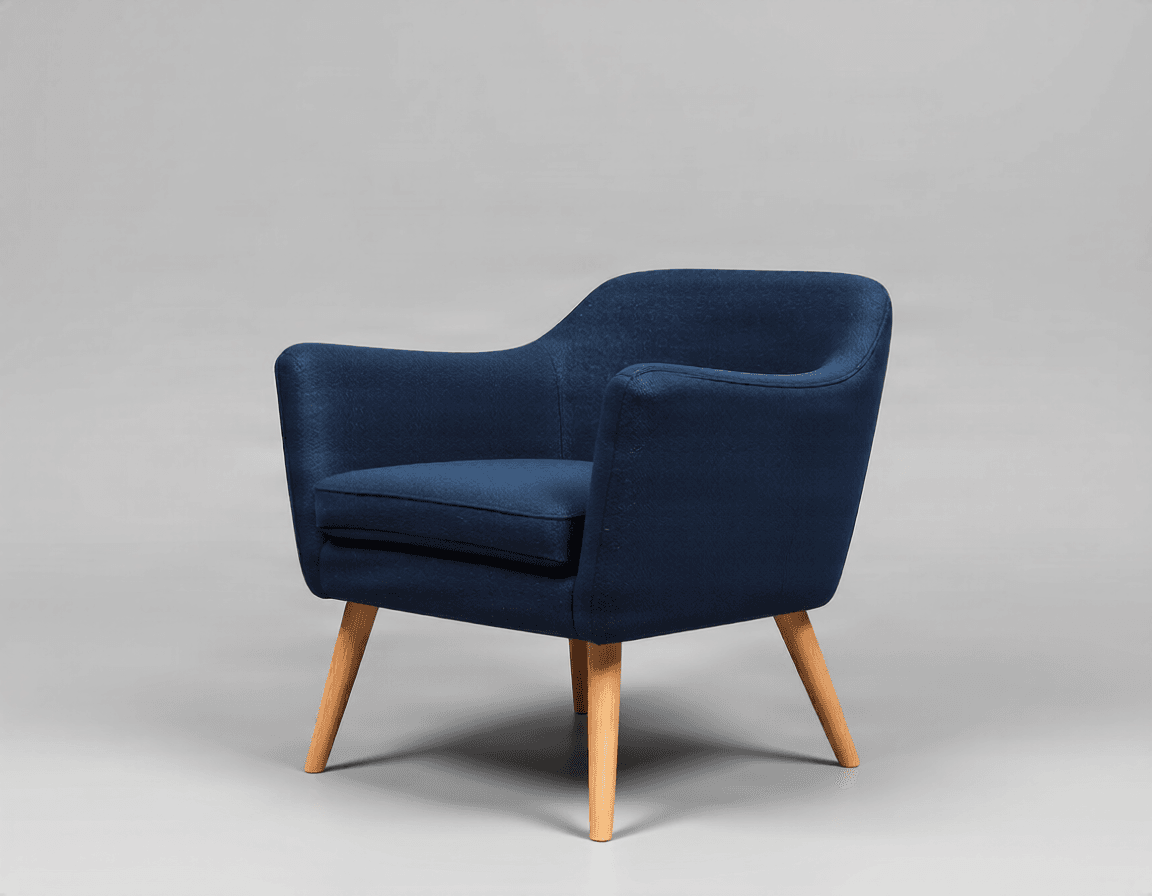
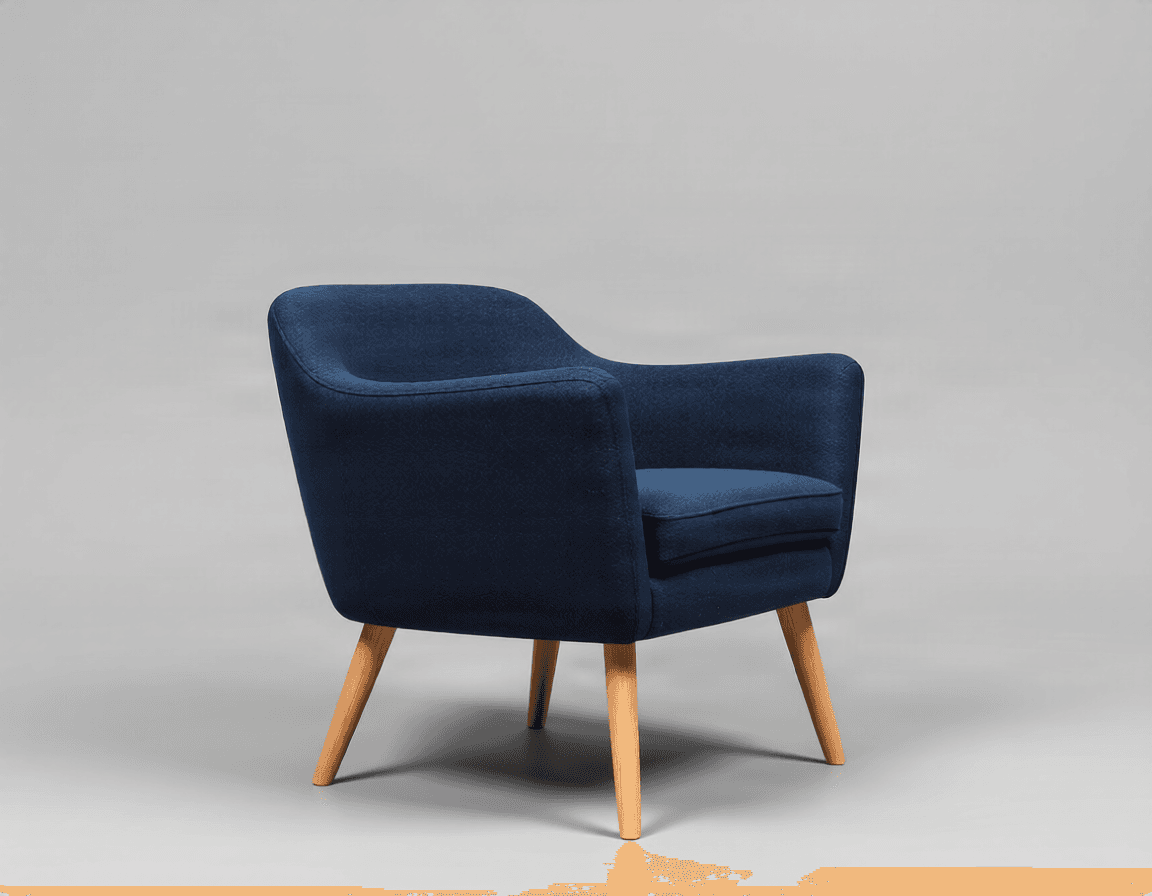
Shoes, handbags, backpacks, bottles, consumer electronics, headphones, furniture, toys, accessories, and cleanly shaped packaged goods.
Can be less predictable
Mirrors, clear glass, chrome reflections, dense small packaging text, thin cables or wires, complex machinery, and highly asymmetrical items with hidden ports.
Real output
Real output
Step 5 — Export, test, and combine with your storefront workflow
Once your views pass inspection, download each generated angle separately for your product gallery, export a GLB file from the 360° spin tab for interactive web viewing, or grab the MP4 from the 360° video tab for social ads.
Need to place those angles into styled lifestyle scenes or extract editable layers for ad banners? Pair your generated views with AI Product Photography for scene staging or Image to Layers to separate foregrounds, shadows, and typography.
A repeatable single-photo to 360° checklist
Generate multi-angle product views, an interactive 360° spin, or a rotating 360° video from a single product photo.
Step 1
Upload a clean product photo
Start with one sharp, unobstructed front or three-quarter product image on a simple background.
Step 2
Select your output mode and angles
Choose Multi-angle photos, 360° spin, or 360° video, then pick a preset like Product Essentials (4 views) or Ecommerce Complete (6 views).
Step 3
Add consistency instructions
Optionally fine-tune camera positions and add instructions to preserve materials, colors, and proportions.
Step 4
Audit AI-reconstructed views
Inspect rear and side outputs for logo accuracy, label text, ports, and silhouette consistency against the real product.
Step 5
Download and publish
Download individual angle images, export GLB for interactive 3D, or export MP4 for social ads and landing pages.
Choose the right format
AI product 360° view FAQ
Can I generate a 360° product view from just one photo?
Yes. One clear, unobstructed front or three-quarter product photo is enough to generate multi-angle views, an interactive 3D spin, or a 360° rotating video.
Should I use multi-angle photos, 360° spin, or 360° video?
Use multi-angle photos for Amazon/Shopify galleries and ad layouts where you need separate static images. Use 360° spin (GLB) for interactive web viewers, and 360° video (MP4) for TikTok, Reels, and motion ads.
Will the AI-generated back view match my real product 100%?
Not always. Because the model cannot see hidden sides that are absent from your source photo, it infers plausible back-side details. Always inspect rear views, ports, and labels before publishing.
Do logos and small packaging text stay intact across all angles?
Visible logos and primary branding often stay recognizable, but small text, nutrition labels, fine patterns, and hidden badges can shift or warp on inferred angles.
Can I pick specific angles instead of generating a full set?
Yes. You can switch to Single Angle for one missing perspective or choose Custom Set to select only the exact views your listing needs.
What products give the cleanest AI 360° results?
Items with clear shapes and defined surfaces—like sneakers, bags, bottles, headphones, electronics, and furniture—produce the most consistent multi-angle results.
Next step
Try the AI Product 360 View Generator
Turn one product photo into multi-angle gallery images, an interactive 360° spin, or a rotating MP4 video in one studio.
Ask AI about this page
Continue exploring this page with your preferred AI assistant.