
How to Separate an Image Into Layers Without Photoshop
People usually ask for layers without Photoshop because they want editable structure, not Adobe-specific complexity. The core idea is still the same: turn one flat file into several usable visual groups.
On this page
Old workflow
Mask the subject manually, repaint the missing background, separate text, organize layers, and only then export.
AI workflow
Separate the image into meaningful semantic groups first, then spend your time reviewing and refining instead of rebuilding everything from zero.
Without Photoshop
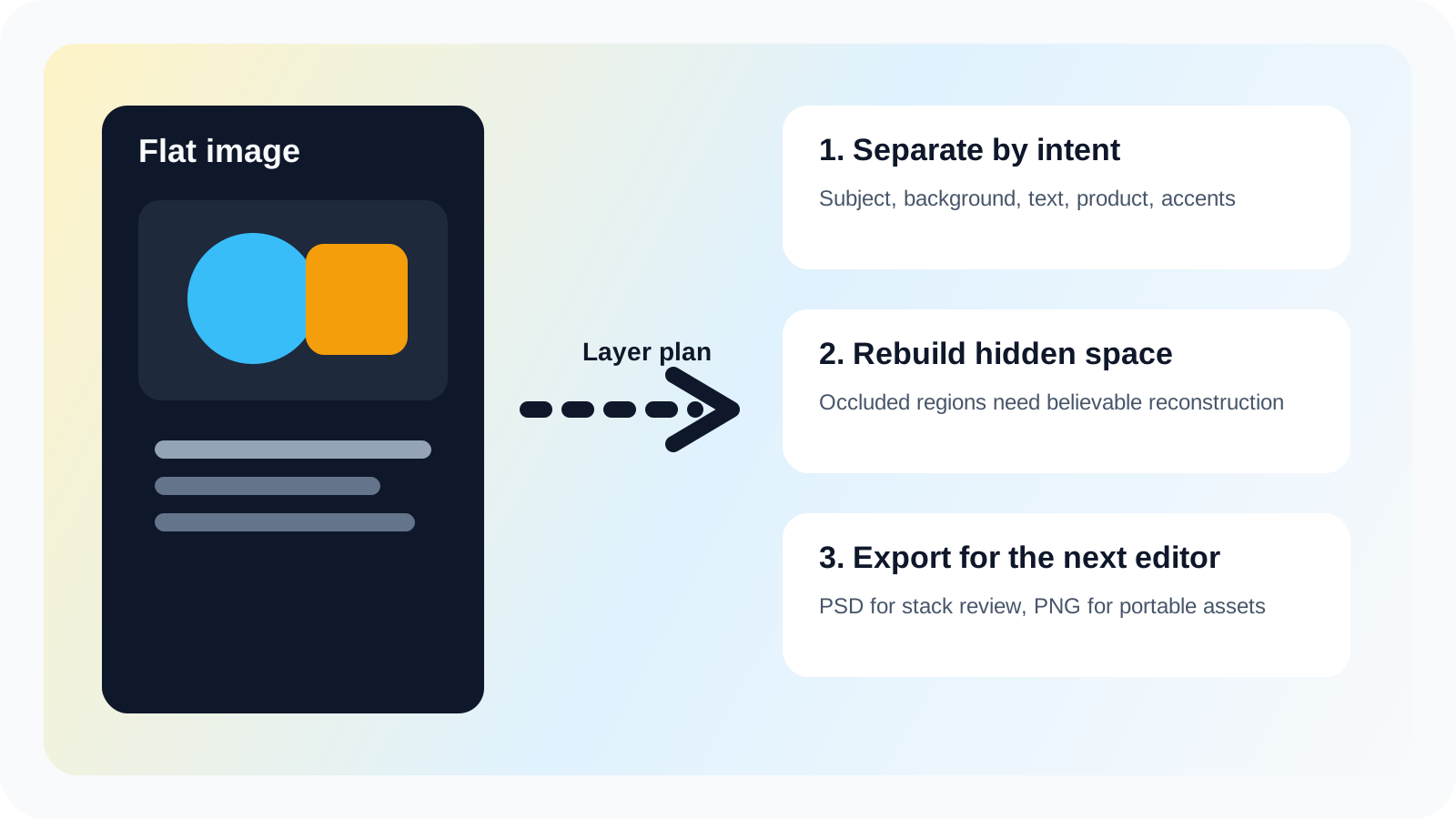
What separating an image into layers actually means
It means producing editable groups instead of one fixed surface. In a good layer stack, the foreground can move, the text can change, and the background can survive those edits. That is more useful than simply extracting a single subject on transparency.
Which image types work best
Images with clear objects, readable edges, and manageable overlap tend to work best. Social graphics, posters, product shots, and multi-element brand layouts are all common candidates. If you only need a transparent cutout, a background remover may be enough. If you need multiple editable regions, true layer separation usually creates more value.
If you want to see that distinction more clearly, compare this workflow with remove background vs image to layers.
Common mistakes and unrealistic expectations
The most common mistake is expecting every tiny visual detail to become a perfect independent layer. Good workflows optimize for editing value, not infinite fragmentation. Another mistake is skipping the review pass. Even strong AI results still benefit from one human check for overlaps, edge softness, and missing background detail.
Step 1
Choose the image you need to edit
Start with the flat file and decide what needs to move, disappear, or become independently editable.
Step 2
Run AI layer separation online
Split the image into meaningful groups instead of rebuilding the stack manually in Photoshop.
Step 3
Review the extracted groups
Check whether the subject, text, and background regions stay believable after separation.
Step 4
Fix weak regions
Inspect overlaps, tiny details, and background reconstruction before you hand the result to a designer or editor.
Step 5
Export for the next workflow
Use the separated result for cleanup, compositing, PSD work, or further editing in another app.
Layer separation without Photoshop FAQ
How can I separate an image into layers without Photoshop?
No. AI-based online workflows can split subjects, text, and backgrounds into editable groups without using Photoshop at all.
What does it really mean to separate a photo into layers online?
It means you still end up with independent visual groups that can be moved, hidden, cleaned up, or exported, even if the separation happened in a browser.
Is separating an image into layers the same as removing the background?
Background removal usually makes one subject cutout. Layer separation can split multiple meaningful groups like text, foreground objects, and background structure.
What images work best if I want layers without using Photoshop?
Images with clear objects, readable boundaries, and a manageable number of overlapping parts usually produce stronger results.
Can AI replace manual Photoshop layer prep for most jobs?
Not always. Complex art, tiny details, or damaged source files can still need cleanup, but AI usually removes a large part of the manual setup work.
Can I separate text, subject, and background without opening Photoshop?
Yes. Online AI workflows can isolate text, foreground objects, and background regions without opening Photoshop.
Is this useful if I am a creator, marketer, or ecommerce seller?
Yes. The workflow is especially useful for marketers, creators, and editors who need layered control without advanced Photoshop skill.
What images usually fail when I try to split them into layers?
Extremely blurry images, heavy compression, dense overlapping scenes, and tiny low-resolution graphics are usually weaker candidates.
Will I always get a perfect layered file from AI separation?
No. The goal is a useful editing structure, not perfect forensic reconstruction of every tiny detail in the original image.
When should I use background removal instead of splitting the full image into layers?
Choose background removal when you only need one isolated subject and do not need other image parts to remain editable.
Next step
Use online image-to-layers tools
If you need more than a simple cutout, move into a layer-based workflow and compare it against background-only tools.
Ask AI about this page
Continue exploring this page with your preferred AI assistant.