
AI-generated text fixer
Fix Text in AI-Generated Images Without Starting Over
Love the image, but the words are wrong? Correct misspelled titles, garbled signs, and incorrect labels while keeping the artwork you already like.
Fix spelling · Replace words · Remove garbled text · Keep your design
Make changes to an existing image, even when you don't have the original design file.
Text is detected in your browser, and nothing is uploaded until you choose an AI edit. Free edits cover the original words with a flat colour patch, so they work best on plain or evenly coloured backgrounds. This is AI image editing, not recovery of a hidden Photoshop text layer. The model redraws the requested area and may change nearby pixels.
See what you can change
Small Text Changes. A Whole New Purpose.
You don't always need a completely new image. Sometimes changing a few words is enough to make the design useful again.
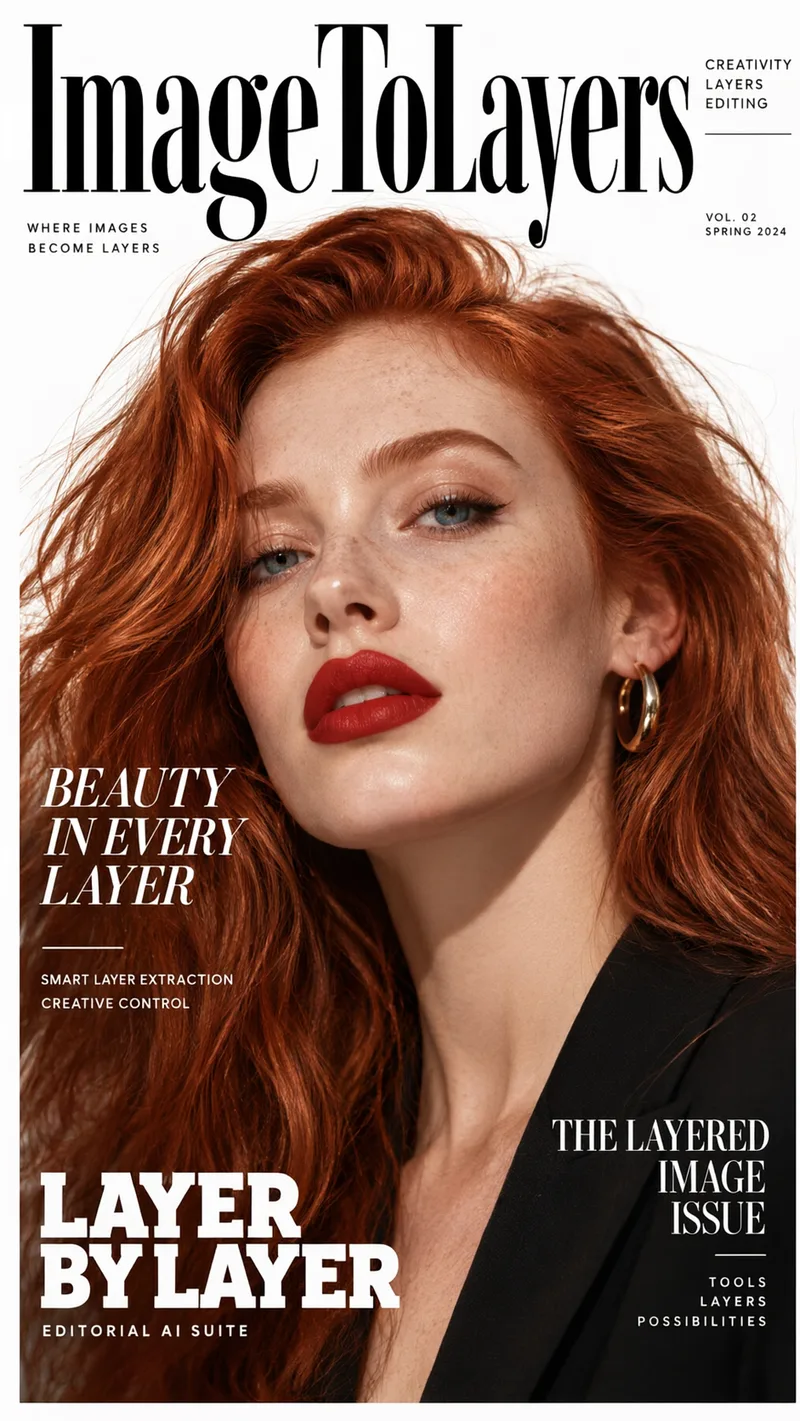
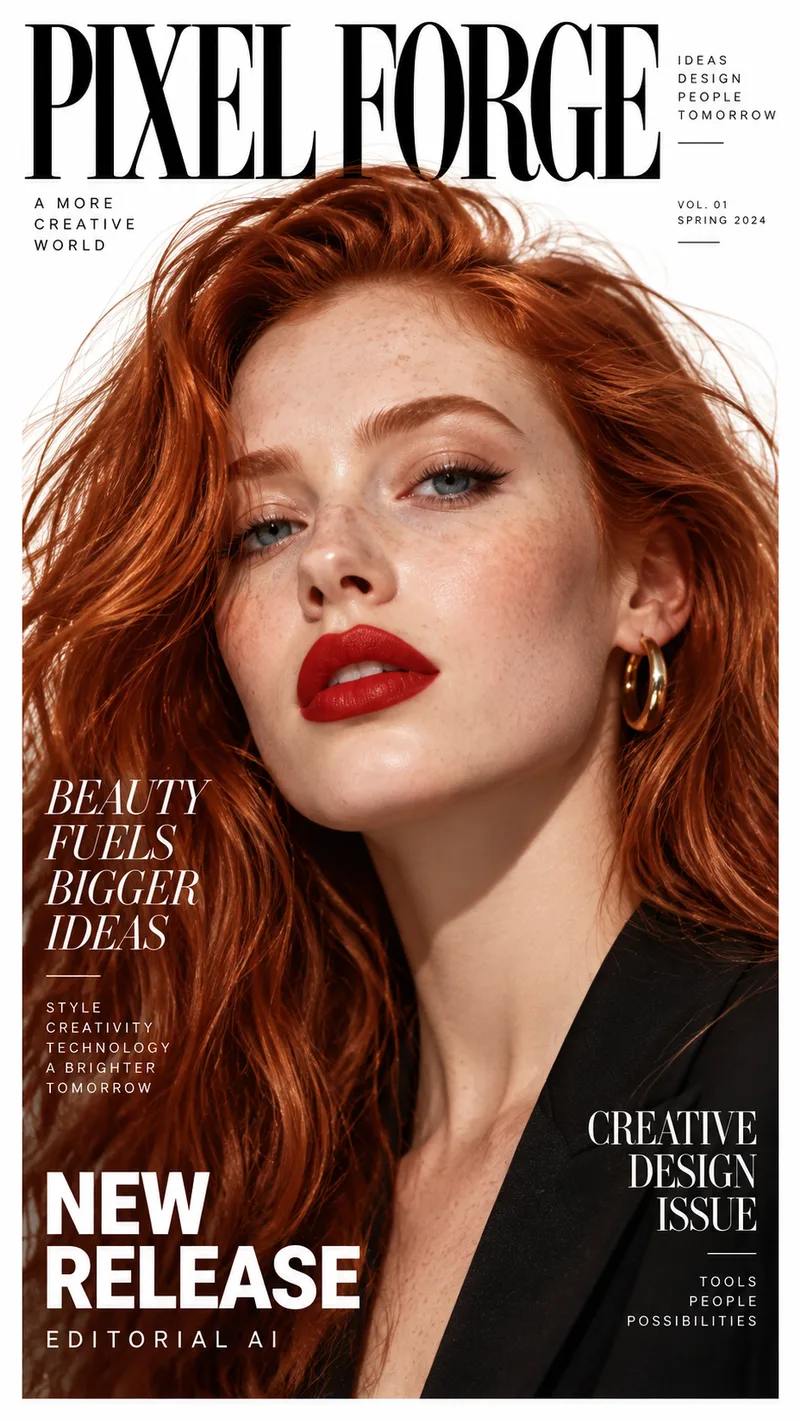
Rename a Magazine Cover
The photo and layout stay. The masthead, headlines, and small print are rewritten for a different title. Drag the slider to compare the original cover with the edited one.
Example change
PIXEL FORGE · BEAUTY FUELS BIGGER IDEAS · NEW RELEASE
ImageToLayers · BEAUTY IN EVERY LAYER · LAYER BY LAYER
Update several lines of text on the same image while aiming to keep the composition.
Results vary depending on text placement, image quality, font styling, and background complexity.
See it on a real ad
Every line of text on the ad is its own layer
This finished ad was split into a background, a photo, and separate text layers. Click any text block, change the wording, and see the update on the creative.
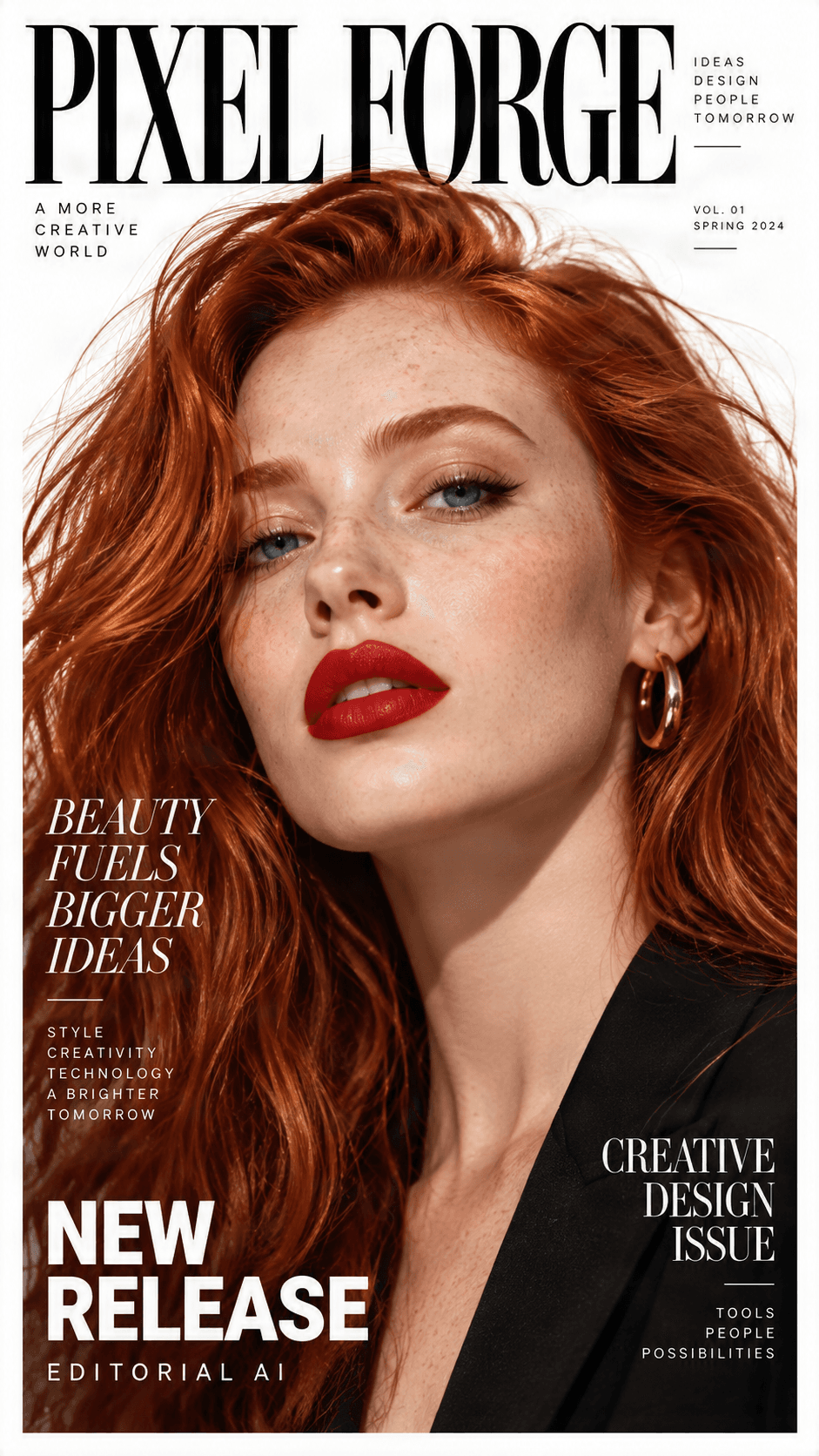
Original ad preview
Detected text, ready to edit
Click a text block, change the wording, and preview the update directly on the ad.

NEW RELEASE
Headline / Promo label

BEAUTY FUELS BIGGER IDEAS123
Campaign headline

CREATIVE DESIGN ISSUE
Secondary subhead

PIXEL FORGE
Brand logo
Background
Clean reconstructed image
Need to change more than the text?
Split any ad into separate text, image, logo, graphic, and background layers.
A familiar AI image problem
When AI Gets the Picture Right but the Words Wrong
The lighting is perfect, the composition works, and the image looks almost exactly the way you imagined. Then you notice the sign says “COFEE” instead of “COFFEE,” or the title is a strange mixture of symbols.
Generating again may change the character, colors, lighting, and layout you already like. If the text is the main problem, fixing the existing image is worth trying first.
Keep a Great Image
Skip the Rebuild
Start With a Flattened File
AI editing can change nearby pixels, so review important words and details before publishing.
Common AI text mistakes
Fix the Words That AI Did Not Get Right
Use the existing image as your starting point for the text problems people encounter most often.
Misspelled words
Garbled lettering
Incorrect poster titles
Wrong words on signs
Product graphics
Decorative text
Simple text correction
How to Fix Text in an AI-Generated Image
1. Upload your AI image
2. Identify the wrong text
3. Enter the correct words
4. Review and download
Keep what you love
Fix the Text. Keep the Artwork You Worked For.
A correction should fit the existing composition, colors, and visual mood instead of making the whole image feel newly designed. Ask the editor to preserve the surrounding artwork as much as possible.
Try to keep the original subject, background, placement, and lettering style. Exact font matching is not guaranteed, especially when the source lettering is decorative or was never a real font.
Keep the composition
Match the lettering style
Respect the background
Review fine details
Visible text correction is different from recovering an original editable text layer or font file.
Made for your AI artwork
Where AI Text Corrections Make a Difference
AI-generated book covers
AI posters and event graphics
Fantasy and game artwork
Product promotion images
Social media illustrations
Children’s story illustrations
Make the most of your image
Fix Text or Generate Again?
The right choice depends on how much of the image you want to keep.
Fix the existing image
Generate a new image
Choose deliberately
Get a cleaner correction
How to Make AI Text Fixes More Reliable
Use exact spelling
Correct one main area at a time
Keep replacement words short
Mention what to preserve
Pay attention to perspective
Zoom in before downloading
Set the right expectations
Helpful for Text Corrections, With a Few Limitations
Fonts may differ
Some lettering is not real text
Complex backgrounds need review
Longer words can change layout
Human review still matters
No source font is recovered
More ways to work with your images
Keep Editing After You Fix the Words
Edit Text in Image
Replace, translate, rewrite, or remove text in other supported images.
Explore toolRemove Text From an Image
Erase a headline or decorative caption and let the background be reconstructed.
Explore toolImage to Layers
Separate suitable visual elements into independent layers for more control.
Explore toolFrequently Asked Questions
Answers to common questions about correcting text in AI-generated images.
Why does AI generate incorrect text in images?
AI image models generate visual patterns, including patterns that look like letters. They may not reproduce every word or spelling instruction accurately, which can result in misspellings, missing letters, or unreadable text.
Can I fix text in an AI-generated image without regenerating it?
Yes. You can try editing the existing image and replacing the incorrect wording rather than creating a completely new picture. Review the result because nearby details may change.
How do I correct misspelled words in AI art?
Upload the image, identify the incorrect wording, enter the correct text, and submit the edit using the available controls. Compare the result with the original to check spelling and visual consistency.
Can I fix gibberish or unreadable AI-generated text?
You can attempt to replace garbled lettering with meaningful words. When the original characters are not recognizable, identify the text region and supply the intended wording.
Will fixing the text change the rest of my image?
The editor can attempt to preserve the surrounding artwork, but AI edits may still affect nearby pixels, textures, colors, or objects. Exact preservation is not guaranteed.
Can I keep the original font when correcting AI-generated text?
You can request a similar lettering style, color, and layout. The original AI lettering may not correspond to a real font, so an exact match may be impossible.
Can I correct a title on an AI-generated book cover?
Yes. Try replacing the incorrect title while keeping the cover artwork recognizable. Review spelling, composition, and lettering carefully before publishing.
Can I fix text on signs in AI-generated scenes?
Yes. Illustrated street signs, shop signs, posters, and similar elements are possible editing targets. Perspective, shadows, and textured surfaces can make some corrections harder.
Can I fix several incorrect words in one image?
You can work on images with multiple text areas, but complicated images may be easier to control when corrected in smaller, focused edits.
What if the original AI text is not a real word?
Identify the text area as precisely as the available controls allow and provide the words you want to see instead. Meaningless characters do not need to be transcribed as valid spelling.
Can I remove AI-generated text completely?
Yes. Use the remove workflow when you want unwanted lettering erased rather than replaced. Complex backgrounds may need additional attention.
Can I translate words in an AI-generated image?
The existing editor includes a Translate workflow for changing image text into another language. Check the translation and layout, especially when the new wording is longer.
Can I fix text in AI-generated product images?
You can edit wording in promotional or creative product images you own or have permission to modify. Verify product names, prices, and claims before using the result publicly.
Do I need Photoshop to correct AI-generated image text?
No. The online editor lets you upload an image and request text changes in your browser. You do not need an original Photoshop project to attempt a correction.
Can I download the corrected image?
Yes. When the edit is successfully completed, use the existing editor’s download controls to save the result.
Will the result be an editable PSD file?
Not necessarily. Text correction changes the visible image and does not automatically recover original text objects or font files. Explore Image to Layers for supported layered workflows.
Is the AI text fixer free?
Usage allowances and pricing depend on the current editor. Check the information displayed in the workspace before submitting an operation, and do not assume edits or retries are unlimited.
What should I do if the corrected text still looks wrong?
Check the exact replacement wording, try a more specific instruction, and focus on a smaller text region if supported. Complex fonts, tiny lettering, and detailed backgrounds may require additional attempts or manual finishing.
Your AI Image Deserves the Right Words
You already created an image worth keeping. Correct a misspelled headline, strange lettering, or incorrect sign without deliberately rebuilding the whole scene.
Fix my AI image textEdit images you own or have permission to modify. Always review important wording before publishing.