
Qwen Image Layered – Split Any Image into Editable RGBA Layers
Turn a flat image into multiple independent layers with AI. Separate subjects, backgrounds, objects, shadows, text, and visual elements so you can edit and recompose them individually.
Try Qwen Image Layered online
Upload your image and choose layer depth
Upload a JPG, PNG, or WebP image and choose how deeply you want AI to separate the composition.
Click or drag image to upload
Click or drag image to upload
JPG, PNG, or WebP · Maximum 10 MB
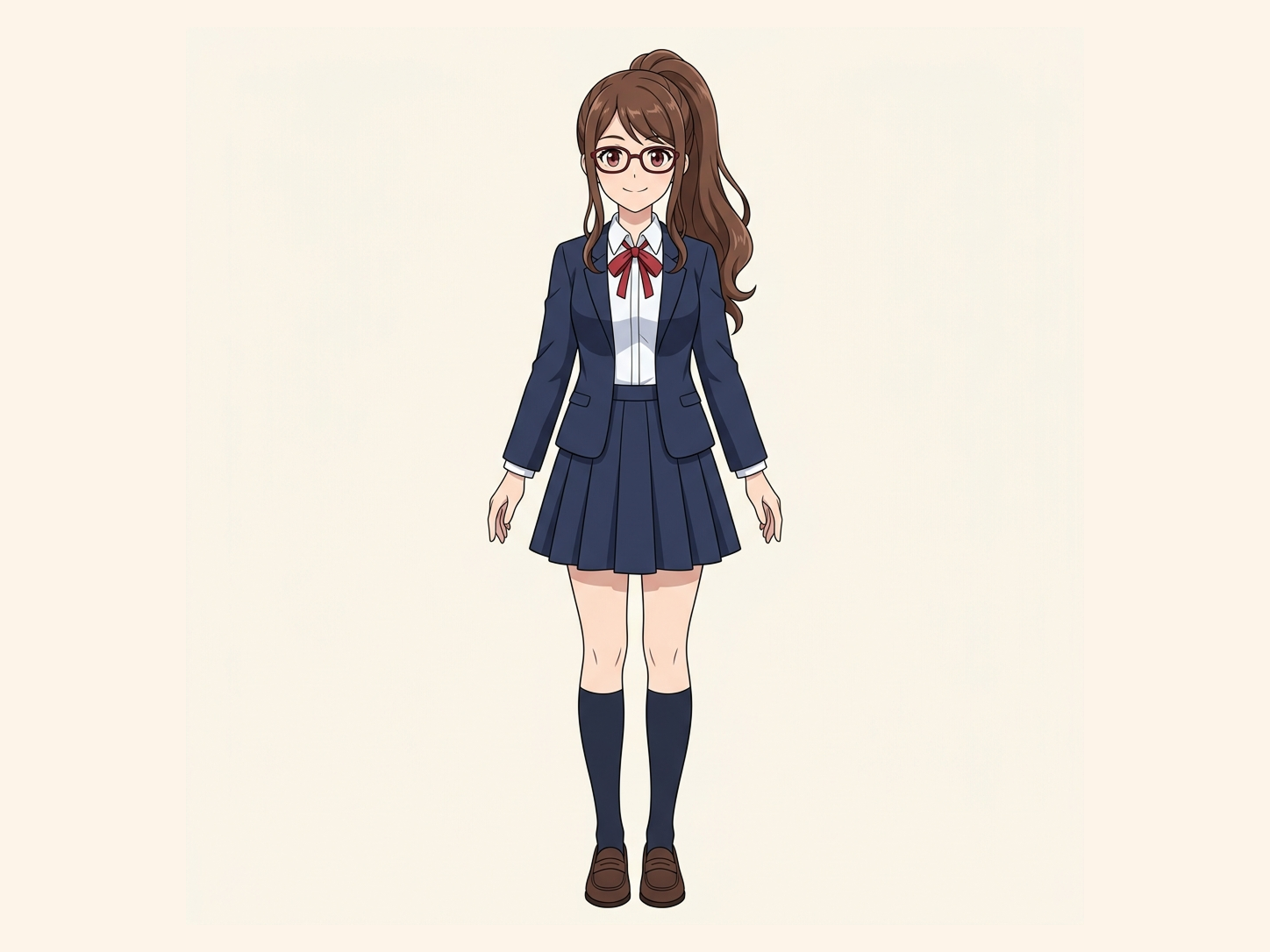
Need hair, face, eyes, mouth, clothing, or body-part layers?
Settings
Leave this blank to let Detailed Layers identify the main editable elements automatically. Or name the parts you want separated.
Want more control over your layers?
Learn how to guide Detailed Layers with simple prompts, choose useful elements, and get cleaner layer structures from different types of images.
Upload an Image to Continue
Private File Handling
Uploaded files are associated with your account and delivered through signed URLs. You can delete completed jobs manually.
Transparent PNG Output
Detailed Layers returns each detected element as its own layer on a transparent background.
Continue Editing in Agent Workspace
Multi-Agent SuiteOpen the layered result in Agent Workspace to clean up elements, create visual variations, or continue working from the same project.
Choose layer depth
Make layer count a first-class control
Qwen Image Layered supports variable-layer decomposition, so the first pass should match the visual structure of your image.
3 layers
SimpleBest for images with a clear subject, background, and one additional visual element.
4 layers
BalancedA good starting point for product photos, portraits, illustrations, and simple designs.
6 layers
DetailedSeparate more objects, props, shadows, overlays, and visual elements.
8 layers
ComplexFor compositions with many independently editable parts.
More layers do not always mean a better result. Start with the main visual groups, then split an individual layer again when you need finer control.
Real layered output
One flat image. Multiple editable assets.
Qwen Image Layered does more than remove a background. It decomposes the visual structure of an image into multiple transparent RGBA layers that can be inspected and edited separately.

 1
1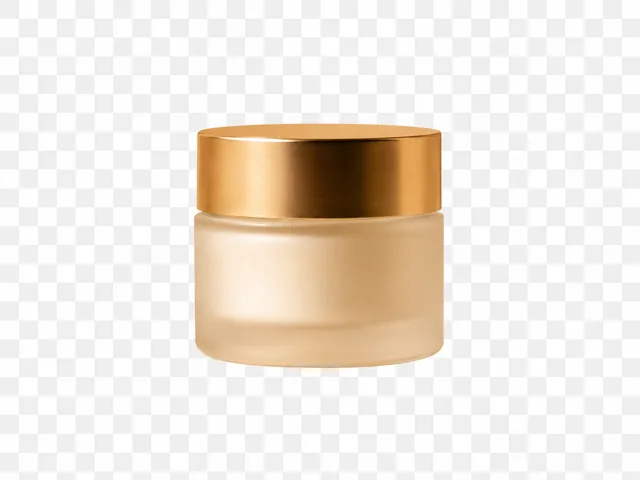 2
2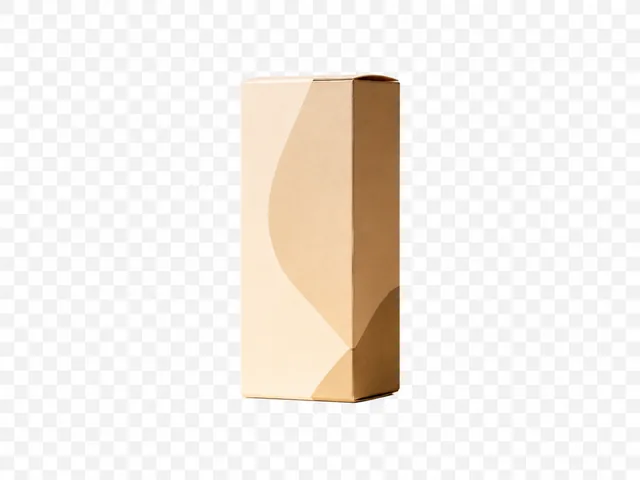 3
3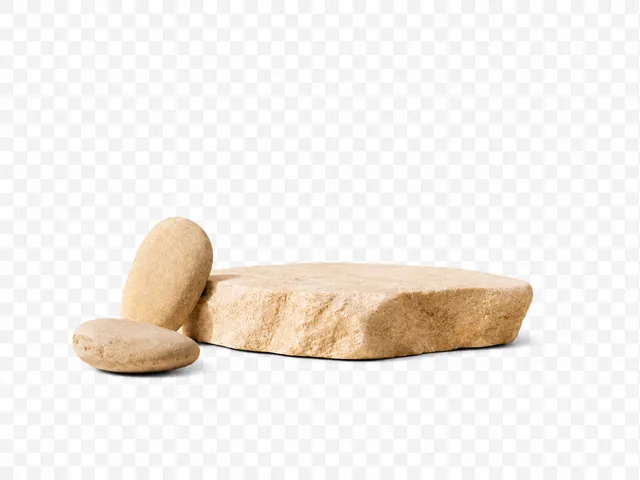 4
4 5
5Move a product without moving its shadow. Remove a prop without rebuilding the entire composition. Recolor one visual element while keeping everything else untouched.
About the model
What is Qwen Image Layered?
Qwen-Image-Layered is an AI model designed to decompose a single flattened image into multiple RGBA layers.
Instead of treating every pixel as part of one fixed canvas, the model separates semantic and structural elements into independent transparent assets.
That creates a layer-based workflow closer to traditional design software while automating much of the initial separation work.
Use the generated layers to reposition objects, remove elements, recolor individual assets, prepare artwork for animation, or build new compositions from an existing image.
Built for layer-based editing
What makes Qwen Image Layered different?
The model is designed for layer workflows, not just one foreground cutout.
Multi-layer RGBA decomposition
Output
RGBA layers
Control
Independent assets
Go beyond a simple foreground/background cutout and separate a flattened composition into multiple transparent assets.
Variable layer count
Simple
3 layers
Complex
8 layers
Use fewer layers for simple compositions or request more layers when the image contains objects, props, shadows, graphics, or foreground elements.
Independent layer editing
Edit
One element
Preserve
Rest of scene
Once an element is isolated, move it, resize it, recolor it, remove it, or replace it without changing every other part of the image.
Split layers again
First pass
Broad groups
Next pass
Finer detail
Start broad, inspect the result, then decompose an individual layer again when it still contains multiple elements.
Qwen Image Layered examples
See what AI layer decomposition can separate
Different images require different layer structures. These examples show how flattened visuals can become reusable editing assets.
Product photography
Luxury skincare product composition with bottle, jar, packaging, stone props, soft shadows, and studio background.
Generated layers
Separate products and props so each element can be repositioned or reused in new ecommerce compositions.
Advertising creative
Commercial beverage advertisement with product, splash effects, typography, background graphics, and foreground decoration.
Generated layers
Break complex marketing artwork into editable pieces for faster campaign variations and layout changes.
Character illustration
Stylized game character with environment, character body, weapon, foreground effects, and atmospheric elements.
Generated layers
Prepare character artwork for animation, compositing, parallax, and asset-level editing.
Landscape
Mountain landscape with sky, distant mountains, middle ground, foreground trees, and atmospheric elements.
Generated layers
Separate depth planes for parallax animation, motion design, compositing, or scene reconstruction.
Simple workflow
How to use Qwen Image Layered
Start with a broad layer structure, then refine only the pieces that need more control.
- Step 01
Upload your image
Choose a product photo, illustration, poster, character, landscape, or other flattened image.
- Step 02
Choose the number of layers
Select a simple or detailed decomposition based on how many independently editable visual groups the image contains.
- Step 03
Generate RGBA layers
Qwen Image Layered analyzes the composition and generates multiple transparent image layers.
- Step 04
Inspect, split, edit or export
Download the generated assets, export your project, or split an individual layer again when you need more granular control.
More than background removal
Qwen Image Layered vs background removal
A background remover answers one question: what is the foreground subject? Layer decomposition asks what independently editable elements make up this image.
Use background removal for quick cutouts. Use Qwen Image Layered when the scene contains multiple objects, props, overlays, depth planes, or shadows.
| Capability | Background remover | Qwen Image Layered |
|---|---|---|
| Remove background | Yes | Yes, as part of decomposition |
| Separate multiple objects | Limited | Yes |
| Transparent RGBA output | Yes | Yes |
| Separate props and overlays | No | Yes |
| Separate scene depth | No | Yes |
| Choose layer depth | No | Yes |
| Split a result further | No | Yes |
| Best for | Quick cutouts | Layer-based creative workflows |
Only need two layers?
Just the subject and the background? Try Background Splitter
When a photo only has one subject in front of a background, Background Splitter gives you a transparent foreground and a reconstructed background in one step, without setting up a full multi-object layer split.

Original photo
The source image with a single subject and background.

Transparent foreground
The subject isolated as a clean transparent PNG.

Reconstructed background
The scene behind the subject, rebuilt and reusable on its own.
Need more than two layers, multiple objects, props, or text? Use the workspace above instead.
Edit what you separate
Turn layer decomposition into a real editing workflow
Generating the layers is only the first step. Once the image has been decomposed, individual elements can become reusable creative assets.
Remove an object
Action: Hide or delete a separated element.
Layer workflow: Work on the isolated layer instead of manually selecting it from the flattened image.
Outcome: Cleaner removal without rebuilding the entire composition.
Move, resize, or recolor
Action: Adjust one product, prop, person, or design element.
Layer workflow: Edit the generated RGBA layer while the rest of the scene remains intact.
Outcome: Faster layout and color variants from the same source image.
Create motion and parallax
Action: Prepare flat artwork for movement.
Layer workflow: Use separate foreground, middle-ground, and background assets as animation planes.
Outcome: Shorter preparation time before compositing or motion design.
FAQ
What is Qwen Image Layered?
Qwen-Image-Layered is an image decomposition model that separates a flat image into multiple editable RGBA layers.
Can I use Qwen Image Layered online?
Yes. This page embeds the production Image to Layers workspace so you can upload an image and generate editable layer assets in the browser.
How do I choose the layer count?
Use 3 layers for simple scenes, 4 layers for balanced product or portrait images, 6 layers for detailed compositions, and 8 layers when many visual elements need separate control.
Do more layers always produce a better result?
No. More layers can help complex images, but simple scenes often work better with fewer clear groups. Start broad, inspect the output, then split a specific layer again if needed.
Which input formats are supported?
The workspace accepts common JPG, PNG, and WebP images.
How is this different from background removal?
Background removal usually creates a subject and background split. Qwen Image Layered can separate objects, props, shadows, overlays, text, and depth planes into independent assets.
What is an RGBA layer?
An RGBA layer is an image with red, green, blue, and alpha channels, allowing transparent pixels around the visible content.
Can I export a PSD?
Supported workflows can organize generated transparent layers into a layered PSD for continued editing in layer-based design software.
Can I split a generated layer again?
Recursive decomposition means taking one generated layer and splitting it into more granular sub-layers. Use it when a useful layer still contains multiple objects.
What types of images work well?
Product photography, advertising creative, character illustrations, ecommerce product scenes, landscapes, posters, and graphic designs are strong candidates when the elements are visually distinct.