
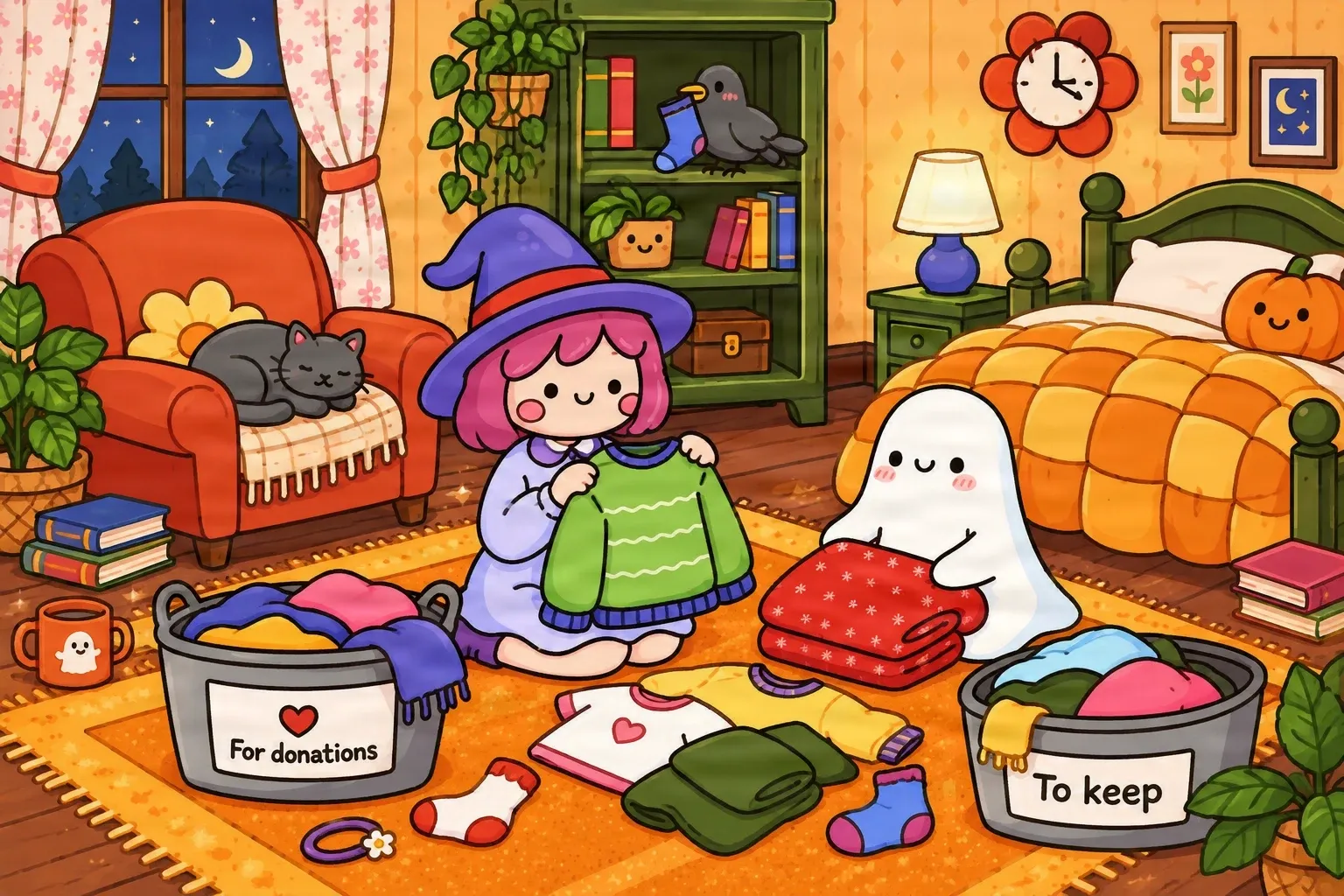
Everything Combined Into One Image
An illustrated bedroom scene with characters, furniture, decorations, and background elements flattened together.
Need to move a photo, remove a decoration, or change your collage layout? AI attempts to separate recognizable photos, paper pieces, decorative objects, and backgrounds into image layers you can review and rearrange.
Upload your image
JPG, PNG, WebP up to 10MB · Drag & drop anywhere
Leave this blank to let Detailed Layers identify the main editable elements automatically. Or name the parts you want separated.
Separate the Pieces Inside Your Collage
Start with a finished composition. Extract recognizable photos, paper cutouts, decorative objects, and background elements while preserving their visible appearance as closely as possible.
Upload an Image to Continue
Private File Handling
Uploaded files are associated with your account and delivered through signed URLs. You can delete completed jobs manually.
Transparent PNG Output
Detailed Layers returns each detected element as its own layer on a transparent background.
Review the credit cost displayed in the workspace before generating.
Tips for Better Results
REAL IMAGE LAYER SEPARATION EXAMPLE
A real illustration separation demonstrates how AI can identify visible objects and create a new layer structure. This example shows the underlying workflow, not a collage-specific test.
An illustrated bedroom scene with characters, furniture, decorations, and background elements flattened together.
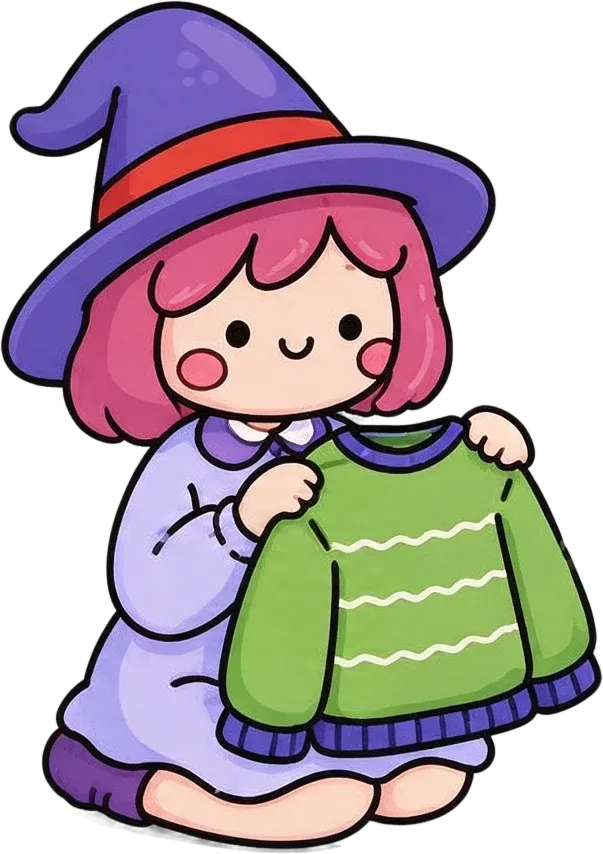


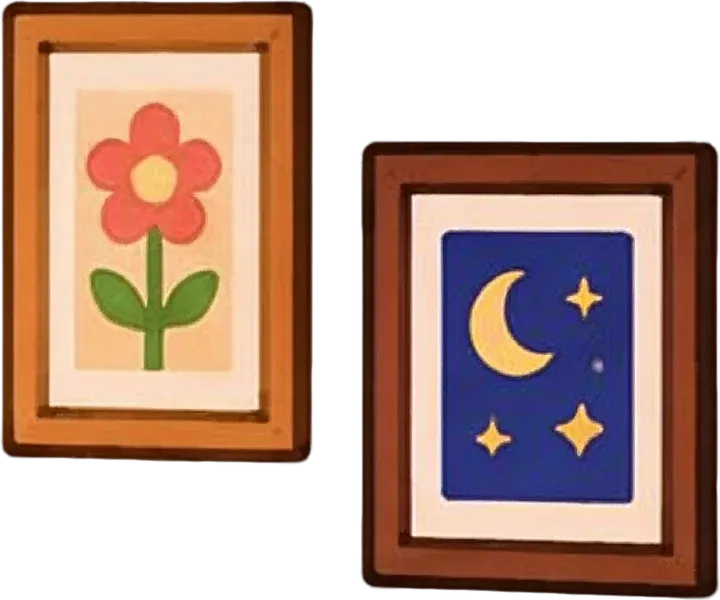
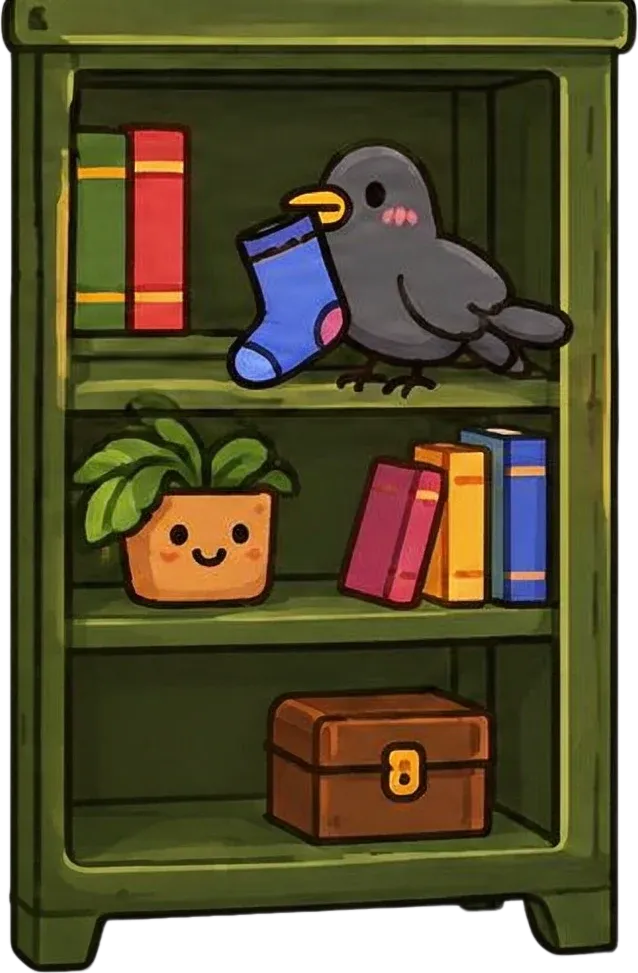
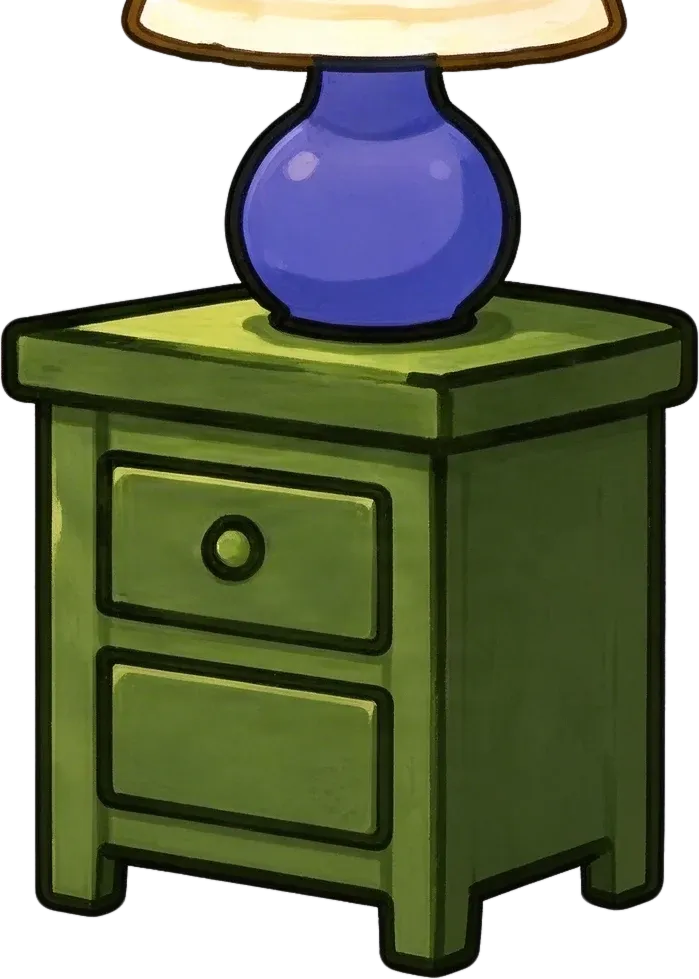
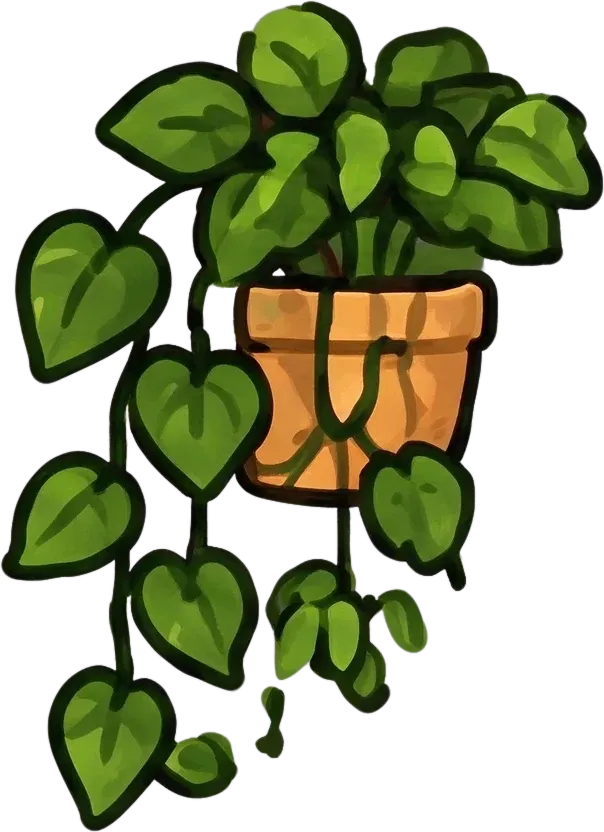


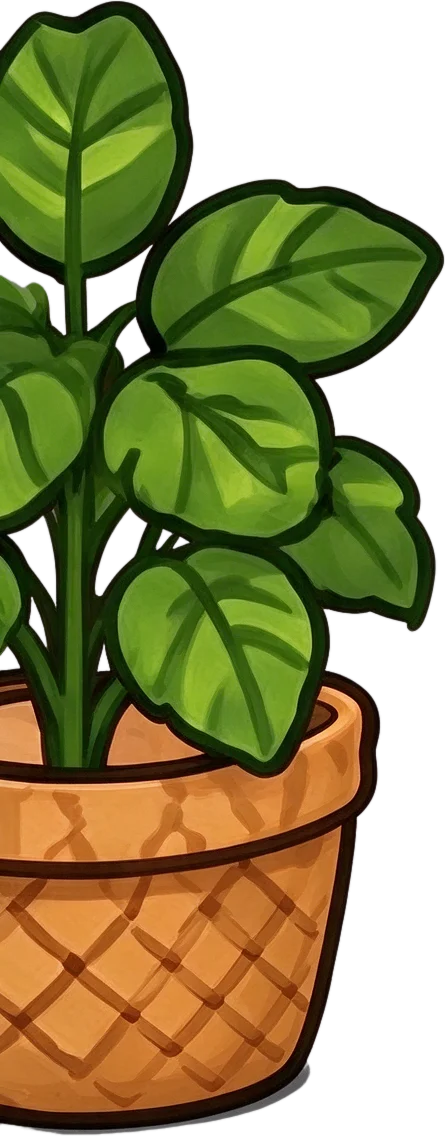


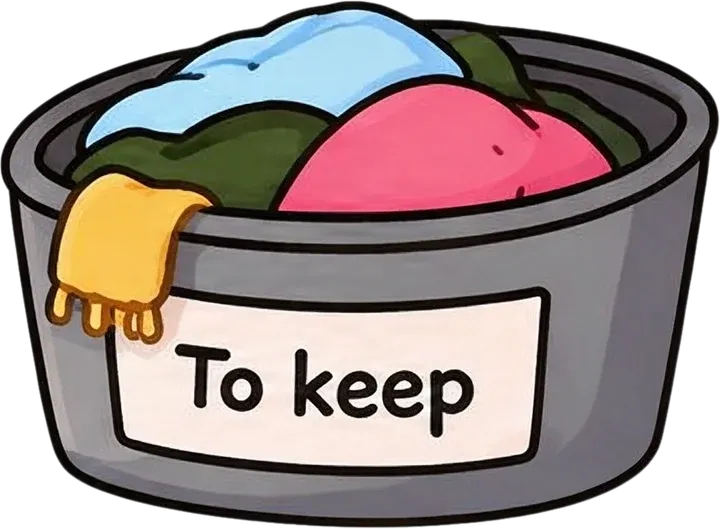

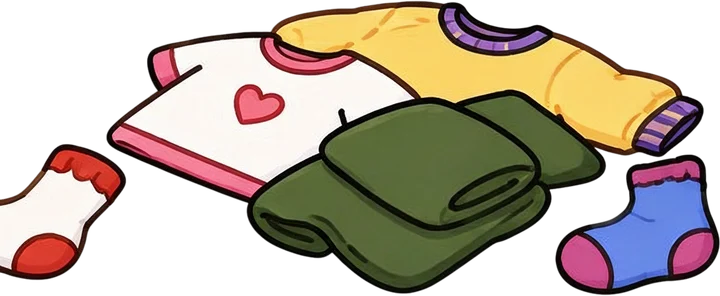
Fifteen of the 17 generated layers are displayed here. Inspect how recognizable characters, furniture, and decorative objects were separated.
This example uses a real AI separation result from an illustration, not a collage-specific test. It demonstrates the underlying layer workflow only. The model grouped some objects, duplicated a red clothing item, and clipped part of a sock. Collage-specific results for overlapping photographs, paper textures, and tape have not been verified by this example.
THE PROBLEM WITH FLATTENED COLLAGES
You've spent time arranging the perfect collage. The photos overlap beautifully, paper textures add depth, and every decoration helps tell the story. Then you notice that one photo needs to be larger, a piece of tape covers an important detail, or the background no longer fits.
If the collage has already been flattened, even a simple change can mean cutting around objects by hand, recreating hidden areas, and rebuilding the layout. Collage to Layers helps turn a flattened composition into a more editable starting point.
Common problems
Keep the creative work you've already done while making its individual pieces easier to work with.
MORE THAN ONE BACKGROUND-FREE IMAGE
A collage is a collection of visual elements arranged into a new composition. Some pieces may be photographs; others may be paper cutouts, illustrated decorations, stickers, frames, or textured backgrounds. The tool attempts to identify these components and create a more editable structure.
Extract recognizable photographic elements so you can reposition or reuse them independently where possible.
Separate visible paper pieces and decorative shapes when their boundaries can be identified.
Work with illustrated accents, stickers, and other decorative objects as independent elements where possible.
Attempt to isolate recognizable frames and surrounding decorations for layout changes.
Separate supported background from foreground elements and estimate some hidden regions.
Turn one finished design into visual elements that are easier to edit and rearrange.
HOW IT WORKS
1
Choose a digital scrapbook page, mixed-media composition, photo collage, or finished design. You don't need the original project file.
2
AI analyzes the image and attempts to identify recognizable photos, decorations, cutouts, and background regions.
3
Review extracted objects, transparent edges, layer placement, and reconstructed areas. Heavily overlapping pieces may remain grouped.
4
Use available editing and export options to rearrange elements or continue in your preferred design software.
PHOTO COLLAGE EDITING
Imagine a collage with four overlapping photographs. You love the overall design, but the most important image is partly hidden. You want to bring it forward, move it to the side, or reuse it in another composition.
When the collage is flattened, the photographs are no longer independent objects. AI-assisted separation can attempt to isolate recognizable photographic elements.
After successful extraction, you can
If a photograph is partly hidden, AI may reconstruct missing areas. Those areas won't necessarily match the original complete photo.
MADE FOR CREATIVE COMPOSITIONS
Many creative collages are intentionally messy. Photographs overlap torn paper, tape crosses corners, and textures connect the elements. That is part of what makes a collage interesting—and what can make it difficult to edit.
Collage to Layers can attempt to recognize distinct visual pieces even when they overlap.
Common collage elements
Explore a more editable version of your mixed-media design. Paper grain, shadows, translucent tape, and heavily overlapping shapes may need cleanup.
VISUAL DETAILS MATTER
A creative collage is more than a placement of images. Rough paper edges, aged photographs, and textured backgrounds give the composition its character. The AI attempts to maintain recognizable shapes, colors, textures, and object boundaries while separating elements.
AI processing can alter textures, edges, and the appearance of materials. Fine details are not guaranteed to remain pixel-identical.
Details worth checking
Review the separated elements to make sure they still fit the look of your original artwork.
EDIT ONLY WHAT NEEDS CHANGING
A sticker may be too bright, a photograph may no longer fit the theme, or a label may cover something important. You may not want to recreate the whole piece; you just want more control over that element.
Separating an image into layers can provide a starting point for selecting and removing individual objects.
Possible changes
Make focused changes while keeping the rest of your creative direction.
NO ORIGINAL PROJECT FILE?
Maybe you exported the collage months ago, no longer have its editable project, or received a flattened image from a client. You may not have the original photos, masks, and paper elements, but you still have the finished image.
Collage to Layers attempts to create new visual layers based on the objects visible in that image.
Rebuild a more editable composition, isolate recognizable objects, prepare transparent image elements, separate foreground and background, and reduce repetitive selection work.
The exact original Photoshop layers, source photos at their original resolution, hidden details with certainty, native text objects or fonts, original masks, smart objects, or adjustment layers.
You may not get the original project back, but you can create a new starting point for editing.
REUSE YOUR FAVORITE PARTS
A finished collage may contain a photograph, textured paper background, or decorative flower you'd like to use again. Once suitable objects are separated, they can be easier to reuse in another composition.
Possible new projects
Reuse visual elements you already like instead of repeating the entire cutout process.
CREATIVE WORKFLOWS
Rearrange recognizable photographs, textures, and decorative pieces inside a completed composition.
Extract selected elements from an existing page and reuse them in another layout.
Work with illustrations, photography, paper textures, and decorative objects in one editing workflow.
Make composition adjustments when a client provides only a flattened collage.
Prepare alternative arrangements for different content sizes and visual campaigns.
Prepare suitable extracted elements for designs or printable assets when you have the necessary rights.
Spend more time designing and less time separating the same objects repeatedly.
CHOOSE THE RIGHT TOOL
If your image is a regular grid of photographs, a basic image splitter may be enough. But when photos overlap, torn paper crosses their edges, or objects sit in front of one another, geometric cropping may not fit the task.
Collage to Layers attempts to identify meaningful visual objects within a more complex composition.
| Task | Basic Image Splitter | Collage to Layers |
|---|---|---|
| Split a regular photo grid | Suitable | May be unnecessary |
| Identify overlapping visual objects | Not its main purpose | Attempts object separation |
| Separate foreground decorations | Limited | Attempts object separation |
| Generate transparent object layers | Not generally its purpose | Supported layer workflow |
| Reconstruct hidden areas | Not generally available | AI-assisted estimates |
| Guarantee exact source pixels | Crops visible pixels | No |
Use a basic splitter for a regular grid. Try AI layer separation when your collage contains overlapping, irregular visual elements.
REALISTIC EXPECTATIONS
Collage to Layers interprets a flattened image and generates a new set of visual layers. It does not recover the original editing history. Depending on your image, some objects may stay grouped, thin edges or translucent tape may change, hidden areas may be reconstructed inaccurately, shadows may differ, and small text may change. Very crowded collages may exceed practical layer limits.
Use the result as an editable starting point, then make manual corrections where your final design needs greater precision.
BEFORE YOU GENERATE
High-quality source artwork provides more information about edges, details, and textures.
Photos and decorations with clear visual boundaries are generally easier to identify.
If objects obscure one another, the model may reconstruct hidden regions or leave some grouped.
AI may change tiny text or decorative lettering. Check important text carefully after processing.
Tape, translucent paper, shadows, and glass-like objects can be difficult to separate accurately.
A complete reconstructed collage may look convincing while individual assets still have imperfections.
Review the results before using extracted elements in professional or commercial designs.
DIFFERENT TYPES OF ARTWORK
Finished illustrated artwork
Separate illustrated characters, scenery, objects, and backgrounds to make a flattened illustration easier to edit and reuse.
Explore illustration layersMixed-media collage compositions
Separate photos, paper cutouts, textures, decorative objects, and overlapping elements so they can be rearranged or reused.
You are viewing this workflow
Both workflows use AI image separation. Choose the page that best describes the artwork you're editing.
Upload your finished collage and start the AI separation process. ImageToLayers attempts to identify recognizable photos, decorations, paper elements, and background regions and turn them into separate image layers.
Yes. The workflow can generate a new layered interpretation of a flattened image. It cannot recover the exact original layers, masks, effects, or editing history.
AI can attempt to identify and isolate recognizable photographs. If they overlap or are partly hidden, the result may contain reconstructed areas rather than the original complete photo.
It can attempt to separate overlapping photographic elements, but results depend on object boundaries and visible detail. Heavily overlapping photos may need further editing.
You can try. The tool may identify paper pieces as distinct objects, but irregular edges, shadows, and texture details can change during AI processing.
Major decorative objects may be extracted into individual layers when recognized. Small or translucent elements, such as thin tape, may remain grouped or need manual cleanup.
Yes. A basic collage splitter generally crops a regular image grid. This workflow attempts to separate recognizable objects inside more complex compositions, including overlapping elements.
Not necessarily. Objects may remain grouped when they overlap, touch, or form one visual unit. The model also has a practical limit on the number of layers.
AI separation aims to retain visible details but may change pixels, textures, or reconstructed edges. It does not restore the original full-resolution photos used to create the collage.
When objects are separated successfully, you can work with their position and stacking order using available editing tools. Some elements may still need manual adjustment.
AI may estimate background regions hidden behind objects, but reconstruction is not guaranteed to be accurate and may require manual cleanup.
Yes. Supported transparent image exports can be imported into Photoshop. Applicable PSD export functionality is available for supported paid accounts.
You can import supported downloaded image elements into Canva and arrange them in a new composition. The tool does not automatically create a native Canva design project.
You can try extracting recognizable scrapbook decorations, photographs, and paper elements. Results vary with overlap, texture, and page complexity.
You can upload supported digital images of either type. Photos of physical collages may include lighting, shadows, and surface textures that affect separation.
The AI attempts to preserve visible appearance, but torn edges, fine textures, and shadows may change. Review these details individually after processing.
No. Text inside a flattened image is treated as image content. Separating a text region does not recover its original font, formatting, or editable text object.
It may work with complex images, but very crowded compositions are more likely to produce merged objects, missing elements, or imperfect reconstructions.
You can use generated assets according to the service terms and the rights you hold to the source images. Make sure you have permission to modify, reuse, and distribute included photographs, illustrations, and other materials.
Collage to Layers uses a credit-based AI processing workflow. The required cost is shown in the workspace before generation. Review your available credits and export options before starting.
Separate characters, objects, and scenery from a finished illustration.
Extract complete illustrated objects and decorative motifs from an image.
Extract individual sticker designs from a finished sticker sheet.
Create a new editable layer structure from a flattened image.
Use the general-purpose image layer separation workflow.
You don't need to rebuild an entire collage just to move one photograph or change a decoration. Upload the design you already have, separate recognizable elements into editable layers, and explore new arrangements using the parts you've already created.
Separate My CollageUpload your image and review the generation cost before starting.
Creative Toolkit Index
Quick access to precision layer extraction, AI photo editing & asset tools.