
Love Your AI-Generated Poster? Turn It into Editable PSD Layers.
Click or drag image to upload
Upload your AI poster
JPG, PNG or WebP up to 10MB
Settings
Leave this blank to let Detailed Layers identify the main editable elements automatically. Or name the parts you want separated.
Separate the Parts of Your AI Poster You Want to Edit
Focus on the title, main subject, supporting graphics and background. Leave the description blank to let AI identify the major elements automatically.
Upload an Image to Continue
Private File Handling
Uploaded files are associated with your account and delivered through signed URLs. You can delete completed jobs manually.
Transparent PNG Output
Detailed Layers returns each detected element as its own layer on a transparent background.
Continue Editing in Agent Workspace
Multi-Agent SuiteOpen the layered result in Agent Workspace to clean up elements, create visual variations, or continue working from the same project.
Upload a JPG, PNG or WebP that you're authorized to edit. Separation quality depends on the image.
60 credits per generation · Credits refunded for failed generations under the existing refund process · No manual tracing needed to get started
YOU ALREADY GENERATED THE POSTER. START THERE.
Split Your AI Poster into Image Layers
You don't need to recreate the image or generate a new poster from scratch.
Upload the one you already like. The tool will attempt to separate its main subjects, title artwork, decorative graphics and background into image layers.
Leave the optional description blank for automatic separation, or tell AI which parts you want to work with.
Keep the artwork you like. Work with the pieces individually. Export a layered PSD and continue designing.
60 credits per Detailed Layers generation. The model determines how many image layers to produce.
THIS IS AN ACTUAL AI POSTER SEPARATION
From One AI-Generated Poster to Eight Image Layers
This example started with a single AI-generated image — no hand-built Photoshop project or original layer stack, just a finished poster.
We used the existing Detailed Layers workflow to separate it into eight image layers. Explore how the design is divided into foreground subjects, title artwork, supporting graphics and backgrounds.
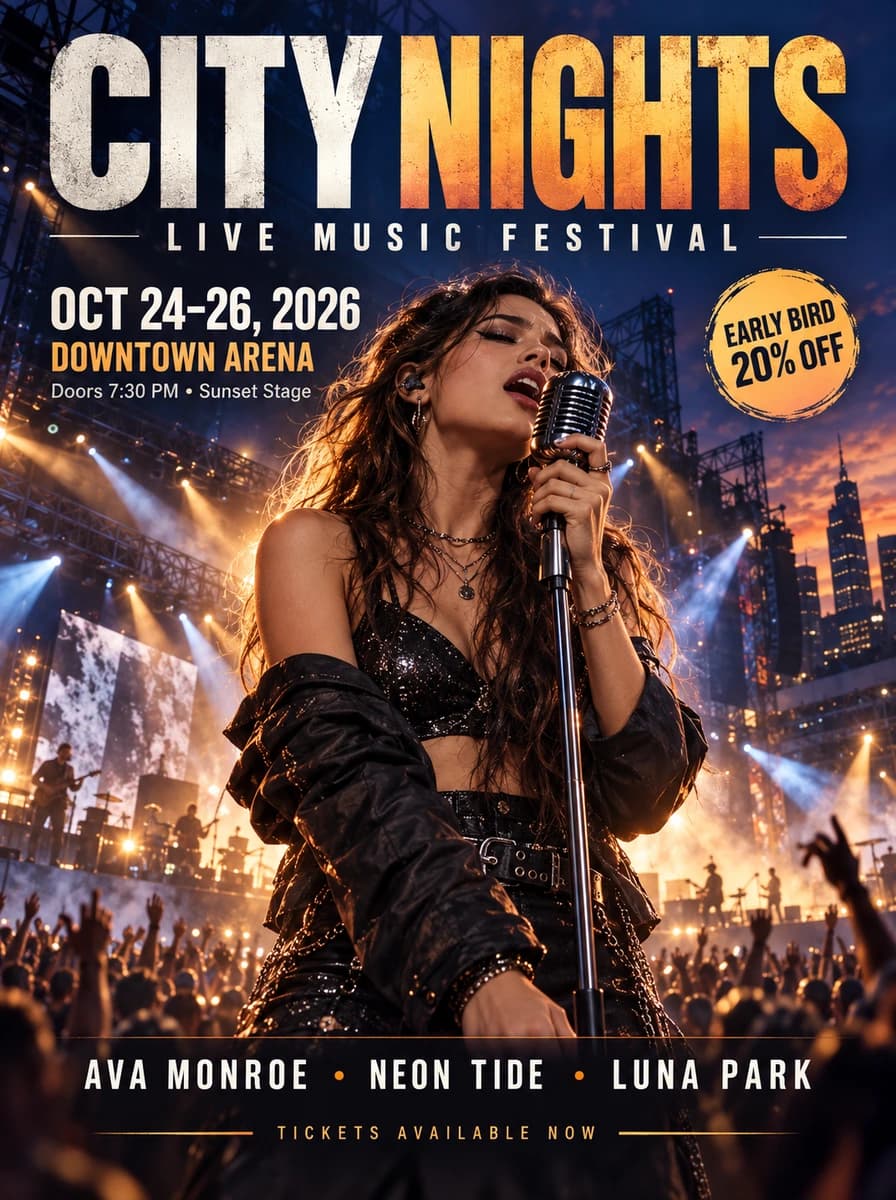
Explore the Eight Separated Layers
Select an element to inspect the image layer generated from the original poster.
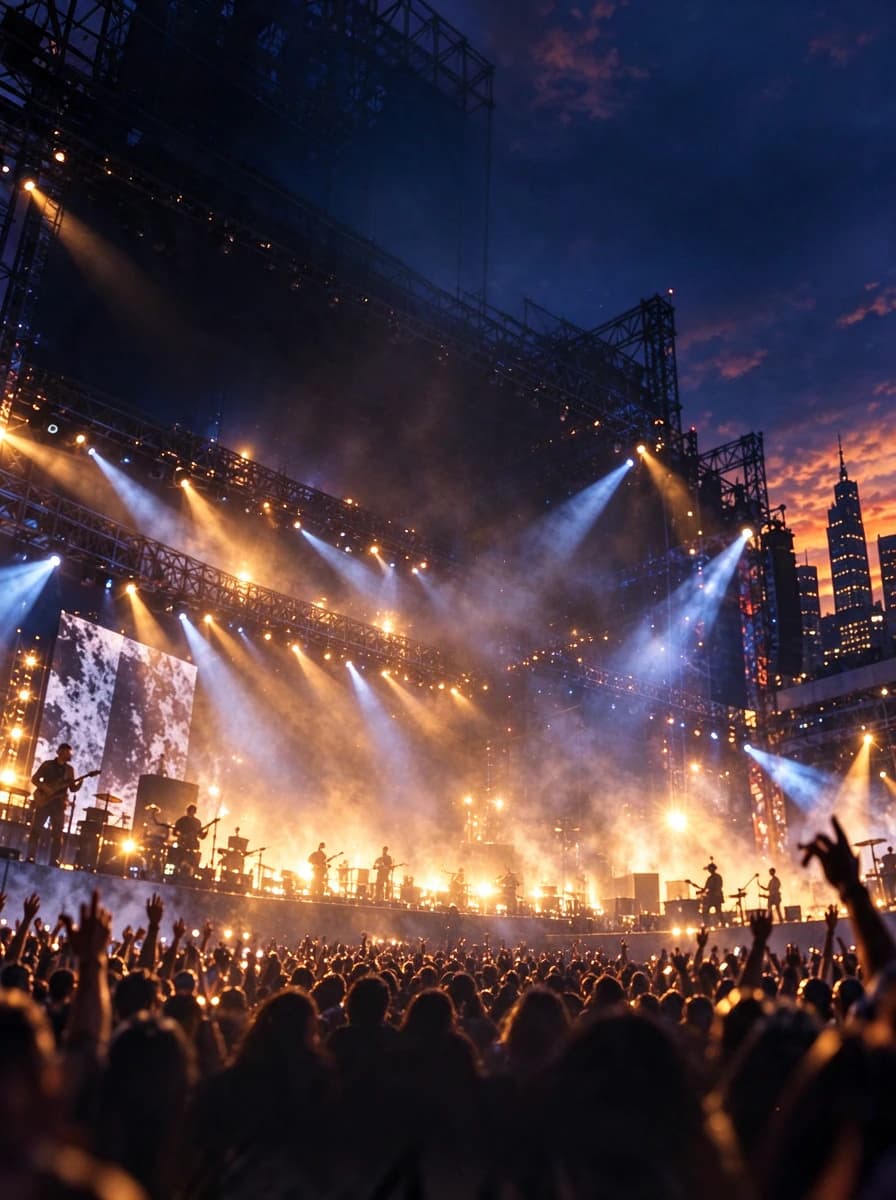
01 — Background Plate
The full-canvas base background generated by the separation workflow.
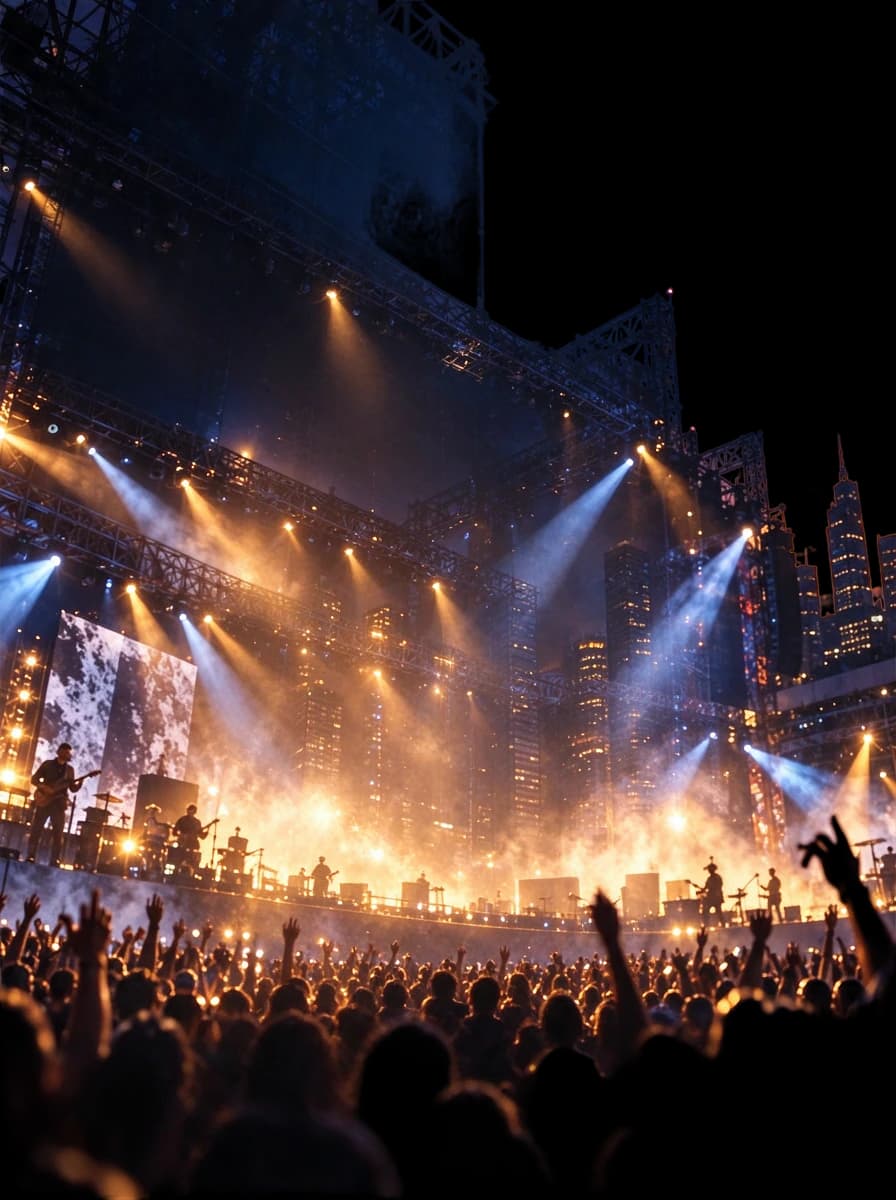
02 — Concert Background
Stage scenery, lighting and surrounding atmosphere grouped into another background image layer.
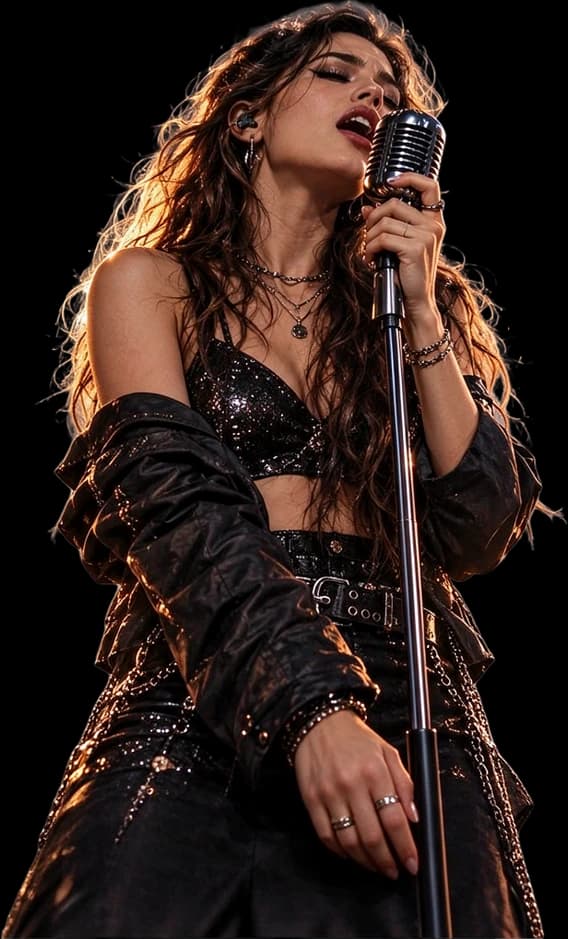
03 — Singer & Microphone
The foreground performer and microphone separated from the surrounding composition.

04 — Festival Subtitle
The LIVE MUSIC FESTIVAL lettering extracted as raster text artwork.
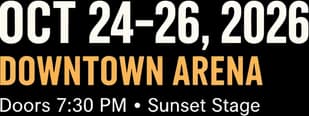
05 — Event Information
The visible event date and venue details grouped into an image layer.

06 — Lineup & Footer
The lineup and ticket information extracted as supporting text artwork.
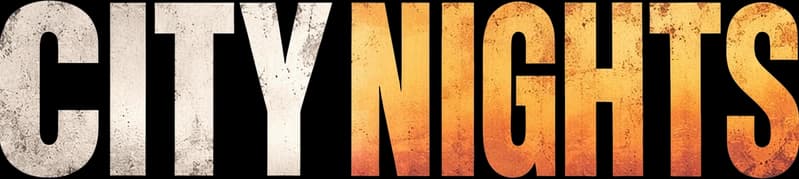
07 — CITY NIGHTS Headline
The large poster title separated as its own raster image layer.
08 — Promotional Badge
The EARLY BIRD graphic extracted into a separate image layer.
CITY NIGHTS is an AI-generated music festival poster. The eight displayed image layers are actual outputs from our AI separation workflow, not manually recreated layers from an original PSD. This is one example, not a guarantee that every AI-generated poster will produce eight layers or the same quality.
AI MADE THE POSTER. NOW YOU NEED TO FINISH THE DESIGN.
The Poster Looks Great — Until You Need to Change Something.
You spent time getting the prompt right. The colors work, the composition looks good and the subject is close to what you wanted.
Then you try to finish the design. The headline is too close to the edge. The character needs to move. You want to remove a promotional badge, or your client needs the poster in a different layout.
But your image generator gave you a single PNG. The title, character, lighting, decorations and background are all part of the same flattened image. You cannot simply grab the title and drag it somewhere else.
Generating the entire poster again might change the parts you already liked. You need more control over the image you already have, not necessarily another image generation.
Keep the artwork you like. Work with the pieces individually.
AI-Generated Poster to PSD creates a new starting point with separated raster image layers you can take into your design workflow.
KEEP THE GOOD PARTS. REWORK THE REST.
Make Your AI Poster Easier to Edit
Move the Main Character
If successfully separated, reposition the character layer in a compatible PSD editor to make room for a headline.
Reposition the Headline
Separated title artwork may be moved, hidden or replaced without moving the entire image.
Hide an Unwanted Graphic
If a badge, decorative shape or visual detail is separated into its own image layer, hide it during further editing.
Work with the Background
Inspect the AI-generated background plate separately from foreground subjects and refine it for a new layout.
Reuse a Visual Element
Take a separated subject, title graphic or decorative element into another authorized design project.
Continue the Design in Photoshop
Export a layered PSD, open it in compatible editing software and continue refining the layout.
AI separation creates raster image layers. It does not automatically recover original Photoshop text objects, vectors, fonts or a complete editable design history.
WHAT HAPPENS WHEN YOU MOVE AN ELEMENT?
Your Background Matters as Much as Your Cutouts
Imagine AI generated a poster with a character standing in front of a dramatic city skyline. You love the skyline, but want the character farther to the left.
When the image is flattened, the part of the skyline behind the character is not available as a separate original asset. Simply cutting out the character can leave a gap. Detailed Layers can attempt to reconstruct hidden background areas so you can inspect and refine them.
Behind the Main Subject
View the AI-estimated scenery where the foreground subject was originally placed.
Behind the Headline
Hide separated title artwork and inspect the background beneath it.
Behind a Badge or Decoration
Explore what remains when you hide a separated promotional graphic.
Hide the Headline. See What's Underneath.
Use the actual CITY NIGHTS image layers to switch off visible elements and inspect the underlying generated image.
Toggle a layer to explore the composition underneath
AI reconstruction estimates hidden details. It does not recover original unseen pixels. Textures, architecture, lighting and object details may be altered or invented and can require manual cleanup.
GIVE YOUR AI POSTER A NEW EDITING STARTING POINT
A PNG Is a Finished Image. A Layered PSD Gives You More Control.
The AI Poster You Downloaded
Everything is combined into one image. You can edit the complete picture, but moving a single design element can be difficult when its pixels overlap the rest of the composition.
Typical file: PNG, JPG or WebP.
The AI-Separated PSD
A layered PSD containing separate raster image elements you can work with individually in compatible editing software.
A new layer-based representation of the image.
What You Gain
- Separate visual image elements
- Foreground subjects where successfully isolated
- Text artwork that may be moved or hidden
- Background image layers
- Transparent cutouts where available
- A layered PSD for additional design work
This is not the original editable design project, and the model may not separate every element individually.
UNDERSTAND THE ACTUAL PSD OUTPUT
Edit the Layers — Don't Expect the Original Source File
What You Can Work With
- Main SubjectsAI may isolate people, illustrated characters, products or other foreground objects.
- Title ArtworkLarge visible lettering may be separated into independent raster image layers.
- Decorative GraphicsBadges, shapes, stickers and some supporting elements may be extracted.
- Background LayersThe result may include background plates with estimated reconstruction behind foreground elements.
- Layer ArrangementWork with separated images independently in a PSD-compatible editor.
What It Does Not Automatically Recover
- Native Photoshop TextA picture of the words CITY NIGHTS is not the same as a retypable Photoshop text object.
- Original FontsFont family names, exact font files and original text settings are not recovered.
- Vector ShapesFlattened graphics are not automatically recreated as original vector paths.
- Smart Objects and Adjustment LayersThe model does not reconstruct the original designer's hidden document structure.
- A Perfectly Accurate BackgroundAI-estimated areas may contain artifacts or invented visual details.
- Every Tiny Object on Its Own LayerClosely overlapping shapes, small text or dense decorations may remain grouped together.
FROM AI IMAGE EXPORT TO LAYERED PSD
Four Steps to Keep Editing Your AI Poster
- Step 1
Upload Your AI Poster
Choose the JPG, PNG or WebP file you exported from your image generator. Use the highest-quality version available.
- Step 2
Let AI Separate the Artwork
Leave the optional description blank or specify the subject, title, decorations and background you want prioritized.
- Step 3
Review the Generated Layers
Inspect text artwork, subject boundaries, transparent cutouts and reconstructed background areas. Look closely at small details and overlaps.
- Step 4
Export a Layered PSD
Download available image layers or the PSD and continue refining your poster in compatible editing software.
The resulting layers may need manual retouching before they are suitable for final delivery.
GENERATE FIRST. REFINE WHAT YOU LIKE.
Turn Your Favorite AI Poster into a More Flexible Design Asset
AI Event Posters
Revise the title or subject placement in an AI-generated event graphic.
AI Movie-Style Posters
Adjust the title, character or background in cinematic artwork.
AI Music & Festival Posters
Keep the performer and lighting while refining title placement and supporting artwork.
AI Product Promotion Posters
Move the product, hide a badge or work with the background independently.
AI Fantasy & Character Posters
Attempt to isolate a generated character and decorative elements for a new layout.
AI Art Prints
Refine a generated composition before preparing it for a creative project.
Layer separation does not automatically make artwork print-ready or fix every image-generation error. Review resolution, text, visual quality and usage rights separately.
YOUR AI IMAGE IS A STARTING POINT FOR REAL DESIGN WORK
Built for People Who Want to Finish What AI Started
Graphic Designers
Use AI to explore poster concepts, then refine the final layout and visual hierarchy.
Freelancers
Prepare a more flexible image-layer document from a client’s AI-generated PNG.
Marketing Teams
Adapt visible elements from an AI-generated campaign concept into another promotional composition.
Event Organizers
Arrange an AI-generated poster for a new event announcement.
Independent Creators
Keep the artwork you generated while refining title placement, foreground elements and backgrounds.
Creative Agencies
Turn selected AI concepts into a layer-based starting point for further professional editing.
GET MORE USEFUL LAYERS FROM YOUR IMAGE
A Good Source Makes the Result Easier to Refine
Use the Best-Quality Export
Start with a clear image rather than a compressed screenshot.
Keep the Main Subject Visible
Avoid cropping important parts of a person, product or illustration if you want to isolate them.
Give Clear Priorities
For complex artwork, name the main character, title artwork and background.
Be Careful with AI-Generated Text
Letters may already be distorted in the source. Layer separation does not correct spelling or restore the intended font.
Inspect Small Decorative Details
Tiny patterns, complex ornaments and overlapping objects may remain grouped or be altered.
Check Transparency and Edges
Look closely around hair, glass, smoke, lighting effects and irregular silhouettes.
Compare with the Original Image
Review important visual details before using the result in a final design.
PICK THE RIGHT TOOL FOR YOUR NEXT STEP
Need a Poster PSD, General Image Layers or Different Text?
I Generated a Poster and Want a Layered PSD
Separate poster titles, subjects, graphics and background elements into raster image layers for further editing.
Split My AI PosterI Generated a Different Kind of AI Image
Use AI Generated Image to Layers for subjects, foreground objects and backgrounds in AI illustrations or images that are not primarily poster designs.
Explore AI Image to LayersSeparating title artwork creates an image layer. It does not automatically create native, retypable Photoshop text.
START WITH THE POSTER YOU ALREADY GENERATED
One AI Poster. One Detailed Layers Generation.
Each Detailed Layers generation costs 60 credits. Upload your existing image and attempt to separate its visible elements into image layers for further editing.
Available Workflow Outputs
- AI-separated raster image layers
- Individual image-layer exports
- Transparent PNGs for supported foreground elements
- Background image layers where generated
- Layered PSD export
Applicable credits are refunded when generation fails under the existing failed-job credit refund process.
A completed result may still need manual cleanup. Successful generation does not guarantee perfectly isolated elements, accurate fine text or a particular layer count.
Split My AI PosterCOMMON QUESTIONS
AI-Generated Poster to PSD FAQs
Can I convert an AI-generated poster into a layered PSD?
Yes. Upload a supported AI-generated poster image and the tool will attempt to separate visible elements into raster image layers. Export a layered PSD for further editing.
Can I turn a ChatGPT-generated poster into Photoshop layers?
Upload a poster image exported from ChatGPT and attempt to separate its title artwork, subjects, graphics and background. The tool works from the image file, not hidden source layers.
Does it work with Midjourney posters?
You can upload supported JPG, PNG or WebP poster exports from Midjourney. Separation quality depends on the image itself, not a direct integration with the generator.
Can I use an image generated by Adobe Firefly, FLUX or Stable Diffusion?
Yes. The workflow accepts supported image formats regardless of which generator created the artwork, subject to the service’s usage rules.
Do I need the original AI generation prompt?
No. You only need the exported image. The original prompt, seed and generation settings are not required.
Can it separate the headline from my AI poster?
The model can attempt to extract prominent title artwork into a separate raster layer. Complex typography, overlaps and lighting effects may affect the result.
Will the title become editable Photoshop text?
Not automatically. Separated lettering is generally an image layer, not native Photoshop text. Original font settings are not recovered.
Can I move the character after exporting the PSD?
If successfully isolated, reposition its image layer in a compatible PSD editor. You may need to refine edges, shadows and the underlying background.
Can it separate multiple characters?
It may isolate distinct subjects, but does not guarantee one layer per character. Overlapping characters may remain grouped.
Can AI reconstruct the background behind a character?
The model can attempt to generate background imagery behind separated foreground elements. Hidden details are estimates and may need manual correction.
Can I separate decorative graphics and badges?
Visually distinct badges, shapes and decorations may become separate layers. Small or heavily overlapping details may remain grouped.
Will it fix misspelled AI-generated text?
No. Layer separation does not automatically correct wording. For visible text changes, use a dedicated text-editing workflow or replace the text artwork in your editor.
Does it make the original AI image completely editable?
It creates editable raster image layers, not a fully recovered source design. Native text, original vectors, smart objects and complete creation history are not reconstructed.
How many layers will my AI poster have?
There is no fixed number. The model determines the separation based on visual content. CITY NIGHTS produced eight layers, but your image may produce more or fewer.
Can I specify which elements should be separated?
Yes. Enter an optional description such as “main character, headline, badge and background.” This guides the process but does not guarantee an exact layer structure.
Do I need to write a separation prompt?
No. Leave the optional description blank and let AI attempt to identify the main elements automatically.
Can I download individual transparent PNG layers?
The Detailed Layers workflow provides image-layer exports, including transparent PNGs for supported separated foreground elements. Background layers may be opaque.
Will the PSD open in Adobe Photoshop?
The output is intended for compatible PSD editing software, including Photoshop. Review the resulting layers and composition after opening it.
Will separating my AI poster preserve every detail exactly?
Not guaranteed. AI processing may alter fine details, text artwork, lighting, object boundaries or reconstructed background areas. Compare the result with your original.
Is the CITY NIGHTS example a real AI-generated poster?
Yes. The original sample poster was AI-generated, and the eight displayed layers are actual outputs from the existing AI separation process. They were not manually recreated from a source PSD.
Can I use the PSD to create another poster size?
Separated image layers can help with manual layout adaptation, but the tool does not automatically produce every aspect ratio or extend backgrounds to fit new dimensions.
Can I use the separated layers for commercial designs?
You may work with artwork you have the necessary rights to use. Commercial permissions can depend on the source generator’s terms and third-party materials. Separation does not grant additional rights.
How much does AI poster separation cost?
A Detailed Layers generation costs 60 credits. The workspace displays the current charge before you start.
What happens if my generation fails?
Failed jobs are handled through the existing credit refund workflow. A completed result that needs manual cleanup is not necessarily classified as a failed generation.
YOU ALREADY HAVE THE IMAGE YOU WANT
Don't Generate Another Poster Just Because You Need to Move Something.
Keep the character you like. Keep the colors and background that made the image work. Keep the title artwork if it is worth keeping.
Start with the finished AI-generated image, separate its visible elements and export a layered PSD for further design work.
Split My AI PosterJPG, PNG or WebP · 60 credits per generation · Image-layer and PSD exports
AI creates a new raster image-layer structure. It does not recover the original source project or guarantee perfect separation.
Related Tools
Poster to Editable PSD
Convert other kinds of flattened posters into separate image layers for further editing.
AI Generated Image to Layers
Separate subjects, objects and backgrounds from AI-generated images that are not specifically posters.
Event Poster to PSD
Work with event headlines, performer artwork, promotional graphics and backgrounds.
Movie Poster to PSD
Separate character art, title artwork and cinematic backgrounds in authorized movie poster designs.
Edit Text in Poster
Change visible text when updating the wording matters more than separating the full composition.
Image to PSD
Convert other flattened images into raster image layers and export a PSD.