Looking for a PhotoCraft Alternative?
Go beyond manual image preparation with AI-powered layer separation and a connected online editing workflow.
Have an image you love, but no original layered file? ImageToLayers helps you separate subjects, objects, and backgrounds into editable visual layers using AI.
Open the result in our built-in layer editor to adjust individual elements, refine your composition, and export your work. Instead of manually separating every object from a finished image, start with AI-generated layers and take creative control from there.
Upload JPG, PNG, or WebP · Preview generated layers · Pay only for the processing you choose
Start With the Image You Already Have
Upload a finished image and let AI identify visual elements that can be separated. Once processing is complete, open your project to inspect the generated layers and continue editing.
Click or drag image to decompose into PSD
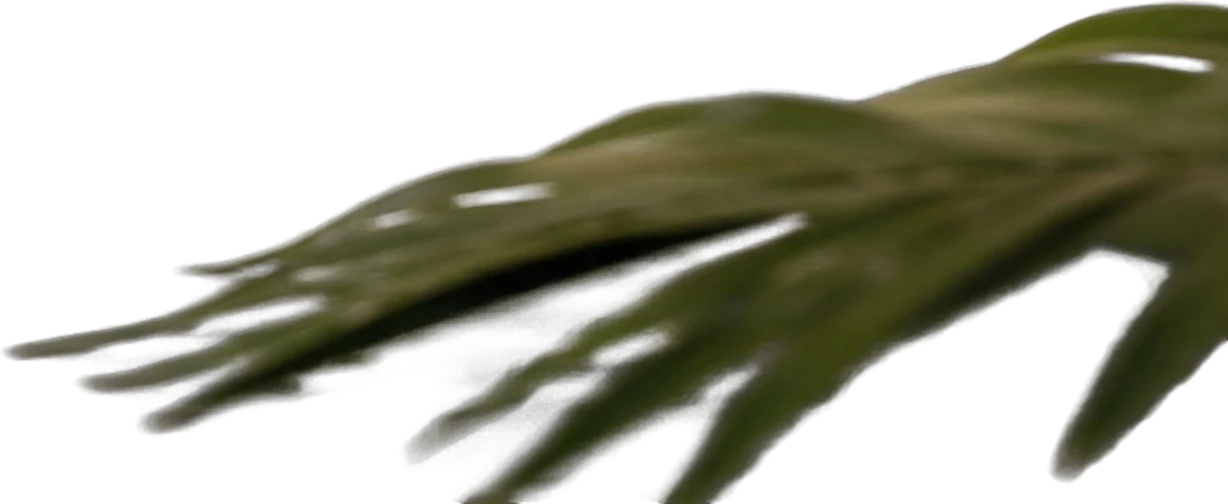
Foreground palm leaf
651×267 px
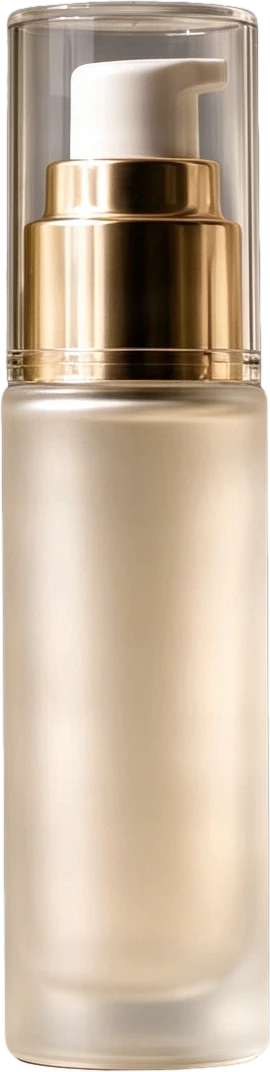
Frosted pump serum bottle
159×631 px
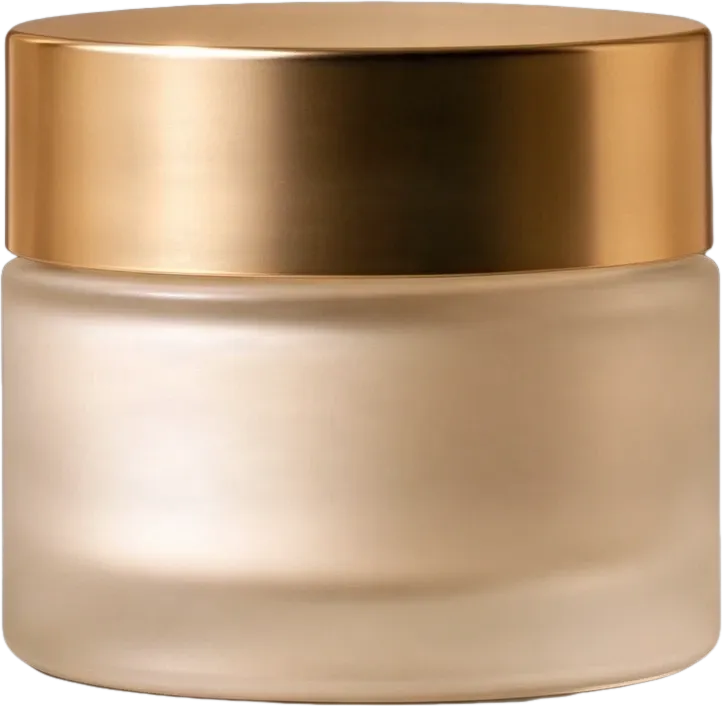
Frosted cream jar with gold lid
274×266 px
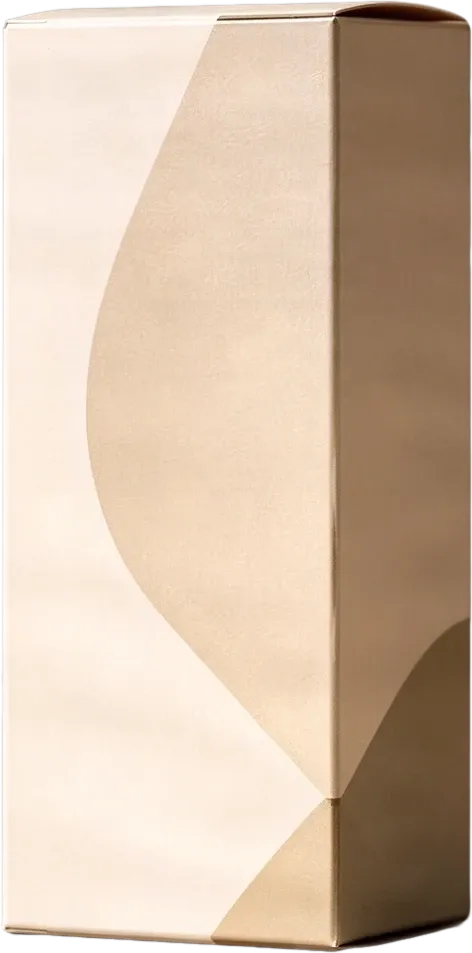
Beige product packaging box
298×602 px
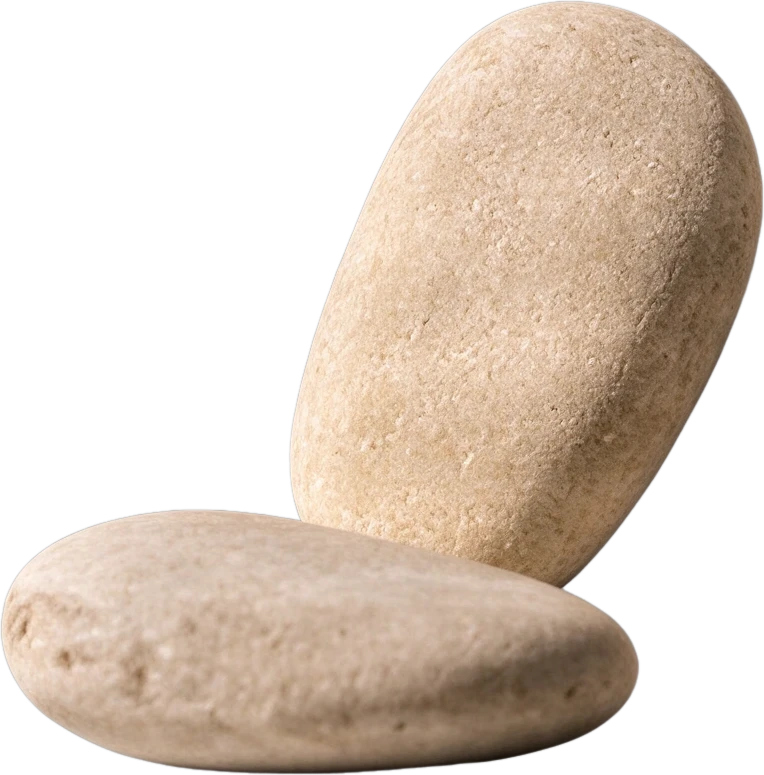
Smooth pebble group
244×247 px
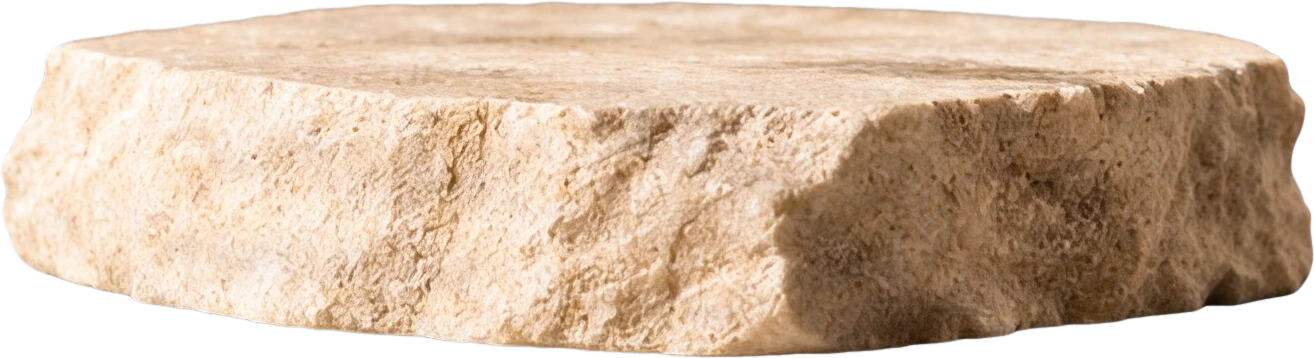
Stone display platform
536×145 px
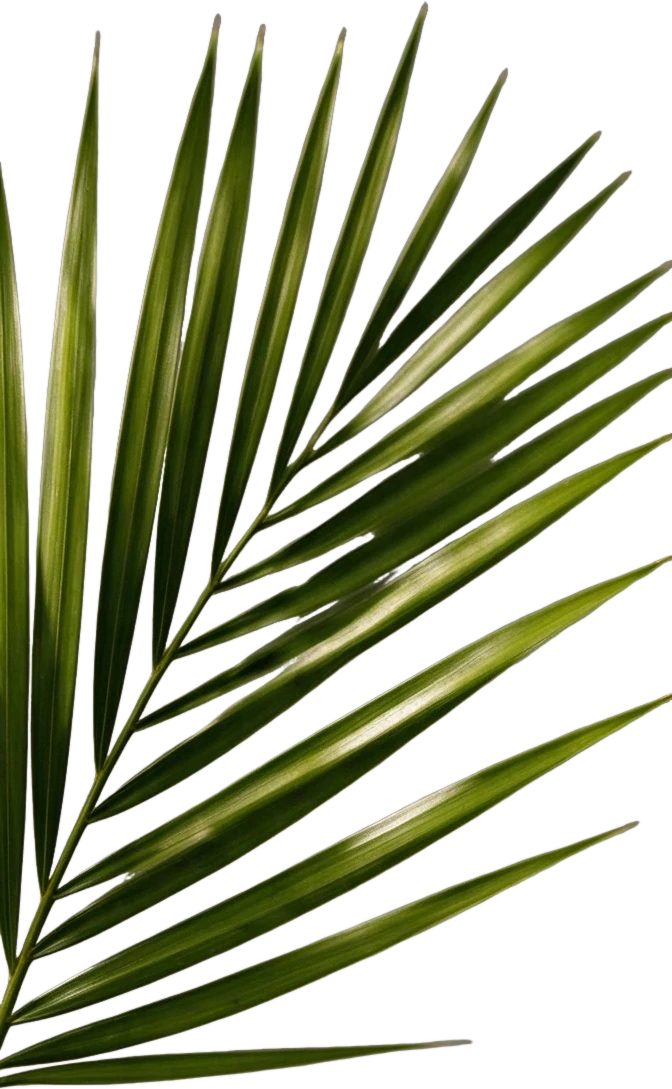
Right palm leaf
298×483 px
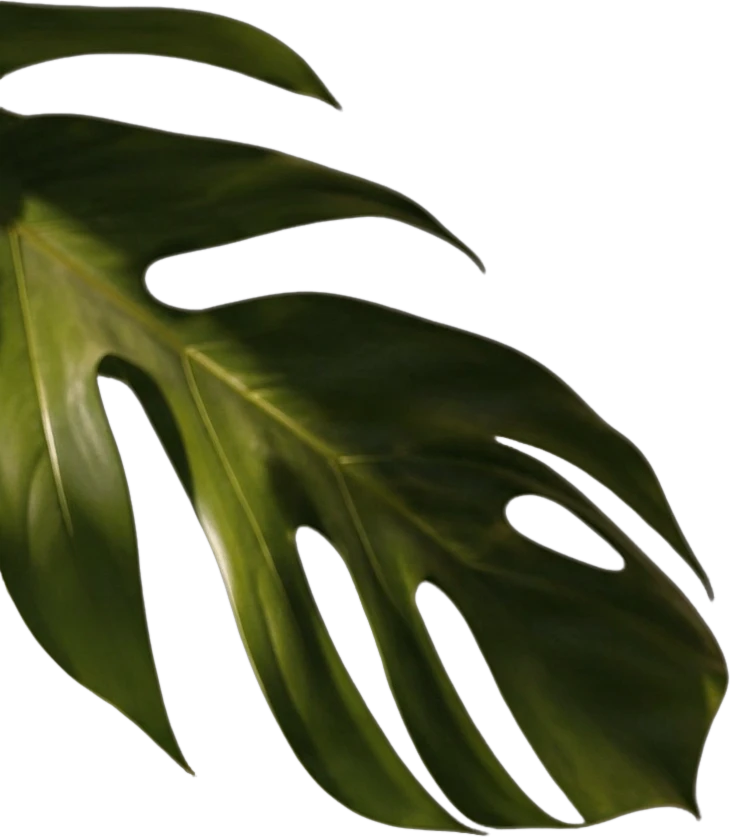
Left monstera leaf
526×603 px
Clean background
Background
Private File Handling
Uploaded files are associated with your account and delivered through signed URLs. You can delete completed jobs manually.
Transparent PNG Output
Detailed Layers returns each detected element as its own layer on a transparent background.
Continue Editing in Agent Workspace
Open the layered result in Agent Workspace to clean up elements, create visual variations, or continue working from the same project.
From One Flat Image to a More Editable Design
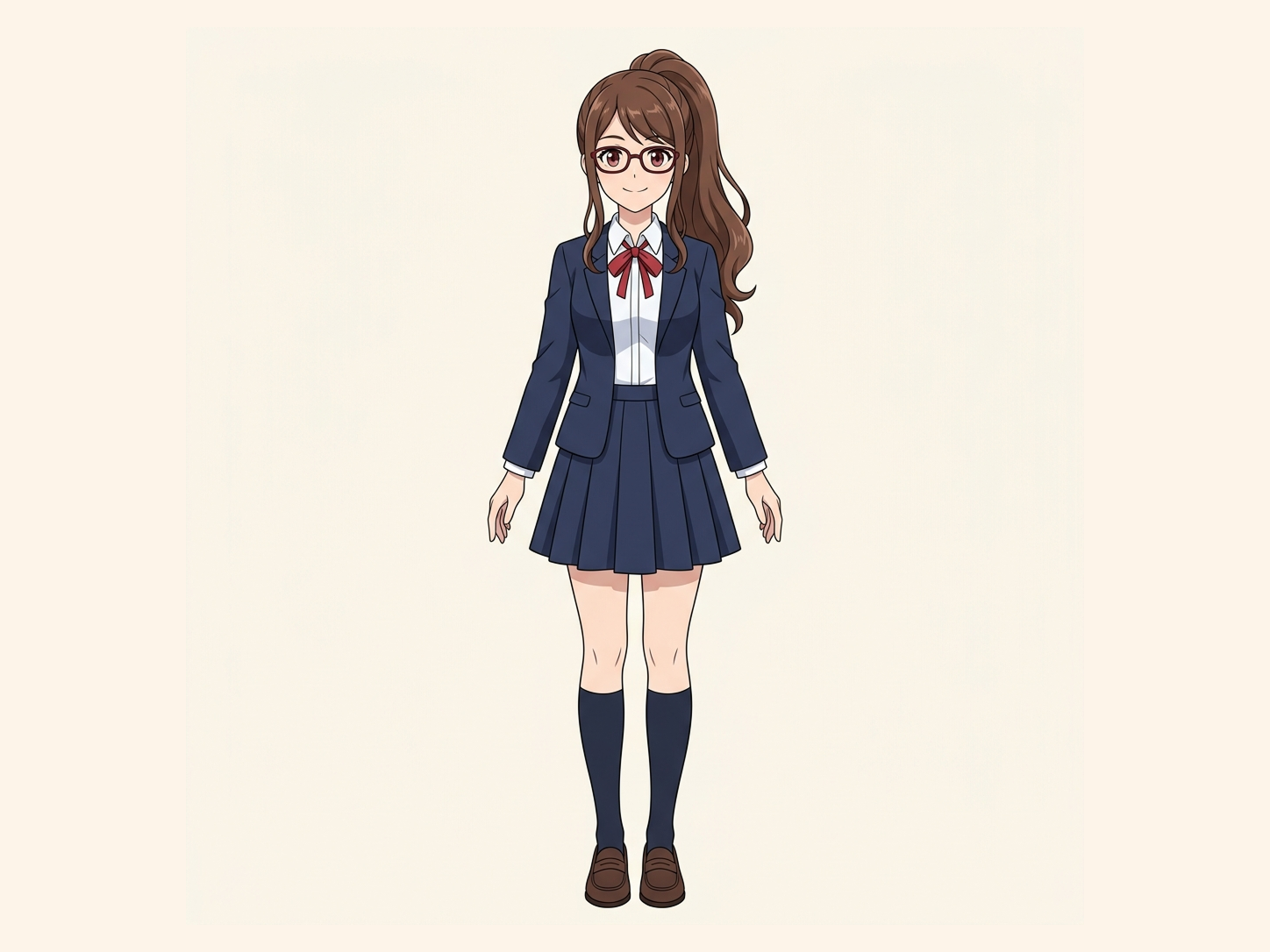
One finished image can contain several visual elements you wish you could change independently. ImageToLayers turns that single image into a newly generated layer structure, giving you more control over what happens next.
One Image. Everything Flattened.
The subject, supporting objects, and background are combined into a single raster image. Moving one element independently is difficult without recreating or manually masking it.
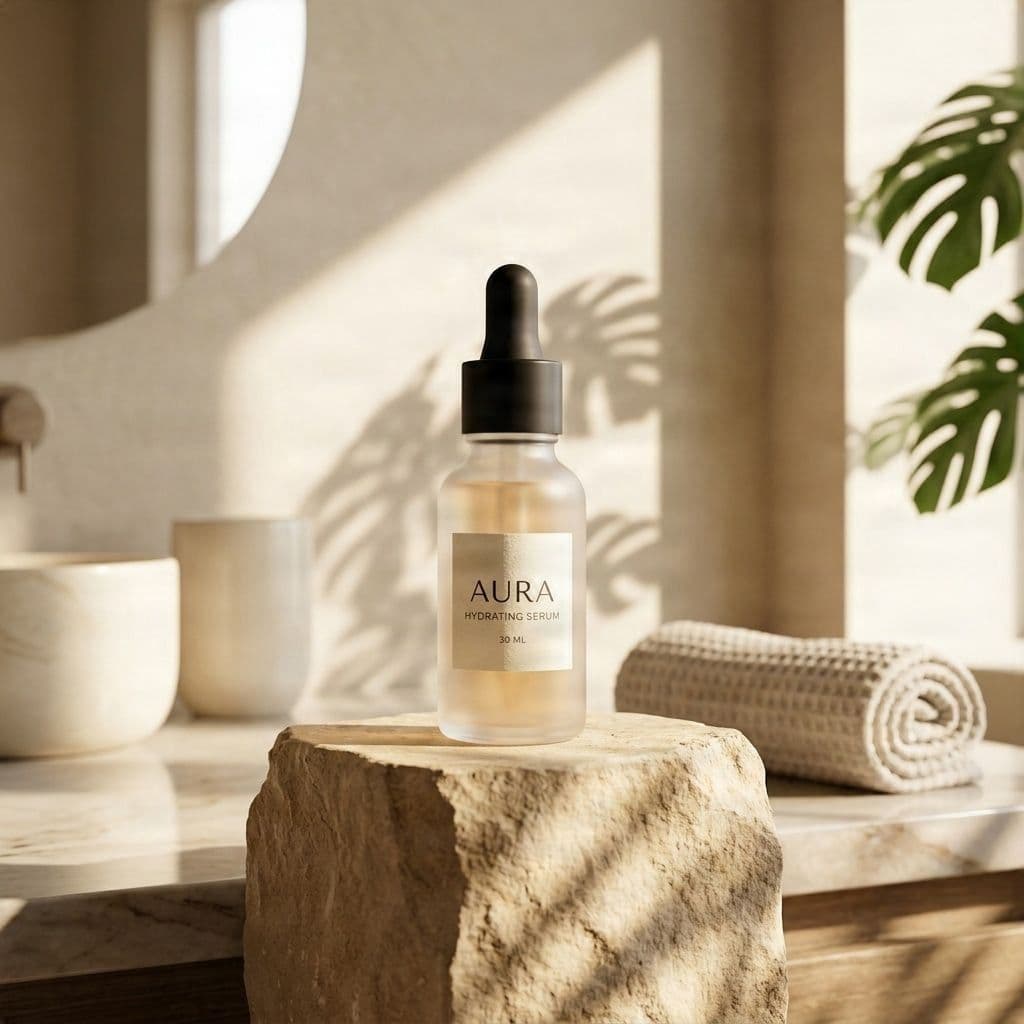
Separate the Elements You Want to Edit.
Review the AI-generated layer stack, identify individual visual parts, and inspect transparency, boundaries, and reconstructed areas.
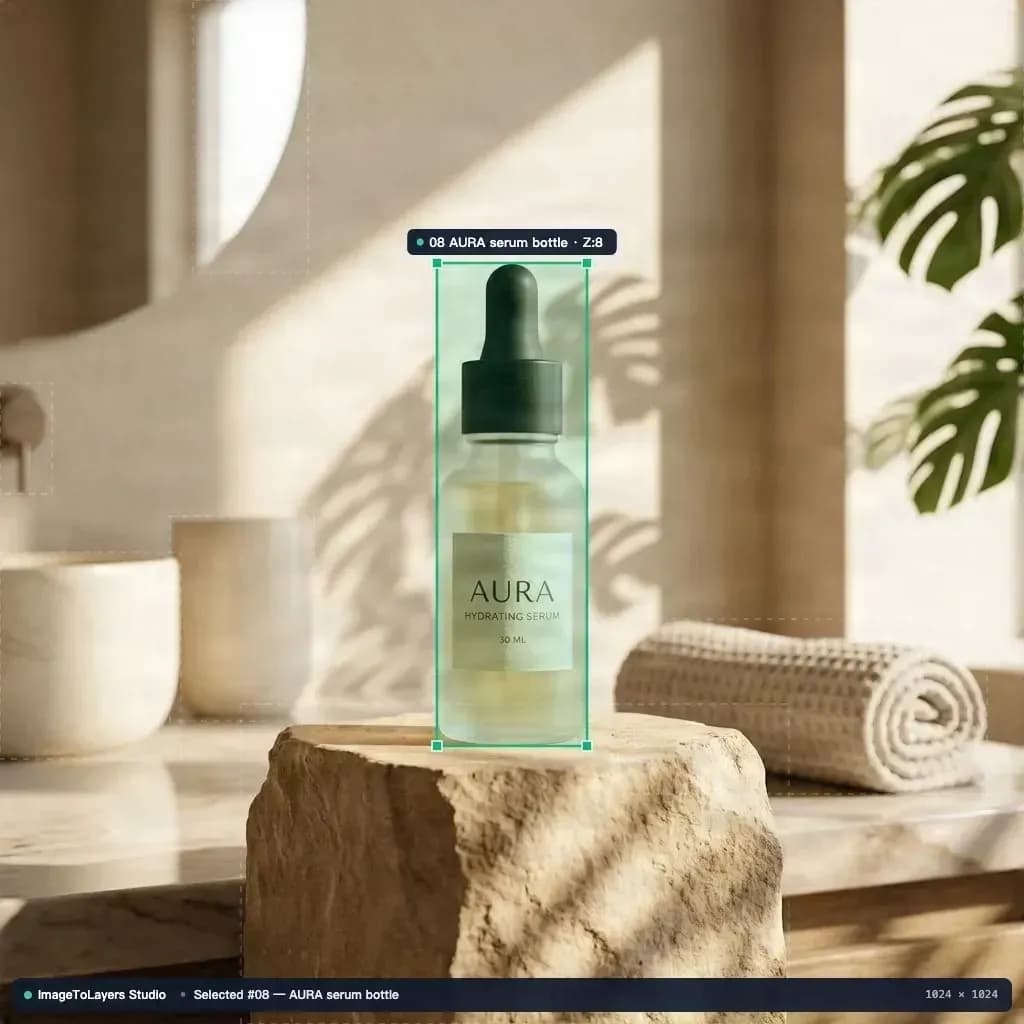
Keep Editing in Your Browser.
Open the existing layer editor to make adjustments to supported layers. Save eligible changes to the project or export the current design for further editing.
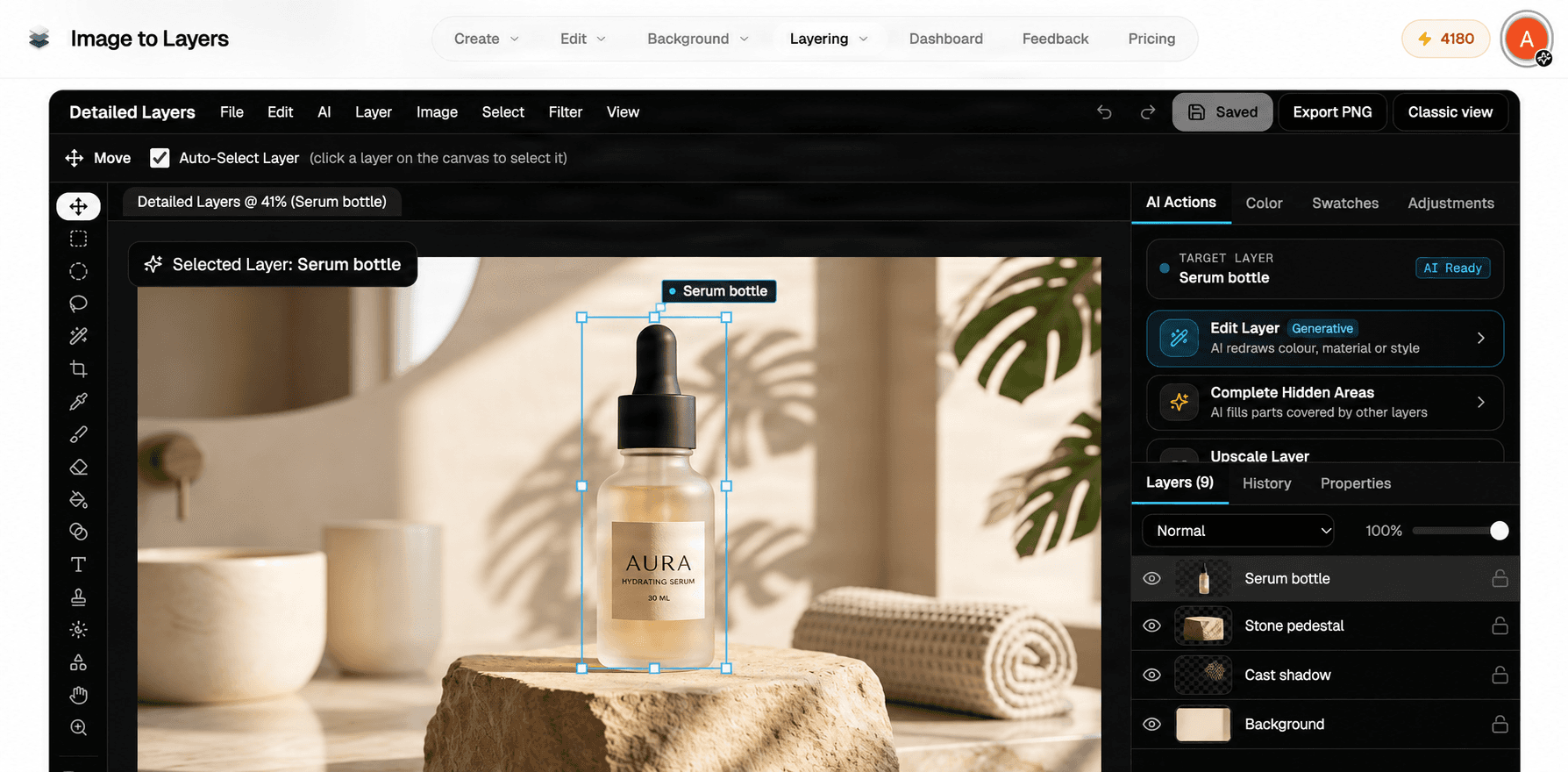
Take Your Layers Into Your Next Project.
Export supported raster assets, including transparent PNG layers or a layered PSD where available, and continue working in compatible software.
Your Image Looks Finished. But What If You Need to Change Something?
A finished image can be exactly what you wanted—until you need to edit one part.
You Don't Have the Original Project File
One Small Change Means Too Much Manual Work
You Need the Parts, Not Another Completely New Image
You Need Files You Can Keep Working With
Let AI Prepare the Layers. You Decide What Happens Next.
PhotoCraft focuses on working with image-editing tools and layered documents. ImageToLayers approaches a different problem: what happens when the image you want to edit is already flattened?
AI-Assisted Layer Separation
Upload one supported raster image and generate separate visual regions for subjects, objects, and backgrounds. The number and quality of generated layers depend on your source image and the selected workflow.
Built-In Layer Editing
Open your result in the existing Job Detail editor to inspect and modify supported layers. You can continue refining the artwork without rebuilding the same file from scratch.
Exportable Layer Assets
Download supported layered PSD and transparent raster assets, subject to your job's export availability and applicable account requirements.
Continue With AI Tools
Need another targeted change? The existing Job Detail workflow also provides supported AI editing actions. Additional AI actions may use credits.
PhotoCraft or ImageToLayers: Which Fits Your Workflow?
These are different types of editing experiences. PhotoCraft is an open-source image editor with a broad collection of traditional creative tools. ImageToLayers focuses on AI image decomposition and a connected online editing workflow. The better choice depends on what you are starting with and what you want to accomplish.
| Capability | PhotoCraft | ImageToLayers |
|---|---|---|
| Primary workflow | Traditional layered image editing | AI image separation followed by layer editing |
| Start with a flat PNG or JPG | Yes | Yes |
| Edit layered artwork | Yes | Yes, within the supported editor workflow |
| AI semantic decomposition of a flat image | Not its central workflow | Core workflow |
| Open and edit PSD documents | Supported | Supported in the existing Pixel Editor, with compatibility limits |
| Export layered PSD | Supported | Supported where available |
| Traditional editing tools | Broad toolset | Built-in pixel and layer editing |
| Installation | Desktop and browser builds available | Browser-based workflow |
| Commercial model | Open-source editor | Credit-based AI processing |
| Recover original source layers exactly | No guarantee | No |
This comparison describes different workflows, not a controlled quality or performance benchmark. PhotoCraft has extensive editing capabilities, while ImageToLayers specializes in AI-generated layer separation. Features may change over time. Check the official PhotoCraft project for its current functionality.
Turn Finished Images Into New Creative Possibilities
Edit an Existing Illustration
You have a finished illustration, but want to move a subject or change the composition. Separate recognizable visual elements into layers before continuing your edits.
Prepare Character Artwork
Start with a flattened character illustration and extract supported character or scene elements for editing. Detailed facial and body-part separation may be better handled by the dedicated Character to Layers workflow.
Rework Product Images
Separate a product from supporting props and scenery so you can explore new layouts and visual arrangements. Always verify product details, labels, and reconstructed regions before commercial publication.
Reuse Promotional Artwork
A finished promotional graphic may still contain elements worth reusing. Prepare separate raster assets for new crops, sizes, or compositions instead of rebuilding the full design.
Prepare Images for Motion
Separate visible foreground, subject, and background elements as a starting point for parallax, compositing, or animation. Further cleanup and animation setup may still be required.
Continue Working With PSD Files
Use generated raster layers as a more editable starting point for a PSD-based workflow. Generated layers are not the same as recovering the original author's complete source document.
How to Edit a Flattened Image With AI Layers
Upload Your Image
Select a JPG, PNG, or WebP file containing the elements you want to edit independently. Clear object boundaries and simpler compositions generally make the results easier to review.
Generate the Layers
Choose an available layer-generation workflow and review the displayed credit cost before processing. The AI attempts to separate the image into meaningful visual regions.
Open the Layer Editor
When processing succeeds, open the Job Detail page. Inspect the generated layers, make supported adjustments, and review the result before saving or exporting.
Export Your Artwork
Download supported output files and continue working. Inspect the exported PSD or PNG layers to make sure they match the intended composition.
AI Layer Separation Is a Starting Point, Not Perfect Source Recovery
AI cannot retrieve the exact hidden contents of the original authoring document from a flattened image. Some areas, especially those covered by objects, must be estimated. Fine hair, transparency, reflections, shadows, small text, and complicated overlaps can require manual cleanup. Text embedded in a flattened image is not guaranteed to become an editable text layer. The Pixel Editor has its own project-saving and PSD compatibility limitations. Certain local changes or newly created layers may need to be exported rather than saved back to the original job, and some effects may be flattened into raster pixels during PSD export. Results should be checked before final production use.
PhotoCraft Alternative: Frequently Asked Questions
Is ImageToLayers a PhotoCraft alternative?
ImageToLayers is an independent option for people who want AI-assisted separation of flattened images into editable raster layers. It also offers an online layer-editing workflow, but it is not a complete replacement for every PhotoCraft editing feature.
Is ImageToLayers affiliated with PhotoCraft?
No. ImageToLayers is an independent platform and is not affiliated with, sponsored by, or endorsed by PhotoCraft or the ArtCraft team.
What is the main difference between PhotoCraft and ImageToLayers?
PhotoCraft provides a broader traditional image-editing environment. ImageToLayers focuses on generating a new layer structure from a flat image, then letting you review and edit those layers in its existing workflow.
Can I turn a flattened JPG or PNG into editable layers?
Yes. Upload a supported image and use AI layer separation to generate individual raster layers. Results depend on the source image, selected workflow, and visible object boundaries.
Do I need the original Photoshop file?
No. You can begin with a JPG, PNG, or WebP image. ImageToLayers creates new image layers; it does not recover the exact layers, masks, text objects, or history from the original Photoshop project.
Can I edit the generated layers online?
Yes. After generating a supported layer job, open its Job Detail page to review and edit available layers. The desktop Pixel Editor and other job workspace views provide different editing capabilities.
Can I export the result as a PSD?
Layered PSD exports are supported for eligible jobs and account configurations. Exported layers should be checked in the software where you intend to continue editing.
Can I download transparent PNG layers?
Yes, supported layer-generation workflows provide transparent raster assets. Download availability and packaging can depend on the job and its export permissions.
Can AI recover objects hidden behind other objects?
AI can attempt to reconstruct certain hidden regions using visible context. These regions are estimates, not recovered original pixels, and may need correction.
Does the tool restore editable text and original fonts?
Not automatically through image layer separation. Text may remain part of raster image layers. Use a dedicated text-editing workflow when your goal is to change wording in an image.
Can I use ImageToLayers for character animation?
It can help prepare separated character or scene elements for further editing and animation preparation. It does not automatically produce a finished Live2D or Spine rig.
Is ImageToLayers free?
AI image processing uses credits. The page displays the applicable credit requirement before processing. Certain editing actions can be performed without another AI generation, while additional AI processing may require more credits.
Can I import an existing PSD file?
The existing Pixel Editor includes PSD import functionality, but this PhotoCraft Alternative landing page primarily starts with the ImageToLayers generation workflow. It is not a direct replacement for a standalone PSD file manager, and PSD compatibility is not guaranteed for every file or feature.
Does the editor work on mobile devices?
The website supports mobile browsing, but the editing experience differs by viewport. The desktop Pixel Editor is not the same as the mobile Job Detail workspace. For more extensive manual layer editing, a desktop browser is recommended.
Explore More AI Creative & Layer Workflows
Don't Start Your Design Over. Start With the Image You Already Have.
Separate a flattened image into editable visual layers, continue refining the result, and export the assets you need for your next creative project.
ImageToLayers is independent of PhotoCraft and the ArtCraft team. PhotoCraft is referenced for product identification and comparison only. ImageToLayers is not affiliated with, sponsored by, or endorsed by PhotoCraft or ArtCraft.