
Campaign Hero
Create a primary visual direction with clear subject focus and room for campaign messaging.
AI Image Agent is currently in beta. Results and workflows may change as we improve the experience.
IMAGE TO LAYERS AGENT PLAYBOOK
BetaStart from a product or campaign image, explore related visual directions, and prepare selected results for ads, social placements, and editable design workflows.
Sample Outputs
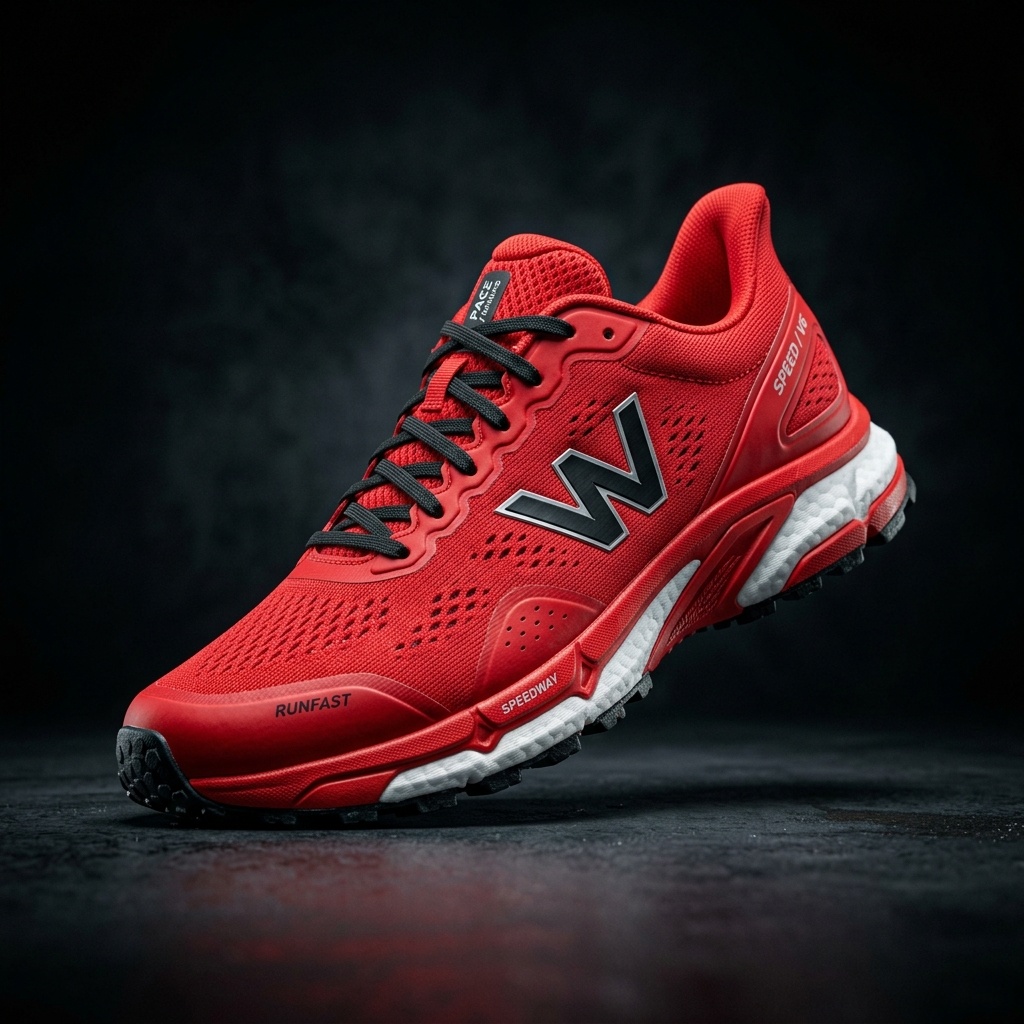
Use the steps you need—the workflow does not require every tool for every image.
Upload a Product or Campaign Image
Define the Visual Direction
Create Related Variations
Prepare Ad and Social Crops
Refine the Selected Assets
Continue into Editable Layers
Create a primary visual direction with clear subject focus and room for campaign messaging.
Explore a related background, lighting treatment, or composition for another placement.
Prepare selected visual directions for square and vertical social placements.
Tell the Agent which details must remain unchanged when creating a new visual direction.
Note: AI-generated details can vary. Review logos, labels, measurements, and regulated product claims before publishing.
Yes, you can specify exact color palettes and brand guidelines within your prompt instructions.
Yes, you can generate a connected set of visuals without starting over for each one.
Yes, by utilizing advanced extraction and inpainting, the original pixels containing the logo and typography are protected while the environment changes.
Yes, you can prompt the agent to adapt the composition into various aspect ratios for cross-channel use.
Yes, the final step of the workflow can separate your generated composite into PSD-ready layers so your design team can fine-tune it.
No, it focuses exclusively on accelerating your campaign visual production.
Clean, resize, and edit product photos for Amazon listings.
Vertical visual directions and cleanup for TikTok Shop.
Visual variations and background edits for your storefront.
Visual variations, cleanup, and layered assets for social media.
Creative Toolkit Index
Quick access to precision layer extraction, AI photo editing & asset tools.