
Fix Typos in Images
Fix Typos in Images Without Starting Over
Spotted a spelling mistake in an image you've already finished? Don't throw away your design over one wrong word. Upload your existing image, find the text you want to correct, and replace it with the right wording. Whether it's a poster, product photo, menu, invitation, or social media graphic, you can make targeted text corrections without recreating everything from scratch.
Correct misspelled words, missing letters, wrong dates, and other small text mistakes in your existing images
Make changes to an existing image, even when you don't have the original design file.
Text is detected in your browser, and nothing is uploaded until you choose an AI edit. Free edits cover the original words with a flat colour patch, so they work best on plain or evenly coloured backgrounds. This is AI image editing, not recovery of a hidden Photoshop text layer. The model redraws the requested area and may change nearby pixels.
See what you can change
Small Text Changes. A Whole New Purpose.
You don't always need a completely new image. Sometimes changing a few words is enough to make the design useful again.
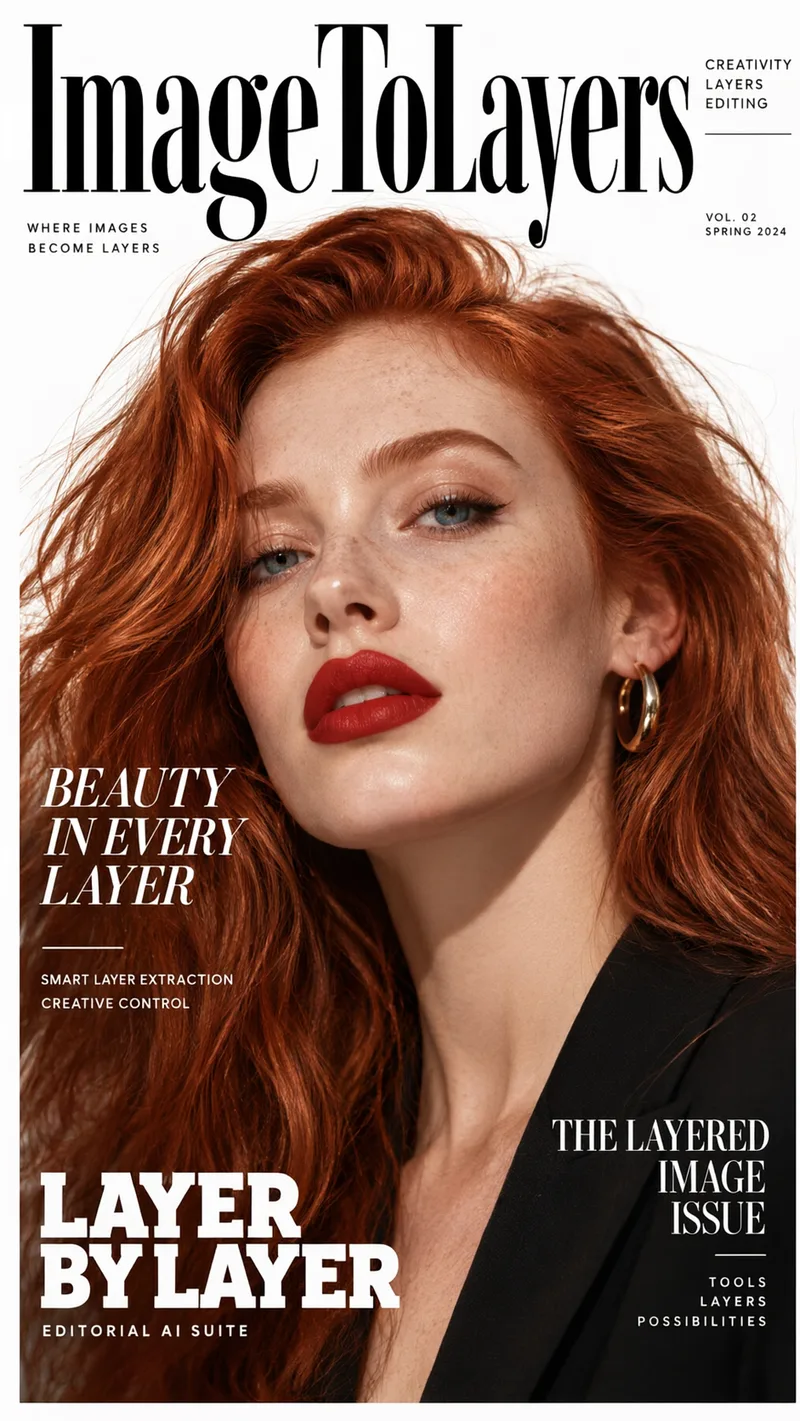
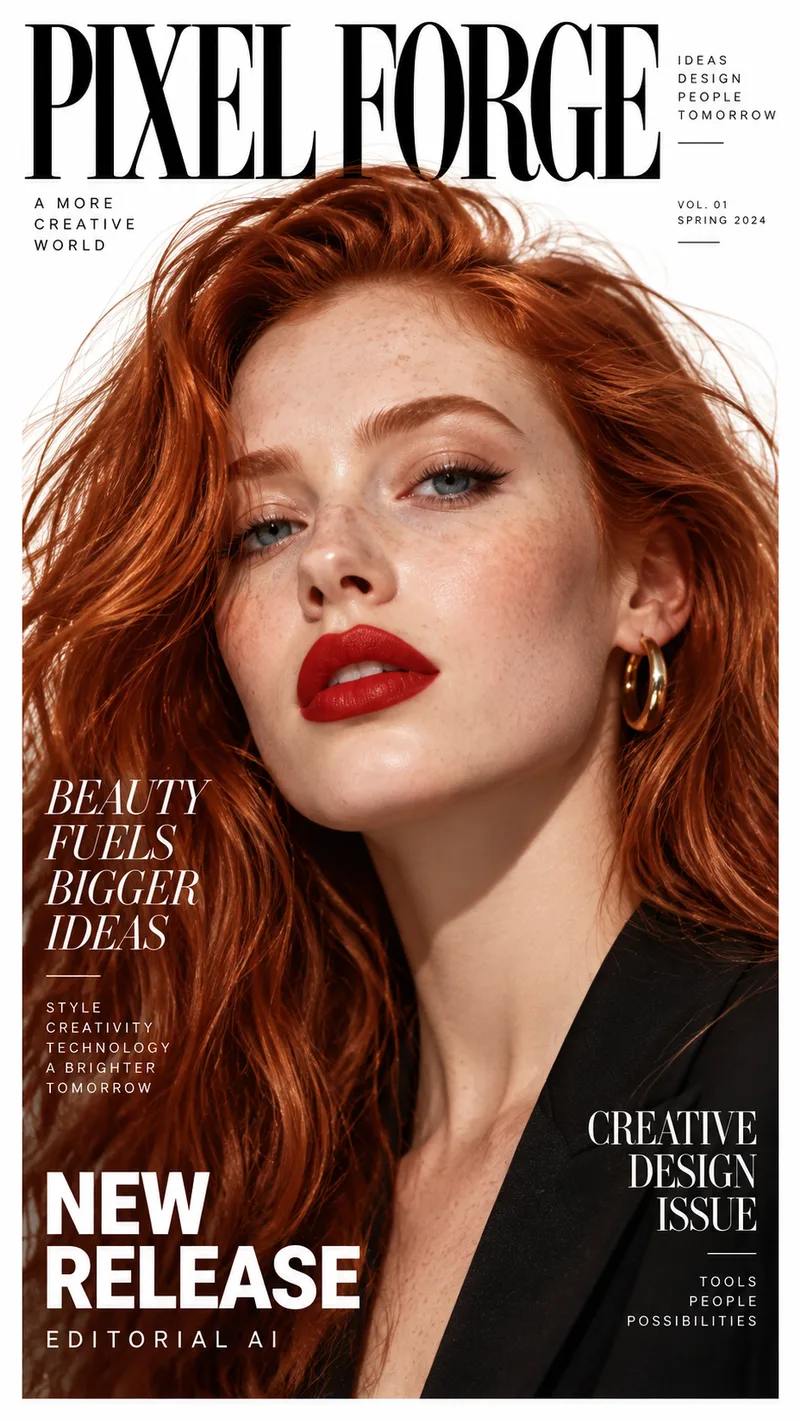
Rename a Magazine Cover
The photo and layout stay. The masthead, headlines, and small print are rewritten for a different title. Drag the slider to compare the original cover with the edited one.
Example change
PIXEL FORGE · BEAUTY FUELS BIGGER IDEAS · NEW RELEASE
ImageToLayers · BEAUTY IN EVERY LAYER · LAYER BY LAYER
Update several lines of text on the same image while aiming to keep the composition.
Results vary depending on text placement, image quality, font styling, and background complexity.
See it on a real ad
Every line of text on the ad is its own layer
This finished ad was split into a background, a photo, and separate text layers. Click any text block, change the wording, and see the update on the creative.
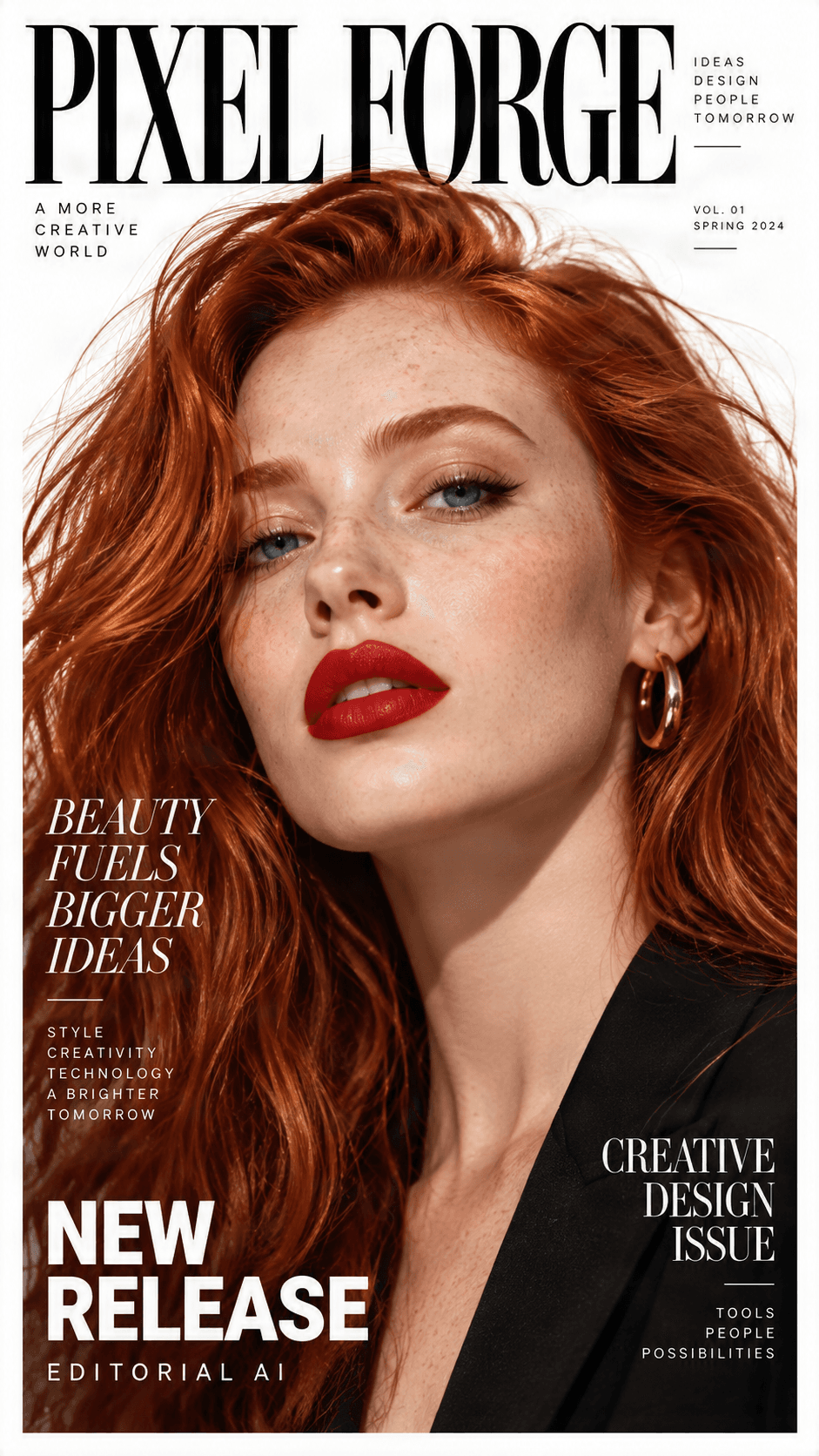
Original ad preview
Detected text, ready to edit
Click a text block, change the wording, and preview the update directly on the ad.

NEW RELEASE
Headline / Promo label

BEAUTY FUELS BIGGER IDEAS123
Campaign headline

CREATIVE DESIGN ISSUE
Secondary subhead

PIXEL FORGE
Brand logo

Background
Clean reconstructed image
Need to change more than the text?
Split any ad into separate text, image, logo, graphic, and background layers.
Benefits
One Little Typo Shouldn't Mean Starting All Over
You've already picked the right image, arranged the elements, and finished the layout. Then you notice a mistake. You don't need another design project. You just need to fix the text.
Correct the Mistake, Keep the Design
Edit Without the Original Design File
Make Last-Minute Corrections
Stay in Control of Every Change
How It Works
How to Fix a Typo in an Image
You don't need to recreate an entire picture to correct one word. Here's how to get started.
Step 1 — Upload Your Image
Step 2 — Find the Incorrect Text
Step 3 — Enter the Correct Wording
Step 4 — Review and Download
Types of Mistakes
Fix More Than Just Misspelled Words
Not every text mistake is a spelling error. Sometimes you've entered the wrong date, forgotten a letter, or used the wrong phrase.
Misspelled Words
Missing Letters
Extra Letters
Incorrect Dates
Wrong Names
Punctuation Errors
Use Cases
Where Can You Fix Typos in Images?
A spelling mistake can appear anywhere text is part of an image. Here are some common situations where correcting the original graphic is easier than starting again.
Posters and Event Flyers
Product Photos and Listings
Restaurant Menus
Social Media Graphics
Invitations and Greeting Cards
Educational and Presentation Graphics
Why Use an Image Text Editor?
Fix the Word You Got Wrong. Keep Everything You Got Right.
Recreating an image takes time, especially when the original design includes multiple fonts, photographs, decorations, and carefully positioned text. Sometimes you don't even have access to the original design file. Instead of repeating the entire process, work directly with the image you already have.
Keep Your Existing Layout
Avoid Recreating Graphics
Correct Text When You Need To
Work From Exported Images
Some text styles and image backgrounds are harder to edit than others. Decorative lettering, complex textures, and low-resolution images may require additional adjustments.
Real-Life Examples
You've Finished the Image. Then You Notice the Typo.
Example 1 — The Poster With a Misspelled Headline
Example 2 — The Product Image With the Wrong Label
Example 3 — The Social Media Quote With a Missing Letter
Example 4 — The Invitation With the Wrong Date
Editing Tips
Tips for Making Corrected Text Look Like It Belongs
Changing the spelling is only half the job. The corrected text should also fit comfortably into the existing image.
Use the Clearest Image Available
Watch the Length of the Replacement Text
Review Font Size and Appearance
Inspect the Background
Read the Entire Image One More Time
The editor does not replace careful proofreading or guarantee automatic spelling checks, exact font matching, or perfect repair on complex backgrounds.
Choose the Right Text Workflow
Need a Broader Text Edit?
Fix a typo here, or use the broader editor when you need to replace text or update a full menu design.
Frequently Asked Questions About Fixing Typos in Images
Common questions about correcting spelling mistakes and small text errors in existing images.
Can I fix a typo in an image online?
Yes. Upload your existing image, select the text containing the mistake, and replace it with the correct wording. Review the result before downloading.
How can I correct spelling mistakes in a picture?
Upload the picture, locate the misspelled text, and use the editor to enter the correct spelling. You can then review the available styling and positioning options.
Can I fix one word without changing the rest of the image?
The editor is intended for targeted text corrections. You can focus on an individual word or text area, although some complex backgrounds and layouts may require additional adjustments.
Can I edit a typo without Photoshop?
Yes. You can work directly with an existing image through the online editor without opening Photoshop or recreating the original design file.
Can I fix a spelling mistake in a JPG image?
Yes. JPG images are commonly used for text editing. The results depend on the image's resolution, text clarity, and background complexity.
Can I correct text in a PNG image?
Yes. You can upload a supported PNG image and work on its text areas using the editor.
Will the corrected text match the original font?
Exact font matching isn't guaranteed. The editor provides text-editing options, but some fonts may need manual adjustments to achieve a similar appearance.
Does the tool automatically find spelling errors?
Not necessarily. The editor helps you locate and modify text, but you should identify and verify spelling corrections yourself. It isn't a replacement for a dedicated spelling checker.
Can I fix multiple typos in the same image?
You can work through multiple supported text areas in the same editing workflow. Review each correction carefully before exporting the image.
Can I edit a typo in a screenshot?
Yes, supported text areas in screenshots can be edited. Use altered screenshots responsibly and don't present modified records or messages as authentic originals.
Can I correct text in a product photo?
Yes. You can attempt to update product labels, promotional captions, and other text overlays. Check the result to ensure the product image remains visually acceptable.
Can I fix spelling mistakes in a poster or flyer?
Yes. You can use the editor to correct headlines, event details, dates, and other text in existing poster or flyer images.
What if the replacement word is longer than the original?
Longer words may require smaller text, different positioning, or other formatting adjustments to fit the original text area.
Can I correct text over a patterned background?
You can try, but complex backgrounds may make the edited text area harder to blend naturally. Inspect the result closely before downloading.
Can I fix handwritten text in a photo?
Handwritten text can be more challenging than standard printed fonts. Recognition and replacement quality may vary, especially with stylized or decorative handwriting.
Can I change an incorrect date or number instead of fixing a typo?
Yes. The same text-editing workflow can be used to replace supported dates, times, numbers, or short phrases.
Found a Typo? Your Image Doesn't Need a Redesign.
You've already done the hard work of creating your image. Don't start again because of one incorrect word. Upload your picture, fix the text, and keep the design you've already made.
Fix My Image TypoCorrect spelling mistakes and small text errors in your existing images.