
Gemini Image to Layer Converter
Gemini Image to Layer Converter
Turn Images Created with Gemini into Editable Layers
Downloaded a flat image from Gemini? Upload it here to separate subjects, objects, shadows, and backgrounds into reusable visual layers—without manually tracing every element.
Click or drag image to upload
Upload your image
JPG, PNG, WebP up to 10MB · Drag & drop anywhere
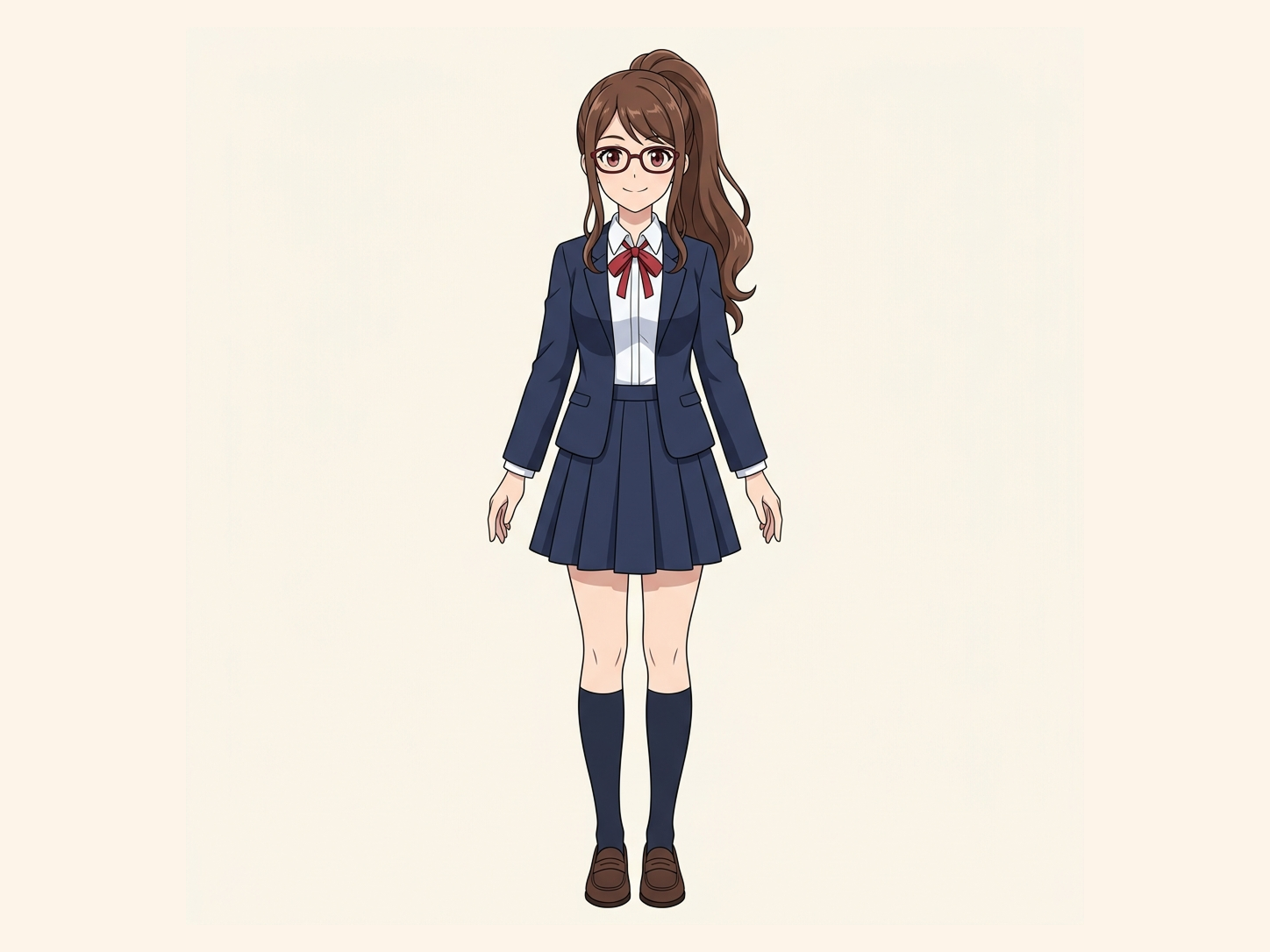
Need hair, face, eyes, mouth, clothing, or body-part layers?
Settings
Leave this blank to let Detailed Layers identify the main editable elements automatically. Or name the parts you want separated.
Want more control over your layers?
Learn how to guide Detailed Layers with simple prompts, choose useful elements, and get cleaner layer structures from different types of images.
Upload an Image to Continue
Private File Handling
Uploaded files are associated with your account and delivered through signed URLs. You can delete completed jobs manually.
Transparent PNG Output
Detailed Layers returns each detected element as its own layer on a transparent background.
Continue Editing in Agent Workspace
Multi-Agent SuiteOpen the layered result in Agent Workspace to clean up elements, create visual variations, or continue working from the same project.
Supports PNG, JPG and WebP · Export PSD or PNG layers
Your image is processed in the same Image to Layers workspace, so you can review, refine, and export the result in one connected workflow.
See How Image Separation Works
Separate visual elements into individual layers while reconstructing the background hidden behind them.
Layer Hierarchy
9/9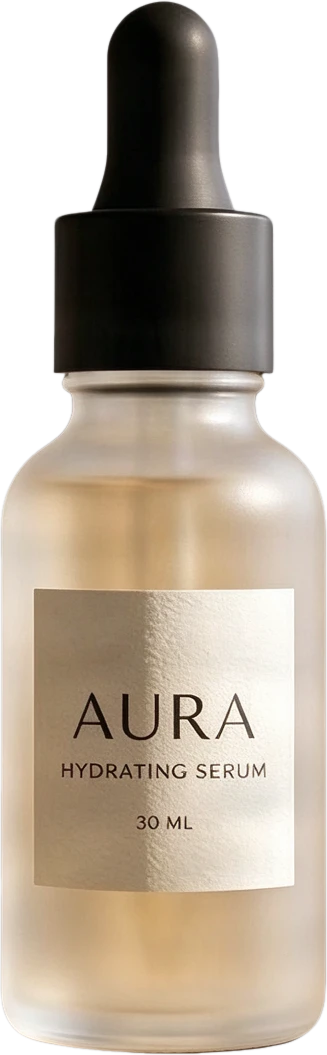 08
08AURA serum bottle
Frosted clear serum bottle with black dropper cap and AURA typography, presented as a standalone product.
 07
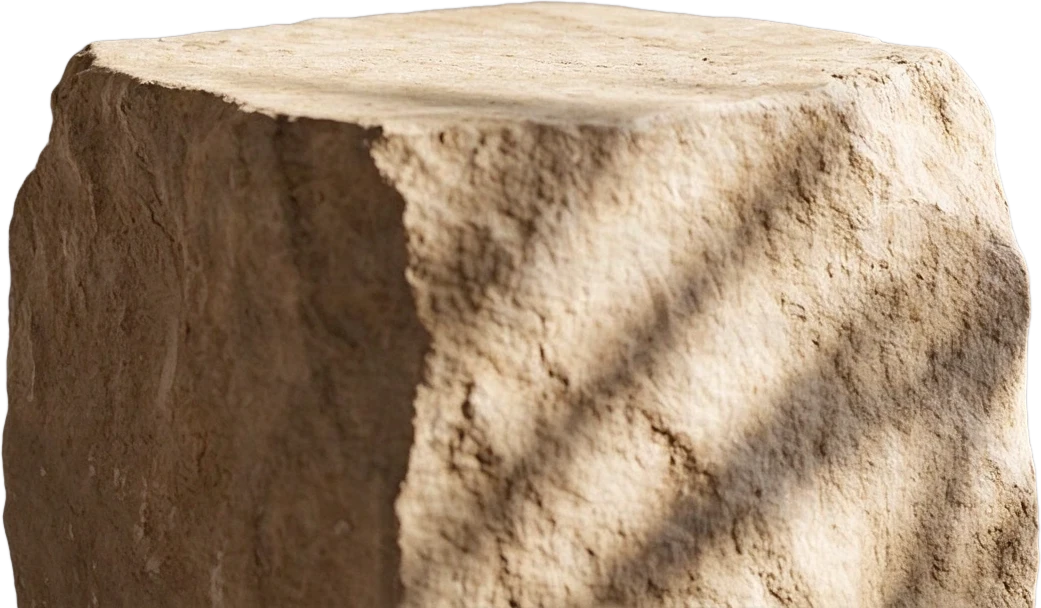
07Stone display stand
 06
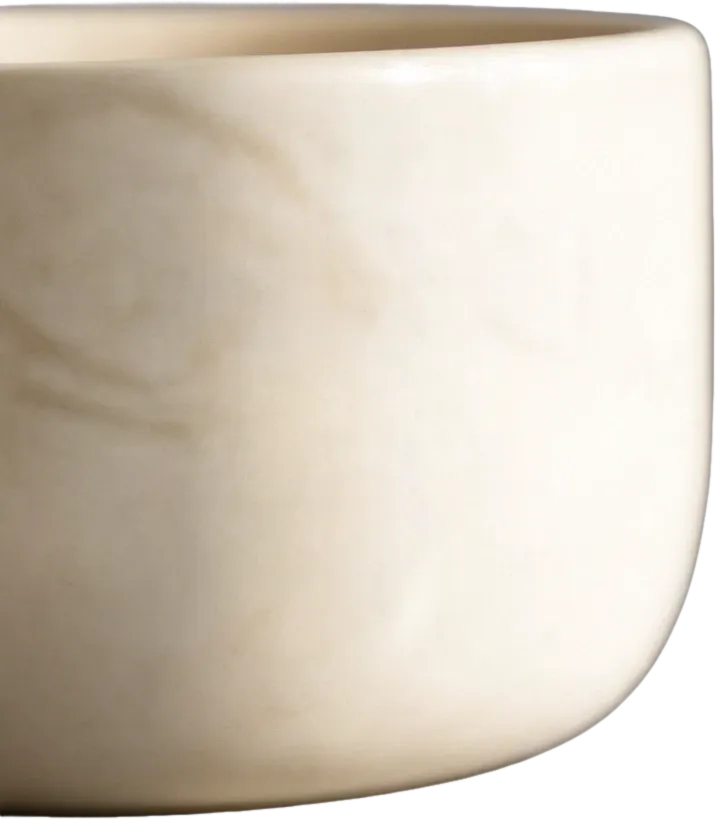
06White ceramic bowl
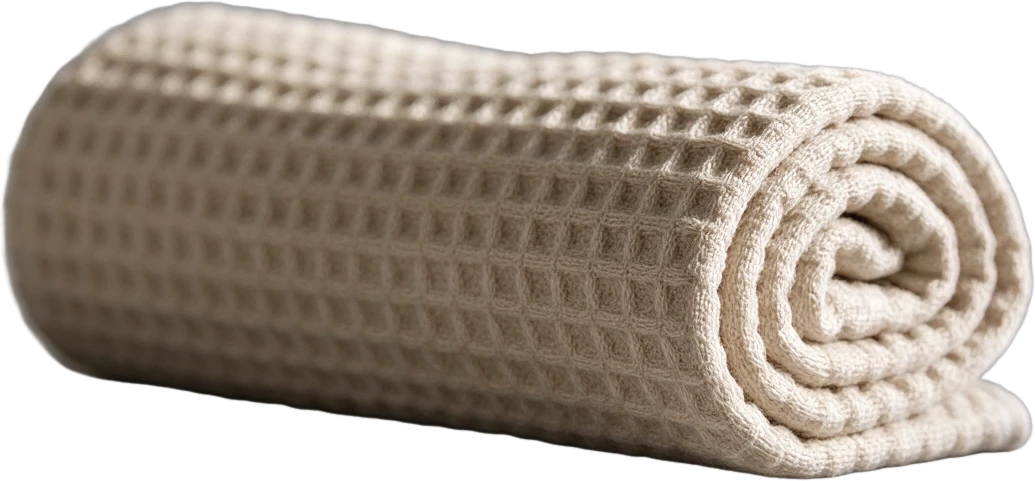 05
05Rolled waffle towel
 04
04Metal faucet
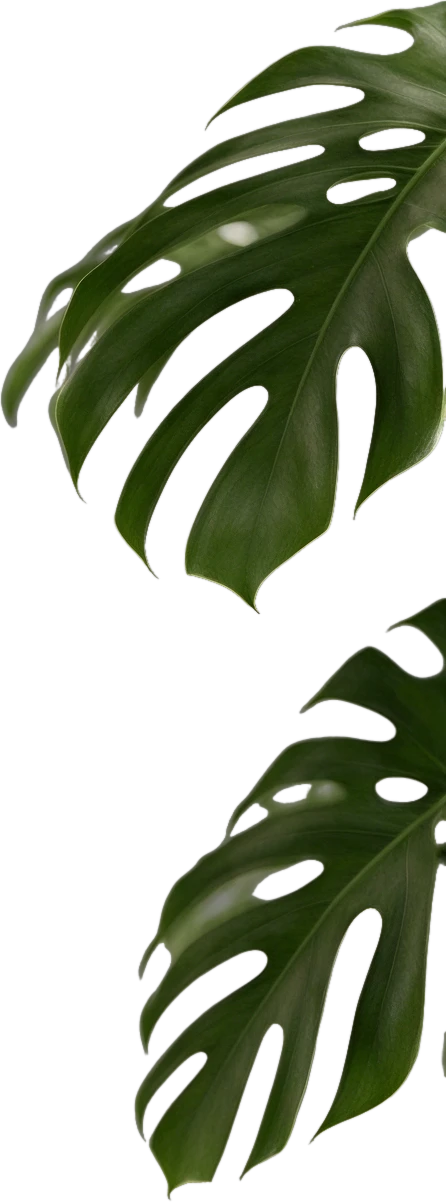 03
03Monstera leaf
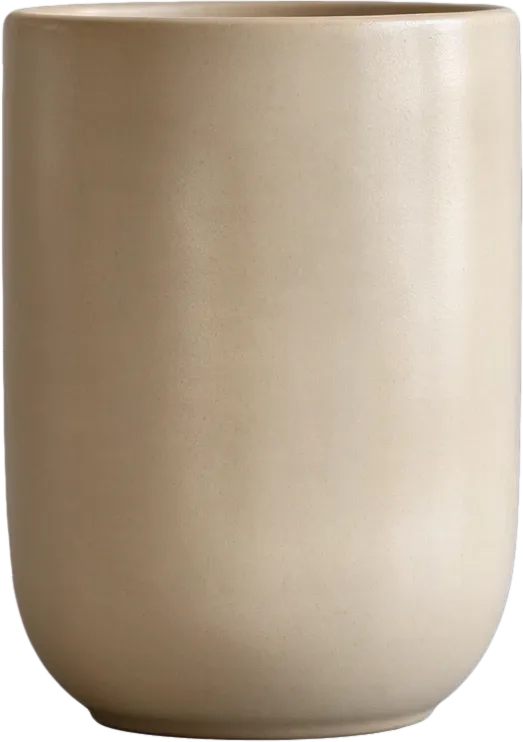 02
02Beige ceramic cup
 01
01Circular window decor
 00
00Inpainted background
Final Layers
More Than Background Removal
Background removers create a transparent cutout. ImageToLayers also reconstructs the area hidden behind the subject, giving you complete assets for editing and composition.
Most images are processed in 60–120 seconds.
See a Gemini Image Separated into Layers
A single image downloaded from Gemini is still a flattened file. Image to Layers analyzes its visual structure and separates useful elements into editable parts.
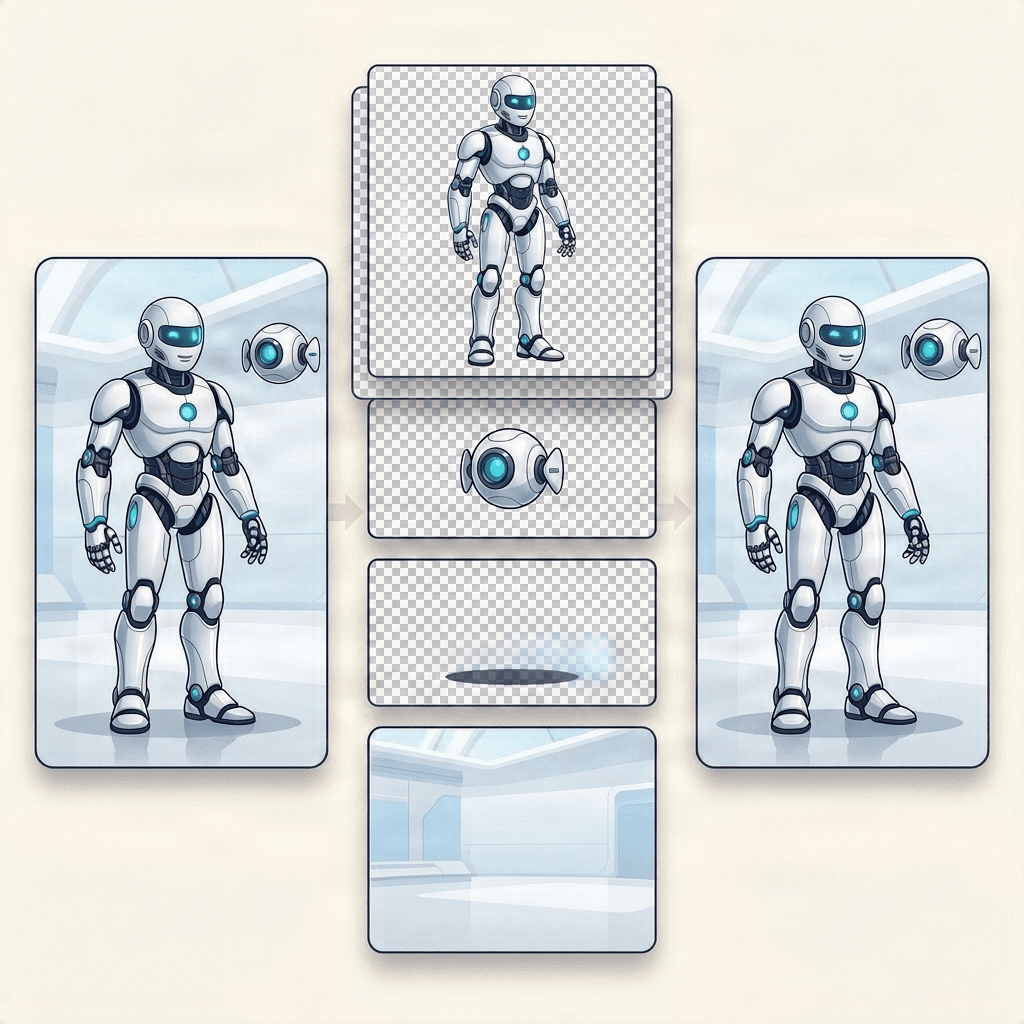
Image to Layers creates a new editable layer structure from the flattened image. Hidden areas may be reconstructed by AI.
How to Turn a Gemini Image into Layers
Download your image from Gemini
In the Gemini app, download the finished image at full size before uploading it.
Upload the flat image
Add the PNG, JPG, or WebP file to Image to Layers. No Gemini account connection is required.
Separate the visual elements
AI identifies useful subjects, objects, shadows, and background regions, then creates individual editable layers.
Review and export
Inspect the separated parts, make follow-up edits, and export the result as a PSD or a set of PNG layers.
What Can Be Separated from a Gemini Image?
Main Subjects
Separate characters, products, people, and other prominent subjects.
Supporting Objects
Extract props, decorative elements, foreground details, and secondary objects.
Shadows and Effects
Isolate useful shadows, highlights, and visual effects when they can be identified clearly.
Background
Remove foreground elements and generate a cleaner background layer for continued editing.
Results depend on image complexity. Overlapping or visually merged elements may require additional cleanup.
Does Gemini Generate the Original Layers?
No. Images downloaded from Gemini are typically flattened image files. Image to Layers does not recover hidden source layers from Gemini. Instead, it analyzes the visible image and creates a new editable layer structure based on subjects, objects, depth, and visual relationships.
Continue Your Workflow
Image to Layers
The full layer separation workspace with upload, review, and export tools.
Image Layered
Explore the image-layered separation workflow in detail.
Qwen-Image-Layered
Technical overview of AI layer decomposition and layered visual output.
Character into Layers
Separate illustrated characters into editable subject and background layers.
Only need two layers?
Just the subject and the background? Try Background Splitter
When a photo only has one subject in front of a background, Background Splitter gives you a transparent foreground and a reconstructed background in one step, without setting up a full multi-object layer split.

Original photo
The source image with a single subject and background.

Transparent foreground
The subject isolated as a clean transparent PNG.

Reconstructed background
The scene behind the subject, rebuilt and reusable on its own.
Need more than two layers, multiple objects, props, or text? Use the workspace above instead.
Frequently Asked Questions
Can Gemini generate layered images?
Gemini can generate and edit images, but downloaded images are generally delivered as flattened image files. Image to Layers can analyze the downloaded result and create a new editable layer structure.
How do I turn a Gemini image into layers?
Download the image from Gemini, upload it to Image to Layers, review the separated elements, and export the result as PSD or PNG layers.
Is this an official Gemini integration?
No. Image to Layers is an independent product and is not affiliated with or endorsed by Google. You do not need to connect your Gemini account.
Can I export a Gemini image as PSD?
Gemini does not directly provide the original editable PSD structure through this workflow. Image to Layers creates a new layered result that can be exported for continued editing.
Will hidden parts of an object be restored?
When an object is separated, AI may generate or infer covered areas where needed. These areas are reconstructed rather than recovered from the original image.
Turn Images Created with Gemini into Editable Layers
Downloaded a flat image from Gemini? Upload it here to separate subjects, objects, shadows, and backgrounds into reusable visual layers—without manually tracing every element.
Upload a Gemini ImageGemini is a trademark of Google LLC. Image to Layers is an independent product and is not affiliated with or endorsed by Google.