App Screenshot Localization
Translate App Store Screenshots Without Redesigning Them
Your app is ready for more languages. Your screenshots should be, too. Upload your existing App Store or Google Play screenshot, replace the words with localized copy, and keep your app visuals, backgrounds, and design as consistent as possible.
Upload a screenshot · Update the text · Review and download
Make changes to an existing image, even when you don't have the original design file.
Text is detected in your browser, and nothing is uploaded until you choose an AI edit. Free edits cover the original words with a flat colour patch, so they work best on plain or evenly coloured backgrounds. This is AI image editing, not recovery of a hidden Photoshop text layer. The model redraws the requested area and may change nearby pixels.
See what you can change
Small Text Changes. A Whole New Purpose.
You don't always need a completely new image. Sometimes changing a few words is enough to make the design useful again.
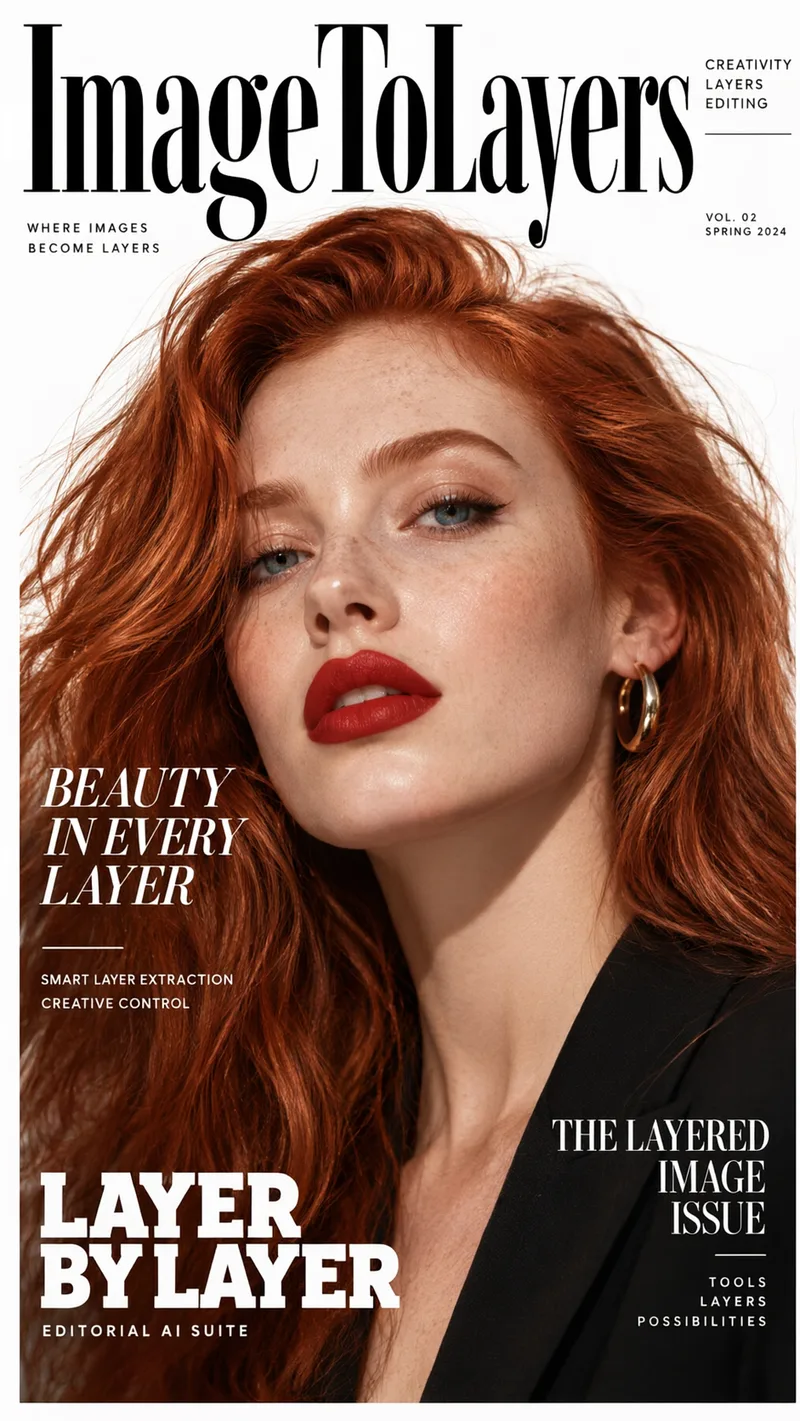
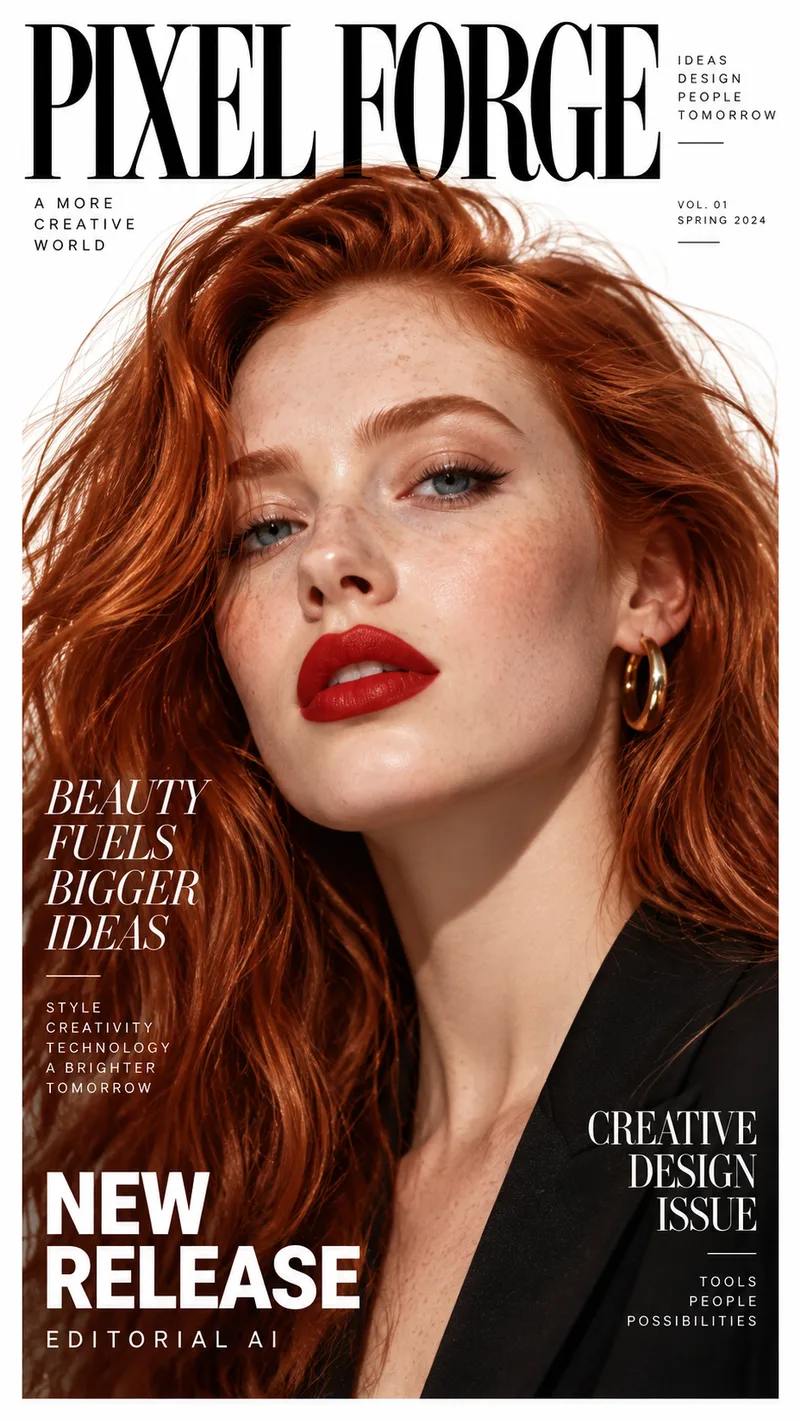
Rename a Magazine Cover
The photo and layout stay. The masthead, headlines, and small print are rewritten for a different title. Drag the slider to compare the original cover with the edited one.
Example change
PIXEL FORGE · BEAUTY FUELS BIGGER IDEAS · NEW RELEASE
ImageToLayers · BEAUTY IN EVERY LAYER · LAYER BY LAYER
Update several lines of text on the same image while aiming to keep the composition.
Results vary depending on text placement, image quality, font styling, and background complexity.
See it on a real ad
Every line of text on the ad is its own layer
This finished ad was split into a background, a photo, and separate text layers. Click any text block, change the wording, and see the update on the creative.
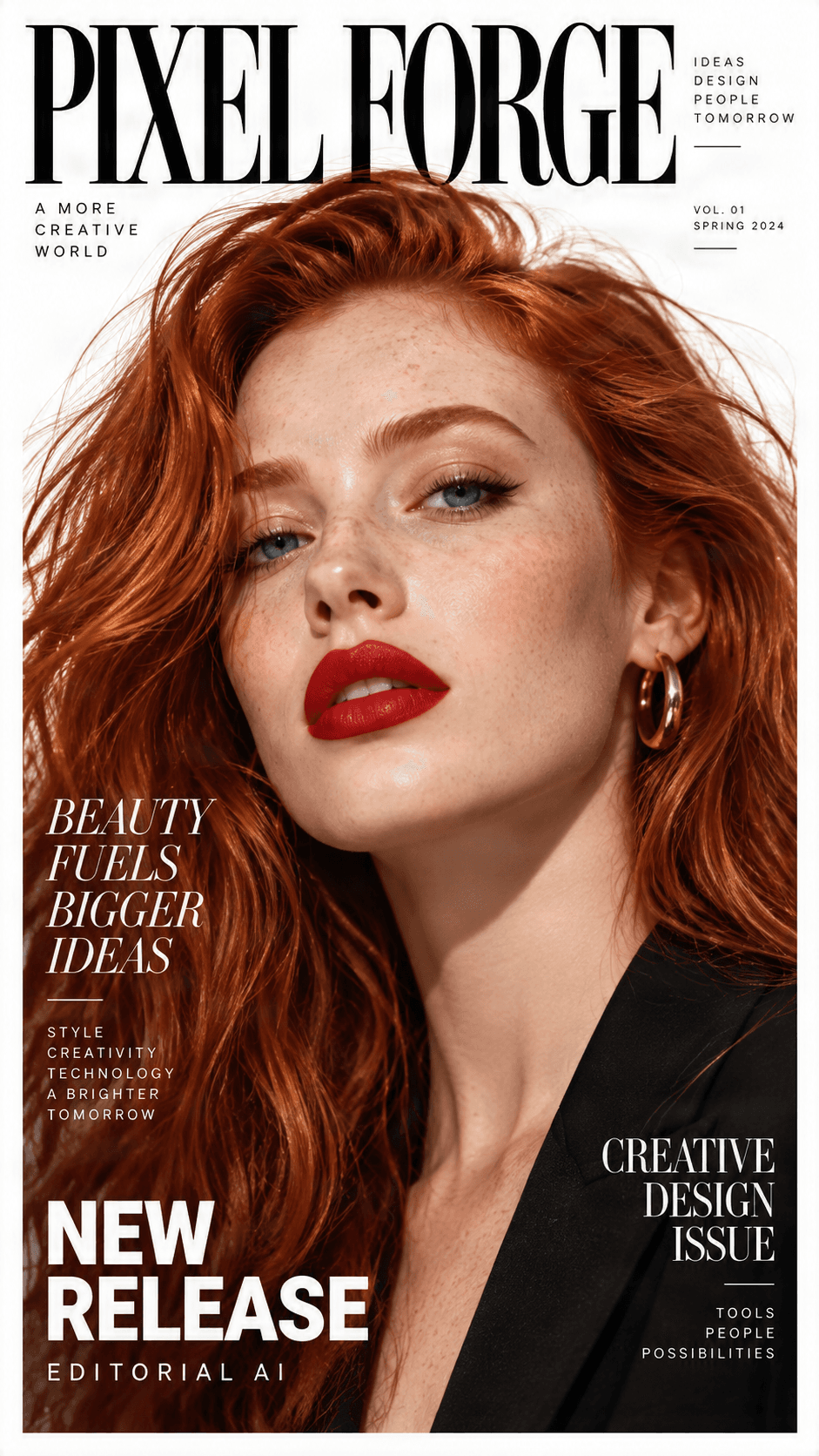
Original ad preview
Detected text, ready to edit
Click a text block, change the wording, and preview the update directly on the ad.

NEW RELEASE
Headline / Promo label

BEAUTY FUELS BIGGER IDEAS123
Campaign headline

CREATIVE DESIGN ISSUE
Secondary subhead

PIXEL FORGE
Brand logo

Background
Clean reconstructed image
Need to change more than the text?
Split any ad into separate text, image, logo, graphic, and background layers.
Benefits
Your App Is Going Global. Your Screenshot Design Can Stay.
You put time into choosing the right app screens, writing your headlines, and arranging each promotional screenshot. Now you're launching in another country, and all that English text needs to change. You shouldn't have to rebuild the same design for every language.
Keep the Screenshots You've Already Designed
Spend Less Time on Repetitive Updates
Adapt Your Message for Different Audiences
Work With Exported Screenshot Images
How It Works
How to Translate App Store Screenshots
You don't need to start with a blank canvas to create a localized screenshot.
Step 1 — Upload Your Existing App Screenshot
Step 2 — Find the Text That Needs Translation
Step 3 — Replace the Text With Your Translation
Step 4 — Review and Download
What Can You Localize?
Translate the Words That Help Users Understand Your App
App screenshots help potential users understand what your app does and why they might want to download it. Make sure your message makes sense in the language your audience speaks.
Screenshot Headlines
Feature Descriptions
Promotional Messages
Button Labels and Interface Text
Onboarding Screenshots
Game Feature Screenshots
App Store and Google Play
Localize Screenshots for the Stores Where People Discover Your App
Whether you're preparing an iOS launch or updating an Android listing, localized screenshots can help people understand your app before installing it.
Apple App Store Screenshots
Google Play Store Screenshots
This tool helps edit text in image files. It does not publish listings to Apple App Store Connect or Google Play Console.
Localization Challenges
Translating App Screenshots Is More Than Changing Words
A translation may be correct but still look wrong in a screenshot. Words become longer, line breaks change, and fonts don't always support every language. A short English headline might need a different layout in German or French.
Longer Translations
Different Line Breaks
Fonts and Special Characters
Text Over App Screens
Cultural Differences
App Store Requirements
Real-Life Use Cases
One App. Different Languages. Less Repetitive Design Work.
An Indie Developer Launching in Spanish
A Mobile Game Expanding to New Markets
A Fitness App Reaching More Users
A Small Team Updating an Existing Listing
An App Creator Without the Original Design File
An Educational App Preparing Localized Listings
Practical Tips
Tips for Better App Screenshot Localization
Translate for Meaning, Not Just Word for Word
Leave Room for Longer Text
Keep Your Screenshots Consistent
Check Every Visible Word
Review on a Small Screen
Verify the Store Requirements
More Text Localization Workflows
Choose the Right Editing Workflow
Use the general text editor for broader changes, or explore product-image translation and typo correction for more focused jobs.
Edit Text in Image
Replace, rewrite, translate, or remove text in an existing image with the main editor.
Open workflowTranslate Product Images
Prepare localized product graphics while reviewing spacing, packaging details, and language-specific text.
Open workflowFix Typos in Images
Correct misspelled words, wrong dates, and other small text mistakes without redesigning the image.
Open workflowFrequently Asked Questions About App Store Screenshot Translation
Common questions about localizing App Store and Google Play screenshot images.
Can I translate text in an App Store screenshot?
Yes. Upload an existing screenshot image and use the editor to replace supported text areas with translated wording. Review the result before using it in your store listing.
How do I translate App Store screenshots into another language?
Upload your screenshot, select the text you want to change, and enter the translated wording. Adjust its appearance if necessary, then download the updated image.
Can I localize screenshots without redesigning them?
Yes. Work from your existing screenshot images instead of starting with a completely new design. Complex backgrounds and text layouts may still require adjustments.
Can I use this for Google Play screenshots?
Yes. You can edit text in existing Google Play screenshot images as well as images intended for the Apple App Store. Check each platform's requirements before uploading.
Does the tool automatically translate all the text?
Automatic translation depends on the features available in the editor. You can use the text-editing workflow to replace recognized text with translations you've prepared yourself.
Can I translate multiple App Store screenshots?
You can edit additional screenshots through the same workflow. Automatic batch translation or bulk export should not be assumed unless those features are available in the editor.
Will my original screenshot layout stay the same?
The editor is designed for targeted text changes, so you can keep using your existing screenshot as the starting point. Longer text, unusual fonts, and complex backgrounds can affect the final appearance.
Can I translate the text inside an app interface screenshot?
You can attempt to edit supported text areas visible inside the image. Editing an image does not localize your actual app interface or change the language displayed by your app.
Can I translate screenshots from English to Spanish?
Yes. Replace supported English text with Spanish wording, then check accents, line breaks, spacing, and font coverage.
Can I localize screenshots into French or German?
You can enter French, German, or other translated text using supported characters. Some translations may be longer than the English original and require layout adjustments.
Will the translated text use the original font?
Exact automatic font matching isn't guaranteed. You may need to adjust the font, size, spacing, or position using the available editing tools.
Do I need the original Figma or Photoshop file?
No. The editor works with existing image files, so an exported screenshot may be enough for supported text changes.
Can I use the translated screenshots directly in App Store Connect?
You can download edited images and prepare them for App Store Connect. Before uploading, verify that they meet Apple's current screenshot specifications and accurately represent your app.
Does this tool upload screenshots to App Store Connect or Google Play Console?
No. This is an image text-editing workflow, not an app listing publishing service. Upload finished screenshots through the appropriate platform yourself.
Can I translate mobile game screenshots?
Yes. You can update supported promotional text in mobile game screenshots, including feature headlines, descriptions, and short labels.
What if the translated text doesn't fit?
Try shortening the translated phrase, adjusting font size, or changing line breaks and positioning where supported. Check that the result remains readable.
Can I edit screenshots containing Japanese, Korean, or Arabic?
You may be able to enter those writing systems, but recognition accuracy, font coverage, character shaping, and text-direction support depend on the editor. Verify the results carefully, especially for right-to-left scripts.
What's the difference between screenshot translation and app localization?
Screenshot translation changes text displayed in promotional images. App localization translates the actual app interface, messages, settings, and other content users interact with.
Your App Is Ready for More Languages. Make Your Screenshots Ready, Too.
You've already created the visuals that show off your app. Don't rebuild them just to change the language. Upload your existing App Store or Google Play screenshot, update the text, and prepare an image that speaks to your next audience.
Localize My ScreenshotsKeep your existing screenshot design and update the wording for a new language.