NEWGPT Image 2.5 is here — make focused edits with less rework.

Try GPT Image 2.5

AI image to paper-cut layers

Turn Your Image into Layers for Paper-Cut Art

Have a picture you love, but need its details separated before you can turn it into layered paper art? Start with your own photo, illustration, or design. Separate the animals, flowers, trees, scenery, and background into editable image layers instead of tracing everything by hand.

Start with your own imageSeparate subjects and backgroundsExplore and download editable layers
1

Click or drag image to upload

Layer explorer
Hover or tap a box to inspect a layer
Separated layers17 layers
Protected example
2

Settings

Leave this blank to let Detailed Layers identify the main editable elements automatically. Or name the parts you want separated.

Tell the AI What You Want to Separate

Want to focus on a particular animal, flower, tree, building, or foreground shape? Add a short description to help guide the separation, then review the resulting layers.

Flowers and leavesAnimals and silhouettesTrees and landscapesPeople and portraitsDecorative shapes
Cost per run60 credits

Upload an Image to Continue

Private File Handling

Uploaded files are associated with your account and delivered through signed URLs. You can delete completed jobs manually.

Transparent PNG Output

Detailed Layers returns each detected element as its own layer on a transparent background.

Continue Editing in Agent Workspace

Multi-Agent Suite

Open the layered result in Agent Workspace to clean up elements, create visual variations, or continue working from the same project.

Upload a JPG, PNG, or WebP image. Clear subjects and recognizable shapes make the results easier to review.

Detailed Layers uses 60 credits per generation. Your image may produce a different number of layers from the examples.

Turn Your Image into Editable Paper Art Layers

Have a picture you love, but need its details separated before you can turn it into layered paper art? Start with your own photo, illustration, or design. Separate the animals, flowers, trees, scenery, and background into editable image layers instead of tracing everything by hand.

Explore the individual elements in your picture and take the next step toward paper-cut artwork, a layered picture frame, or a handmade shadow box.

Choose a photo or illustration, generate individual image layers, and explore the foreground, background, and decorative elements that make up your composition.

Start with your own imageSeparate subjects and backgroundsExplore and download editable layers

This tool generates editable image layers. You may still need to simplify shapes and prepare suitable cutting paths before making a physical paper-cut project.

See how image separation works

Discover the Separate Elements Inside One Picture

A finished illustration may look like one complete image, but its subjects, scenery, and decorative details can be explored individually.

Try our woodland examples to see how a detailed composition can be separated into multiple image layers.

Framed forest artwork

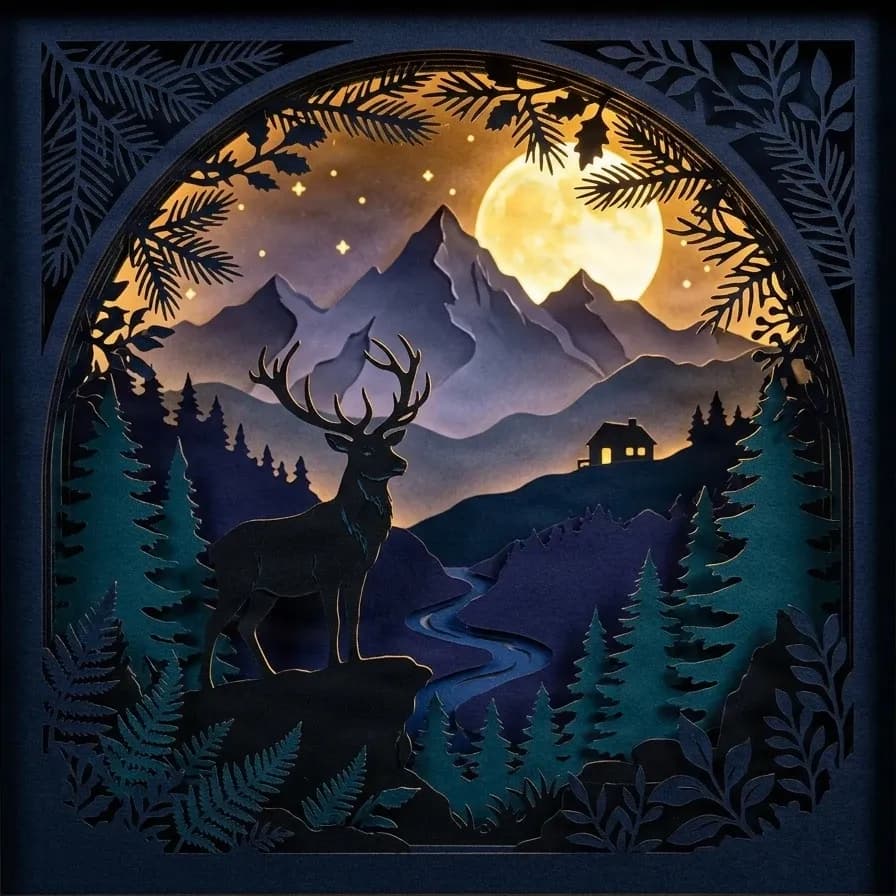
17 AI-separated image layers
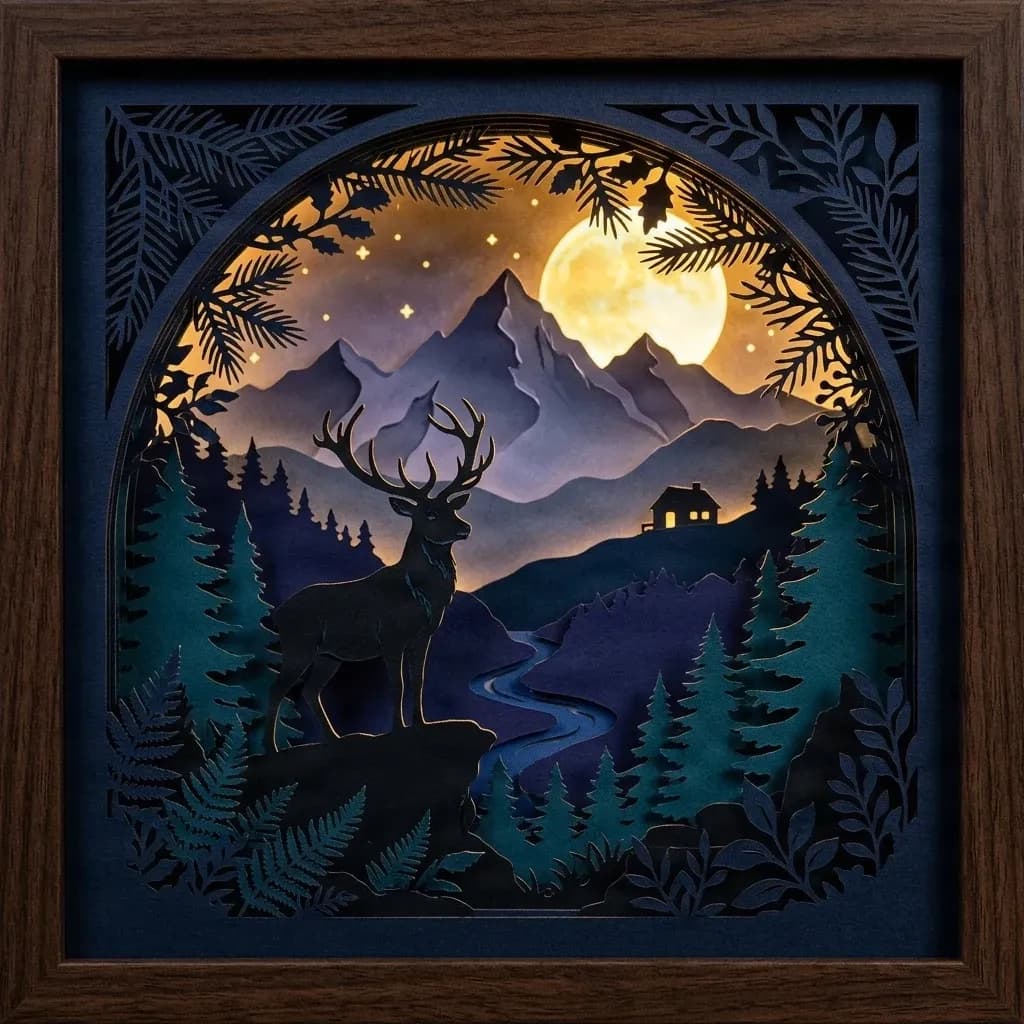
Framed forest artwork

Explore a woodland illustration with a deer, moon, trees, mountains, cottage, decorative plants, and an outer frame. Select individual layers to inspect which visual details were separated.

Layers in these examples
  • Wooden picture frame

    Wooden picture frame

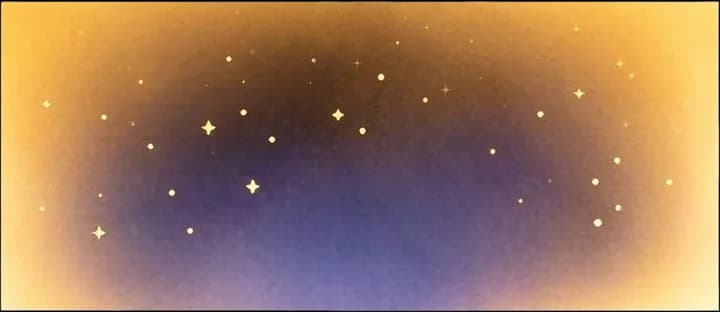
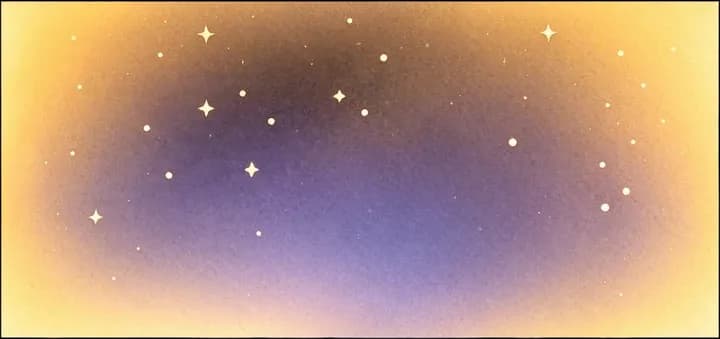
  • Star sky background

    Star sky background

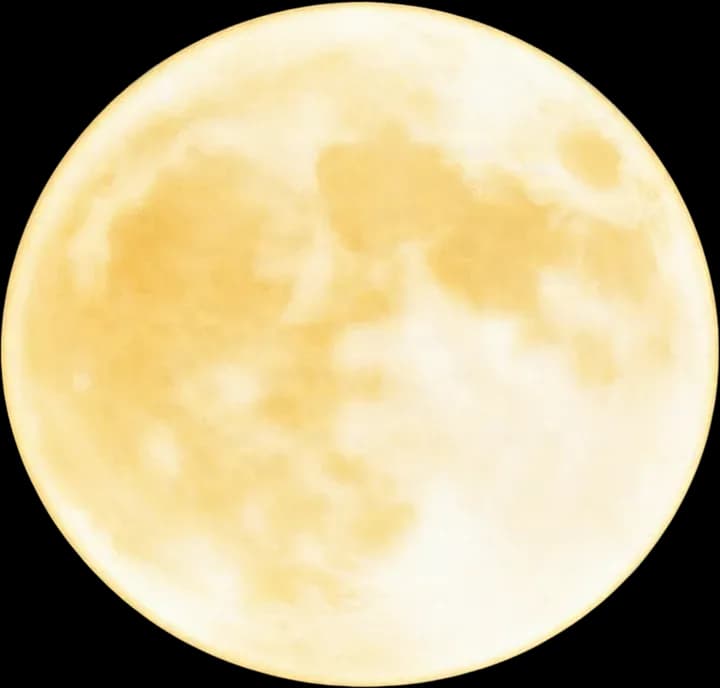
  • Full moon

    Full moon

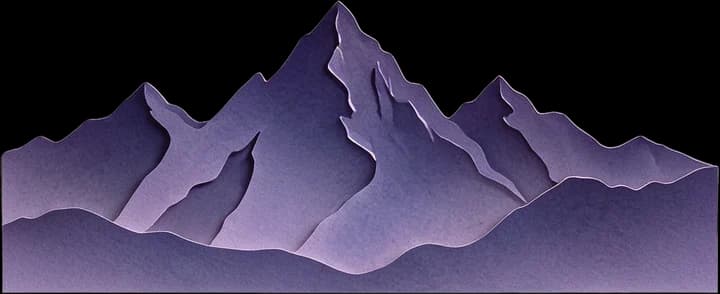
  • Distant mountain range

    Distant mountain range

  • Inner frame dark blue base

    Inner frame dark blue base

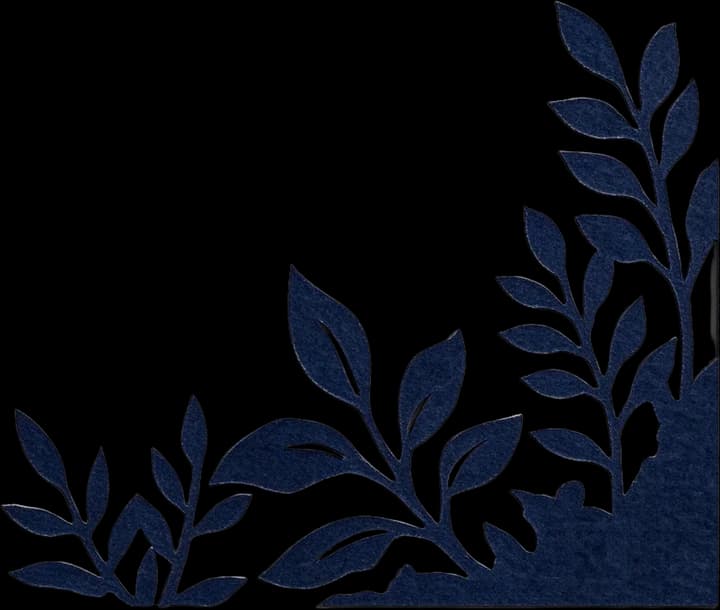
  • Top-left plant

    Top-left plant

  • Top-right plant

    Top-right plant

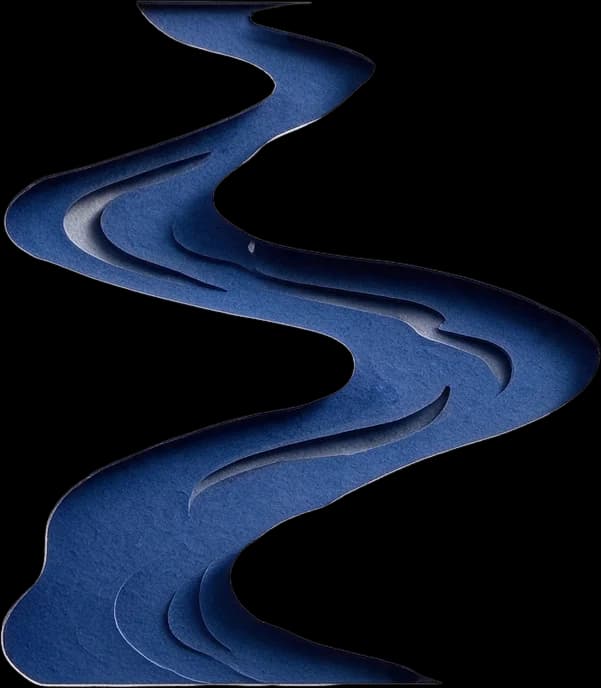
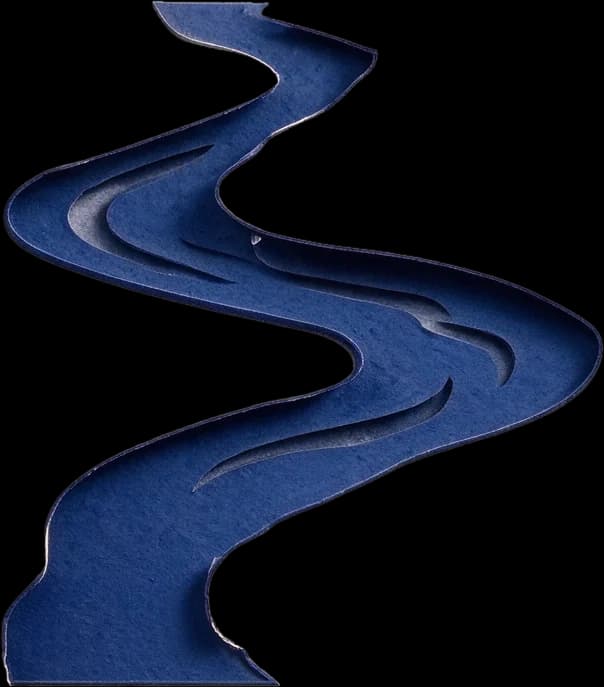
  • Stream

    Stream

  • Left dark forest

    Left dark forest

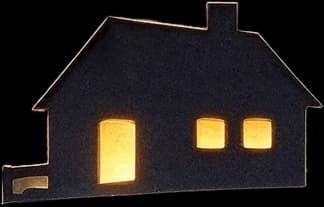
  • Hillside cabin

    Hillside cabin

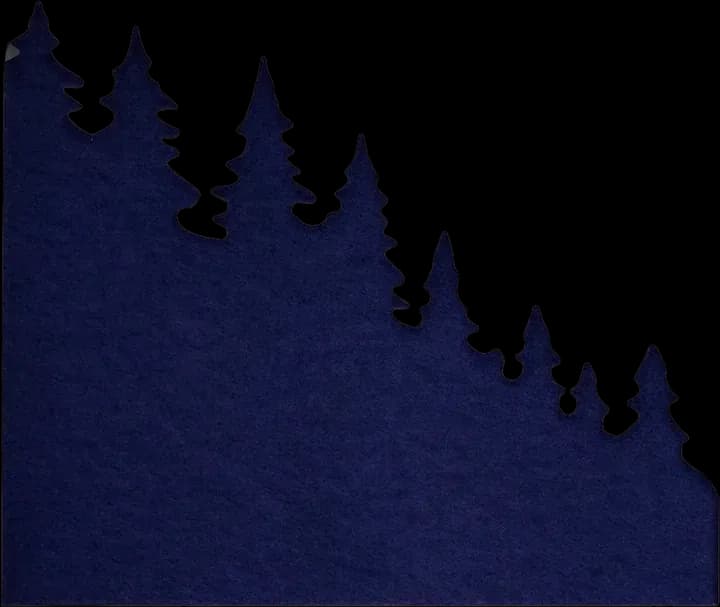
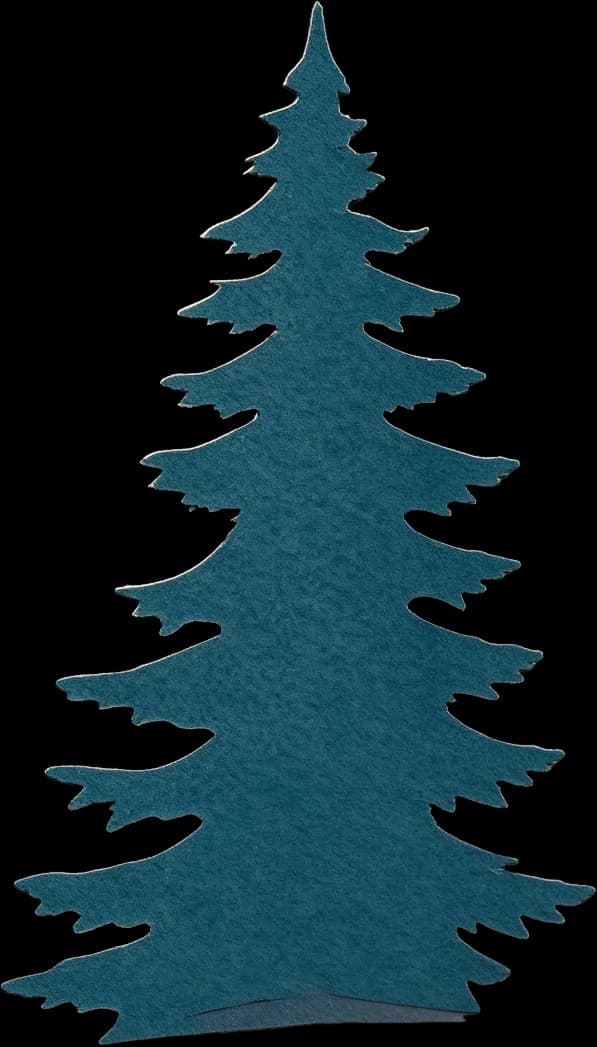
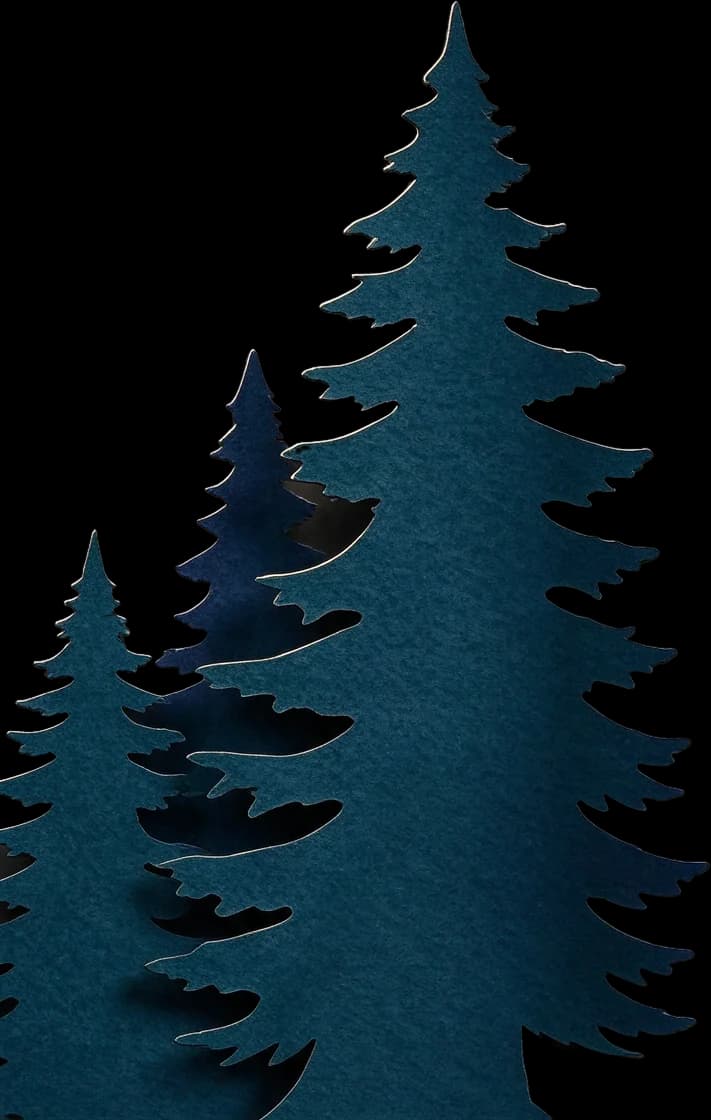
  • Left foreground conifer

    Left foreground conifer

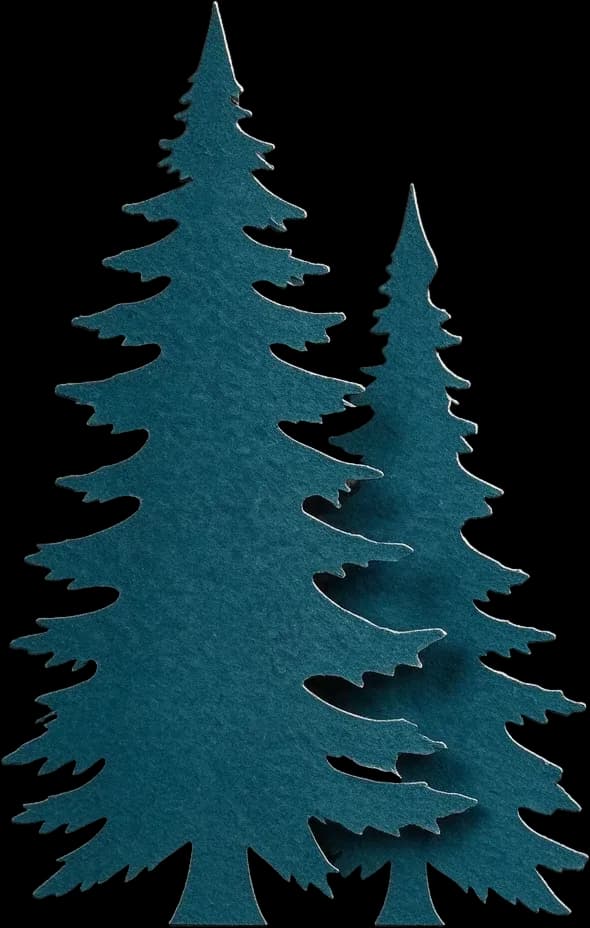
  • Right foreground conifer

    Right foreground conifer
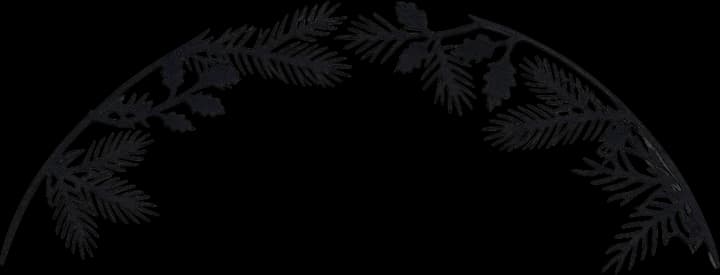
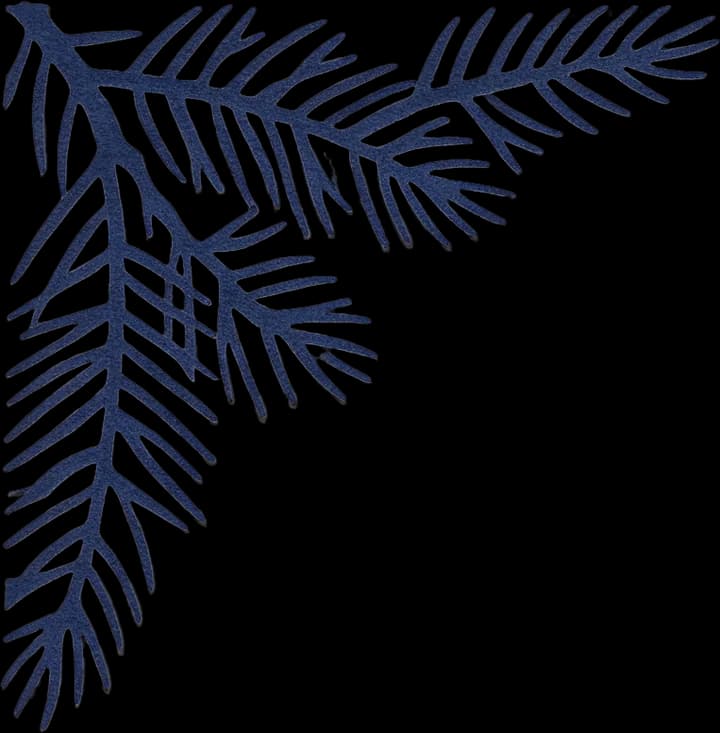
  • Top pine branch

    Top pine branch

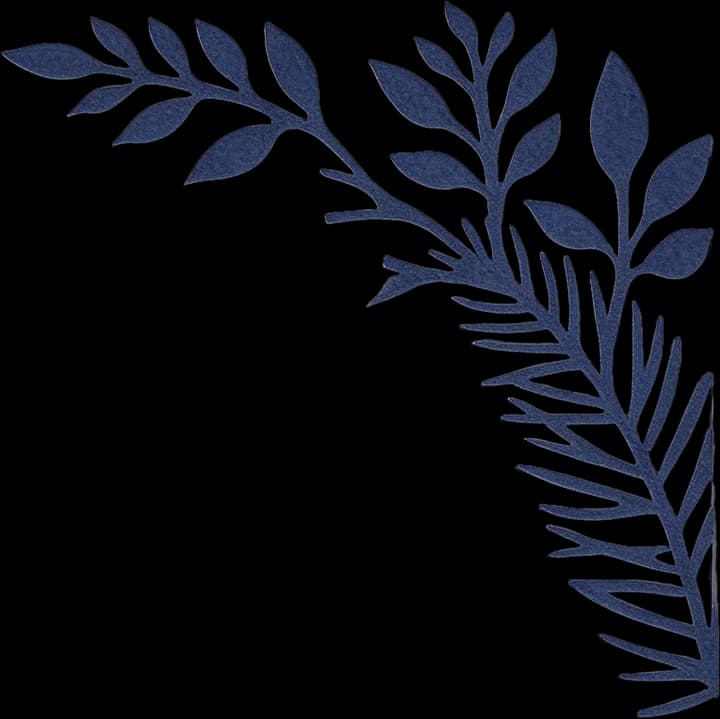
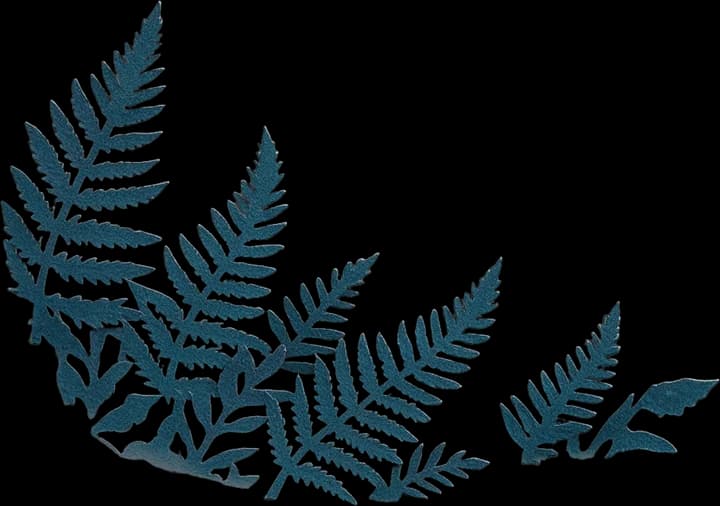
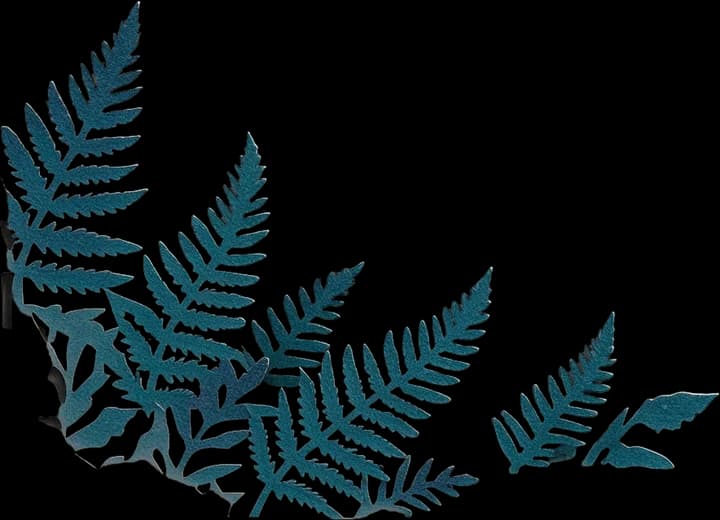
  • Bottom fern plant

    Bottom fern plant

  • Bottom-right plant decoration

    Bottom-right plant decoration

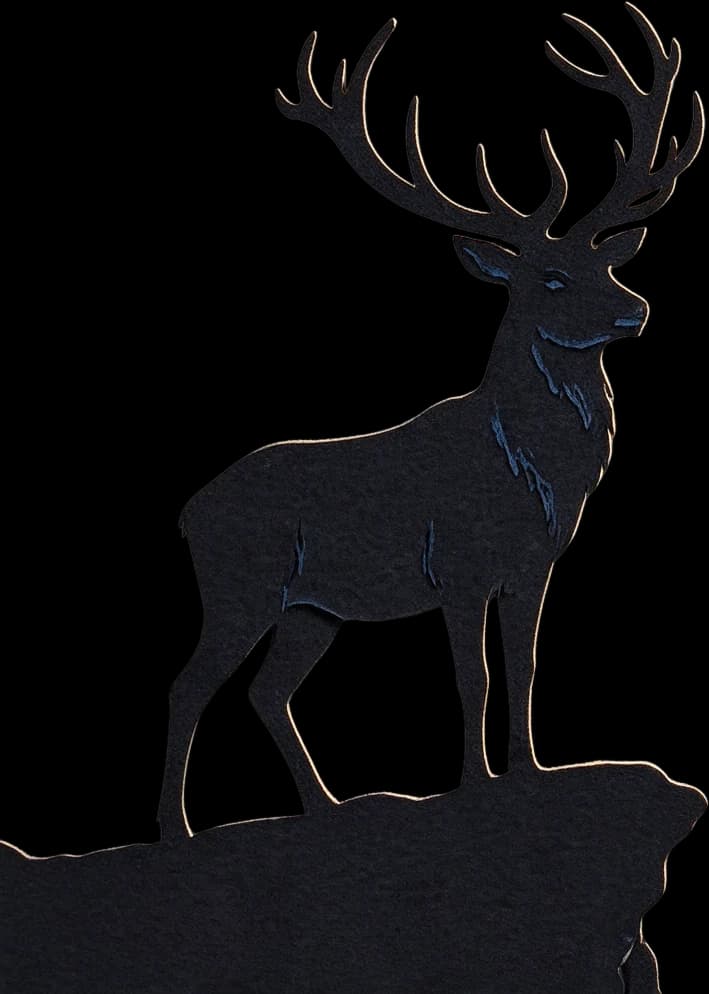
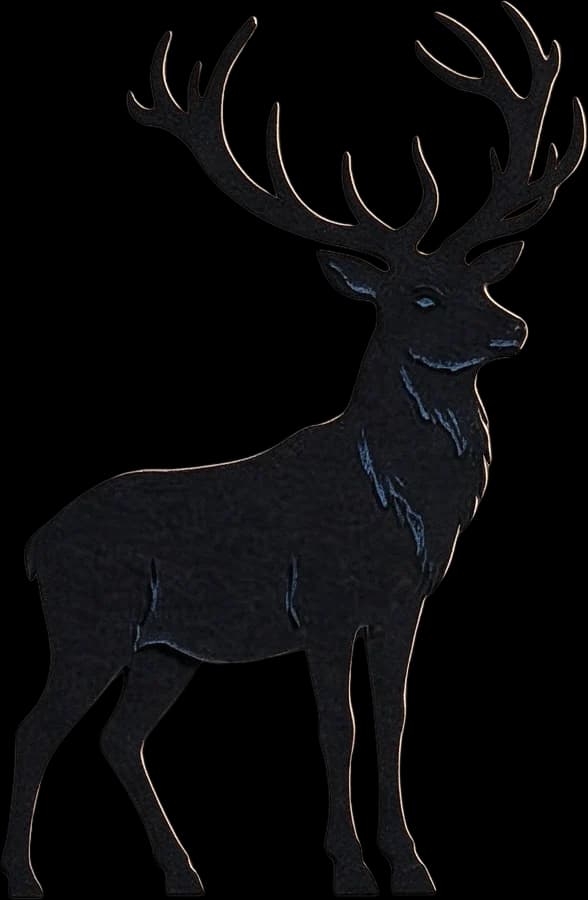
  • Foreground stag main

    Foreground stag main

Layered woodland scene

16 AI-separated image layers
Layered woodland scene

Explore the scene without its outer wooden frame. Inspect the forest, animals, landscape, and decorative elements as separate editable image layers.

Layers in these examples

  • Starry sky background

    Starry sky background

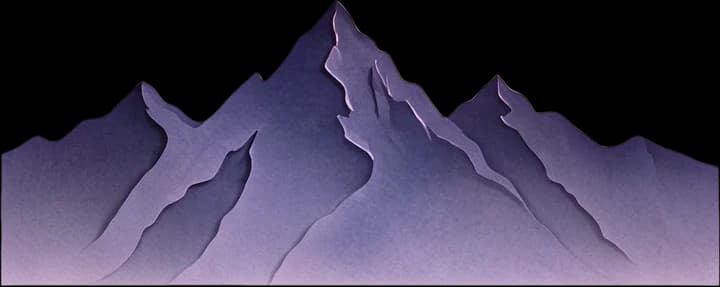
  • Purple distant mountain range

    Purple distant mountain range

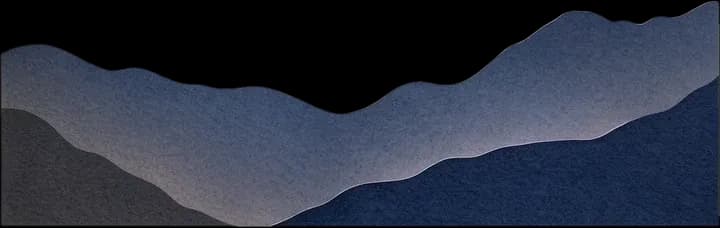
  • Dark gray midground mountain range

    Dark gray midground mountain range

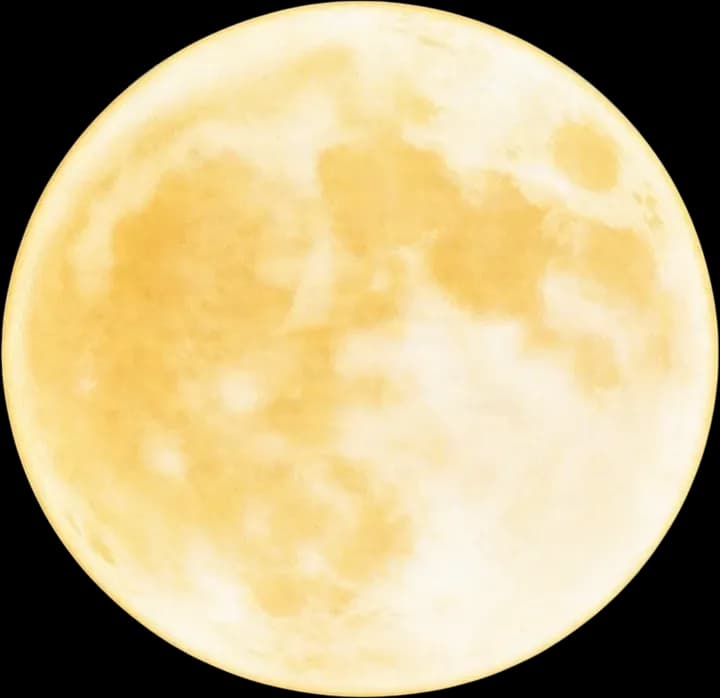
  • Full moon

    Full moon

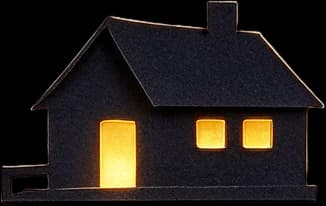
  • Hilltop cabin

    Hilltop cabin

  • Winding river

    Winding river

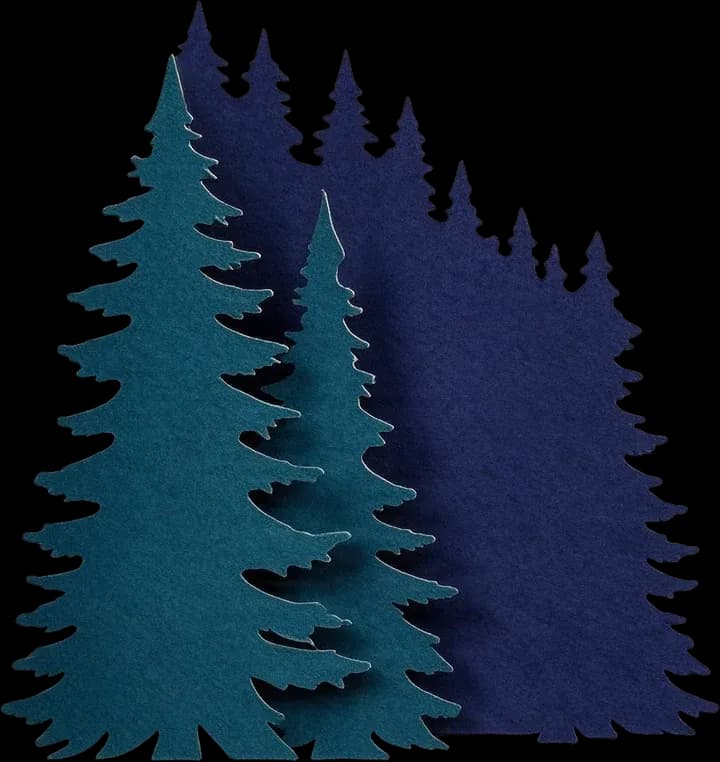
  • Left fir tree cluster

    Left fir tree cluster

  • Right fir tree cluster

    Right fir tree cluster

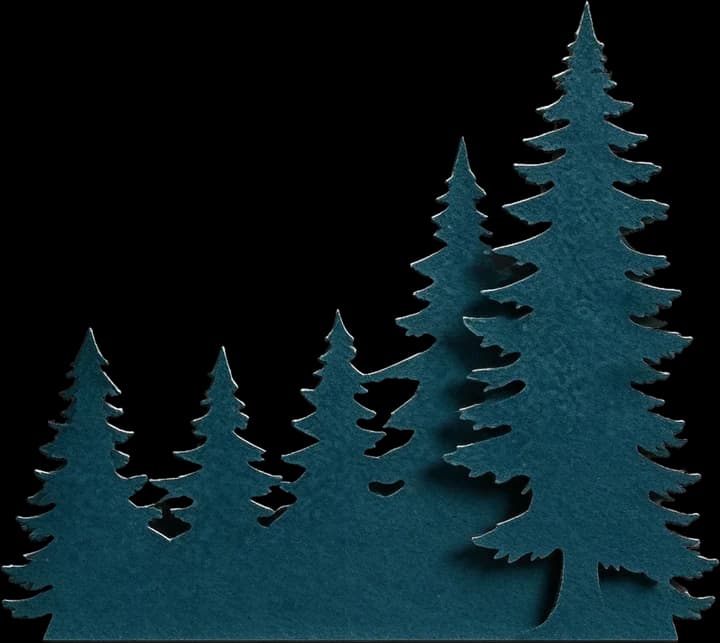
  • Bottom fir tree cluster

    Bottom fir tree cluster

  • Foreground stag

    Foreground stag

  • Stag's rocky platform

    Stag's rocky platform

  • Top arched pine branch

    Top arched pine branch

  • Bottom fern

    Bottom fern

  • Bottom broadleaf plant

    Bottom broadleaf plant

  • Outer dark decorative border

    Outer dark decorative border

Select a layer to inspect it. Switch between isolated elements and the complete picture to explore the composition.

These are real AI-generated image separation examples, not finished physical paper-cut templates. Layer counts include background layers. A completed paper craft project may require fewer or differently combined pieces.

Make more of the artwork you love

Spend Less Time Tracing. More Time Making.

Preparing a picture for layered paper art can become a repetitive editing task. Image separation gives you a flexible starting point for working with flowers, animals, scenery, and other individual elements.

Get Individual Elements from One Image

Explore subjects, decorations, and scenery separately without manually selecting every visible detail.

Edit One Part Without Rebuilding Everything

Make targeted changes to flowers, animals, buildings, or other elements in your composition.

Explore New Paper Art Compositions

Experiment with which objects belong in the foreground and which should remain behind other elements.

Start with Artwork You Already Have

Use your own images or artwork you are authorized to use instead of rebuilding the composition from scratch.

Prepare Shapes for Further Design Work

Inspect elements before simplifying them into paper-friendly silhouettes or converting selected images to SVG.

Continue in Your Preferred Editing Software

Download supported image layers and refine your artwork in compatible applications.

Inspiration for your next paper art project

One Image Can Inspire More Than One Kind of Paper Art

Start with the picture that inspires you. Explore its visual elements, then decide how you want to bring them together.

Layered Landscape Paper Art

Use mountain scenes, rivers, trees, hills, and distant skies as the starting point for scenic layered artwork.

Floral and Botanical Paper Cuts

Explore individual petals, stems, leaves, and decorative shapes before developing your final botanical composition.

Animal and Wildlife Silhouettes

Work with deer, birds, butterflies, cats, dogs, and woodland animals, then refine their outlines.

Personalized Paper Portraits

Use an authorized family, couple, or pet photograph to explore individual subjects and background details for a keepsake.

Layered Shadow Box Frames

Prepare image elements to edit, simplify, and arrange when developing artwork for a layered shadow box.

Seasonal Decorations and Paper Gifts

Explore pumpkins, winter trees, holiday villages, stars, hearts, spring flowers, and other decorative images.

AI image separation provides editable visual elements, not finished paper-cut patterns. Your project may need cutting-path preparation and manual adjustments.

From flat image to editable elements

Turn Your Picture into Layers in Five Steps

  1. Step 1

    Upload Your Image

    Choose the photo, illustration, or design you want to use. Recognizable subjects and distinct foreground and background details are a useful starting point.

  2. Step 2

    Generate Image Layers

    Use Detailed Layers to analyze the picture and attempt to separate visible objects and scenery into individual image layers.

  3. Step 3

    Explore the Result

    Inspect the separated elements. Review object boundaries, transparency, and any areas the AI may have reconstructed.

  4. Step 4

    Refine and Download

    Continue editing available layers or export supported image formats for further design work.

  5. Step 5

    Prepare Your Paper-Cut Design

    Decide which elements to simplify or combine. Create suitable cutting paths and check your final shapes before cutting physical paper.

Start Separating My Image

ImageToLayers handles image separation. Physical cutting templates and paper assembly require additional preparation.

You do not need to start from a blank canvas

Create Something Personal from a Picture You Already Love

Maybe you have a beautiful illustration, a favorite landscape, a flower arrangement, or an image that means something to you. You can already imagine it as layered paper art, but the original file is one flattened picture.

The leaves cannot be edited separately, the animal is mixed into the background, and changing one detail can feel like redrawing half the image. Image separation can help you explore the elements already inside your picture.

Keep the composition you love, refine the details you need, and make the design more personal through the next stages of your creative process.

  • Keep your original image as a reference
  • Work with subjects and scenery individually
  • Explore different combinations of elements
  • Prepare artwork for paper-friendly simplification
  • Spend more time on your final creative design
Upload the Image You Love

For DIY makers, artists, and creative sellers

A More Flexible Way to Start Your Next Project

DIY Paper Art Enthusiasts

Explore turning existing pictures and illustrations into editable elements for new handmade designs.

Layered Shadow Box Makers

Separate scenic details before developing a final shadow box arrangement and physical paper layers.

Personalized Gift Creators

Work with authorized photos and illustrations for custom paper art and keepsake designs.

Etsy and Digital Design Sellers

Prepare original or licensed artwork for further work on paper art products or digital cutting files.

Cricut and Silhouette Crafters

Use image layers as source material before preparing and checking paths in your chosen software.

Illustrators and Graphic Designers

Recover editing flexibility from flattened compositions and develop paper-cut-inspired artwork.

Understand what you are making

A Separated Image Is a Starting Point, Not a Finished Cutting Pattern

An AI-generated layer might contain a detailed tree with thin branches, leaves, textures, and shadows. Physical paper needs shapes that can be cut and handled without falling apart.

Image layers help you explore the artwork. A physical paper-cut design needs deliberate decisions about shapes, connections, materials, and alignment.

What AI image separation helps you do

  • Identify individual elements in a flattened image
  • Separate visible subjects from surrounding scenery
  • Explore foreground and background details
  • Review and refine individual image elements
  • Download supported layered image formats
  • Prepare source artwork for vector editing

What physical paper cutting still requires

  • Simplify photographic textures into workable shapes
  • Decide which elements belong on each sheet
  • Create appropriate vector cutting paths
  • Connect unsupported or floating shapes where needed
  • Remove details that are too small or fragile
  • Check dimensions and alignment
  • Test the design with your chosen material

An editable PNG layer is not automatically a cut-ready SVG. Even after SVG conversion, shapes may need manual correction before cutting.

Design for the material

Make Your Image Work as a Paper-Cut Composition

Layered illustrations and physical paper-cut artwork do not always use the same visual rules. Think about which shapes to preserve and how the material will behave.

Start with the Main Subject

A deer, flower, tree, portrait, or building can be a focal point. Separating it gives you more flexibility to refine it.

Choose Supporting Scenery

Mountains, clouds, branches, and decorative backgrounds can create depth, but you may not need every visible detail.

Simplify Complicated Areas

Fine hair, dense leaves, narrow lines, and tiny details may need cleaner silhouettes or larger cut shapes.

Combine Elements When It Makes Sense

Several separated image layers can sometimes be redesigned as a single physical piece of paper.

Check the Finished Arrangement

Make sure planned shapes align and disconnected elements have support before cutting and assembling the artwork.

Take your artwork further

Choose the Elements You Want to Convert into Vector Shapes

Not every element needs its own cutting file. Choose a suitable animal silhouette, decorative flower, or landscape detail and continue with that image layer.

Separate the Original Image

Use AI to produce editable image layers from your uploaded artwork.

Choose a Suitable Layer

Review the result and select the image element you want to work with next.

Continue to Image to SVG

For supported completed Shadow Box jobs, select a layer and continue to SVG conversion without uploading the stored image again.

Refine the Cutting Paths

Review vector outlines and make necessary changes before using them in your paper-cut workflow.

Image to SVG is a separate paid operation, currently 30 credits per selected image.

SVG conversion does not guarantee connected shapes, correct dimensions, or compatibility with every cutter and material.

Generate Paper Art Layers

Frequently asked questions

Image to Paper Cut Layers FAQs

What is Image to Paper Cut Layers?

It is an AI image separation workflow that helps turn a flattened photo or illustration into editable image elements. Use them as starting material for layered paper art, shadow boxes, and other paper-cut projects.

Can I turn a regular photo into paper-cut layers?

Yes. Upload a photograph and use Detailed Layers to attempt to separate visible subjects and scenery. Photos may need simplification before their elements become practical physical paper-cut shapes.

Can I use an illustration instead of a photograph?

Yes. Illustrations, drawings, rendered artwork, and other supported image types can be used. Recognizable shapes and distinct foreground and background elements are useful starting points.

Does this tool automatically turn my image into a finished paper-cut template?

No. It generates editable image layers, not a machine-verified cutting template. You may need to simplify shapes, convert selected artwork to vectors, and check the cutting geometry separately.

Can it separate flowers, animals, trees, and landscapes?

The AI can attempt to identify and separate these kinds of visual elements. Results depend on the original image, overlap, and how clearly the subjects appear.

Can I turn an image into exactly five, six, or eight paper layers?

Not automatically. Detailed Layers separates visual objects rather than guaranteeing a fixed number of physical sheets. You can later combine, simplify, or reorganize elements for your project.

How many image layers will I receive?

The number varies by image. Our sample compositions contain 16 and 17 AI image layers, including backgrounds, but your result may contain fewer or more.

Will the AI remove the background from each object?

Detailed Layers attempts to separate individual elements, including transparent regions where supported. Some layers may still include background content or require cleanup, so review each result.

Can the AI reconstruct objects that were partly hidden?

The model may generate plausible visual details where an object was covered. These reconstructed areas are estimates and may differ from what was originally hidden.

Does this tool create clean paper-cut silhouettes automatically?

Not necessarily. Output focuses on separating image elements and may include textures, shading, intricate edges, or small details. Further simplification may be needed for physical cutting.

Can I download the separated layers as PNG files?

The existing ImageToLayers workflow supports PNG layer exports. Available actions depend on the completed result and applicable export access.

Can I export a layered PSD file?

The existing workflow supports layered PSD export, subject to the applicable plan and export conditions. This can help you continue editing in compatible software.

Can I turn the separated layers into SVG?

You can choose a suitable layer from a supported completed Shadow Box job and continue to the separate Image to SVG workflow. Conversion is charged separately and does not guarantee a finished cutting template.

Will the results work with Cricut or Silhouette?

Use generated image elements as inputs for further preparation in compatible software. Create and inspect suitable paths, dimensions, and layer arrangements before cutting.

Can I make layered shadow boxes with these images?

Yes. Separated artwork can be a starting point for a layered shadow box. You still need to determine the physical number of paper layers and prepare cutting, spacing, and assembly details.

Can I create paper art for commercial sale?

You can use the workflow commercially, subject to applicable service terms and your rights to the source images. Confirm permission for source artwork and check the quality of finished files and products.

How much does Image to Paper Cut Layers cost?

Detailed Layers currently costs 60 credits per generation. Optional Image to SVG currently costs 30 credits per image conversion. These are separate paid operations.

What if the AI does not separate a small detail correctly?

Small, overlapping, low-contrast, or highly detailed objects may remain combined or be reconstructed imperfectly. Review the result, use available editing options, or try a clearer image. Results vary by picture.

Your Next Paper Art Project Starts with a Picture

Have an image you would love to turn into something handmade?

Separate subjects, scenery, and decorative details into editable image layers. Explore the elements, refine what matters, and create your own path toward layered paper art.

Separate My Image into Layers

Start with your own picture. Discover its individual elements. Create something personal.

Detailed Layers uses 60 credits per generation. Optional SVG conversion is charged separately.

    Image to Paper Cut Layers | AI Layer Separator | Image to Layers