
Convert Images to SVG for Laser Cutting
Turn PNG, JPG, logos, silhouettes, and graphics into clean SVG vector paths for laser cutting.
Simplify raster artwork into scalable contours you can inspect, edit, and import into your preferred laser workflow.
Drop an image here
Choose a PNG, JPG, or WebP file, drag it here, or paste it from your clipboard.
Preview a cached example
For cleaner vector paths, start with artwork that has strong edges, limited texture, and a simple background.
PNG, JPG, or WebP · Maximum 10 MB
Vector settings
For laser cutting, fewer clean contours are often easier to prepare than hundreds of tiny traced shapes.
Generate real SVG vector paths from your raster artwork.
PNG, JPG & WebP · Real vector paths · SVG download
Best for silhouettes, logos, stencils, signs, ornaments, badges, and high-contrast graphics.
See Raster Images Converted Into SVG Cut Paths
The same image can look almost identical after vectorization. Switch to SVG Paths to see the actual contours created for cutting and editing.
Mountain Badge → Simplified Cut Paths
Simplify a multi-color badge into cleaner vector geometry for signs, stencils, ornaments, and decorative cutting projects.
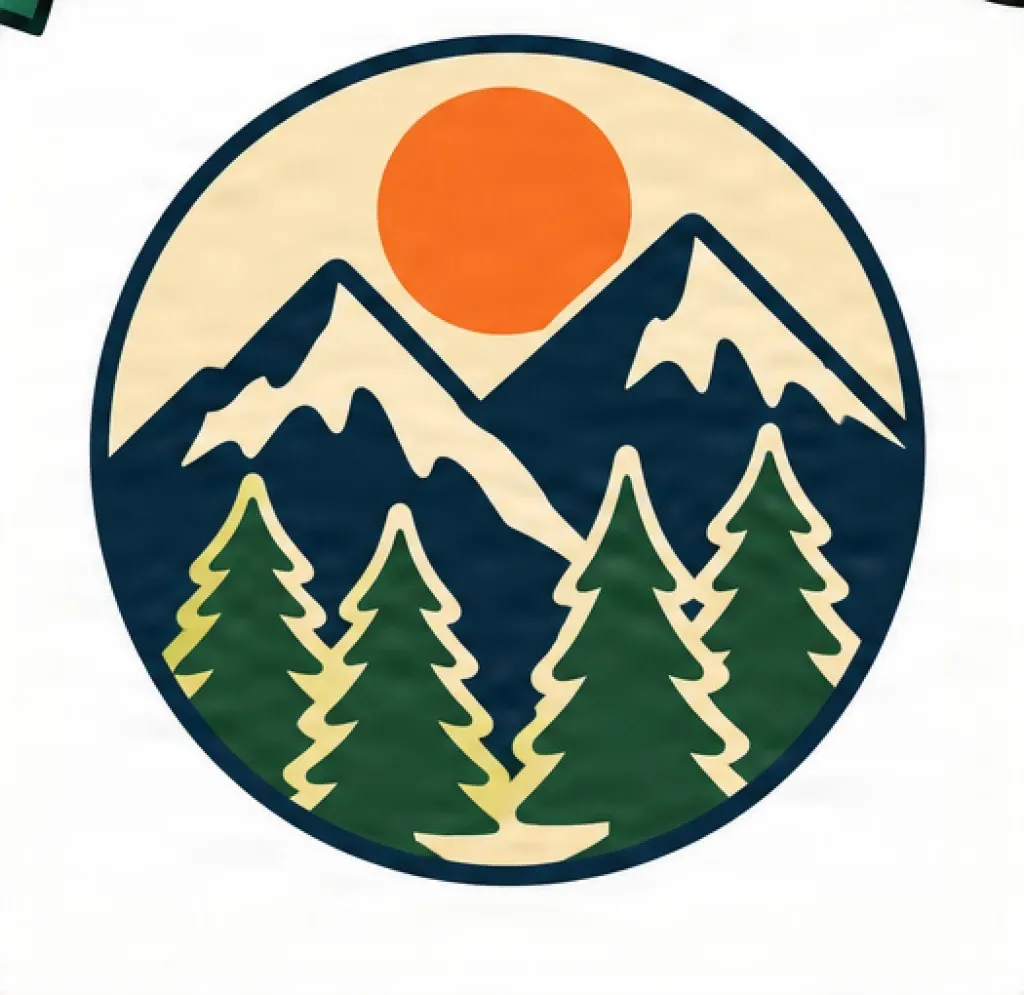
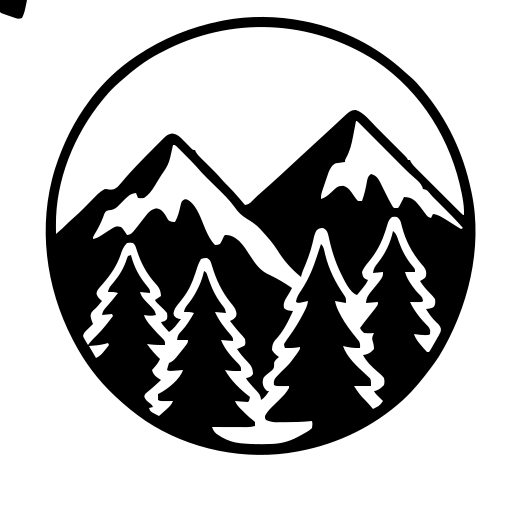
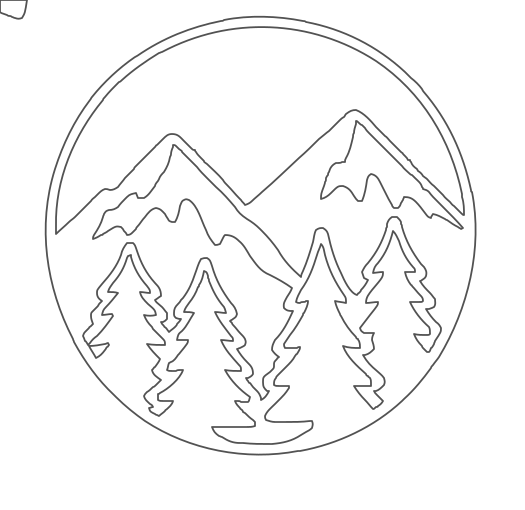
6 vector paths · Clean cut geometry
Decorative Flower Cutout
Turn colorful decorative artwork into simplified contours for wooden decorations, acrylic shapes, stencils, or craft cutouts.
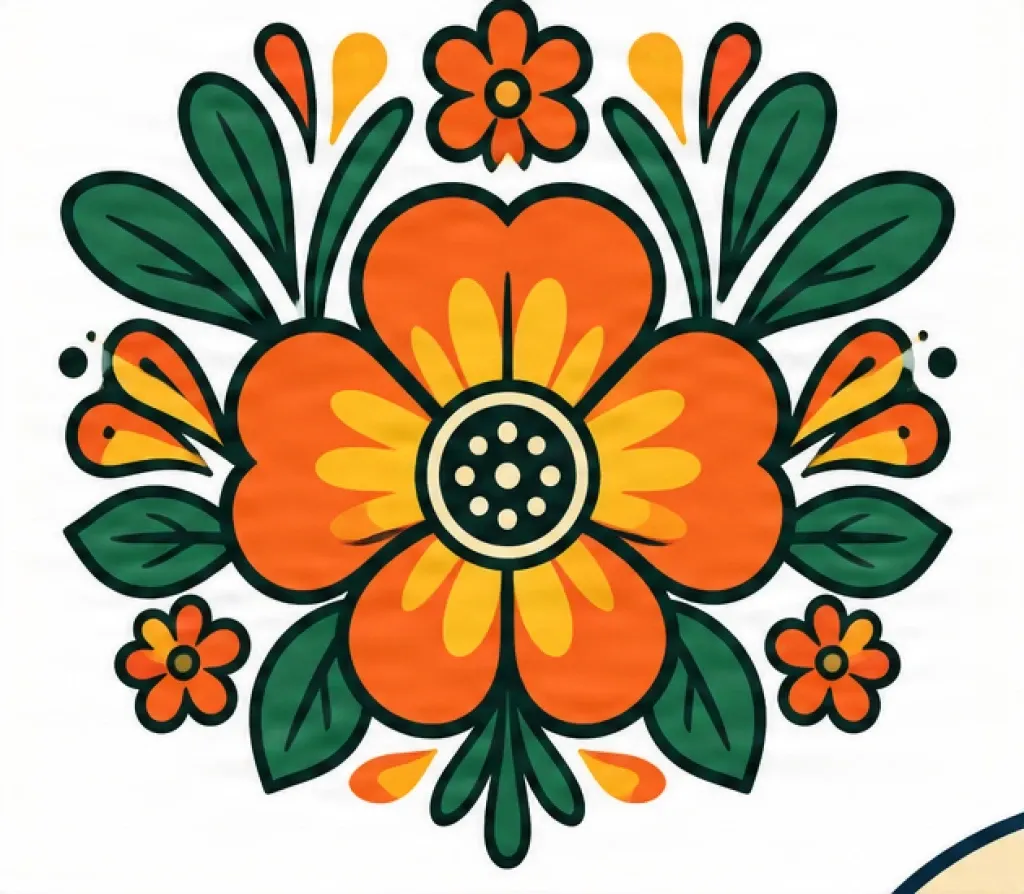
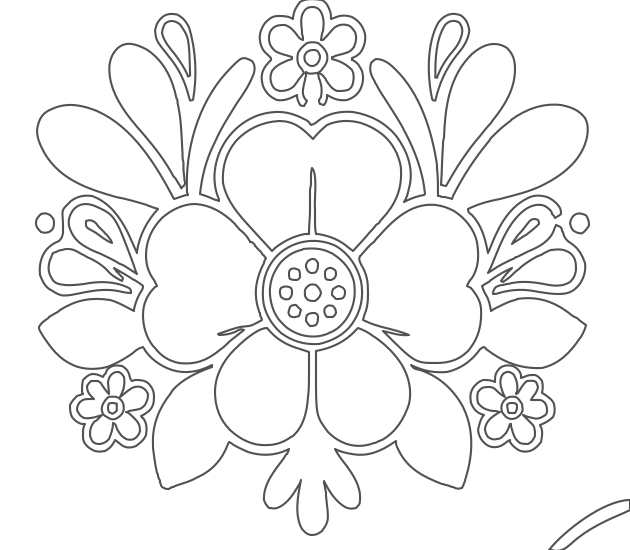
39 vector paths
Dinosaur Silhouette Cut
Reduce a multi-color illustration to a simpler silhouette for wooden cutouts, kids' decorations, signs, and craft templates.
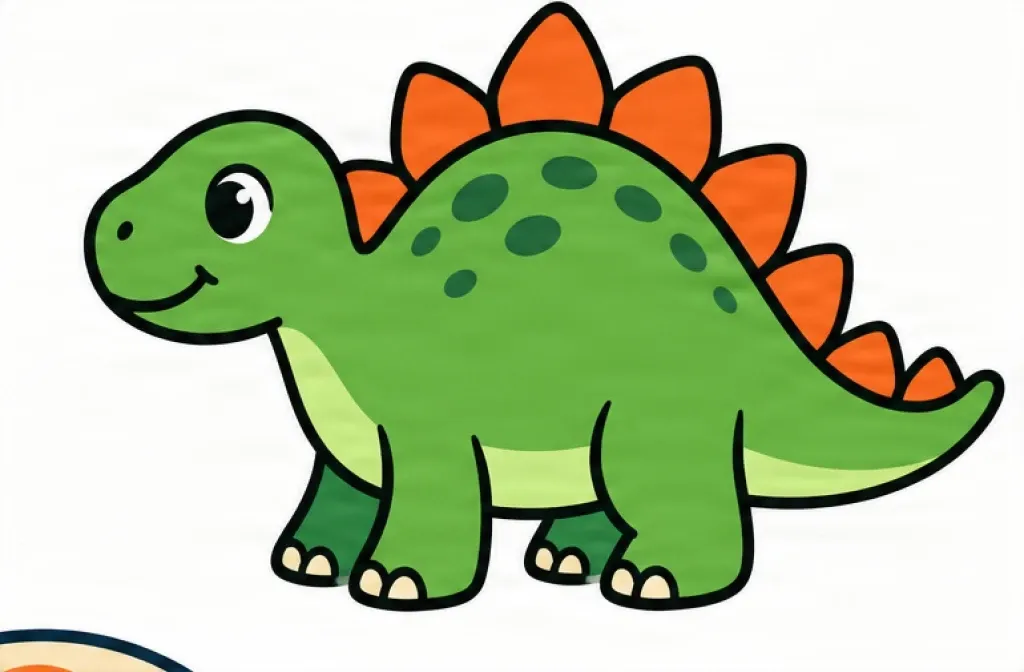
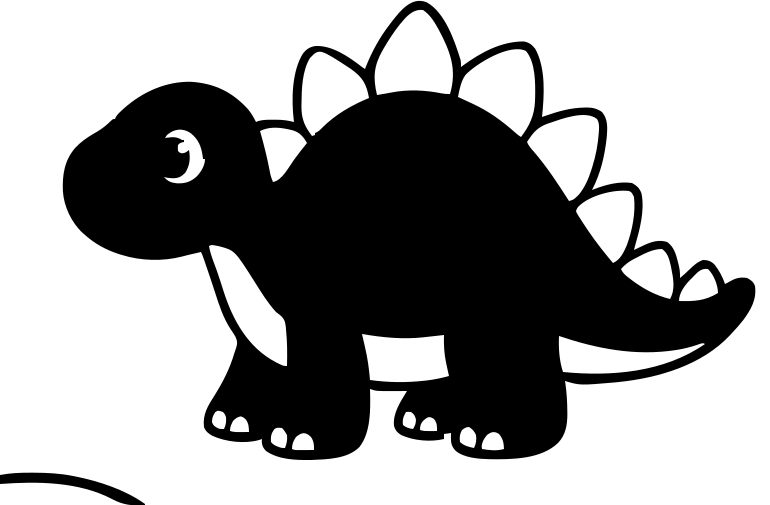
22 vector paths
From Raster Pixels to Vector Cut Paths
A PNG or JPG is made from pixels.
For many laser cutting workflows, you need vector contours that laser software can interpret as editable geometry.
ImageToLayers traces the visible shapes in your artwork and converts them into SVG paths.
Raster Image
- PNG / JPG
- Pixel-based
- Fixed resolution
- Flattened artwork
Vectorization
- Detect edges
- Trace shapes
- Simplify geometry
- Create SVG paths
SVG Vector
- Scalable contours
- Editable geometry
- Reusable file
Why Convert Images to SVG for Laser Cutting?
Create Vector Contours
Turn raster artwork into lines and shapes that can be edited as vector geometry.
Scale Without Pixelation
Resize the SVG without depending on the original pixel dimensions.
Simplify Complex Artwork
Reduce unnecessary raster detail before preparing the design for cutting.
Edit the Paths
Adjust curves, remove shapes, or modify the geometry in compatible vector software.
Reuse One Design
Use the same vector source at multiple sizes.
Inspect Before Cutting
View the actual SVG paths instead of relying only on the rendered image.
Raster Image vs Vector SVG
PNG / JPG
Raster
- Made from pixels
- Fixed resolution
- Can contain gradients and texture
- Difficult to edit as geometric paths
- Often useful for image engraving
SVG
Vector
- Built from vector paths
- Scalable
- Editable
- Can contain closed contours and cutouts
- Better suited to many cutting and scoring workflows
Create SVG Files for LightBurn
Convert your raster artwork into SVG vector geometry before importing it into LightBurn.
Common uses include:
After import, configure your final laser settings based on your machine and material.
Speed, power, passes, kerf, and other cutting settings are not embedded by this converter.
Prepare SVG Artwork for xTool
Convert PNG or JPG graphics into editable SVG paths before continuing your project in xTool software.
Useful for:
Laser Cutting vs Image Engraving
Laser Cutting
Vector contours define where the laser follows the shape.
Best for:
- Silhouettes
- Cutout shapes
- Signs
- Stencils
- Ornaments
- Templates
Image Engraving
Raster images can often be used directly for photographic or shaded engraving.
Best for:
- Photos
- Grayscale artwork
- Shaded illustrations
- Detailed raster images
Vector Scoring / Marking
SVG paths can also be useful for line-based scoring or vector engraving operations.
If your goal is to cut the physical outline or internal geometry of a shape, vectorization is usually more relevant than raster image engraving.
What Images Convert Best for Laser Cutting?
Simpler artwork with strong edges generally creates cleaner SVG contours.
Best Results
- Silhouettes
- Black and white graphics
- Logos
- Stencils
- Icons
- Badges
- Geometric designs
- Simple lettering
- Decorative cutouts
- High-contrast artwork
May Need More Cleanup
- Photographs
- Gradients
- Soft shadows
- Complex textures
- Blurry images
- Low-contrast artwork
- Tiny details
- Highly compressed JPGs
Cleaner Paths Are Often Better Paths
Reduce Tiny Details
Very small shapes may create unnecessary vector geometry.
Use Strong Contrast
Clear boundaries are easier to trace.
Start With Simple Artwork
Highly detailed raster images may generate many paths.
Prefer Cutout Shapes
Use separated outer and inner contours when the final project depends on physical cutouts.
Inspect the SVG Paths
Check the generated vector structure before downloading.
See the Paths Behind the SVG
A rendered SVG can look almost identical to the original PNG.
That does not mean the files are structurally the same.
Use SVG Paths view to reveal the vector contours underneath.
Original PNG
Raster pixels
Rendered SVG
Looks visually similar
SVG Paths
Actual vector geometry
This makes it easier to see whether your result contains clean contours or excessive traced detail.
Create SVGs for Common Laser Cutting Projects
Wooden Signs
Convert logos, lettering, and graphics into scalable contours.
Acrylic Shapes
Create outlines for decorative or functional acrylic pieces.
Ornaments
Vectorize silhouettes and seasonal graphics.
Stencils
Turn high-contrast artwork into cutout-style vector geometry.
Coasters
Convert geometric or decorative patterns into SVG paths.
Craft Templates
Create reusable vector shapes from simple raster designs.
How to Convert an Image to SVG for Laser Cutting
Upload Your Image
Choose a PNG, JPG, or WebP graphic.
Choose a Laser Preset
Start with Clean Cut for simpler contours or Detailed Cut for additional geometry.
Adjust the Vector Settings
Choose color mode, path style, shape structure, and detail level.
Inspect the SVG Paths
Switch from the rendered preview to outline mode and review the generated vector geometry.
Download the SVG
Save your SVG and continue preparing the final job in your laser software.
A Real Vector SVG — Not a PNG Inside an SVG
Simply wrapping a PNG inside an SVG file does not make the artwork vector.
ImageToLayers traces the visible shapes and reconstructs them as SVG paths.
Raster Wrapped in SVG
SVG
└── Embedded PNG
Still raster
Vectorized SVG
SVG
├── Path
├── Path
├── Path
└── Path
Real vector geometry
FAQ
Image to SVG for Laser Cutting FAQ
How do I convert an image to SVG for laser cutting?
Upload a PNG, JPG, or WebP image, choose the vector settings, convert the artwork, inspect the SVG paths, and download the resulting SVG.
Can I convert PNG to SVG for laser cutting?
Yes. High-contrast PNG graphics such as silhouettes, logos, icons, badges, and simple illustrations are especially suitable for vector tracing.
Can I use the SVG in LightBurn?
You can import SVG vector artwork into compatible laser workflows such as LightBurn, then configure the processing settings required by your machine and material.
Can I use the SVG with xTool?
SVG is commonly used in vector design workflows and can be imported into compatible xTool software.
Is the SVG automatically ready to cut?
Not necessarily. The converter creates vector geometry. You should still inspect the paths and configure the correct machine settings before cutting.
What image works best?
Silhouettes, logos, stencils, black-and-white graphics, and artwork with strong edges generally create cleaner vector results.
Can I convert a photograph?
Yes, but photographs contain much more visual detail and may produce complex SVG geometry. Simpler high-contrast artwork is usually more practical for cutting.
Why does my SVG have too many paths?
Textures, gradients, anti-aliased edges, compression artifacts, and tiny details can create additional traced shapes. Try a simpler detail setting or a cleaner source image.
Should I use Black & White mode?
Black & White is a good starting point for silhouettes, signs, stencils, ornaments, and simple cutout artwork.
Does SVG work for engraving too?
Vector SVG paths can be useful for line-based scoring or vector engraving. Photo-style engraving often uses raster images directly.
Will text stay editable?
Text inside a raster image is traced as vector shapes. It is not recovered as the original editable font.
More SVG Tools
PNG to SVG for Cricut
Convert PNG graphics into SVG files for craft and multi-color cutting workflows.
PNG to SVG for CricutTurn Your Image Into SVG Cut Paths
Convert raster artwork into scalable vector geometry for your next laser cutting project.
Upload Image