Have a beautiful shadow box design, photo, or illustration? Separate the scenery, objects, and background into individual image layers, then convert selected layers to SVG for Cricut, laser cutting, or craft design work.
Separate Foreground & BackgroundDownload Editable Image LayersConvert Selected Layers to SVG
1
Click or drag image to upload
Upload your image
JPG, PNG, WebP up to 10MB · Drag & drop anywhere
Change Image
Layer explorer17 layers
Hover or tap a box to inspect a layer
Separated layers17 layers
Protected exampleClick a layer to inspect it
2
Settings
Leave this blank to let Detailed Layers identify the main editable elements automatically. Or name the parts you want separated.
Want more control over your layers?
Add a short note to guide Detailed Layers toward the elements you care about, such as the main subject, the sky, or a foreground branch. Clear depth in your artwork gives cleaner layers.
Main subjectMountains & hillsTrees & plantsSky & moonBackground
Upload a photo, illustration, or existing shadow box design to get started.
Image separation: 60 credits. Optional Image to SVG conversion: 30 credits per selected layer. SVG files may require additional editing before cutting.
FROM ARTWORK TO SVG
From Your Artwork to Editable Layers and SVG
01
Upload Your Image
Start with a photo, illustration, or craft design
02
Generate Layers
60 credits per generation
03
Choose a Layer
Select a foreground element, silhouette, or subject
04
Convert to SVG
30 credits per selected layer
Review and refine SVG vector paths and structural tabs before cutting.
Need SVG for Your Shadow Box Project?
You can continue beyond image separation.
After generating editable image layers, select any layer and open it in our Image to SVG tool. Convert raster artwork into crisp vector curves for Cricut, Silhouette, laser cutting, and layered craft design.
No need to upload the same layer again when continuing from a supported result.
Image to SVG is optional and charged separately at 30 credits per selected image.
SVG conversion does not automatically produce a complete, cut-ready multi-layer template.
Separate Your Shadow Box Image into Layers
Whether you're making a paper-cut light box, planning a personalized gift, or preparing layered artwork for a craft project, start with the image you already have.
Upload your artwork, choose Detailed Layers, and let AI identify separate visual elements. Review the resulting layers and continue editing them in your preferred image-editing workflow.
Separate Foreground & BackgroundDownload Editable Image LayersConvert Selected Layers to SVG
Keep your existing image as the starting point. AI-generated layers may need adjustments before craft production.
EXPLORE A REAL LAYERED EXAMPLE
One Beautiful Scene. Multiple Editable Elements.
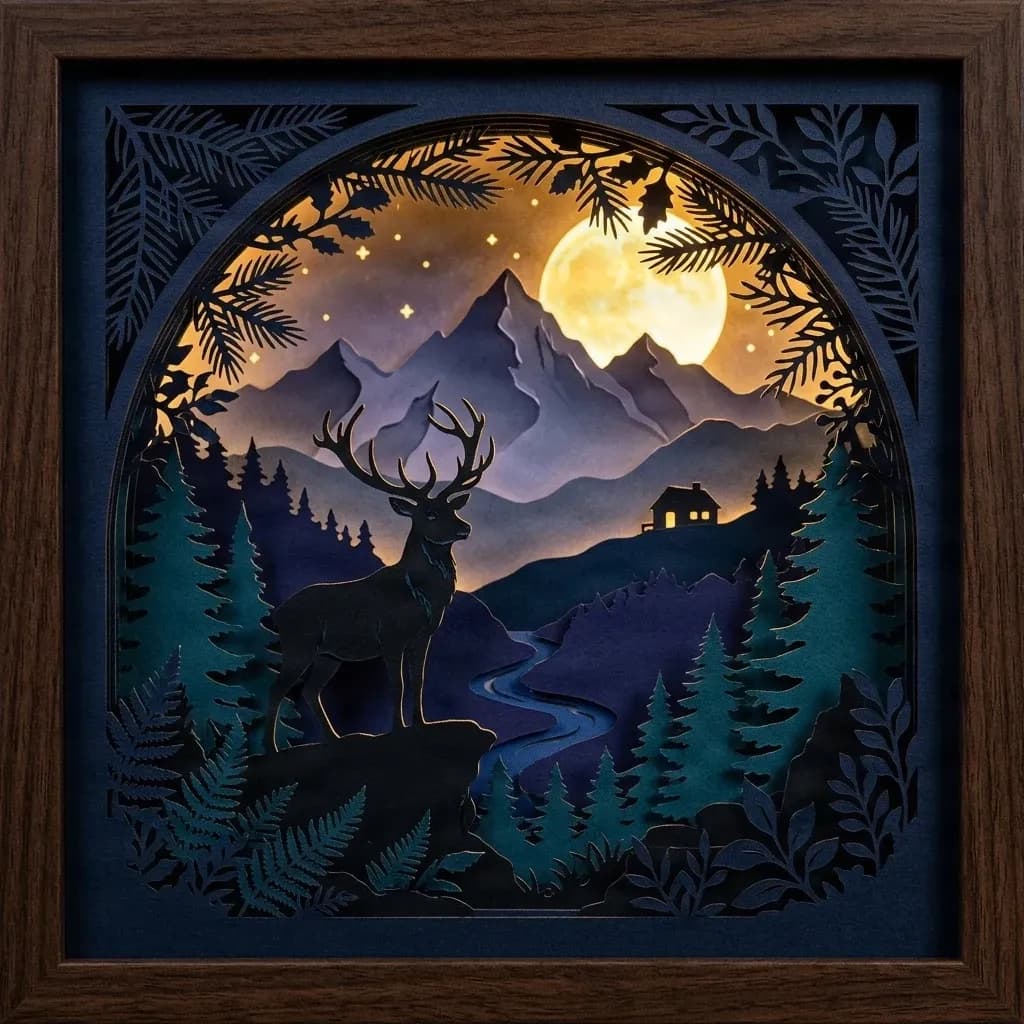
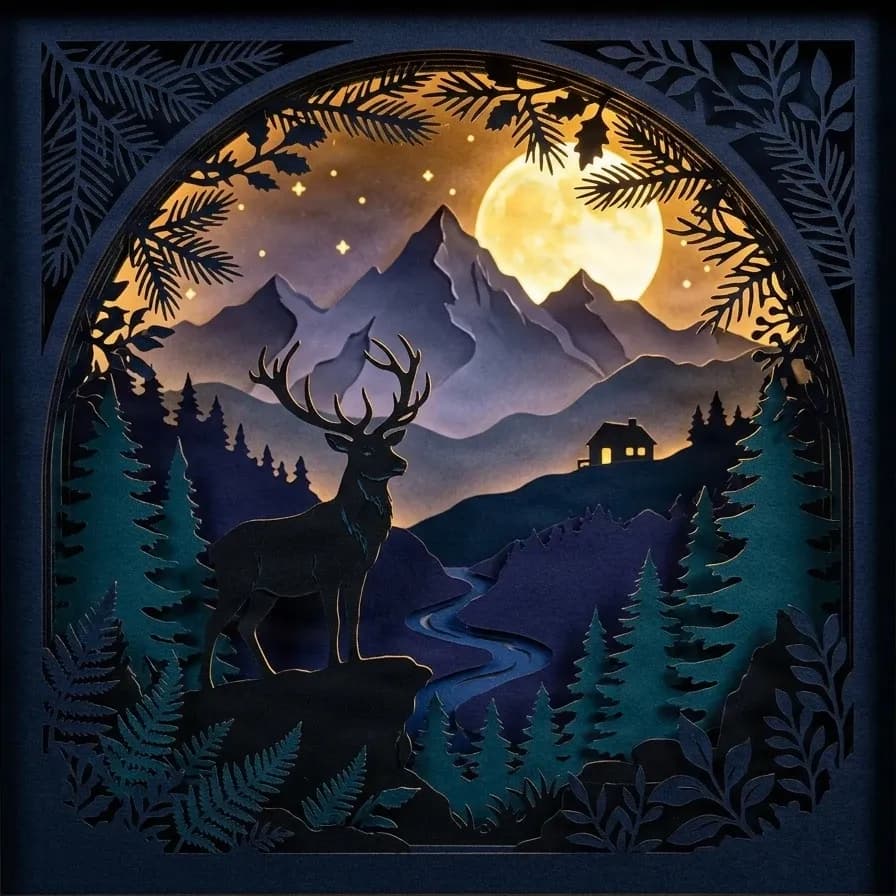
A finished shadow box scene may look like one complete piece of artwork, but its visual details can be separated into individual layers.
Explore the deer, mountains, moon, forest, cottage, and foreground elements in our sample to see what becomes possible when you're no longer limited to one flat image.
Framed Forest Scene
17 AI-Separated Layers
Explore a layered woodland scene featuring a deer, a glowing moon, distant mountains, trees, a cottage, and its decorative frame. Select individual elements to examine how the artwork was separated.
Layers in this example
Wooden picture frame
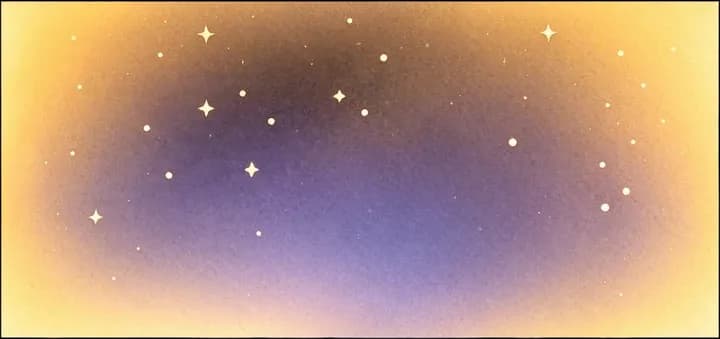
Star sky background
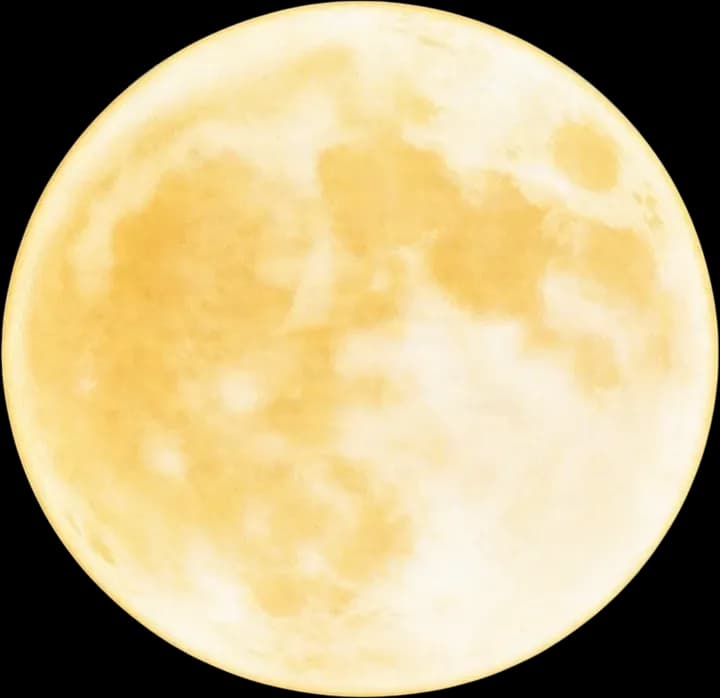
Full moon
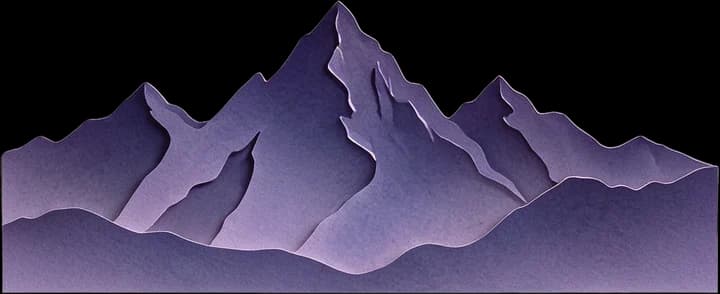
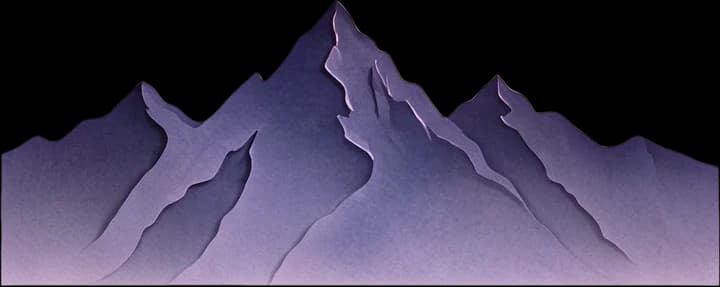
Distant mountain range
Inner frame dark blue base
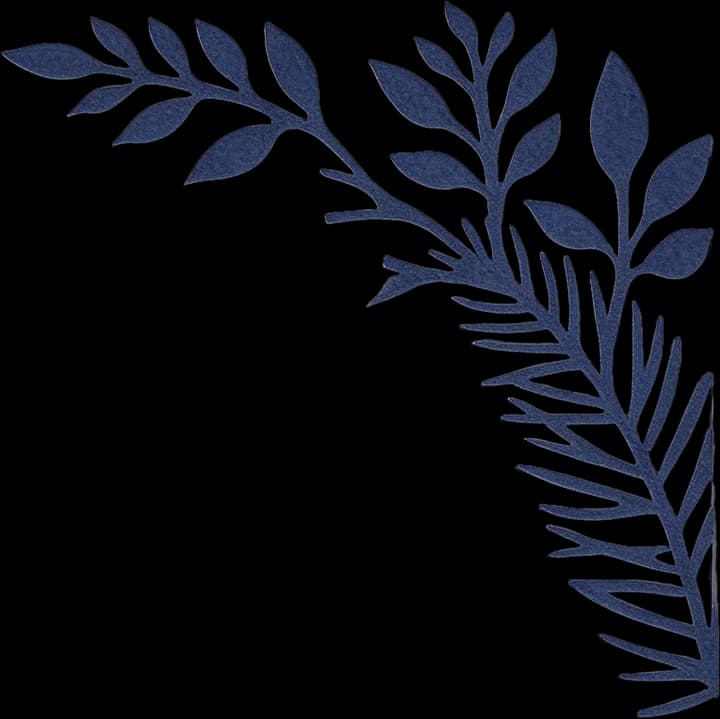
Top-left plant
Top-right plant
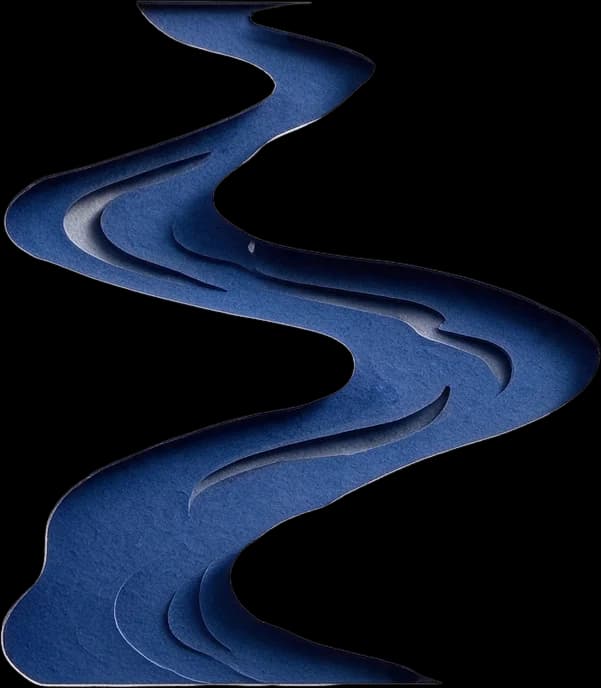
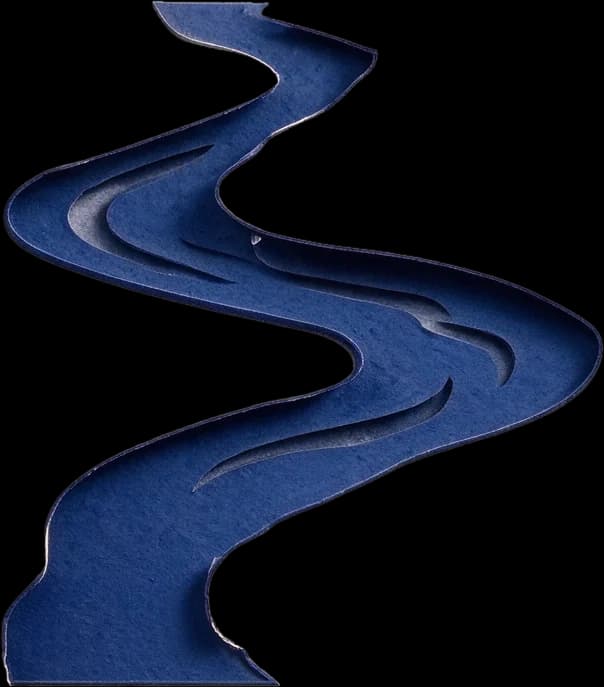
Stream
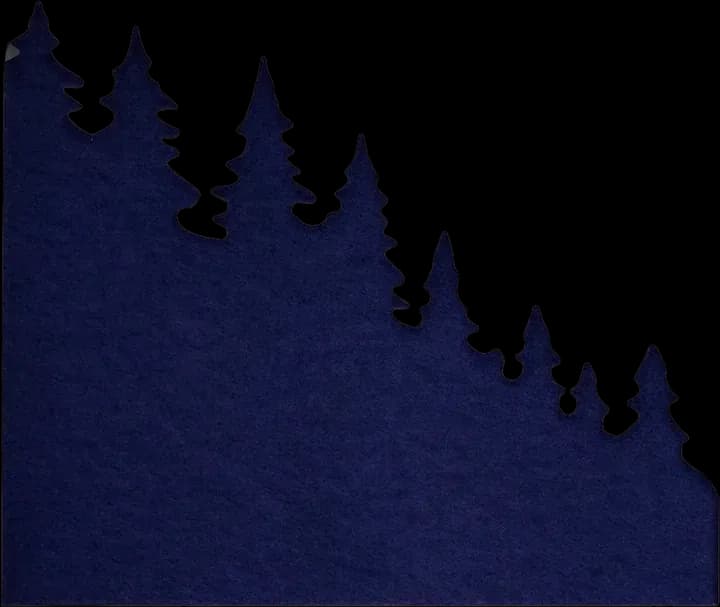
Left dark forest
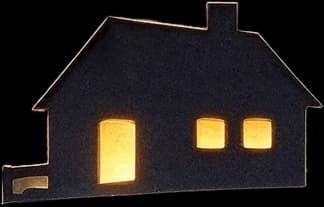
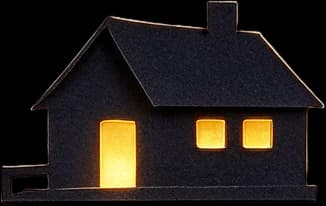
Hillside cabin
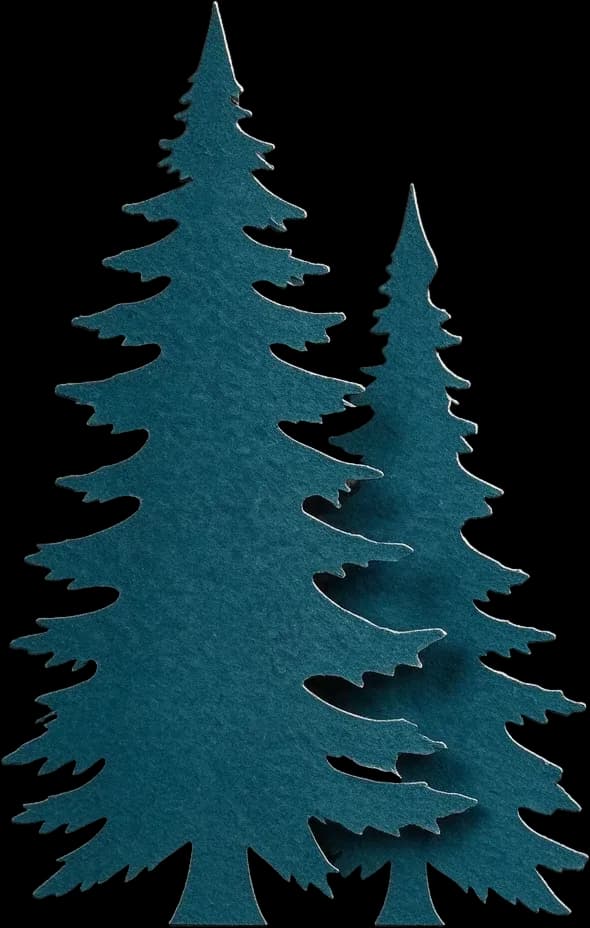
Left foreground conifer
Right foreground conifer
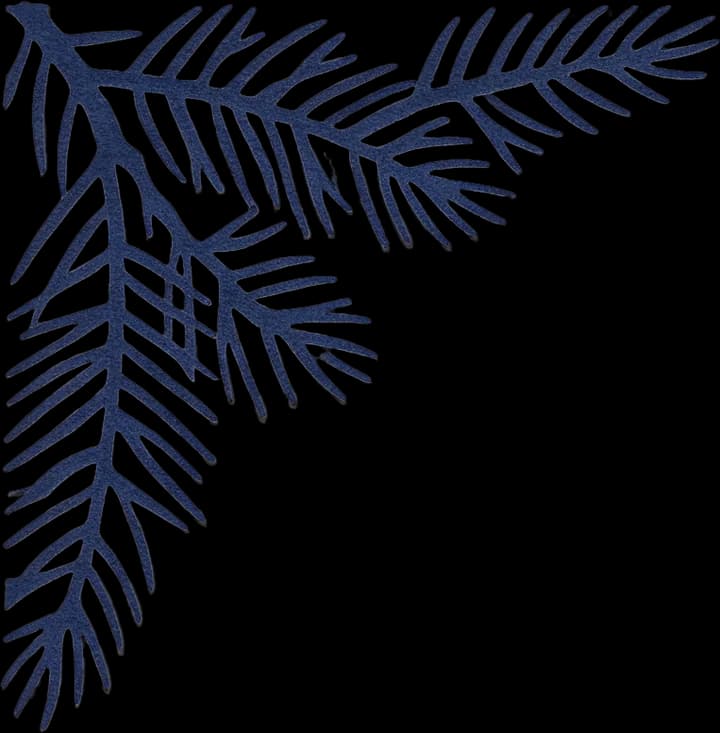
Top pine branch
Bottom fern plant
Bottom-right plant decoration
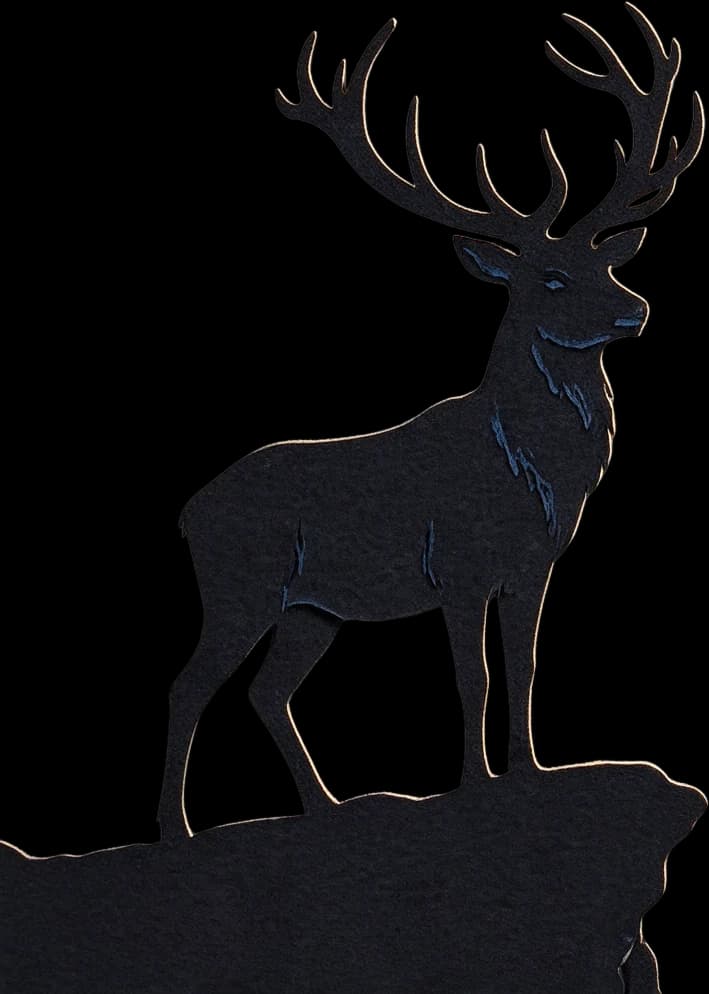
Foreground stag main
Paper-Cut Scene
16 AI-Separated Layers
See the artwork without the external frame. Explore the individual visual elements that can serve as a starting point for preparing a layered paper art design.
Layers in this example
Starry sky background
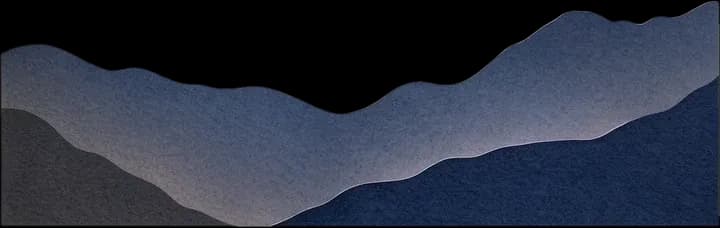
Purple distant mountain range
Dark gray midground mountain range
Full moon
Hilltop cabin
Winding river
Left fir tree cluster
Right fir tree cluster
Bottom fir tree cluster
Foreground stag
Stag's rocky platform
Top arched pine branch
Bottom fern
Bottom broadleaf plant
Outer dark decorative border
Click or tap a layer in the tool above to inspect it. You can also isolate selected elements to explore the underlying artwork.
These examples show AI-generated image layers, not verified physical cutting templates. Layer count, separation accuracy, and hidden-area reconstruction vary by image.
MAKE MORE OF YOUR ARTWORK
Spend Less Time Separating Images. More Time Creating.
A layered design gives you room to experiment. Instead of redrawing a whole scene when one detail needs changing, work with the parts you want to improve.
Separate the Scene Without Manual Tracing
Need the deer, mountains, moon, or trees on different layers? Let AI attempt the initial separation so you don't have to trace every outline by hand.
Edit Individual Details
Want to brighten the moon, recolor the mountains, or change the appearance of the foreground? Working with separate elements makes targeted adjustments easier.
Reuse Designs You Already Love
Have an illustration you want to adapt for another project? Turn it into editable visual elements rather than rebuilding the entire composition.
Experiment with Layered Compositions
Explore which elements belong in front, which belong behind, and how your scene changes when individual elements are hidden or rearranged.
Recover Some Hidden Visual Details
When objects overlap, AI may reconstruct portions of the covered artwork. This can give you more flexibility when editing or repositioning elements.
Continue in Your Favorite Design Software
Export supported layered image formats and continue refining your artwork using compatible editing software.
MADE FOR CREATIVE SHADOW BOX PROJECTS
From Favorite Photos to Layered Paper Art Concepts
Whether you're creating one thoughtful gift or developing designs for your handmade shop, start with artwork that inspires you.
Forest & Wildlife Shadow Boxes
Create layered artwork concepts featuring deer, wolves, birds, trees, and woodland scenery. Explore separate foreground details, distant landscapes, and atmospheric backgrounds.
Mountain & Landscape Scenes
Work with mountain silhouettes, rivers, skies, and surrounding scenery. Separate large visual elements to explore depth and composition.
Moonlight & Fantasy Light Boxes
Prepare editable visual layers from enchanted forests, castles, celestial scenes, and dreamy moonlit illustrations.
Pet Memorial Shadow Boxes
Start with a favorite pet portrait and explore separating the subject from the surrounding scenery for a personalized keepsake design.
Wedding & Anniversary Gifts
Turn meaningful photographs and illustrations into layered artwork concepts that can be refined for a custom shadow box project.
Cityscapes & Architectural Art
Explore separating skyline elements, buildings, landmarks, and background scenery for layered city-themed artwork.
Some photographs and highly detailed illustrations require substantial manual simplification before they can become physical paper-cut designs.
A SIMPLER WAY TO START
From a Flat Picture to Editable Image Layers
Step 1
Upload Your Artwork
Choose a photograph, illustration, or rendered shadow box design. Images with recognizable subjects and distinct foreground and background elements are generally good starting points.
Step 2
Separate the Visual Elements
Select Detailed Layers and start your generation. AI analyzes the picture and attempts to separate objects and scene elements into individual image layers.
Step 3
Explore the Result
Review the separated elements, inspect their boundaries, and check whether important parts of your artwork were preserved.
Step 4
Refine and Download
Use the available layer editing and export options to continue your artwork. If you're planning a physical shadow box, prepare and verify your cutting templates separately.
Not every image will produce the same number of layers or the same depth structure as the examples.
KEEP THE ART YOU LOVE
You Don't Have to Redraw Your Entire Shadow Box
You've found the perfect forest scene. The mountains look right, the moon is in the perfect place, and the colors are exactly what you wanted.
But now you need the deer separated from the trees. Or the moon behind the mountains. Or the cottage on its own layer.
When everything is combined into one picture, even a small change can become a bigger editing task.
ImageToLayers gives you a different starting point: separate the visible elements first, then spend your time refining the details that matter to your design.
A Better Starting Point for Your Next Handmade Project
Etsy & Digital Design Sellers
Develop new layered artwork concepts and explore variations of designs you have the rights to use. Prepare the separated image elements for further design work before selling finished templates or craft products.
Cricut & Silhouette Crafters
Use separated image elements as a starting point for creating your own layered paper-cut projects. Additional vector conversion and cutting-path preparation are required before machine cutting.
Laser Cutting Enthusiasts
Explore individual shapes and scenic elements before preparing cutting geometry in your preferred laser design software.
Custom Gift Makers
Experiment with personalized photos, portraits, memorial scenes, and meaningful landscapes for one-of-a-kind shadow box gifts.
Digital Illustrators
Recover flexibility from flattened artwork and continue refining individual subjects, scenic details, and background elements.
DIY Paper Art Creators
Explore depth and composition before deciding how to organize your final physical paper layers.
KNOW WHAT YOU'RE CREATING
Image Layers Are the Starting Point, Not the Final Cut File
A visual layer and a physical paper layer are not always the same thing.
An AI-generated image may contain separate layers for the deer, moon, trees, light effects, and background. But a finished paper-cut light box needs connected shapes, suitable dimensions, and cutting paths that work with your materials.
What ImageToLayers Helps You Do
Separate visual elements from flattened artwork
Review individual image layers
Explore foreground and background details
Export supported editable image formats
Prepare artwork for further editing
What You May Still Need for Physical Cutting
Decide how many actual paper sheets to use
Combine or simplify individual shapes
Create closed SVG or other cutting paths
Check unsupported or floating pieces
Set material dimensions and cutting tolerances
Test files with your cutting machine
This page does not automatically produce machine-verified, cut-ready shadow box templates. An SVG conversion alone does not guarantee that a physical design will cut or assemble successfully.
GET MORE FROM YOUR IMAGE
Choose Artwork with Clear Visual Depth
You don't need to be an expert to start, but the type of image you upload can make a noticeable difference.
Choose a Clear Main Subject
A scene with a recognizable deer, cottage, couple, pet, or mountain range makes it easier to inspect the resulting layers.
Look for Distinct Foreground and Background
Illustrations with recognizable scenic depth are generally easier to work with than images filled with overlapping small details.
Start with a Clean, High-Quality Image
Avoid excessive blur, heavy compression, and extremely tiny decorative elements where possible.
Review Reconstructed Areas
AI may estimate what lies behind an object. Check these generated areas carefully when their exact appearance matters.
Expect to Simplify for Paper Cutting
Thin tree branches, tiny windows, and isolated decorations may be beautiful on screen but difficult to manufacture from paper or wood.
Shadow Box to Layers is an AI image separation tool that helps turn flattened artwork into individual visual layers. It can be useful when you're working on layered shadow box illustrations, paper-cut light box concepts, or other designs that need separate foreground and background elements.
Can I turn a regular photo into shadow box layers?
Yes, you can upload a regular photo and use AI to attempt to separate its visual elements. Photos with clear subjects and recognizable depth tend to offer a better starting point. Complex images may require more manual editing.
Does this work with paper-cut light box designs?
Yes. You can use it to separate visual elements from illustrations and existing paper-cut light box artwork. The resulting image layers can help with further design preparation, but they are not automatically finished cutting templates.
Can it separate mountains, trees, animals, and the moon?
Yes, these are examples of the types of scene elements the AI can attempt to separate. The result depends on the image, the amount of overlap, and how distinctly the elements appear in the artwork.
Can the AI reconstruct areas hidden behind other objects?
In some cases, the model can generate plausible details for areas that were previously covered. These are AI estimates, not guaranteed reconstructions of the original hidden content. Review them before using the layers in your final design.
How many layers will I get?
The number of generated layers depends on your input image and the selected processing mode. The example scenes on this page contain 16 and 17 layers, including the background layer, but your own result may contain fewer or more. You should not expect a fixed layer count.
Can I choose exactly 5, 6, or 8 paper layers?
Detailed Layers does not guarantee an exact number of physical paper sheets. Its purpose is to separate image elements. You can later decide which visual elements to combine or simplify for a physical layered paper project.
Does ImageToLayers support Image to SVG?
Yes. After separating your artwork into editable image layers, you can select any suitable layer and continue to our Image to SVG conversion tool. This is a separate paid step charged at 30 credits per selected layer.
Can I use the layers with xTool, Glowforge, or LightBurn?
You can use the separated artwork as source material when preparing a project for compatible cutting software. However, you'll need to create and inspect the appropriate cutting paths, confirm dimensions, and validate the design for your machine and material.
Can I download individual layers as PNG files?
The existing layer export workflow supports PNG layer files. These can be useful for inspecting elements or continuing image editing in other compatible software. Available export actions depend on the completed job.
Can I export a layered PSD file?
The existing layer export system supports PSD creation. This can help you continue working with separate image elements in compatible editing software. Review the actual export to confirm your preferred application handles it correctly.
Will the separated images have transparent backgrounds?
Foreground elements can be exported with transparency where the separation succeeds. Some layers may include large backgrounds or reconstructed content, so review each one before using it as a transparent asset.
Can I use AI-generated illustrations or artwork from other sources?
You can upload AI-generated images or artwork you are authorized to use. Make sure you have the necessary rights and permissions, particularly if you plan to sell products or digital files based on the design.
Can I sell shadow box designs made using these layers on Etsy?
You can use the exported layers as part of your design workflow, subject to applicable rights and service terms. Before selling, make sure you have permission to use the original artwork and that your final product meets the quality and format requirements of your customers.
Why do some small details remain combined or disappear?
AI image separation is not perfect. Fine branches, intricate textures, overlapping shapes, and low-contrast objects may be grouped together or reconstructed differently. Try a clearer source image or refine the result manually if needed.
How much does Shadow Box to Layers cost?
Each generation uses credits, and the amount required is shown in the tool before you start, so you can review it first. Other available processing modes or separate services may have different credit costs.
Can I convert shadow box layers into SVG for Cricut or laser cutting?
You can generate image layers from your artwork, then convert a selected layer into SVG vector paths. The vector output can be used in cutting software, but paths, dimensions, and bridges should be reviewed before cutting.
Your Next Shadow Box Starts with a Picture
Already have artwork you love? Give yourself more control over the individual details.
Separate your scene into editable image layers and take the next step toward a personalized shadow box, paper-cut light box, or creative gift project.