Turn Your Wedding Photo into Editable Shadow Box Layers
Upload your wedding photo to separate the couple, floral arch, and scenic background into editable image layers. Then convert selected couple and decor layers to SVG for Cricut, laser cutting, or personalized wedding shadow box design work.
Separate Couple & DecorDownload Editable Image LayersConvert Selected Layers to SVG
1
Click or drag image to upload
Upload your image
JPG, PNG, WebP up to 10MB · Drag & drop anywhere
Change Image
Layer explorer17 layers
Hover or tap a box to inspect a layer
Separated layers17 layers
Protected exampleClick a layer to inspect it
2
Settings
Leave this blank to let Detailed Layers identify the main editable elements automatically. Or name the parts you want separated.
Focus on the Wedding Details That Matter
Add a short note describing the people or details you want to preserve, such as the couple, wedding bouquet, ceremony arch, floral arrangements, or venue background. Review generated layers carefully, especially around faces, hair, veils, and overlapping clothing.
Upload a JPG, PNG, or WebP wedding photo that you own or have permission to use.
Image separation: 60 credits. Optional Image to SVG conversion: 30 credits per selected layer. SVG files may require additional editing before cutting.
FROM WEDDING PHOTO TO SVG
From Your Wedding Photo to Editable Layers and SVG
01
Upload Wedding Photo
Start with your bridal, couple, or ceremony image
02
Generate Layers
60 credits per generation
03
Choose a Layer
Select the couple silhouette or decor element
04
Convert to SVG
30 credits per selected layer
Review veil details, silhouette bridges, and cutting dimensions before production.
Need SVG for Your Wedding Shadow Box?
You can continue beyond image separation.
After generating wedding photo layers, select a key element—such as the couple's silhouette or a floral arbor—and open it in our Image to SVG tool. Convert it into vector artwork for Cricut papercraft, laser wood plaques, or anniversary keepsakes.
No need to upload the same layer again when continuing from a supported result.
Image to SVG is optional and charged separately at 30 credits per selected image.
SVG conversion does not automatically produce a complete, cut-ready multi-layer shadow box template.
Prepare Your Wedding Picture for Layered Artwork
Your wedding photo captures a moment you never want to forget. Start creating something personal from it without tracing every visible element by hand.
Upload a wedding picture, generate individual image elements, and explore the people, floral details, and scenery in the composition.
Separate Couple & DecorDownload Editable Image LayersConvert Selected Layers to SVG
This workflow generates editable image layers. It does not guarantee exact facial preservation or automatically produce a finished shadow box cutting template.
See how AI image separation works
Discover the Separate Elements Inside One Picture
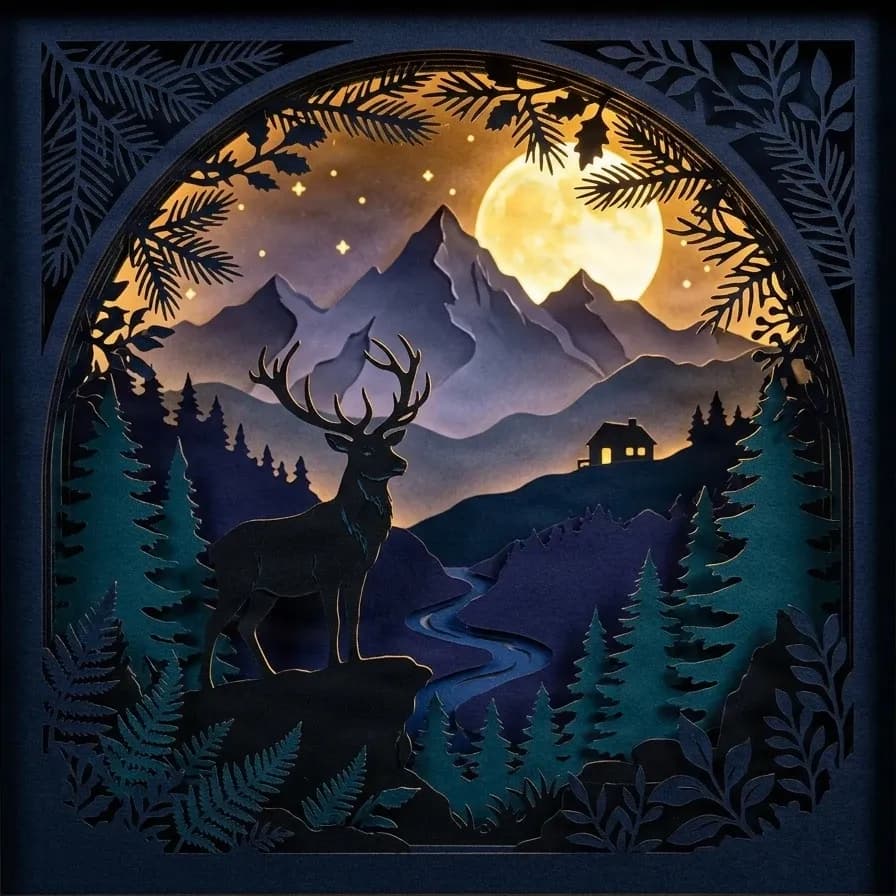
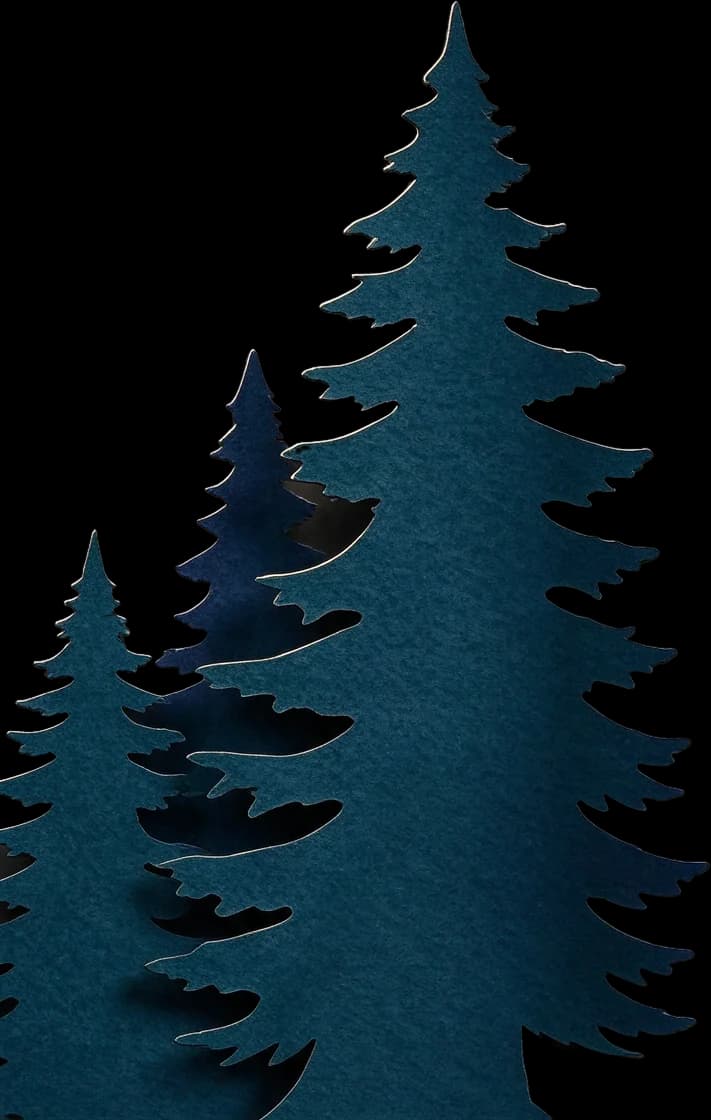
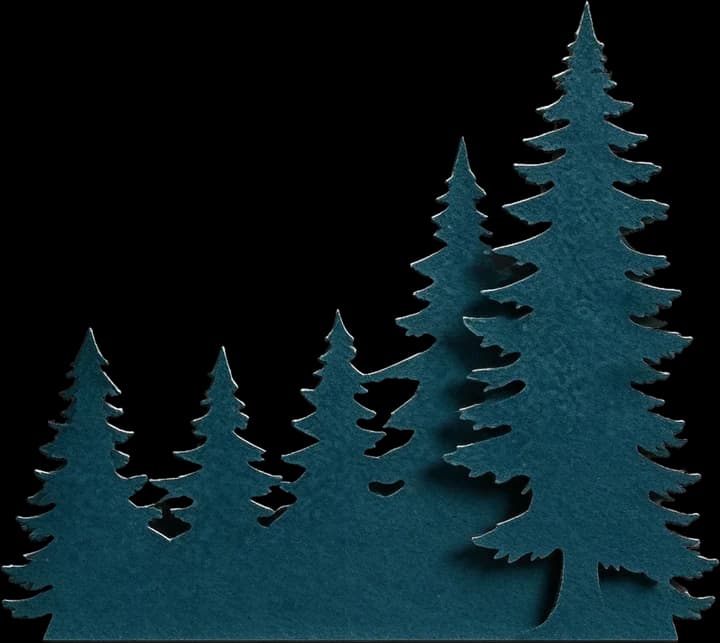
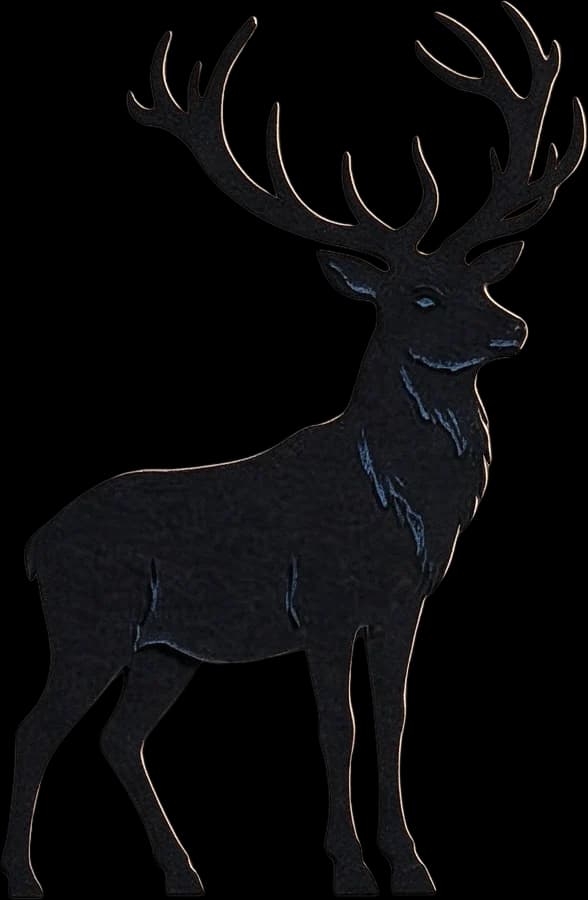
A single image can contain multiple people, objects, decorations, and background details. Explore our existing woodland examples to see how AI image separation can turn one finished composition into independently viewable layers.
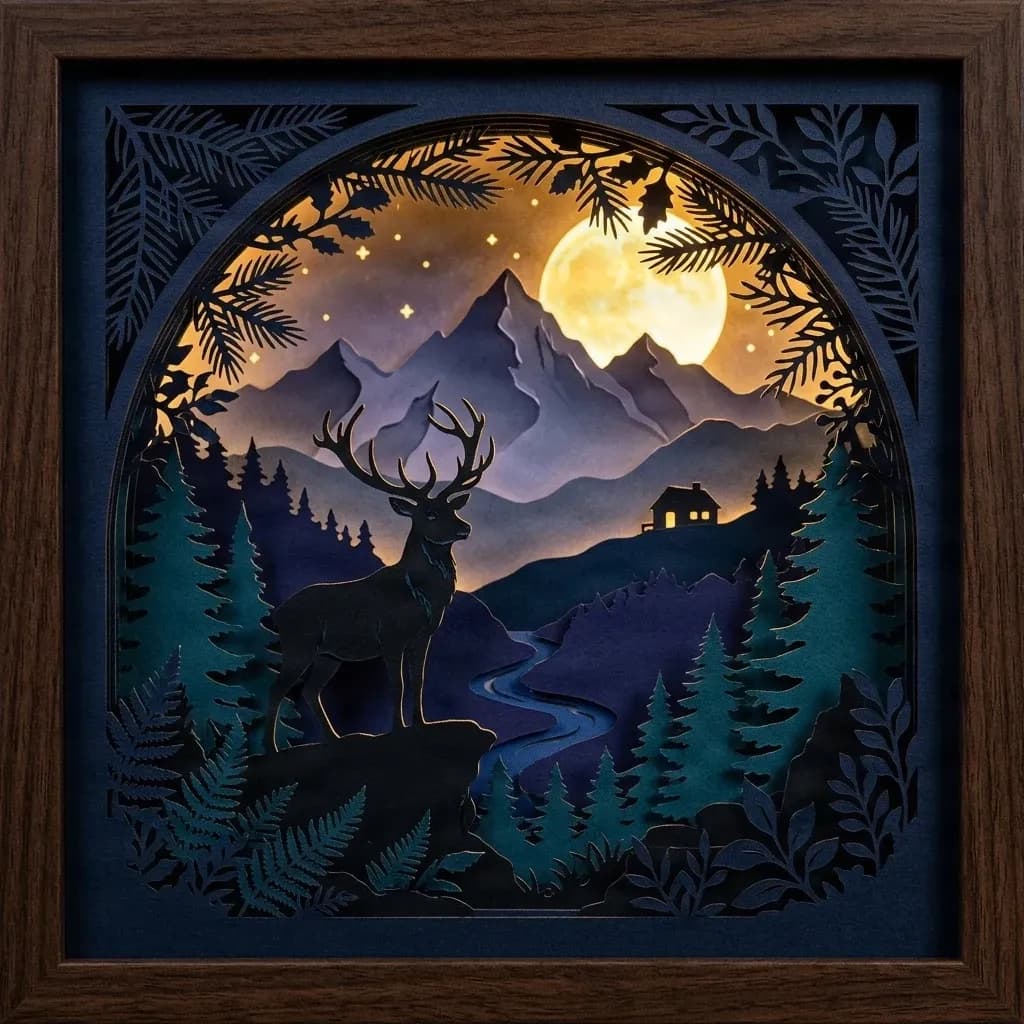
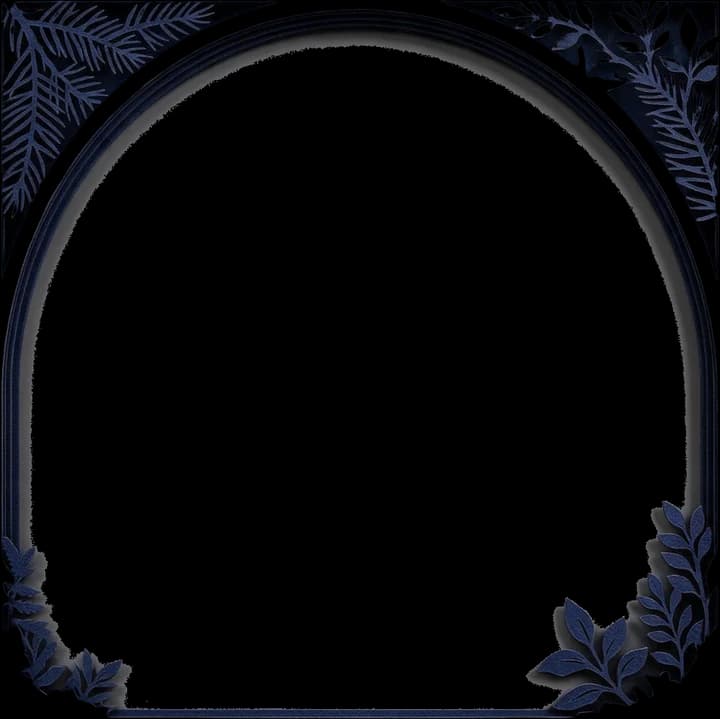
Framed Forest Scene
17 AI image layers
Explore a detailed woodland illustration containing a deer, full moon, pine trees, mountains, cottage, and decorative frame. Select individual objects to inspect their separated image layers.
Layers in these examples
Wooden picture frame
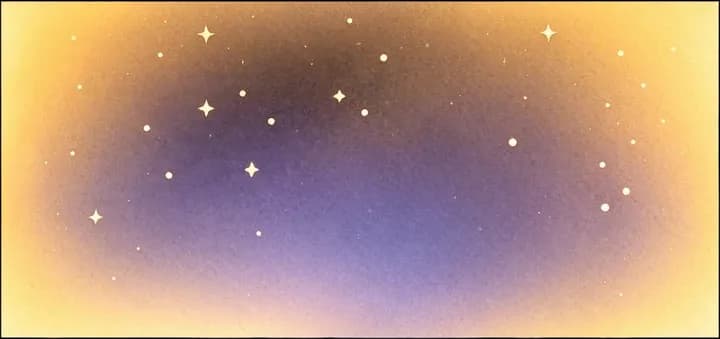
Star sky background
Full moon
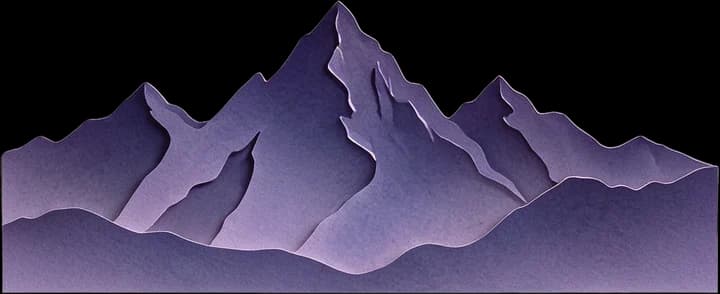
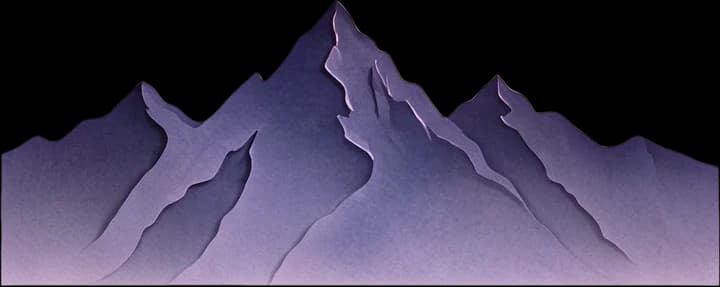
Distant mountain range
Inner frame dark blue base
Top-left plant
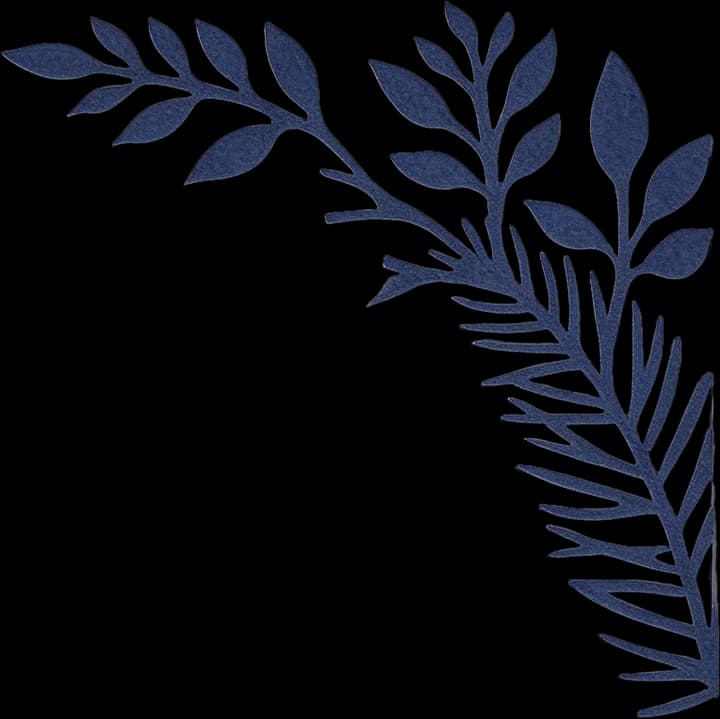
Top-right plant
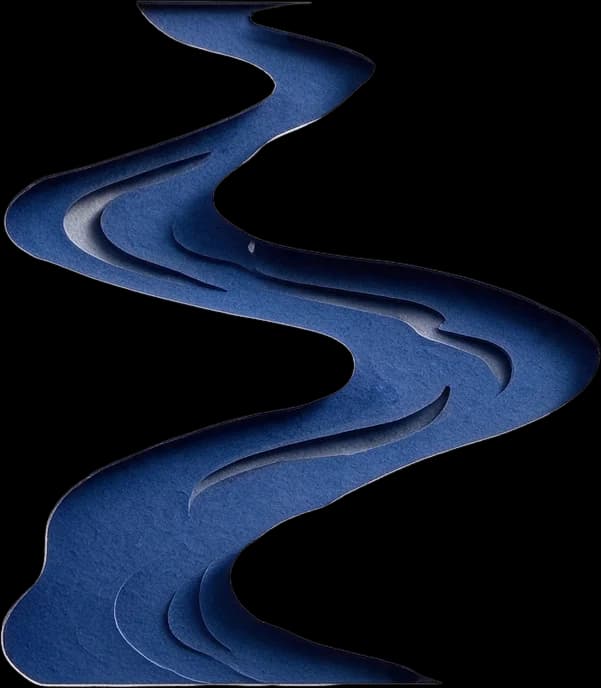
Stream
Left dark forest
Hillside cabin
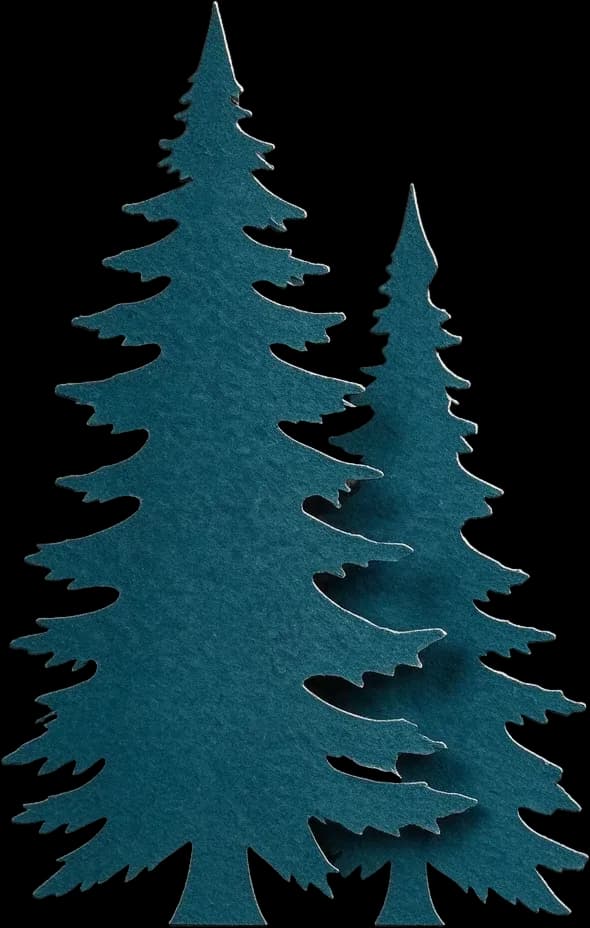
Left foreground conifer
Right foreground conifer
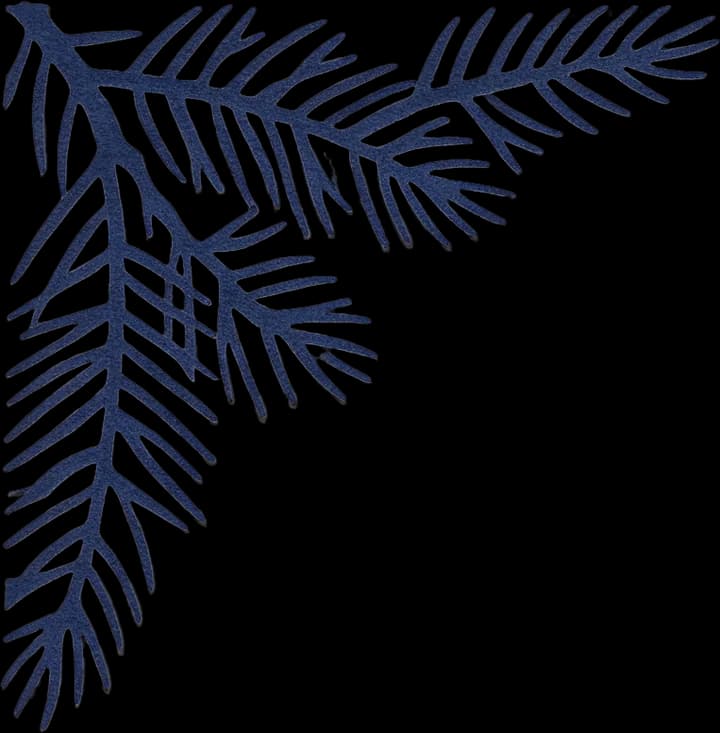
Top pine branch
Bottom fern plant
Bottom-right plant decoration
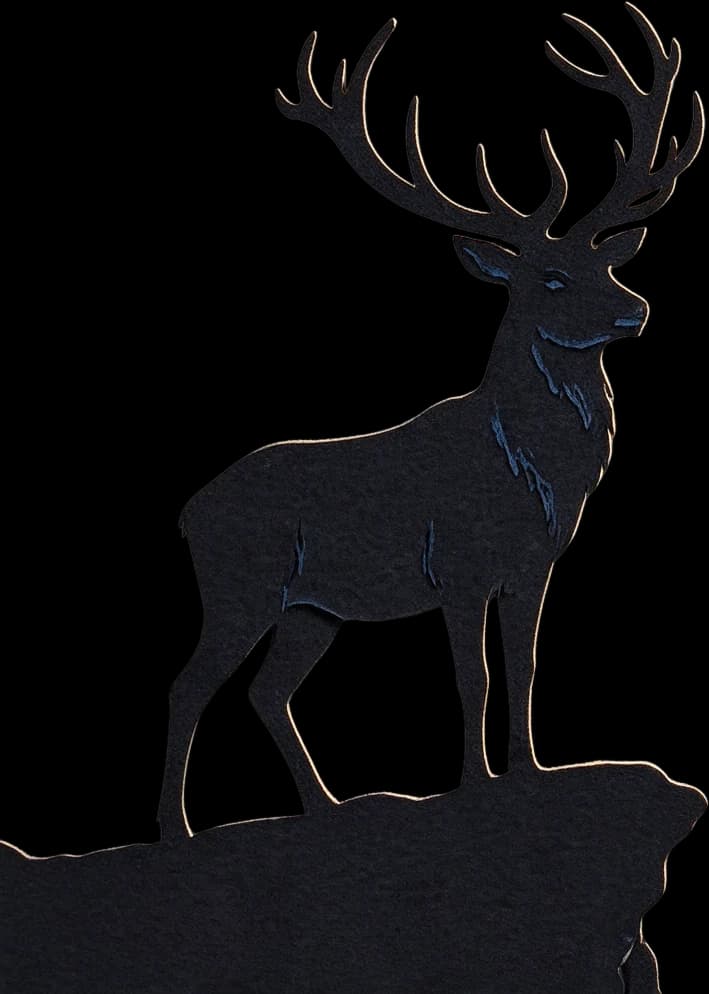
Foreground stag main
Layered Woodland Scene
16 AI image layers
Explore the same woodland artwork without the outer frame. Inspect the foreground, scenic elements, and background to see how the composition has been separated.
Layers in these examples
Starry sky background
Purple distant mountain range
Dark gray midground mountain range
Full moon
Hilltop cabin
Winding river
Left fir tree cluster
Right fir tree cluster
Bottom fir tree cluster
Foreground stag
Stag's rocky platform
Top arched pine branch
Bottom fern
Bottom broadleaf plant
Outer dark decorative border
Select a layer to explore its details, then compare it with the complete artwork.
These are real AI image separation examples using illustrated woodland scenes, not wedding photographs. Wedding photo results vary. The tool may alter faces, clothing details, and areas hidden by other objects.
Because the memory is personal
A Wedding Photo Deserves More Than a Generic Template
Your wedding flowers, venue, expressions, clothes, and the people in the picture belong to your story. Starting with your own photograph can feel more meaningful than choosing an unrelated wedding illustration.
Explore the Couple Separately
Attempt to separate the people from the venue or surrounding decorations so you can refine the composition.
Work with Floral Details
Inspect bouquets, floral arrangements, and other visible decorations as potential separate image elements.
Reduce Repetitive Selection Work
Use AI for the initial separation instead of manually outlining every object from scratch.
Explore Foreground and Background
Inspect the visual depth of the photograph before deciding how to develop a layered composition.
Refine Individual Image Elements
Use available editing tools to adjust specific layers rather than repeatedly modifying the entire flattened image.
Continue Your Artwork Elsewhere
Download supported image formats for further editing or use individual image elements as source material for SVG conversion.
Ideas for meaningful wedding keepsakes
Make Something Personal from a Moment Worth Remembering
Use a favorite wedding photograph as the starting point for a personal layered art project.
Wedding Day Shadow Box Artwork
Start with a favorite wedding portrait and explore separating the couple, flowers, and scenery before designing a framed layered artwork piece.
First Anniversary Keepsakes
Use a meaningful wedding photograph as the starting point for an anniversary gift that celebrates a special day.
Couple Portrait Paper Art
Prepare image elements from a couple’s photograph before developing a simplified layered portrait or decorative paper-cut composition.
Wedding Bouquet Artwork
Explore separating visible flowers, leaves, ribbons, and bouquet details from a favorite wedding image for further design work.
Ceremony Venue Memories
Start with a photograph of a wedding arch, garden, church, beach, or other meaningful setting. Explore the scenery separately from the people in the image.
Personalized Wedding Gifts
Prepare artwork for custom gifts inspired by a couple’s photograph, including framed keepsakes, layered illustrations, and handmade paper art.
These are possible design projects, not automatically generated finished products. Physical cutting, framing, decorative lettering, and assembly require additional work.
A simple place to begin
From Wedding Picture to Layered Design Material
Step 1
Choose Your Wedding Photo
Pick a photograph that captures the couple, ceremony, or meaningful surroundings. A clear image with recognizable people and details is easier to evaluate after separation.
Step 2
Generate Image Layers
Upload the photograph and start Detailed Layers. AI attempts to identify and separate the visible people, objects, and scenery.
Step 3
Review the Details
Inspect the couple’s faces, hair, clothing, flowers, hands, and other important features. Check any areas that the model may have reconstructed.
Step 4
Refine and Export
Use available layer editing tools or download supported image exports for further design work.
Step 5
Develop Your Shadow Box Artwork
Choose the elements that matter to the composition. Simplify or rearrange them if necessary, and prepare physical paper or cutting designs separately.
Image separation is the first stage of a creative workflow, not a finished physical shadow box.
More than just a pretty picture
Wedding Keepsakes Should Tell Your Story
When you look at a wedding photograph years later, you may remember more than the ceremony itself. You remember the weather, the place where you stood, the flowers you held, and the people who celebrated with you.
A personalized keepsake can begin with those details rather than a generic design that could belong to anyone. By separating visible elements from your original photograph, you can explore how to carry more of your own wedding story into a custom creative project.
You decide what matters most and how the final artwork should look.
Start from a photograph with personal meaning and explore individual elements for further creative work.
Wedding & Anniversary Gift Makers
Prepare photo-based artwork for handmade keepsakes, framed gifts, and anniversary designs.
Etsy & Personalized Gift Sellers
Work with customer-provided photographs that you are authorized to process. Use separated elements as a starting point for custom artwork.
Paper-Cut Artists
Explore subjects, clothing outlines, floral details, and scenery before developing a simplified paper-cut composition.
Cricut & Laser Cutting Creators
Prepare suitable image elements for further vector conversion, refinement, and physical cutting design.
Wedding Stationery & Keepsake Designers
Reuse permitted photo elements in further design work for custom illustrations and commemorative artwork.
Know what the tool creates
Editable Photo Layers Are Not Finished Paper-Cut Templates
A wedding photo contains lighting, fabric textures, hair, skin, and decorative objects. A physical shadow box uses shapes and materials arranged to create depth.
These are different stages of a design process.
What ImageToLayers Helps You Do
Start with an existing wedding photograph
Attempt to separate people and scenery
Inspect visual elements individually
Refine supported image layers
Download available image layer exports
Continue selected images into SVG conversion
What Still Requires Design Work
Decide which elements belong in the finished composition
Simplify detailed photographic content into practical shapes
Create or refine cutting paths
Combine or reorganize physical layers
Plan alignment, dimensions, and spacing
Add names, dates, or decorative lettering in an appropriate editor
Check the final artwork before cutting or assembling it
The tool does not automatically add wedding names or dates, create a verified Cricut template, or assemble a finished shadow box.
Choose a photo worth building around
Six Tips for Preparing Your Image
Choose an image that shows the couple and meaningful details clearly.
Choose a Clear View of the Couple
Photos with recognizable faces and visible body outlines are easier to inspect after AI separation.
Look for Good Lighting
Well-lit images help you evaluate important details such as hair, clothing edges, flowers, and expressions.
Avoid Excessively Crowded Compositions
Group photos with many overlapping people may produce more complex results. A portrait featuring the couple can be an easier starting point.
Consider the Background
A garden, ceremony arch, beach, mountain view, or architectural backdrop can provide additional elements for your composition.
Pay Attention to Delicate Details
Wedding veils, lace, jewelry, hair, and flowers may be difficult to separate perfectly. Choose a photo where the details you care about are visible.
Use the Best-Quality Original Available
If possible, use a clear original from your photographer or camera rather than a compressed screenshot.
AI separation can help with design preparation, but wedding portraits deserve special attention.
Faces and Expressions
Check the shape, position, and appearance of facial features. Small changes may matter when a photograph represents real people.
Hair and Veils
Fine hair, sheer fabric, and overlapping veils are challenging to separate. Some areas may need manual refinement.
Dresses and Formalwear
Check important dress outlines, suits, buttons, and other clothing details. Intricate lace or transparent material may not be preserved exactly.
Hands and Rings
Hands may overlap each other, flowers, or clothing. Review fingers and rings carefully if they are important to the final design.
Bouquet and Flowers
Examine the separation of flowers, ribbons, stems, and leaves, particularly where the bouquet overlaps clothing.
Venue and Decorations
Make sure the ceremony arch, landscape, or other memorable background details have been represented reasonably.
AI may reconstruct hidden portions of an image. These reconstructed areas are estimates and may not match the original scene.
Wedding photo layer questions
Frequently Asked Questions
Can I turn my wedding photo into shadow box layers?
Yes. Upload a wedding photo and use Detailed Layers to attempt to separate people, objects, and background into editable image layers. These can be a starting point for designing a personalized shadow box.
Does the tool create a complete wedding shadow box automatically?
No. It separates image elements from your photo. Designing physical paper layers, preparing cutting paths, adding personalization, and assembling the finished shadow box require additional work.
Can it separate the bride and groom from the background?
The AI can attempt to separate the couple and surrounding scenery. Closely overlapping people or clothing may remain combined or require editing.
Does it work with wedding photos of any couple?
The workflow processes the uploaded image and is not limited to a particular type of couple or ceremony. Results depend on image composition, visibility, and detail.
Will it preserve our faces exactly?
Exact preservation is not guaranteed. Facial features, expressions, and fine details may change during AI separation or reconstruction. Review the result carefully before using it for a personalized keepsake.
Can I separate the wedding bouquet from the photo?
The AI may identify the bouquet or other floral arrangements as individual visual elements. Results vary, especially where flowers overlap hands or clothing.
Can I separate the wedding dress or veil?
The model may separate visible clothing elements in some images, but it does not guarantee each dress, suit, or veil will become its own layer. Lace, transparent fabric, and overlapping areas can be difficult to process accurately.
Can I include the ceremony arch or wedding venue?
If these elements are visible in your photo, the AI may separate them from other subjects. Inspect the resulting scenery and decide what to keep in your design.
Can I use a wedding group photo?
Yes, but crowded group images can produce more complex results. The model may combine overlapping people, omit small details, or reconstruct obscured areas. A clearer couple portrait may be easier to work with.
Can I use an engagement or anniversary photograph instead?
Yes. You can upload an authorized engagement, anniversary, couple, or other meaningful photograph. The same image separation workflow applies.
Can I make a first anniversary gift using these layers?
You can use the separated image elements as a starting point for personalized anniversary artwork. The final gift design, printing, cutting, and framing must be prepared separately.
Does the tool automatically add our names and wedding date?
No. This page focuses on separating existing image elements. Add personalized names, dates, and lettering later in suitable design software.
Can I download PNG layers?
The existing ImageToLayers workflow supports separate PNG layer exports. Available downloads depend on the completed result and applicable export access.
Can I export a layered PSD?
The existing workflow supports layered PSD export, subject to applicable export permissions. This can be useful for continued editing in compatible applications.
Can I choose exactly five or eight physical paper layers?
Not automatically. Detailed Layers separates visual image elements rather than generating a fixed number of physical paper sheets. You may need to simplify, combine, or reorganize the results.
Does ImageToLayers support Image to SVG for wedding photos?
Yes. After separating your wedding photo into editable image layers, you can select the couple or decorative elements and continue to our Image to SVG tool. This is a separate paid step and does not automatically convert every layer.
Can I convert wedding photo layers into SVG for Cricut or laser cutting?
You can generate layers from your wedding photo, then convert the selected couple silhouette or floral decor into SVG. Check that delicate areas like veils, dress hems, and fine decorative lines have proper bridges before cutting.
Can I sell personalized wedding shadow box designs?
You can use ImageToLayers as part of a commercial design workflow, subject to the service terms and your rights to the source images. Get permission to process customer photographs and verify final designs before selling them.
How much does Wedding Photo to Shadow Box cost?
Detailed Layers currently uses 60 credits per image generation. Optional Image to SVG conversion currently uses 30 credits per selected image. The operations are charged separately.
What if the AI changes an important detail in our wedding photo?
Inspect the generated layers and use available editing options where appropriate. You may need to refine the artwork manually or start with a clearer photo. The tool cannot guarantee perfect preservation of every person, garment, or decorative detail.
Make Something Personal from Your Favorite Wedding Photo
The best wedding keepsakes begin with a moment that actually belongs to you.
Choose your favorite photograph, explore its separated subjects and scenery, and start preparing artwork for a personalized shadow box or anniversary gift.