
Background-Preserving Text Edits
Change Text in an Image Without Changing the Background
Want to change a few words in an image but keep everything else the way it is? Upload your existing picture, select the text you want to replace, and update the wording while keeping the original background, photos, colors, and layout as intact as possible.
Change the words, not the whole picture. Keep your existing design and review each edit before downloading.
Make changes to an existing image, even when you don't have the original design file.
Text is detected in your browser, and nothing is uploaded until you choose an AI edit. Free edits cover the original words with a flat colour patch, so they work best on plain or evenly coloured backgrounds. This is AI image editing, not recovery of a hidden Photoshop text layer. The model redraws the requested area and may change nearby pixels.
See what you can change
Small Text Changes. A Whole New Purpose.
You don't always need a completely new image. Sometimes changing a few words is enough to make the design useful again.
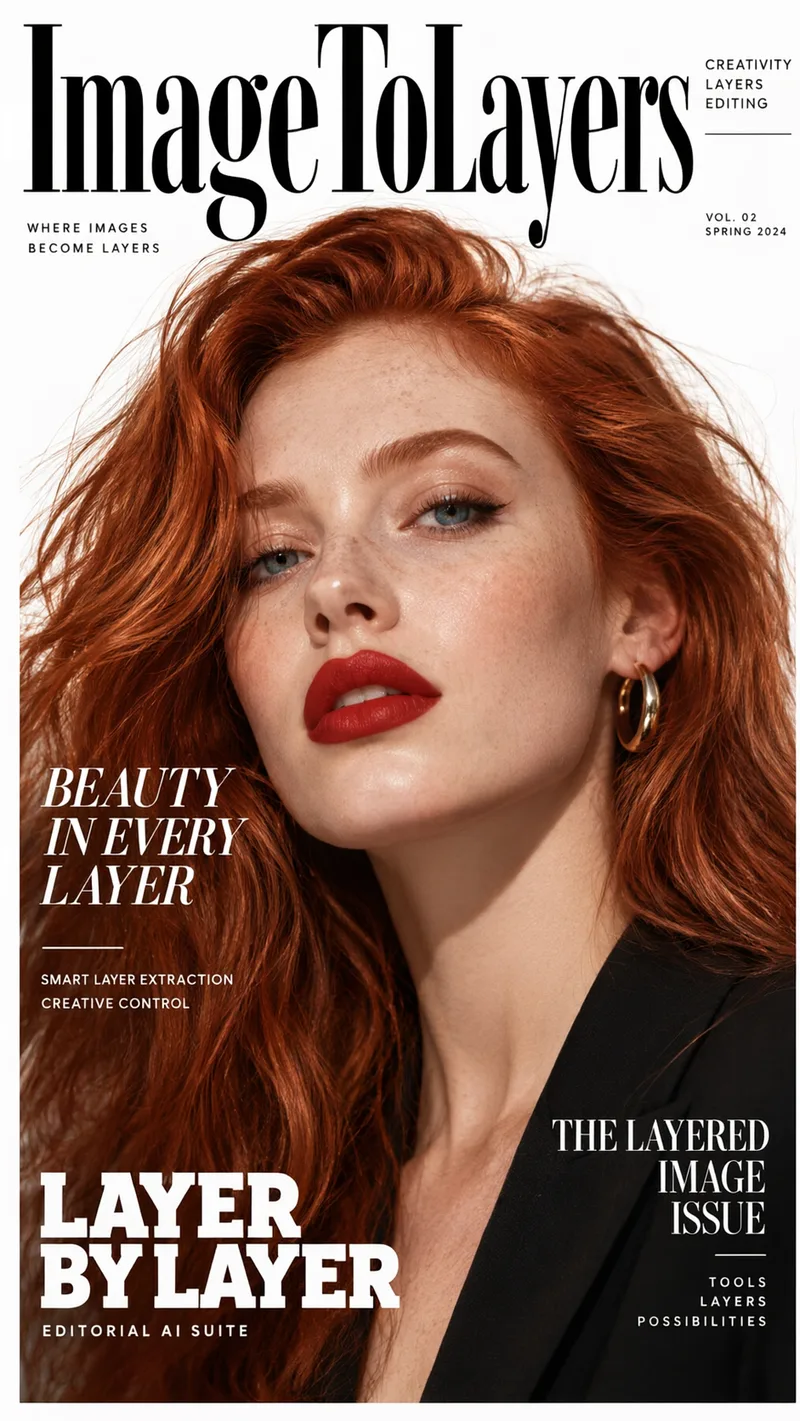
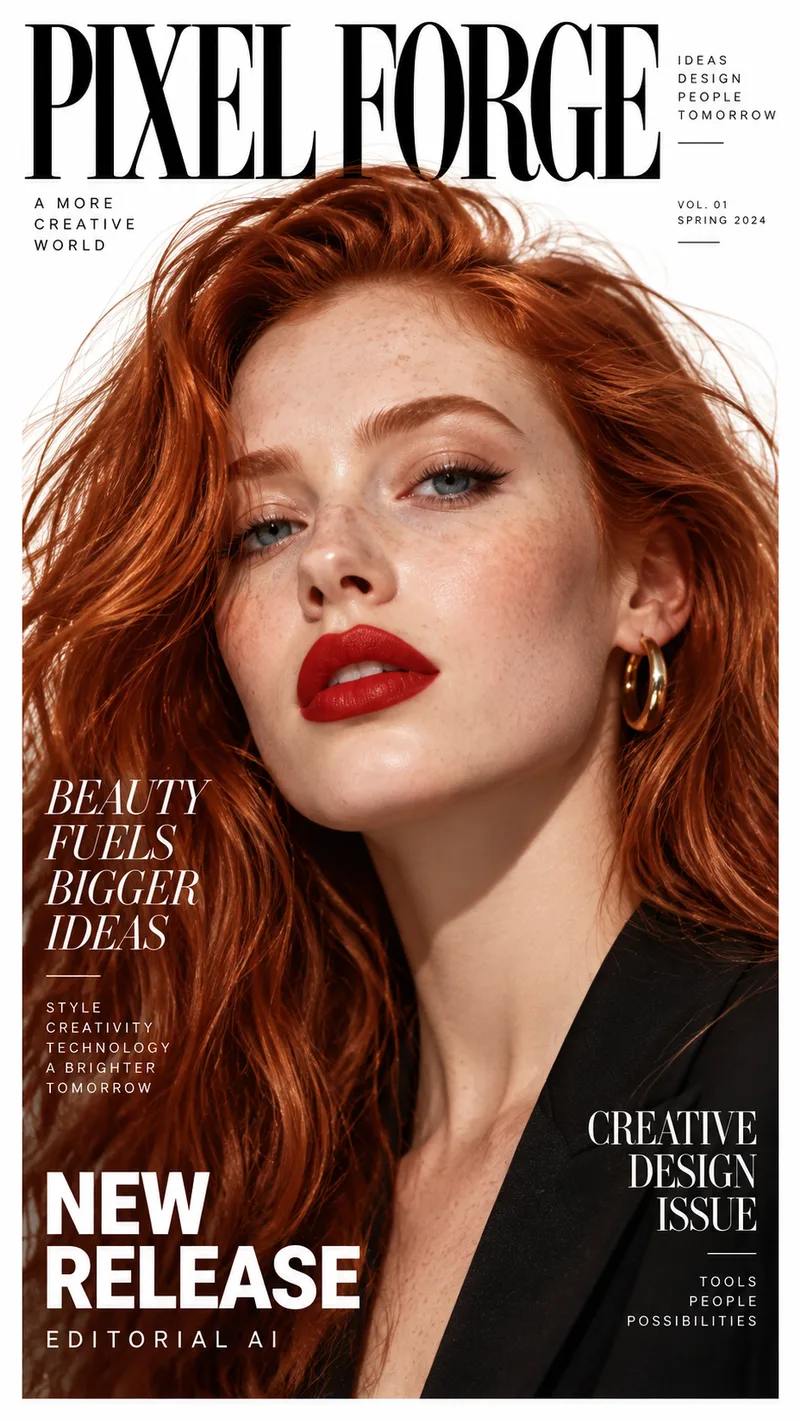
Rename a Magazine Cover
The photo and layout stay. The masthead, headlines, and small print are rewritten for a different title. Drag the slider to compare the original cover with the edited one.
Example change
PIXEL FORGE · BEAUTY FUELS BIGGER IDEAS · NEW RELEASE
ImageToLayers · BEAUTY IN EVERY LAYER · LAYER BY LAYER
Update several lines of text on the same image while aiming to keep the composition.
Results vary depending on text placement, image quality, font styling, and background complexity.
See it on a real ad
Every line of text on the ad is its own layer
This finished ad was split into a background, a photo, and separate text layers. Click any text block, change the wording, and see the update on the creative.
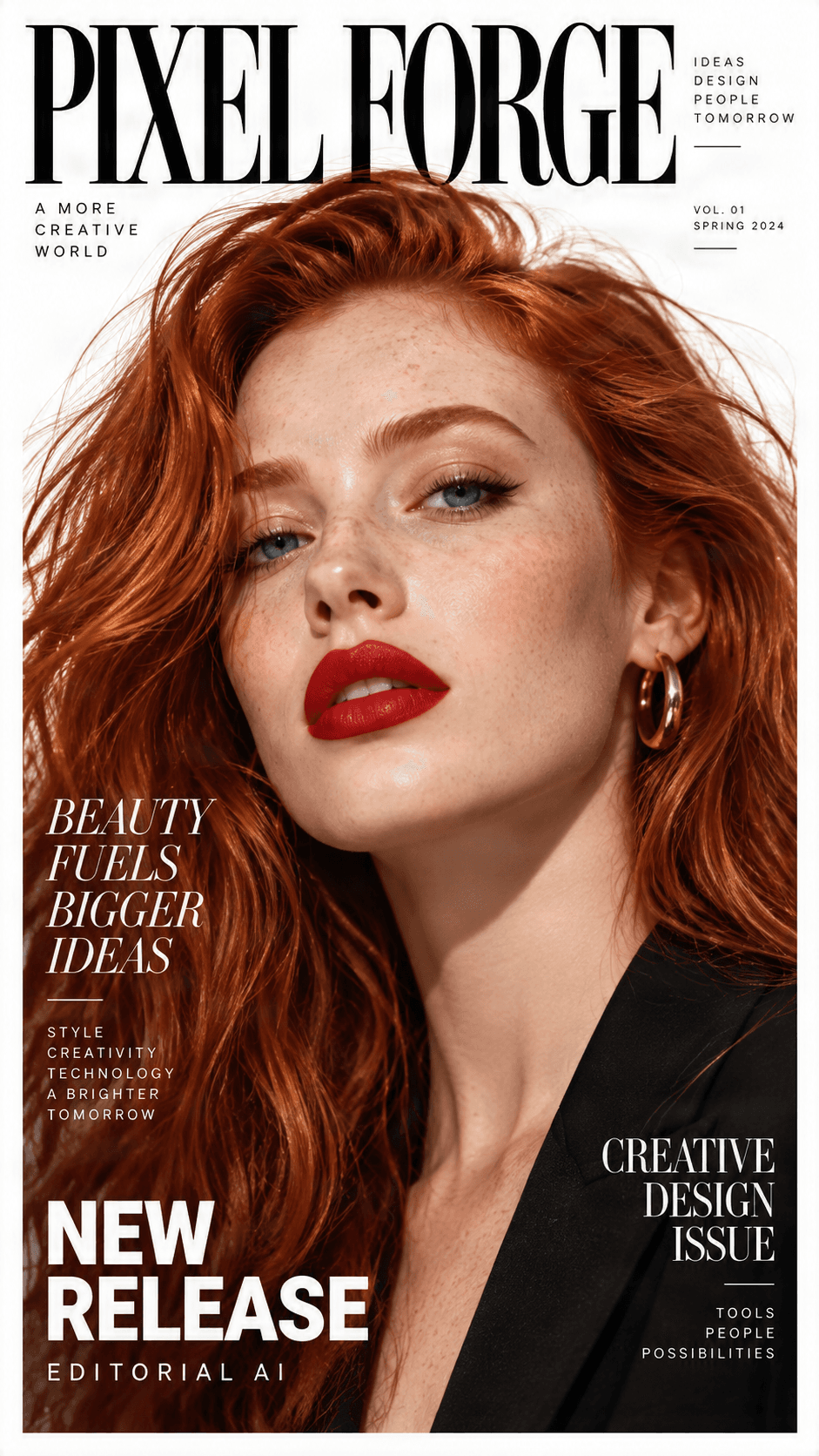
Original ad preview
Detected text, ready to edit
Click a text block, change the wording, and preview the update directly on the ad.

NEW RELEASE
Headline / Promo label

BEAUTY FUELS BIGGER IDEAS123
Campaign headline

CREATIVE DESIGN ISSUE
Secondary subhead

PIXEL FORGE
Brand logo

Background
Clean reconstructed image
Need to change more than the text?
Split any ad into separate text, image, logo, graphic, and background layers.
Benefits
You Want to Change the Words. Not the Picture.
You've already found the right photo, chosen the colors, and arranged the layout. Maybe you've spent hours getting your design just right. Now one sentence, price, or headline needs changing. The last thing you want is for the background to look different, the product to change shape, or the entire image to be recreated.
Keep Your Original Background
Protect the Design You've Finished
Fix Text Without Rebuilding Everything
Review Your Changes Before Downloading
How It Works
How to Replace Text Without Recreating Your Image
You don't need to make a new picture just because the wording has changed.
Step 1 — Upload Your Original Image
Step 2 — Select the Text You Want to Change
Step 3 — Enter Your Replacement Text
Step 4 — Check the Background and Download
What Can You Edit?
Change the Text You Need. Keep the Design You Like.
Replace Headlines
Change Product Text
Update Prices
Fix Spelling Mistakes
Change Dates and Event Details
Replace Short Descriptions
Background Types
Keep the Background That Makes Your Image Yours.
Not every image has a plain white background. Textures, gradients, photography, patterns, and detailed illustrations all need to be reviewed after a text replacement.
Solid-Color Backgrounds
Gradient Backgrounds
Photographic Backgrounds
Textured Backgrounds
Patterned Backgrounds
Complex Promotional Designs
Simple backgrounds are generally easier to edit cleanly. Complex patterns, shadows, and detailed photographs can be harder to preserve during text replacement.
Real-Life Use Cases
When the Image Is Right but the Text Is Wrong
Product Photos and Online Listings
Posters and Promotional Flyers
Restaurant Menus
Social Media Graphics
Advertising Banners
Invitations and Announcements
Targeted Editing vs. Regenerating
Why Replace Text Instead of Generating a New Image?
Image generation is useful when you want something new. But if you already have the image you want, recreating it to change one sentence can introduce altered colors, objects, shifted elements, or an unfamiliar background.
Work With Your Original Image
Focus on the Text Area
Reduce Unwanted Visual Changes
Check the Result Yourself
Targeted editing helps limit the area being changed, but it does not guarantee that every background pixel will remain identical.
Real Editing Examples
Small Text Changes. The Same Familiar Design.
Update a Sale Banner
Correct a Poster Headline
Change a Menu Price
Fix Product Description Text
These examples illustrate the intended editing workflow, not guaranteed results for every input image.
Background Preservation Tips
How to Keep Your Image Looking Natural After Editing Text
Start With a High-Quality Image
Choose the Correct Text Area
Keep Replacement Text Within the Available Space
Compare the Edited Area With the Original
Check Font Size and Position
Inspect the Entire Image
Related Text Workflows
Choose the Right Editing Tool
Explore focused workflows for typo correction, menu updates, app screenshot localization, or broader image text edits.
Edit Text in Image
Replace, rewrite, translate, or remove text with the main image text editor.
Open workflowFix Typos in Images
Correct misspelled words, dates, and small text mistakes without redesigning the image.
Open workflowEdit Text in Menu
Update menu prices, dish names, descriptions, and restaurant graphic text.
Open workflowTranslate App Screenshots
Localize App Store and Google Play screenshot text for new markets.
Open workflowFrequently Asked Questions About Replacing Text Without Changing the Background
Common questions about targeted text edits and background preservation.
Can I replace text in an image without changing the background?
You can make targeted text edits while keeping the original image as your starting point. Exact background preservation isn't guaranteed, especially where text overlaps detailed photographs or complex textures.
How do I change words in a picture while keeping the original design?
Upload your image, select the text you want to change, enter replacement wording, and review the result. Check nearby objects, colors, and background details.
Will the background remain exactly the same?
Not necessarily. Some text-editing operations may affect pixels behind or near the original text. Simple backgrounds are typically easier than detailed ones.
Can I replace text without Photoshop?
Yes. Use the online image text editor to modify supported text areas without opening Photoshop or recreating the original project.
Can I edit text over a photo background?
Yes, you can attempt to edit text over a photograph. The result depends on the detail behind the text, so inspect the corrected area carefully.
Can I change text on a patterned background?
You can try, but repeating patterns and fine textures can be difficult to reconstruct naturally. Review the pattern around the edited area.
Can I edit text without changing the product in a product image?
The goal is targeted text correction rather than product modification. Review the result carefully to ensure the product appearance remains accurate.
Can I fix a typo while keeping the background?
Yes. Correcting a misspelled word is a common targeted-editing use case, but preservation depends on the image and editing result.
Can I replace text in JPG and PNG images?
You can use supported formats such as JPG and PNG. Resolution, compression, and text clarity can affect the result.
Will the new text match the original font?
Exact automatic font matching isn't guaranteed. You may need to adjust the font, size, spacing, or position.
Can I edit text over a gradient background?
You can attempt it, then check that the color transition remains smooth in and around the edited region.
Can I change only one word in an image?
Yes. Focus on an individual word or supported text area instead of intentionally changing all the text.
What if the replacement text is longer than the original?
Longer text may require adjustments to font size, line breaks, spacing, or position. Make sure it does not overlap nearby elements.
Can I preserve shadows and lighting behind text?
Some shadows, lighting effects, and detailed backgrounds are challenging to reproduce. Exact preservation is not guaranteed, so review closely.
Can I use this to update a menu or advertising poster?
Yes. You can attempt to update prices, dates, headlines, product descriptions, and other text in existing menu and poster images.
Does the tool regenerate the entire image?
The workflow focuses on editing text in an existing image rather than asking you to design a new picture. Processing depends on the editor and selected text area.
Can I edit text on top of a person's photo?
You can attempt to change overlaid text on a portrait or photograph. Be particularly careful when text overlaps faces, clothing, hair, or other detailed features.
How do I know if the background has changed?
Compare the edited image with the original around the replaced text. Look for missing details, blurry patches, unusual colors, altered objects, or interrupted patterns.
Change the Text. Keep the Picture You Already Love.
You don't need a new image. Upload your existing photo, poster, product image, or graphic, replace the text that needs changing, and review the updated design.
Replace Text in My ImageEdit existing text while keeping your original background and layout as consistent as possible.