
Upload Your Character
Choose the original character image you want to use. A clear, full-body illustration is helpful when you need full-body front, side, and back references.
Drop an image or click to browse
PNG, JPG, or WebP up to 10 MB. Full-body references work best; head-and-shoulders or half-body crops work too, but the views only show what your image shows.
Consistency mode generates five reference views from one normalized character reference.
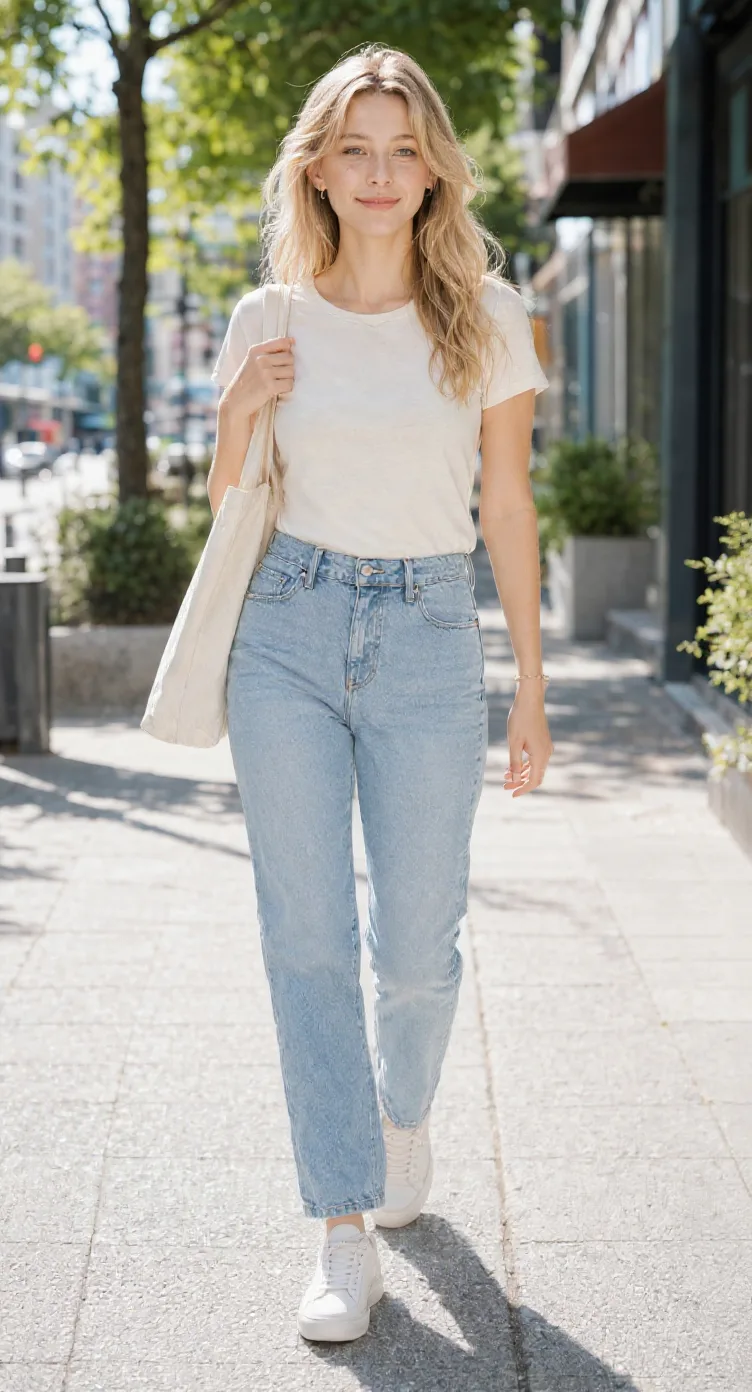
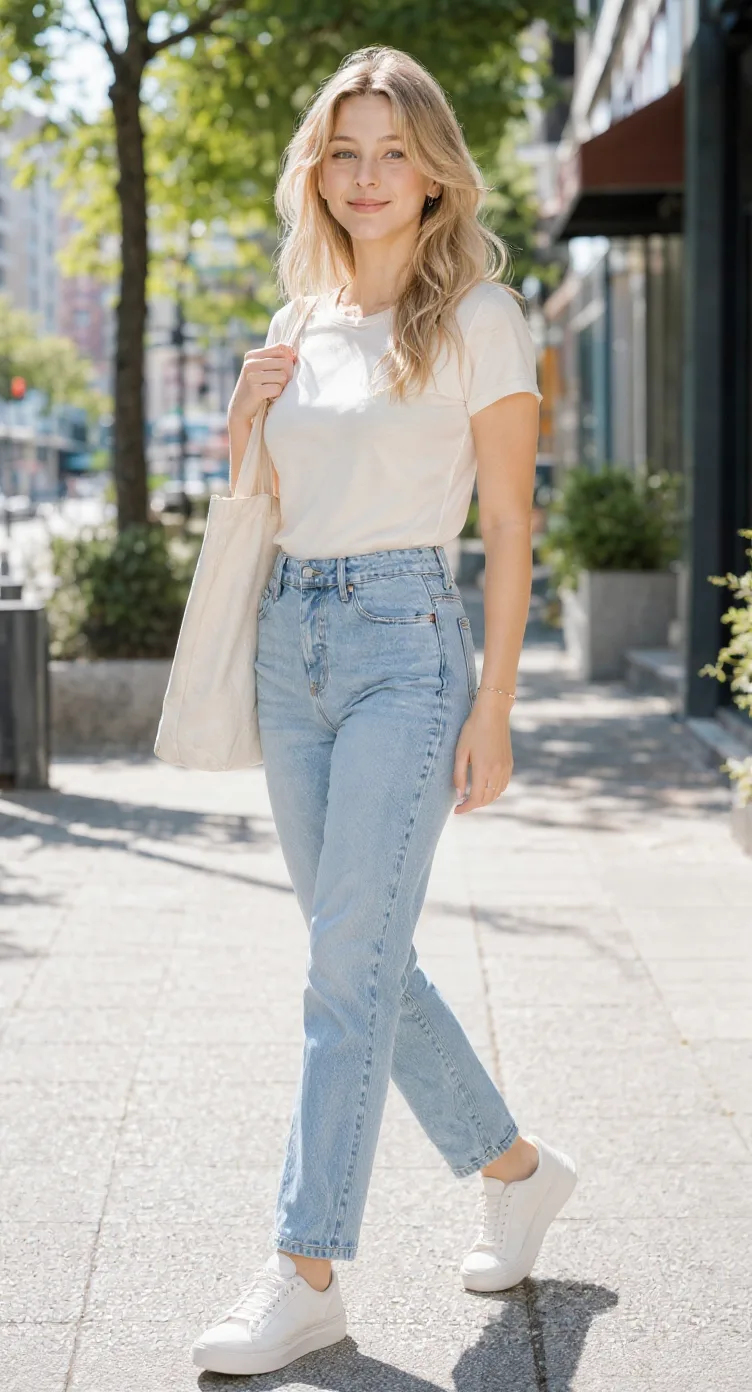
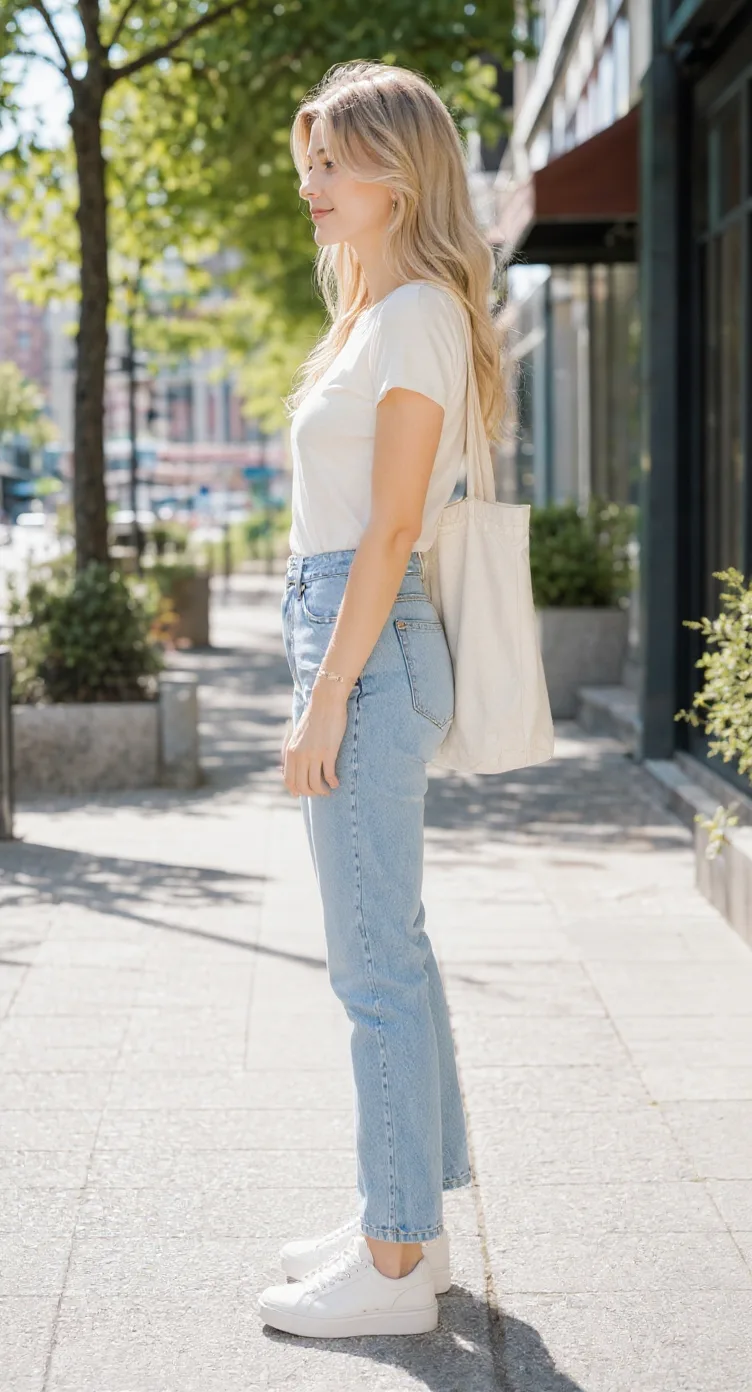
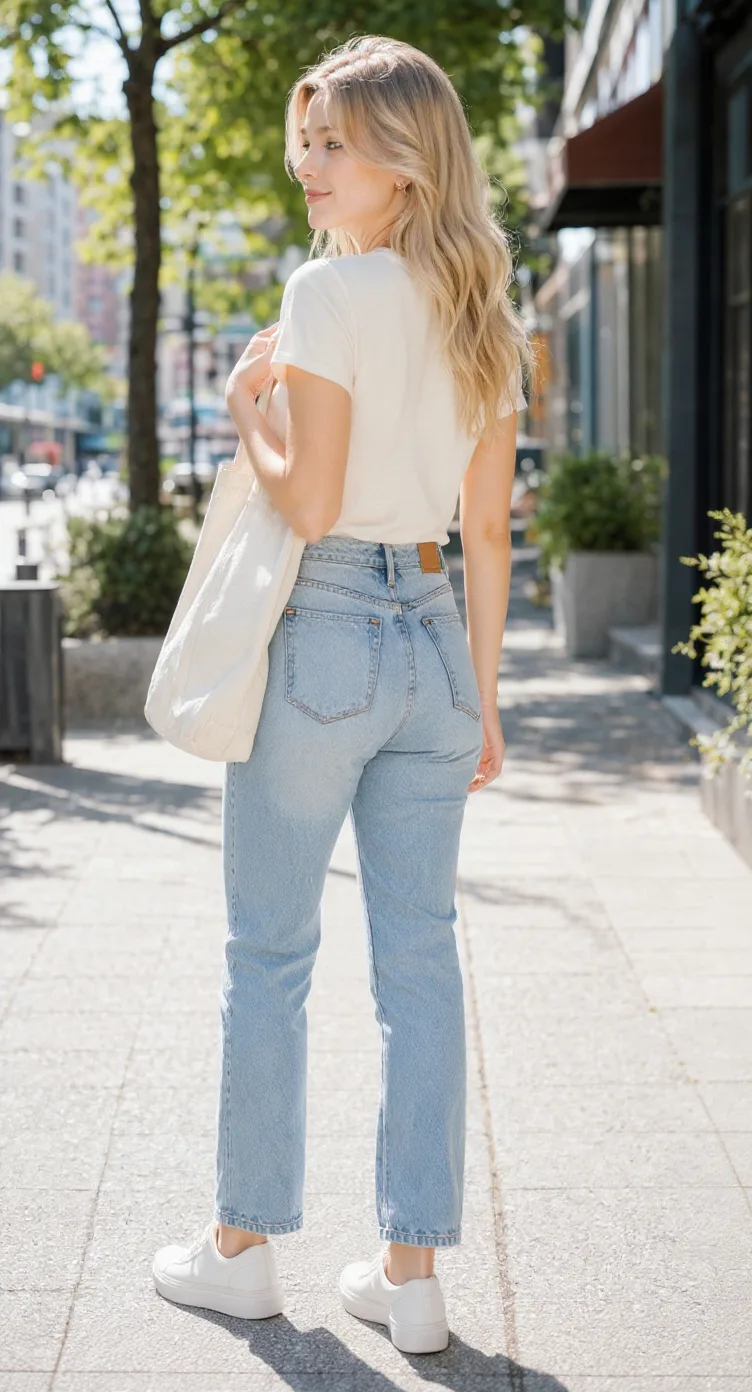
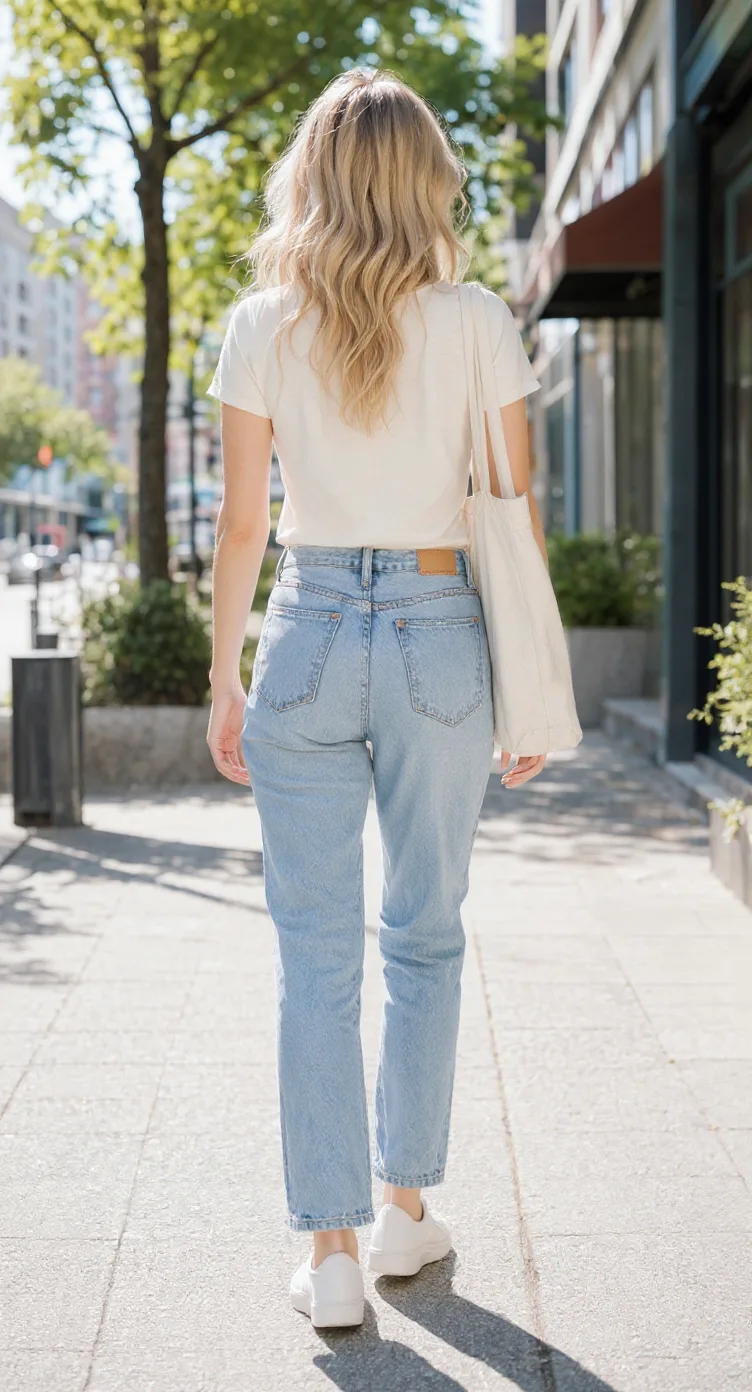
AI-generated angles are visual interpretations. Details hidden in the original image may change or be invented.
From One Image to Multiple Views
This existing example pairs a single character image with a five-view reference sheet. Use it to understand the workflow: start from visible design cues, generate other perspectives, and review inferred details.
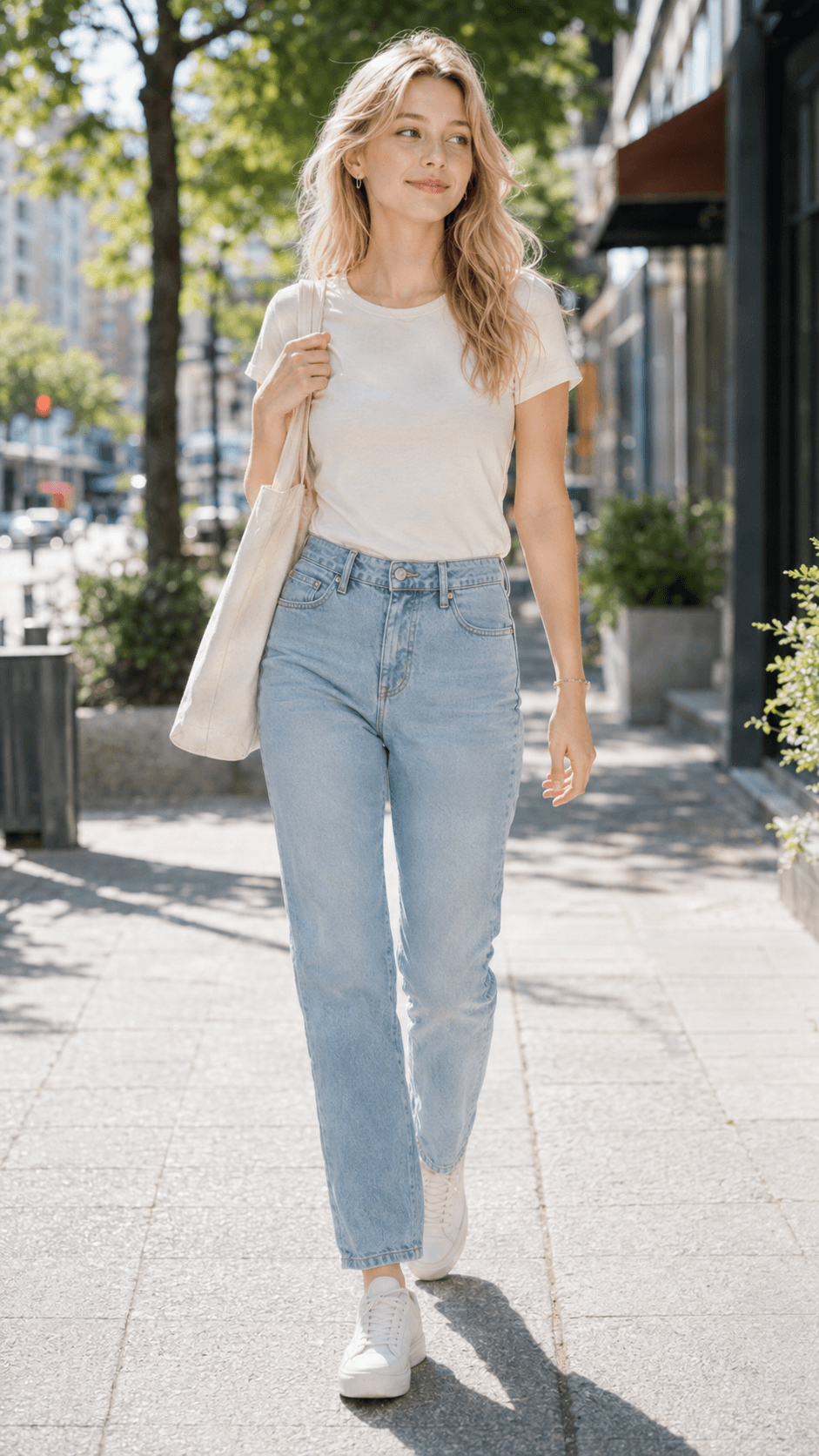
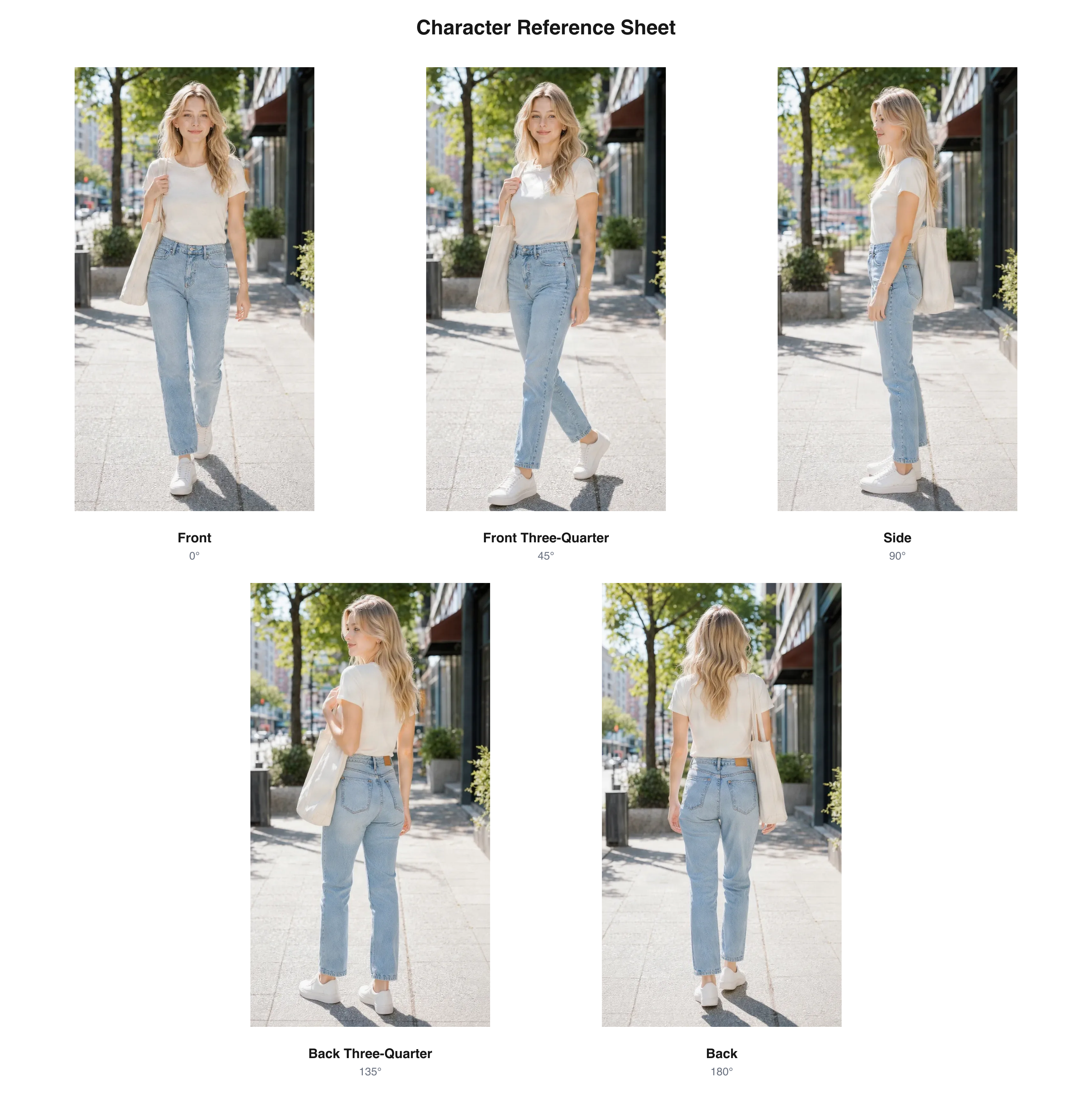
The views are based on the source character image. Face, outfit, proportions, or unseen features may differ across generated angles.
The back and side details that are not visible in the input are AI interpretations, not recovered original artwork.
Already Have a Character?
Maybe you made an original character for a game, created a fantasy adventurer for a story, or found the perfect design in an AI image generator. You love the design, but only have one picture. Drawing a side or back view can feel like designing the character all over again.
You want the same hairstyle, outfit, proportions, and accessories—even when the character faces away. An image-to-character-turnaround workflow uses your existing picture as a visual starting point to explore those missing perspectives. Review the results, decide which details work, and continue developing your character from there.
Keep the design you started with. Explore the views you haven't drawn yet.
Simple Multi-View Generation
Start with your existing character art, generate the angles you are missing, and review the result as a visual reference.
Choose the original character image you want to use. A clear, full-body illustration is helpful when you need full-body front, side, and back references.
Select Standard for front, side, and back. Choose Consistency Mode for those views plus front and back three-quarter perspectives.
Choose Neutral Standing, T-Pose, A-Pose, or Match Original. The pose setting guides how the character should appear across the generated references.
AI analyzes visible design information and creates the selected perspectives. Details from viewpoints you did not provide are estimates.
Check the face, hairstyle, outfit, accessories, proportions, and art style across the images. Pay special attention to areas hidden in the original.
Download the available images for drawing, concept development, animation planning, or 3D modeling reference.
Convert My Character Image
Five Viewing Angles
Choose the essential directions or add intermediate views to explore how your character's design may continue around the body.
See facial features and clothing placement from the front. Useful for checking the main design and body proportions.
Combine front-facing details with side depth. Explore facial volume, hair shape, and clothing from a more dimensional angle.
Explore the profile, hairstyle depth, clothing silhouette, and accessory placement.
See how the outfit and silhouette transition toward the rear.
Explore how the hairstyle, outfit, and other elements might appear from behind. Unseen details are AI-generated interpretations.
Standard includes front, side, and back. Consistency Mode adds the two three-quarter views.
Use the existing illustration as a starting point for other directions, then refine the generated references instead of rebuilding the design from zero.
Additional views can help you explore areas a front-facing image does not show, such as the back of a jacket, cape, dress, or backpack.
A character's outline can change substantially from the side or rear. Multi-angle images help you inspect those changes.
A set of views can communicate a design to a collaborator more clearly than a single portrait.
Start with anime, cartoon, fantasy, or another illustration style you already use.
Generated interpretations can give you options to review when you have not designed the missing side or back view yet.
Start with Your Own Character
Upload an illustration from your drawing app and explore additional views of your own design.
Use an existing AI-created character as a visual starting point, provided you have the rights to use it.
Explore anime-style characters from other directions while reviewing continuity in the face, hair, and clothing.
Create reference views for stylized characters with expressive shapes and simplified proportions.
Explore additional perspectives for adventurers, knights, mages, creatures, and other fantasy designs.
Use an existing render to explore visual references from other directions. The result is a set of images, not a modified or newly created 3D model.
If the source only shows the head or upper body, it may not provide enough information for reliable full-body references.
Select the view set that matches the amount of reference detail you need.
Front, side, and back. Choose this for essential directions, a missing profile, or a first look at an outfit from behind.
Basic character development, profile exploration, outfit review, and personal references.
Front, front ¾, side, back ¾, and back. Choose this for more intermediate references and a clearer picture of how a design may change around the body.
OC development, drawing from more angles, sharing references, costume exploration, and concept-art planning.
The current workspace shows the applicable credit charge before generation. Standard is 90 credits and Consistency Mode is 150 credits under the current configuration.
Explore how an OC with a distinctive face and outfit could look from other directions.
Build more visual references from an existing character image instead of restarting each angle from a text prompt.
Plan hairstyles, outfits, and silhouettes for characters that appear from multiple directions in illustrations or panels.
Explore concepts before designing sprites, portraits, or models. Generated images are references, not ready-to-animate sprite sheets.
Use additional views to communicate ideas to an artist, and review AI-invented details before treating them as final decisions.
Use generated views as conceptual references, correcting alignment and proportions as needed for precise modeling.
Character Consistency Matters
Compare the defining details across the views. AI can still introduce differences, especially when creating angles that were not visible in the source.
Check face shape, eyes, ears, nose, and other defining features.
Compare bangs, parting, length, volume, and hair accessories.
Check clothing layers, sleeves, collars, belts, shoes, armor, and recognizable elements.
Review the main palette, including clothing and accessory colors.
Compare head size, torso length, limb proportions, and the overall silhouette.
Check whether the images still feel like the same character design.
These are visual checks to perform after generation. Exact identity and detail consistency are not guaranteed.
Better Input, Better Results
Avoid excessive blur, strong visual effects, or images where multiple people overlap.
If the outfit matters, make sure it is visible in the source image.
A relaxed standing pose generally shows more useful body information than a highly foreshortened action pose.
A head-and-shoulders portrait gives AI limited information about the rest of the character.
Show distinctive gloves, boots, armor, jewelry, or equipment clearly whenever possible.
The back often contains the most inferred information. Decide whether the interpretation matches your design.
A result may look convincing on its own but show inconsistent details beside the other angles.
Know What to Expect
The tool can only see the parts of your character shown in the uploaded picture. It does not know the actual side or back view unless those details are visible in the input. AI estimates how the character might look from other directions, so a jacket, hairstyle, accessory, or body proportion may be reinterpreted.
The results are not a complete 3D model and do not automatically provide an editable mesh, rig, animation, or mathematically exact orthographic projections. Treat them as visual references that may need correction before production use.
You provide the character. AI helps explore the missing views. You approve the final design.
Choose the Right Character Workflow
These tools solve different parts of character development. Choose based on what you already have and what you need next.
Start with one existing character image and generate front, side, back, and optional three-quarter views.
Prepare a broader character design reference that may include multiple views and other defining details.
Generate a focused profile view when one additional direction is all you need.
Create a 3D asset through a separate modeling workflow. A turnaround image set is not itself a 3D model.
Choose an image-to-turnaround workflow when you already have character art and want visual references for directions that are missing.
Small images make facial features, costume patterns, and accessories harder to interpret.
Unseen areas are inferred. Review and edit them before treating the views as approved design specifications.
Strong perspective and foreshortening may make proportions harder to compare across views.
A set of viewing angles is not a sprite sheet, animation sequence, or rigged character.
The generated images are visual references and may not have precise camera alignment or dimensions.
Compare the images side by side and note differences in face, outfit, accessories, colors, and proportions.
Upload one character image, choose Standard for three views or Consistency Mode for five views, select a pose, and generate. AI creates additional perspectives based on your image. Review the results before downloading.
Yes. One source image is enough to start. The tool uses it as a visual reference and estimates the missing angles. Unseen details may be invented by AI.
Yes. Standard mode creates front, side, and back references from one uploaded image. Consistency Mode adds front and back three-quarter views.
You can upload supported character drawings, illustrations, AI-generated artwork, and character renders. A clear image with the complete character visible generally provides a more useful reference.
Yes, if you have permission to use the image. Upload it as the source for additional perspectives, then check the generated views for changes to the face, outfit, and identifying features.
The workflow aims to preserve recognizable facial features, but exact identity consistency is not guaranteed. Eye shape, face proportions, and other details may vary.
The original image guides clothing and hairstyle continuity. AI may reinterpret details, especially when the side or back of the outfit is not visible.
It does not know the exact original design. It generates a plausible back view using visible information and learned patterns. Approve or revise inferred details before treating them as final.
You can start with a portrait or partial-body reference, but it provides less information about the complete body and outfit. Use a clear full-body image when you need full-body views.
The current workflow offers three views in Standard mode or five views in Consistency Mode. Standard includes front, side, and back; Consistency Mode adds two three-quarter perspectives.
The workspace includes T-Pose, A-Pose, Neutral Standing, and Match Original options. They guide the requested pose, but the generated images should still be checked for consistency.
Yes. Anime-style artwork can be used as a source to explore the character's hairstyle, clothing, face, and silhouette from other directions.
They can serve as planning references, but they are not finished animation frames, rigging layers, or a complete animated sprite sheet.
You can use them as conceptual modeling references. They are not guaranteed to be perfectly orthographic or dimensionally aligned, so correct them before precision modeling.
No. It generates 2D reference images from different directions. It does not produce a 3D mesh, bones, rig, or rotatable 3D asset.
The current workflow supports three-view and five-view options. It does not offer a standard eight-view turnaround.
Under the current configuration, Standard costs 90 credits and Consistency Mode costs 150 credits. The workspace displays the applicable charge before generation.
Commercial use depends on your rights to the source character, the service terms, and any third-party intellectual property involved. Make sure you have the required rights before using the results commercially.
Learn about turnaround views and create front, side, back, and three-quarter references.
Character Turnaround GeneratorOpen the dedicated AI turnaround workspace and explore its available view options.
Character Model Sheet GeneratorPrepare a broader set of character references for design and production planning.
Anime Character Turnaround GeneratorExplore multi-angle references for anime-style character artwork.
Bring Your Character into View
You've created the design. Now explore how it could look from the front, side, back, and in between. Upload a character image, choose the views you need, and create a turnaround to guide your next creative step.
Generate 3 or 5 AI-assisted reference views from one image. Review consistency and hidden details before using the results in a creative project.
One cute character, more ways to see it
A real example of one chibi character explored from five directions. Compare its hairstyle, outfit, proportions, and accessories across the generated views.
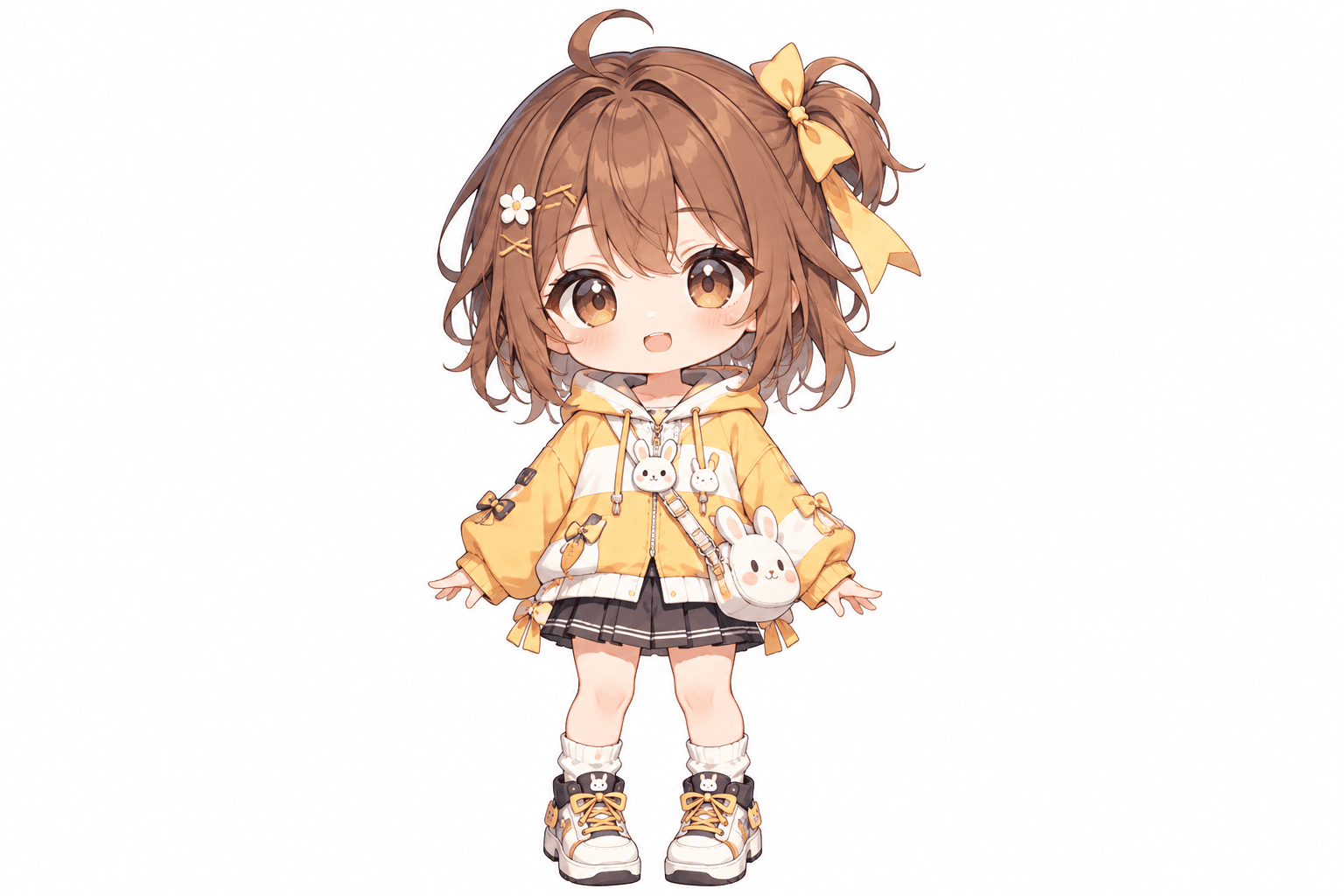
This cheerful chibi girl has oversized eyes, fluffy brown hair, a yellow hoodie, and playful bunny accessories. Her bow, skirt, shoes, and little bag all contribute to the design. The additional views show how AI interprets the character from other directions.
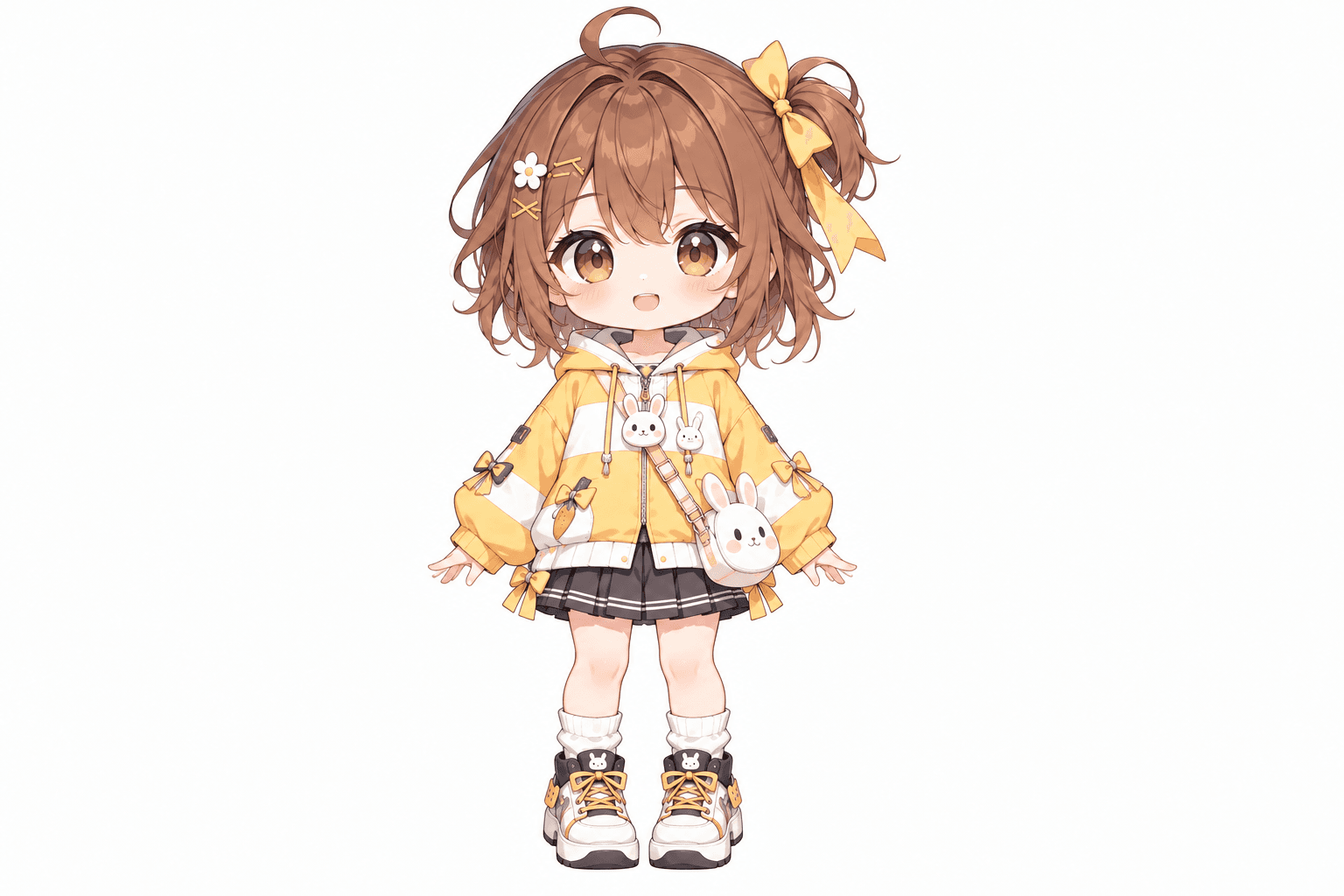
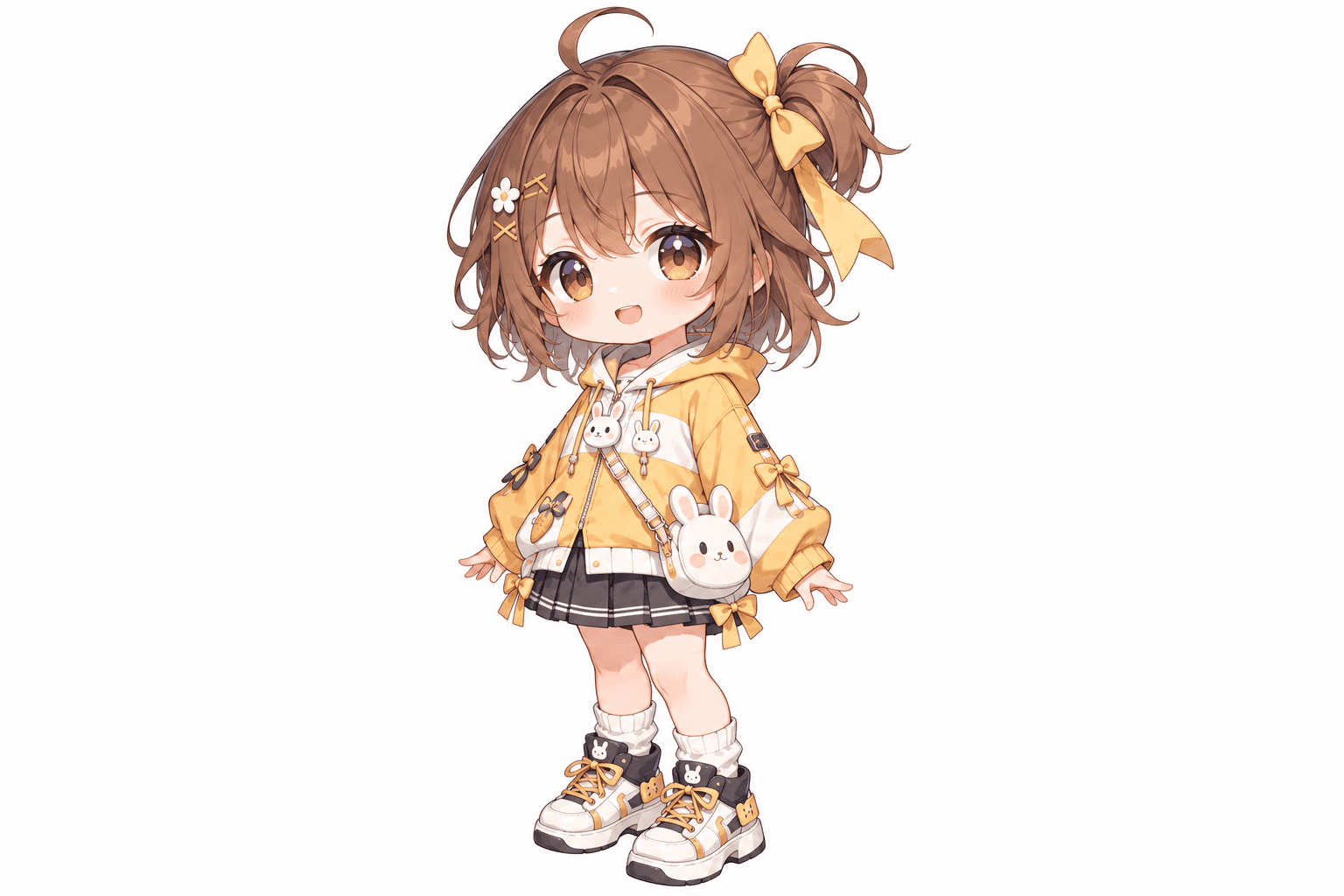
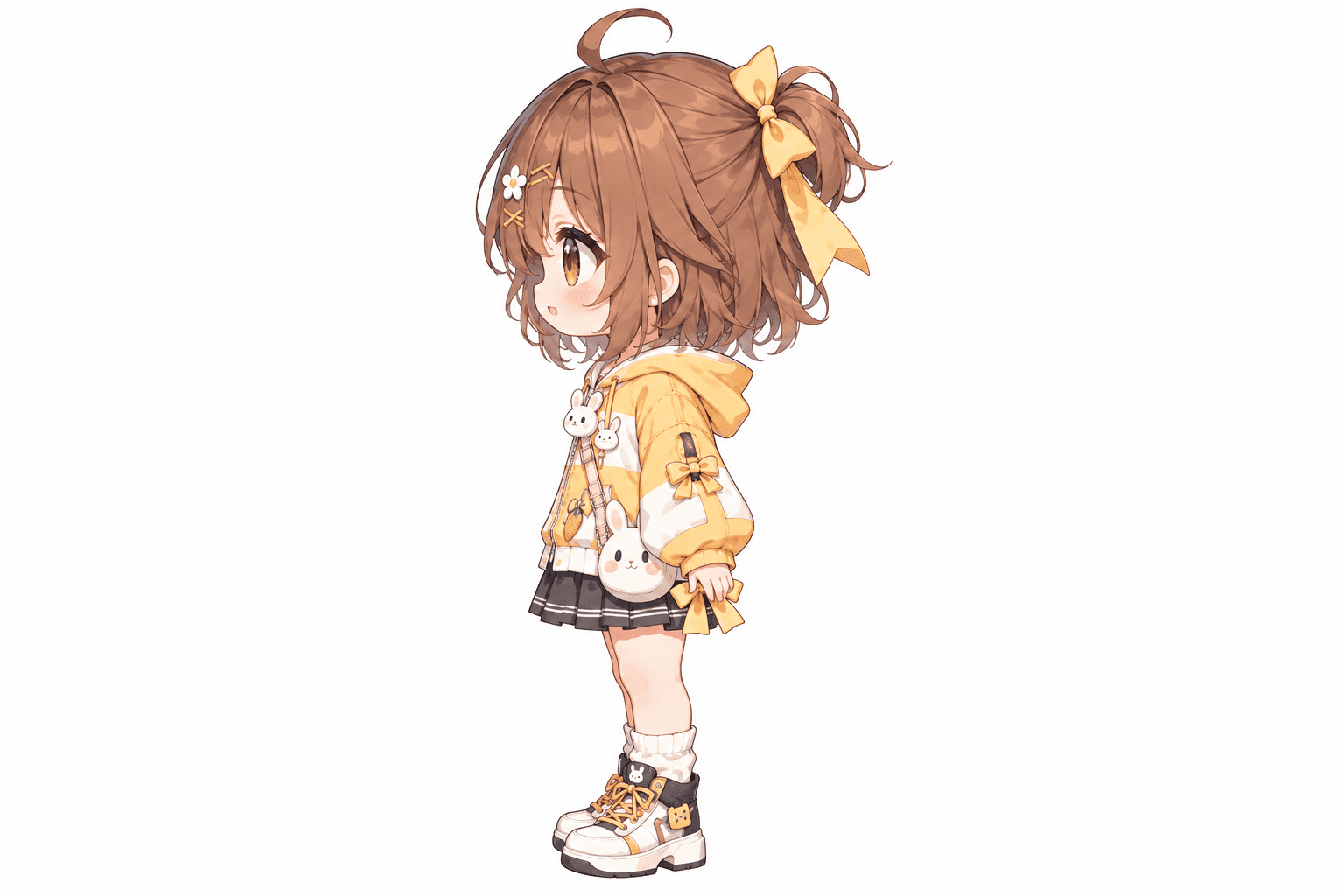
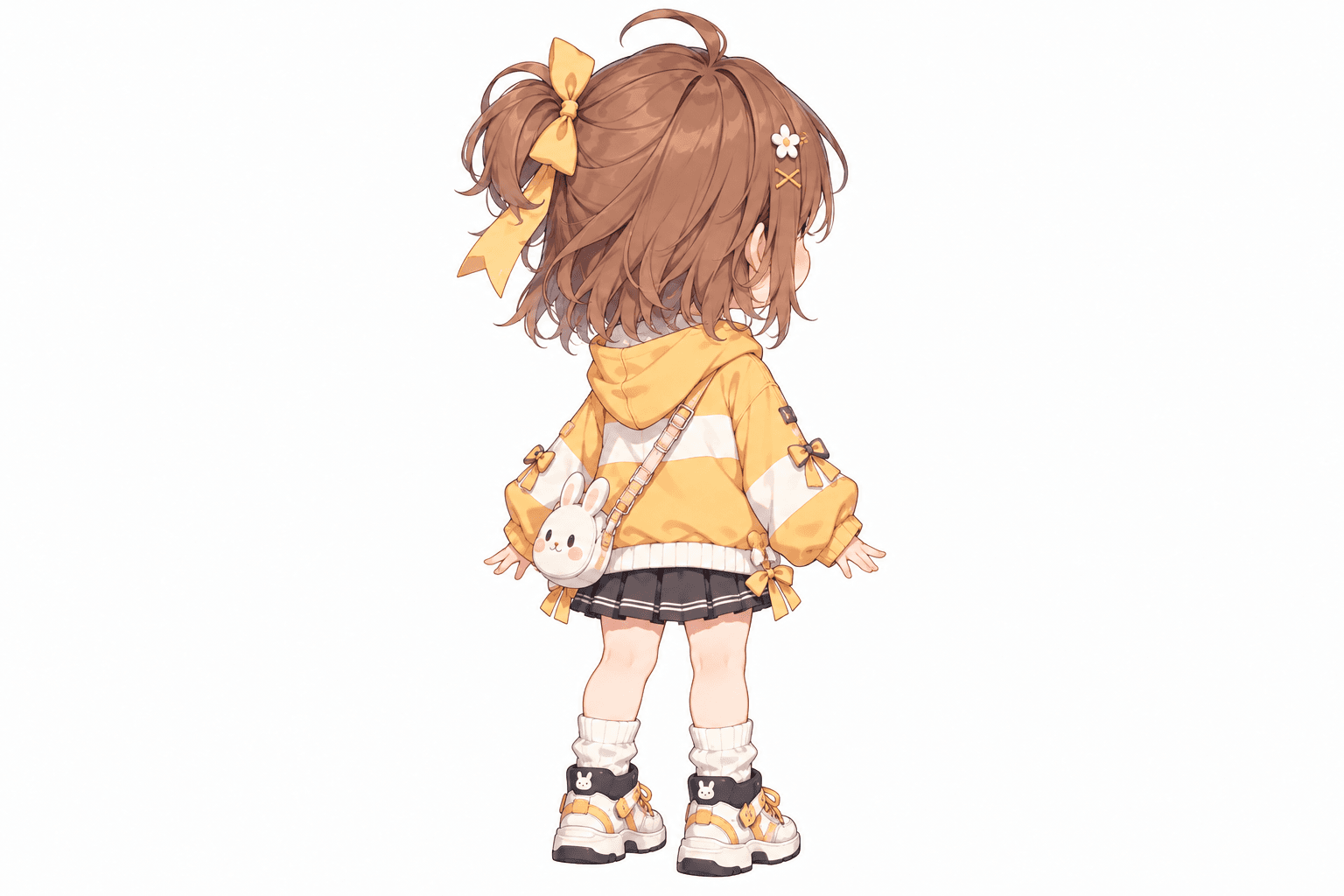
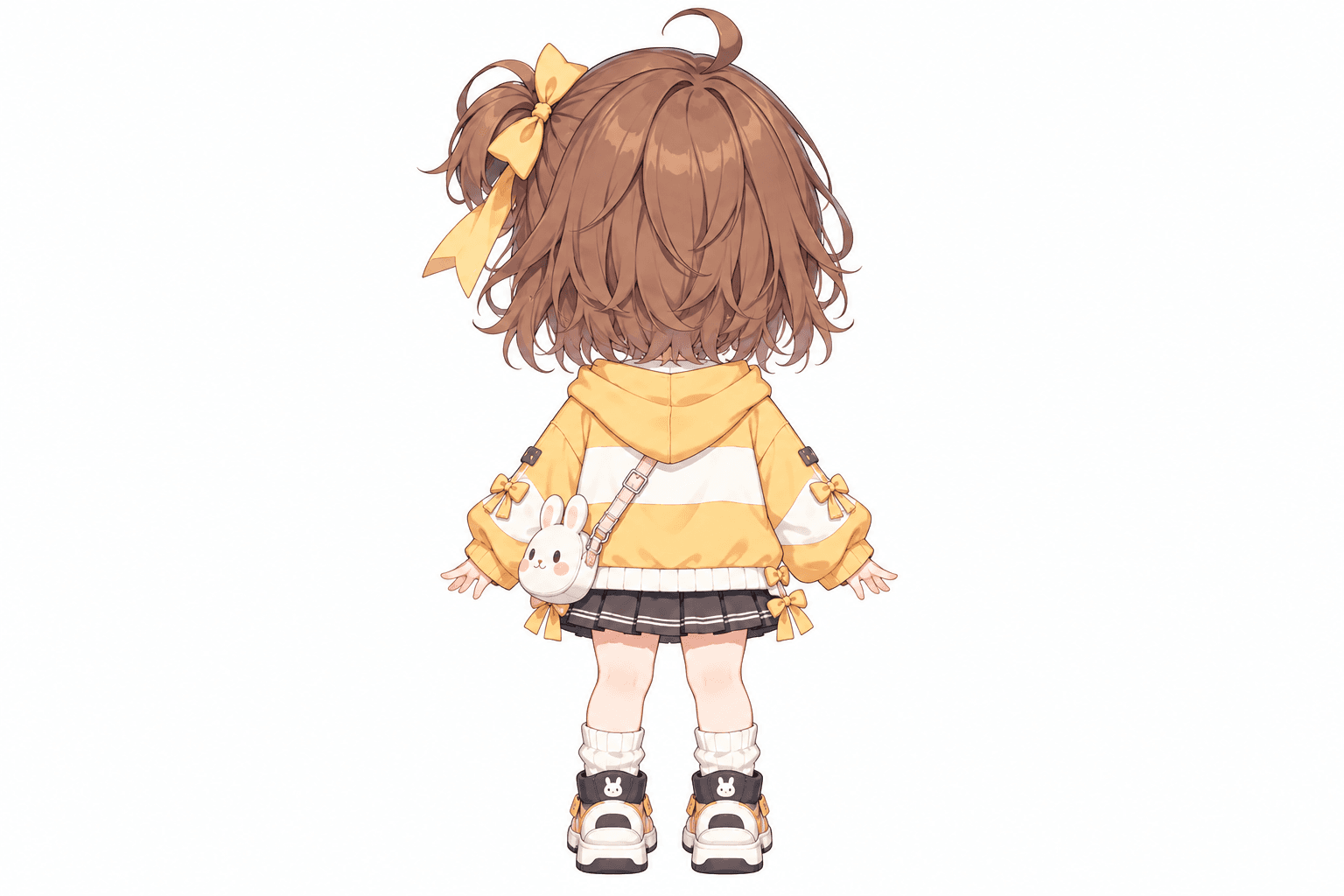
AI-generated turnaround
These five views were generated from the original image shown here. Details in hidden areas are AI interpretations and can differ from the source.
Front, side, back & 3/4 views in one run
Lateral, heel & outsole sneaker views
Front, side & rear model reference sheets
Share your original character in multiple views
Prepare multi-view references for model artists
Prepare character views for Blender and 3D modeling
Generate a rear perspective from a character image
Prepare multi-view references for 2D animation planning
Front, side & back references in a T-pose
Explore front, side & back views for cute chibi characters
Front, side, back & 3/4 views for anime characters
One left or right profile, 30 credits
Clean marketplace angles for listings
Interactive 360° rotatable spin view
Precise azimuth & elevation controls
Creative Toolkit Index
Quick access to precision layer extraction, AI photo editing & asset tools.